Jotform makes it easy to display answer choices in a clean and modern way with the Flat Checkbox Widget, which replaces standard checkboxes with button-style options that are clearer, more attractive, and easier to select on both desktop and mobile so your forms look better and feel smoother to use.
Here are a few ways to use it:
- Make multiple-choice questions clearer and more user-friendly
- Improve the appearance of product options, add-ons, or preferences
- Create a better experience for users filling out forms on mobile devices
- Make selectable options stand out in surveys, registrations, or applications
Whether you’re building a new form or editing an existing one, you can add and configure the Flat Checkbox in just a few steps. This is how it’s done:
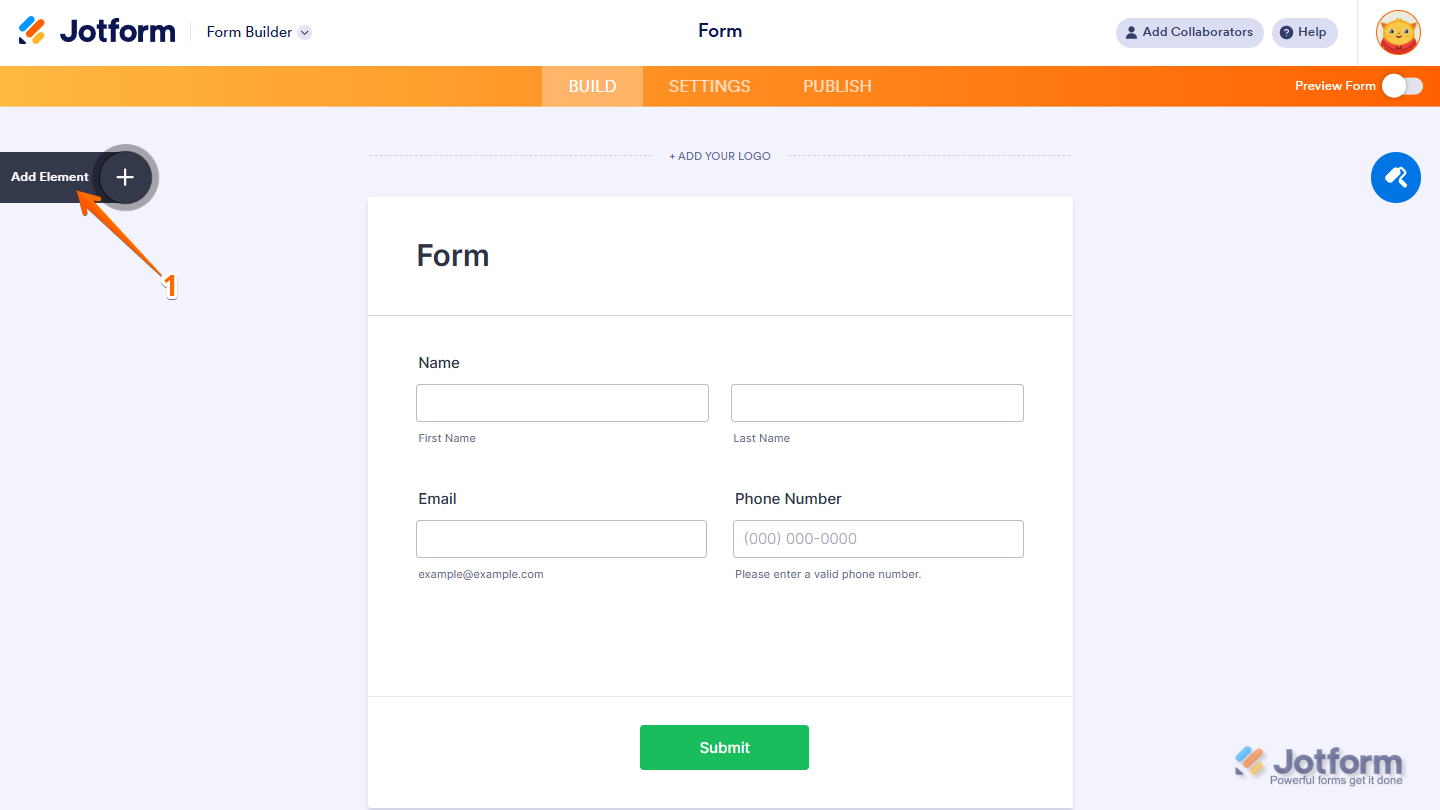
- In Form Builder, click on Add Element on the left side of the page.
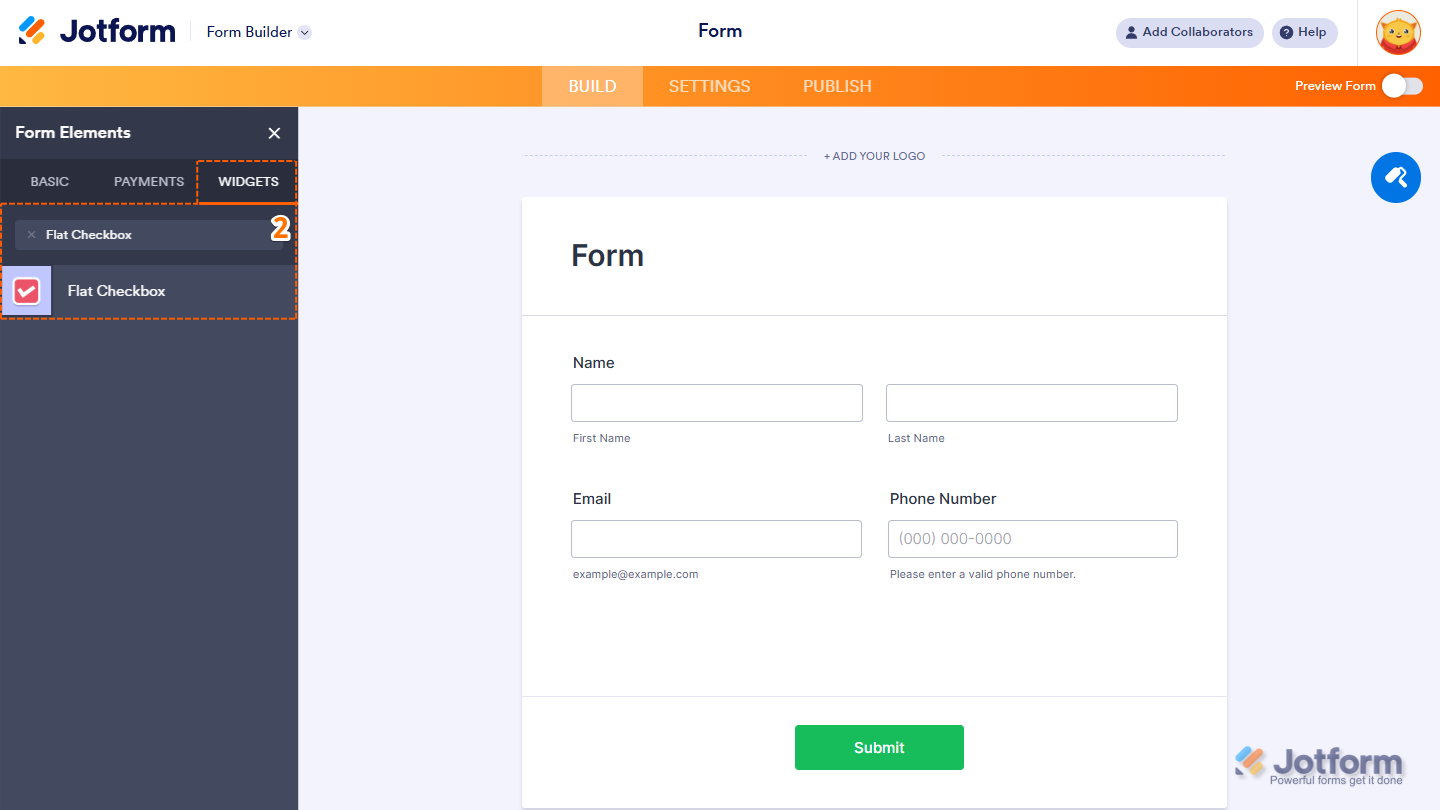
- Now, in the Form Elements menu, under the Widgets tab, search for Flat Checkbox, and then click on it. Or, just drag and then drop it to where you want it to be on your form.
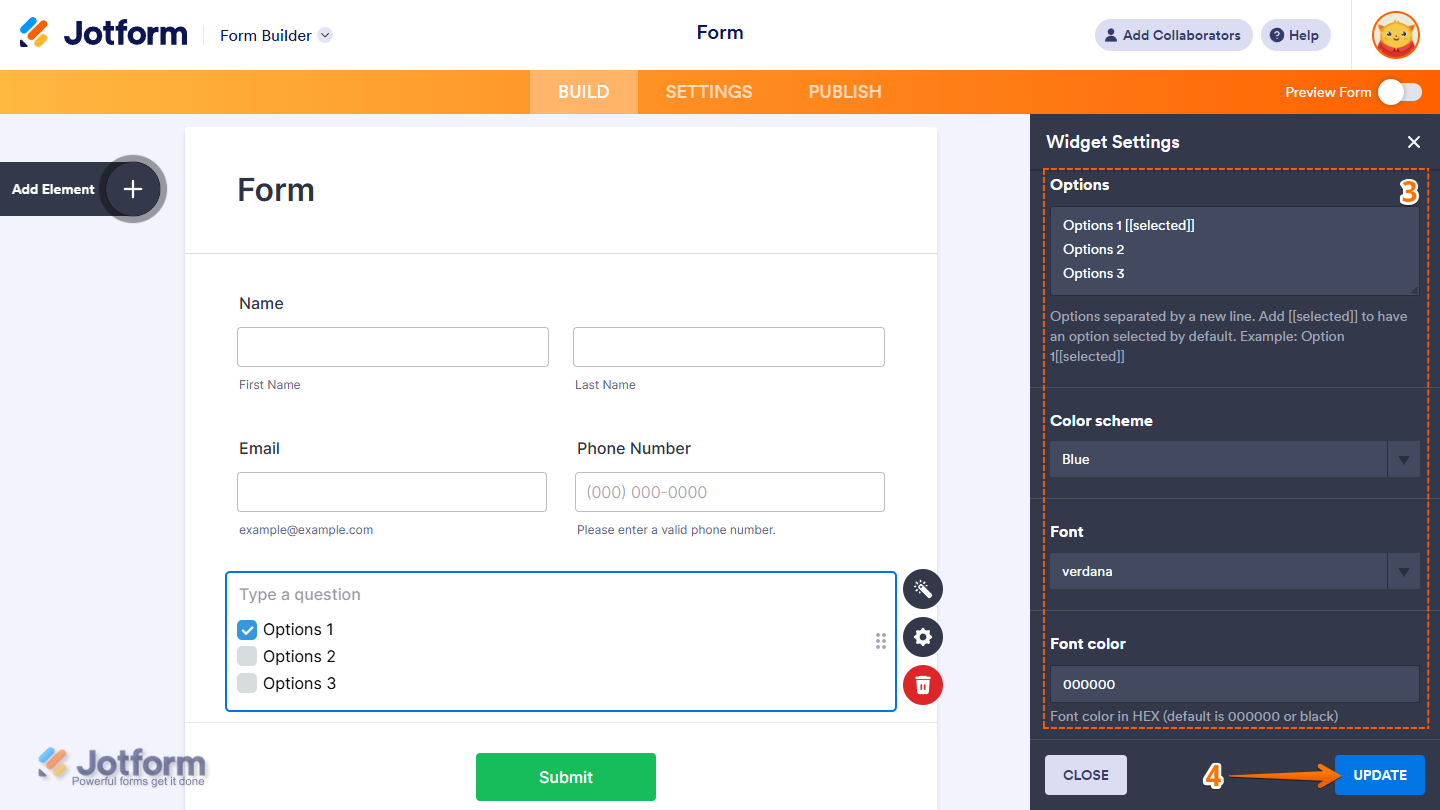
- Next, in the Widget Settings window that opens on the right side of the page, under the General tab, set up these options:
- Options — Type each option on a new line. To pick one by default, just add [[selected]] next to it. For example: Option 1[[selected]].
- Color Scheme — Pick the color style you want.
- Font — Choose the font for your checkboxes.
- Font Color — Set the text color for your options.
- Now, click on Update, and you’re all set.
That’s it! You’ve successfully added and set up the Flat Checkbox widget on your form. Wondering how it looks in action? Check out this Demo Form.
Note
- For advanced styling of the Weekly Planner widget, you can add your own custom CSS code under the Custom CSS tab in the Widget Settings. Our guide on How to Inject CSS Codes to Widgets walks you through everything.
- You can also configure the widget properties, like alignment, labels, size, visibility, and more, to control how it looks and behaves in your form. Check out our guide on How to Access and Configure the Question Properties of a Widget to learn more.

Send Comment: