The Embed feature in the Report Builder makes it incredibly easy to display your reports right on your website or content platform—whether that’s Medium, WordPress, or any place that supports embedded content. And the best part, you don’t need to touch a single line of code.
With just a quick copy and paste, you can showcase dynamic, customizable Visual Reports that automatically update as new submissions come in. It’s a simple, powerful way to keep your data accessible and up to date, and honestly, one of the most useful free tools you can take advantage of when working with online forms.
Enabling the Embed Feature of the Visual Report
If your Visual Report’s access is set to Private Report or Company Access, the embed option will be turned off by default. To use the embed feature, you’ll need to switch the report to Public first. It’s easier than you think:
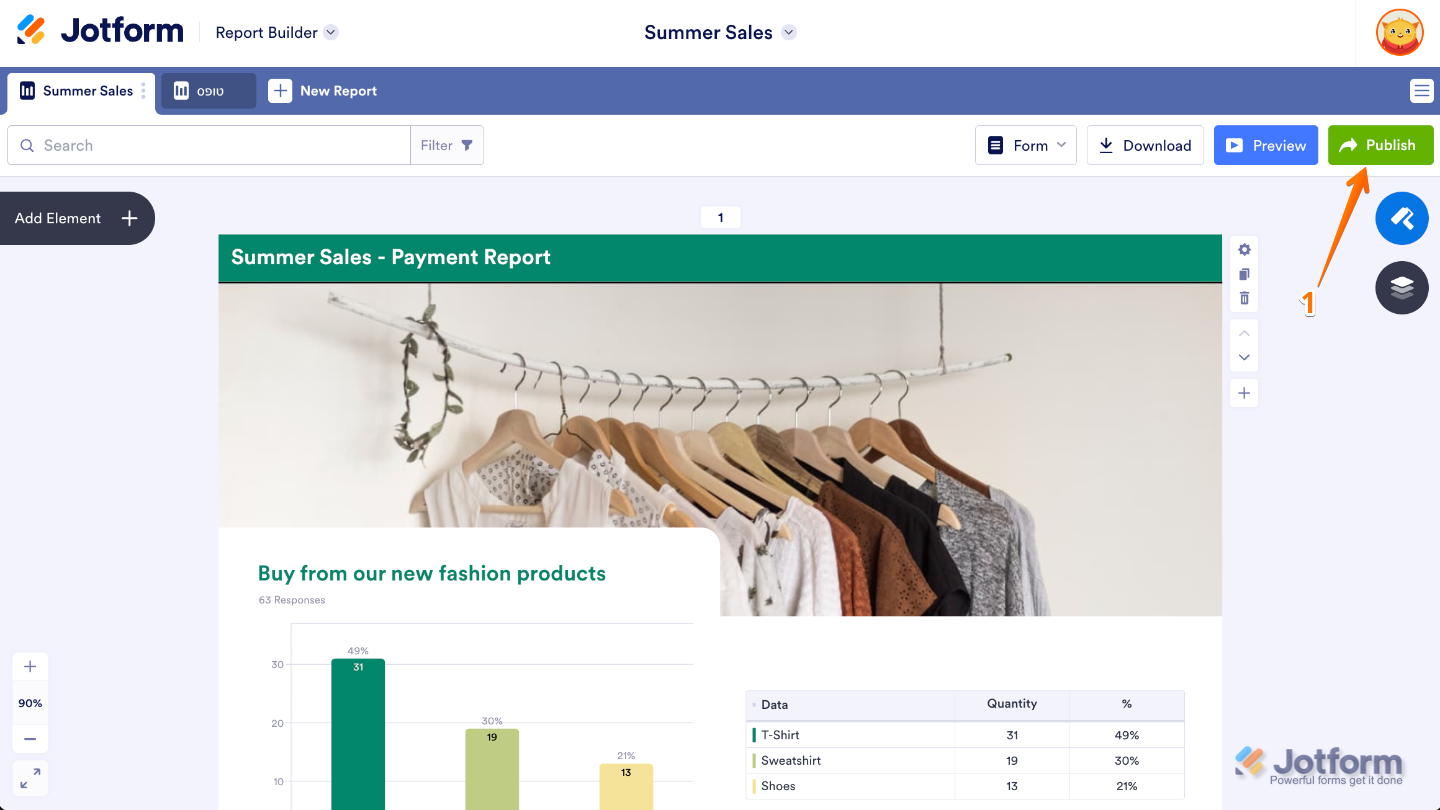
- In Visual Report Builder, click on Publish on the right side of the page.
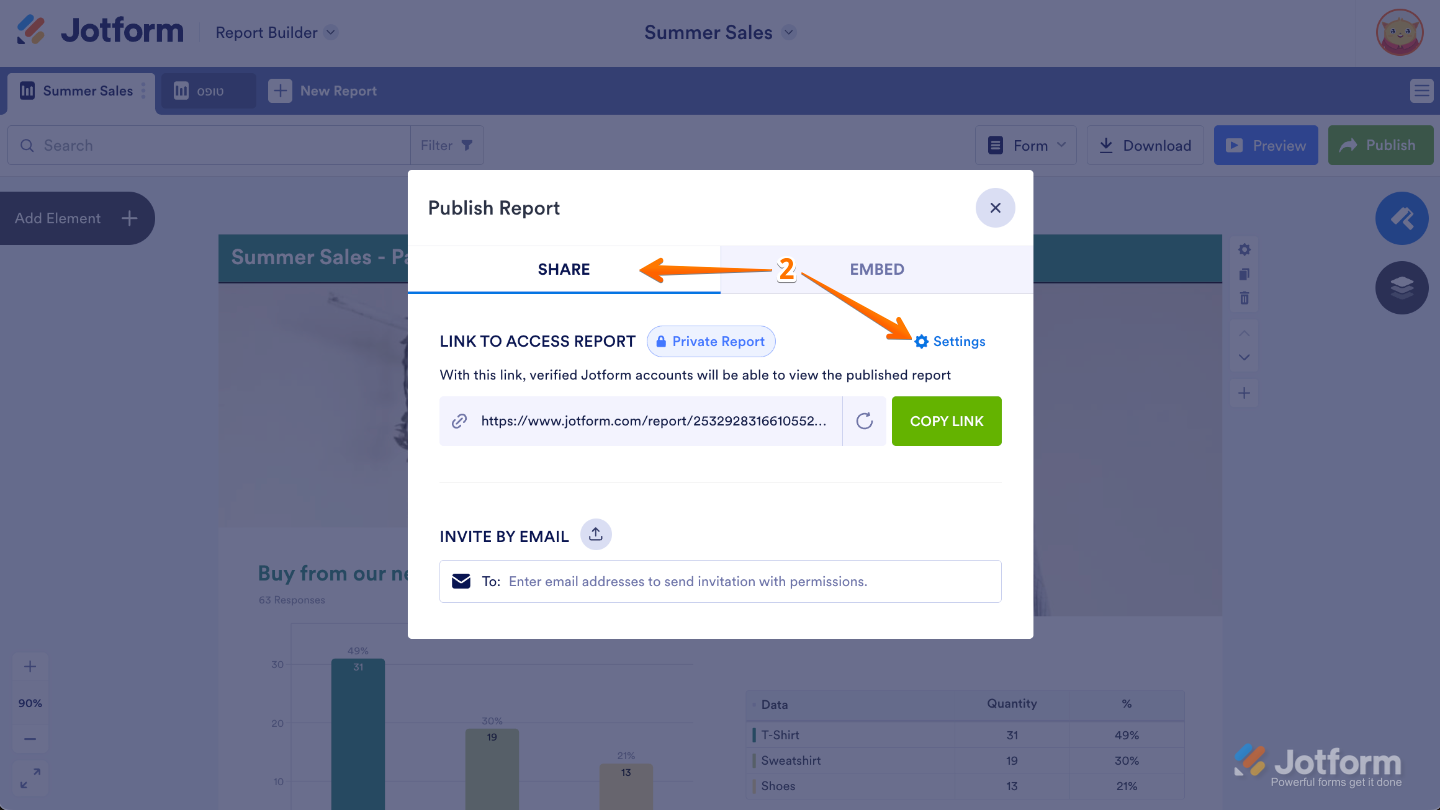
- Then, in the window that opens up, under the Share tab, click on Settings.
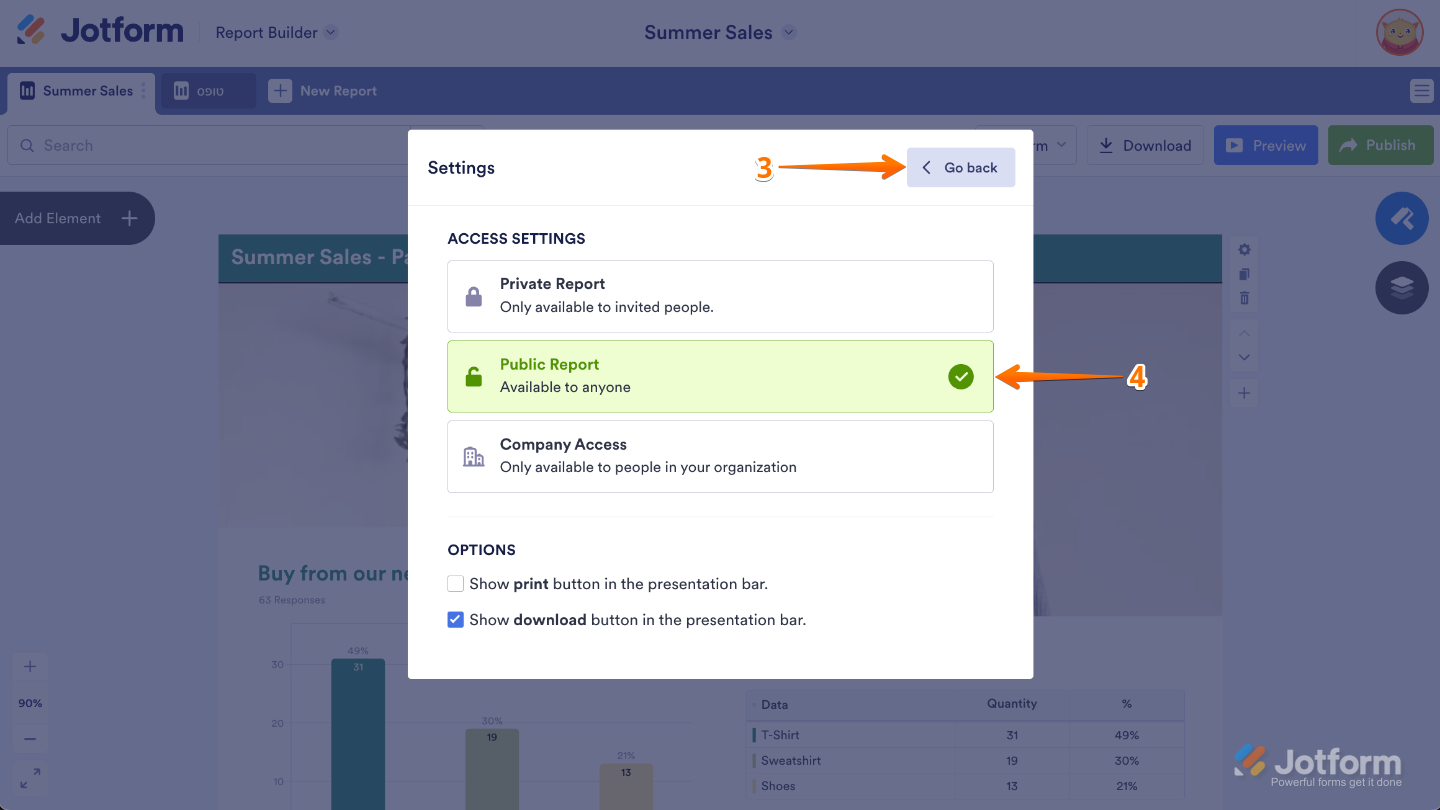
- Under the Access Settings section, click on Public Report.
- After that, click on the Go Back button at the top.
Ways to Embed the Visual Report
You’ll have a couple of sharing options to choose from. You can grab the Embed code to place the Visual Report directly on your site, or use the dedicated WordPress and Medium links if you’re publishing on those platforms.
Getting the Embed Code
This is where you can access the exact snippet of code that lets you place your Visual Report directly on your website or blog. Here’s a quick how-to:
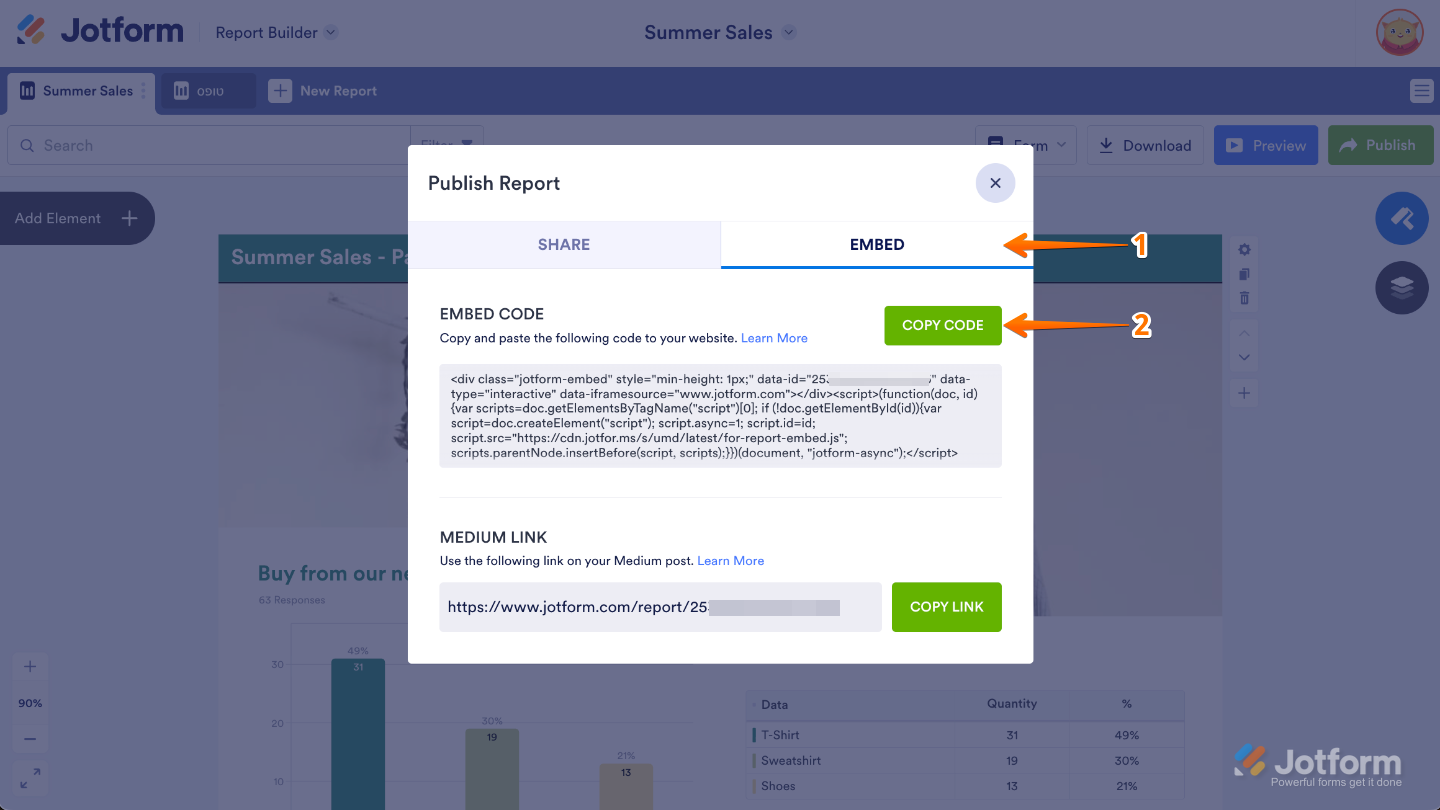
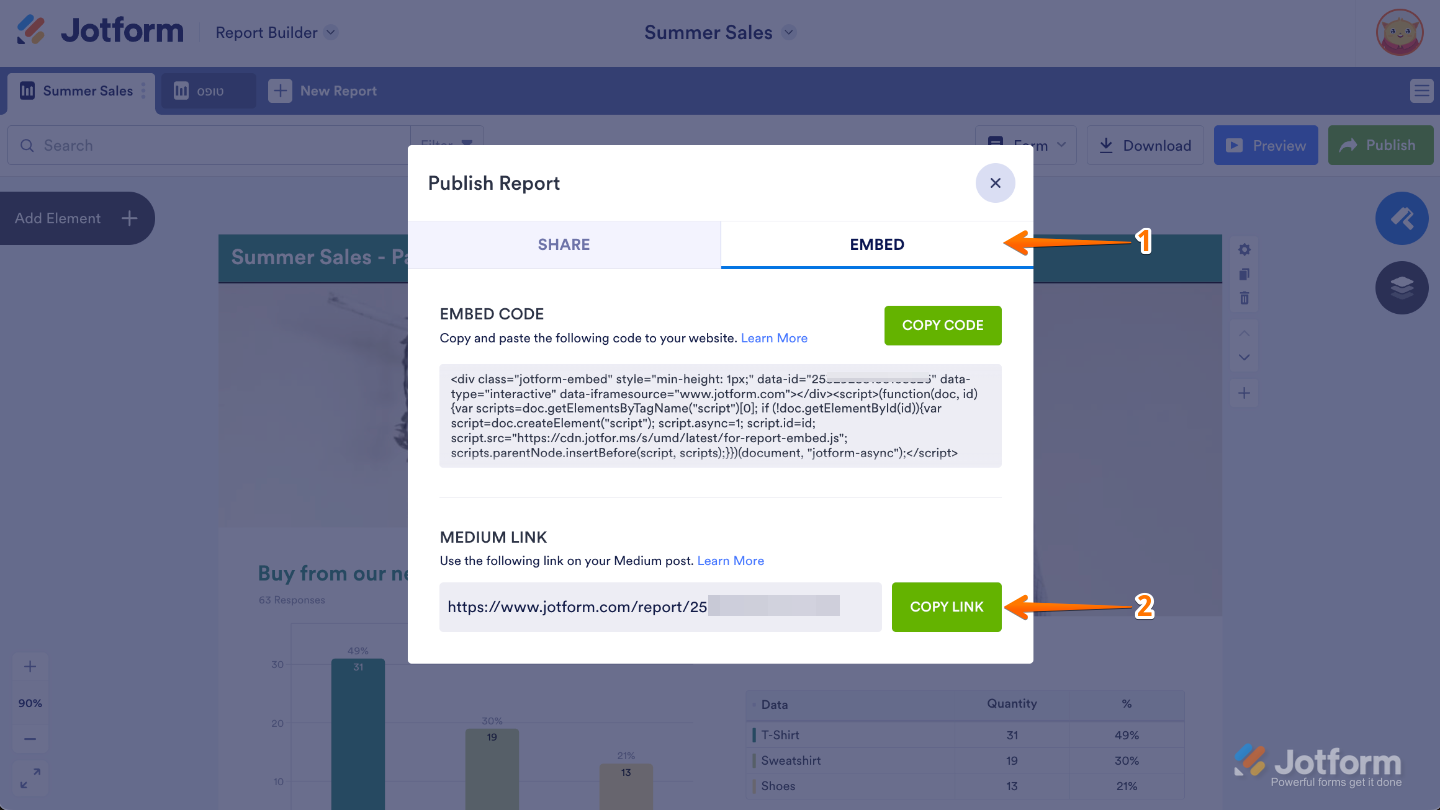
- In the Publish Report window, click on the Embed tab.
- Then, under the Embed Code section, click on the Copy Code button.
Getting the Medium Link
You can also copy the Medium-friendly URL that lets you embed your Visual Report directly into your Medium story. Here’s what to do:
- In the Publish Report window, click on the Embed tab.
- Then, under the Medium Link section, click on the Copy Link button.
For Medium, all you need to do is paste the link into your story and hit Enter. Medium will instantly recognize it and display your Visual Report right inside the page—no extra steps needed. It’s a smooth, effortless way to share your report. Below is a short GIF showing how it works:

Send Comment:
4 Comments:
More than a year ago
Hello everybody I would like to know Jotform is free in Dubai and tone one or it’s users I should have a new email with Jotform.com
More than a year ago
Can you embed the report on Sharepoint just like the form? It doesn't appear to have provide the iform code to allow it.
More than a year ago
Can these be embedded on the form itself? I want to show the previous responses of others to the new people filling out the form
More than a year ago
Can these visual reports be embedded in Joomla sites?