Accessibility Widget
Accessibility Widget Features for More Comfortable Browsing
Add visitor-controlled website accessibility tools for reading, keyboard navigation, color visibility, motion, and focus. Choose the features you want to offer, customize the floating assistant, and embed it on your website without coding.


Give Visitors One-Click Accessibility Presets
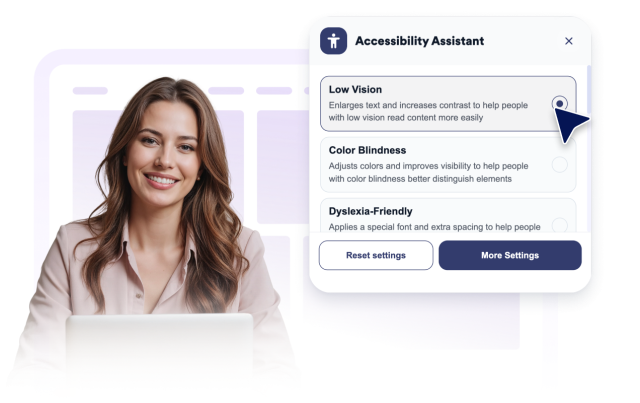
Help visitors apply several website accessibility adjustments at once. Offer ready-made presets for low vision, color blindness, dyslexia-friendly reading, seizure-safe browsing, reduced distractions, motor assistance, cognitive support, and keyboard navigation, with a one-click option for resetting changes.
Accessibility presets include:
Make Website Text Easier to Read
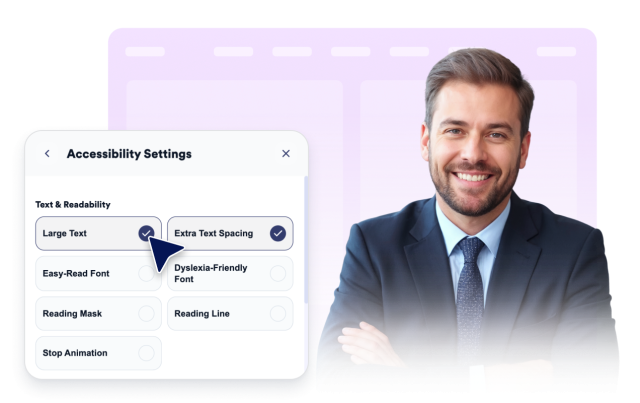
Give visitors more control over how written content appears on your website. They can enlarge text, increase spacing, switch fonts, or use reading guides to follow articles, instructions, product information, forms, and other content-heavy pages more comfortably.
Reading and text tools include:
Improve Keyboard, Motion, and Color Controls
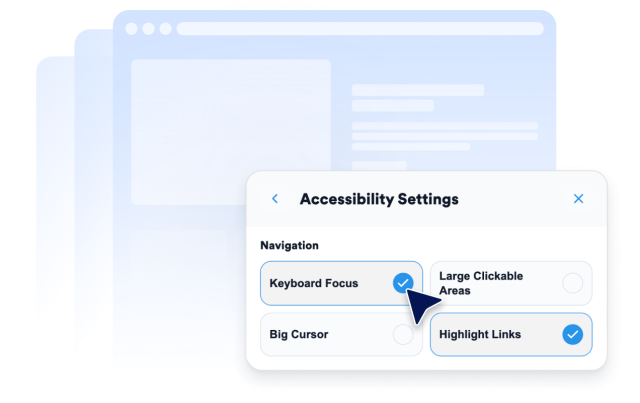
Make important website elements easier for visitors to identify and use. Offer keyboard-focus indicators, larger clickable areas, cursor adjustments, highlighted links, animation controls, and color or contrast modes that visitors can activate according to their browsing preferences.
Navigation and display tools include:
Match the Accessibility Assistant to Your Website
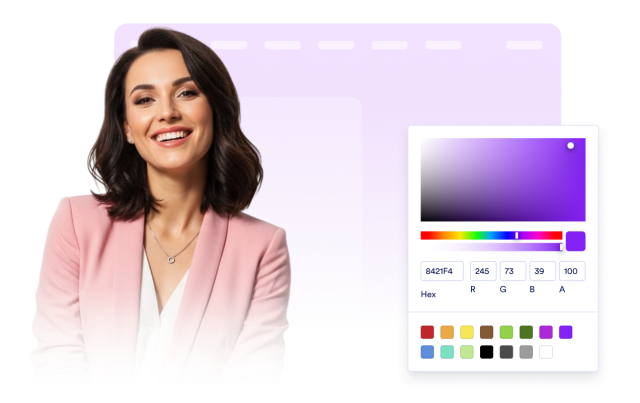
Create an accessibility panel that fits your website without hiding important content or navigation. Edit the panel copy and language, position the launcher, adjust colors and button styling, set display rules, and choose how long visitor preferences remain saved.
Widget customization includes: