Back to Top Widget
Create Your Own Back to Top Widget in Seconds for Your Website
Improve navigation on long web pages with a customizable back to top button. Choose its icon, colors, size, position, scroll trigger, and device visibility to create a smooth scrolling experience that fits your website.
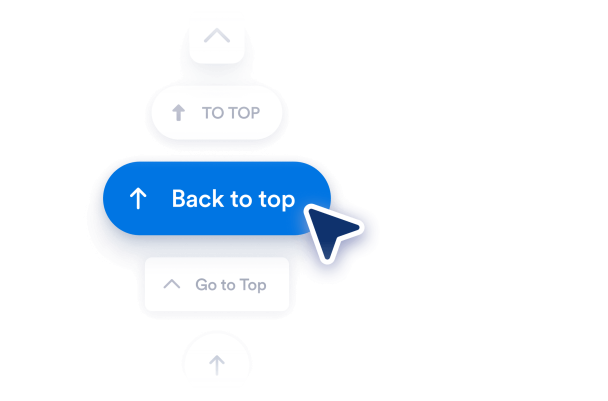

Simplify Navigation Across Long Website Pages
Give visitors a convenient way to return to the beginning of lengthy pages without manually scrolling. The floating back to top button remains easy to access as visitors explore articles, product collections, landing pages, documentation, and other content-heavy sections.
Useful for:
Bring Visitors Back to Key Content
Help visitors quickly revisit important content located near the top of your page, such as navigation menus, product filters, contact options, and calls to action. This creates a more direct browsing path without interrupting how visitors explore your content.
Help visitors return to:

Design a Button That Fits Your Brand
Customize your scroll-to-top button so it looks like a natural part of your website. Adjust the background and icon colors, button size, corner radius, and shadow to complement your branding and remain visible against your page design.
Design controls include:
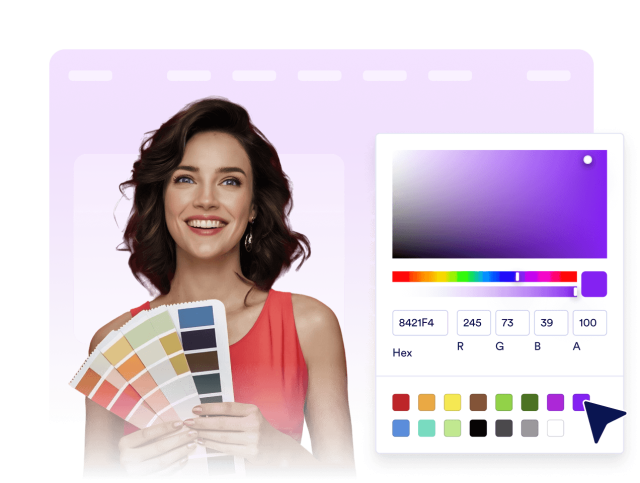
Control When and Where It Appears
Choose where the button sits on the screen and how far visitors scroll before it appears. Enable smooth scrolling and manage visibility across desktop and mobile devices to keep the button helpful without distracting from your website content.
Behavior controls include: