Disable Right Click Widget

Create Your Own Disable Right Click Widget in Seconds for Your Website

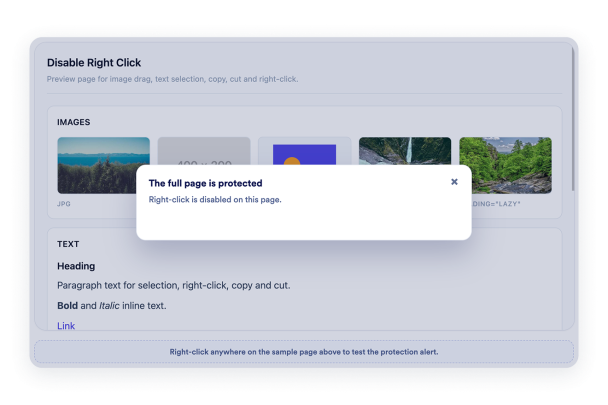
Choose what content to protect, block right-click actions, prevent image dragging, disable text selection, show optional alert messages, and control desktop or mobile behavior.

Create Your Disable Right Click Widget - It's Free!
Create Your Own Disable Right Click Widget in Seconds for Your Website Hero Bg Image

How to embed Disable Right Click Widget to WordPress

1Get your embed code

After customizing your Jotform website widget, click Try it on your website for free, and copy the generated embed code.

2Open the page editor

Go to the WordPress post or page where you want to display the widget, then add a new block.

3Add a Custom HTML block

Select Custom HTML and paste your Jotform Website widget embed code into the HTML field.

4Update and view

Click Update or Publish, then open the page to check your embedded widget.

Protect Images, Text, or Everything

Set the protection scope based on the page content. Keep the whole page covered, focus only on images, or limit text interactions.

Scope options include:

EverythingImagesText
Choose Protection Scope
Protect Images, Text, or Everything

Prevent Image Dragging

Discourage quick image saving by blocking drag actions on protected images when image or full-page protection is active.

Image controls include:
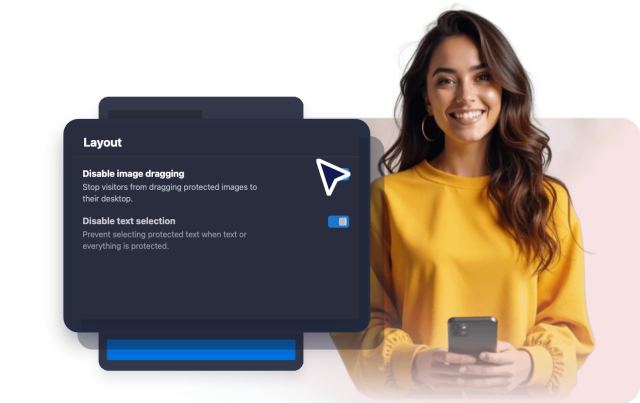
Right-click blockDrag preventionImage-only mode
Configure Image Protection
Prevent Image Dragging

Add a Clear Alert Message

Use a browser alert to explain that right-click is disabled, or leave the interaction silent for a less interruptive page experience.

Message options include:

Alert toggleEditable messageSilent blocking
Customize Alert Message
Add a Clear Alert Message

Tune Desktop and Mobile Coverage

Enable protection for desktop visitors, mobile visitors, or both so the widget works where your content needs it most.

Device options include:
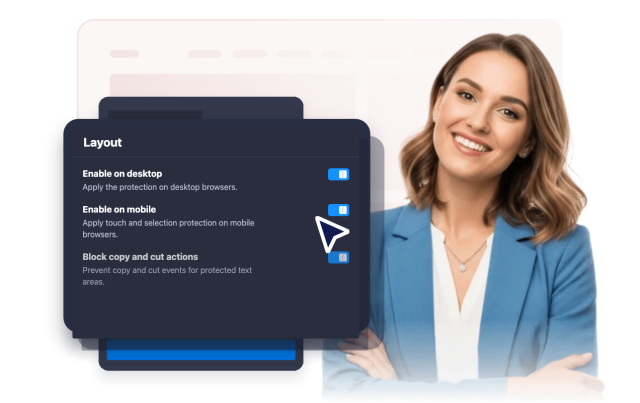
DesktopMobile
Configure Device Coverage
Tune Desktop and Mobile Coverage