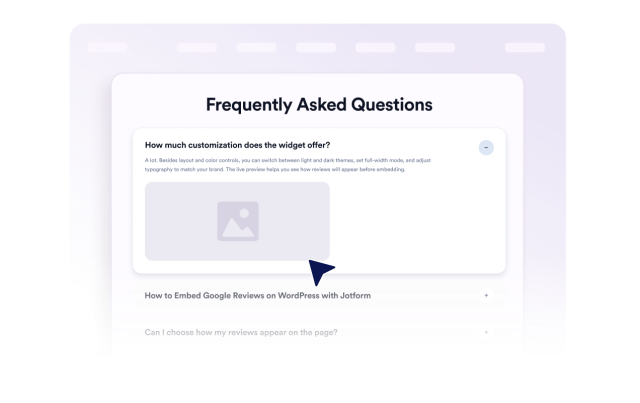
FAQ Widget
Create Your Own FAQ Widget in Seconds for Your Website
Create a searchable FAQ section that helps visitors find answers without leaving your website. Organize questions, choose a flexible layout, enable keyword search, add links or media, and customize the responsive design without coding.
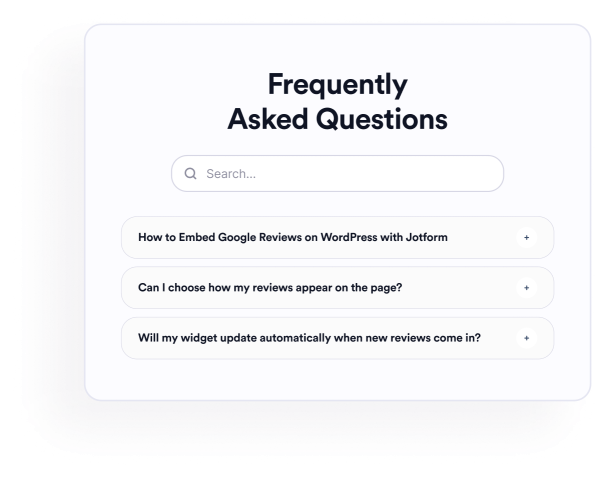

Organize FAQ Questions in One Editor
Create and manage your FAQ content without rebuilding the section manually. Add new questions, write detailed answers, duplicate existing items, rearrange their order, or remove outdated information from one visual editor.
Question controls include:
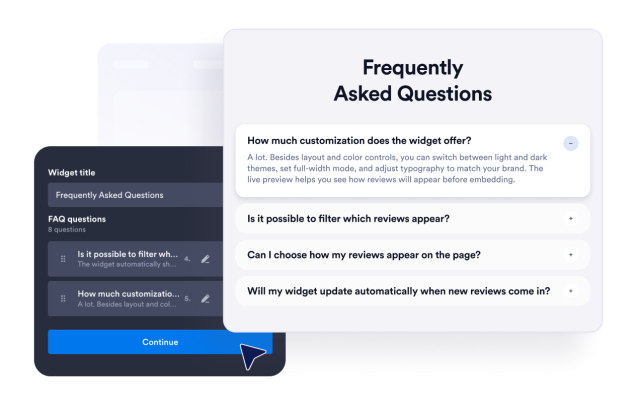
Use Layouts for Compact or Expanded FAQs
Present answers in a format that fits your content and available page space. Use an accordion for compact browsing, a list to keep answers visible, or a multicolumn layout to organize broader FAQ sections.
Layout and display options include:

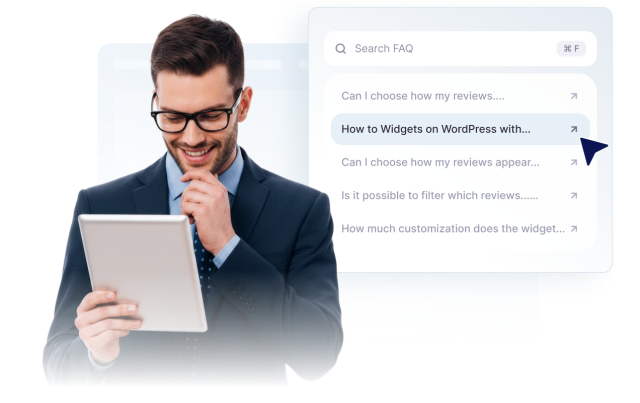
Help Visitors Search Long FAQ Sections
Make detailed FAQ sections easier to navigate by enabling keyword search. Visitors can filter question and answer text, review highlighted matches, and find relevant information without opening and reading every item.
Search supports:
Add Rich Answers With Links and Media
Explain complex topics more clearly by adding supporting resources directly to your answers. Include text links, uploaded images, image URLs, and videos from YouTube or Vimeo so visitors can access helpful context within the FAQ section.
Answer content supports: