OpenStreetMap Widget
Everything OpenStreetMap Widget can do
Create a single-location map or a searchable multi-location directory with business details, category filters, directions links, base map styles, and brand controls. Set it up visually and embed it without writing custom map code.
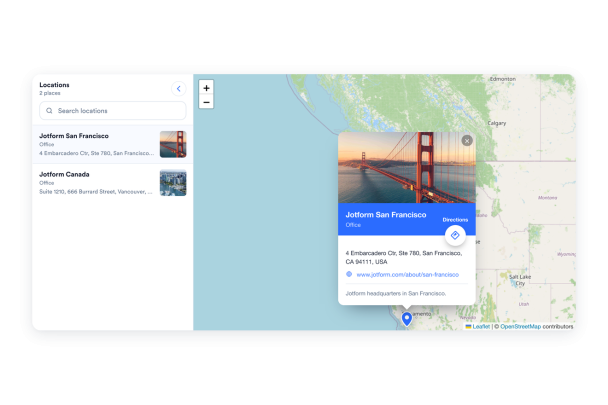

Map every location with full details
Add offices, stores, venues, service areas, or a single featured place. Give each saved location a name, address, phone number, website, hours, category, description, rating, and optional image so visitors can compare details quickly.
Location fields include:
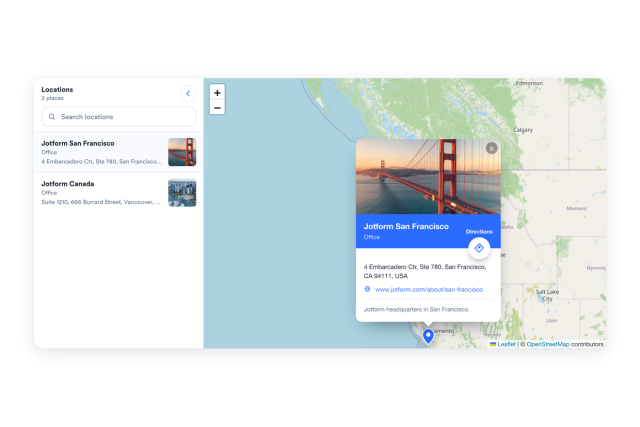
Let visitors search and pick a location
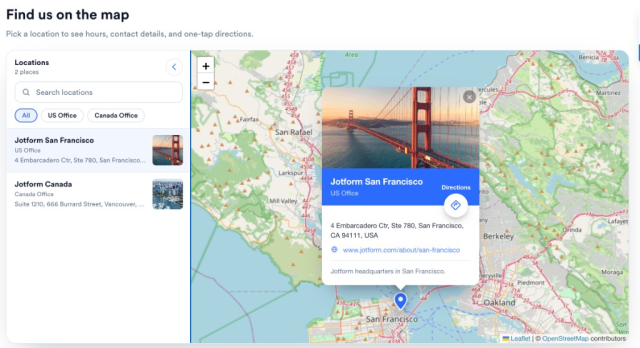
In multi-location mode, a collapsible panel can list every place with key details. Visitors can search the list, filter by category, and select a result to recenter the map on that spot.
Panel controls include:
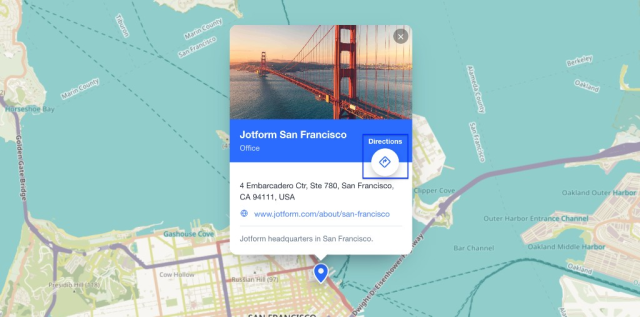
Send visitors straight to directions
Directions links open OpenStreetMap with the selected destination filled in, so visitors do not have to copy an address. You can also choose whether those links open in a new tab or the same tab.
Map actions include:
Style the map to match your brand
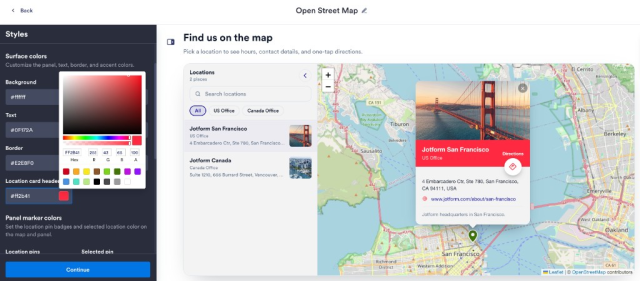
Choose split or stacked layout, set map height and zoom, pick a light or dark widget theme, and fine-tune panel, border, text, accent, card, and marker colors. Add scoped custom CSS when you need extra control.
Style controls include:
Look sharp on every screen
The layout adapts for smaller screens, including stacked presentation on mobile. Separate desktop and mobile visibility controls let you decide where the widget appears.
Responsive controls include: