Scroll Progress Indicator Widget for your website
Help visitors track their scroll progress with either a fixed progress bar or a floating progress button. Add an optional scroll-to-top action, match your brand colors, and control placement without code.
How to create a Scroll Progress widget
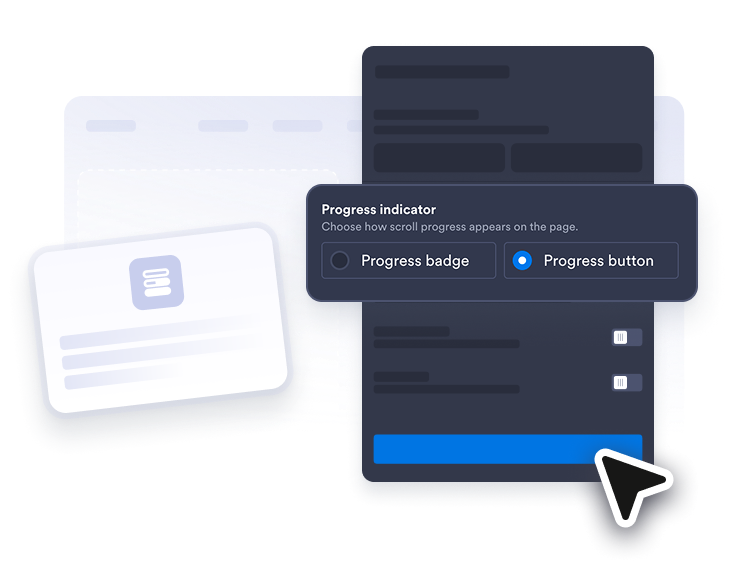
Choose your indicators
Choose the progress bar or the floating progress button, then decide whether the button jumps visitors back to the top.
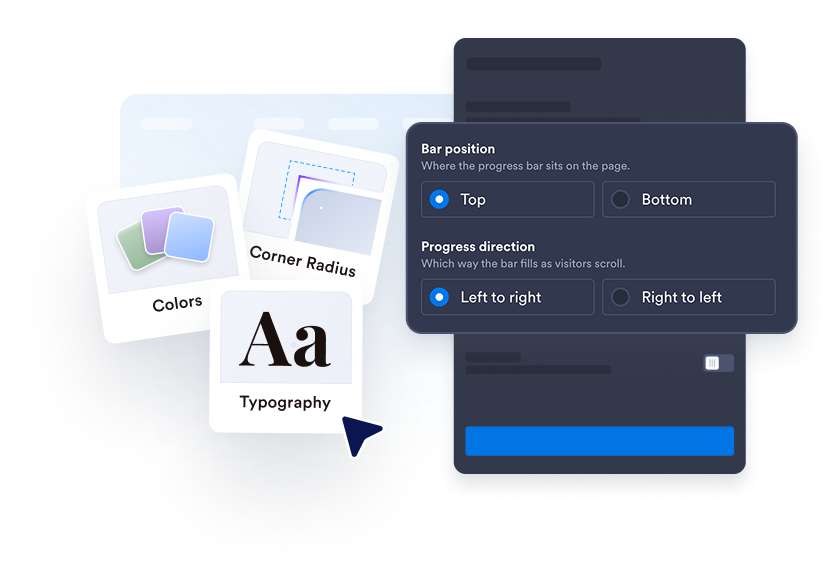
Style colors and layout
Set solid or gradient fills, customize track and percentage colors, adjust the indicator size and position, and control device visibility.
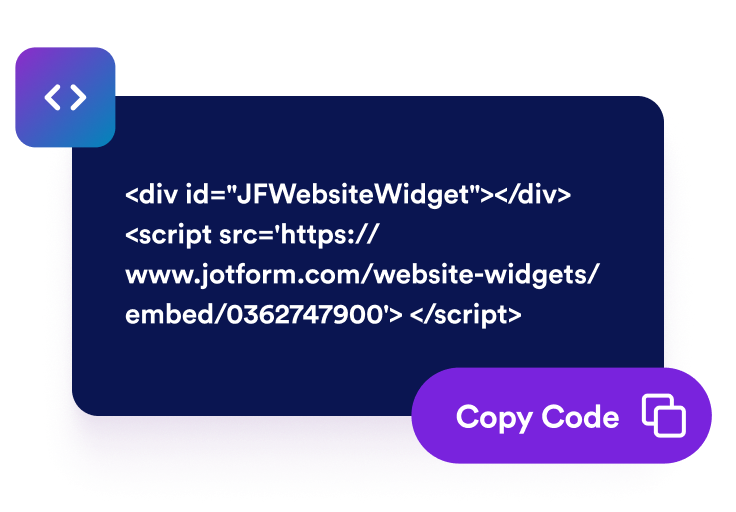
Embed it on your site
Preview the scroll behavior, copy the embed code, and publish the widget on any long page.
Orient visitors as they scroll
Choose Your Progress Indicator
Choose either a fixed progress bar or a floating progress button so visitors can easily track their scroll progress on blogs, guides, and landing pages.

Match your brand colors
Use solid or gradient fills, then tune progress, track, and percentage colors so the widget fits your site design.
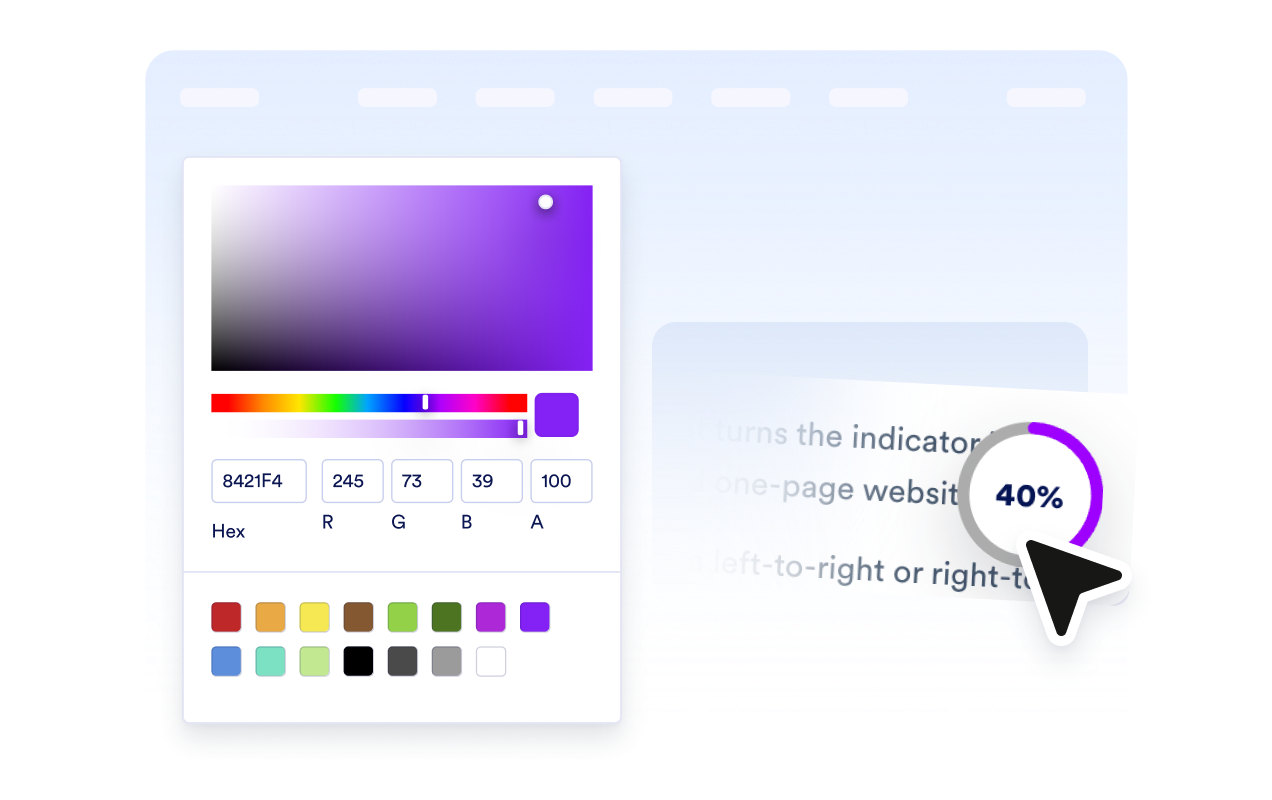
Scroll to top in one click
Let visitors click the floating progress button to jump back to the top of long pages when they need a quick reset.
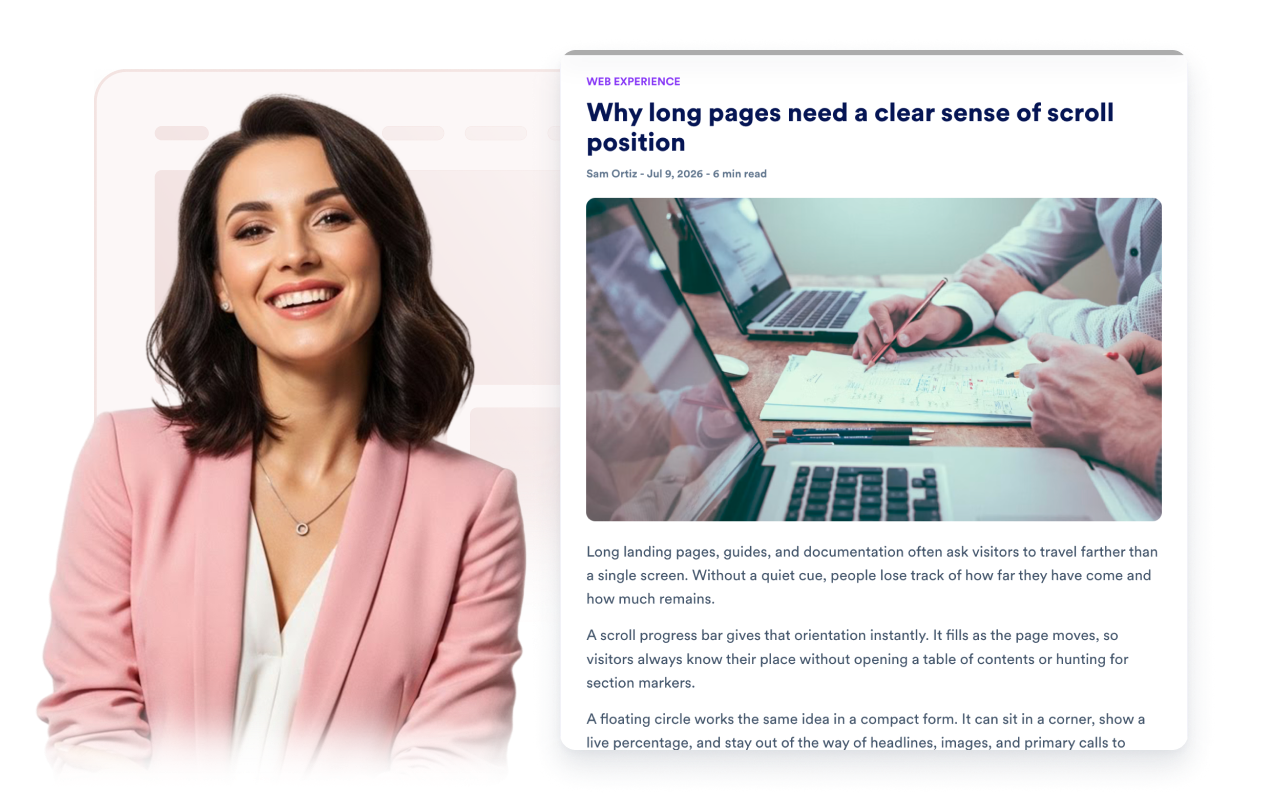
Control placement and devices
Pin the bar to the top or bottom, place the button in any corner, adjust its size, and choose desktop, mobile, or both.

Why Jotform Website Widgets stand out
Jotform’s widgets make your website more interactive and increase conversions. There are many tools available, from star ratings and testimonial sliders to social proof popups and media embeds. Add widgets to your forms or landing pages to collect data, display proof, and capture leads — no coding required.
Add Jotform widgets to your website with a simple embed code. Customize the widget, preview how it looks, and paste it into any page that supports custom HTML or embed blocks, all without a developer.
Use Jotform Website Widgets to collect leads, show customer feedback, display social proof, embed media, or add helpful web page tools. Each widget helps visitors interact with your business directly from your website.
If you need help setting up, customizing, embedding, or troubleshooting your widget, Jotform’s customer support team is available 24-7. You can move forward with confidence, knowing that help is there when you need it.
Where to use your Scroll Progress Indicator Widget
Use the widget on pages where visitors scroll far and benefit from a clear sense of progress plus a fast way back to the top.
Blog posts and articles so readers can see how far they have scrolled and return to the headline quickly
Documentation and help centers where dense instructions benefit from a live progress cue and scroll-to-top shortcut
Product and feature pages that stack long storytelling sections, comparisons, and CTAs
Landing pages that use long vertical layouts and need subtle orientation without extra navigation
Resource hubs and magazines with editorial content that should feel easy to finish
Mobile-first pages where long scrolling is common and a floating progress button improves usability
Convert leads into paying customers with the Jotform Form Builder
Turn engagement into action with Jotform. Create powerful forms that capture leads, collect payments, and automate responses, all in one place. Every submission lands in your Jotform Inbox, where you can follow up or connect with your favorite apps.
Get Started — It’s Free!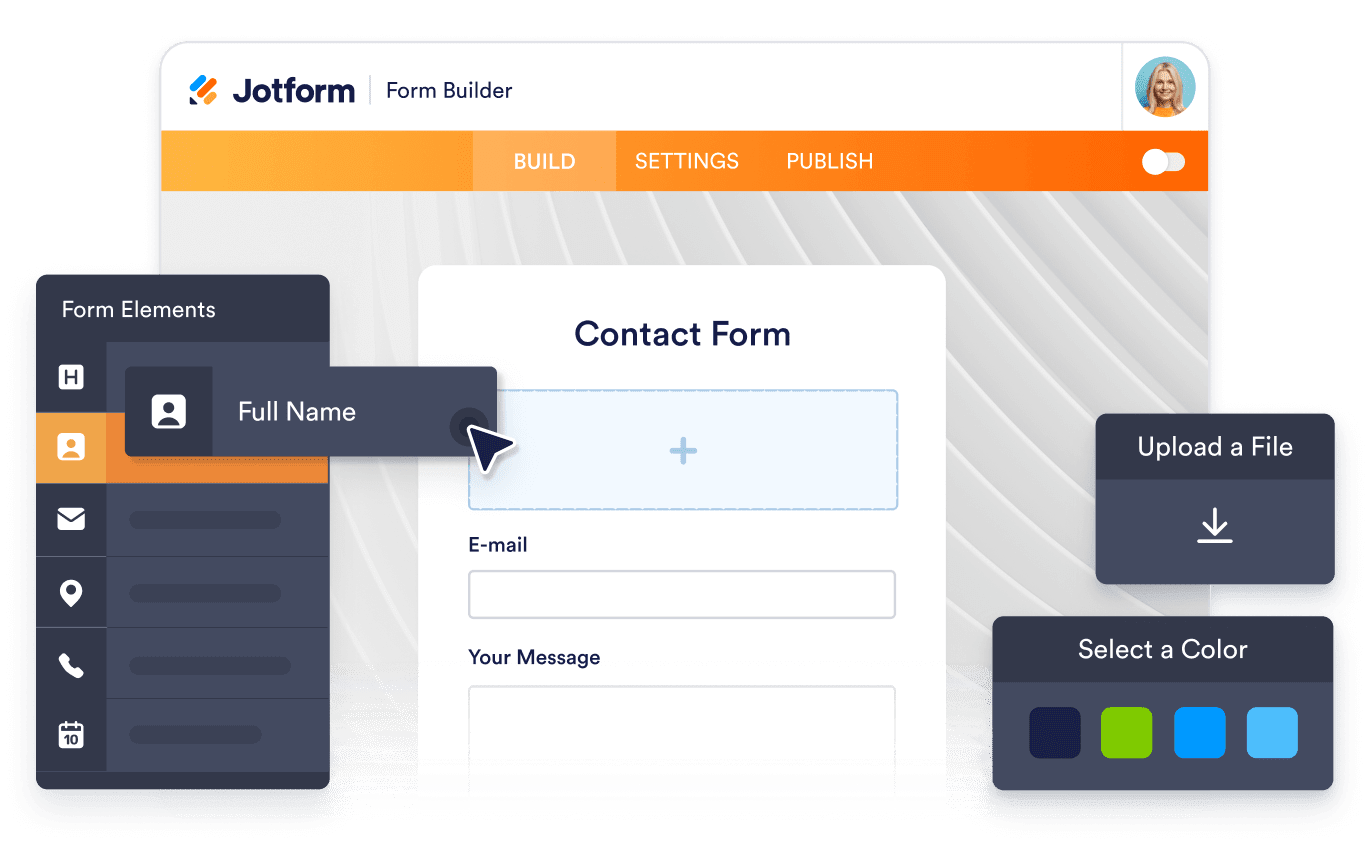
FAQ
What is a Scroll Progress Indicator Widget?
A Scroll Progress Indicator Widget shows how far visitors have scrolled with a fixed progress bar and an optional floating circular indicator.
Does the button scroll to the top?
Can I customize the colors?
Can I control placement?
Does it work on mobile?
Can I hide it at the start or when complete?
Do I need to write code?