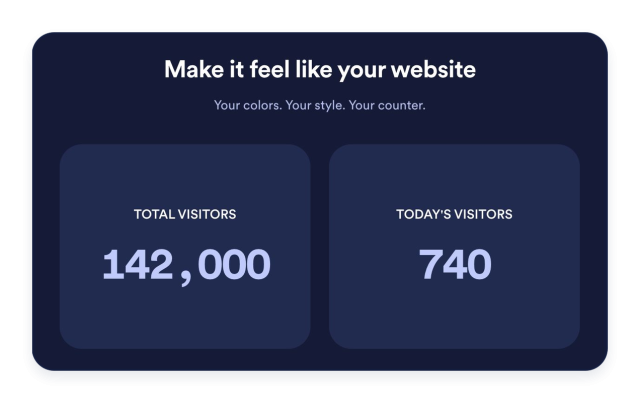
Visitor Counter Widget
Build a Visitor Counter That Fits Your Website
Choose page views or IP-based unique visitors, select the periods that matter, and arrange your counters in four flexible layouts. Add an activity chart and customize the design without coding.
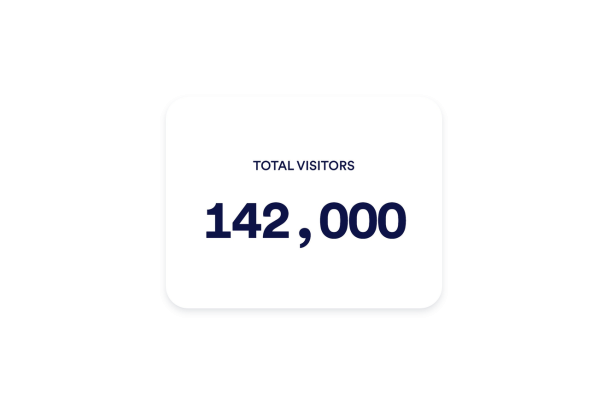

Choose Your Metrics and Time Periods
Create a collection of counters for recorded page views and IP-based unique visitors. Select a period for each item, from today to all time, and customize its title and description. Reorder counters to put the most useful information first.
Options include:
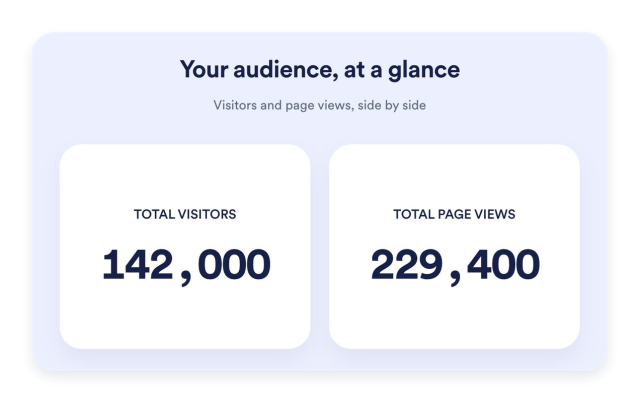
Choose Cards, Inline, Mini, or Vertical
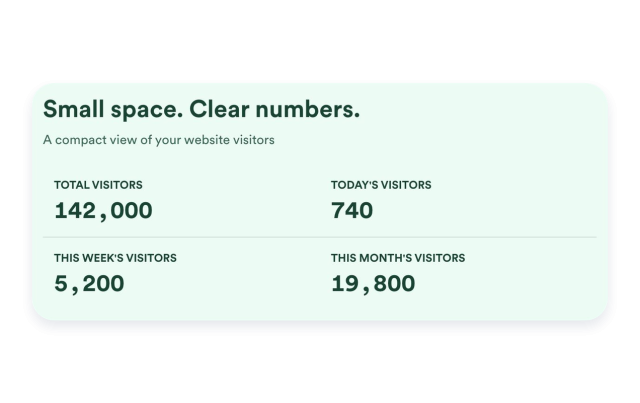
Use individual Cards for prominent metrics, Inline for a compact section, Mini for counts without a graph, or Vertical for a stacked display. Control the widget width and spacing so it fits the available space.
Options include:
Visualize the Last Seven Days
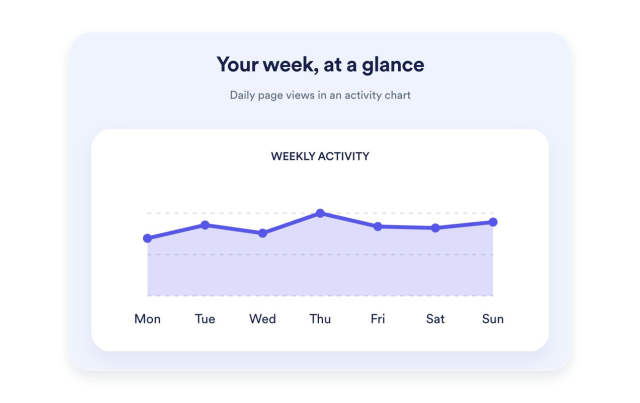
Add a Recent Activity item to show recorded daily page views as a line, area, bar, or pie chart. Customize its title and description and inspect data points for more context. Charts stay after your counters and are available in Cards, Inline, and Vertical.
Options include:
Make Every Detail Your Own
Choose light, dark, or custom colors and style the counter and container backgrounds. Adjust typography, number formatting, card corners, and alignment. Add an editable heading and supporting message to explain what your visitors are seeing.
Options include: