
For most of us, Gmail isn’t just an inbox; it’s the inbox. With more than a billion active users, Gmail has become the default home for personal and professional communication. Since its launch in 2004, Gmail has evolved far beyond basic email, adding layers of powerful features, of which many users barely scratch the surface.
With built-in integrations, automation, and AI-driven enhancements, Gmail can help you manage information, stay organized, and get more done in less time.


Top 25 Gmail tips & tricks
Over the years, Gmail has quietly added features that can help alleviate the hassle of email and keep you focused on your tasks. From simple shortcuts to AI-powered tools, these tips will help you turn Gmail into your central command.
1. Use keyboard shortcuts efficiently.
Every second counts when you’re managing dozens of emails a day. Gmail’s built-in keyboard shortcuts let you navigate through your inbox without lifting your hands from the keyboard. For example, press C to compose a new message, E to archive, or Shift + U to mark as unread.
To enable them, go to Settings → See All Settings → General → Keyboard Shortcuts, and toggle them on. Once you memorize the most useful commands, you’ll fly through your inbox in a fraction of the time.
2. Master inbox management with filters & labels.
An overflowing inbox can feel overwhelming, but filters and labels help turn chaos into order. Filters let you automatically sort incoming mail. For instance, label all newsletters “Reading” and send them to that folder, or forward invoices to your finance team. Labels function like folders, but with greater flexibility, as an email can carry multiple labels.
To set up a filter, click the Show Search Options icon to the right of the Gmail Search bar, type in your criteria (such as sender, subject, or keywords), and select Create Filter. From there, you can apply labels, mark as read, or even auto-archive. With the right system, your inbox begins to organize itself.
3. Schedule emails with Gmail’s Send Later.
Timing matters, whether you’re reaching out across time zones or want to hit someone’s inbox first thing in the morning. Gmail’s Schedule Send feature lets you write an email now and have it delivered later, without requiring any third-party tools.
After drafting your message, click the arrow next to the Send button, and select Schedule Send. Choose from the suggested times or pick a custom date and time. Schedule Send is a simple way to stay ahead without setting reminders or working odd hours.
4. Save time with Smart Compose & Smart Reply.
Gmail’s AI doesn’t just manage your inbox; it also helps you write faster. Smart Compose predicts phrases as you type, letting you finish sentences with a quick press of the Tab key. Smart Reply takes it a step further by suggesting short, context-aware responses, such as “Sounds good” or “Let’s meet at 3 p.m.”
To turn these options on, head to Settings → See All Settings → General. Then enable Smart Compose and Smart Reply. The time savings from these tools add up quickly, especially if you send dozens of emails a day.
5. Undo send to prevent mistakes.
We’ve all hit Send too soon, sometimes before noticing a typo, forgetting to upload an attachment, or realizing we’ve emailed the wrong person. Gmail’s Undo Send feature gives you a short window to retract your message before it lands in someone’s inbox.
To set it up, go to Settings → See All Settings → General and then find Undo Send. You can extend the cancellation period up to 30 seconds. Once enabled, a small Undo option will appear after every sent email. That’ll be a lifesaver some early morning before you’ve had coffee.
6. Use Search superpowers: Gmail operators for fast finds.
Scrolling through pages of old emails wastes time. Gmail’s Search commands let you zero in on exactly what you need. For example, type “from:[email]” to see all messages from a sender or “has:attachment” to locate files quickly. Combine commands for even more precision, like “subject:invoice after:2025/01/01.”
You’ll find a complete list in Gmail’s help docs, but mastering a handful of these commands can dramatically speed up your workflow. It’s like having advanced filters at your fingertips, without ever leaving the Search bar.
10 common Search operators aka commands
| Command | What it does | Example |
|---|---|---|
| from: | Finds emails from a specific sender | from: [email protected] |
| to: | Finds emails sent to a specific recipient | to: [email protected] |
| subject: | Searches only within subject lines | subject: invoice |
| has:attachment | Shows only emails with attachments | has: attachment |
| filename: | Finds emails with a specific file attached | filename: pdf |
| label: | Searches within a specific label | label: Work |
| before: / after: | Finds emails before/after a date (YYYY/MM/DD) | after: 2025/01/01 before: 2025/02/01 |
| is:unread | Shows only unread emails | is: unread |
| in: | Searches within inbox, spam, trash, etc. | in: trash |
| OR | Finds emails matching either term | report OR invoice |
7. Try Priority Inbox & starred labels for focused work.
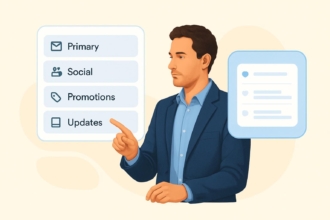
When everything in your inbox looks urgent, it’s hard to know where to start. Gmail’s Priority Inbox automatically separates important messages from less critical ones, so the right emails rise to the top. Combine that with starred labels, and you’ll always have a clear view of what needs attention first.
To enable Priority Inbox, go to Settings → See All Settings → Inbox → Inbox Type. Select Priority Inbox. From there, you can customize sections for important, unread, or starred emails. It’s like having a built-in triage system that keeps you focused on what matters most.
8. Sync Gmail with Google Calendar & Tasks.
Your inbox often doubles as a to-do list, but manually copying reminders or deadlines wastes time. With Gmail’s built-in integrations, you can turn emails into Google Calendar events or Google Tasks with a couple of clicks.
Open an email and look for the calendar icon to create an event, or use the checkmark icon to add it to Tasks. Both tools live in Gmail’s right-hand sidebar, allowing you to schedule meetings or track follow-ups without leaving your inbox. It’s a seamless way to stay on top of commitments.
9. Use Jotform’s Gmail Agent for effortless, AI-driven inbox mastery.
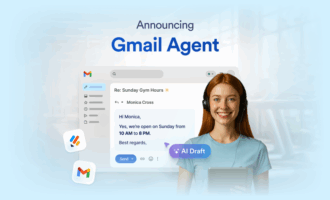
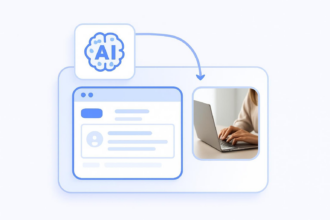
If you handle a high volume of daily emails (and especially if you work in support, sales, IT, or administration), Jotform’s Gmail Agent can transform the way you work. This AI-powered tool drafts instant, on-brand replies right inside Gmail, helping you cut response times from hours to seconds. Jotform’s Gmail Agent offers
- Instant, personalized drafting: The agent mirrors your tone and policies by learning from past emails, so every draft feels like you wrote it.
- Human-in-the-loop control: Nothing gets sent without your approval; you can edit or discard every draft.
- Smarter inbox management: The agent auto-labels and prioritizes messages, ensuring you focus only on the emails that truly need a response.
- Unified productivity: If you already use Jotform AI Agents for forms or chat, Gmail Agent syncs knowledge across channels for consistency.
- Quick, secure setup: With OAuth-based activation, you don’t have to share your password, and setup takes just minutes.
What are AI agents? These digital assistants can perform tasks, make decisions, and adapt to your needs. Unlike traditional automation tools, which follow rigid, preset rules, AI agents learn from context and feedback, enabling them to handle more complex and dynamic work.
A great example is Jotform’s Gmail Agent, which helps you handle repetitive questions and organize your inbox, saving you hours every week while maintaining accuracy and consistency. You’ll learn how to set up this tool later in the post.
10. Activate Confidential Mode & privacy enhancements.
Not every email should be kept forever. Gmail’s Confidential Mode lets you set expiration dates, revoke access, and even require SMS passcodes before a recipient can view your message. Attachments sent this way can’t be downloaded, copied, or forwarded, giving you more control over sensitive information.
To use it, click the lock-and-clock icon in the Compose window. From there, choose how long the email will remain accessible and whether you want to require extra verification. It’s a simple but powerful way to keep private details more secure.
11. Enable Gmail mobile app hacks for productivity on the go.
Gmail’s mobile app isn’t just a pared-down version of the desktop. It has its own set of tricks to keep you efficient while away from your computer. Swipe actions allow you to archive, delete, or snooze messages with a quick gesture (customize these in Settings → Mail → Swipe Actions). You can also enable Smart Reply for one-tap responses or use the built-in Google Meet tab to jump straight into video calls.
For even more control, enable Offline mode to draft and queue messages without an internet connection. On your mobile phone, open the Gmail app and go to Settings → Offline. Then toggle Enable Offline Mail. Choose how many days of emails to sync, and Gmail will store them locally. Once you’re back online, your queued messages will be sent automatically. This function is perfect for when you’re flying in a plane, commuting, or experiencing spotty Wi-Fi.
12. Snooze emails to deal with them later.
Not every email requires immediate attention the moment it arrives. Gmail’s Snooze feature lets you temporarily hide a message and have it reappear at a time that works better for you. You can use this feature to defer non-urgent tasks and still keep your inbox clear.
To snooze an email, hover over it, and click the clock icon. Choose a preset time, or set a custom date. The message will vanish from your inbox and return exactly when you need it.
13. Create email templates for recurring messages.
If you find yourself typing the same responses over and over for meeting confirmations, follow-ups, FAQ answers, etc., Gmail’s Templates can save you serious time. Instead of rewriting or copying and pasting, you can insert a prewritten message with just a couple of clicks.
This feature is especially powerful for email marketing and outreach. For example, you can create templates for event invitations, client check-ins, or partnership pitches and then personalize each email before sending it. Templates can ensure consistency across your campaigns while reducing the time spent on repetitive drafting.
To enable templates, go to Settings → See All Settings → Advanced → Templates and turn them on. Then compose a message, click the three-dot menu in the bottom-right corner, and select Templates → Save Draft as Template. Next time, simply insert it directly into your email and click Send.
14. Mute noisy conversations.
Group threads can quickly spiral out of control, especially when you keep receiving replies that don’t require your input. Instead of deleting or constantly archiving them, use Gmail’s Mute feature to silence the noise but save the thread, in case you need it later.
To mute, open the email, click the three-dot menu at the top, and select Mute. The conversation will skip your inbox and move directly to All Mail,” where you can access it anytime.
15. Use multiple inboxes for custom workflows.
If you manage different types of messages like client inquiries, drafts, or high-priority tasks, Gmail’s Multiple Inboxes view can help you organize them side by side. Instead of scrolling through a single stream, you’ll see dedicated panels for the categories that matter most to you.
To set it up, go to Settings → See All Settings → Inbox → Inbox Type. Select Multiple Inboxes. From there, you can define custom sections using Search commands (for example, show all starred emails or messages from a specific client). It’s a great way to turn Gmail into a dashboard tailored to your workflow.
16. Delegate access to your inbox.
When managing email becomes too much to handle, Gmail allows you to delegate access so a trusted colleague or assistant can handle messages on your behalf. Delegates can read, reply, and organize emails without needing your password, making it ideal for executives, shared team inboxes, or busy professionals.
To enable it, go to Settings → See All Settings → Accounts and Import → Grant Access to Your Account. Then add the person’s email address. They’ll receive an invitation and, once accepted, can manage your inbox alongside you.
17. Explore Gmail add-ons in Google Workspace Marketplace.
Gmail becomes even more powerful when you connect it with the tools you already use. Through the Google Workspace Marketplace, you can install add-ons that integrate apps like Trello, Slack, and Zoom, bringing tasks, meetings, and chats right into your inbox.
To explore, open Gmail and click the plus (+) icon in the right-hand sidebar. Browse available add-ons, install the ones you need, and manage them directly within Gmail. With these integrations, you can reduce the amount of app-switching you do and keep your workflow in one place.
18. Enable desktop notifications for important emails.
If you don’t want to live in your inbox but can’t afford to miss critical messages, turn on desktop notifications. Gmail will alert you the moment a new email arrives, even if your browser tab isn’t open.
To enable it, go to Settings → See All Settings → General → Desktop Notifications. Choose whether to get alerts for all new mail or only important messages.
19. Use Schedule Recurring Sends with Google Workspace add-ons.
While Gmail’s native Schedule Send handles one-off emails, pairing it with third-party add-ons allows you to schedule recurring messages, such as weekly status updates, reminders, and invoices.
Install a scheduling add-on from the Google Workspace Marketplace. Then create and automate your repeating sends, so you don’t have to draft them manually each time.
20. Check storage & clean up large attachments.
Running out of Gmail storage can slow you down. A quick way to free space is to search for emails with large attachments. Use the Search command “larger:10M” (or any size you choose) to find bulky files. You can then decide to delete or archive them.
You can also check your Google One Storage settings to see a breakdown of what’s taking up space across Gmail, Drive, and Photos.
21. Use Send and Archive for cleaner threads.
If you like to keep your inbox tidy, Gmail’s Send and Archive function lets you reply to an email and immediately remove it from your inbox in one click. The thread stays searchable in All Mail, so nothing is lost. It’s just out of sight.
To enable it, go to Settings → See All Settings → General → Send and Archive, and turn it on.
22. Preview attachments without opening emails.
Skip the extra clicks by previewing attachments directly in your inbox. Hover over the file icon, and click the preview window to view PDFs, images, or documents. This small hack saves time when you’re scanning multiple emails.
23. Customize your out-of-office autoreply.
Heading out of town? Gmail’s Vacation Responder feature can do more than just tell people you’re away. It can send different replies to people inside or outside your organization, or limit responses to specific dates.
Set it up under Settings → See All Settings → General → Vacation Responder.
24. Color-code your labels for quick scanning.
Labels are more powerful when they’re visual. Assign colors to your labels to easily identify key categories, such as clients, projects, or personal emails.
To do this, hover over a label in the left sidebar, click the three-dot menu, and select Label Color.
25. Use Gmail Search chips for fast filtering.
Beyond Search commands, Gmail now offers Search chips under the Search bar. After you run a search, you’ll see clickable filters, such as Has Attachment, From, or Date Within. These let you narrow results without manually typing operators.
How AI is shaping the future of Gmail productivity
AI is transforming email from a time sink to a productivity driver. Built-in features like Smart Compose and Smart Reply use predictive text to cut drafting time, while automatic priority sorting helps you focus on the messages that matter most. These tools are subtle but powerful, shaving minutes off daily tasks and reducing mental load.
For teams and power users, advanced solutions take AI even further. Tools like Jotform’s Gmail Agent draft personalized replies, auto-label and prioritize incoming emails, and sync knowledge across channels.
The payoff is tangible: faster response times, fewer errors, and a professional voice that stays consistent across every interaction. Whether you’re handling customer inquiries, internal approvals, or high-volume outreach, AI agents work as a partner, organizing your work for you.
Step-by-step: How to set up Jotform’s Gmail Agent
AI is only as valuable as the time it saves. For many people, email is the single biggest productivity drain in their day. That’s where Jotform’s Gmail Agent comes in.
It applies AI directly to your inbox, drafting accurate, on-brand replies; organizing messages; and reducing repetitive work. The setup process is quick and secure. To get started, just follow these four steps.
1. Open Jotform Agent Builder.
Head to the Agent Builder in your Jotform account. Click Publish. Then select Gmail Agent from the available options.
2. Connect Gmail with OAuth.
Authorize access through Google’s secure OAuth connection. No password sharing or complicated integration is required. Simply approve the connection, and you’re ready to go.
3. Start receiving AI-drafted replies.
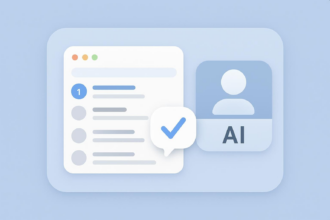
Once you’re connected, when new emails arrive in your Gmail inbox, your AI assistant will automatically generate draft responses. Each draft is saved in Gmail for you to review, edit, or approve before sending.
4. Sync with your knowledge base.
The agent draws on your Jotform data, policies, and past replies to ensure that messages remain accurate, consistent, and in your brand’s voice.
It’s that simple. With just a few clicks, you’ll turn Gmail into a productivity engine that saves hours every week.
From inbox overload to inbox mastery
Gmail has come a long way since its launch. What started as a simple email platform has evolved into a productivity hub packed with shortcuts, integrations, and AI tools that help you manage communication faster and smarter. By applying the right tips, you can turn your inbox from overwhelming to effortless.
But the real leap forward comes with AI-driven solutions like Jotform’s Gmail Agent. It reduces response times, maintains consistency, and eliminates repetitive tasks, so you can focus on what matters most. Ready to take Gmail beyond productivity hacks? Try Jotform’s Gmail Agent for free today, and experience the future of email.
This article is for productivity enthusiasts, remote professionals, tech-savvy teams, and anyone who wants to streamline their Gmail workflow using smart tips, built-in tools, and AI-driven features like Jotform’s Gmail Agent to save time and take control of their inbox.





































Send Comment: