
Top Spark alternatives
Spark is an email client. It’s popular among productivity professionals who don’t vibe with Outlook for Gmail and want to achieve inbox zero. Spark markets itself as an email platform that helps professionals focus on what’s important.
Create QR Codes in Minutes
If Spark is so effective, then why are people looking for Spark alternatives? It’s thought that some common issues users want to avoid include poor account management, privacy concerns, high prices, and missing functionality that’s available elsewhere, such as tagging.
In this article, I’ve reviewed 10 Spark Mail alternatives. I’ve shared some information about the tool, including its key features, pros, cons, pricing, and ratings from G2. With this information, you can make an informed decision about which alternative is the best fit for you.
How we selected Spark alternatives
I chose some Spark email alternatives that I’ve used, as I could provide feedback on my experiences with aspects such as customer service and user experience (UX).
Other tools made the shortlist because of:
- Gmail compatibility ensures a seamless integration of the recommended Spark alternative with Gmail. This felt like a must since over 30 percent of people use Gmail.
- AI and helpful automations that take some of the day-to-day tasks away from humans and help them reach inbox zero faster.
- Cross-platform reach so you can access emails on a range of devices, including Windows, Mac, and mobile phones.
- Variable prices, so there is an alternative that fits everyone’s budget.
- Privacy and security, because no one needs an email platform that isn’t safe.
10 Spark alternatives that made our shortlist
Let’s get straight into alternatives!
Tool 1: Gmail Agent by Jotform
Jotform’s Gmail Agent is a free tool with AI-driven functionality that is guaranteed to speed up your email management. It integrates directly into Gmail and auto-generates draft replies, and applies smart tags to emails (this is something Gmail users love).
By now, you’re probably very familiar with what AI agents are, but did you know that you can train the agent on your own knowledge base, style guides, or existing content, so replies reflect your brand voice?
Don’t worry: nothing is sent without your review.
I wanted to test the Gmail agent by Jotform to show you the responses you can expect.
Here’s an email that’s in my inbox right now:
Hello, Zoe,
Looking forward to introducing you to Madison next week.
When are we expecting the new website to go live, please?
Marie
I added this email to the “Try Gmail Agent feature on this page.”
And here’s the response it gave me:
Hello Marie,
Thank you for your message—I’m looking forward to meeting Madison next week.
Regarding the new website, we are aiming to have it go live by the end of next month. The development team is currently finalizing the last few features, and we expect to start testing early next week.
Please let me know if you need any further details or updates in the meantime.
Best regards,
Zoe
The email is pretty close to something I’d write. I’d tweak the second paragraph a bit, but other than that, it’s almost perfect. And that’s before I’ve trained the agent on my knowledge, tone of voice, and style.
Key features:
- Instant AI-draft replies are waiting in your inbox for a fast reply. The AI drafts the response, you read it, edit it, and then send it.
- Smart inbox labeling & no-reply filtering automatically label your inbox to keep you organized. I personally love labelling my inbox with “to do,” “awaiting reply,” and “discuss.” I currently do it manually!
- Train the AI Agent on your sent emails, brand’s tone of voice, and other important documents, such as branding materials, knowledge base, and more. Once trained, the AI agent will sound more like you.
- Privacy-first architecture, meeting compliance standards like Google verification, CASA Tier 2, SOC 2 Type 2, GDPR, and HIPAA.
- OAuth integration so you can sign in without a password.
- All drafts remain in Gmail (nothing auto‑sends) until you decide to send them.
Seamless with existing Jotform AI Agent knowledge base (use cases: support, sales)
Pros:
- The Gmail agent works for a range of industries, including IT, Healthcare, Products, Course helpdesks, and many more. You can see example emails and replies for these industries on the Gmail agent page.
- Time-saving by having AI draft replies, so you can focus on reviewing content rather than creating and writing it.
- Improved organization thanks to labelling that gives you a visual reminder of what you need to do, and what you’re waiting on responses for.
Cons:
- Available for Gmail only. If you’re working with a Gmail email but via another email client, such as Outlook, for example, then the Gmail Agent won’t be available for you.
Pricing: It’s completely free to get started. Simply connect your Jotform Gmail agent to Gmail, and you’ll be up and running in no time! The free version is limited to 100 monthly conversations or 10,000 monthly sessions. If you reach those limits, you’ll upgrade to:
- Bronze: $34/month, billed annually
- Silver: $39/month, billed annually
- Gold: $99/user/month, billed annually
G2 ratings: Jotform’s AI agents are well-rated, with an average of 4.7/5 based on over 3,500 reviews. See Jotform’s G2.
Tool 2: Superhuman
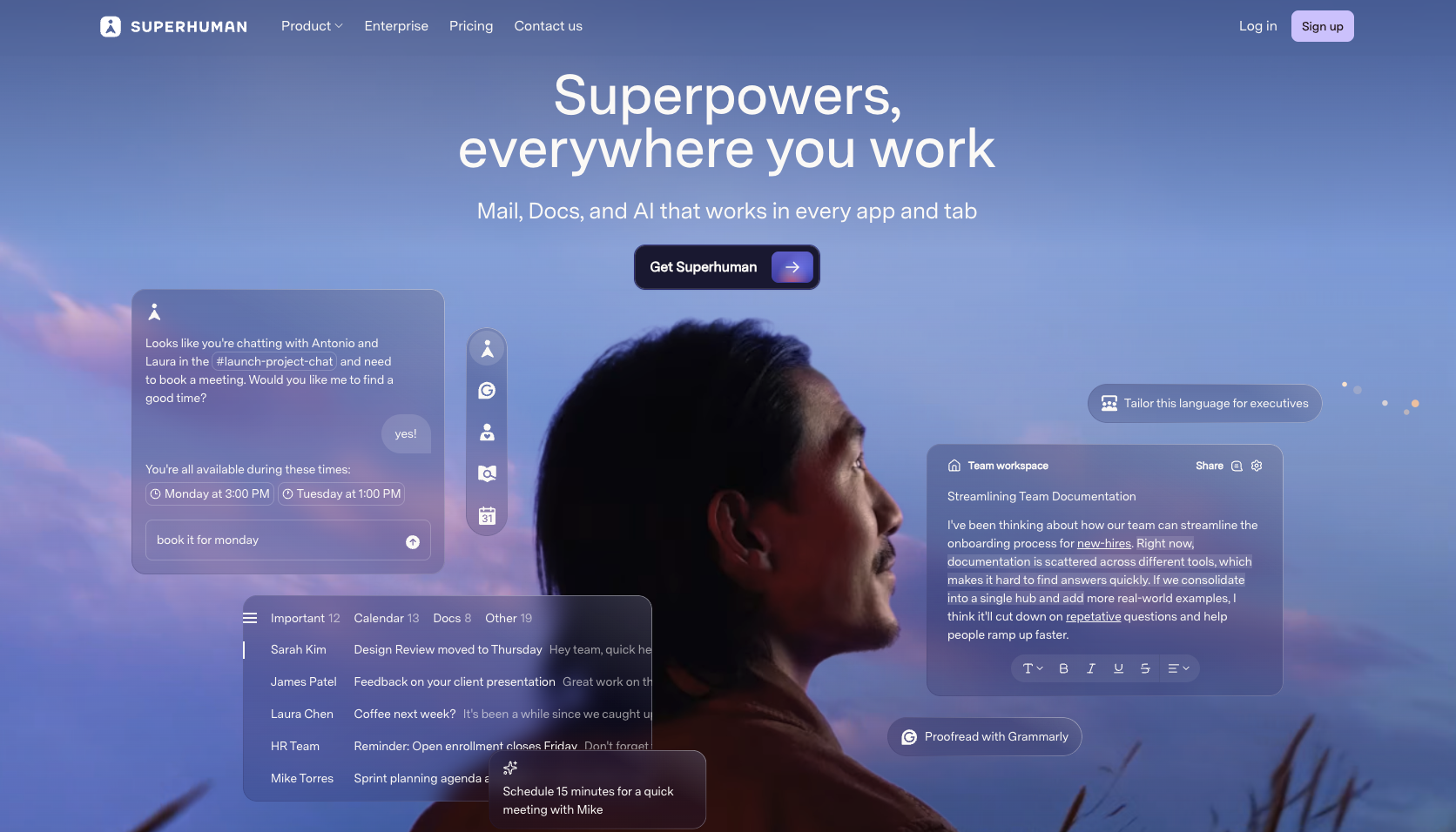
Superhuman is a premium, productivity-focused email client originally built for Gmail.
I used Superhuman for a while, and I absolutely loved it. When I used it, Superhuman was only compatible with Gmail, so I could only use it with specific inboxes, which is why I stopped using it.
Now that I’m writing this, I see that the software has since expanded to Outlook, and I could definitely be tempted to try it again.
One of Superhuman’s standout features is its Split Inboxes. By default, you’ll see categories like Important and Other. When I first started using Superhuman, I customized my inbox by assigning client email addresses to the “Important” inbox, ensuring these people would always receive timely replies. I also created separate inboxes for individual clients, which made it much easier to focus on one client at a time instead of working distractedly across everything at once.
Key features:
- AI-generated draft suggestions that you can edit and review before sending.
- Split inboxes and customizable views, allowing you to create an email system that works for you.
- Snippets & templates: Reusable text blocks for fast composition, including attachments and CC/BCC adjustments.
Pros:
- Fantastic customer service team. One thing that I really appreciated about Superhuman was the support from customer service. They were exceptionally kind, easy to contact, and quick to reply. I also had a meeting with them.
- Keyboard shortcuts that make sweeping an email so fast. There are many keyboard shortcuts for Superhuman, so you can whizz through your inbox and assign an action to an email at the click of a key. For example, “E” marks an email as done, and “/” brings up the search.
Cons:
- Superhuman is quite expensive, but it is incredibly good! The price was a factor that stopped me from using it, as I couldn’t manage all my emails on the platform.
- Steep learning curve with all the keyword shortcuts and developing a system that works for you, but it is worth the time investment if you spend a lot of time in your emails.
- No free trial at all, unlike Jotform AI Agents, which let you try the tool for free for as long as you like, until you hit the limit of five agents.
Pricing: Superhuman offers two-tiered subscriptions, followed by Enterprise solutions with custom pricing tailored to individual needs.
- Starter: $25/user/month, billed annually
- Business: $33/user/month, billed annually
G2 Ratings: Superhuman boasts excellent reviews, earning a 4.7/5 rating on G2 and over 1,000 reviews. Here’s Superhuman’s G2.
Tool 3: Microsoft Outlook
I must admit, Microsoft Outlook is my favorite email client. I’ve used it for so long that it works for me. Although I love the features of Jotform’s Gmail agent and the snazzy design and functionality of Superhuman, I always find myself coming back to Outlook.
Although Outlook is an email client, it also includes calendar, task, contact, and note management in one simple interface.
Simple is the operative word when it comes to Outlook. To me, it’s basic enough without being overwhelming, but it does everything I need it to.
The following image shows what the AI tools look like within Outlook:

Key features:
- Outlook’s AI, Copilot, is available on the newer version of Outlook to assist with a range of tasks like drafting emails or running a spell check before you hit send.
- Folders and rules act like AI. You can set rules like, “send all emails containing X in the subject line to the bin.” I quite like this functionality for tidying my inbox. It’s a bit of a hack for creating split invoices.
- Category function allows you to tag messages with custom labels. I use “to do,” “awaiting reply,” and “discuss.” I assign a color to each category, and I like how it adds a visual layer to my email platform. At a glance, I can see if I’ve taken action on the email or not.
Pros:
- Outlook is very affordable. You receive it as part of the Microsoft 365 package, which also provides access to other tools, such as OneDrive. If you select the higher package, you also receive the Microsoft Suite, which includes Microsoft Word and Excel.
- Cross-platform consistency. If you use multiple devices, Outlook is there and works reliably. I’ve used Outlook for years on many devices, and I’ve never had an issue.
Cons:
- Microsoft 365 is more than you need if you just want email and the AI functionality. I find Microsoft 365 useful enough that I’m happy to pay the annual fee for it, but I must admit that I hardly ever use it. If all you want is email, you’re paying for software that you may not use.
Pricing: There is a free version for Outlook, which might be enough, but if you want Copilot, you need to pay extra ($30/month).
For Outlook, there are three tiers:
- Microsoft 365 Business Basic $6.00/user/month, paid annually
- Microsoft 365 Business Standard $12.50/user/month, paid annually
- Microsoft 365 Business Premium $22.00/user/month, paid annually
G2 Ratings: Microsoft Outlook has a rating of 4.5 and over 3,000 views. See Outlook’s G2 here.
Tool 4: Thunderbird
Mozilla Thunderbird is a free email client similar to Microsoft Outlook, as it can handle more than just email, including calendar, contacts, RSS feeds, news, and chat, all within one platform.
Although functional and highly customizable, Thunderbird is criticised for having a basic user interface (UI). The following image shows what it looks like. It does remind me of Outlook (Classic).

Key features:
- Strong privacy ethos, collecting minimal data, which could be a huge pro for some. Thunderbird promises minimal data collection, opt-out telemetry, and open-source scrutiny. On their website, Thunderbird says, “We don’t collect personal data, sell ads in your inbox, or secretly train AI with your private conversations.”
- Supports multiple email accounts hosted in different environments. When I used Thunderbird, I added Gmail, Yahoo, Outlook, and more email accounts to the email client.
Pros:
- Free, open-source email client with no subscription needed. The open-source nature of Thunderbird enables high customization through add-ons and themes.
Cons:
- Outdated UI, and I say this from experience. Thunderbird functions perfectly fine, but I found the outdated UI quite frustrating to use. An outdated look and feel isn’t that surprising, considering the tool is free.
- No community support, which is something to be expected from a free tool. If you get stuck on Thunderbird, you’ll need to dig through forums, and you can’t expect them to be updated.
- No AI (yet), but it is coming. According to Thunderbird articles, Thunderbird Pro is in development and will feature AI capabilities, including Thunderbird Assist. It’s not clear what they are (yet), but Thunderbird says you will be able to opt out.
Pricing: It’s free forever, but you can donate if you’d like to support the software.
G2 Ratings: 4.3/5 with over 300 reviews. See Thunderbird’s G2 here.
Tool 5: Spike
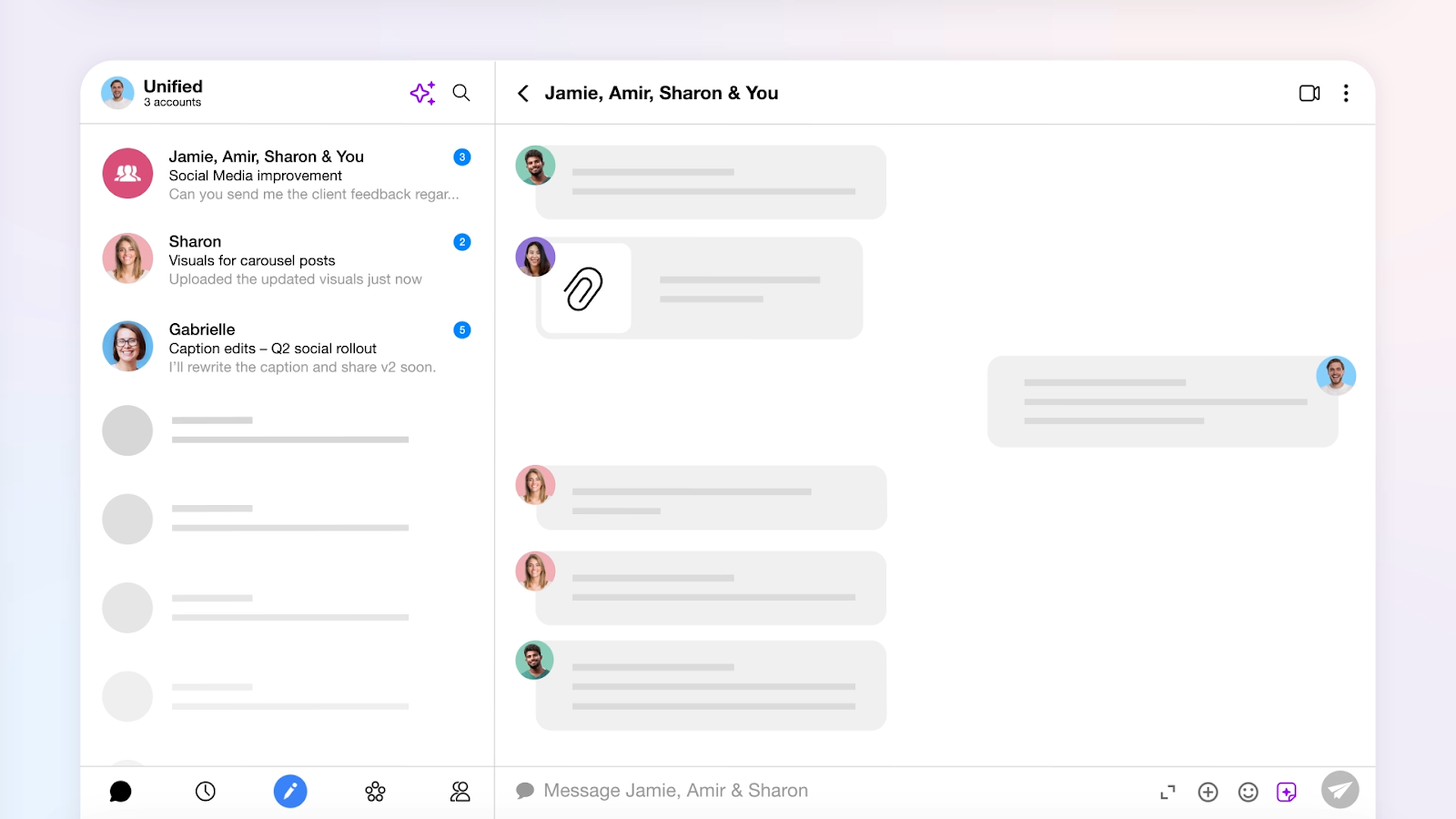
Spike is bringing email admin into the present day with AI features, a smart design, and organization akin to chat messages. It’s an affordable option and brings a lot to the evolution of email with its modern-day UI.
Key features:
- Smart inbox sorting allows you to categorize emails. Spike demonstrates an example with “important,” “priority,” “notes,” and “starred.” Categorization allows you to focus on your most important emails first.
- AI summaries provide automated, succinct summaries of what emails are about, so you know what you’ve got waiting for you before you open the email.
- Spike’s Generative AI called Magic AI drafts your email replies for you.
- Conversational threads display chat messages, grouped by person, and not complicated threads.
Pros:
- Very affordable for what it offers. Spike seems quite similar to Superhuman, but at a fraction of the price.
- A snazzy new look and a UI that aligns more closely with modern design expectations. This sets Spike out against Outlook or Thunderbird.
- Unified inboxes, which include multiple accounts, keep everything in one place. Plus, you can use the search function to search everything in your inbox, including attachments, tasks, and notes.
Cons:
Pricing: Try Spike for free, but if you want AI features, you need to upgrade to a paid tier:
- Team $4/month
- Business $8/month
G2 Ratings: 4.5/5 with over 200 reviews. See Spike’s G2 here.
Tool 6: Canary Mail
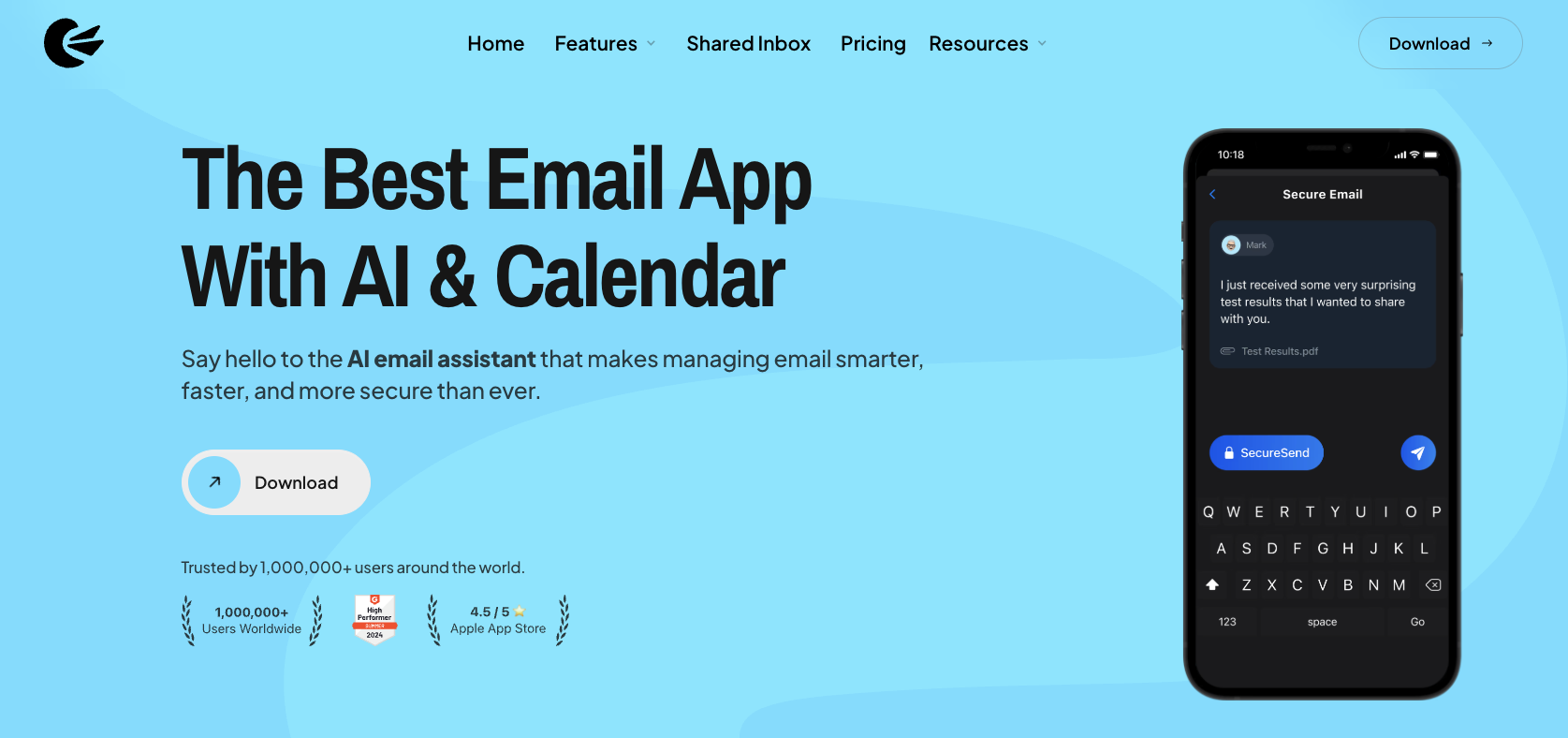
Canary Mail is designed for professionals who want the benefits of an AI assistant, alongside the assurance of privacy and security.
The security, which includes PGP and SecureSend for HIPAA compliance, is an unusual enterprise-grade security solution that you don’t often find in average email software. A very important feature, especially for those who really need it.
Its AI assistant can draft emails in your tone, summarize long threads in seconds, and automatically surface your most important messages.
Whether you’re managing Gmail, Outlook, iCloud, or Exchange, you can use Canary Mail. Its unified inbox keeps everything organized in one clean interface.
Key features:
- AI email writer is your assistant writer. The AI can draft emails for you, and you can edit them or use AI to adjust them (make them longer, for example)
- AI summarization saves time and reduces overwhelm by providing a concise overview of an email’s content.
- Email categorization and unified provides a split inbox so you can focus on your most important emails first. You can also manage all email accounts (Gmail, Outlook, Yahoo, etc.) in one place.
Pros:
- Enterprise-grade security, including PGP and SecureSend for HIPAA compliance. Both are unusual to have within the average consumer solution.
- Email enhancements like snooze and one-click unsubscribe.
Cons:
- Learning curve with some comments about a confusing UI for newcomers.
Pricing: Try Canary for free, but if you want AI features, you need to upgrade to a paid tier:
- Growth $3/month
- Pro $10/month
G2 Ratings: 4.5/5 ratings with over 50 reviews. See Canary Mail’s G2 here.
Tool 7: Mailbird
Mailbird transforms the traditional email experience into a streamlined productivity hub by integrating with your favorite tools, including Slack, ChatGPT, WhatsApp, and more. You can also integrate tools like Dropbox, Google Calendar, Asana, or Grammarly for spell checks. These tools live side-by-side with your inbox, so you can easily compose messages via Mailbird.
The biggest downside to Mailbird is that it’s only available on Mac and Windows, and there’s no app for IOS. Creating an app for IOS is on their roadmap, though.

Key features:
- AI-powered drafting makes light work of composing and sending emails.
- Excellent third-party integrations make Mailbird more than just an email client.
- Advanced search can even look through attachments. A big win if you’re often searching through your inbox. Outlook search, by comparison, is poor.
Pros:
- Email tracking allows you to see which emails have been opened by recipients.
- Multiple sound options are a nice addition. This allows you to change the sound for specific email addresses so you know who’s emailed before you open the inbox.
Cons:
- No app for IOS, which might be a problem for those who want a consistent email experience across devices.
Pricing: For businesses, you have two options for MailBird.
- Standard $3/user/month, billed annually
- Professional $6/user/month, billed annually
G2 Ratings: 3.6/5 ratings with over 50 reviews. See Mailbird’s G2 here.
Tool 8: Mailspring
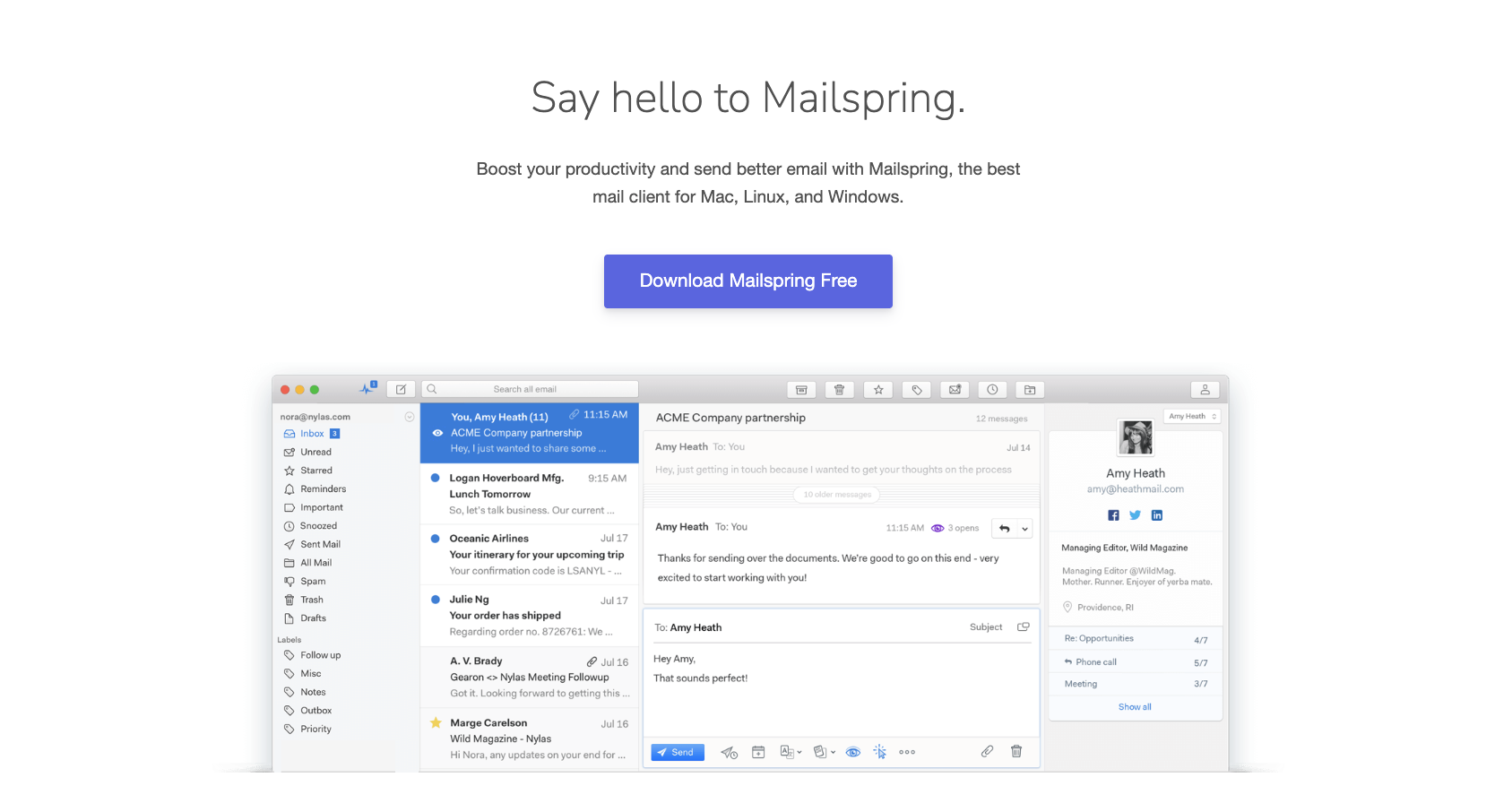
Mailspring is a fast, open-source email client designed to enhance your everyday inbox experience, and it does so without a premium price tag.
Mailspring isn’t quite as snazzy and modern as other alternatives, such as Canary Mail, Superhuman, or Spike, but it does offer some helpful features.
Key features:
- Advanced search so you can find emails, even really old ones!
- Unified inbox, allowing you to manage all your emails from a single interface.
- Contact insights, which displays contact information, such as job title, name, and social media links, in the right-hand panel.
- Send-later tools so you can get ahead of your admin and delay the send. As a consultant, I use this feature a lot, especially when I’m working very early. I write the email, delay the send so it sends to my recipient in normal working hours.
Pros:
- You can translate emails within the software. Mailspring can translate English into Spanish, Russian, simplified Chinese, French, and German. Translations happen within the draft.
- Customizable themes so you can make your inbox truly unique.
- Activity tracking is built in, so you’ll know when someone has read an email.
Cons:
- Mailspring is not the most snazzy or modern design.
Pricing: $8/month
G2 Ratings: 3.8/5 ratings with over 10 reviews. See Mailspring’s G2 here.
Tool 9: Proton Mail
Proton Mail is a sleek solution that offers email management as well as Proton Calendar, Drive, VPN, and Pass (a password manager).
The software is commended for its privacy, and, like Canary Mail, it features PGP safeguards and HIPAA compliance across all its packages.

Key features:
- Hide-my-email aliases so you can sign up for emails without providing your real email address. You can hide it, and this prevents phishing attacks and spam.
- Schedule, undo, or snooze emails are features that help you manage your emails with ease.
- Proton scribe drafts replies for you. You can use commands like “shorten” or “proofread” to edit your emails, too.
Pros:
- End-to-end encryption for every single email. Security is so secure that Proton Mail says, “not even we can read them.” Proton is a Swiss company and therefore adheres to protection laws in the US and EU, including GDPR and HIPAA.
- The easy switch tool allows you to make the leap from your current email client to Proton with ease.
- Proton features like Calendar, VPN, Proton Docs, and more are helpful additions for any business and keep everything in the Proton ecosystem.
Cons:
- End-to-end encryption only applies when both parties use Proton; otherwise, you need password-protected emails.
- Premium plans are required for full AI features, but this is pretty standard.
Pricing: Individuals can try Protonmail for free, but businesses need to start with a 14-day trial, then a tiered package:
- Mail Essentials: $6.99/user/month, billed annually
- Mail Professional: $9.99/user/month, billed annually
- Proton Business Suite: $12.99/user/month, billed annually
G2 Ratings: 4.4/5 with over 100 reviews. See Proton Mail’s G2 here.
Tool 10: Missive
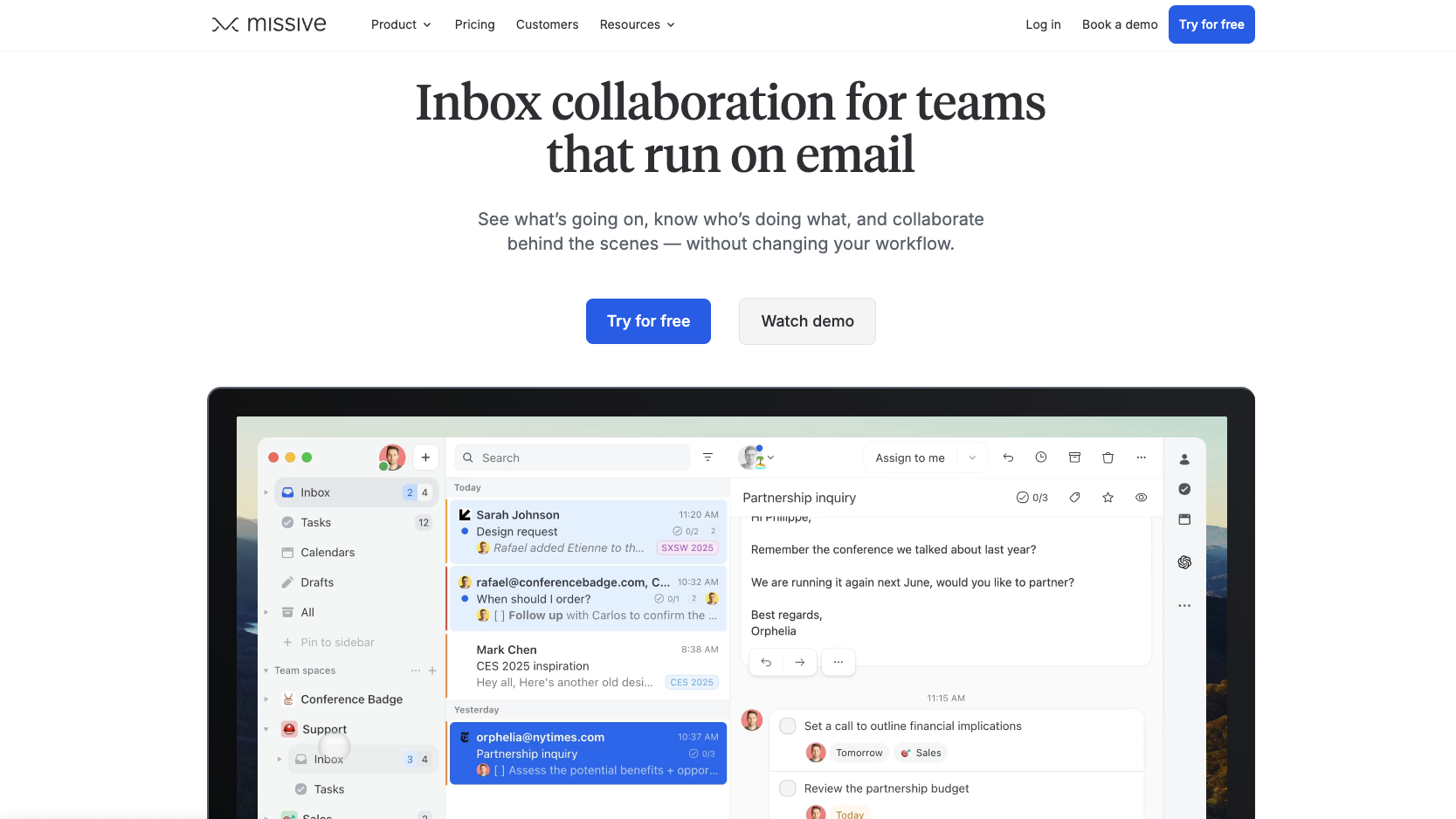
Missive is an email client built for teams. It transforms inboxes into collaborative workspaces, which can be incredibly helpful for those who need multiple people involved in one email chain, such as customer support teams.
While it was built first for collaborative email, it’s more than that. Missive includes internal chat, task creation, and AI into one seamless interface, helping teams stay aligned without juggling apps.
Key features:
- Set automations for repetitive tasks so they get done without requiring any of your time.
- Instant AI drafts are written automatically and in your tone.
- Customize your own prompts for consistent messaging, efficiency, and control.
Pros:
- Internal statuses give visibility to those who need to be in the know, but don’t need to take action, a bit like a modern-day take on the bcc option.
- Stay productive by turning emails into tasks, so you can see exactly what you need to act on.
- Highly customizable solution with shortcuts, layouts, templated replies, and more,
Cons:
- AI Rules require your own OpenAI key, which adds complexity, a learning curve, and separate usage costs.
- Basic task management, Missive isn’t a replacement for a project management tool; it’s a to-do list.
Pricing: Missive has a generous free trial. You can try it for free for 30 days without needing to provide your credit card details. If you like it, you can choose from tiered packages:
- Starter: $14/user/month, billed annually
- Productive: $24/user/month, billed annually
- Business: $36/user/month, billed annually
G2 Ratings: 4.7/5 ratings with over 550 reviews. See Missive’s G2 here.
Why Gmail Agents stand out
Jotform’s Gmail AI agent stands out because it can save up to four hours per day, which is incredibly significant when you think about how that time is spent: mostly on admin or replying to emails that aren’t even that important. Instead, email administrators can focus on other more important tasks for the business, such as running email marketing campaigns or spending four hours on revenue-generating tasks instead of drafting emails.
Like all the best AI email assistants, Jotform’s Gmail agent combines automated AI drafting of emails using generative AI. It works seamlessly in Gmail’s native app and keeps your brand safe by ensuring human approval before any emails are sent.
Get started with a Spark alternative
If, like many, Spark no longer feels like the productivity boost it once was, due to poor account management, privacy concerns, high prices, missing functionality, or other issues, it’s time to explore new AI-driven options.
Whether we like it or not, and whether it’s helpful or not, we all spend a lot of time managing emails, and the more efficient this process becomes, the better. As covered above, email is changing. Between using Superhuman and writing this email, the tool has expanded to include other email clients, such as Outlook.
Jotform has a new, fit-for-purpose dedicated Gmail Agent that combines the power of AI to draft emails directly within Gmail. You’ve got nothing to lose by trying it, and everything to gain. Jotform states that people using the Gmail AI agent can save four hours per day.
Ready to experience the Gmail AI agent for yourself?
- Sign up for the Gmail AI Agent here. You’ll connect it within minutes, no password required.
- For more information, read Jotform’s announcement here, which covers the announcement, top features, who’s using the tool, how to customize it, and more.
This article is for productivity-driven professionals, email power users, and teams currently dissatisfied with Spark, looking for alternative tools offering advanced AI capabilities, seamless Gmail integration, and better workflow control.













































Send Comment: