With Jotform, you can easily send the right email to the right person based on how someone responds to your form. Instead of relying on one-size-fits-all notifications, you can tailor email delivery so messages feel timely, relevant, and personal—without extra effort.
This approach is especially helpful when different answers require different follow-ups, confirmations, or internal alerts. By adjusting who receives an email depending on a user’s response, you can keep communication organized, reduce manual work, and make sure every message goes exactly where it needs to go.
What You’ll Need to Get Started
Your form needs a Notification Email or Autoresponder Email already in place to set this up. If you’re not sure how to create one and you’re curious to learn more, these guides will walk you through configuring these email templates:
Whether you’re building a new form or editing an existing one, setting up conditional logic in your form to send emails based on user responses takes just a few steps. Here’s a quick how-to:
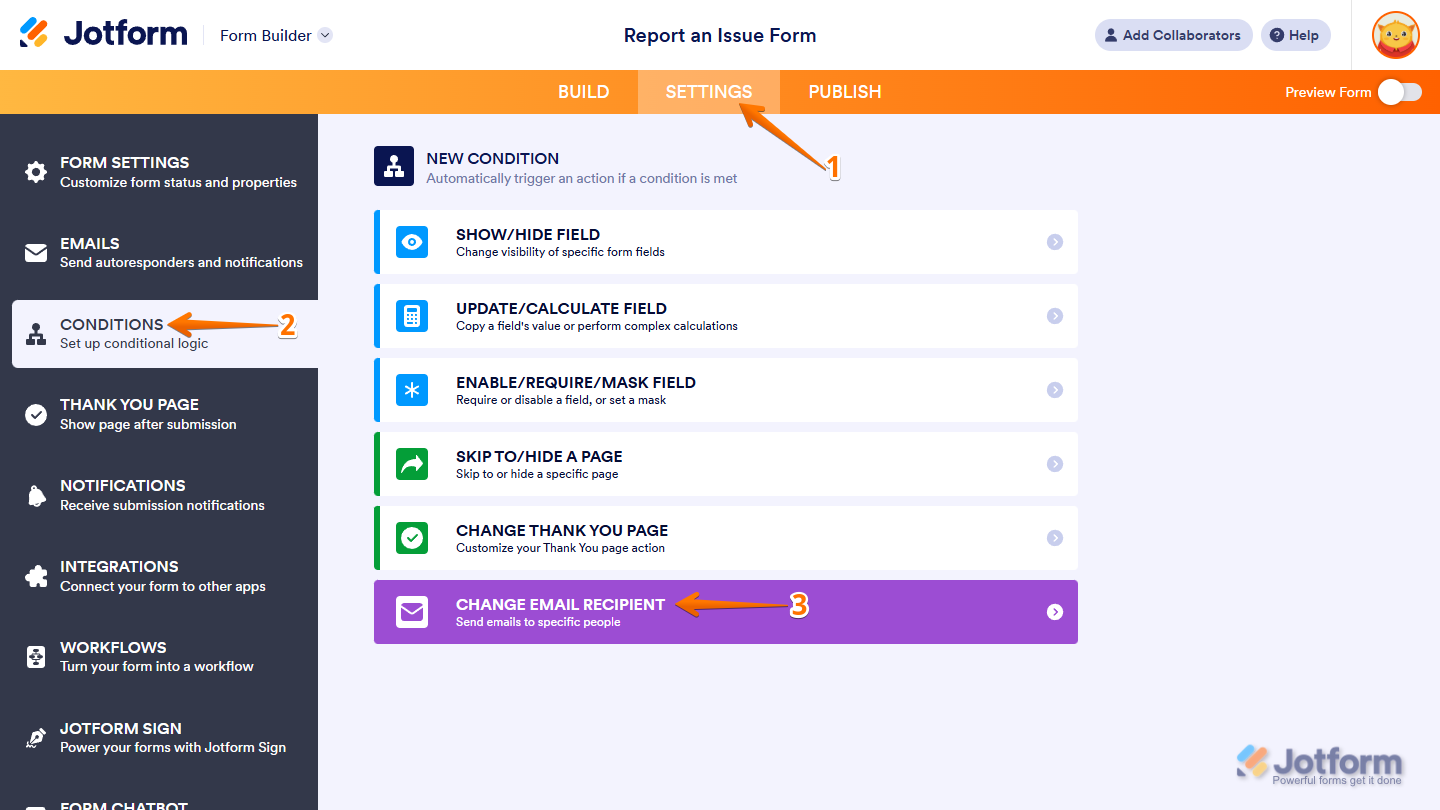
- In Form Builder, in the orange navigation bar at the top of the page, click on Settings.
- Then, in the menu on the left side of the page, click on Conditions.
- Now, in the New Condition section on the right, click on Change Email Recipient.
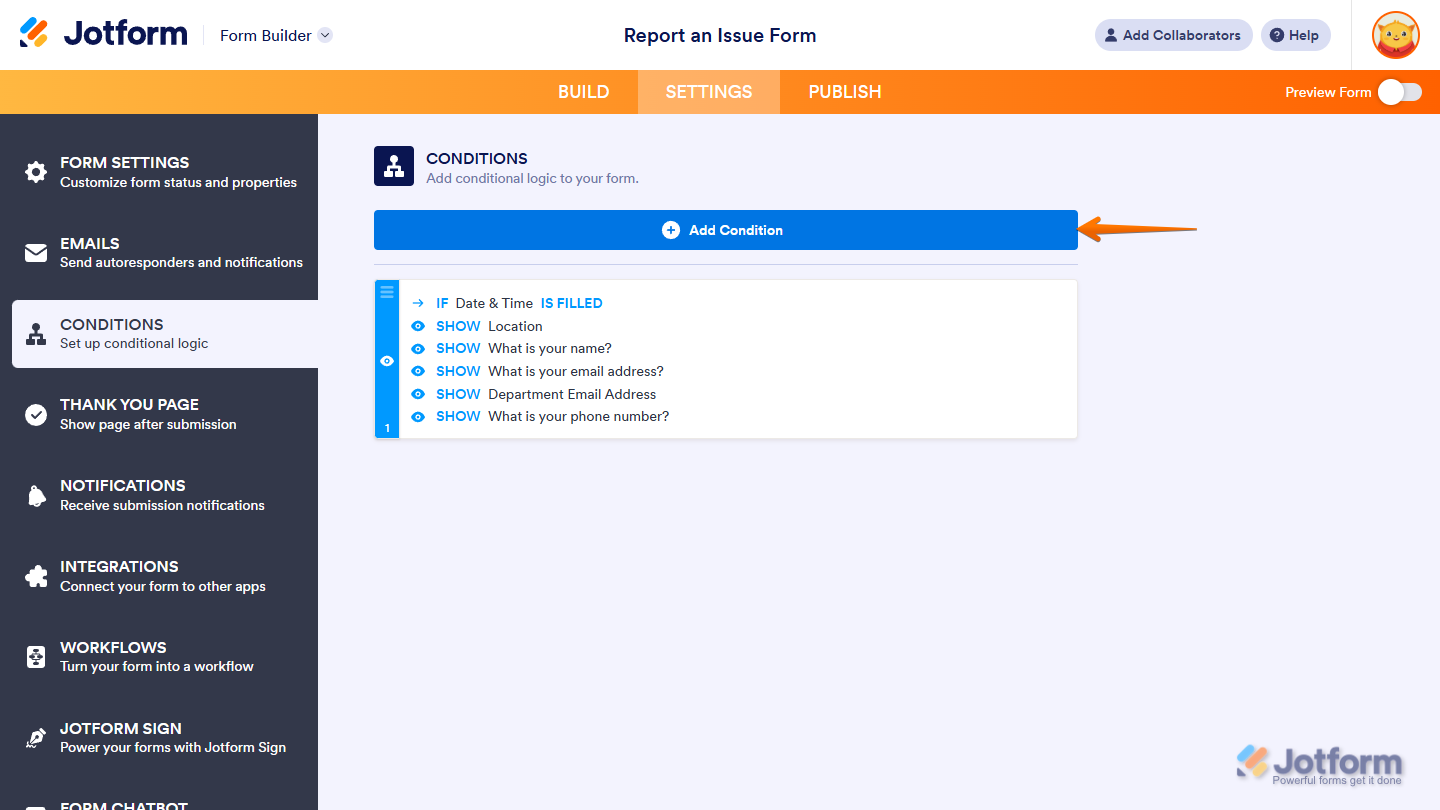
If there is already a conditional logic created for your form before, click on the Add Condition button at the top of the Conditions section first.
Note
Users on Bronze, Silver, or Gold (paid) plans can create any number of conditional emails in their forms, while users on the Starter (free) plan are limited to three. You can check our guide on How to Upgrade Your Account if you want to add more conditional emails.
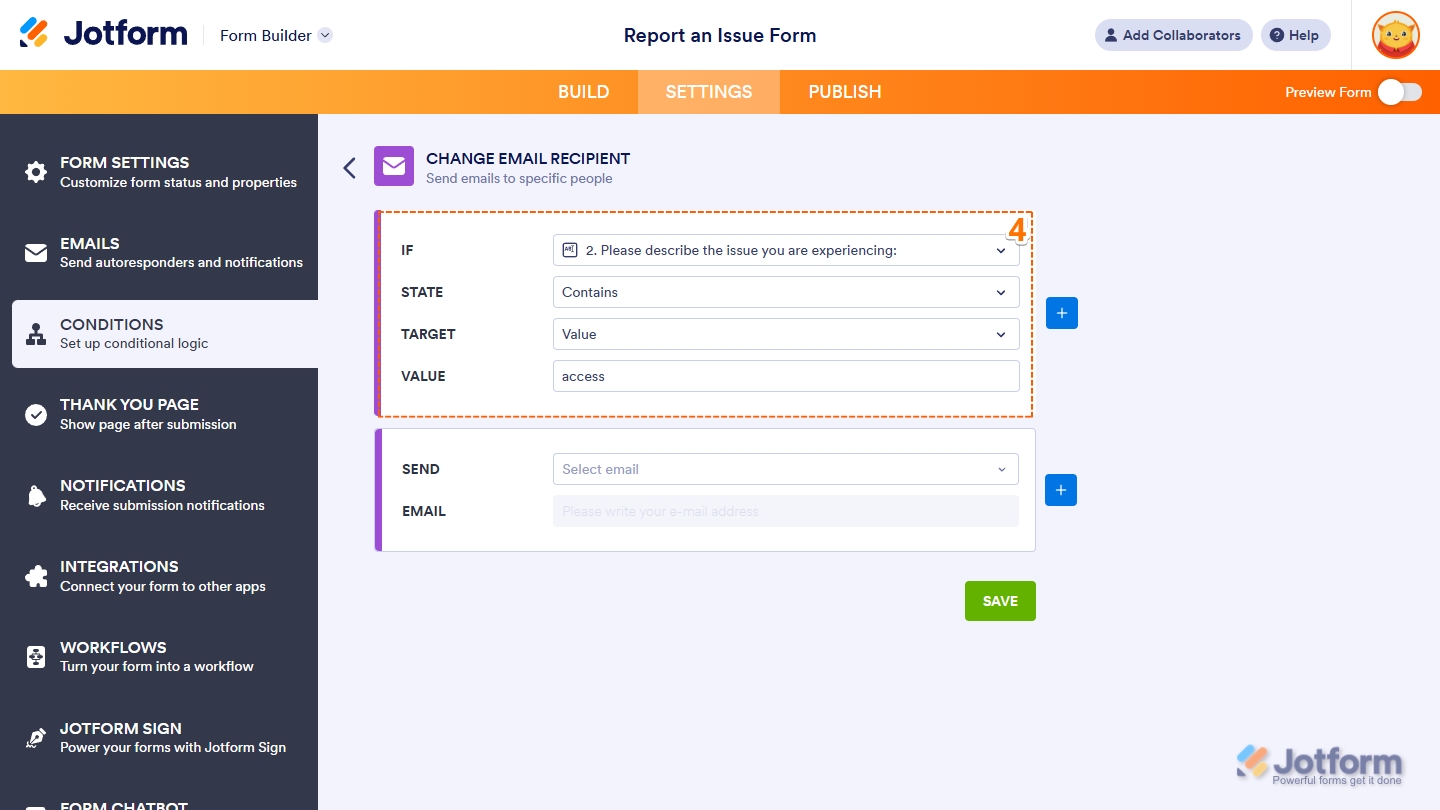
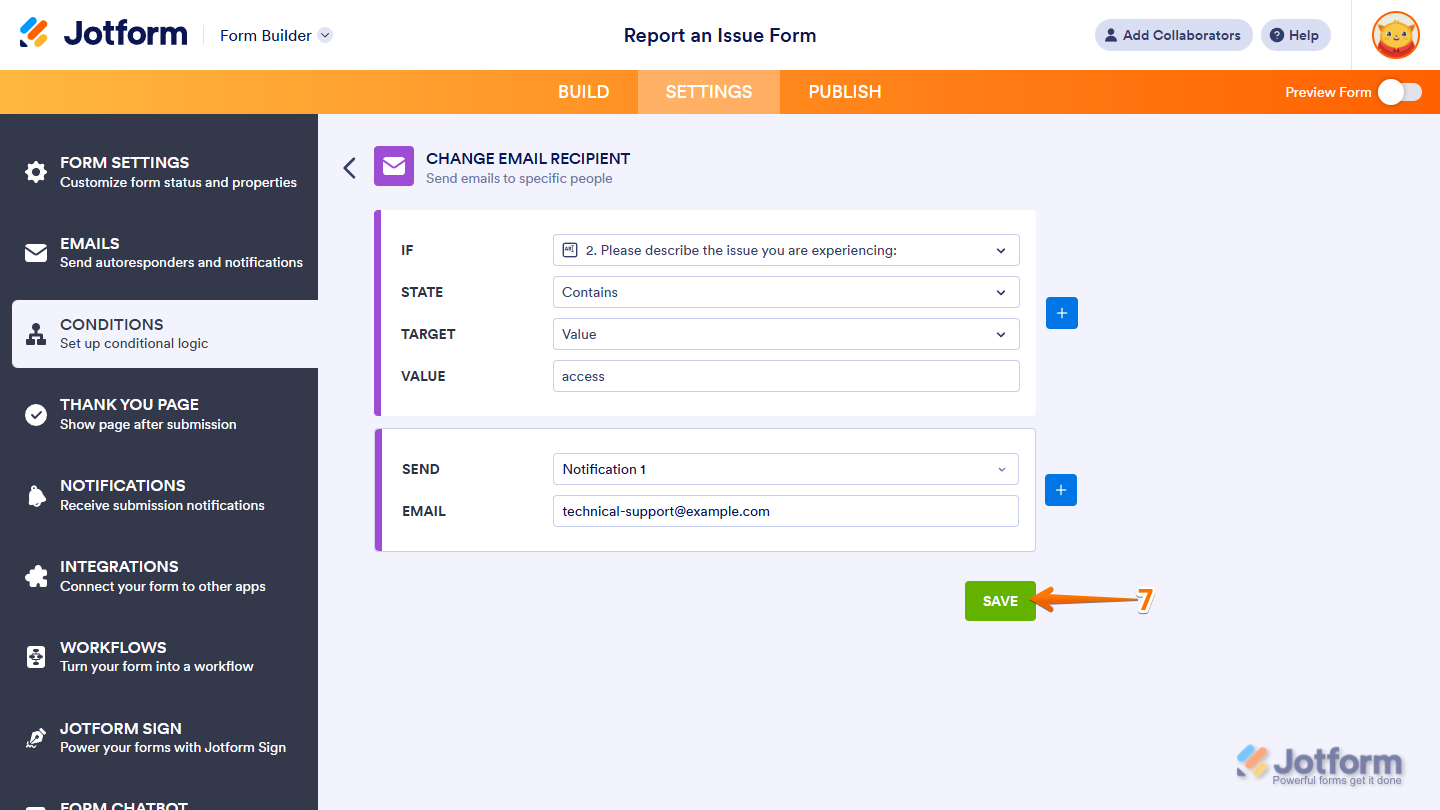
- In the Change Email Recipient section, configure these fields to set an If rule for your condition:
- IF — Select a supported form field whose value or status will determine when the condition triggers. You can use the Search bar at the top of the menu to find a specific one easily.
- STATE — Select the status that the condition should check for in the field you chose. You can use the Search bar at the top of the menu to find a specific one easily.
- TARGET — This appears when the selected status is neither Is Empty nor Is Filled. Select whether you want to compare the value or selection of the field you chose to a specified value or to the value of another field.
- VALUE — This appears when Value is selected as the target. Enter a specific text that the selected field’s value will be compared to.
- FIELD — This appears when Field is selected as the target. Choose the field whose value will be compared to the field you selected in the If Dropdown menu. You can use the Search bar at the top of the menu to find a specific one easily.
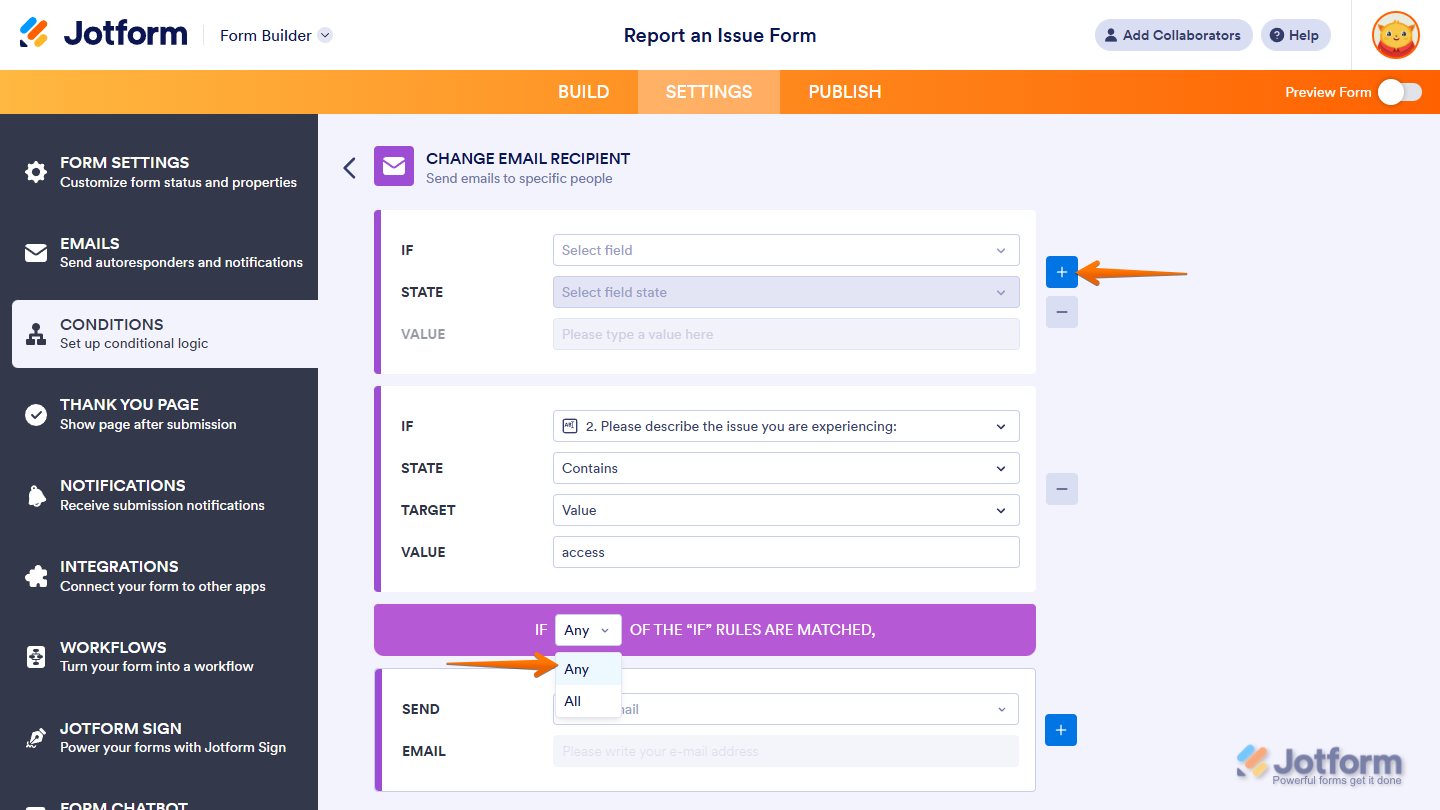
If you want to set another If rule for your condition, click on the Plus icon on the right side of the If Rule section, then, in the Any/All dropdown that appears below it, select Any if at least one rule should be met, or All if every rule should be met to trigger the condition.
- Next, click on the Send Dropdown menu and then select the name of the email template you want to send when the condition is met.
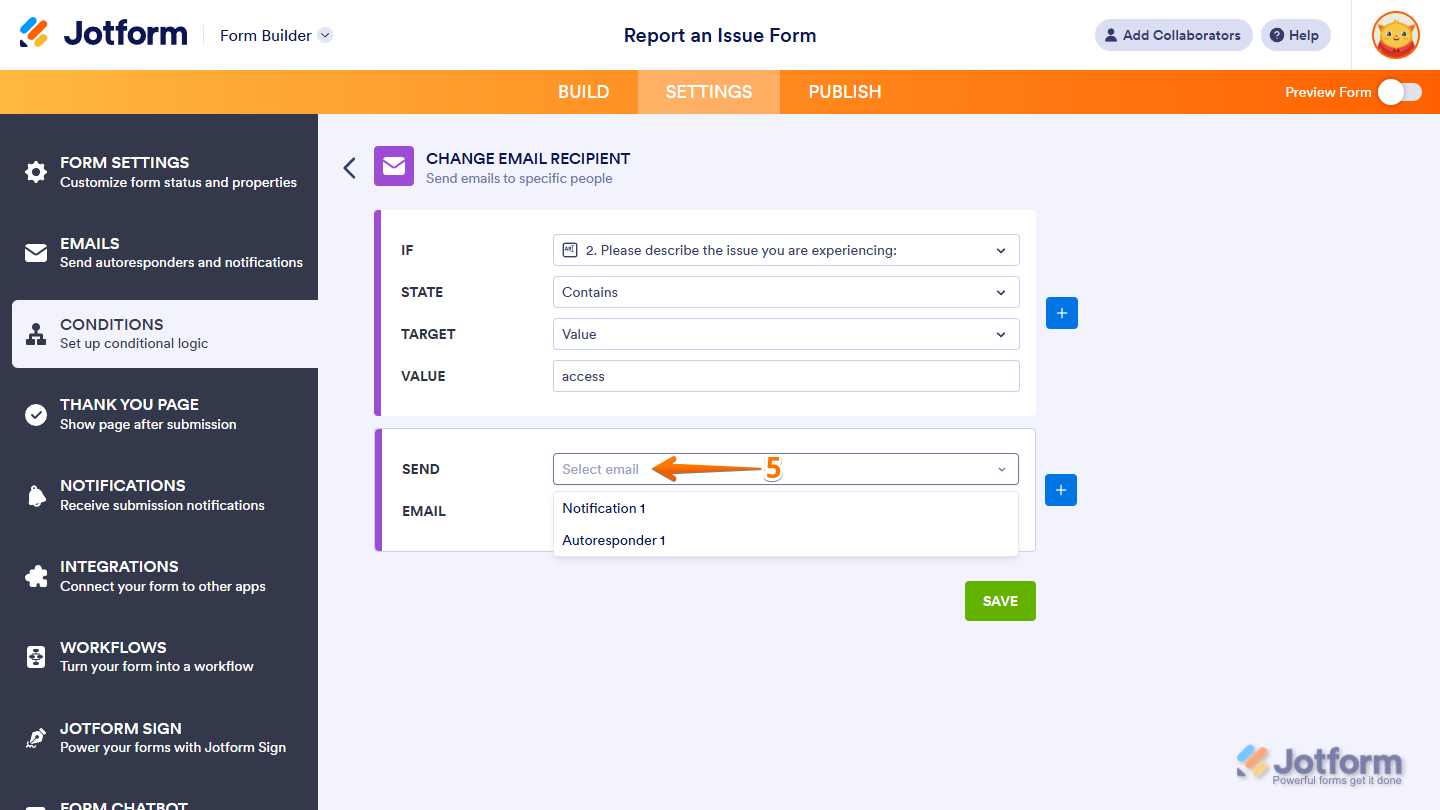
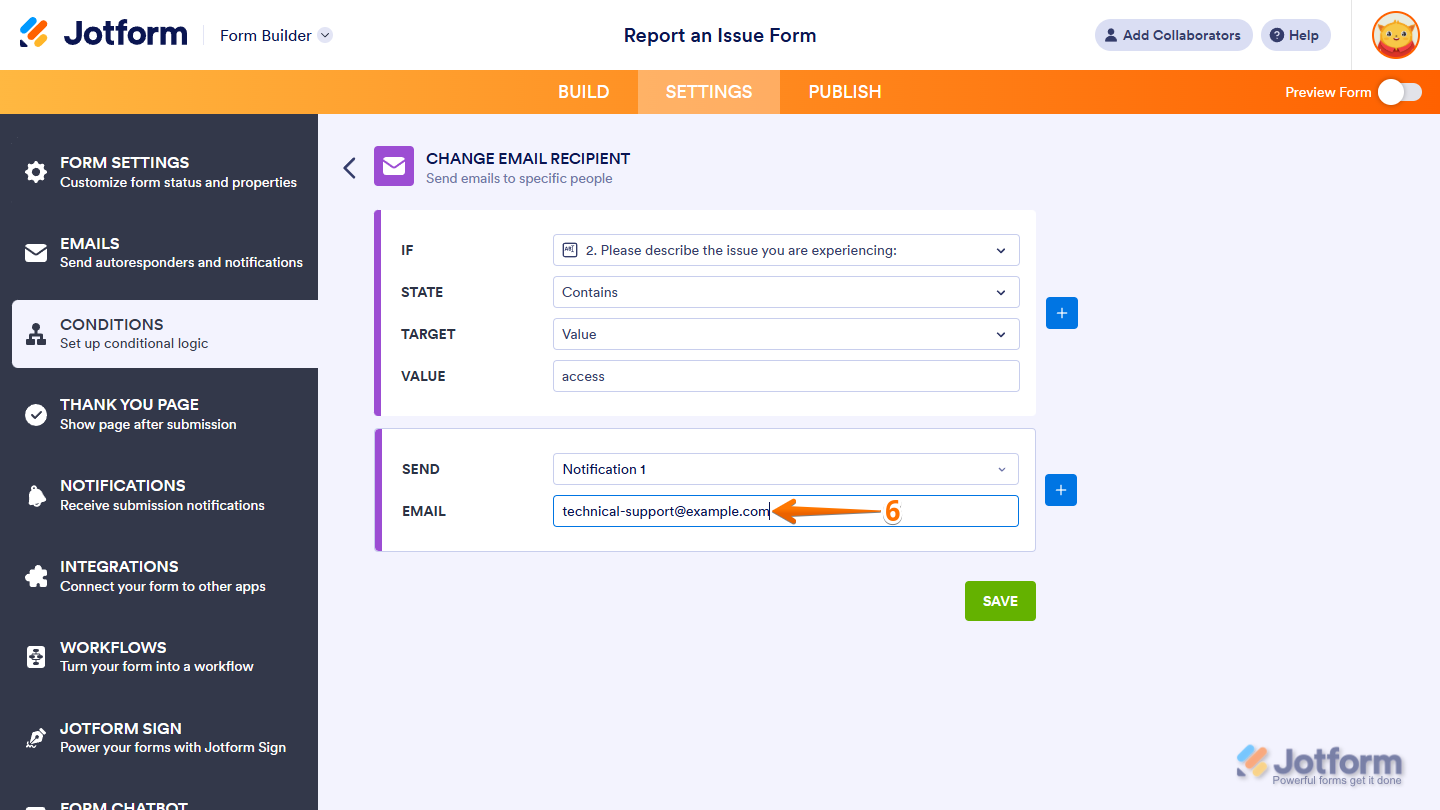
- Then, in the Email input box, keep the default recipient from the email template you chose, or enter the email address you want the email sent to.
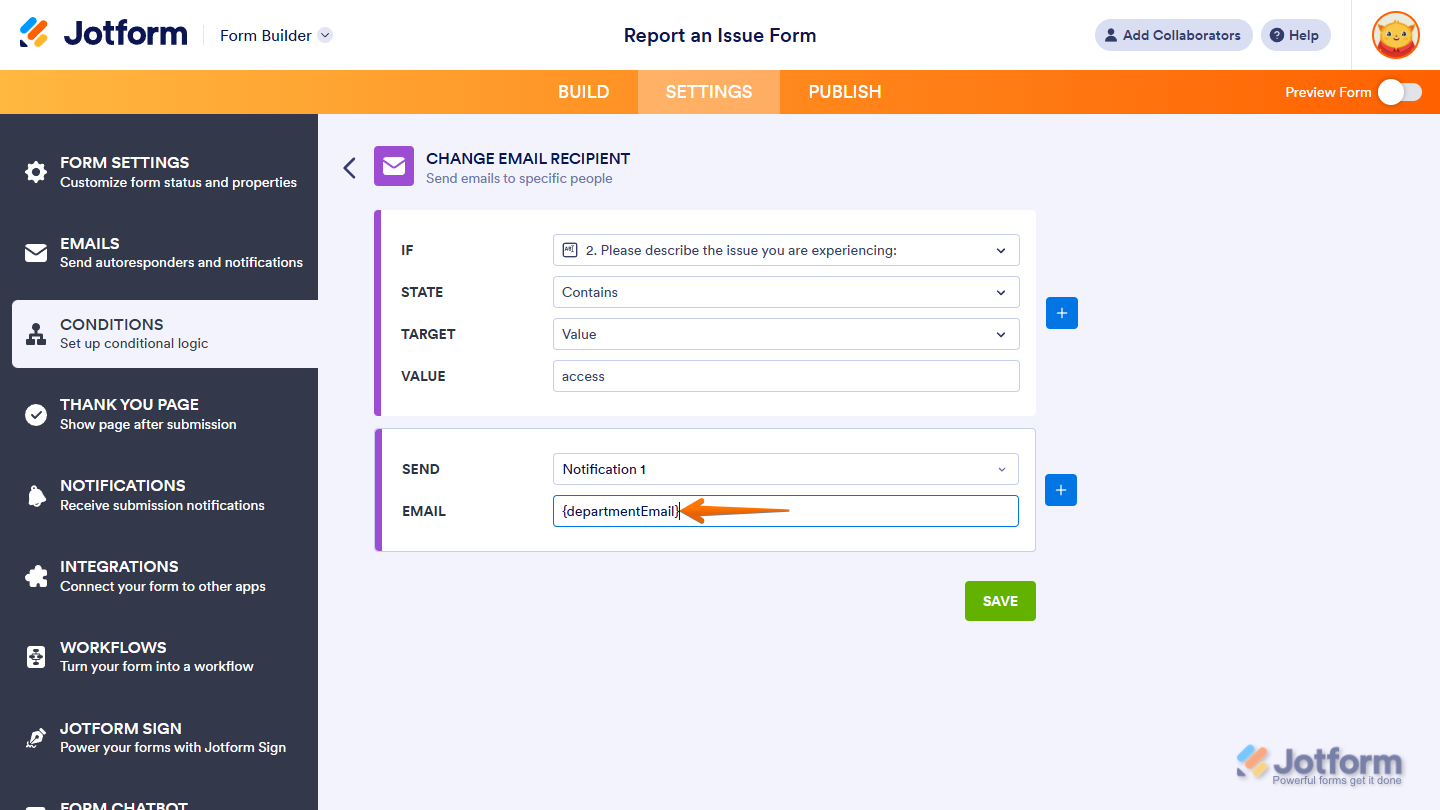
If you want the email sent to an address from a specific email field, enter its field tag instead. If you’re not sure where to find it, see our guide on How to Find Field IDs and Unique Names to learn more.
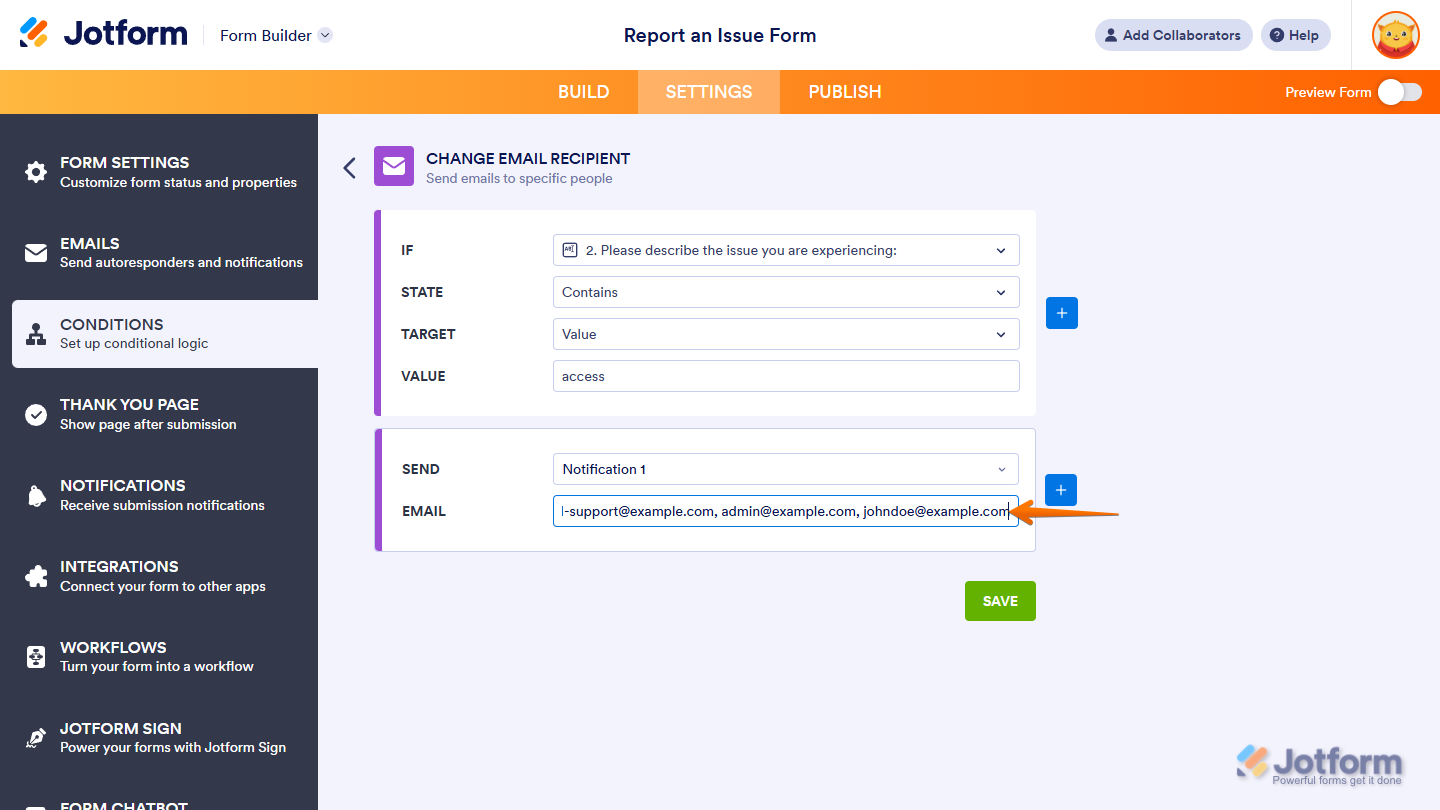
You can also enter multiple email addresses and field tags, separated by commas, to send the email to more than one recipient.
Note
When you set your condition to send emails to multiple recipients, each recipient will be able to see the email addresses of the others. For privacy reasons, it’s best to avoid using this method if the recipients aren’t within the same company or network.
- Once everything is set, click on Save.
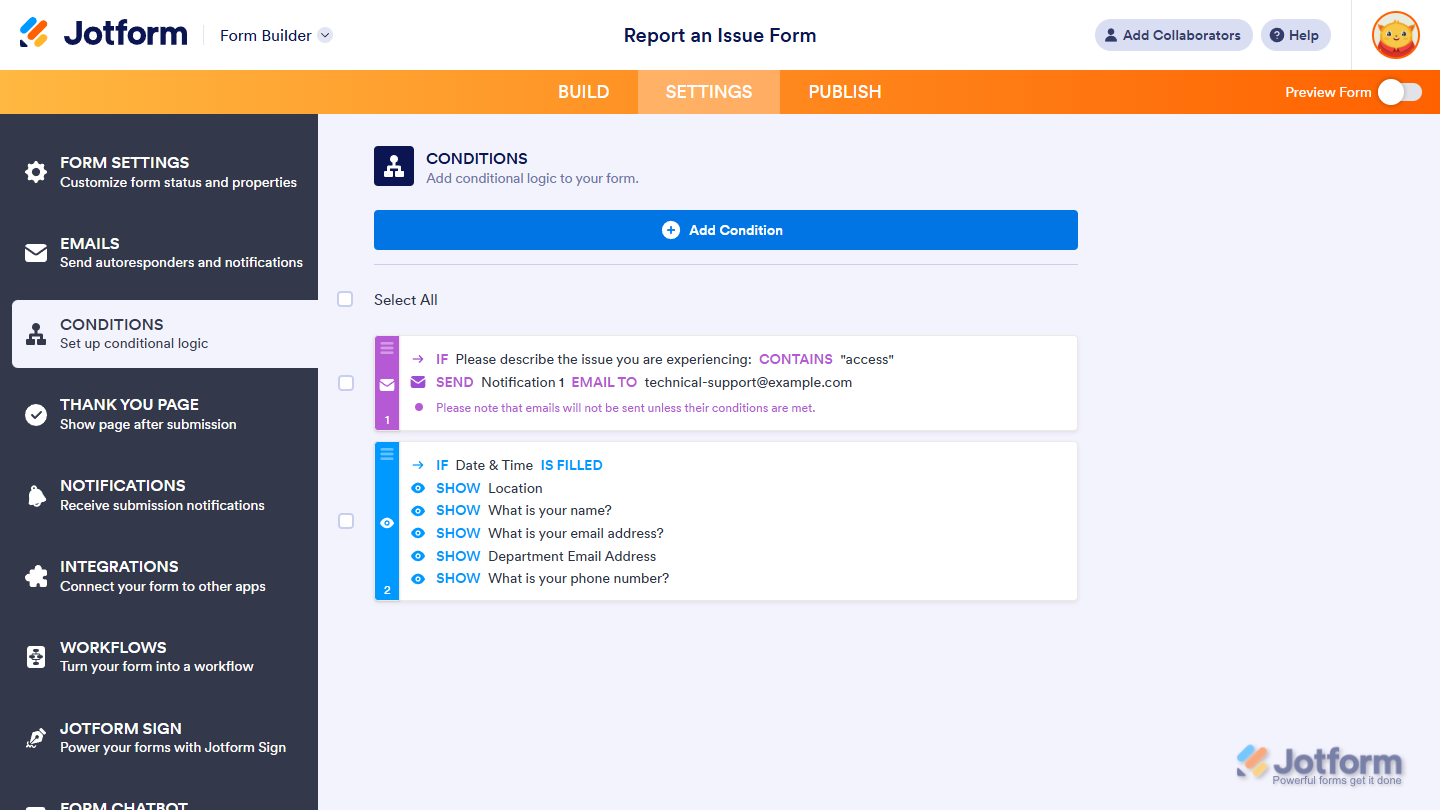
That’s it. Now your form will send the email template you selected whenever the condition you set is met during submission.
Notes:
- Users on the Starter (free) plan can use their form’s Notification Email in one Change Email Recipient condition and set one recipient, while users on Bronze, Silver, or Gold plans can create multiple conditions with the same or different Notification Emails and set multiple recipients for each one.
- You can set up only one Notification Email or Autoresponder Email on each Change Email Recipient conditional logic.



Send Comment:
72 Comments:
October 14, 2025
Necesito crear una alerta en un formulario que evalua estaciones del Metro. Para algunas preguntas, si se selecciona "no cumple", se debe enviar un email con la respuesta que no cumple y la estación evaluada. Con la guía que me enviaron, aún no entiendo cómo hacerlo
July 2, 2025
how do I set up email alerts from a dropdown response
August 20, 2024
Which paid tier does my organization need to be to add multiple email recipients to conditional emails?
May 8, 2024
I see your website says I can creat an email form for free. Is there an cost after that?
March 29, 2024
I would like to create a form that will email a different email address based on the selection from a dropdown list. For example if Project A is selected then the email goes to Project A Email only, if Project B is selected the email goes to Project B email only. Is this possible? I'm not seeing that I can selectively choose based on response.
March 5, 2024
I have followed the process step-by-step, but the form is still not sending to the email assigned. Only the main notification is sending successfully at current. Could something else be wrong?
August 15, 2023
I have my form set up so one email address is sent a notification email with a PDF whenever the form is submitted.
I want to set it up so if a certain answer is submitted for a certain question, that an additional email address will receive a different email including information from the form submission (no pdf needed) but in addition to the original notification email that is still sent to the primary address no matter what.
If I set up conditional logic as shown above, will it send that second email *instead of* or *in addition to* the first email? I ask because the conditional logic format is "CHANGE email recipient" but what I really want is "add another email recipient/notification flow based on set condition"
July 8, 2023
Hi - is it possible to send emails to a list of names in a widget?
Specifically, the 'configurable list' widget in which emails are on only on one of the fields.
June 9, 2023
I made some email notification based on some answers, but the thing is that everyone is receiving that email. Is something wrong with my form?
March 27, 2023
I have a list of applications to choose from. The end user is able to choose multiple applications, however, if the choose applicationA, applicationC, and applicationF, I would like applicationF to send to a different recipient. That's the easy part. What if I want the recipient to ONLY see that application request and not the remaining applications chosen?
Basically, I would receive the completed form and the additional recipient would only see the applications that pertain to her, in this case applicationF.
Thanks for everything!
January 21, 2023
Does it work the same for autoresponders or only for notifications?
January 21, 2022
how do i send different emails to the people who fill out the form. For example, if someone RSVPs YES, they get an email with the zoom link?
September 1, 2021
Hi, I´m trying to create some autoresponders in a form so that the person filling it out receives an email with different information depending on the answer he chooses in a question.
I've already configured the autoresponders and the conditions that must be met for each one, the problem is that when I test the form I only recieve the notification email that I sholud receive as the form owner but it doesn´t send me the corresponding autoresponder to the email specified in the form.
What am I doing wrong?? or this can only be done with notifications?? Need help please...
July 1, 2021
I want to set-up conditional formatting to send an Auto-responder email -
If a secondary email field is filled - send the auto response to the email address in that field, in addition to sending the email to the primary email address listed.
I have tried several tests and only the primary email receives the auto response.
June 23, 2021
I'm getting the following error when trying to update an email address on one of my conditions...
"Users on a free plan can add a maximum of three conditional emails. Please upgrade your account to add more conditional emails."
How do I fix this?
March 18, 2021
I am trying to let User A populate some fields with data and then indicate an email address for the form to be sent to for signature. I was able to use the instructions I see here to let the user fill in some fields and provide an email address, which triggers an email, but it does not send the partially completed form for signature. How can I get it to do that (I am using the form "Testing Use of Email Address Parameter" in my account).
January 13, 2021
plzzzzzz? help me
December 11, 2020
I want to ask i have completed payment oct 30 -2020 ) date is updated as of December 11-2020 at 3;59PM GMT+8 and how do it this payment thank
December 2, 2020
Thank you so much!!
November 2, 2020
All of my forms and pdf attachments are only being emailed to 2 email addresses so do I have to create a notifier for each one of the pdf's I created or can I "select all" and then do my email conditions for each separate pdf? I already know how to do the above I just need a little more clarification on how many notifiers I need to create?
September 21, 2020
Hello. Most of the forms I have created will be sent to one person to approve the form from each employee that uses it. Then once that person approves the employees form they send it to payroll as the main collector of the information.
We are finding when the approver sends the form to payroll they are not receiving it.
Also I have set up conditions for certain employees who dont have arto as their boss. But they have sent in leave application forms and they haven't been sent to the person I have put in the condition to have the form sent to them should it be that particular employee. I put contains the persons email address to have the form sent to a different person.
Anyway can you please help me with both of these issues.
Thank you
Alicia
September 16, 2020
Hi - We are using Jotform for a Covid questionnaire for a large building. I'd like to create a condition with multiple pieces of logic.
For example:
Question 1: Are you a guest or an employee? Yes / No
Question 2: Have you tested positive for covid in past 14 days? Yes / No
Question 3: Have you been outside the country in past 14 days? Yes / No
Question 4: Has someone in your home tested positive? Yes / No
Desired Logic: If Q1 is "Yes" AND (Q2 is "Yes" OR Q3 is "Yes" OR Q4 is "Yes"), send Email to jon@smith.com
Is this possible?
Or do I have to create a new Condition for every separate permutation?
Thanks! You are all awesome!
September 15, 2020
I want to close my acc the same strange opened for me now I can't investment my money what can I do
September 8, 2020
If a "CHANGE EMAIL RECIPIENT" Condition is False, why does the system not default to the original settings (as found in the EMAILS section)?
August 19, 2020
Hello,
We are using Jotform as a pre-screening for COVID-19 symptoms. We have been receiving email notification for every single email and we were wondering how to change the notification if the response says YES and continue to see the rest of the responses on google sheets.
Thanks,
Talya