Jotform’s email logs make it easy to see what’s happening with your form emails at a glance. You can check when each email was sent, who received it, and whether it was delivered successfully, all from your Account History page. It’s a simple, helpful way to stay on top of your email activity and quickly spot or troubleshoot any delivery issues if they arise.
Viewing Your Form Email Logs
Checking your account’s email logs is a great way to stay informed about everything happening behind the scenes with your form emails. From notification emails to autoresponders and even potential email issues, you can see it all in one place. Here’s the quick way to do it:
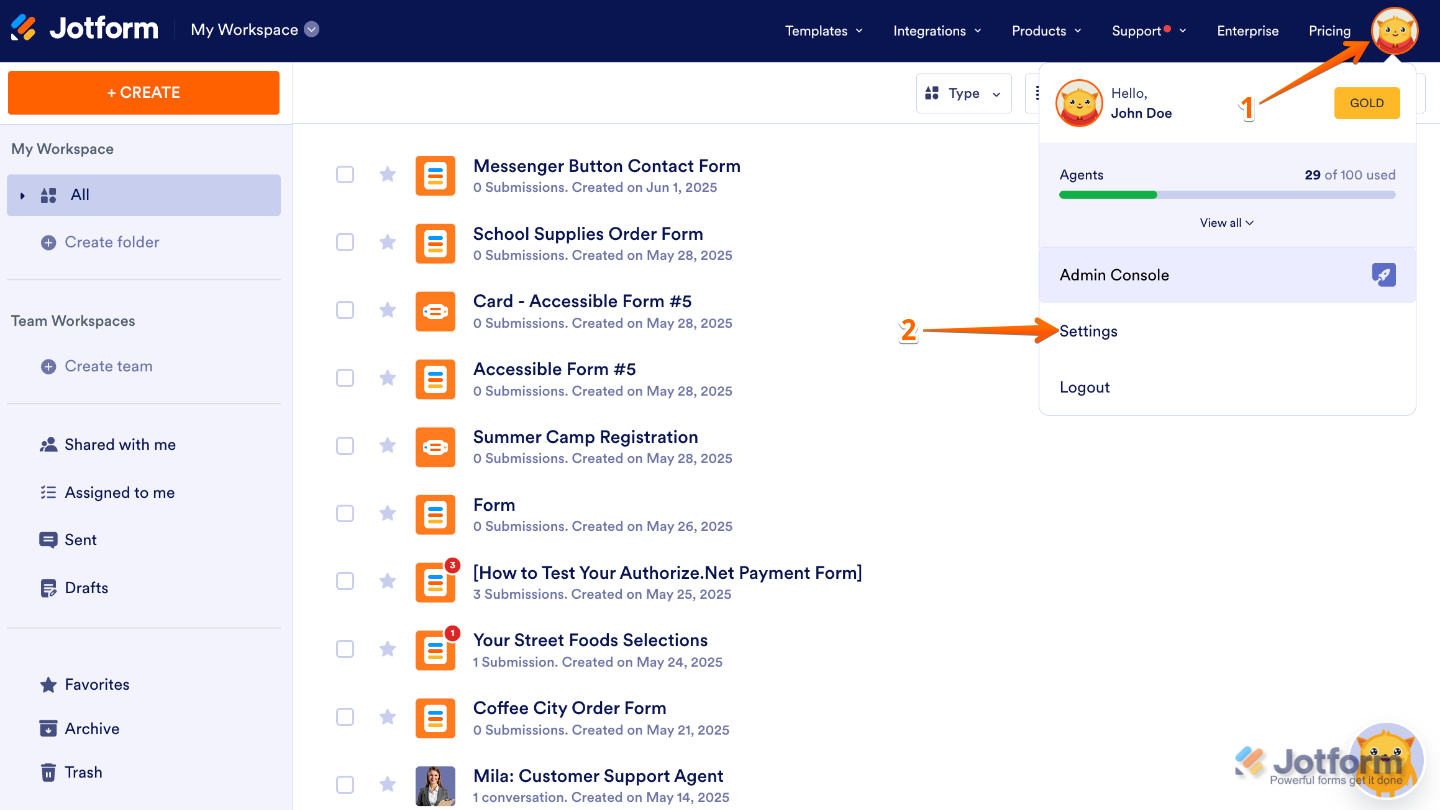
- On your Workspace page, click on your Profile Picture/Avatar on the top-right side of the page.
- In the menu that opens, click on Settings to open your Account Settings page in a new browser tab.
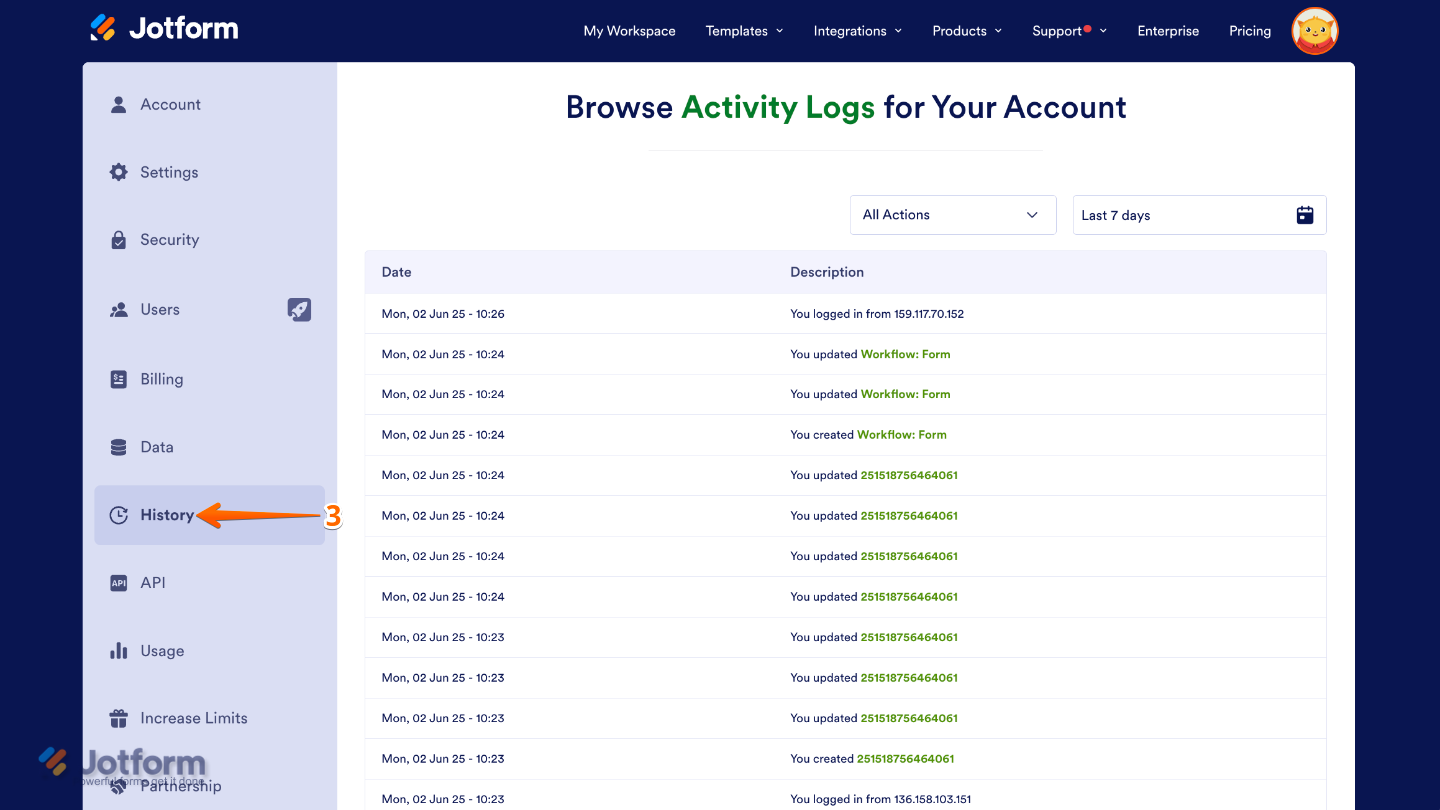
- Now, on the left side panel, click on History.
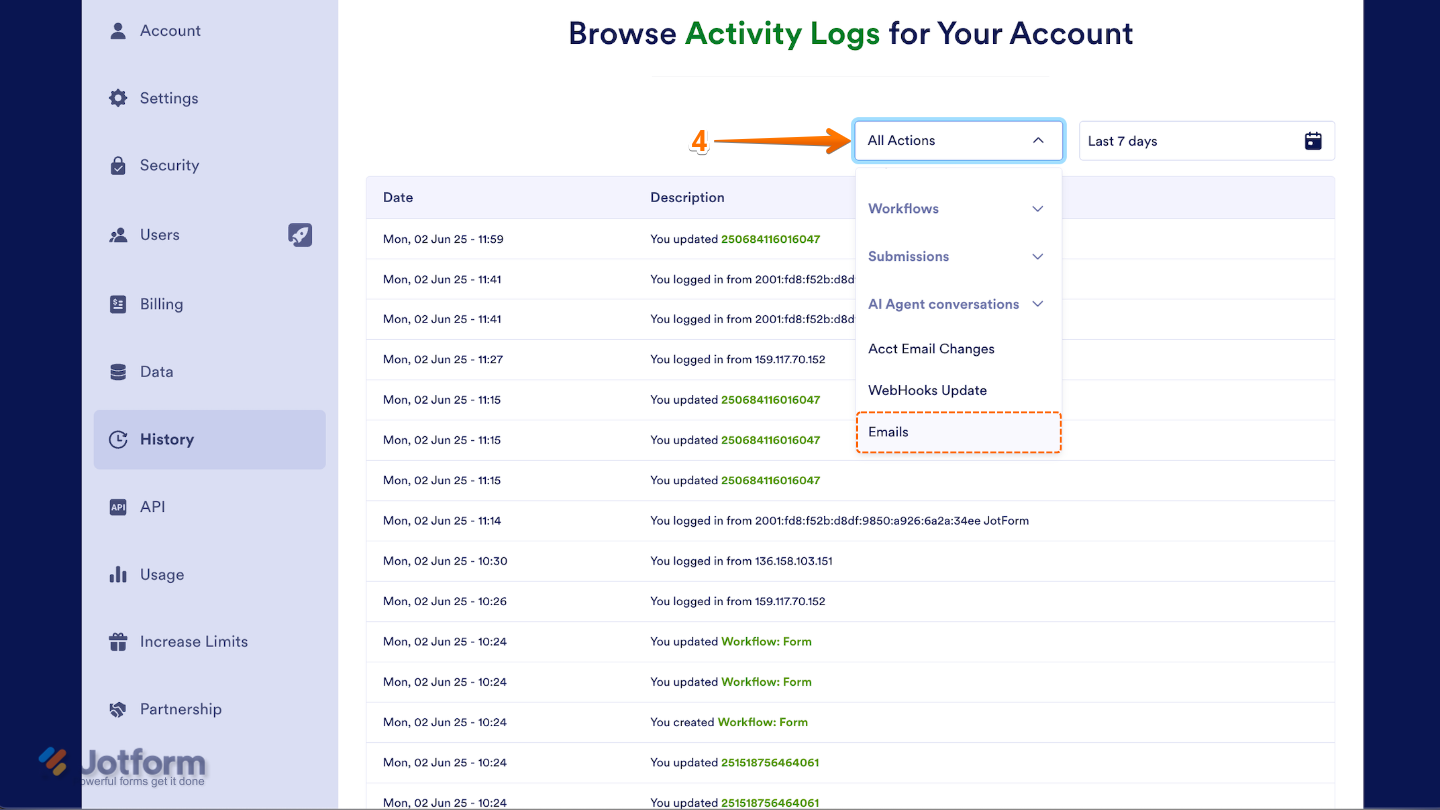
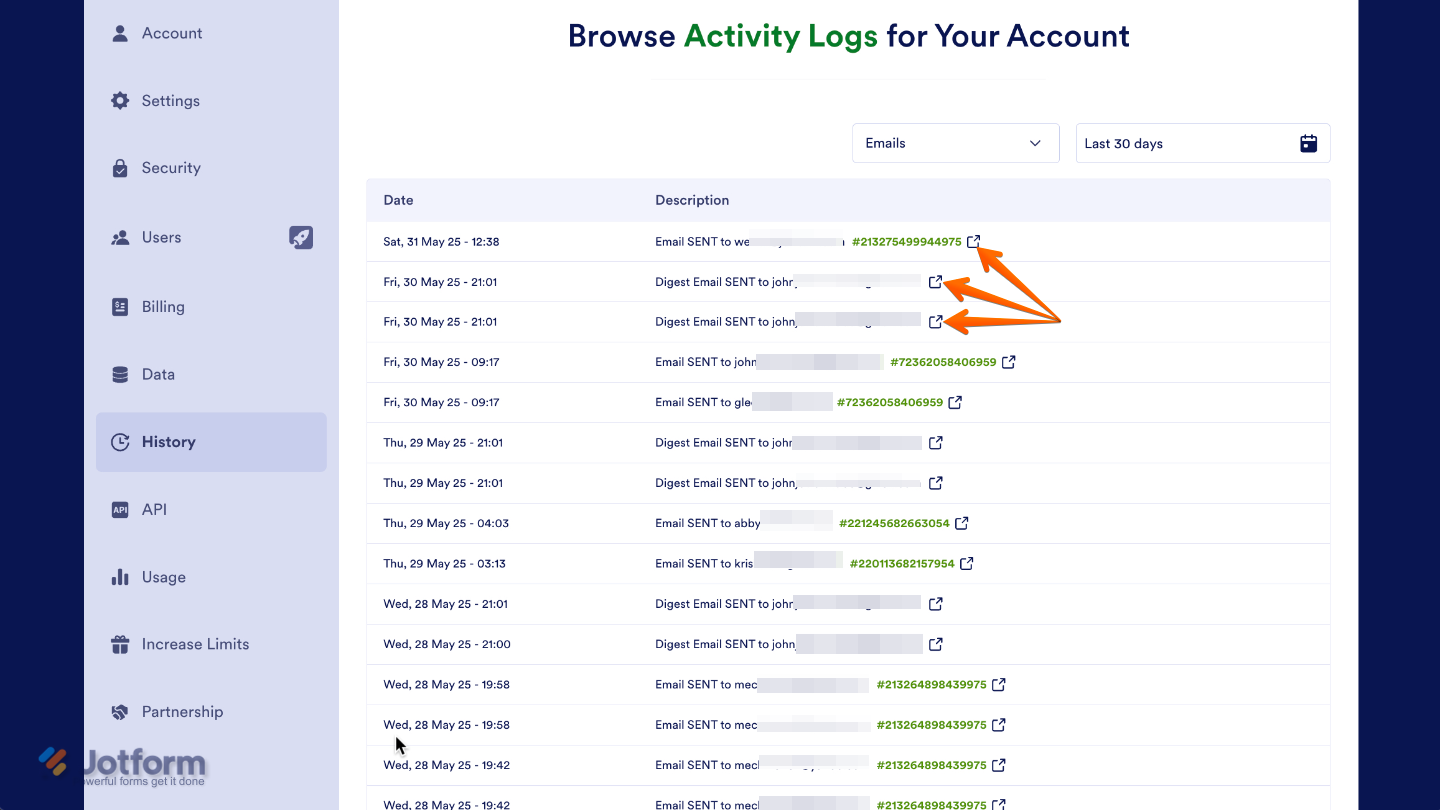
- Next, click on the All Actions Dropdown menu in the upper-right corner of the table, then select Emails.
- Then, click on the Date filter and simply pick your preferred time range from the dropdown calendar.
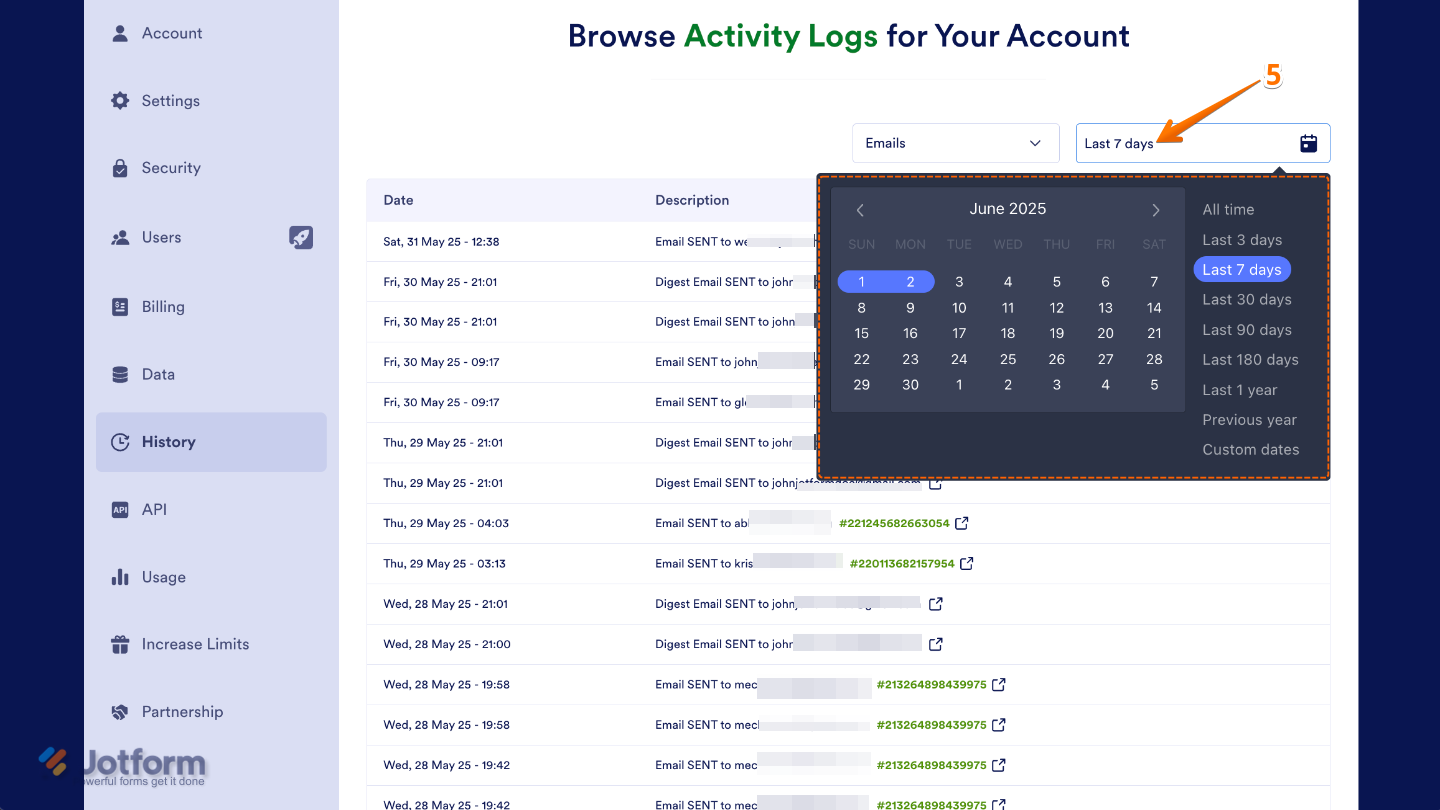
That’s it. You’ll now see a table showing the email logs for your forms, giving you a clear snapshot of what’s been sent and when. If you want to dive into the details of a specific email, simply click the External Link icon next to it to view more information.
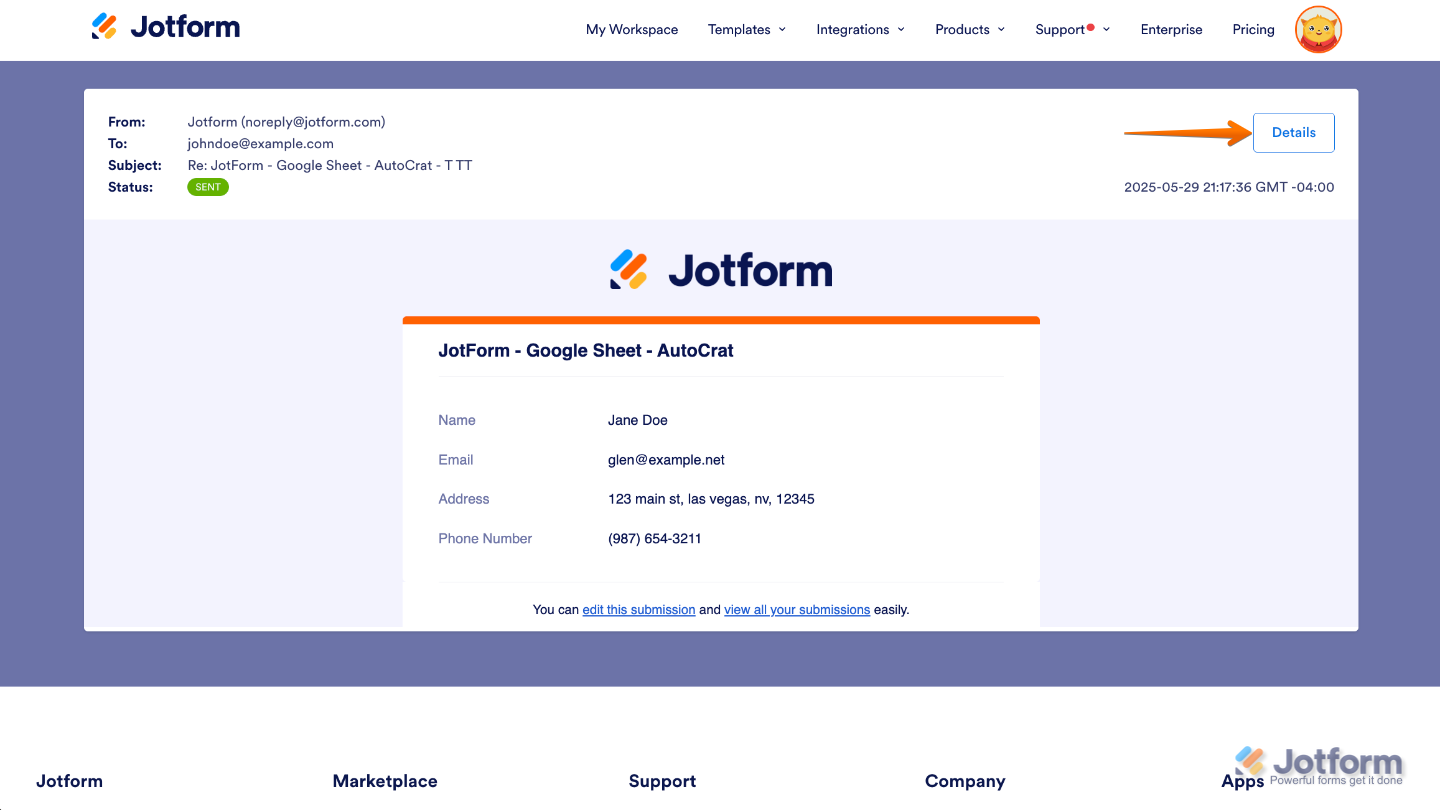
While previewing an email, you can click Details in the upper-right corner to get a closer look at all the information, like recipients, sending time, and delivery status.
Pro Tips
- If multiple people manage your forms for audit changes, the logs make it easy to track who changed what and when.
- Regularly checking your logs helps you stay on top of user activity and system behavior, especially after making major updates to a form.
- If you’re an admin or team lead, bookmarking your Activity History page saves you time when managing multiple forms.



Send Comment:
16 Comments:
July 8, 2026
Jotform team, please add instructions on locating the same email activity for a shared form that is in a Team space. The instructions above are only for forms in your personal workspace. The AI tool only told me the same instructions above. For anyone needing sent email information for a shared form, it is in the Admin Console under Emails.
June 13, 2026
Further to my previous comment, I've forgotten my password and I am not receiving an email from you with a link to reset it
June 6, 2026
it is difficult to do this when I can not log in
April 26, 2026
shows emails failed
February 19, 2026
email sent via instant sharing are not appearing on log
January 26, 2025
This is okay, but what I really need is a list of the emails that should have sent but didn't for whatever reason (i.e. wrong email or bounced for some reason). We have emails bouncing, but we have no ideas that our customers are not receiving them.
I could check this list, but when we have hundreds of submissions, this is not really efficient.
April 20, 2023
Please help me with recover my email
February 12, 2023
I need a email that was sent to another phone number on October the 5th a special card for food
February 1, 2023
Hi,
I've just been trying to look at emails sent to our customers in the activity log but no data is showing, I know that emails are being sent so I don't understand why no acuity is being produced?
Thanks
Tim
August 29, 2022
I need a email history
July 12, 2022
Can you please send me a copy of my mails from 6/29/2022 I never received the mail
July 8, 2022
I need my all emails for the last nine months please
June 3, 2022
Thank you for this feature - how do a resend an auto-response email?
November 30, 2021
i would like to down load my email addreses hisstory
November 9, 2021
That is a nice feature. Top.
Let me know, if mail attachments can also be checked somehow. It happens that my users have posted that they did not receive the correct PDF or no PDF at all in the attachment.
October 3, 2021
I need documents from Ron sent to me on July 27 or 28th 2021 I paid for this its a very important documents I need before the end of this month it is crucial I retrieve this document I had it and it's been removed from my email and files please help THIS DOCUMENT IS VERY IMPORTANT PLEASE FIX THIS MATTER AND SEND ME MY DOCUMENT BACK TO ME