Jotform’s Send Emails Later feature lets you schedule emails to go out at a future date. It’s perfect when you want to send messages conditionally—like a follow-up email after someone submits your form, or an automated message based on a date they selected. It keeps your communication timely, personalized, and effortless.
Setting Up the Send Emails Later Using Autoresponder Email
You can set up the Send Email Later feature in just a few simple steps. Whether you want to schedule follow-ups, send reminders, or time your messages perfectly, the process is quick and easy. To get going, here’s what you’ll do:
- In Form Builder, in the orange navigation bar at the top of the page, click on Settings.
- Then, click on Emails in the menu on the left.
- Hover your mouse over the Autoresponder Email template and click on Edit.
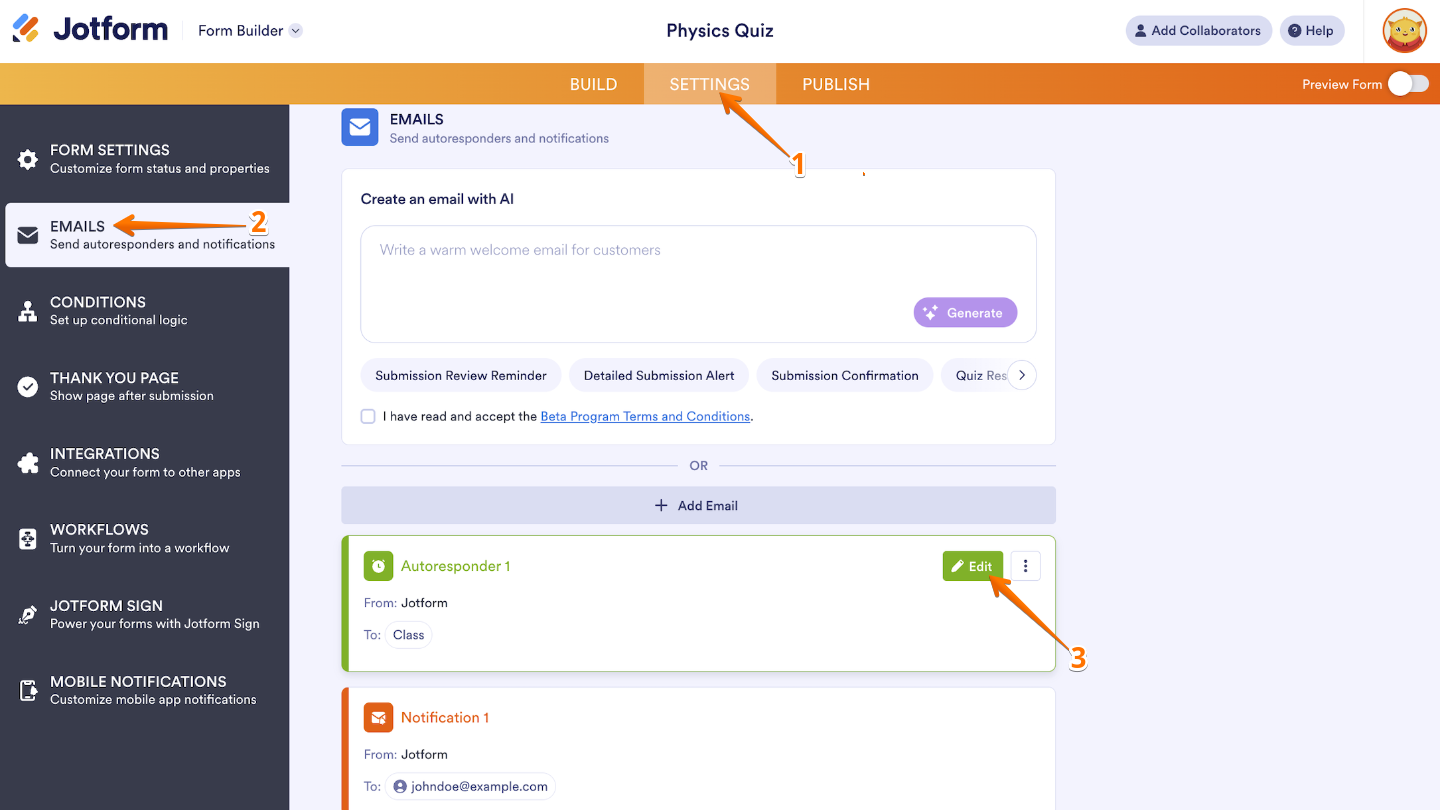
If you don’t have an Autoresponder Email in your form, check out this Setting up an Autoresponder Email guide to create one.
- Next, go to the Advanced tab.
- Now, scroll down to Send Email Later and select your option.
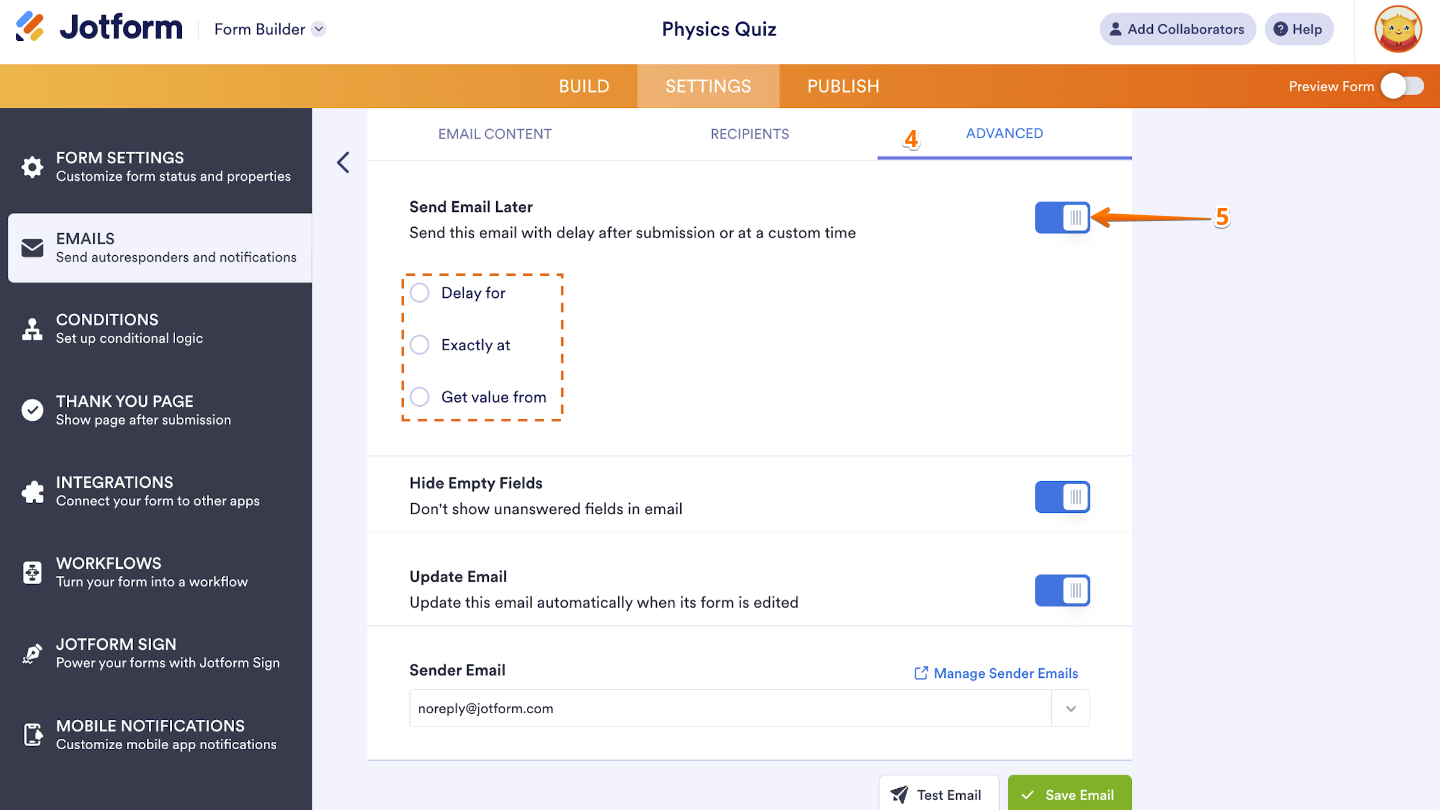
With the Send Email Later feature, you can pick from several scheduling options to match exactly how and when you want your emails to go out. Here are the choices available to you:
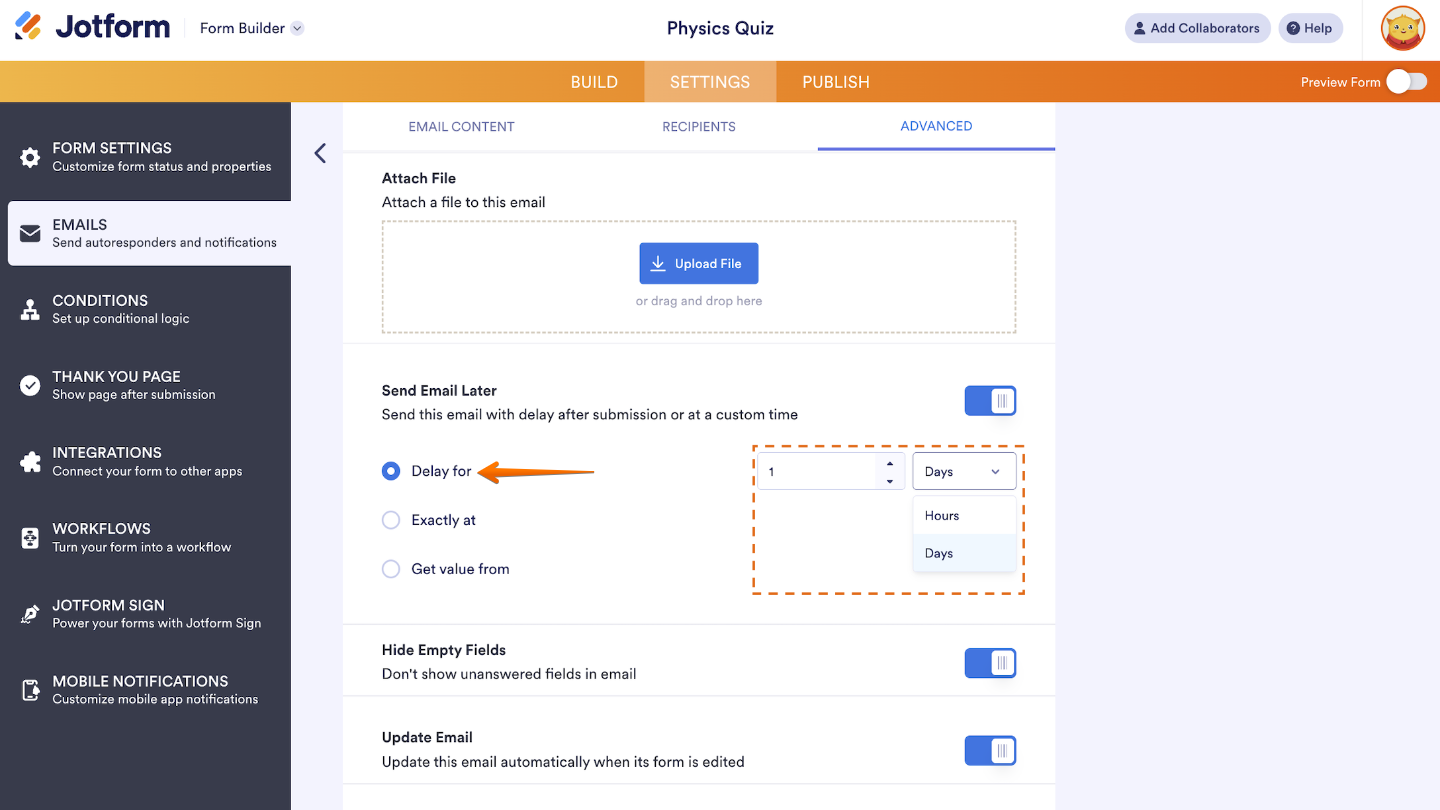
Delay For
This option lets you set a waiting period before the autoresponder email is sent. You can choose a specific amount of time or days after a user submits the form.
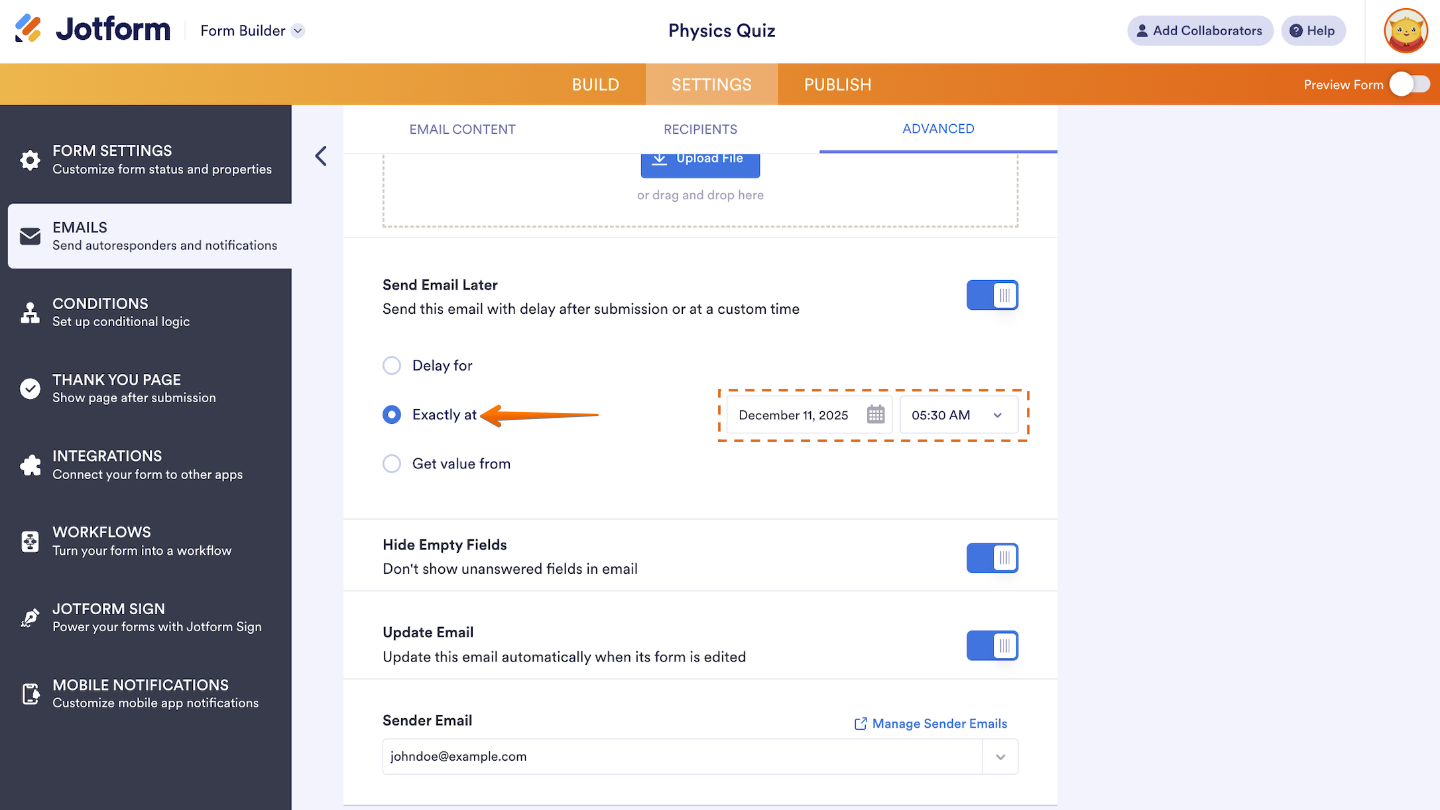
Exactly At
Use this if you want to schedule the autoresponder to go out at a specific date and time, regardless of when the form was submitted. This gives you full control over when your message is sent—down to the specific hour—so your emails go out exactly when you want them to.
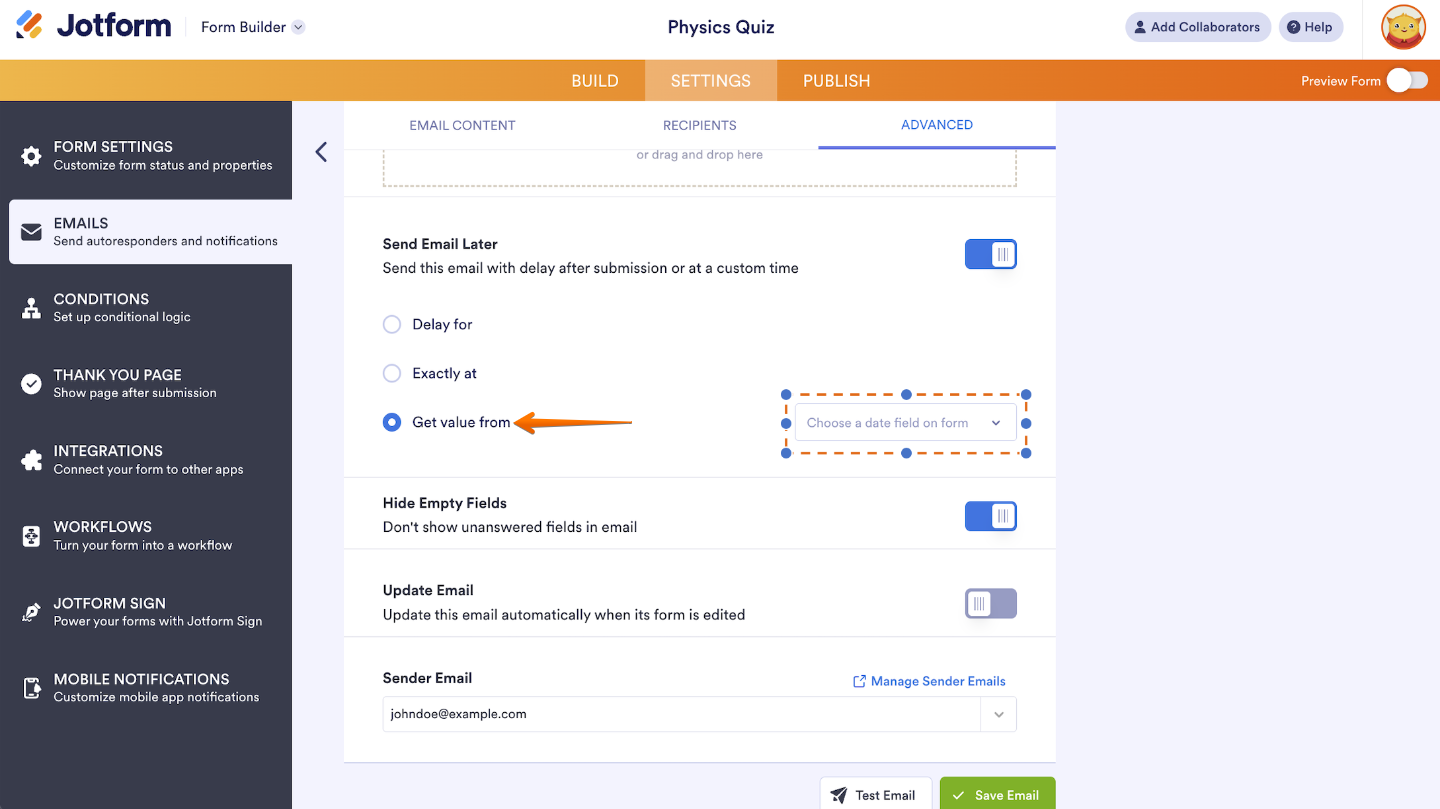
Get Value From
This option allows you to pull a date/time value directly from a form field (like a date picker) and use it to schedule when the autoresponder should be sent.
Check Spice up Your Email Campaigns with Autoresponders guide for a use case of the Send Email Later feature.



Send Comment:
14 Comments:
June 4, 2025
We need this function in Workflow, please
May 20, 2025
Can I edit a date in my submission table and still have the auto responder work? For example, I'm testing my emails to see if the send date is working, but my real date isn't for another 60 days out. I'm wondering if I can change the date in the submissions table, just for my test data, and get the email to send sooner.
November 23, 2024
this is great, thank you. Does this get sent to all the submissions on the form before thie autoresponder was set up or does it send it to all recipients on the form?
January 29, 2024
what happens if i choose send email at a later date but the date i choose is march 30th 2024 and the person fills out my form on april 2nd. will they still receive the email that was to be sent on march 30th?
August 30, 2021
I have a booking form and sometimes people cancel their booking. I have an automated email that goes out 1 day before their booking. Some people who've booked an appointment and cancelled are getting the email reminder.
When I cancel the booking I go to submissions and click the line with their details and click move to trash.
I've turned on, update email on my automatic emails under advance.
Why is it when I trash a submission the person still gets the email? How can I stop this?
April 20, 2021
We would like to get into contact with people who have filled out our form some months ago. Back then we have set up a immediate autoresponse email which people have received correctly.
Now we tried to go in again and edit the same form to have another autoresponder email to let the people update their submission and answer few new questions.
Unfortunately, those scheduled autoresponse mails did not get sent. What timezone is the scheduler set up to? What else can we try? thanks!
March 5, 2021
Thanks for the fantastic article. How can I prevent the auto-responder from getting sent out immediately if I don't fill out a date? The problem is sometimes a date is filled in, sometimes it's not. If I don't fill in a date it will send the autoresponse immediately instead of never.
January 6, 2021
I would like to utlize this logic flow, but using the appointment widget to create the conditional logic for a follow up email reminder, rather than the date picker.
From what I can tell, trying to get up the conditional formatting will not work with the appointment widget right now. Is that possible to do, or does this whole flow only work with the date picker?
Thank you!
December 30, 2020
I see there is the option to send at a later date. Can you please add the option to send at a later time? So that the autoresponse email can be delayed by say a few minutes or hours?
August 9, 2020
Hi,
I want to create an email notification workflow based on various overdue dates. This is for managing the close out of actions. I have not created the form yet.
I will have a form with actions that are required to be completed by a responsible person by a due by date.
I'd like the responsible person to receive an automatic email 2 days before the action is due to remind them that the action needs to completed.
If the Action is not closed out 7 days after the due by date then I'd like the form to send an email notification to the responsible persons manager. If the action is still not closed out 14 days after the due by date then the next manager up receives an email notification.
If the action is still not closed out by 21 days after the due by date then the next manager up receives an email notification.
If at any time the responsible persons edits the action form and adds a completion date along with what was done to resolve the issue/action, then this terminates the email notification flow.
Can this be done within Jotform without a third party widget or app?
Thanks
May 7, 2020
What if my guest canceled the reservation? How can I delete the "day before check-in" autoresponder for that reservation?
April 15, 2020
At what time does this send email?
January 17, 2020
I made an email responder yesterday that i want to actually go out to the full list of people yesterday. So I set the Send on a later date to the current date. It didn't send it yesterday though. How can I do this? Do I need to choose the Send date as at least one day later than I made the email?
August 29, 2019
Seems doable, but also seems WAY to complicated. My dates will change weekly. There is too much room for error. If this week im doing classes tuesday at 5pm only. and next week i am doing them wed a 6. and I only want to give 2 or 3 options to the form im driving the traffic too that are immediately looking to book. Is there an app that may be better than the form? Or an integration specifically for appointments and classes?