With Jotform, you can easily calculate totals based on what users enter in your form. This is great for things like order forms, donation forms, or quizzes where you need to show a total right away. You can do this in two easy ways:
Both options are simple to set up and work great for all kinds of forms.
Using the Form Calculation Widget
The Form Calculation widget lets you calculate totals on your form using basic or advanced math. You can add fields together, multiply values, or use built-in functions like round() or min()—no coding required. Follow these quick steps to get started:
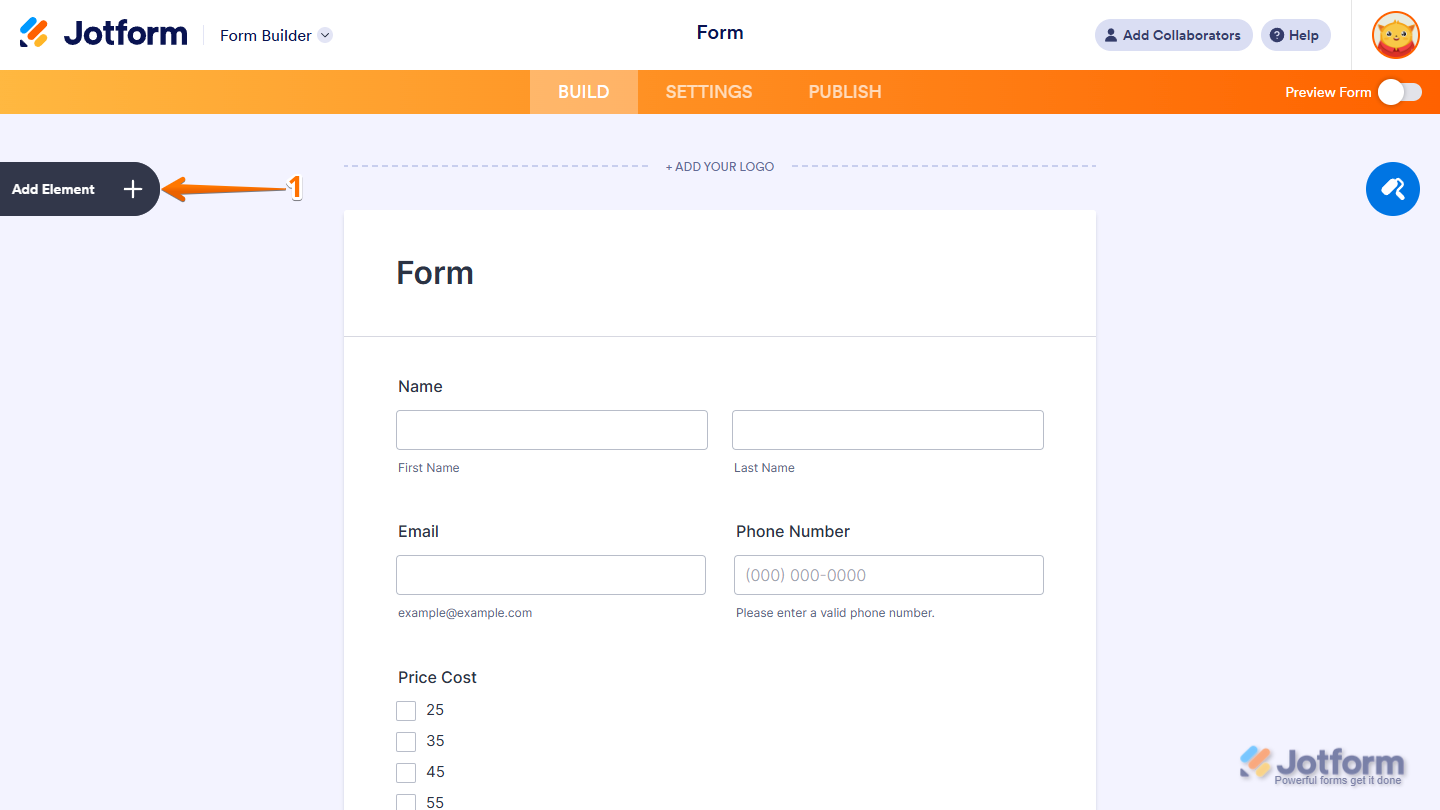
- In Form Builder, click on Add Element on the left side of the page.
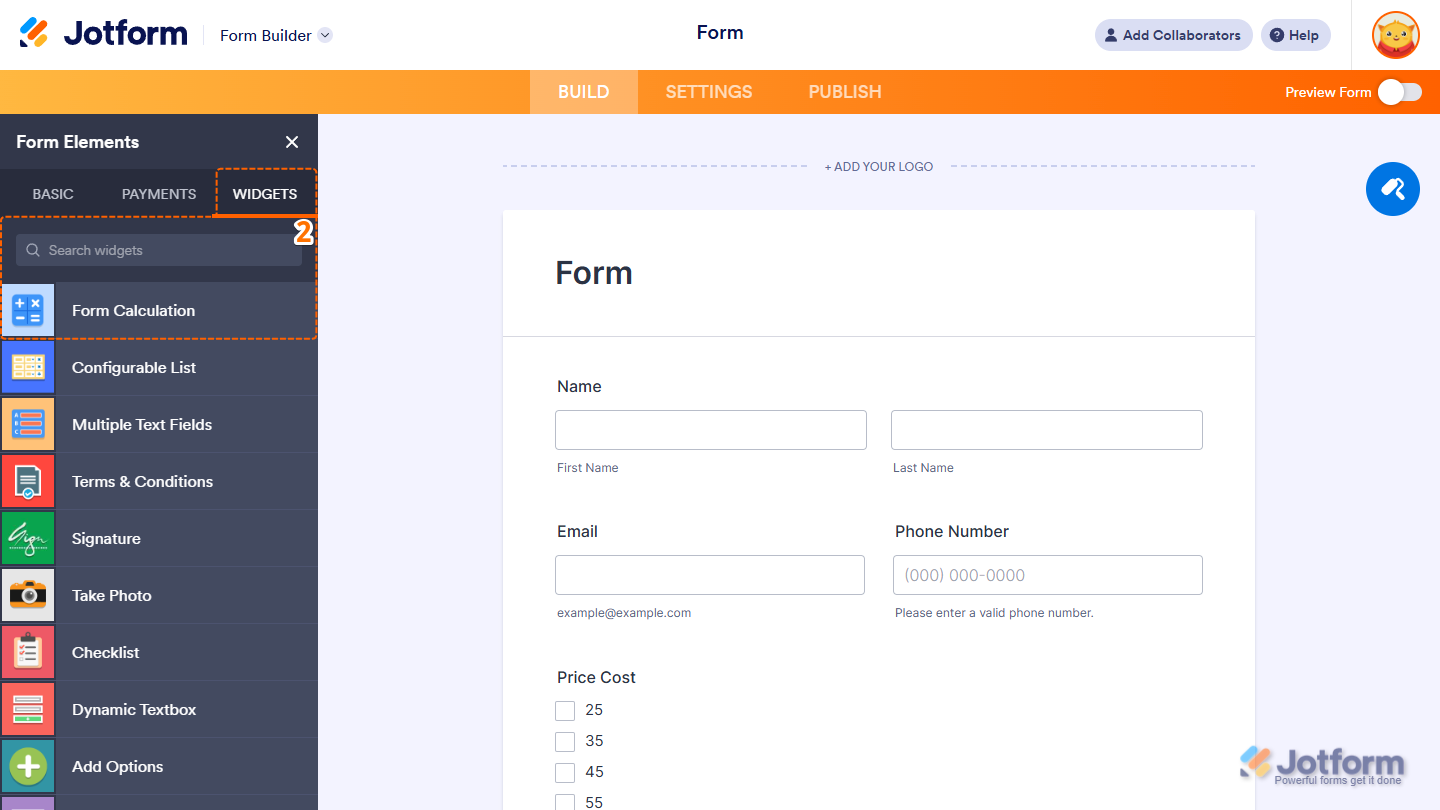
- Then, in the Form elements menu, under the Widgets tab, click on Form Calculation. Or, just drag and then drop it to where you want it to be on your form.
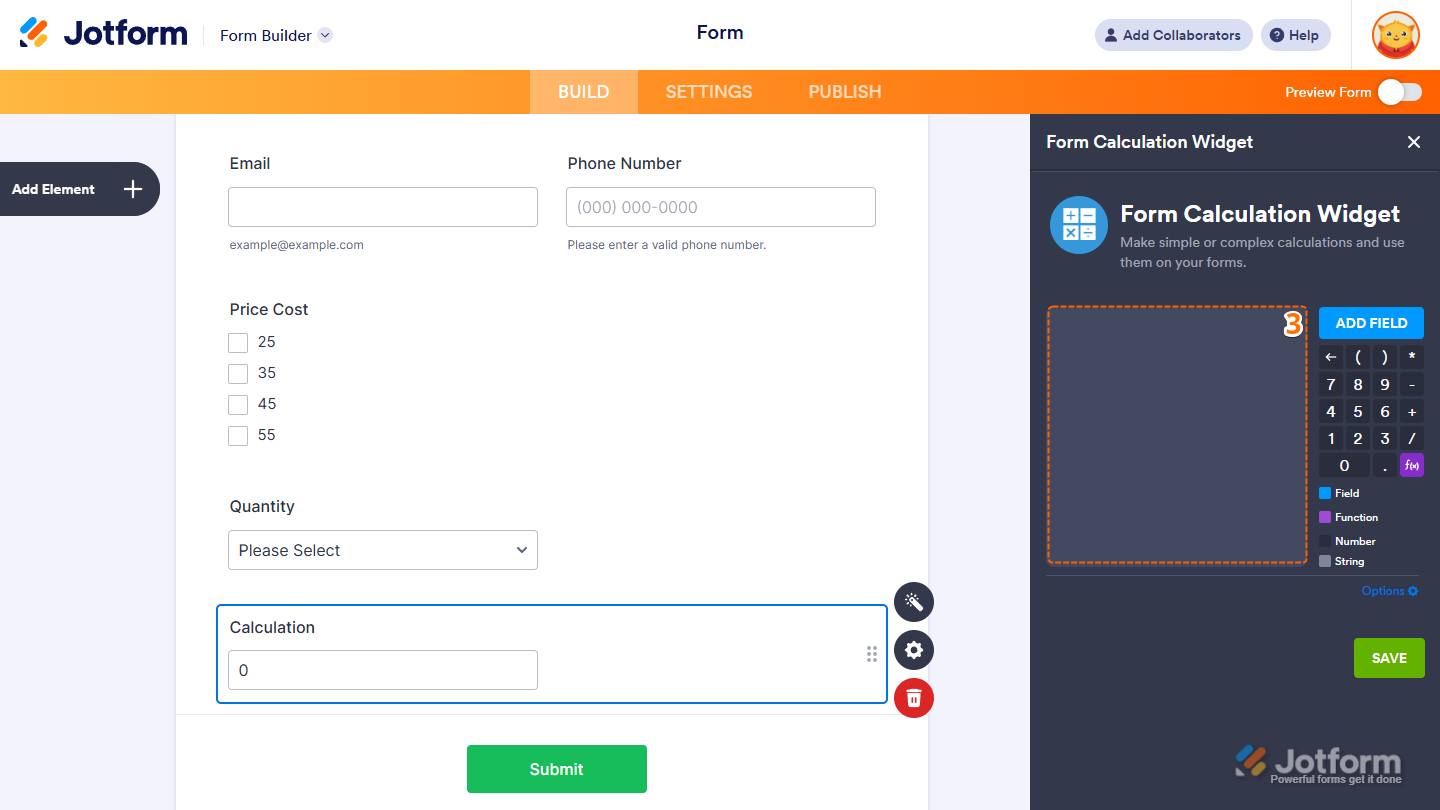
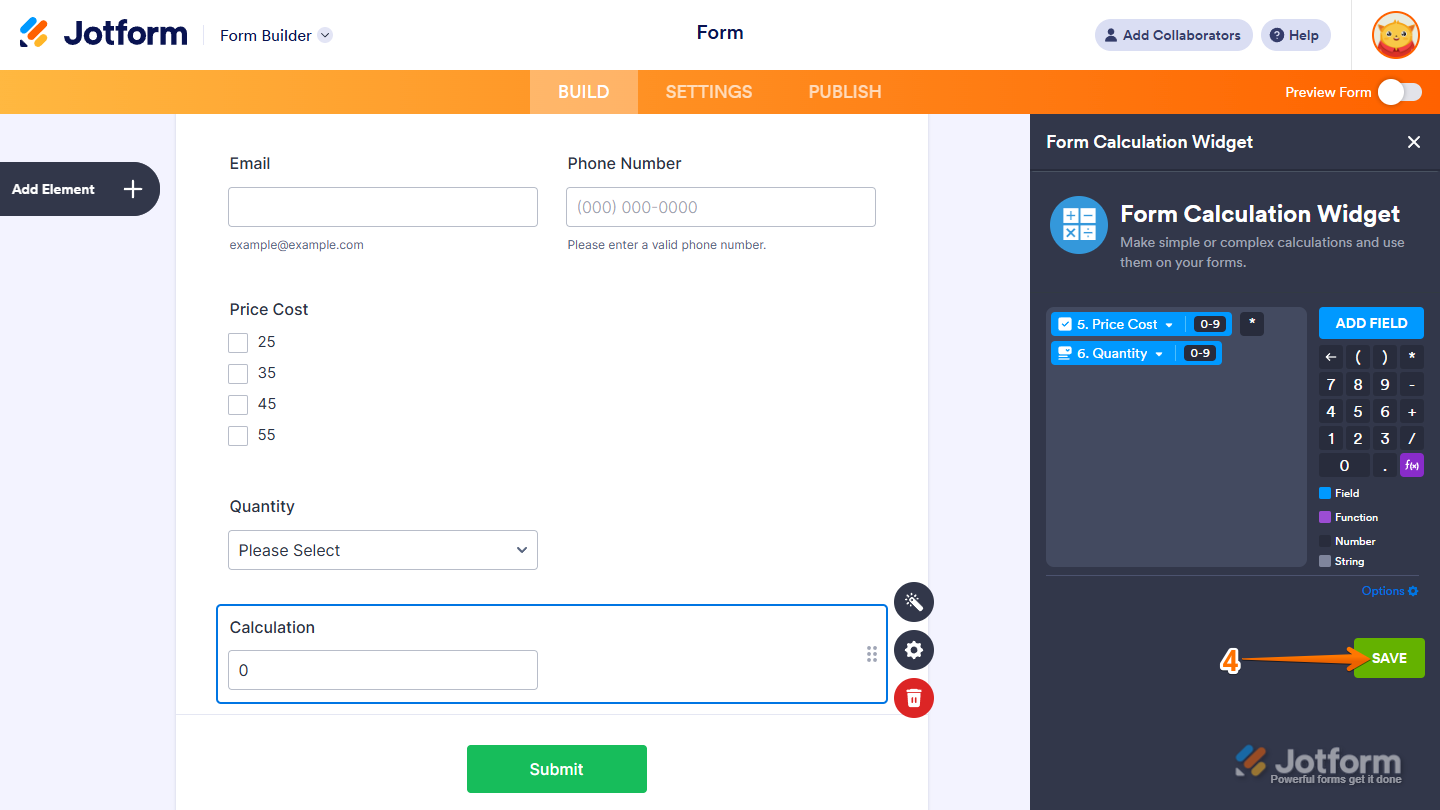
- Next, in the Form Calculation widget window that opens on the right-side of the page, you can add different elements to the formula editor based on the result you want the widget to calculate.
For example, if you want to calculate the total amount based on the Quantity and Price Cost fields. Here’s what the formula looks like: Price Cost x Quantity
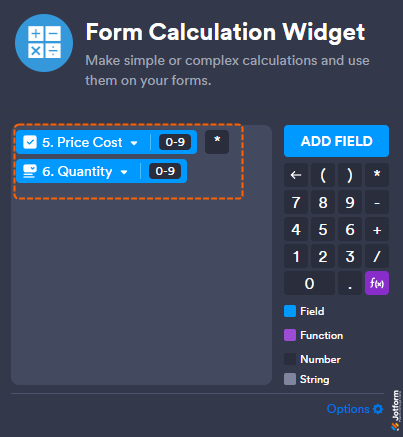
- Once you’re done creating your formula, click on Save and you’re all set.
Explore our guide on How to Use Jotform’s Form Calculation Widget to dive in deeper. Wondering how it looks in action? Check out this Demo Form.
Using Conditional Logic
Another way to calculate a total is by using Conditional Logic. This approach lets you set rules that run calculations based on user input. For example, you can calculate a total only when a specific field is filled out. Here’s how to set it up:
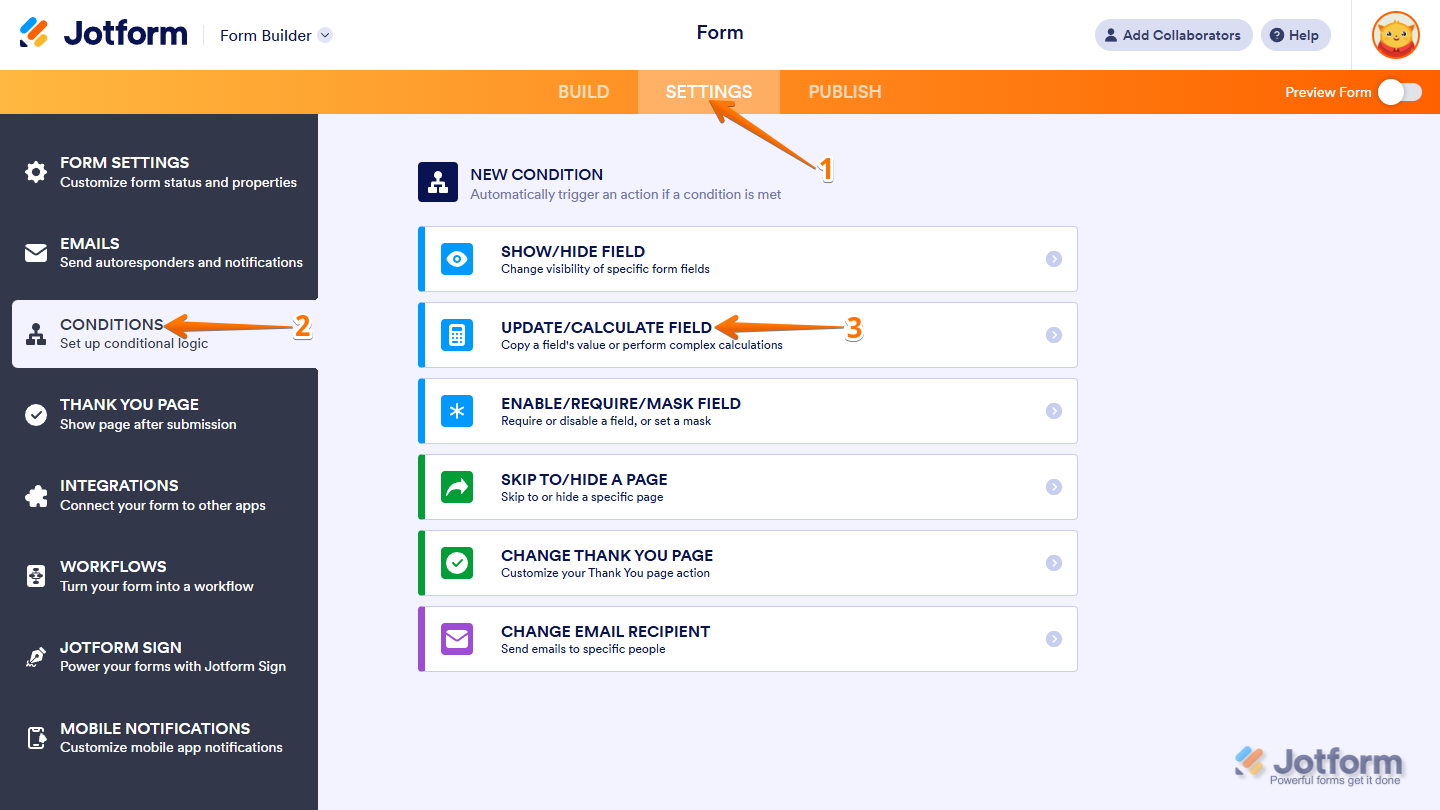
- In Form Builder, in the orange navigation bar at the top of the page, click on Settings.
- Then, on the left side of the page, click on Conditions.
- Now, select on Update/Calculate Field.
- Finally, set up the conditions as shown below and click on Save.
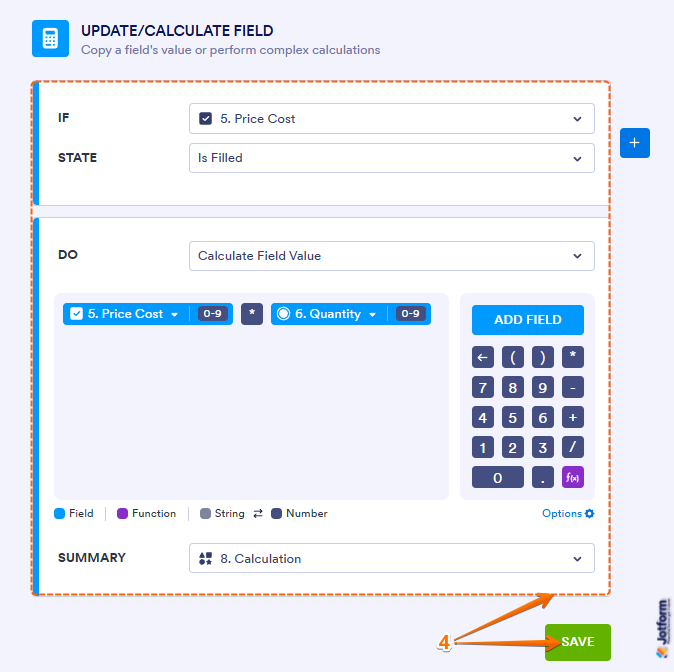
That’s it! Your form will now automatically calculate totals based on user input, making it easy to add up prices, scores, or other values. For more details, take a look at our guide on How to Insert Text or Calculation Into a Field Conditionally. Want to see how it works? This Demo Form shows it in action.

Send Comment:
3 Comments:
November 13, 2025
Hi All I'm using the Quantity Gift Registry widget for select adult or child tickets. I have added a total number and calculation widget. Tickets are £5 each, I'm putting in the field * 5 however it's giving incorrect totals like 17 for 3 tickets can you help
August 22, 2025
I can't get my form to add the ticket prices together to get a total
November 11, 2024
hi i need help wih creating a sum formual for budgeting template