Button Widget

CTA Copy Generator

Write a call to action that makes the next step clear. Describe your offer, choose an action and tone, and explore CTA copy you can review and use on a button, landing page, email, or ad.

Generate your CTA copy

Describe the main benefit, starting with a verb.

Your CTA ideas will appear here

Generate to see button text, headlines, email subject lines, and ad copy ideas for your offer.

CTA Copy Generator

Try now

How to use the CTA Copy Generator

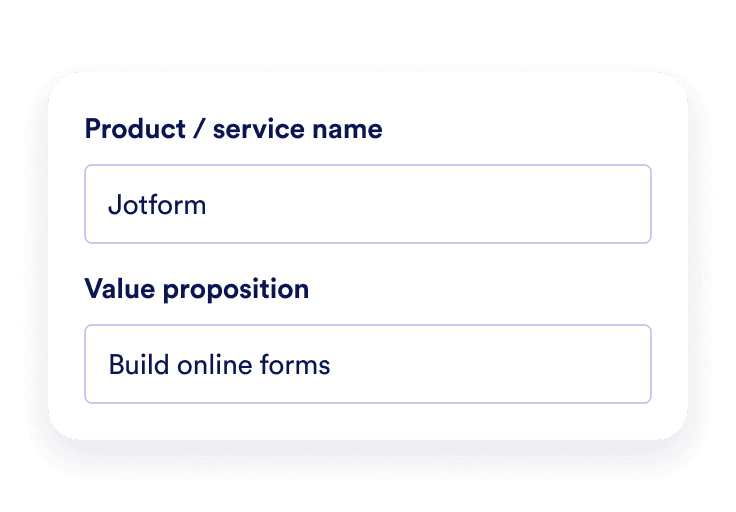
Product and value proposition fields filled with Jotform and Build online forms.

Describe your product or service

Enter your product or service name and its main benefit. For example, describe a meal-planning app that helps busy parents organize weekly dinners.
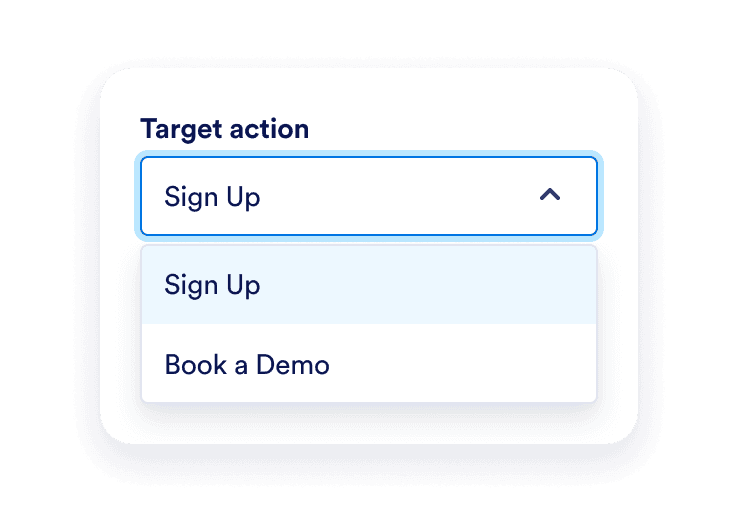
Target action dropdown showing Sign Up and Book a Demo options.

Choose your action and tone

Select your industry, the action you want readers to take, and a tone that fits your brand. Then select Generate CTA copy.
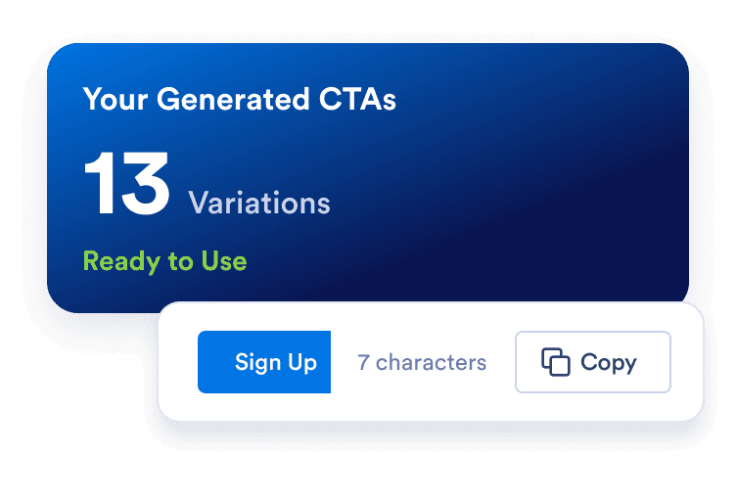
Thirteen generated CTA variations with a Sign Up button preview, character count, and Copy action.

Review and copy your CTA

Choose wording that fits your offer, edit it if needed, and copy it into your page or campaign. For a website button, add the text to Jotform’s Button Widget.

Benefits of using the CTA Copy Generator

Start with copy for your offer

Give readers a specific reason to click. Use your product’s main benefit to explore wording that connects the offer to what readers want to do next.
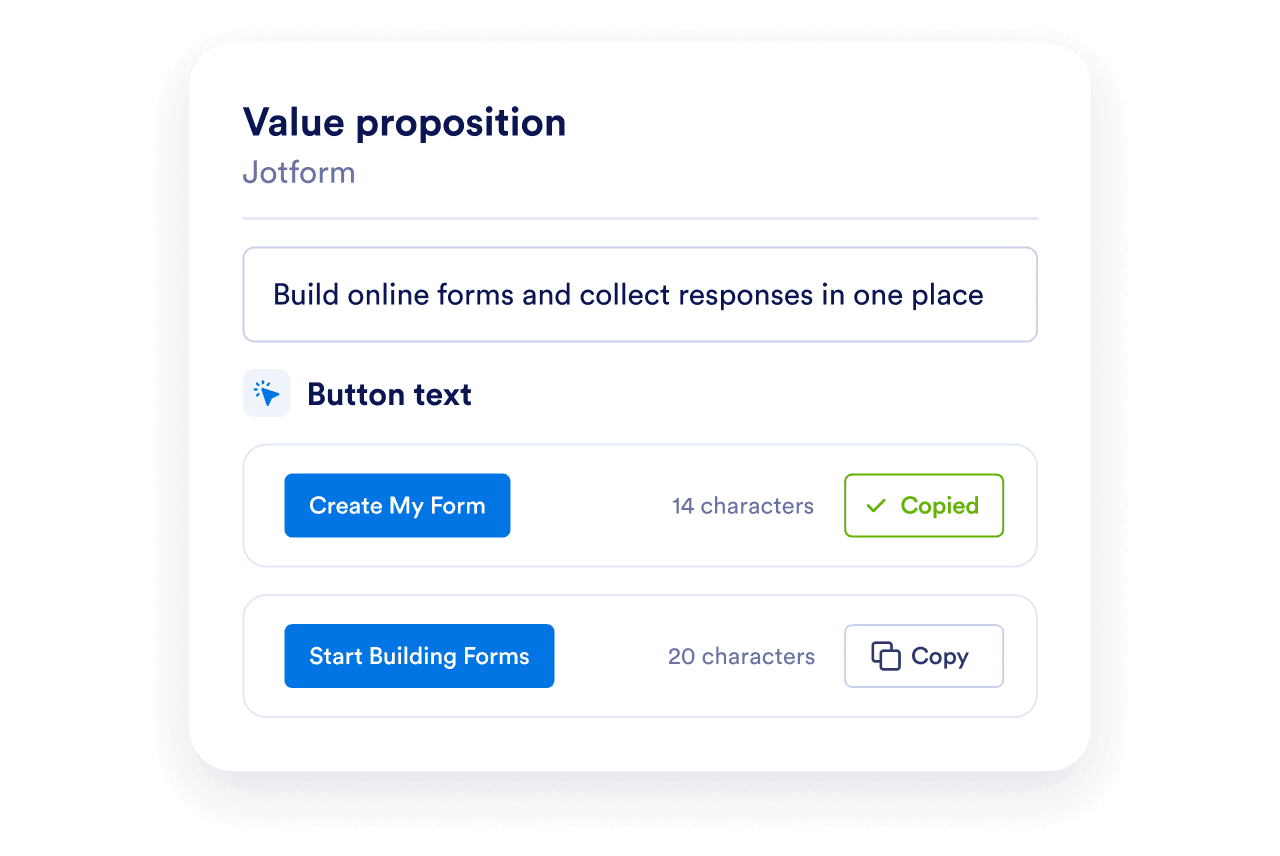
Jotform’s value proposition used to generate Create My Form and Start Building Forms button text.

Match the message to the next step

A consultation, guide download, and product purchase each need a different invitation. Choose the target action so you can review ideas suited to the destination.
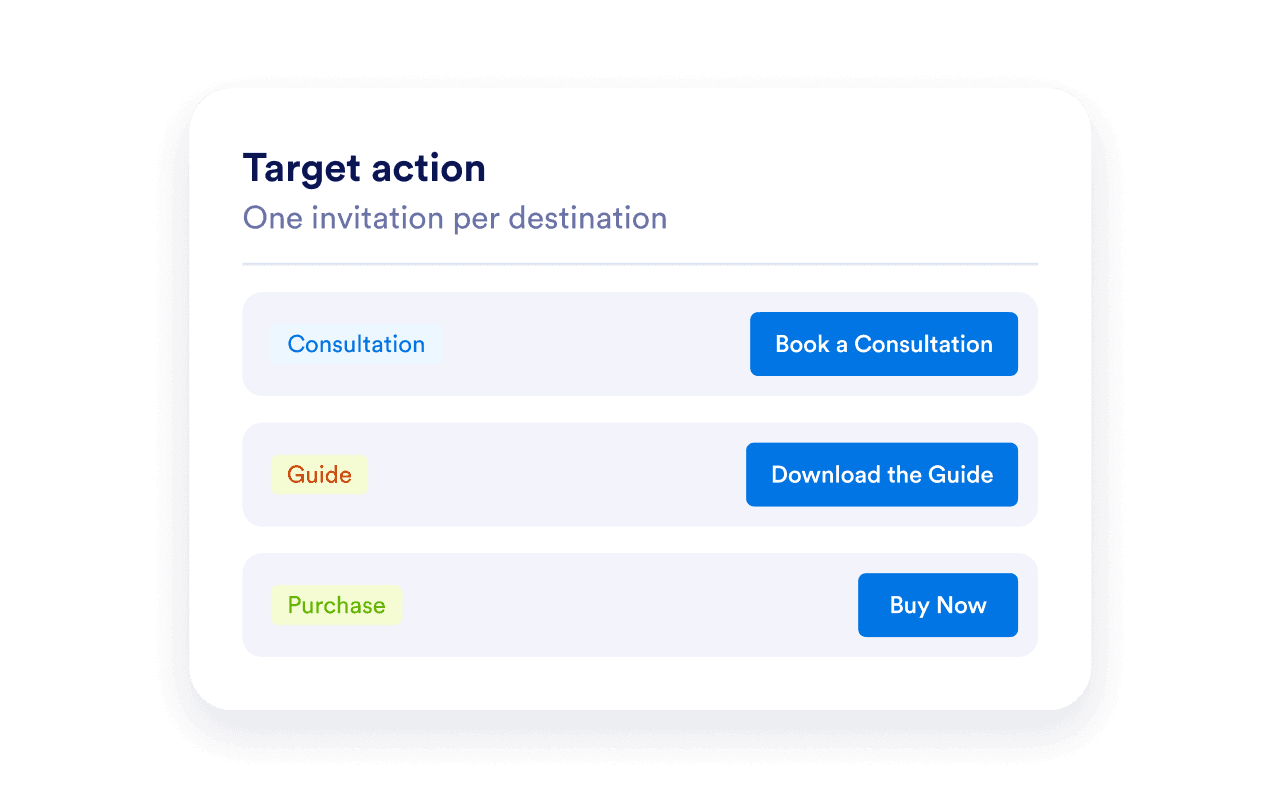
Consultation, guide download, and purchase actions paired with matching CTA button labels.

Compare wording before you publish

Explore different ways to express the same action, such as “Get the Guide” and “Download My Guide.” Choose the version that fits the surrounding content, then refine it for the space available.
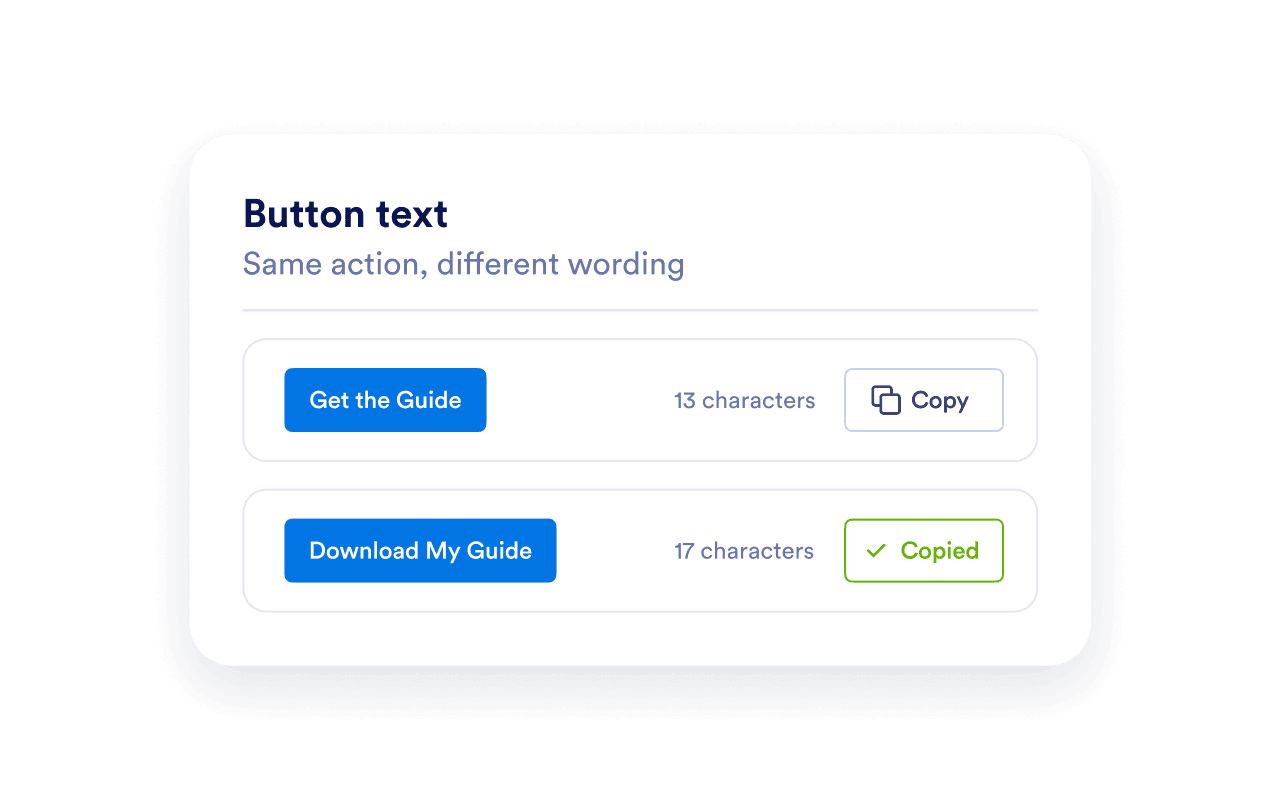
Get the Guide and Download My Guide CTA variations with character counts and copy feedback.

Turn your CTA copy into a website button

Add your chosen text to Jotform’s Button Widget, choose the action or destination, and customize its colors, size, and icon. Copy the generated embed code to place the button on your website.

Frequently Asked Questions

  • What is a CTA copy generator?

    A CTA copy generator suggests wording that invites readers to take a next step, such as downloading a guide, booking a consultation, or signing up. A call to action (CTA) connects your message to the action you want someone to take.

  • How do I use the call to action generator?

  • What should I write in the value proposition field?

  • What makes a good call to action?

  • How long should CTA button text be?

  • Can I use the CTA copy in emails and ads?

  • Can I change the tone of my CTA?

  • How do I add my generated CTA to a website button?

  • Can I use my CTA on WordPress, Shopify, Wix, Squarespace, Webflow, or WooCommerce?

  • Will generated CTA copy increase my conversions?