
One of the biggest assets on a landing page is the call-to-action (CTA) button. It’s the element that visitors click to download a resource, sign up for your email list, or schedule a consultation. Design it well, and it heavily drives conversions — design it poorly, and users may scroll right past it before bouncing off your page.
Ultimately, knowing how to add a button in WordPress — one that stands out from generic ones on other pages — may be the difference between a new customer and a lost one. But it’s a lot easier said than done. While WordPress provides button customization options in its Gutenberg editor, they’re basic. Users often get tripped up over the confusing color settings and lack of animation options. If you want to get fancy with your CTA button, the Gutenberg editor won’t get you very far.
To bypass WordPress button limitations, you have two options: Install a heavy third-party block or plug-in, or use a free, lightweight serverless widget that protects your page speed and theme code. This guide explains how each option works so that you can decide which is best for your website.


Option 1: Install a dedicated WordPress button plug-in or use custom CSS
If you’re learning how to use WordPress, you may turn to third-party plug-ins or CSS code to customize buttons. You can find available plug-ins via the WordPress administration dashboard or add your own CSS using the WordPress Editor.
Before exploring these options, be aware of potential drawbacks:
- Some plug-ins use excessive JavaScript and CSS, which can slow page loading times and hurt your Core Web Vitals score.
- Developers don’t always keep plug-ins updated. This can lead to future performance issues. It also gives you one more thing to monitor.
- Incorrect custom CSS may override your website’s current global button settings, which impacts the appearance of other buttons throughout your site. It can also affect your site’s mobile responsiveness.
Let’s start with the easiest option: a third-party plug-in. To find and install one on your site, take these steps:
- Click the Plugins option on your WordPress Admin dashboard. Type the feature you need in the search bar. In this example, we entered “custom CTA button WordPress.”
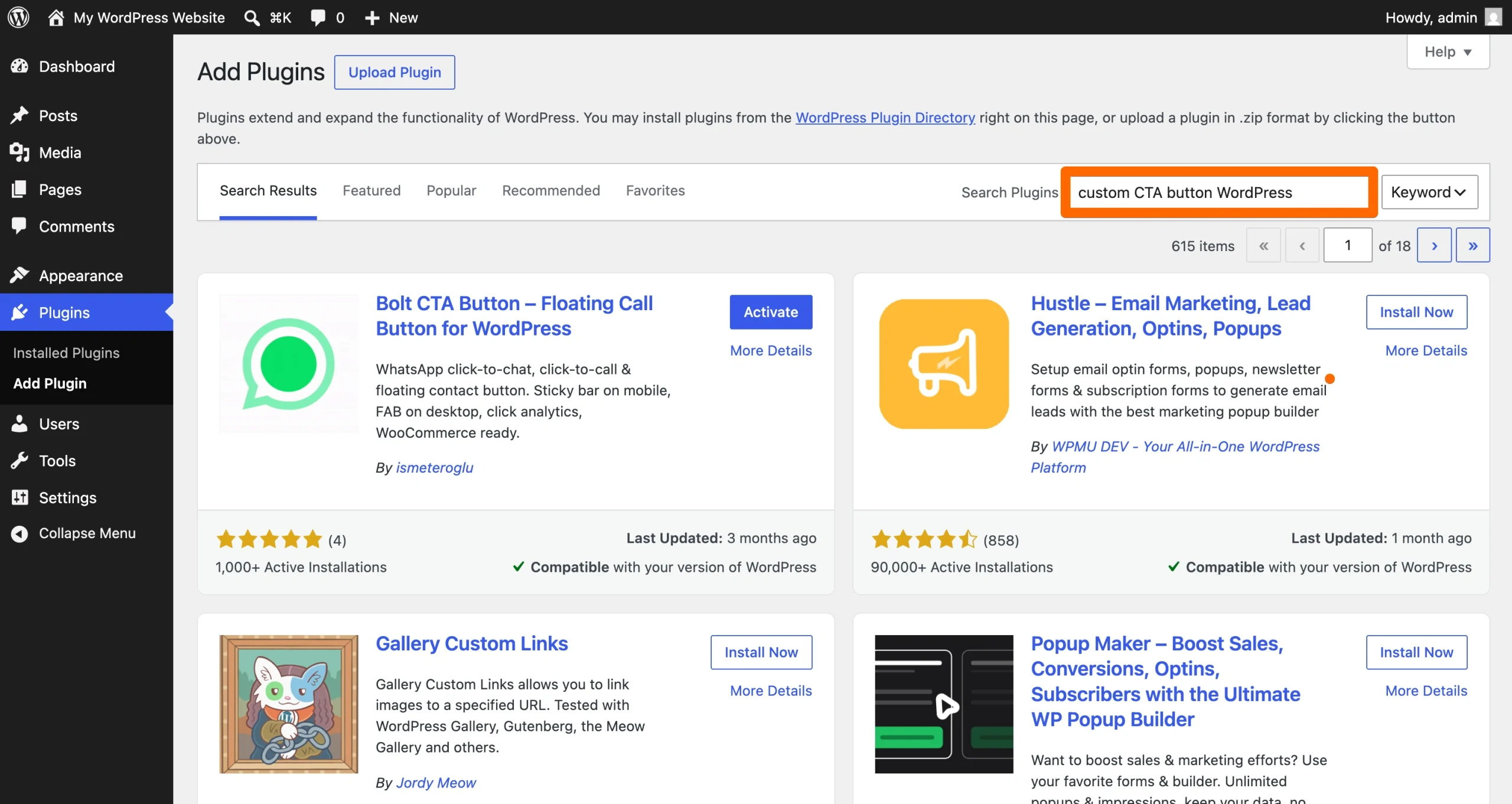
- Choose a plug-in from the list and click on it to learn more about its features. The best WordPress plug-ins are up to date, compatible with your WordPress theme, and have positive user reviews. Click Install Now when you find an option you like.
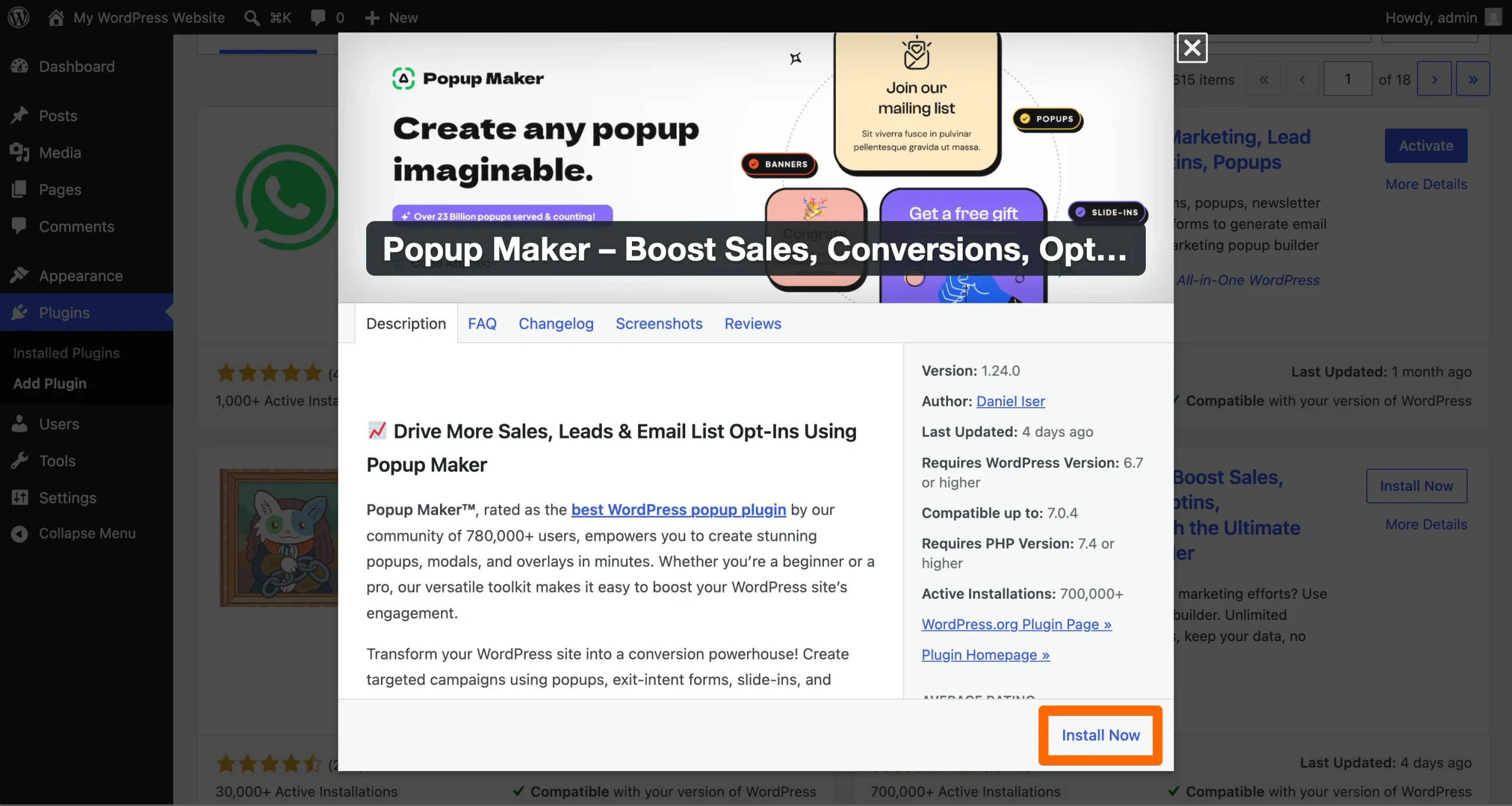
- When the plug-in finishes installing, click the Activate button. Follow the developer’s instructions to create your custom button.
If you’re savvy with CSS, you can code your own custom CTA button. To do so, follow these steps:
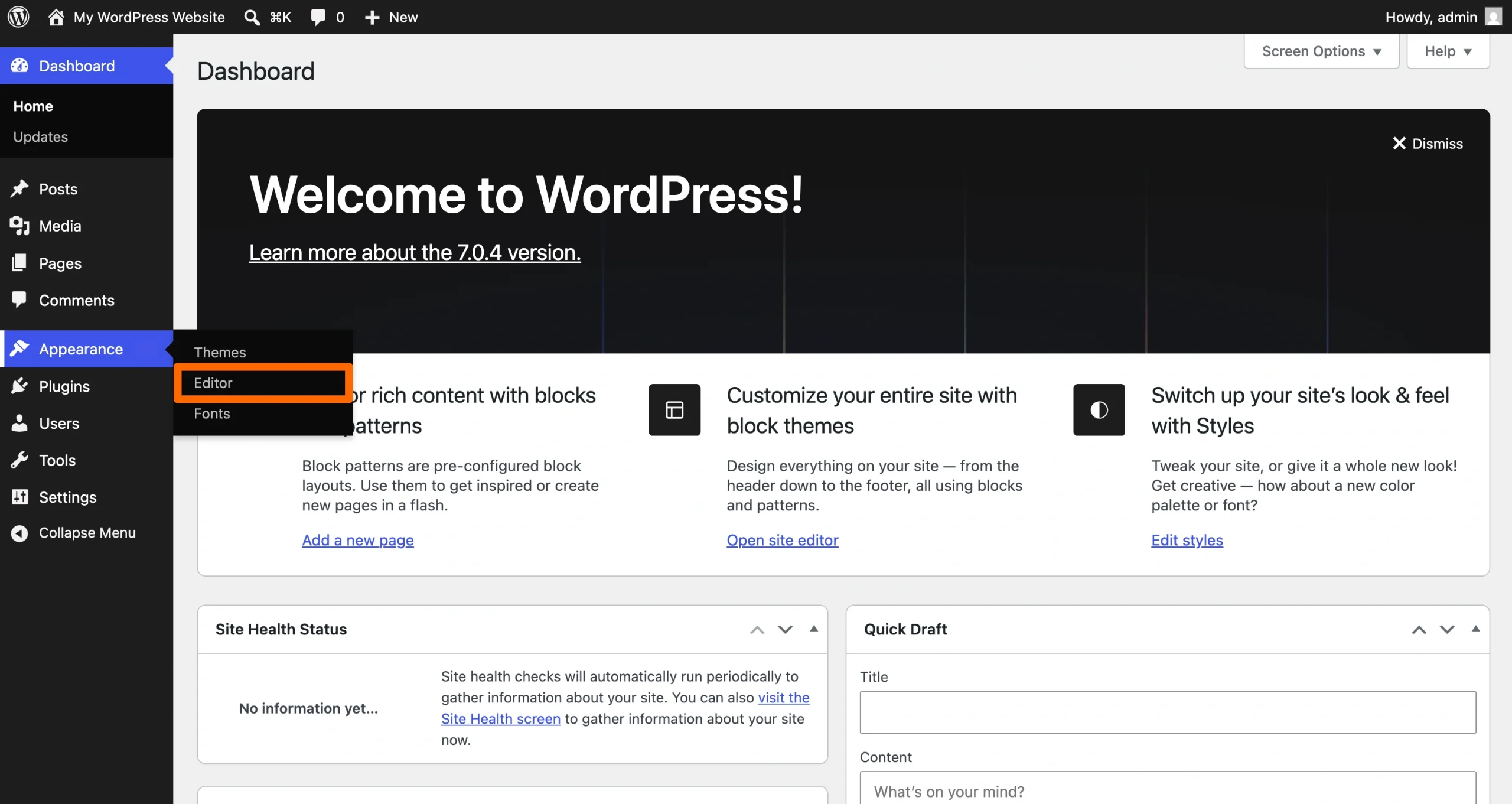
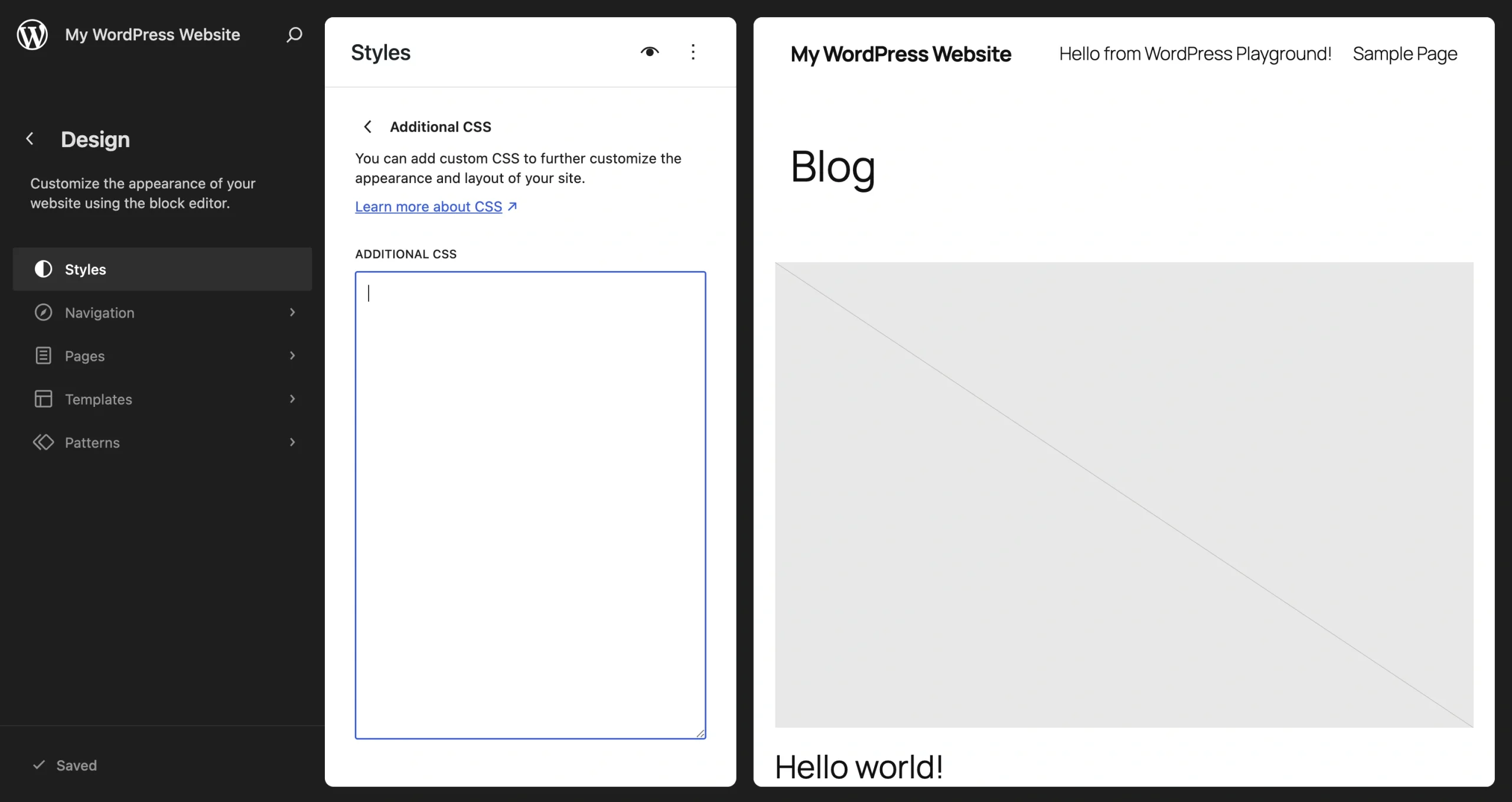
- Click Appearance > Editor on your WordPress admin dashboard. If you’re using a classic or third-party theme, click Appearance > Customize.
- Click Styles > ⋮ > Additional CSS. On classic and third-party themes, click Additional CSS.
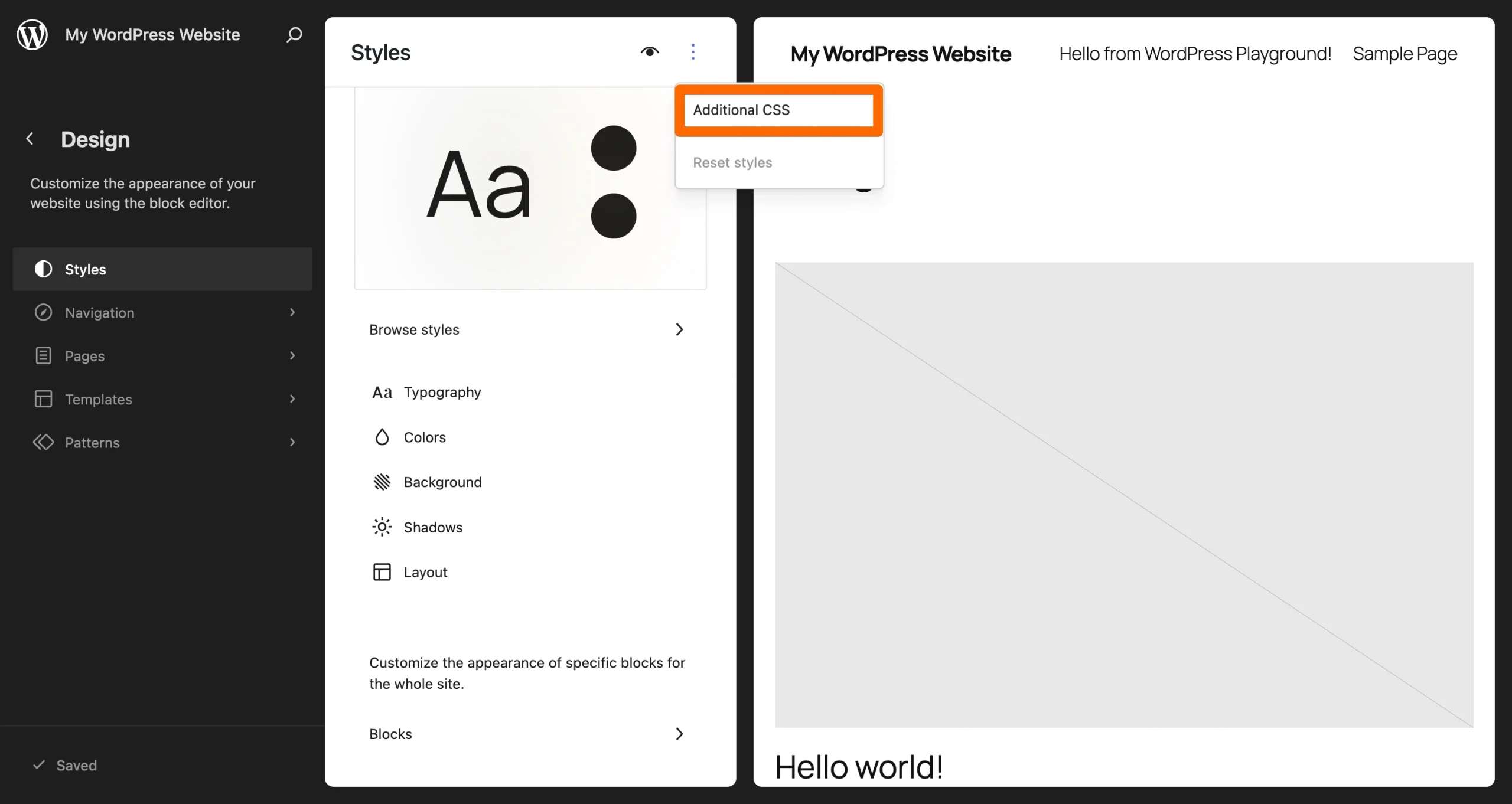
- Type your button’s custom CSS code into the text box.
Rather than coding your own button, you can try a custom CSS alternative for WordPress: the Jotform Button Widget. We explore that option in the next section.
Option 2: Add a free, customizable button widget (recommended)
With Jotform Button Widget, you can create a CTA button with unique gradients, icons, and hover effects. This option won’t affect your site’s CSS or reduce its loading speed, since it runs off a reliable hosted embed.
To use it, you’ll configure your button in Jotform and embed the custom button in WordPress using a custom HTML block. It updates immediately with a flawless, responsive, and standalone button that fits your requirements. Take these steps to try it out:
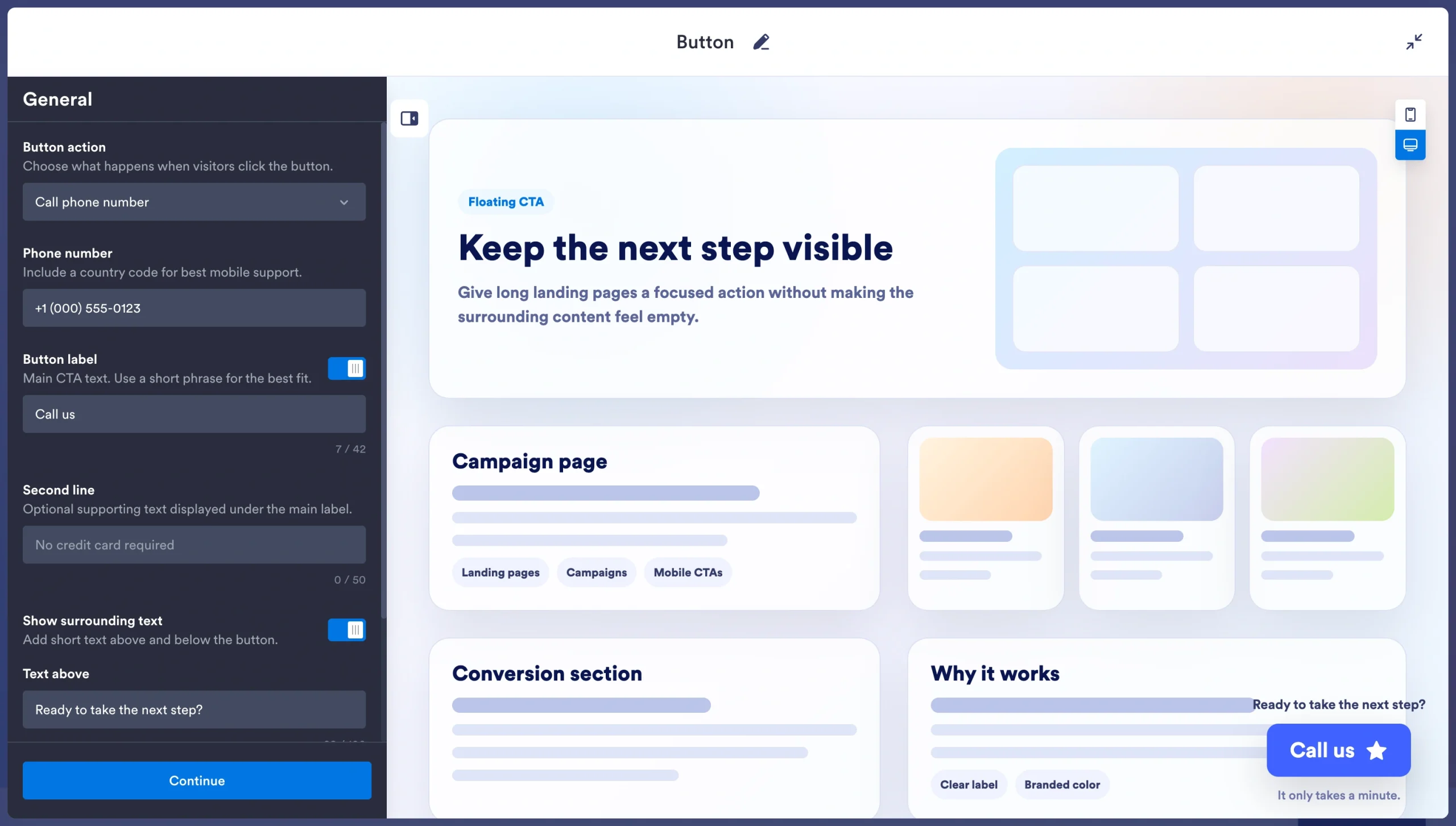
- Navigate to the Jotform Button Widget and fill out basic information about your button. Click Continue.
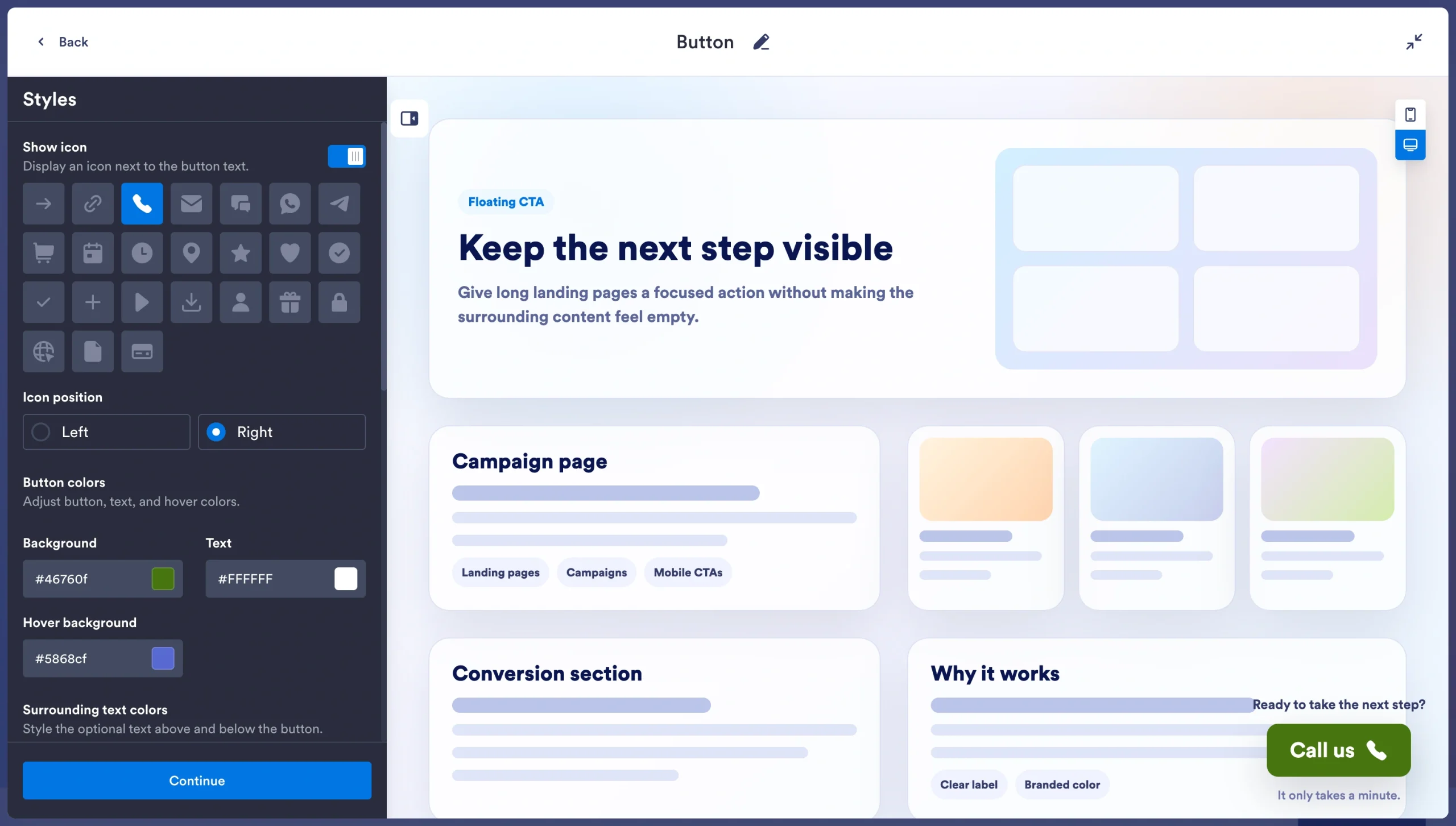
- Add colors, icons, and other style options. You can adjust corner styling, padding, text size, and fonts, or add a drop shadow for extra emphasis. When you’re done, click Continue.
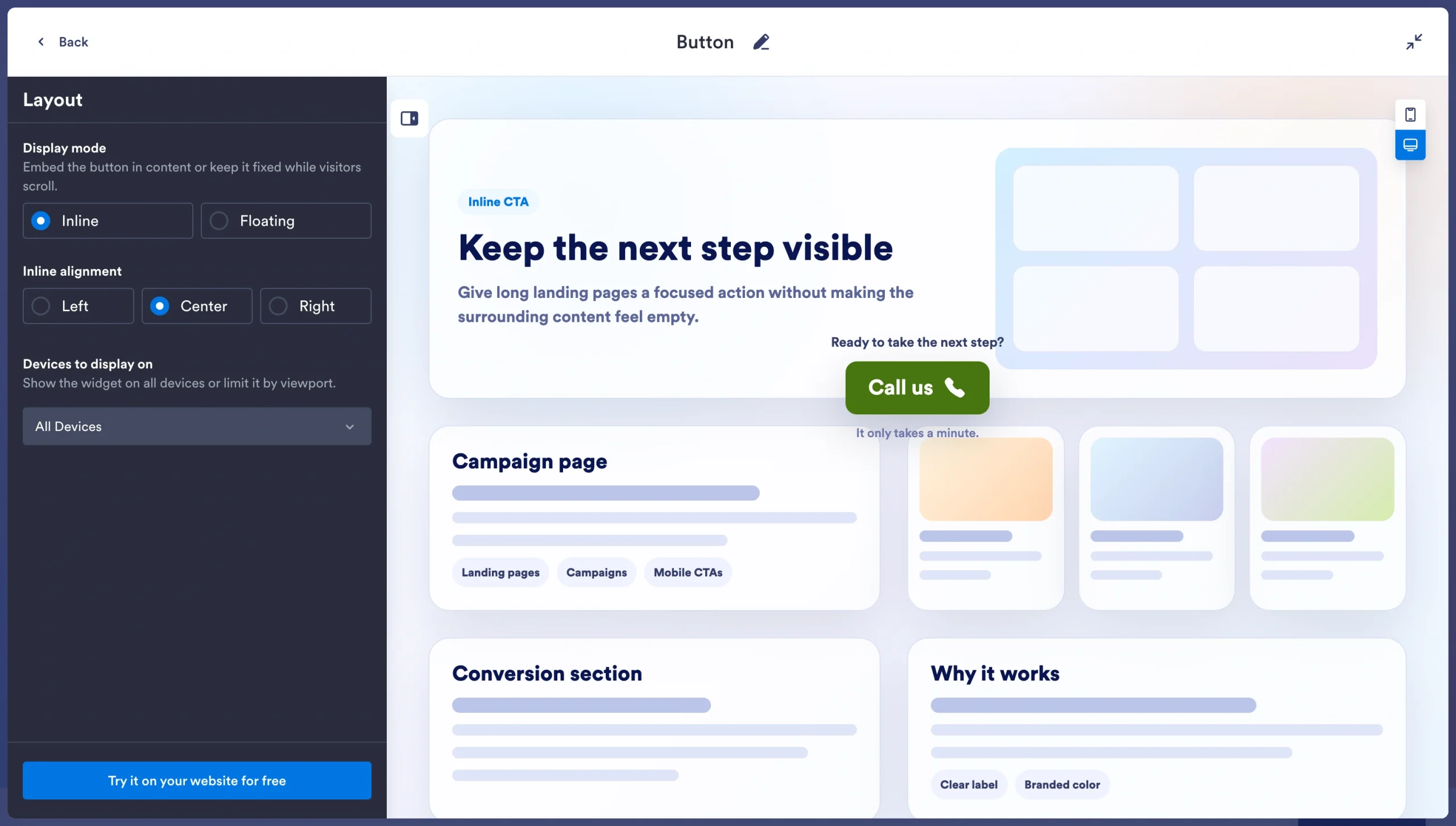
- Review and select your layout options, then click Try it on your website for free.
- Follow the instructions to create a free account with Jotform, then copy the embed code and paste it into a Custom HTML block on your WordPress website. Make sure to choose the page and the section where you want the button to appear.
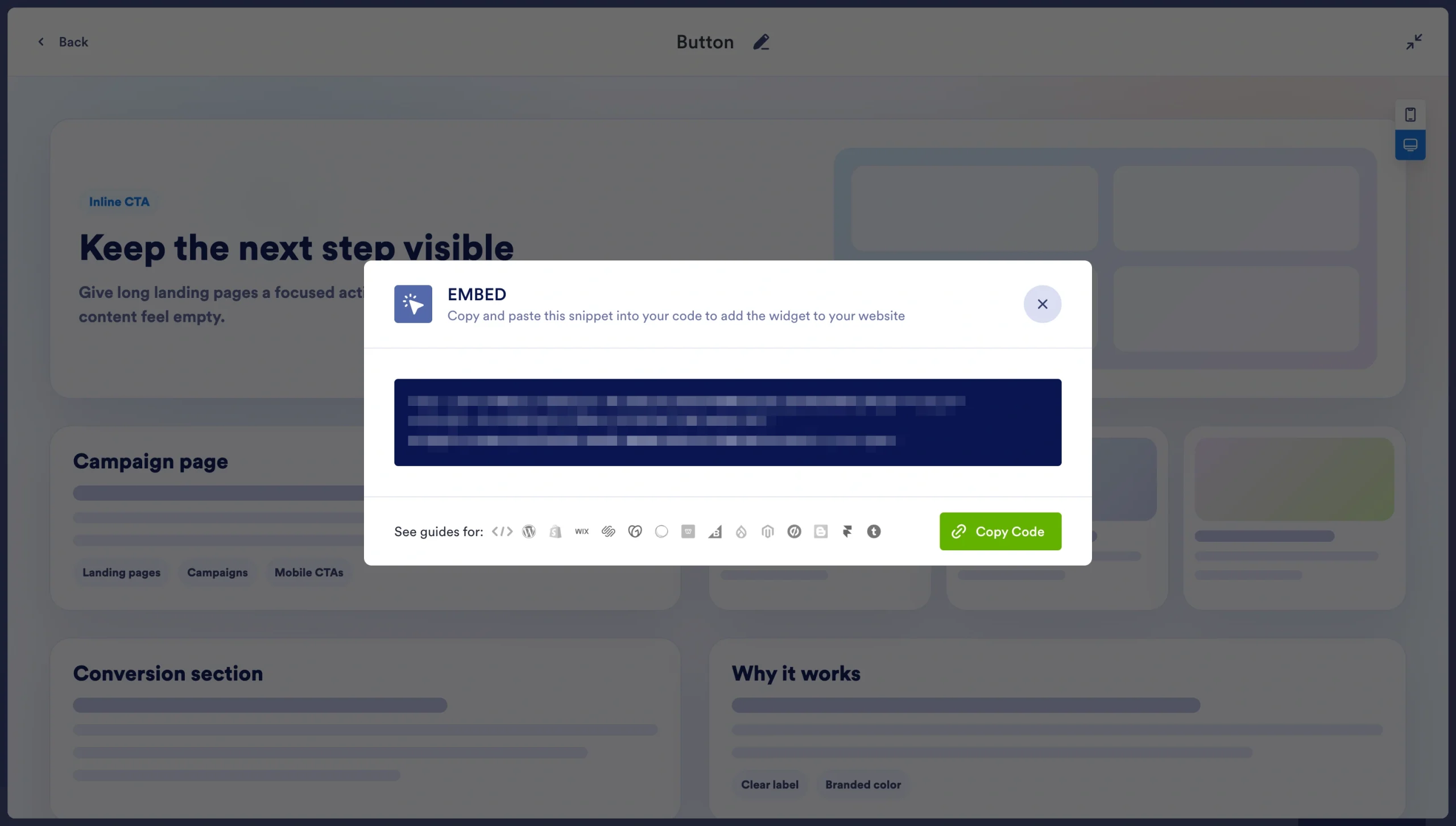
Jotform’s free, no-code WordPress call-to-action alternative gives you complete control over your button’s appearance and functionality. Whether you want to customize text, colors, and border radius, or add a hover animation, Jotform is up to the task.
Supercharge your WordPress site with smart, serverless widgets
Jotform offers much more than custom button design. Search our directory of free website widgets to find other tools that maximize conversions, eliminate page bloat, and keep your site’s database lightweight for lightning-fast loading speeds. A few of our most-loved widgets include
- Google Reviews Widget: Displays your brand’s Google reviews according to your preferences
- Countdown Timer Widget: Shows visitors how much time they have left to take a certain action, such as signing up for an event
- FAQ Widget: Provides a searchable FAQ tool with media-rich answers and custom styling
- WordPress Forms: Lets you create custom forms and embed them in your website
As a creator, blogger, or marketer, your focus is producing exceptional content and optimizing funnels, not fussing with CSS or plug-ins. Jotform’s free, off-server tools let you deploy premium, high-converting features in minutes, so you can get back to what you do best. Get started today with Jotform.
This article is for WordPress site owners, marketers, and bloggers who want to add highly customized, conversion-optimized call-to-action buttons without being restricted by global theme settings or installing heavy shortcode plugins.



































































































Send Comment: