6 steps to set auto-reply in your Gmail
- Open the Gmail app on your phone
- Go to the navigation menu and click Settings
- Select your Gmail account
- Scroll down and click on Vacation Responder
- Toggle Vacation Responder to On
- Click Save
If you’re going to be out of the office and need to let colleagues, customers, and others know of your absence, you may want to quickly set an auto-reply in your Gmail.
You can try Gmail’s automatic vacation responder feature, though it comes with some limitations: It can’t be customized per message and doesn’t offer the ability to approve emails before sending. Nevertheless, it can provide some email relief in certain use cases such as during vacations, work trips, and more.
In this article, we’ll provide step-by-step instructions for how to set auto-reply in the Gmail app. And for those who want to move beyond Gmail’s limited auto-reply features, we’ll also introduce you to the Jotform Gmail Agent, a more powerful, AI-driven tool that generates personalized responses. Plus, Jotform Gmail Agent doesn’t send any emails without your approval, so you’re always in control.

How to set auto-reply in the Gmail app (Android and iOS)
The auto-reply feature in Gmail, vacation responder, is primarily used for informing email recipients that you are not immediately available. Follow these instructions for how to set an out-of-office message on the Gmail app:
- Open the Gmail app on your phone.
- Go to the navigation menu and click Settings.
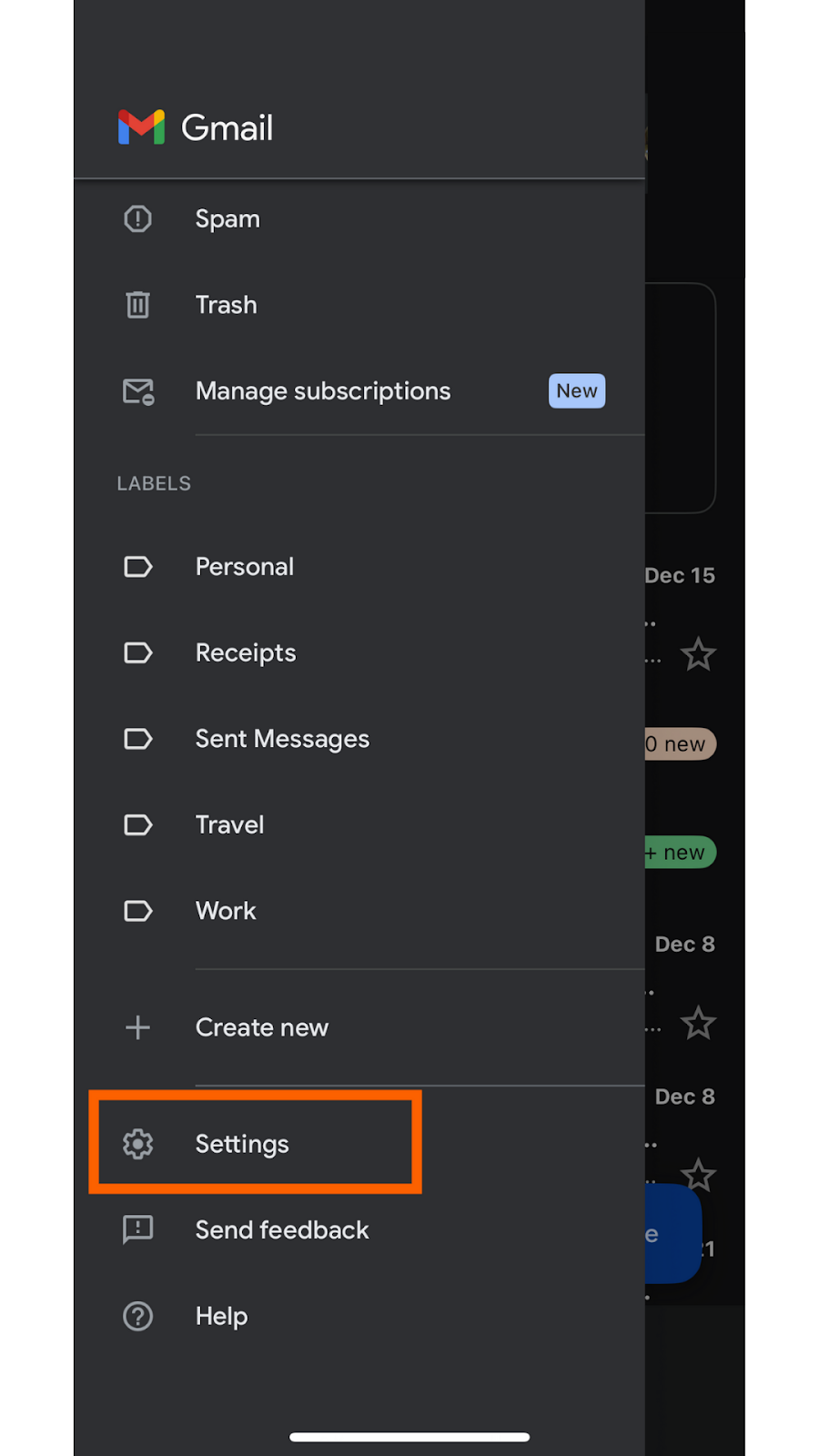
- If you use multiple Gmail accounts, select the Gmail account where you’d like to add the vacation responder. If you only have one Gmail account, skip this step.
- Scroll down and click on Vacation Responder.
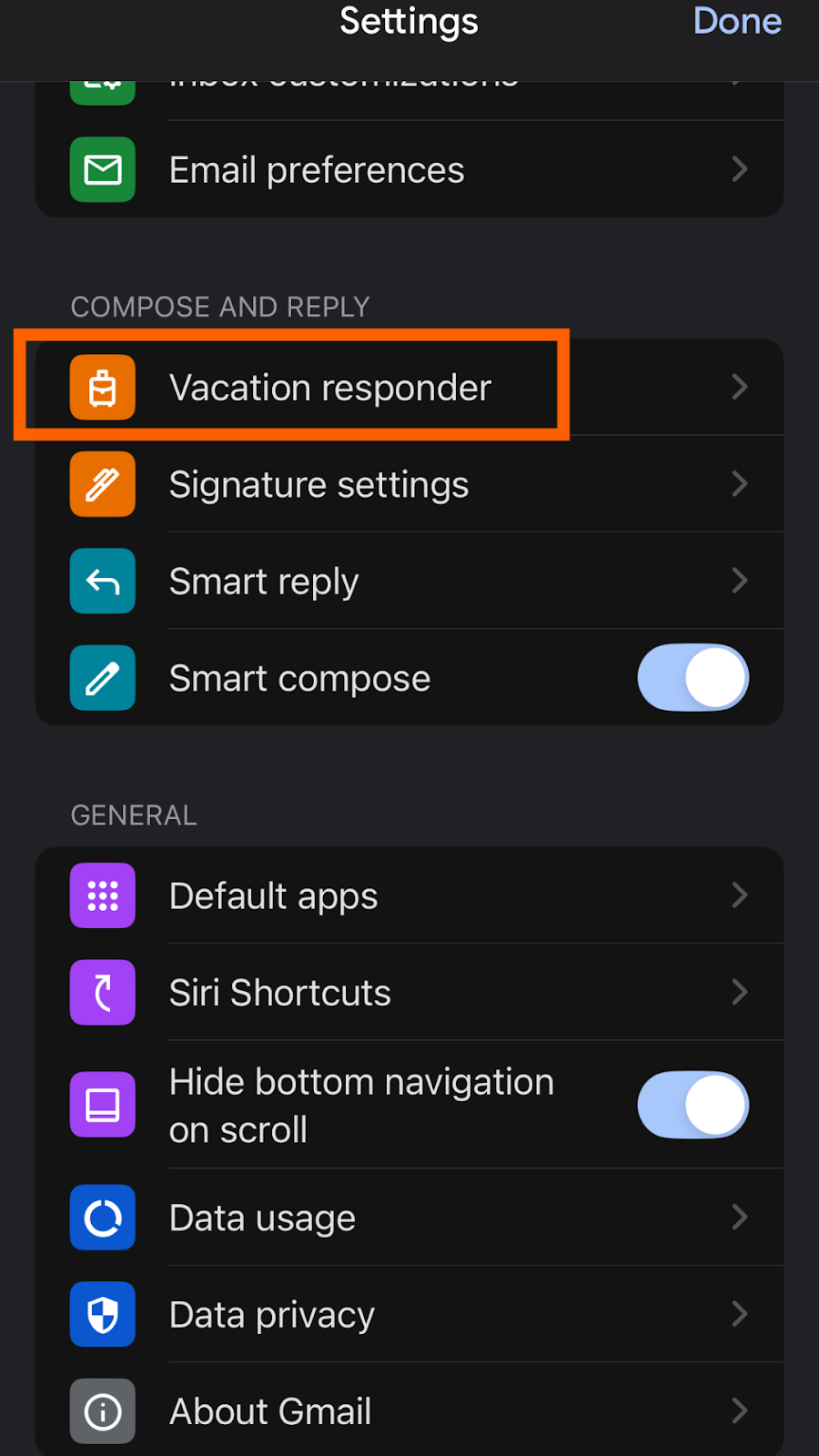
- Toggle Vacation Responder to On. Fill out the following fields:
- First day: The day you want the vacation responder to start sending automated replies
- Last day: The day you want the vacation responder to stop sending automated replies
- Subject: The subject line of the automated message
- Message: The automated message you want to send; include relevant details here, such as when you’re back in the office
Determine if you want to send the auto-reply to your Contacts and/or to your Domain by toggling on the settings you need.
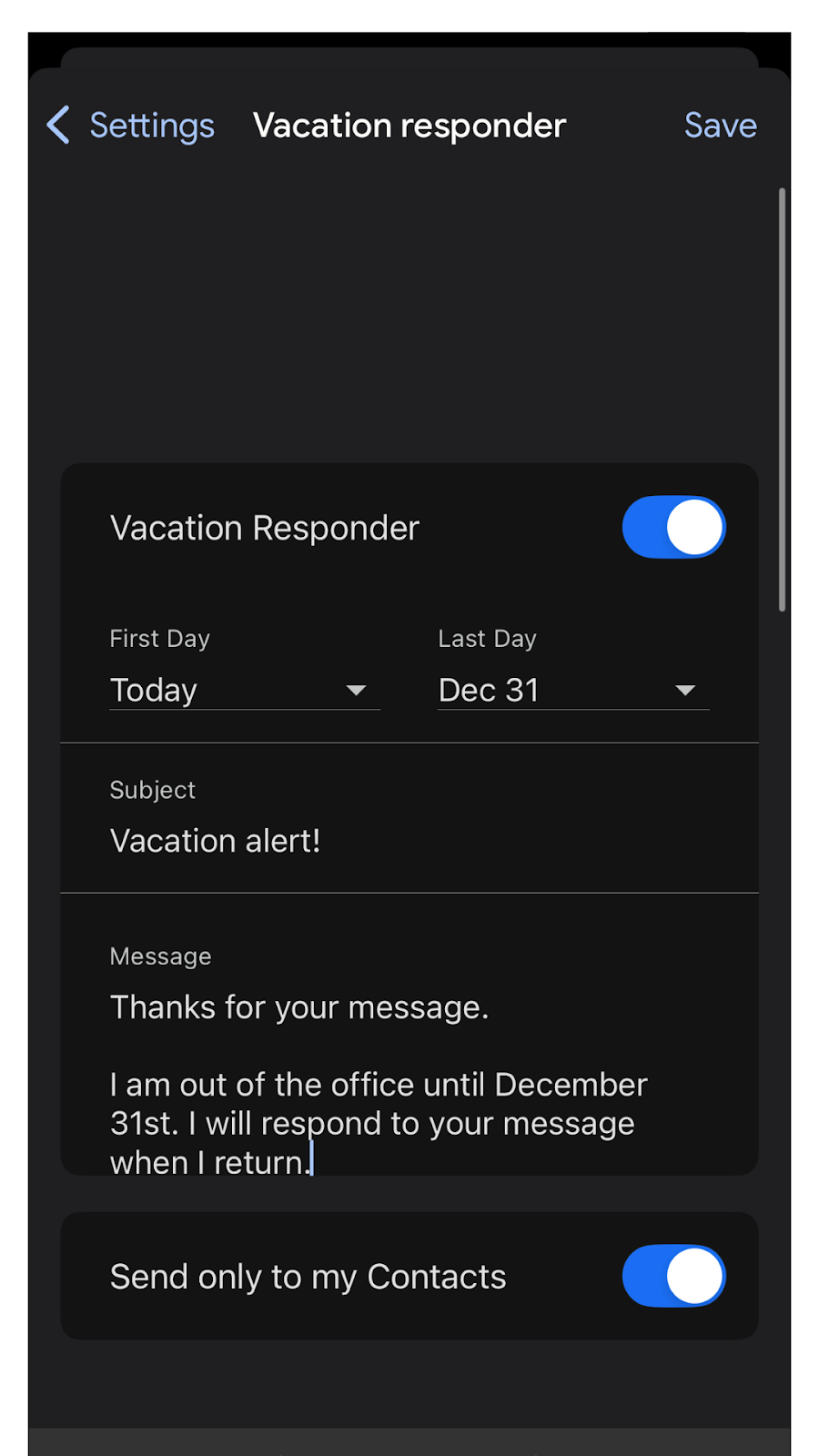
- Click Save.
Your auto-reply will now be on. You can make sure by checking in Settings.
Pro Tip
If you’re using Gmail on your desktop, you can set the vacation responder from the General tab in Settings. Keep in mind that, if you turn on the vacation responder through the desktop or the mobile app, Gmail will automatically sync the vacation responder so that it will be on in all platforms.
Limitations of the Gmail auto-reply feature
There are a number of key limitations to be aware of with this auto-reply feature:
- Generic message: The Gmail vacation responder sends the same message to all email recipients. There is no way to customize the message per email using this feature.
- Not thread aware: Because the Vacation Responder is a basic feature, it cannot offer unique replies to address individual email threads.
- No access to FAQs or past context: If you’re looking for a way to send autoresponder emails that take into account frequently asked questions or situational context, you’re out of luck with the vacation responder.
- No human review: There is no ability to create a human review loop with the Gmail vacation responder feature. The auto-reply message can only be toggled on or off.
While Gmail’s auto-reply feature does a solid job of sending generic messages, such as telling them when you’re out of the office, that’s where its abilities end. If you’re looking for a more sophisticated solution that can send customized, automated emails, it’s time to look into other available options.
Alternative approaches to Gmail auto-reply
There are a number of alternative approaches you can use to send automatic replies in Gmail — you’re not limited to the vacation responder. Here are some methods that can help you achieve your goals. Keep in mind that each of them comes with advantages and drawbacks.
Third-party integrations like Zapier and IFTTT
Solutions like Zapier and IFTTT help you connect Gmail to other apps in order to create automated, time-saving workflows. For example, you can connect Gmail to an email marketing tool to send custom messages to recipients.
Keep in mind that setting up these workflows can be complex and time consuming. You will also need to write the custom messages yourself.
Gmail filters and templates
In Gmail, you can combine filters with email templates to send automated replies under specific conditions. For example, if an email comes in from a specific email address or contains specific keywords, you can send a custom email template reply.
This is tricky to set up because you have to determine scenarios for when to use each template and manually write each template. Note that there is also a lot of room for error with this option.
For example, say you want to send a price list to any email that comes in with the keyword “price.” It’s highly likely this response won’t be appropriate in all situations, as there may be people who use that keyword in a different context.
Manual template workflows
You can manually draft email templates for common use cases, such as responding to customer FAQs, and then copy and paste the email template into your email response as needed.
This is another time-consuming option that may not increase email productivity, but, on the plus side, it does not require any technical skills to set up. You just have to write all the email templates you plan to use.
The smarter way: Use Jotform Gmail Agent for AI-suggested auto-reply drafts
Once you’ve learned how to create an auto-reply in Gmail and started using the feature regularly, its limitations can be frustrating. This basic tool does the bare minimum: It sends generic messages to all incoming emails and leaves little room for nuance, context, or evolving frequently asked questions. Overall, it could create a negative experience for email recipients and reflect badly on your business. Enter Jotform Gmail Agent, a tool built for smarter email communication.
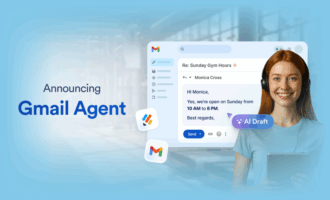
This AI Agent connects to your Gmail account and can instantly draft custom automated responses for every incoming email. (If you find yourself asking, “What are AI Agents?” check out our guide!)
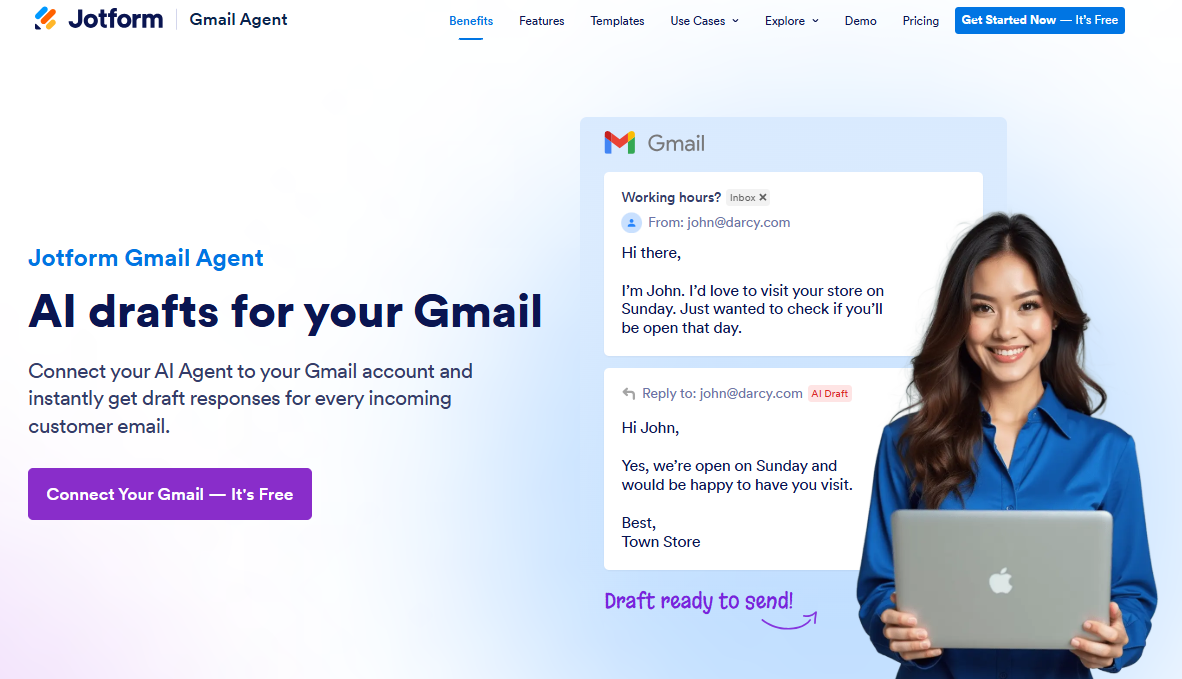
Here’s how the Jotform Gmail Agent transforms auto-replies in Gmail:
- AI-crafted custom email responses: Jotform Gmail Agent instantly generates a highly tailored email response to every new incoming email using your prior conversations, company policies, FAQs, and unique tone. You don’t have to worry about off-brand or generic responses. Every response is accurate and on point.
- Human in the loop: Don’t fret — no emails are sent automatically without your say. Each email draft appears in Gmail ready for your review, edits, and approval. You always maintain full control of your inbox and can rework any email drafts as needed. More often than not, however, the AI-generated email drafts will not need any changes.
- Productivity-enhancing workflows: Jotform Gmail Agent is a hard-working member of your team, so you don’t need to draft each message from scratch. Even if you’re dealing with a high volume of emails, every AI-generated reply is relevant and accurate. This boosts your team’s efficiency — and your confidence in responding to customers.
- Consistent on-brand messaging: No one sounds quite like you or your brand. Jotform Gmail Agent maintains your brand voice across all replies. Smarter than any email marketing automation tool, it leverages your knowledge base and previous conversations to understand your tone. Every AI-generated email will sound like it’s coming directly from you or your brand.
- Smart filtering: Your agent knows that some emails don’t need a response. It doesn’t propose drafts for certain types of emails (like spam or promotional emails), reducing noise and helping you focus on the messages that really matter.
- Desktop and mobile friendly: You can use Jotform Gmail Agent on your desktop, tablet, or mobile phone. It goes wherever your emails go. You can review AI-generated emails from your office, on the train, or from home.
How to get started
Ready to set up your Jotform Gmail Agent? The process is simple and quick. Log in to the AI Agent Builder and then follow these instructions so you can get started using Jotform AI Agents with your Gmail:
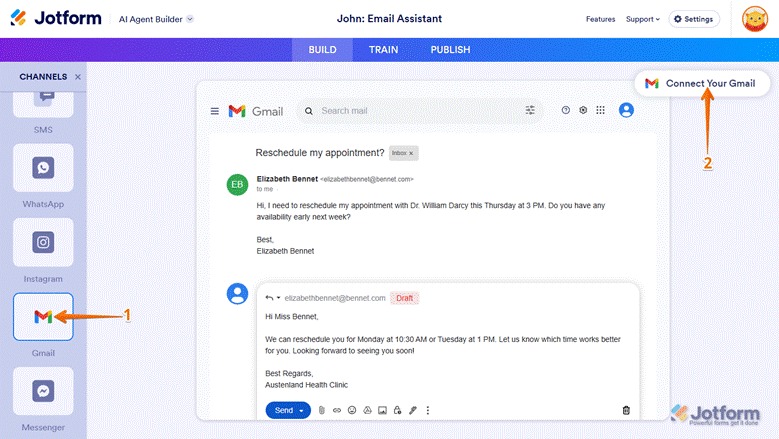
- In AI Agent Builder, navigate to the Channels menu on the left. Scroll down and click Gmail.
- Click Connect Your Gmail on the top right and connect your Gmail account. You will need to allow all the necessary access permissions, which include permission to read, compose, and send emails from your Gmail account.
Pro Tip
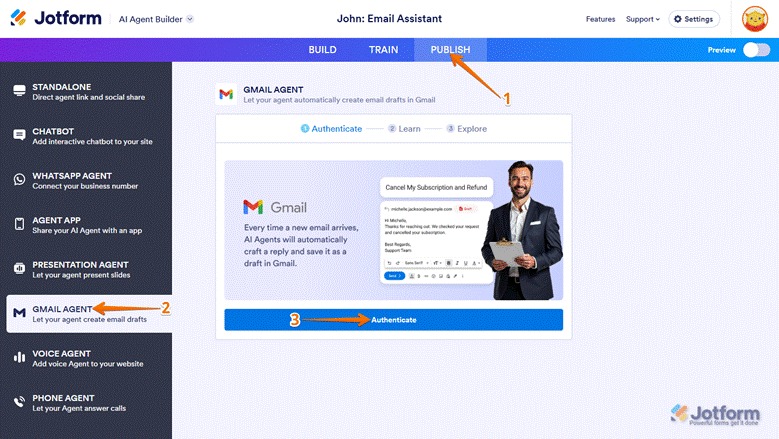
You can also connect your Gmail with the Jotform Gmail Agent from the Publish tab
- Click Publish in the top navigation bar
- Click Gmail Agent in the menu on the left side
- Click Authenticate and connect your Gmail account.
- Once the connection is complete, the Jotform Gmail Agent will automatically check, categorize, and learn from your past emails. This process will only take a few seconds. Click Next to continue.
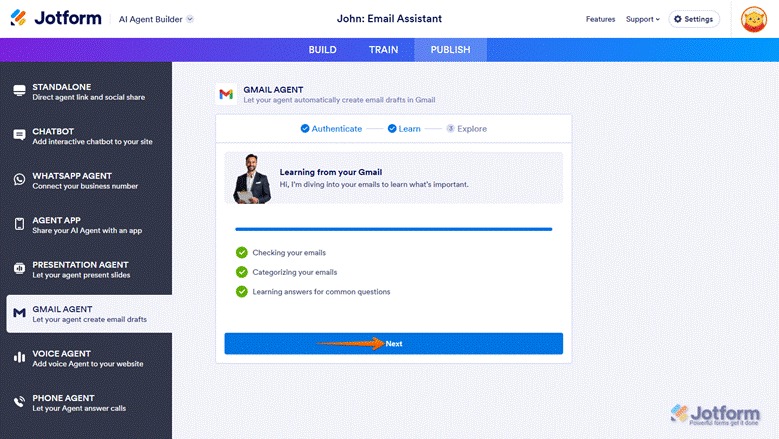
- Review and explore the two options provided:
- View Knowledge Base: This opens the Gmail Agent’s knowledge base and shows you the available training options. (Visit How to train your AI Agent to learn more about this process.)
- View Agent Summary: From here, you can see the Gmail Agent’s activity and run tests. You can also manage your connected account from this option.
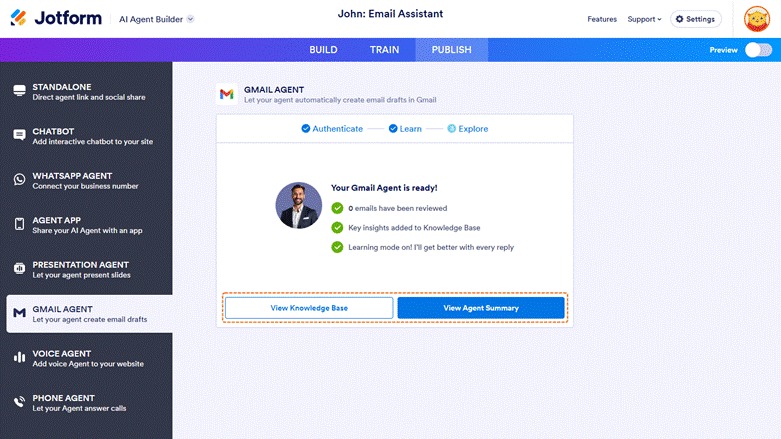
Now you are ready to use the Jotform Gmail Agent with your Gmail account!
Jotform Gmail Agent will automatically generate custom replies for each incoming email and hold it in drafts for your review and approval. When you’re ready, all you have to do is click Send.
If you have more questions about how to use the Jotform Gmail Agent, check out these helpful guides:
- How to review AI-generated email drafts before sending them
- How to customize your Gmail Agent’s tone and responses
- How to let Gmail Agents learn from your past replies
- How to disable your Gmail Agent
Taking the next step beyond Gmail’s vacation responder
Gmail’s basic vacation responder feature works well if you want to send generic replies to all incoming messages. It’s ideal for sending out-of-office messages, but it doesn’t have the ability to customize responses based on context or scenarios.
With Jotform Gmail Agent, you get trusted AI-powered auto-reply drafts that are always on brand and highly relevant because they draw from your knowledge base and previous responses. Plus, no email responses are sent without your review and approval. You can edit each draft and send it when you’re ready.
Whether you’re an artificial intelligence pro or are just getting used to AI technology, the Jotform Gmail Agent is highly intuitive and easy to use. Connecting Jotform Gmail Agent to your Gmail account only takes minutes. The AI Agent automatically learns from content in your inbox, so it’s ready to generate responses as soon as it’s set up. There is no coding required for AI training.
Best of all, the Jotform Gmail Agent is available with a free trial. Explore Jotform Gmail Agent today and see how it generates accurate, consistent, and relevant responses to incoming emails. Save time on email so you can focus on the work that really matters.
This article is for Gmail users, busy professionals, and business teams who want to move beyond Gmail’s limited auto-reply features to adopt smarter, AI-assisted responses that save time, preserve brand voice, and ensure every message is reviewed before being sent.







































Send Comment: