With Jotform’s Gmail Agent, you can simplify your email replies and keep them consistent; no need to rewrite the same messages or dig through old threads. Once the Automatically Learn from Emails feature is enabled, Gmail’s AI will start learning from your past responses to help craft replies that sound just like you.
Whether you’re responding to support tickets, managing client communications, or following up on leads, Gmail Agent helps you reply faster by automatically drafting emails that reflect your tone and draw from your past conversations, saving you time while staying on-brand.


It only takes a quick setup to let your Gmail Agent learn from your past replies so it can draft messages that sound just like you—even when you’re not the one writing them. Here’s the quick way to do it:
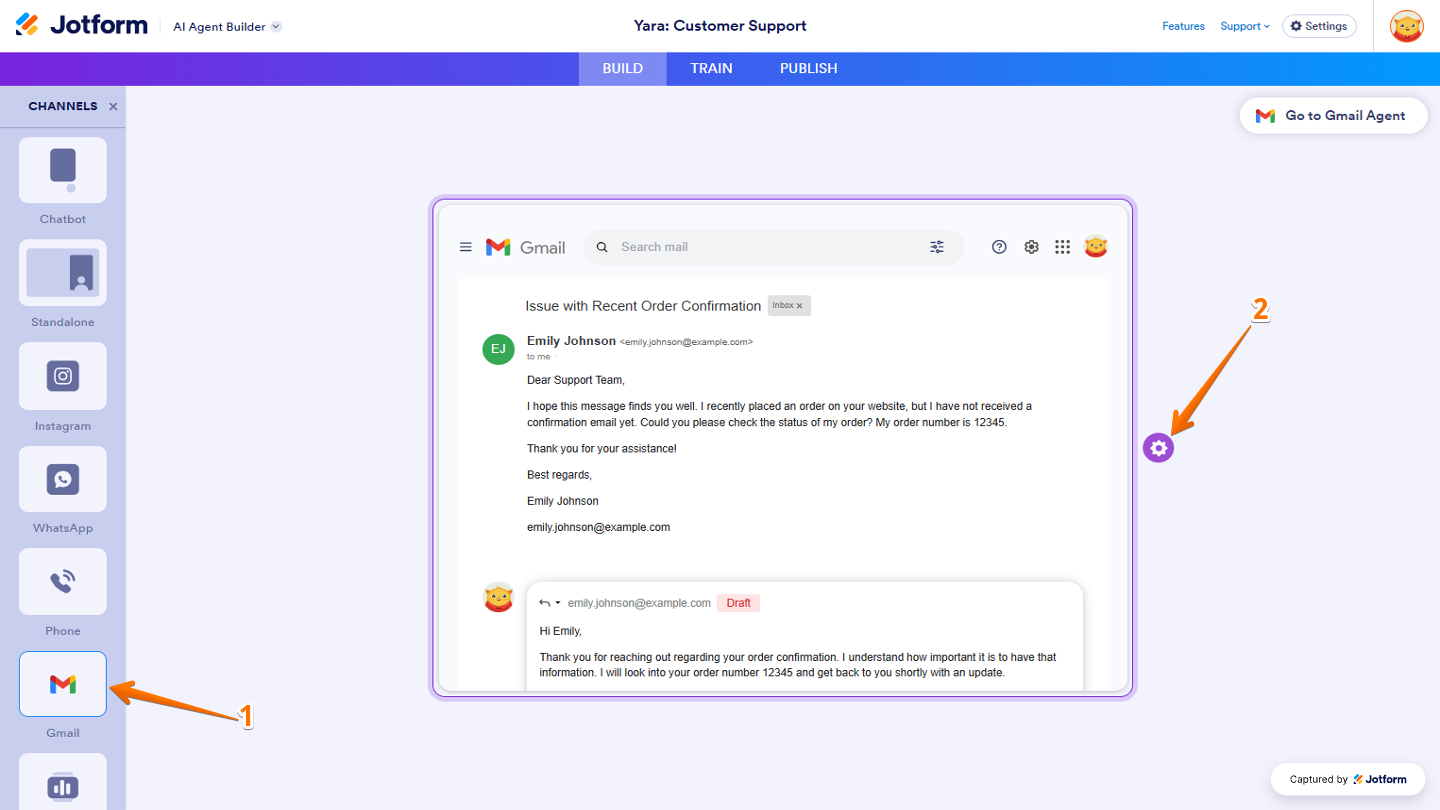
- In AI Agent Builder, in the Channels menu on the left side of the page, click on the Gmail icon.
- Then, on the right side of the Example Gmail Draft box, click on the Gear icon.
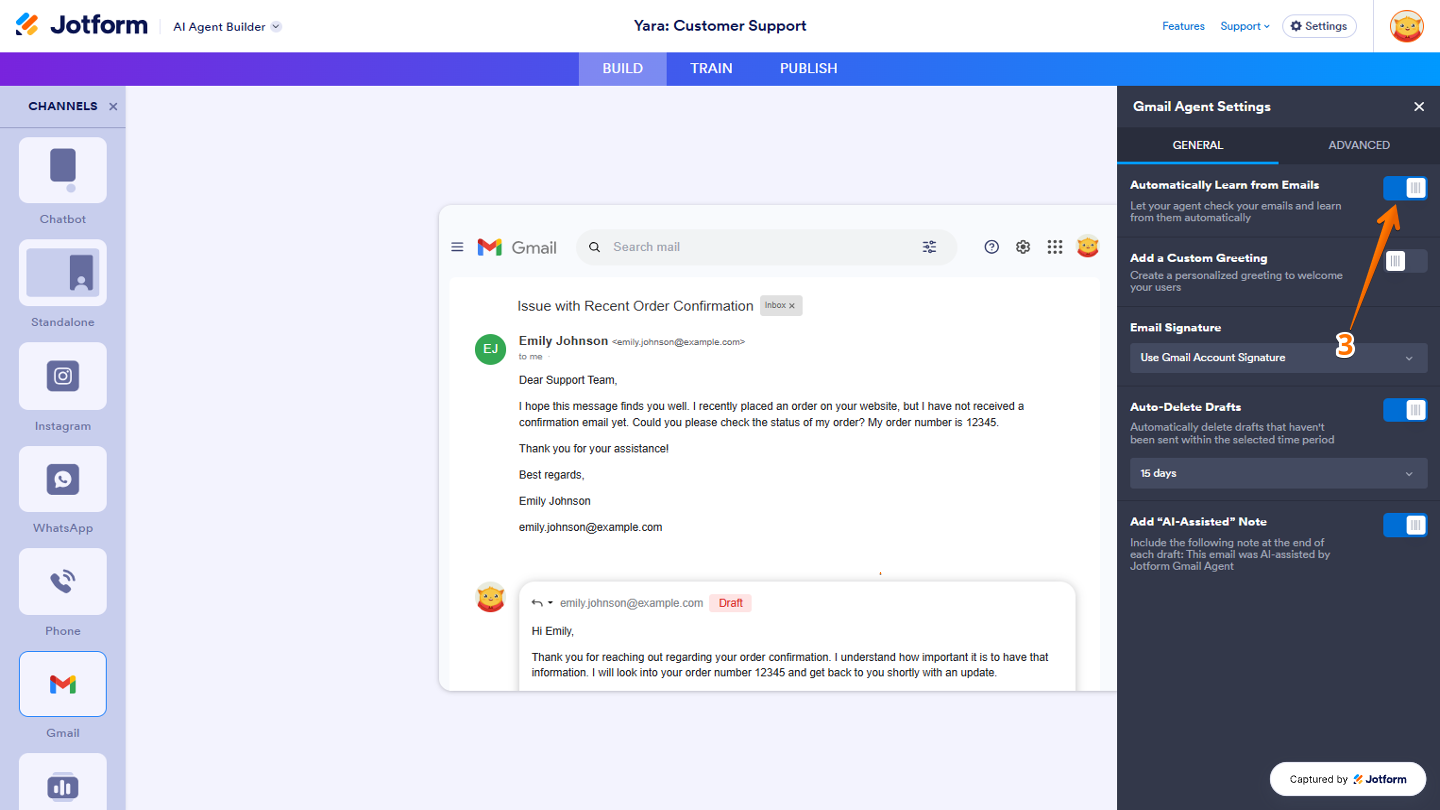
- Now, in the Gmail Agent Settings menu that opens on the right side of the page, keep Automatically Learn from Emails turned on.
That’s it! Your Gmail Agent is ready to help you create email drafts that sound like you. You can also check out these guides to learn more about using your Gmail Agent:
- How to Review and Send AI-Generated Drafts in Gmail Agent
- How to Customize Your Gmail Agent’s Tone and Responses
- How to Track Email Drafts in the Conversations Inbox
- How to Stop Gmail Agent from Drafting Replies to Certain Emails
- How to Create Smart Labels in Gmail Agent
- How to Add a Custom Signature to Drafts in Gmail Agent
- How to Add a Custom Greeting Message to Drafts in Gmail Agent
- How to Disable Your Gmail Agent
You can also give your Gmail Agent access to your past replies from the Publish Tab. Here’s how to get started:
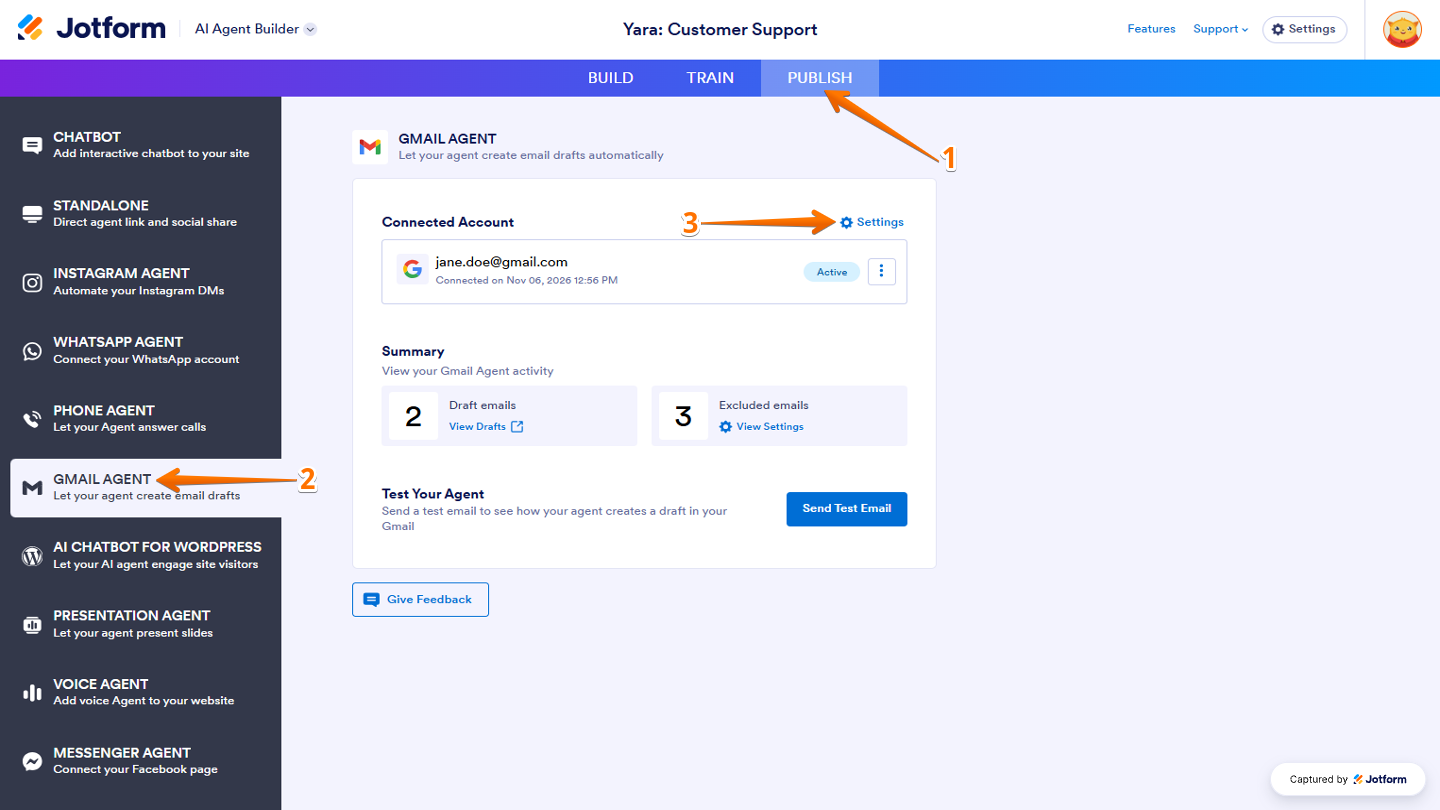
- In AI Agent Builder, in the blue navigation bar at the top of the page, click on Publish.
- Then, click on Gmail Agent in the menu on the left.
- Next, on the top-right side of the Gmail Agent section, click on Settings.
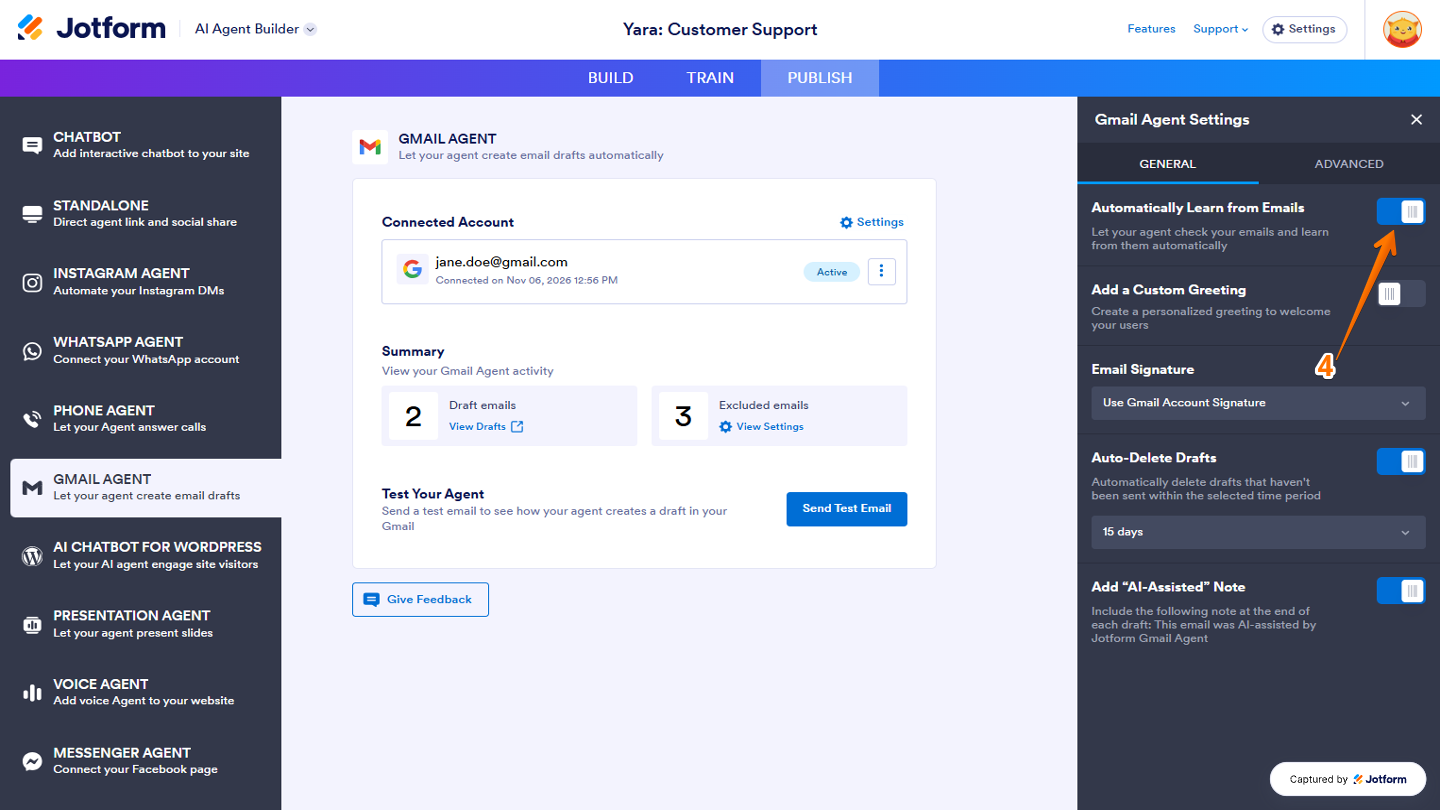
- Now, in the Gmail Agent Settings menu that opens on the right side of the page, keep Automatically Learn from Emails enabled.
Pro Tips
- Keep your wording similar to what’s in your past replies, so it’ll be easier for the Gmail Agent to learn your style.
- It’s especially helpful if you often send similar messages, like support responses or follow-ups.
- For the best results, give the draft a quick once-over to ensure it sounds right before hitting send.

Send Comment: