



Jotform has always been a no-code form builder. Since 2006, users have been able to drag and drop fields and form elements, and style the form to their liking. It was super easy, and anyone could do it.
Since then there’s been a lot of technological innovation — the most significant (and most recent) being the introduction of generative AI to the world. It’s added next-level capability and intelligent guidance that has fundamentally altered how we interact with software. Answers come easier, and tasks get done faster.
Now we’ve layered that same capability into Jotform, transforming form building into a conversational experience.
We’re excited to announce Jotform AI, which will forever change how you create, customize, design, and share your forms.
Now, instead of configuring your form manually, you’ll simply describe what you want, and Jotform AI will generate the form for you.
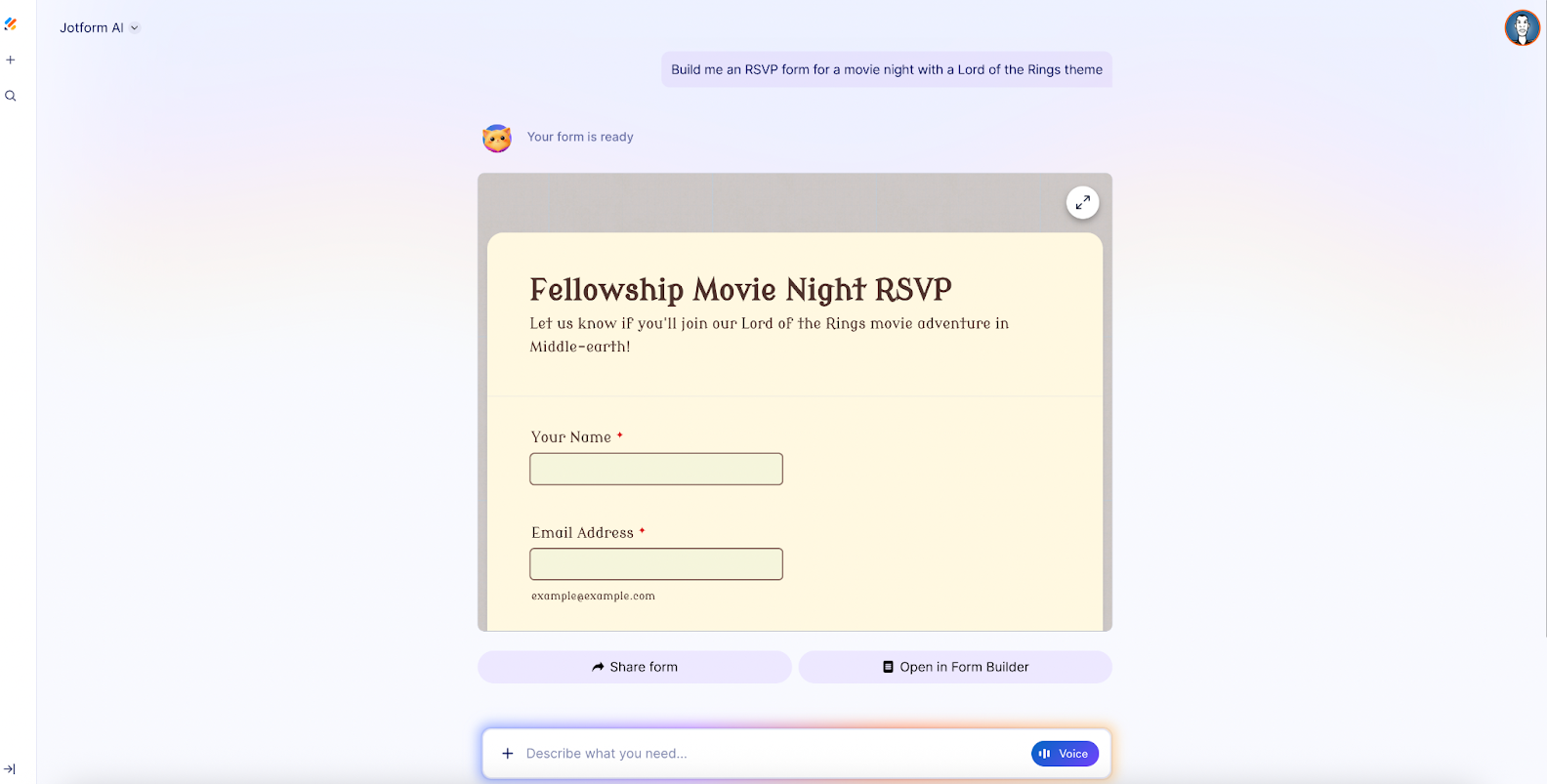
What can Jotform AI do?
Jotform AI automatically generates a working form — including fully configured form fields, structure, and logic — based simply on what you request (by either typing or speaking).
In this way, our platform is evolving from a click-intensive form builder into an intelligent assistant that lets you use natural language to
- Create new — and edit existing — forms
- Automatically generate fields and design layouts
- Configure conditional form logic
- Create notification and autoresponder emails
- Suggest integrations and widgets
- Create sample responses and send test submissions
- Get answers to questions about other Jotform products/features
- Apply accessibility best practices
From now on, you’ll build faster with Jotform AI.
How to access Jotform AI
In your Workspace, click on the Ask Podo anything button on the bottom right corner of your screen to create with Jotform AI. (Podo is Jotform’s friendly feline mascot and your assistant for all things Jotform).
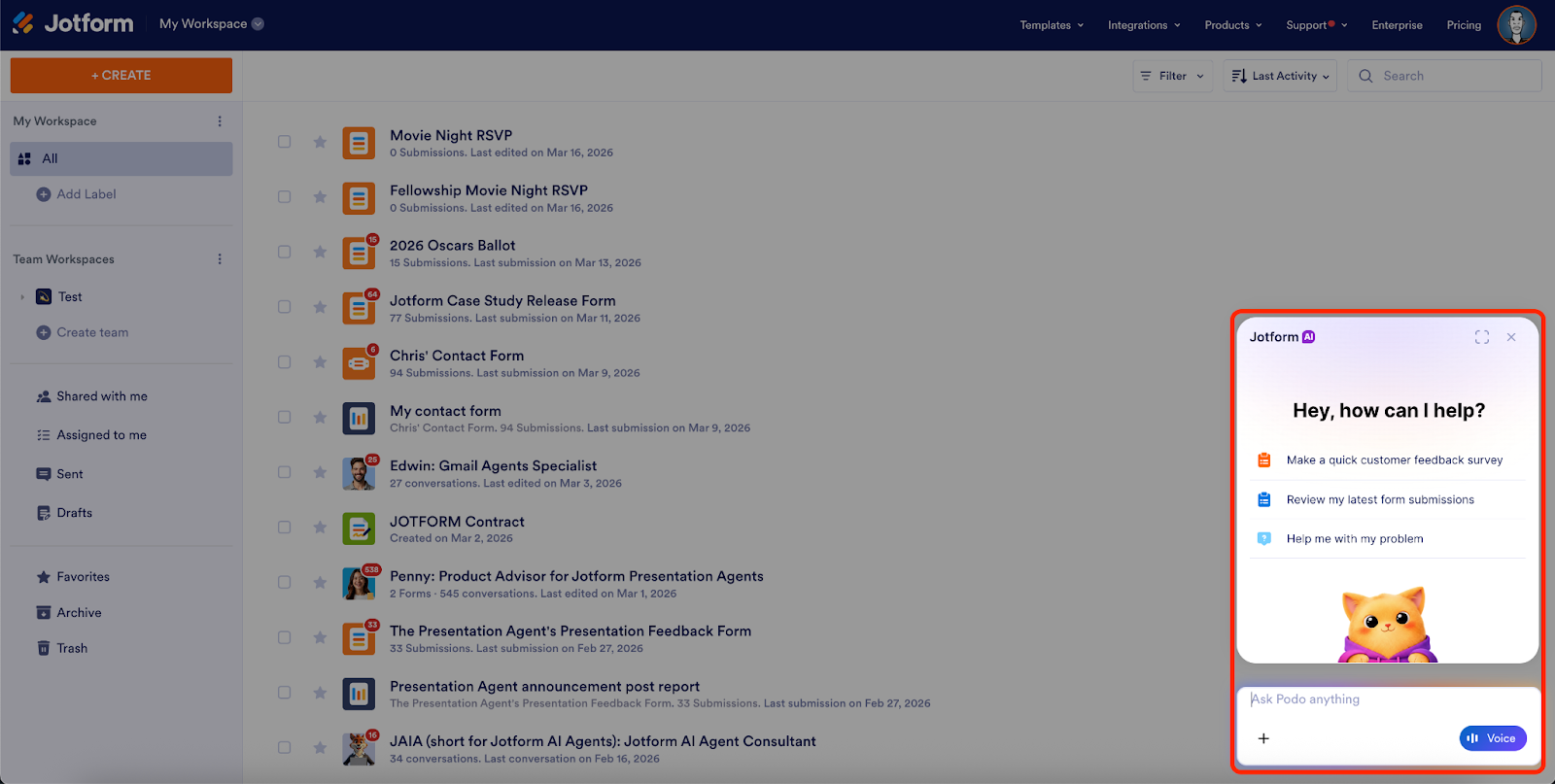
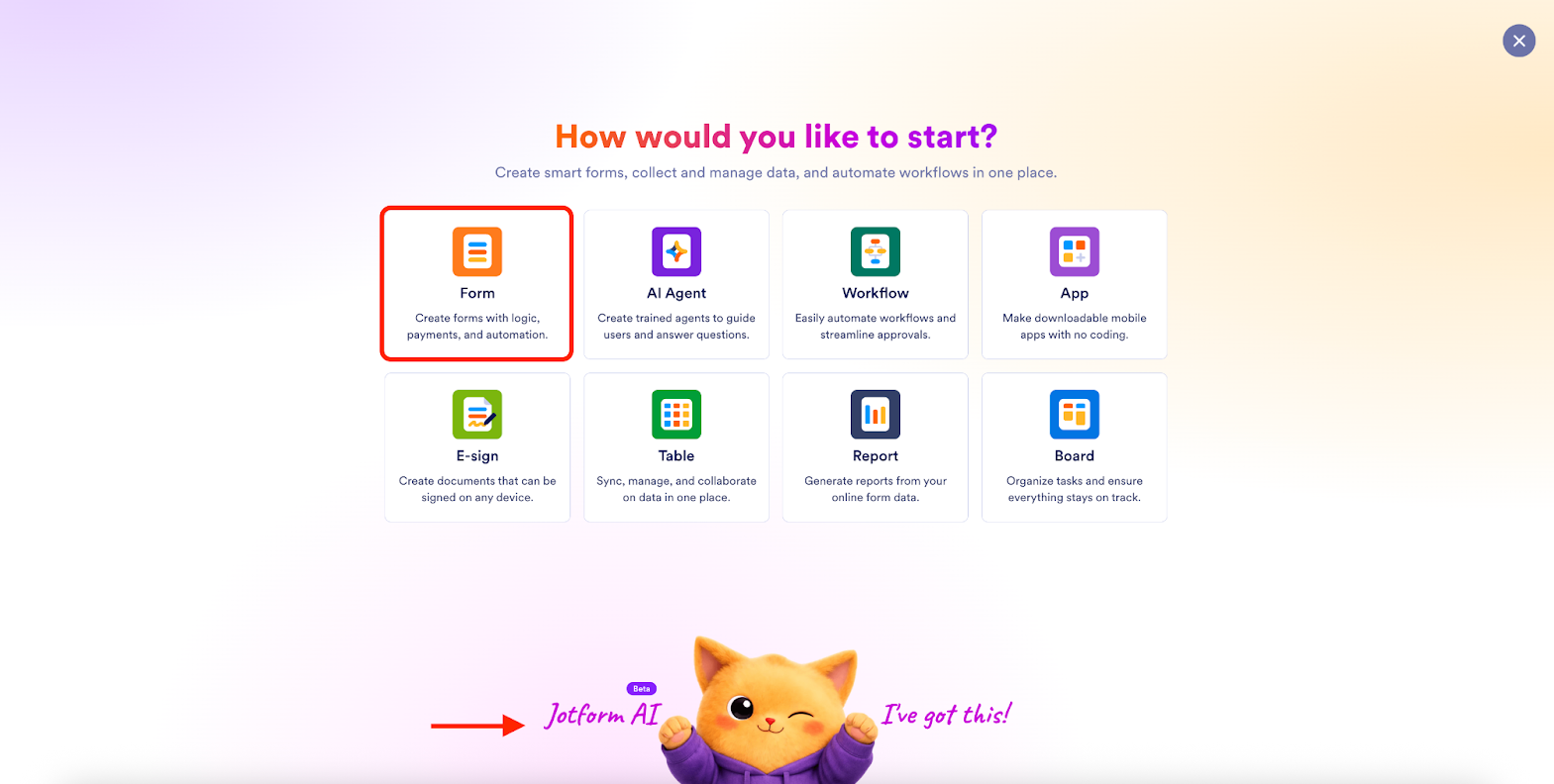
You can also get started by clicking the Create button in the upper left corner of your Workspace. Either way, you’ll get the option to create with Jotform AI.
Prompt examples
I’ve already asked Jotform AI to create a Lord of the Rings movie night RSVP form, and it delivered a pretty cool form. At minimum, it’s a starting point we can further customize together. But before that, let’s try creating a brand-new form.
Here I’ve asked Jotform AI to create a basic feedback form with specific fields.
In seconds I’ve got a form and options to share it with respondents or further customize it in the Form Builder (using the Form Copilot, which we’ll get to soon).
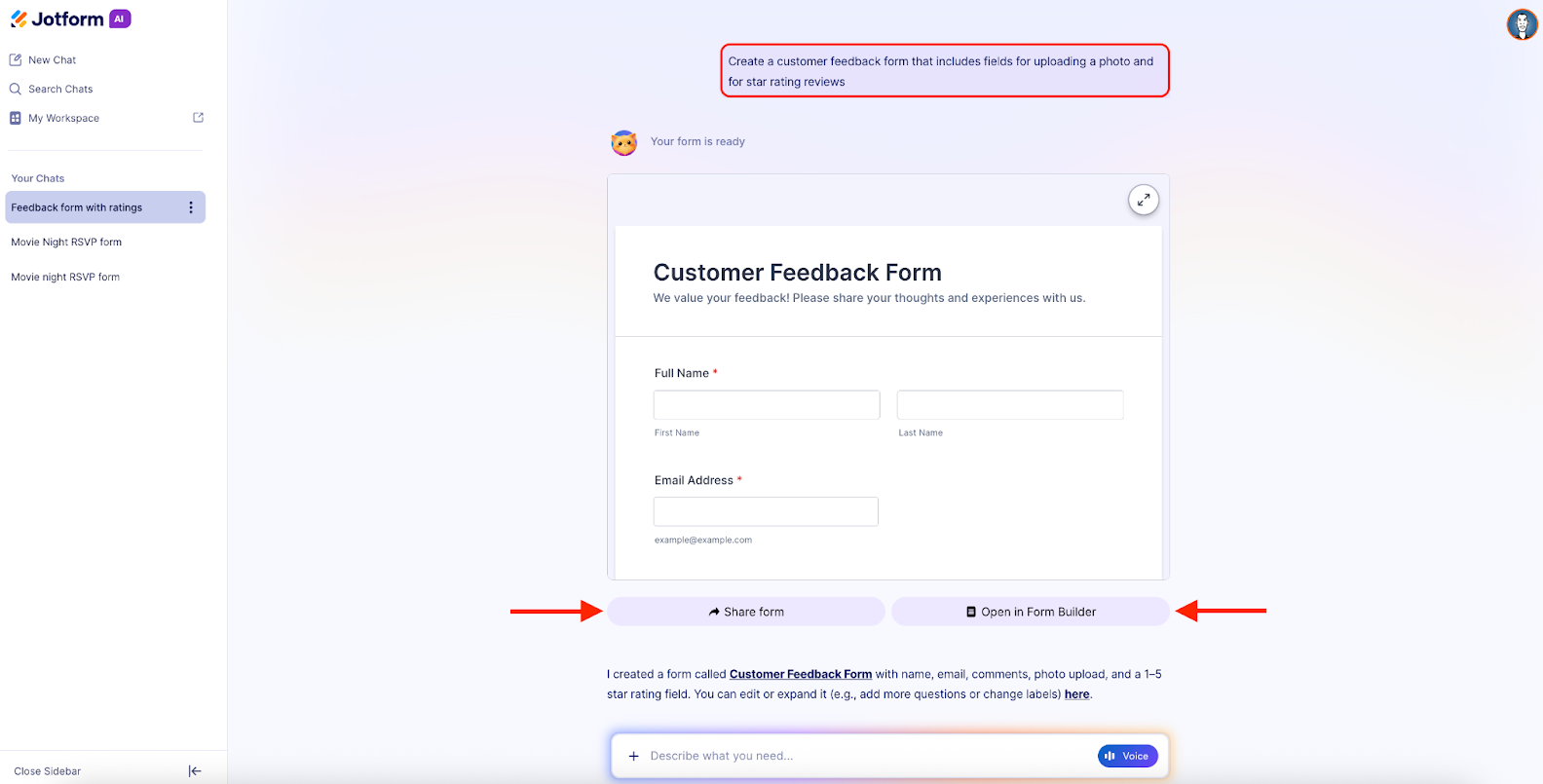
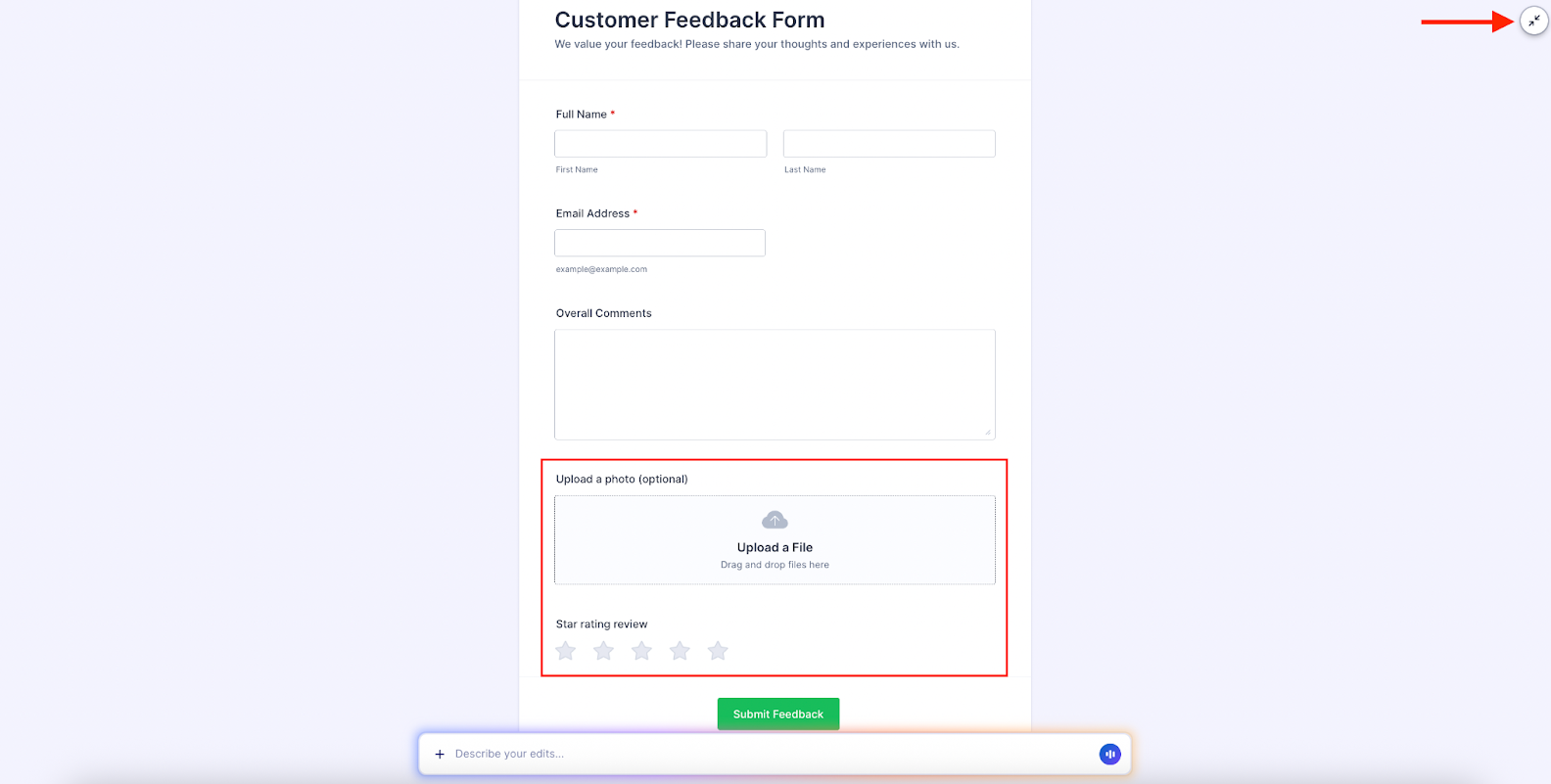
When I click the double arrows in the upper right corner of the form to expand it, I can view the full form and the specific fields I requested.
The form color was a little ordinary, so in the same chat, I asked Jotform AI to update the background of the form to a light blue.
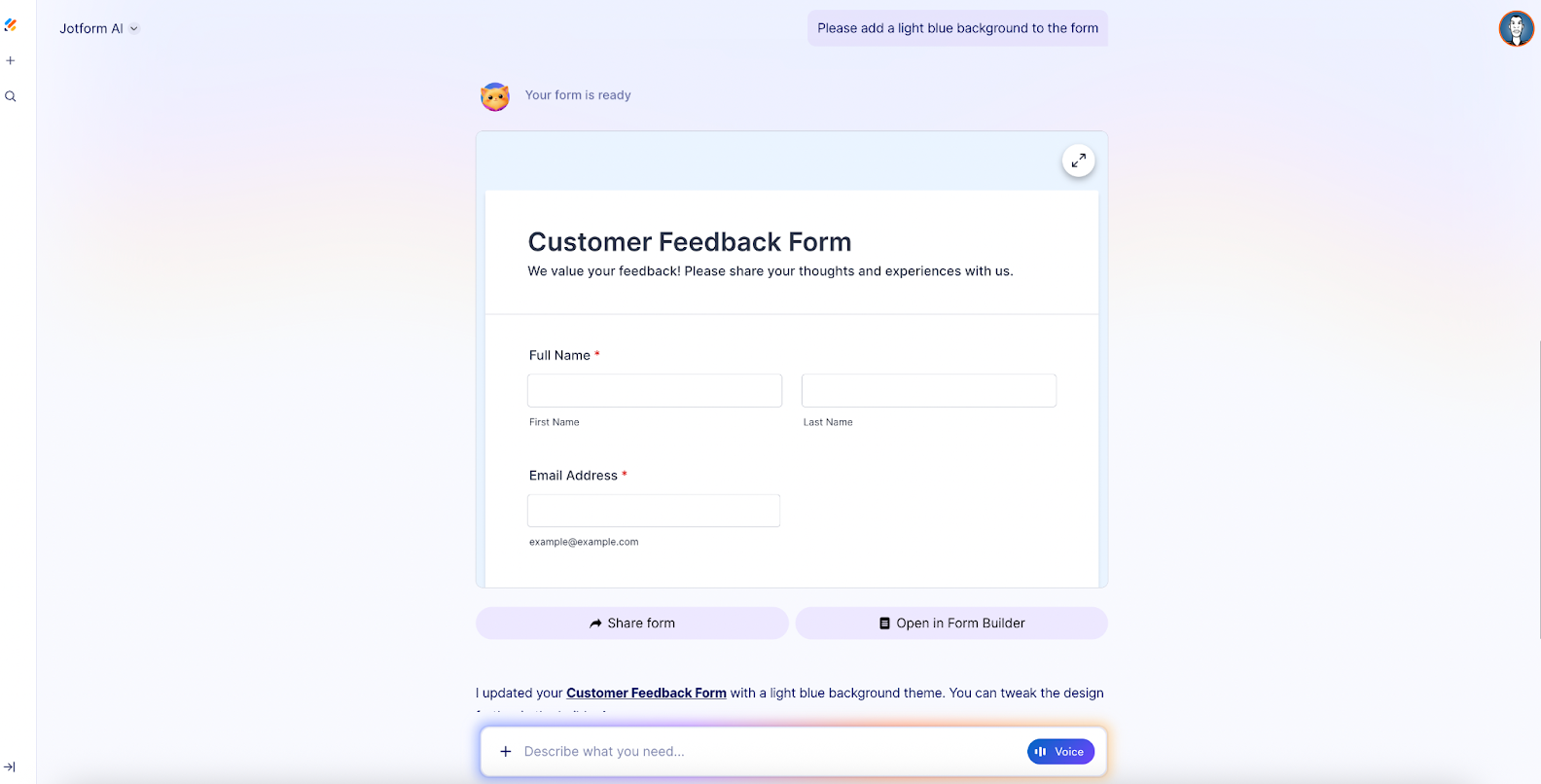
That’s it! Form creation is now easier than ever. You can go from idea to fully functional form in seconds, and the form can be as simple or as complex as you need.
When you give Jotform AI a specific prompt, it analyzes the content of your request and converts it into a structured form with the relevant fields.
As with prompting LLMs like ChatGPT, Claude, or Gemini, it’s best to be specific and concise. That’s more likely to produce the initial output you’re looking for.
In addition to form creation, Jotform AI can explain Jotform features, help troubleshoot workflows, and direct you to support resources if needed. This turns Jotform into both a creation tool and a product guide.
Pro Tip
It’s just as easy to voice your ideas as it is to write them down. In fact, for some people it’s easier to talk out their ideas. Hit the Voice button in the prompt bar to use voice activation.


Built-in intelligence: AI Form Copilot
After creating your form, you can click the button to Open in the Form Builder or access the existing form in your Workspace to make edits.
This is where the Form Copilot is at your service.
Now, if you need to rename a field, swap out a field, or update your form’s logic, it’s as simple as having a conversation with the Copilot. It’s basically an extension of the AI experience within the Form Builder.
No more editing your form(s) by dragging and dropping elements, searching for widgets and functionality, or looking up instructions (unless you want to).
When accessing your existing form(s), you’ll see a Work with Copilot bar in the bottom right of the screen. Just click it to get started.
Let’s use our LOTR movie night RSVP form as an example. You’ll see that Podo automatically suggests sample tasks you may want to complete.
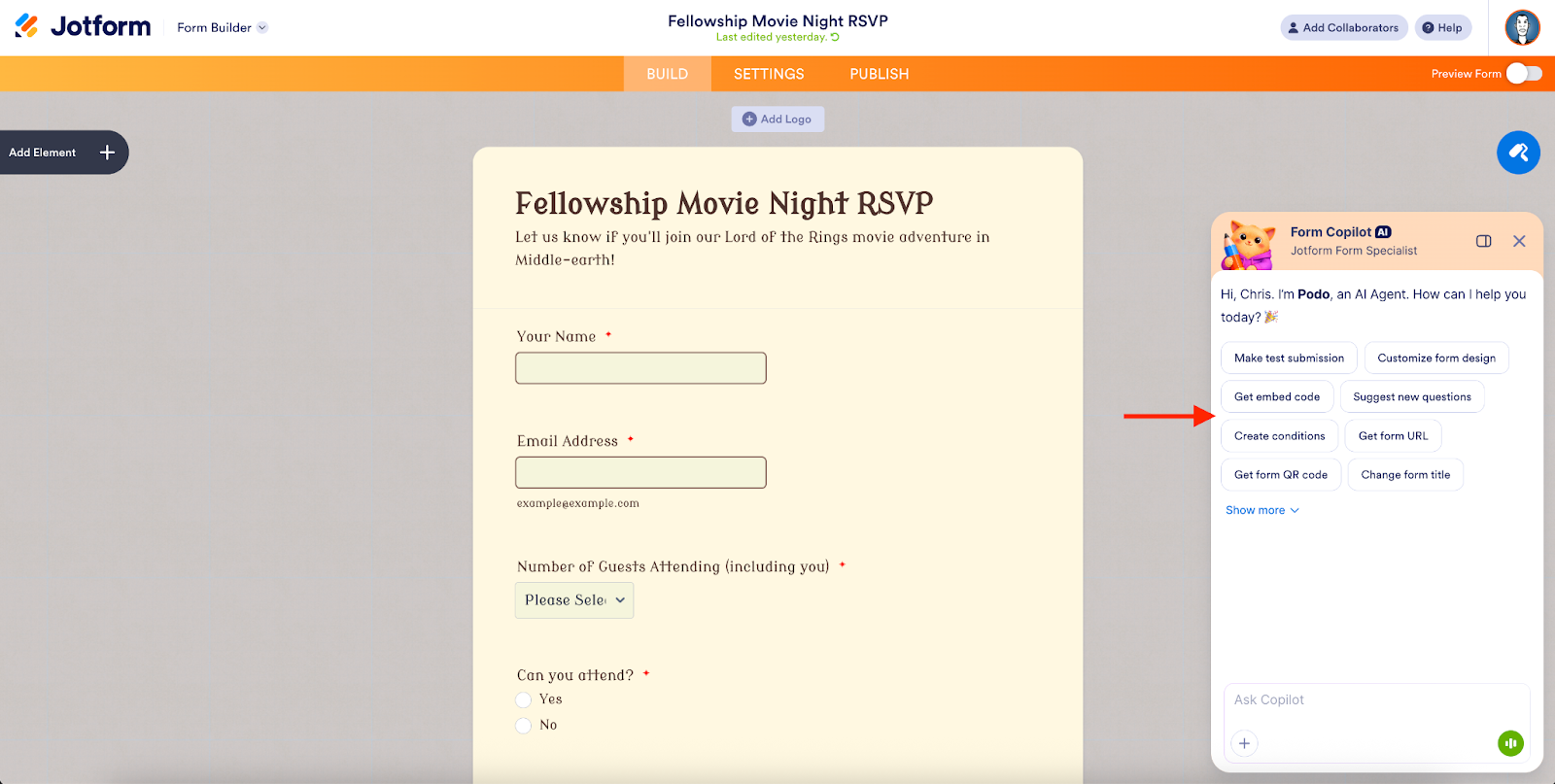
The first thing I’ll ask Podo to do (verbally) is to reorder a question in my RSVP form.
Let’s say I want to add some conditional logic to my form. I’ll simply ask Podo to add a hidden form field only for respondents who say Gandalf is their favorite LOTR character.
To confirm that Podo added the conditional feature, I went to the Publish tab and opened my form in a new tab with sample information.
There, I saw that Podo set the condition properly: The fireworks field appears only for those who select “Gandalf” as their answer.
In case you’re wondering, at your request, Podo can fill out your form with sample information to test conditional logic and other form features.
Among other tasks, editing with the Form Copilot lets you
- Rename fields
- Create calculations (totals, scores, pricing)
- Generate notification emails and create autoresponder emails
Again, you can continue to edit your forms manually in the Form Builder if you wish.
Jotform AI mobile interface
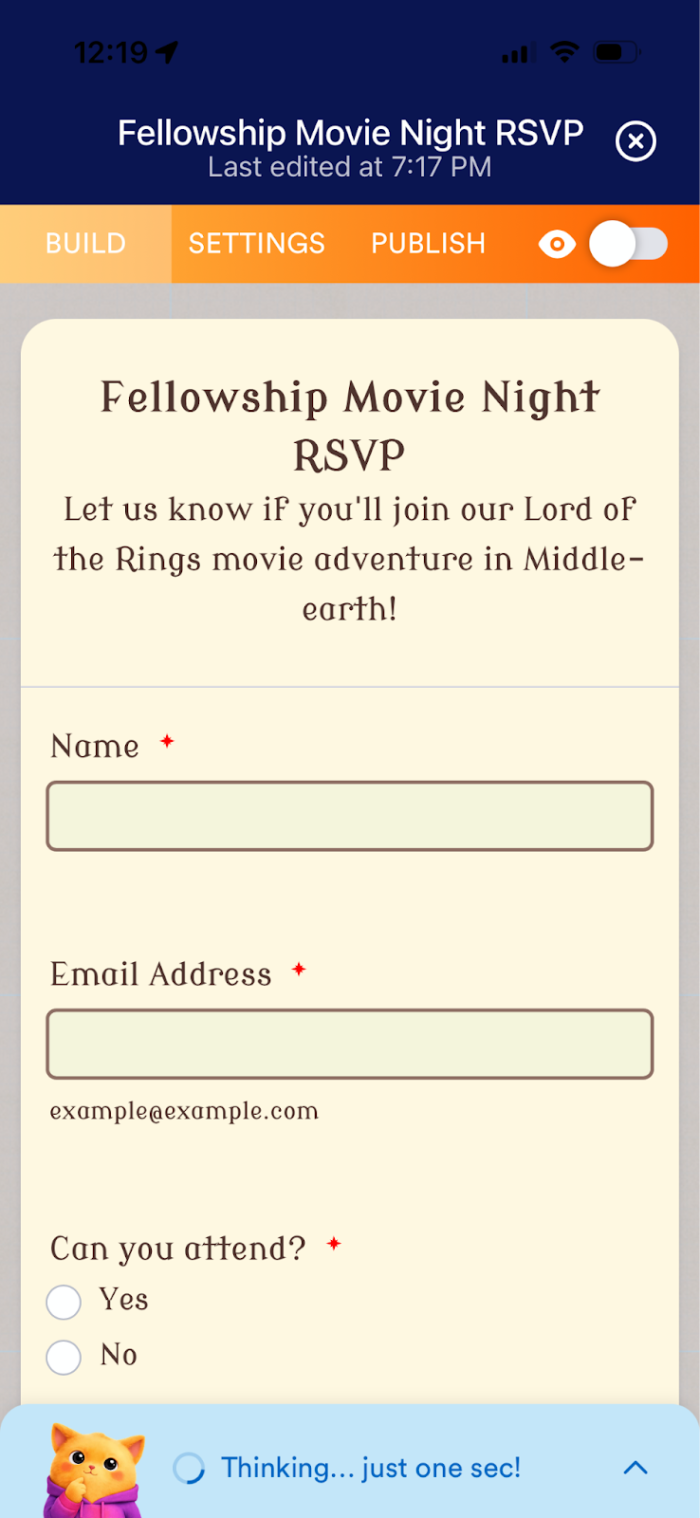
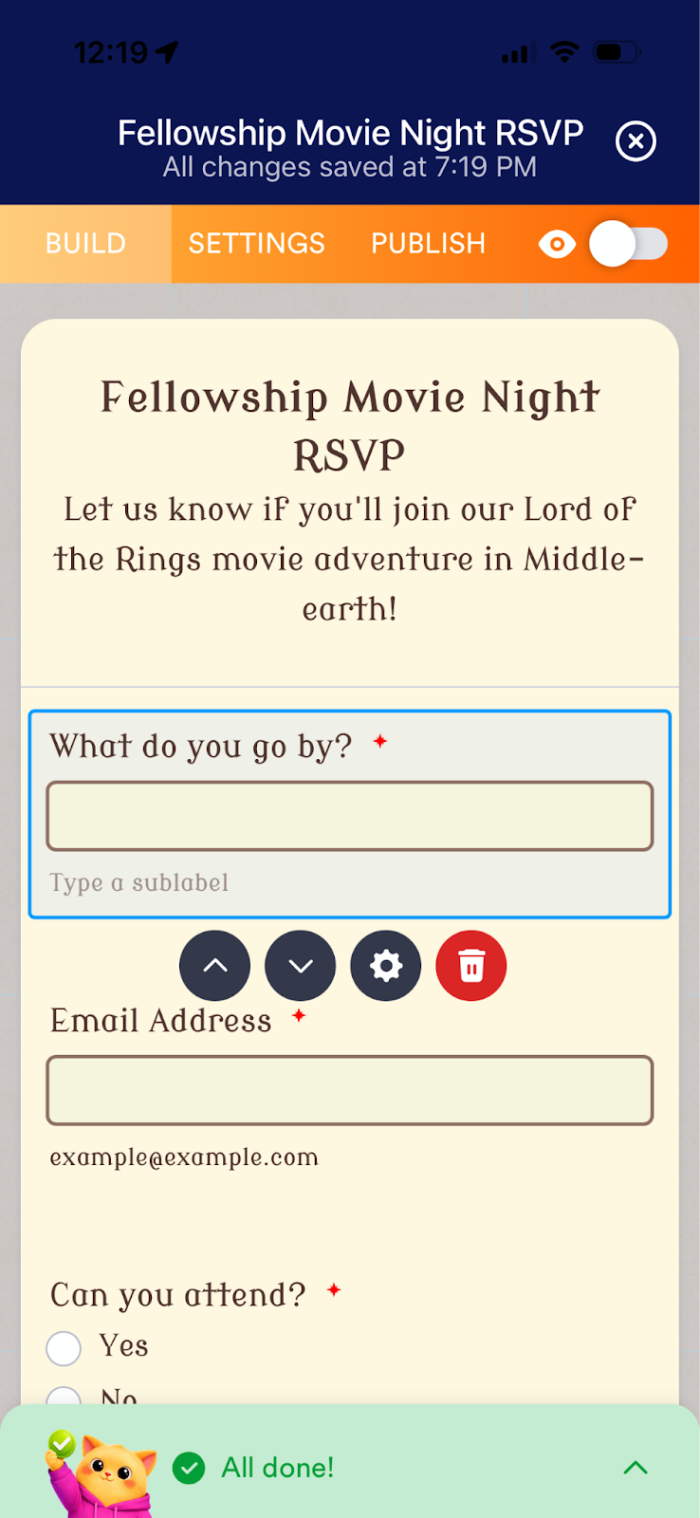
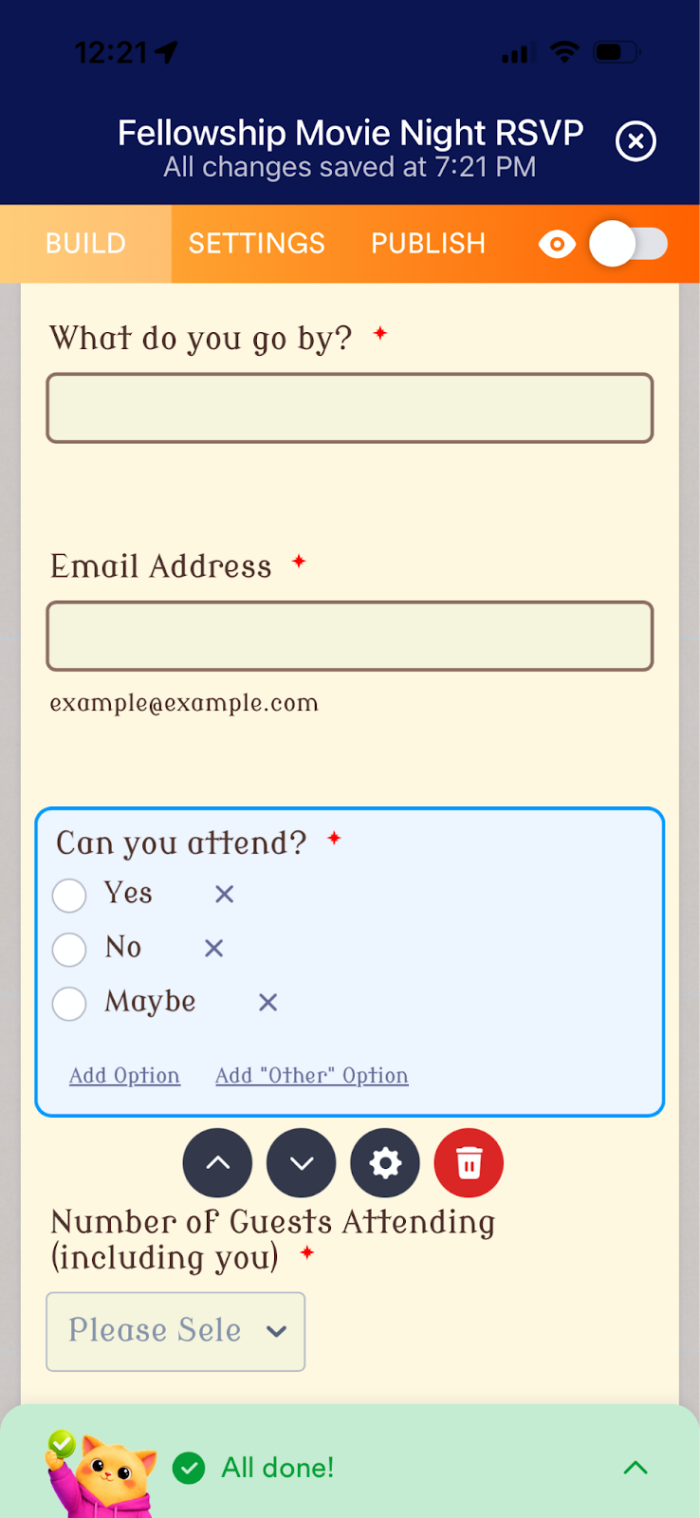
Jotform AI is fully functional on your mobile device, so you can create and edit forms more easily on the go.
Using Jotform AI on mobile, I asked Podo to rename the main name field, and the task was completed in seconds.
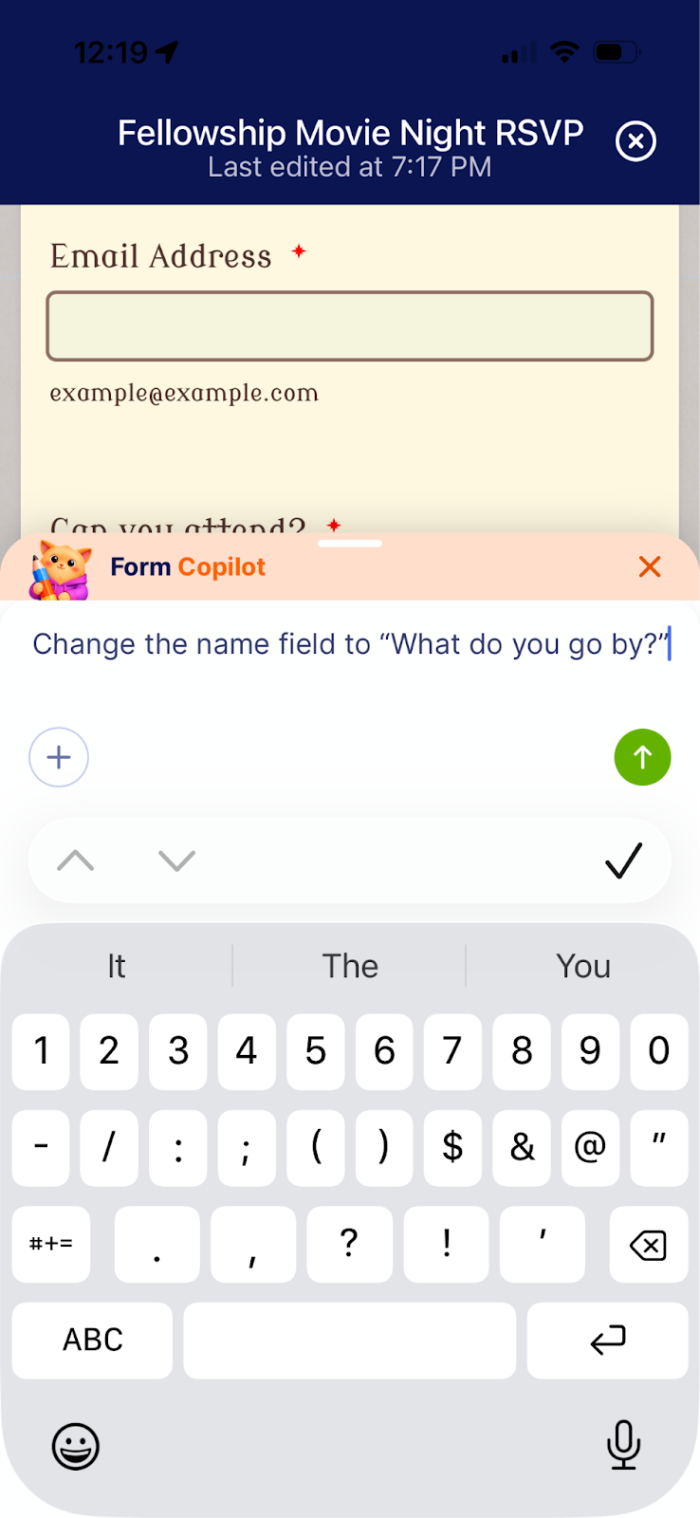
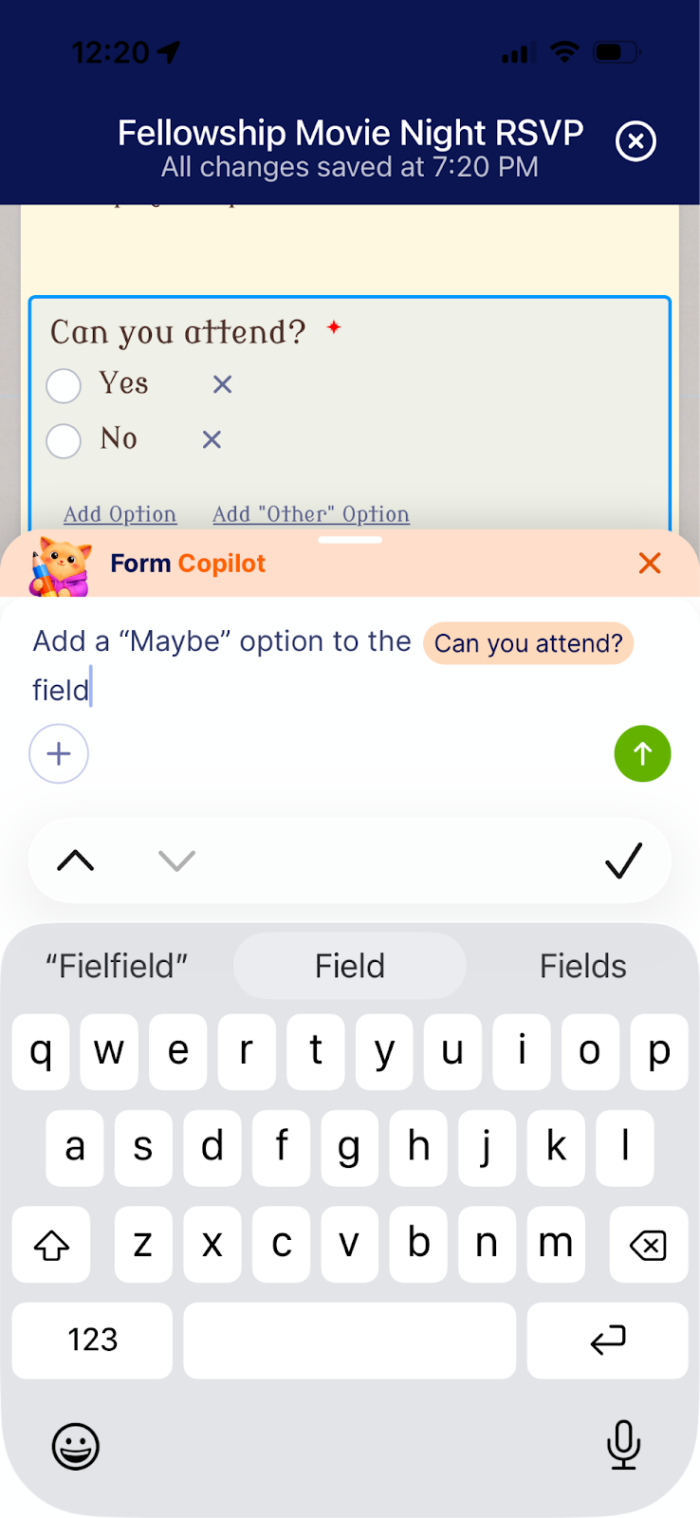
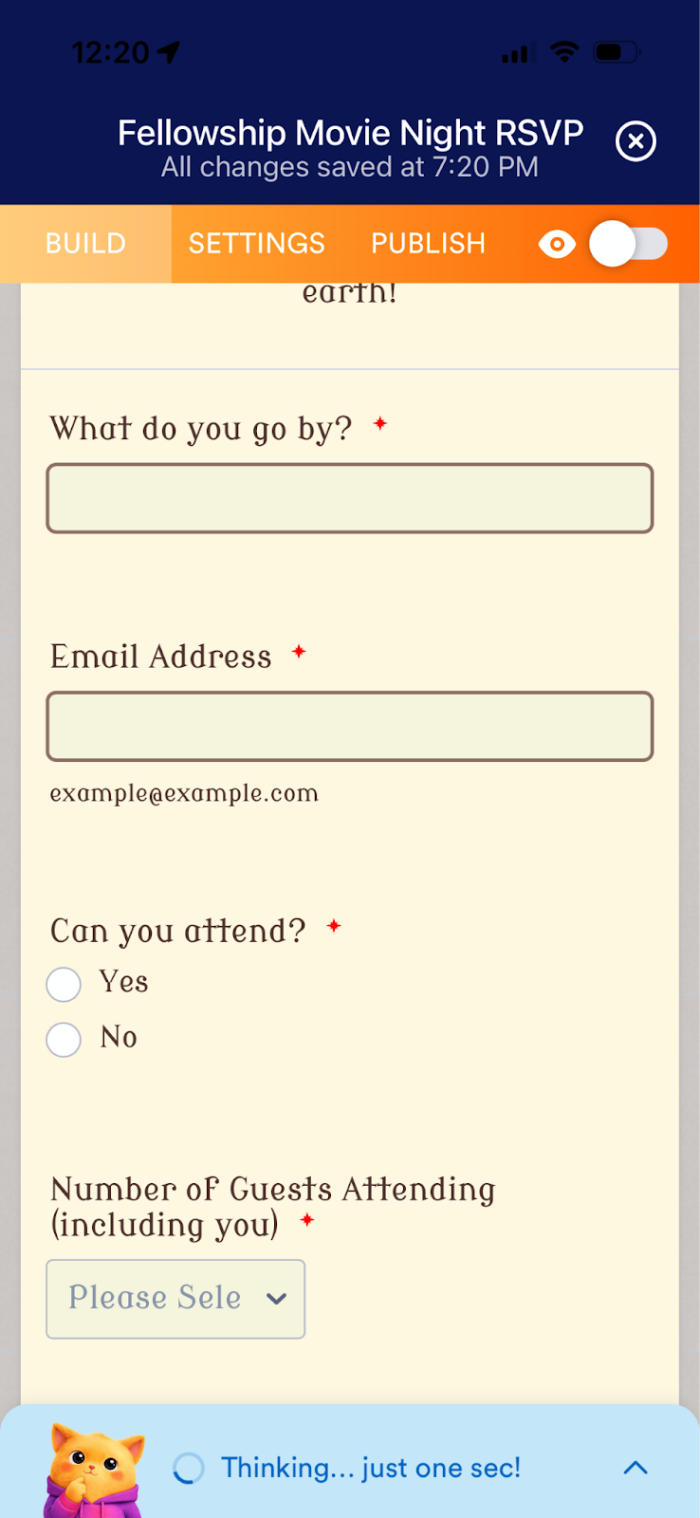
Also, there’s a cool shortcut you can use in the Form Copilot on mobile: Touch the form element to automatically include it in your written prompt. This will make editing easier.
Let Jotform AI design your forms and match them to your brand
Earlier I used the AI Copilot to apply a quick LOTR theme to my form. You can also use Jotform AI to design form backgrounds, upload brand images, and even use a URL to create a brand kit for your forms.
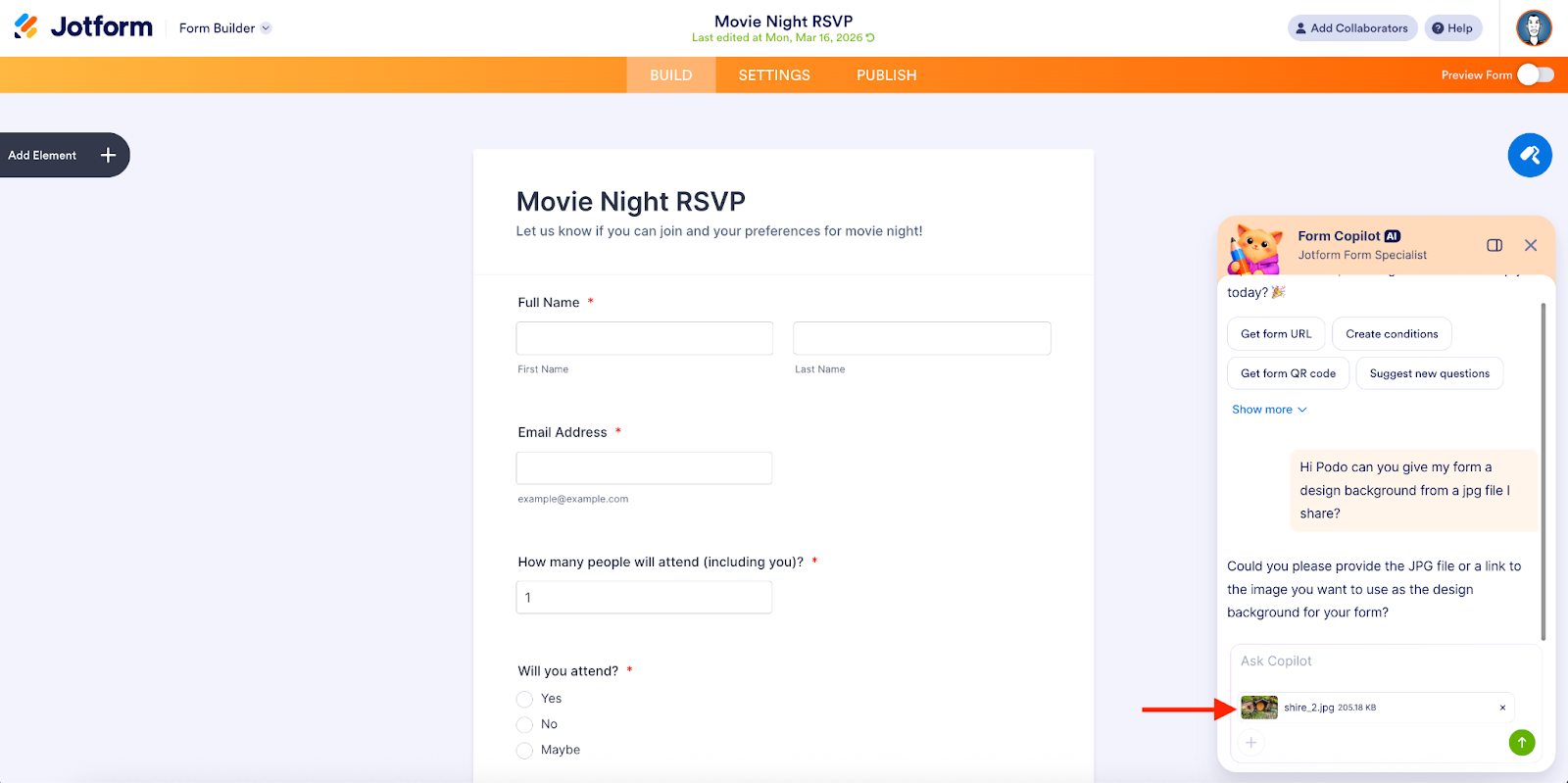
Here’s an example of using a JPEG file in the Form Copilot to help design an enhanced LOTR background.
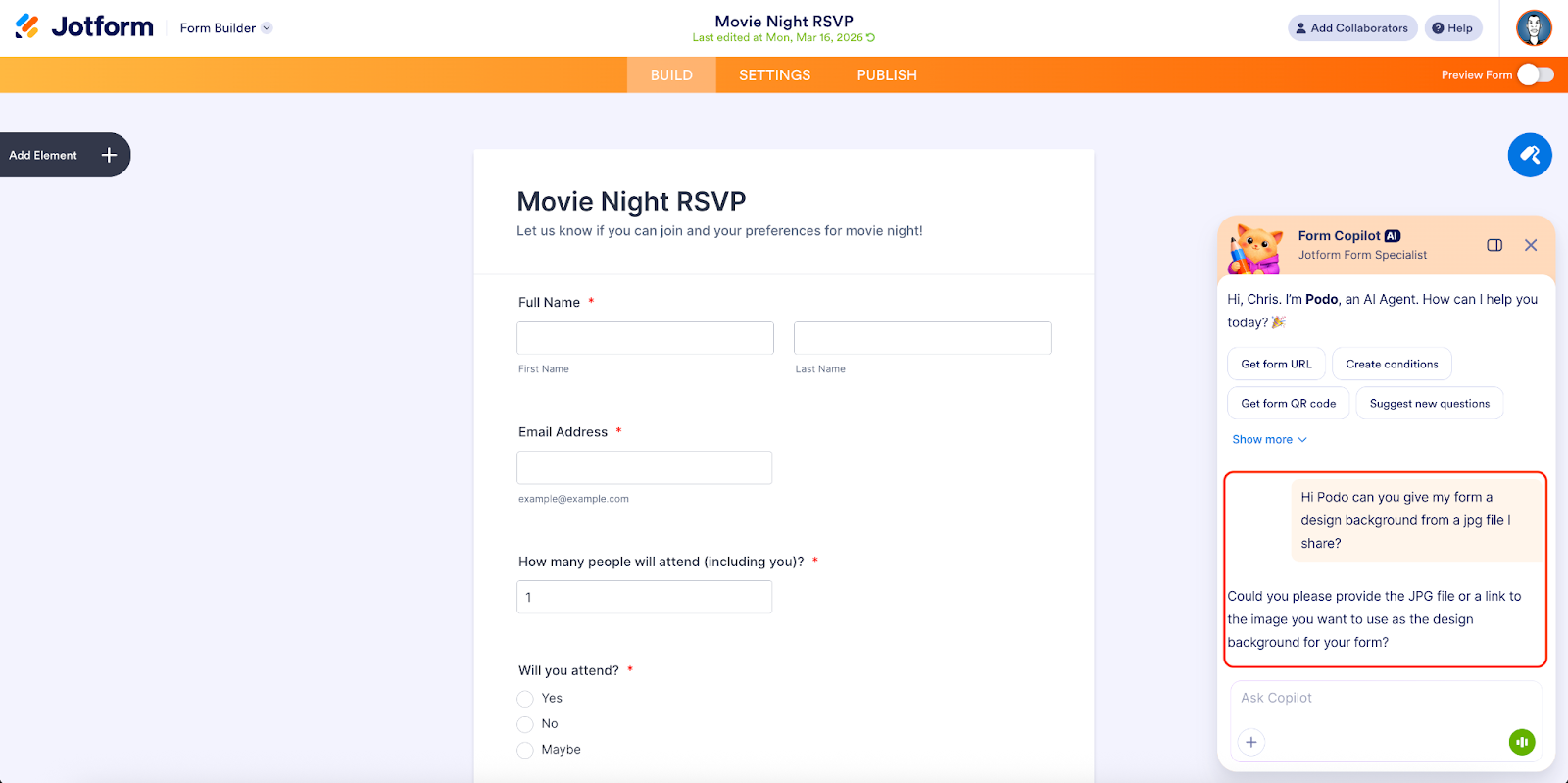
I simply added the file to the chat.
In seconds, Jotform AI automatically applied the file’s design colors, picture, and style to my form background.
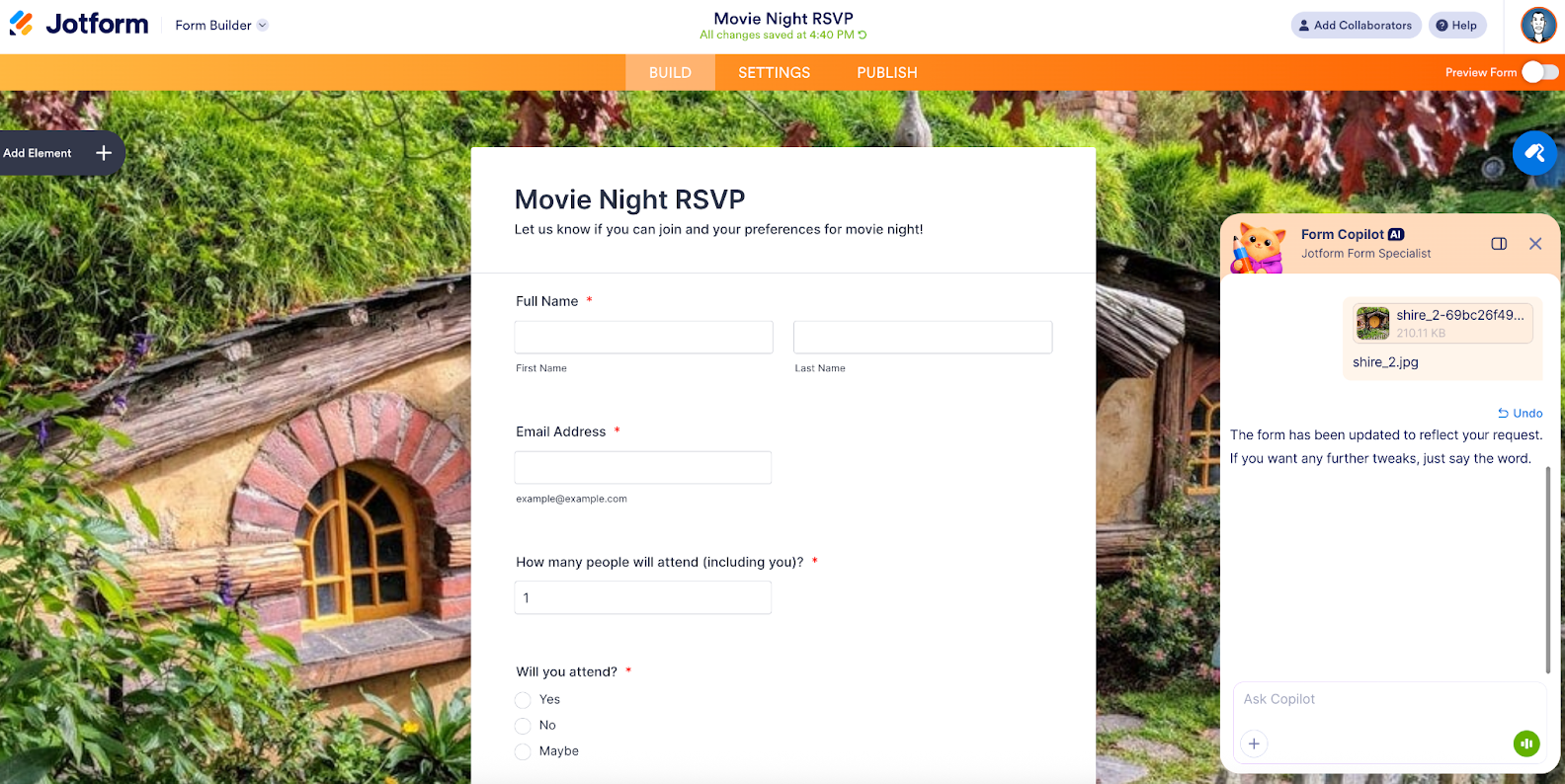
This is just one example of how you can use Jotform AI for design assistance. It should save you a good deal of time and effort.
Why Jotform AI is more than an AI form generator
From an industry perspective, Jotform AI represents best-in-class form assistance that sets a new foundation in intelligent data management. It can execute at the request of a prompt.
Here’s a quick breakdown of AI form-building capability and how we currently stack up.
 Jotform AI |  Typeform |  Google Forms |  Fillout | |
|---|---|---|---|---|
| Create a form from a prompt | ⭐ Full conversational form generation | AI form generator | Limited suggestions | Yes |
| Generate forms from documents, spreadsheets, or images | ⭐ Upload files and convert them into forms automatically | Limited to paid users only | No | Yes |
| Conversational AI editing inside the builder | ⭐ Form Copilot can update fields and logic at your request | Yes | No | No |
| Automatically generate conditional logic | ⭐ Describe the form behavior you'd like, and Jotform AI builds the logic automatically | Yes | Basic sections only | No |
| AI-generated calculations and data copying | ⭐ Build scoring, totals, and field calculations with simple requests | No | No | No |
| AI suggestions for questions and structure | ⭐ Suggests fields and improves form structure | Yes | Limited | Yes |
| AI design and styling assistance | ⭐ Update layout, themes, colors, and styling by request | No | No | Limited |
| AI branding (match website or brand kit) | ⭐ Match colors and branding automatically | No | No | Yes |
| AI-generated notification and autoresponder emails | ⭐ Generate email workflows automatically | No | No | No |
| AI-generated test submissions | ⭐ AI can simulate submissions to test form behavior | No | No | No |
| AI optimization recommendations | ⭐ AI suggests improvements to increase completion rates | Yes | No | No |
| AI assistant for product guidance | ⭐ AI answers product questions and guides product/feature setup | No | No | No |
| AI conversational agents for workflows | ⭐ AI Agents enable chat-based workflows and data collection | No | No | No |
Testing and sharing forms instantly
When it’s time to try out your form and share it with your audience/respondents, you can ask Jotform AI to help.
The AI can generate test submissions and verify submission behavior. This really comes in handy (and saves time) for forms that include conditional logic or multiple steps, questions, and pages.
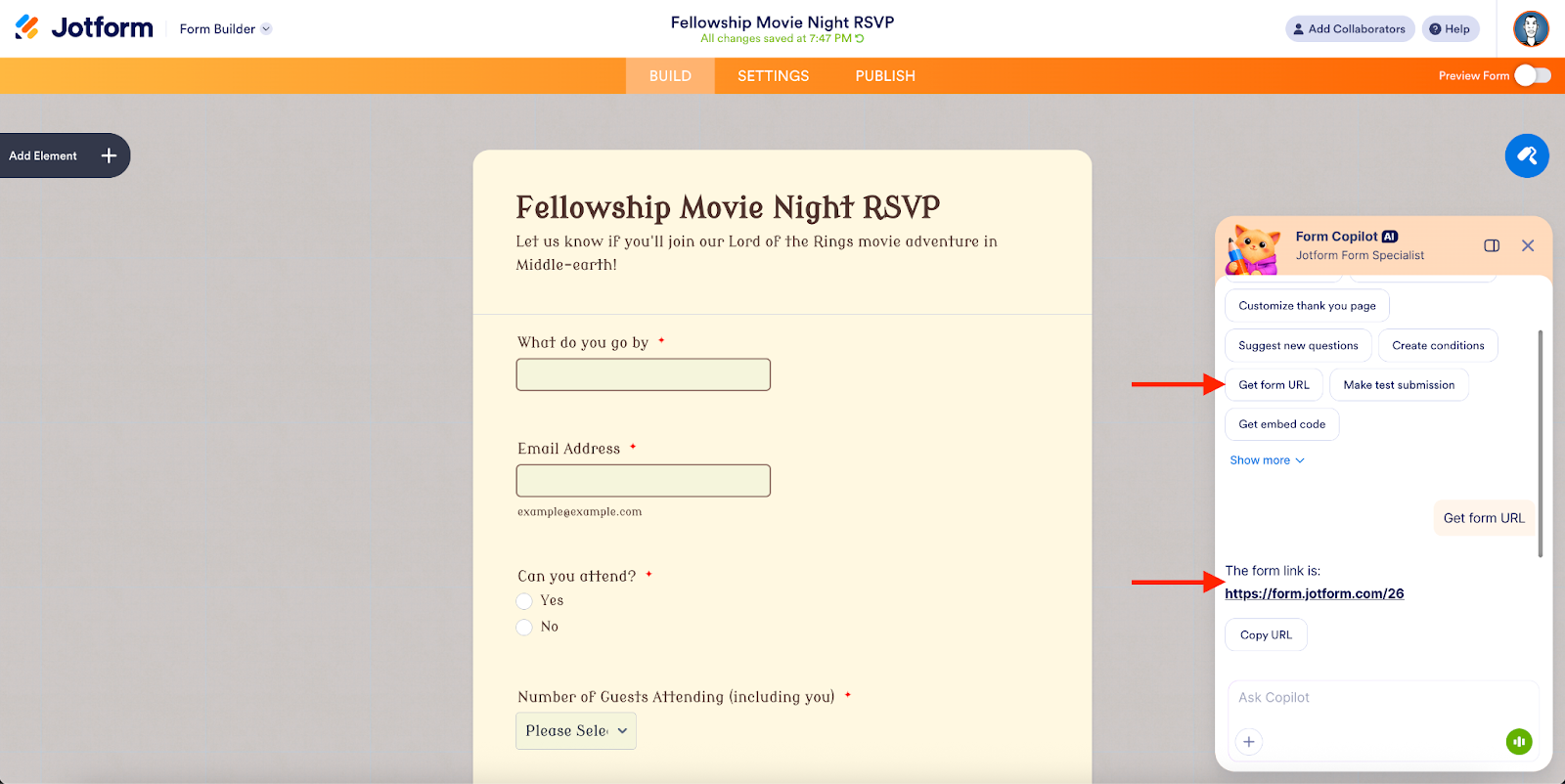
And when you’re ready to distribute your form, Jotform AI can instantly provide the form sharing link, a QR code, and options for sharing via social or email.
No limit to what you can do with Jotform AI
We like to say that no matter your business or organizational purpose, everything starts with a form. And almost every industry uses forms. Here’s a glimpse at how different industries can use Jotform AI to be even more efficient.
Marketing and events teams
Marketing and events teams can use Jotform AI for lead capture, to brainstorm new campaigns, and to generate event registrations and post-event forms and surveys.

With built-in form best practices and automatic brand design, teams can improve outreach and hit the ground running faster than ever.
Human resources teams
HR teams can creatively build onboarding programs with Jotform AI simply by uploading company policies, enrollment forms, and training manuals.

The platform’s built-in accessibility checks will help ensure your programming is clear to everyone across your organization.
Small businesses and entrepreneurs
For hard-working solopreneurs, Jotform AI can help bring your vision to life by simplifying and “speedifying” the customer intake creation (and data management) process.

Whether your business plan is on the back of a paper napkin or a voice memo on your phone, Jotform AI is ready to ramp things up and help you scale.
Education professionals
Education administrators and teachers need software they can rely on. Being able to create conditional-based surveys and course evaluations with Jotform AI is a game changer.

AI that creates workflows — and validates form behavior — makes for the best digital assistant.
Did you know?
Jotform AI can also help optimize your forms. It can analyze a form and suggest improvements like simplifying questions and improving the order of form fields and the form’s overall structure. Together, these improvements can help increase conversion rates and create a smoother user experience.
FAQ about Jotform AI
Have questions about what you can do with Jotform AI? Here are a handful of questions that can help you navigate the new AI functionality.
You can upload CSV, XLS, or XLSX spreadsheet files. Jotform AI will read the structure of these files and automatically convert the columns into form fields.
Yes. Describe the behavior you want, and Jotform AI will automatically create the correct logic.
Simply record your spoken instructions, and the AI will analyze the request and generate form fields based on the information you described, creating a form draft automatically.
Pre-built prompts are ready-made descriptions that appear as buttons in Jotform AI. They help generate forms automatically. Instead of writing your own request or prompt, you can choose a pre-built one that represents the type of form you want to create.
Yes. After Jotform AI updates your form, you can continue editing everything manually in the Form Builder — or you can use Form Copilot to continue editing with the help of AI. Either way, you stay in full control and can review, adjust, or customize AI-generated changes at any time.
For a full list of FAQs, check out the Jotform AI page.
Conclusion
Our AI form assistance research began in 2023. Last year, we launched multichannel AI Agents (as well as some AI-assisted design tools) that specialize in helping with customer service. That focus was a direct result of your feedback on how you use, interact with, and find value in AI.
Jotform AI represents more than a year of AI innovation.
After more than 200 million AI Agent sessions, 22 million agent messages, and 450,000 AI Form Copilot sessions, you (the customer) continue to be our north star when it comes to product creation, functionality, and design. Perhaps more than ever, Jotform AI is a result of all of your feedback.
We’re excited to deliver more efficiency to your form-building workflow by layering in powerful AI functionality. But we’re committed to doing it in a way that creates a natural and improved experience.
By using conversational language, Jotform AI and the Form Copilot enable you to
- Generate forms
- Create and adjust form fields
- Set up conditional logic
- Structure and design form layouts
- Add advanced functionality
- Refine questions
- Adjust workflows
- Suggest third-party integrations
The result is faster setup, zero learning curve, and built-in best practices across all form use cases. And yes, like almost all Jotform products, Jotform AI is free.
As excited as we are to introduce Jotform AI, there’s still a ways to go. For example, Jotform AI currently supports form creation, editing, and optimization (as well as providing knowledgeable answers about related Jotform product functionality).
But we aim to go further — building conversational workflow automation, analysis, and actionable next steps in the future to make your job easier and your business smarter.





































































































Send Comment: