
Top 5 ChatGPT design apps
Design teams are increasingly turning to ChatGPT-powered design apps to move from idea to execution more quickly. These tools combine conversational AI with visual creation workflows, so designers, marketers, and product teams can generate layouts, user interface (UI) concepts, graphics, and design systems by describing what they need in plain language.
In this guide, we’ll break down what qualifies as a ChatGPT design app, whom these tools are best for, and which platforms stand out when it comes to real-world design work.
What qualifies as a ChatGPT-powered design app?
A ChatGPT-powered design app uses conversational AI as the main way you create, modify, or analyze visual designs. Instead of relying solely on manual tools or static templates, you simply describe what you want, and the app translates those instructions into layouts, UI elements, or visual assets.
These tools are typically used by
- Designers who want faster ideation and iteration
- Marketers creating visuals without full design resources
- Product teams prototyping interfaces and flows
- Non-designers who need usable design output without learning complex software
The core value lies in reducing friction between what you want to create and actually creating it, while still keeping you in control of creative decisions.
Top 5 ChatGPT design apps
The following design tools use ChatGPT as a conversational layer that can create, edit, or refine visual assets across different design disciplines, from marketing graphics and presentations to UI concepts and scientific figures.
1. Adobe Express for ChatGPT
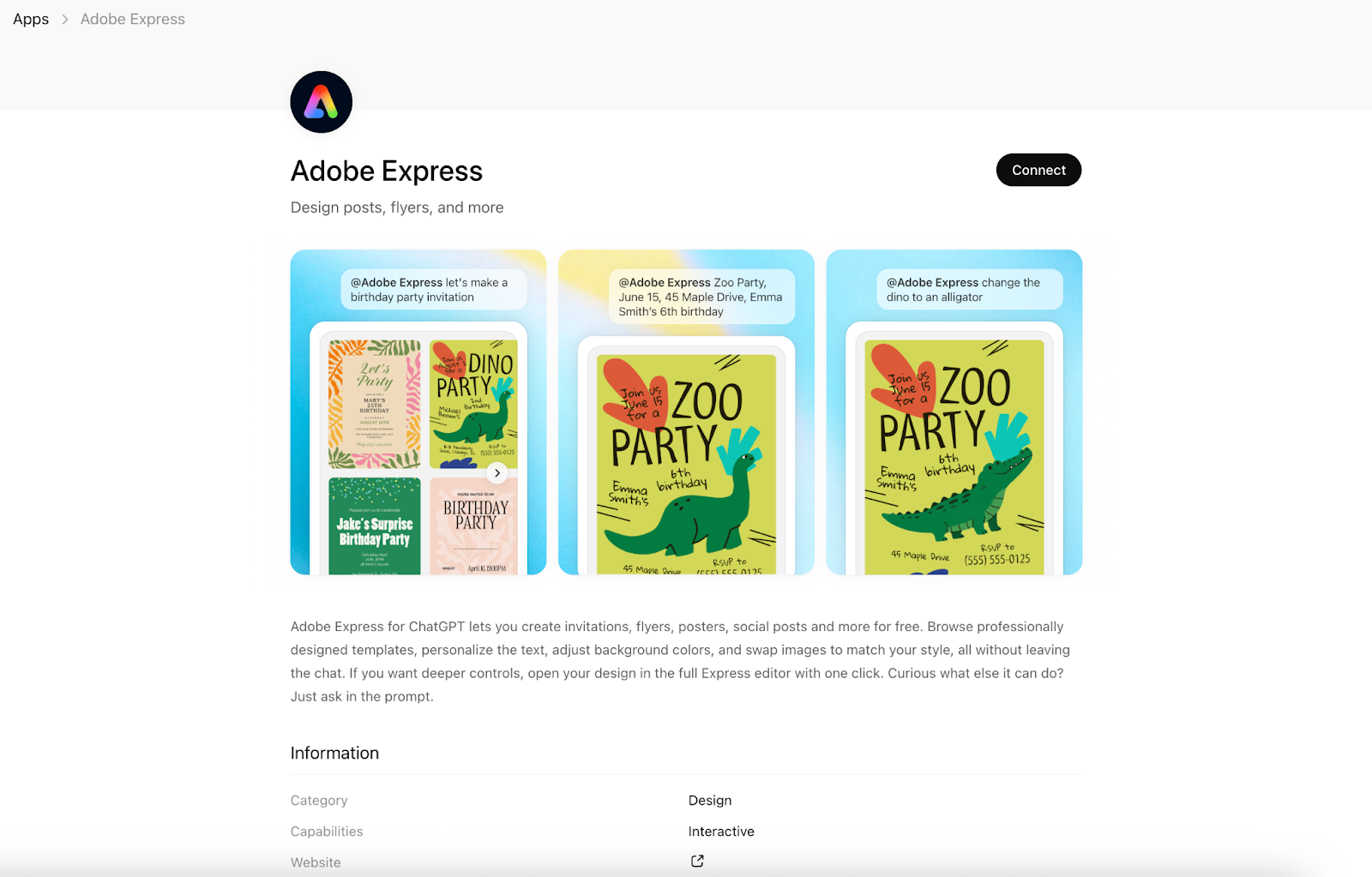
Adobe Express for ChatGPT brings Adobe’s visual design capabilities directly into conversational workflows. You can create invitations, flyers, posters, social media posts, and other visual assets by describing what you want, all without leaving the chat.
You can customize designs in real time and expand your project in the full Adobe Express editor when you need more detailed control.
- Best for: Small-business owners and non-designers creating branded visual content quickly
- Developer: Adobe
- Primary task: Prompt-based creation and customizing marketing and social visuals
- Key features
- Create designs from prompts inside ChatGPT.
- Browse professionally designed templates.
- Edit text, background colors, and images through conversation.
- Apply animations to finished designs.
- Hand off to the full Adobe Express editor for advanced edits with one click.
- Pros
- Very low learning curve
- Strong template quality and brand-ready visuals
- Cons
- Limited flexibility for custom layouts
- Less suitable for complex or highly technical design tasks
- Limitations
- Not intended for UI, user experience (UX), or product interface design
- Full editor required for advanced layout control
2. Canva for ChatGPT
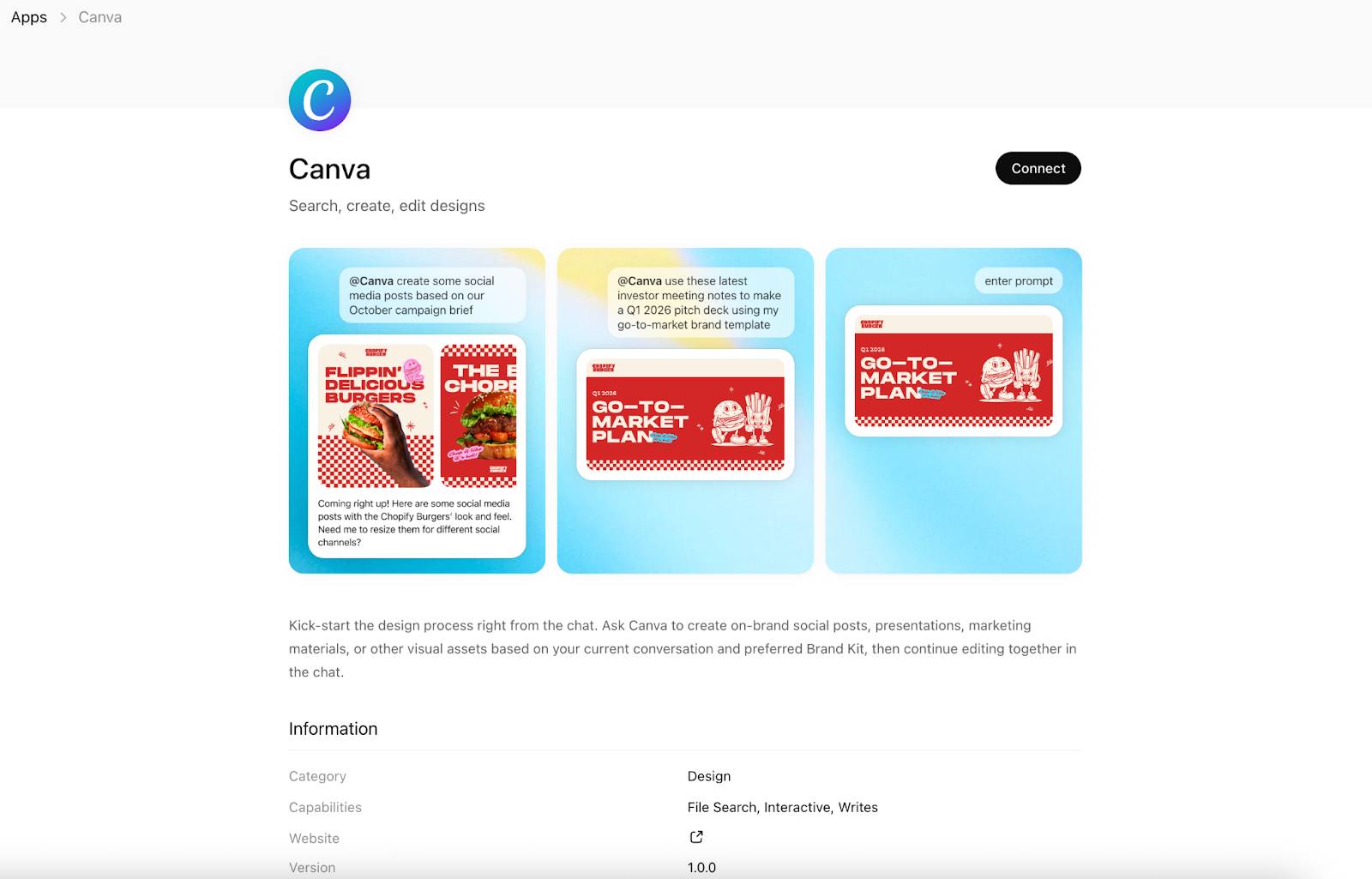
The Canva app for ChatGPT lets you kickstart the design process directly from the conversation. Once you connect your Canva account, you can ask ChatGPT to create on-brand social posts, presentations, marketing materials, and more based on your prompts and existing brand kit(available on paid Canva plans).
You can create, preview, and edit designs within the chat, and then open them in Canva if you need deeper collaboration and refinement.
- Best for: Marketing teams and cross-functional teams producing branded visuals at scale
- Developer: Canva
- Primary workflow: Conversational creation and iteration of presentations and marketing visuals
- Key features
- Create Canva designs directly from chat prompts.
- Apply brand kit styles automatically.
- Preview and edit designs inside ChatGPT.
- Revise text, layout, and tone through conversation.
- Transition to Canva for collaboration and sharing with just one click.
- Pros
- Strong brand consistency across assets
- Smooth handoff between chat and collaborative editing
- Cons
- Less suitable for UI/UX or product interface design
- Custom visual structures may need additional edits
- Limitations
- Limited control over advanced layout logic inside chat
- Requires manual fine-tuning for complex design systems
3. Adobe Photoshop for ChatGPT
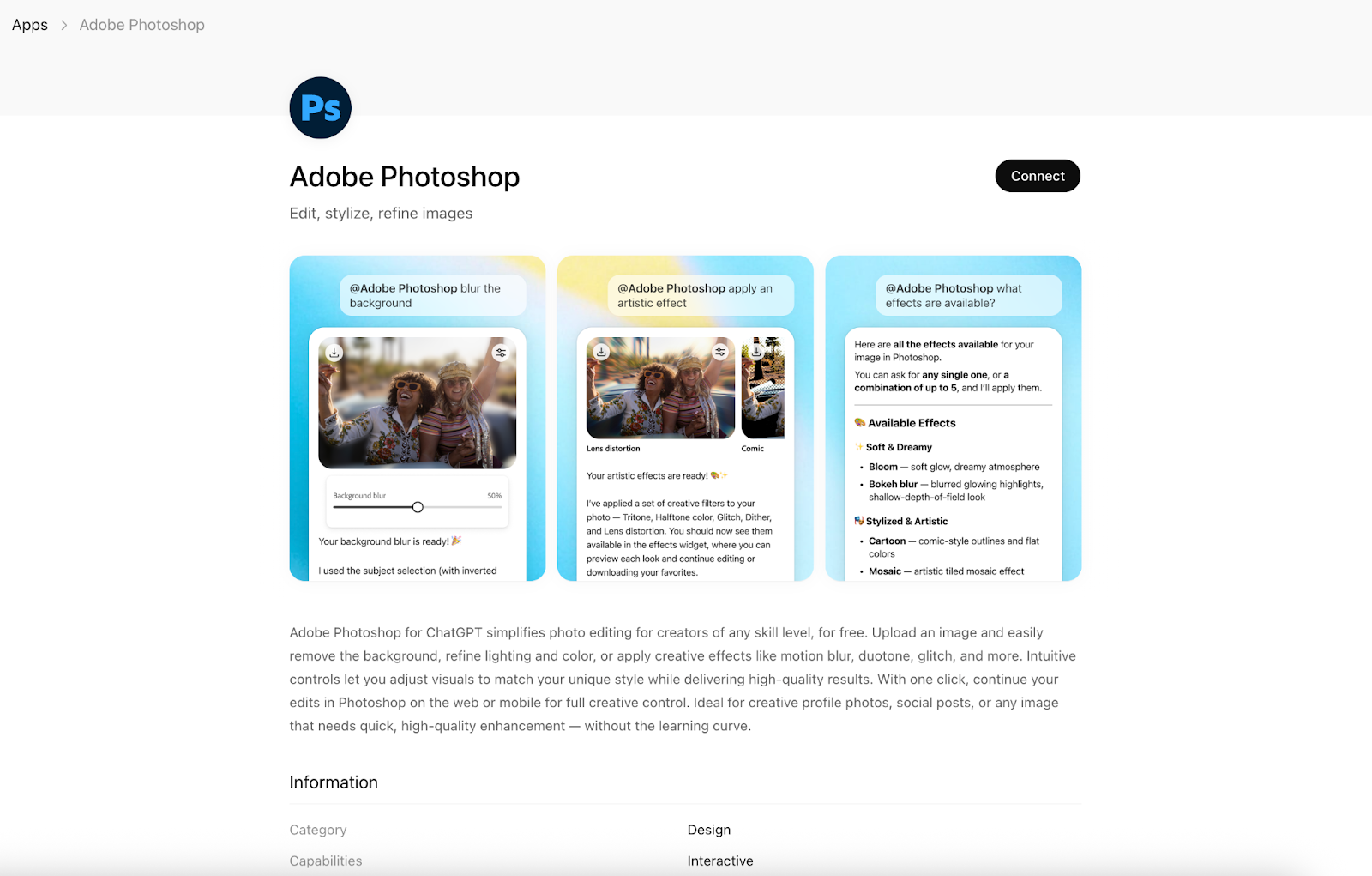
Adobe Photoshop for ChatGPT brings photo editing into a conversational workflow. You can edit images directly in ChatGPT by describing what you want in plain language, making Photoshop more accessible without removing its precision.
Quick fixes can be handled right in the chat. When you need deeper adjustments, you can make those using Photoshop’s familiar controls.
- Best for: Creators and everyday users who want professional photo edits without learning complex tools upfront
- Developer: Adobe
- Primary workflow: Prompt-based photo editing and visual enhancement
- Key features
- Edit photos directly inside ChatGPT.
- Apply selective effects (background blur, grain, artistic filters).
- Enhance subjects and adjust visual emphasis through prompts.
- Fine-tune edits using sliders after each action.
- Access Adobe’s broader app ecosystem without leaving your workflow.
- Pros
- Low barrier to entry for photo editing
- Natural language prompts that make experimentation easy
- Cons
- Multistep edits that require iterative prompting
- Less efficient for large batch editing tasks
- Limitations
- Not intended for complex compositing entirely within chat
- Requires deeper Photoshop workflows for advanced retouching
4. Figma for ChatGPT
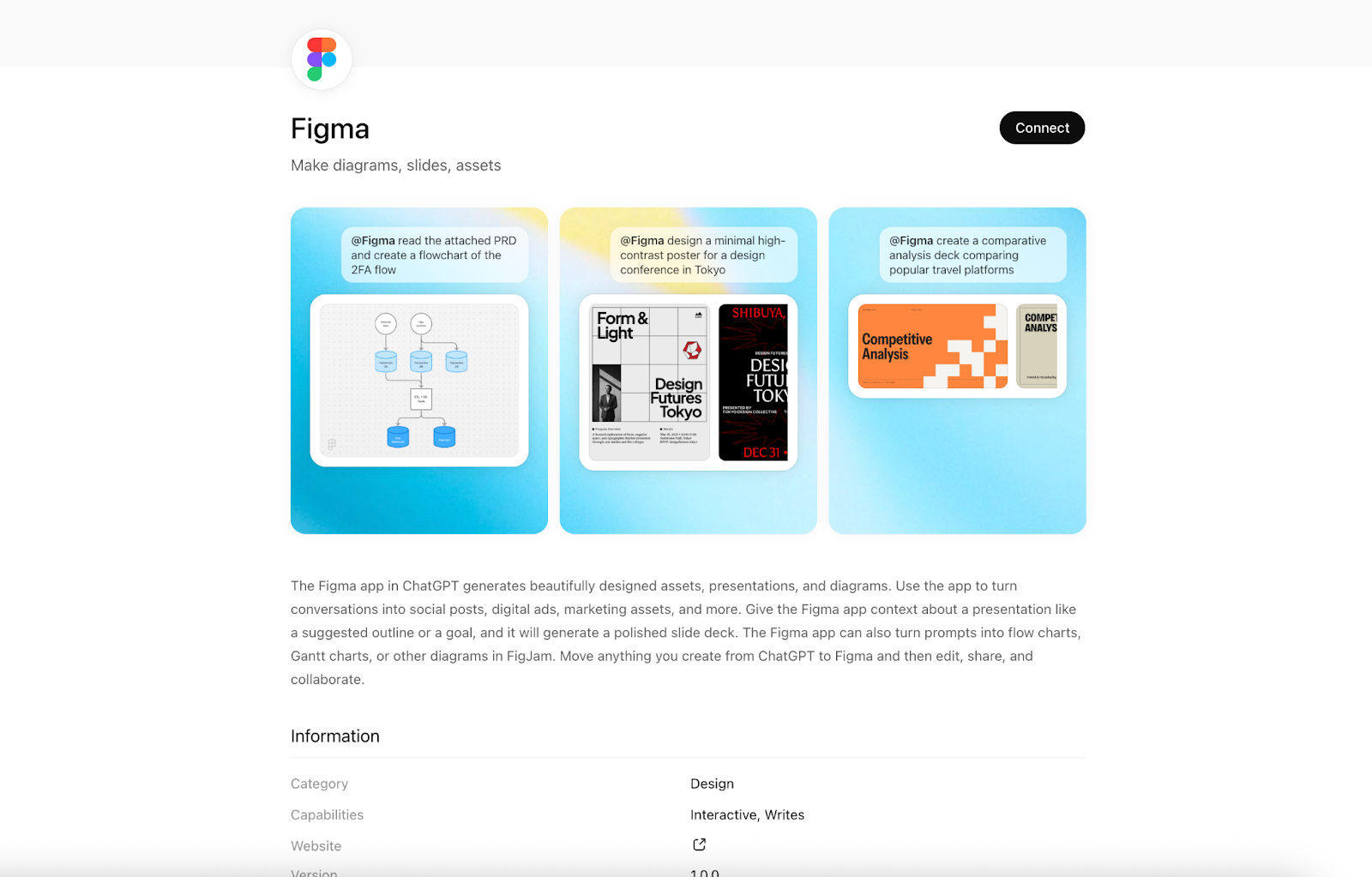
Figma for ChatGPT turns conversations into visual assets, diagrams, and presentations that can be refined collaboratively in Figma. You can generate social posts, marketing visuals, slide decks, and structured diagrams directly from prompts, and then move everything seamlessly into Figma tools such as FigJam, Figma Buzz, or Figma Slides for editing and teamwork.
- Best for: Product teams and cross-functional teams working collaboratively on visuals and presentations
- Developer: Figma
- Primary workflow: Prompt-based creation of diagrams, marketing assets, and presentation decks with collaborative refinement
- Key features
- Turn chat prompts into visual assets and slide decks.
- Generate flow charts, Gantt charts, and diagrams in FigJam.
- Create posters, ads, and social visuals via Figma Buzz.
- Build structured presentations in Figma Slides from outlines or goals.
- Hand off designs seamlessly from ChatGPT to Figma for editing, sharing, and collaboration.
- Pros
- Strong support for collaborative design workflows
- Works across diagrams, marketing visuals, and presentations
- Cons
- Less suitable for stand-alone graphic design without collaboration
- Not focused on photo editing or highly illustrative work
- Limitations
- Advanced visual refinement primarily inside Figma tools
- Requires familiarity with Figma ecosystem for best results
5. BioRender for ChatGPT
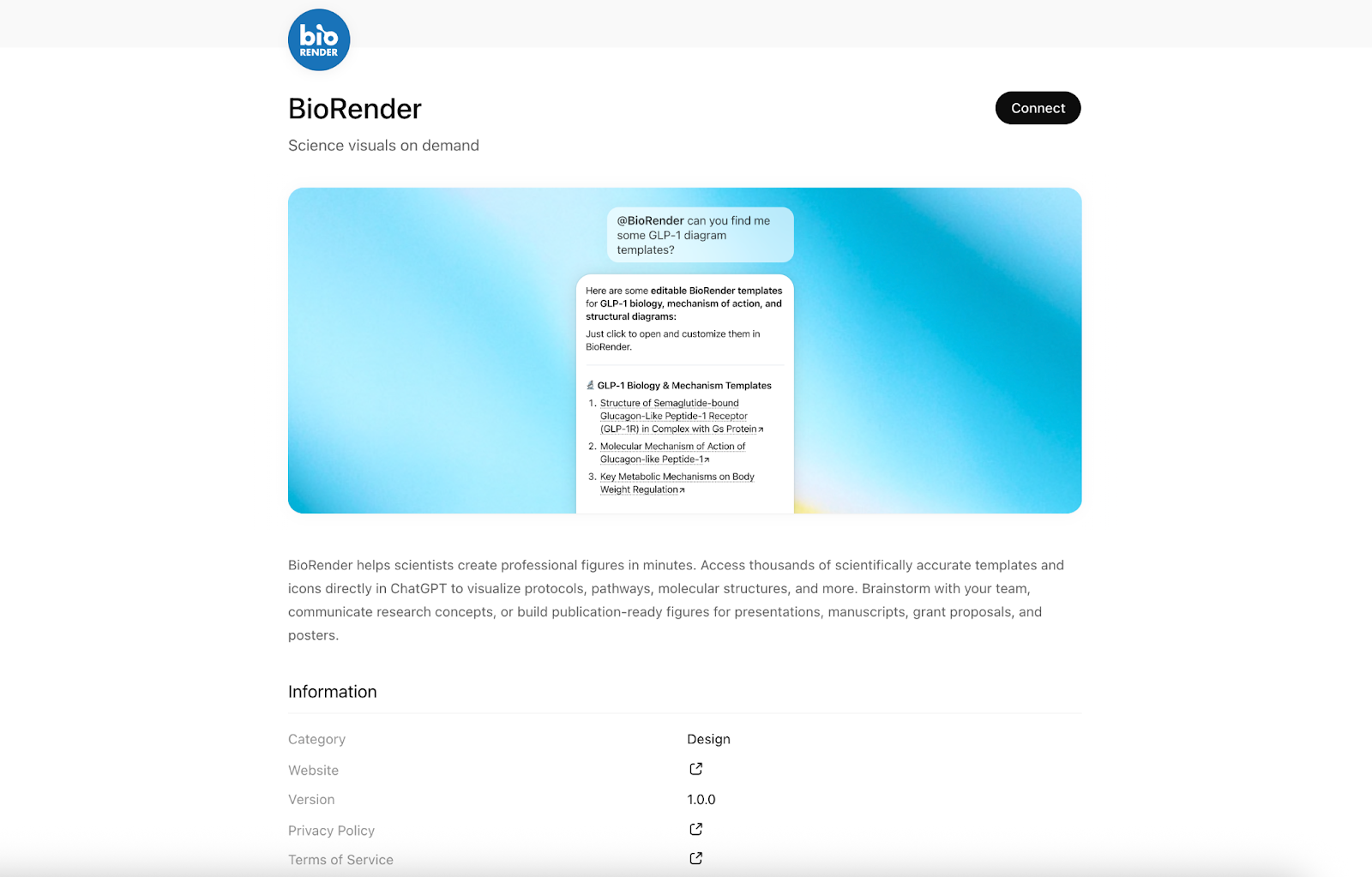
BioRender for ChatGPT is designed for a very specific need: helping scientists turn complex research concepts into clear, accurate visuals through conversation. By accessing BioRender’s scientifically validated templates and icons directly in ChatGPT, you can create figures that accurately represent protocols, pathways, and molecular structures without starting from scratch.
- Best for: Researchers, scientists, and academic teams preparing publication-ready scientific visuals
- Developer: BioRender
- Primary workflow: Conversational creation of scientific figures for research communication
- Key features
- Create scientific figures directly from chat prompts.
- Access thousands of scientifically accurate templates and icons.
- Visualize protocols, pathways, and molecular interactions.
- Support figures used in papers, grants, posters, and presentations.
- Collaborate on brainstorming and concept visualization.
- Pros
- Reduces time spent translating research into visuals
- Helps prevent visual misrepresentation of scientific concepts
- Cons
- Requires subject matter knowledge to prompt effectively
- Limited flexibility outside life sciences and research contexts
- Limitations
- Focused exclusively on scientific and biomedical visuals
- Not suitable for general graphic or marketing design
How to choose the right ChatGPT design app
The right ChatGPT design app depends on what you’re designing and how much control you need at each stage of the process. Some tools focus on speed and accessibility, while others support deeper collaboration or domain-specific accuracy.
When evaluating your options, consider these criteria:
- Design discipline fit: Marketing visuals, UI concepts, scientific figures, and data collection workflows all require different tools. Choose an app designed for your primary output.
- Level of AI assistance vs manual control: Some tools prioritize automation through prompts, while others allow more hands-on refinement after generation.
- Collaboration and handoff: If your work involves teams, presentations, or iterative feedback, look for tools that support sharing, editing, and collaboration beyond just chat.
- Workflow integration: The best tools fit naturally into your existing process, whether that means exporting to a design platform, publishing directly, or analyzing results in place.
Selecting the right tool is less about “best overall” and more about matching the app to your specific design task.
Bonus: Introducing the Jotform ChatGPT App
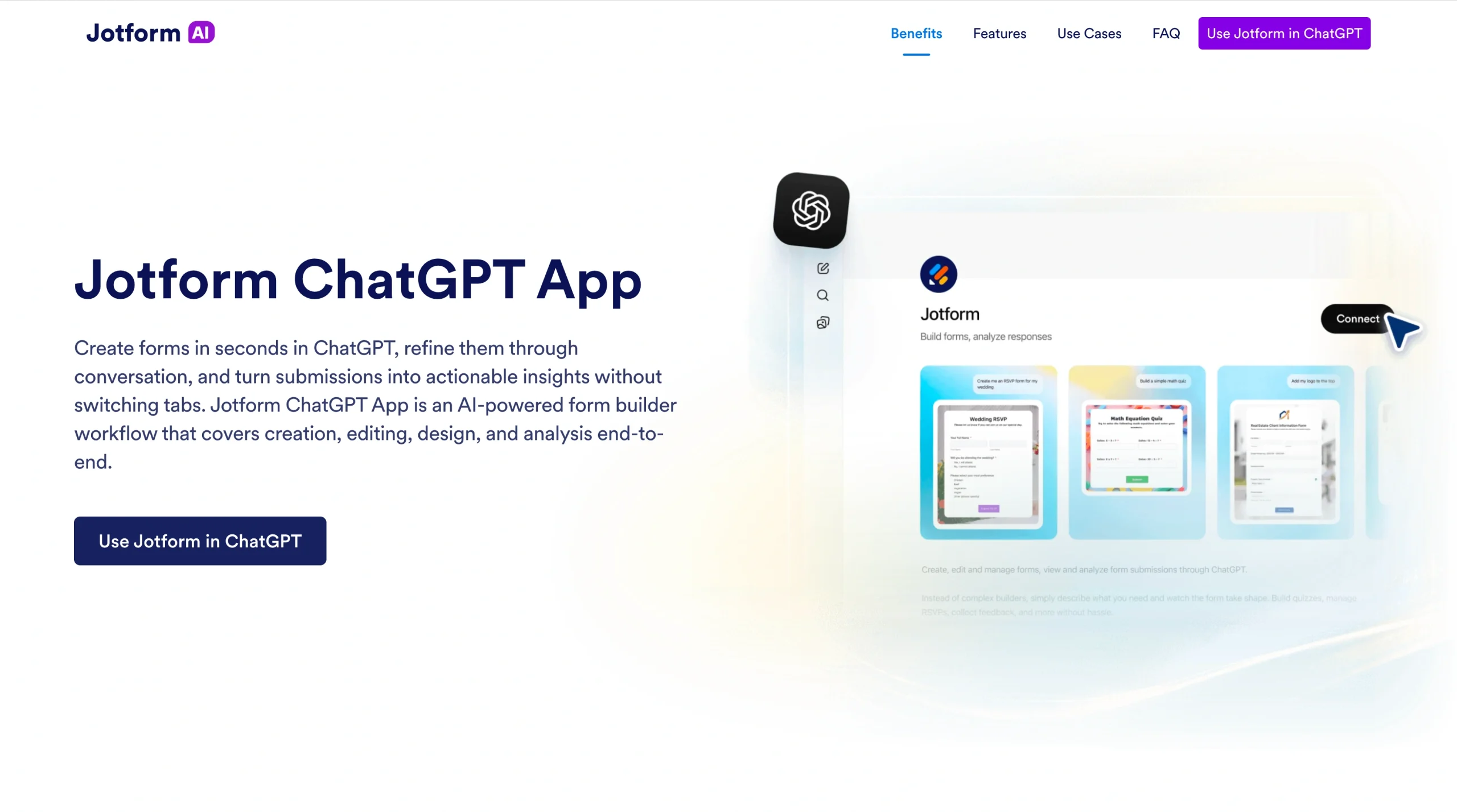
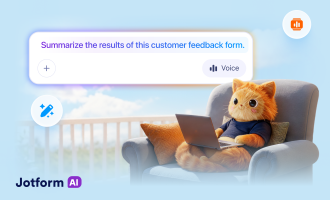
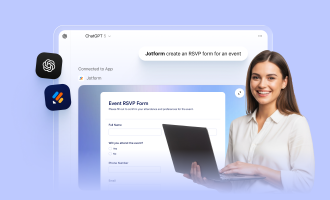
While not a visual design tool in the traditional sense, the Jotform ChatGPT App plays a practical role in no-code design workflows. It enables users to create, edit, and analyze forms using conversational prompts directly inside ChatGPT.
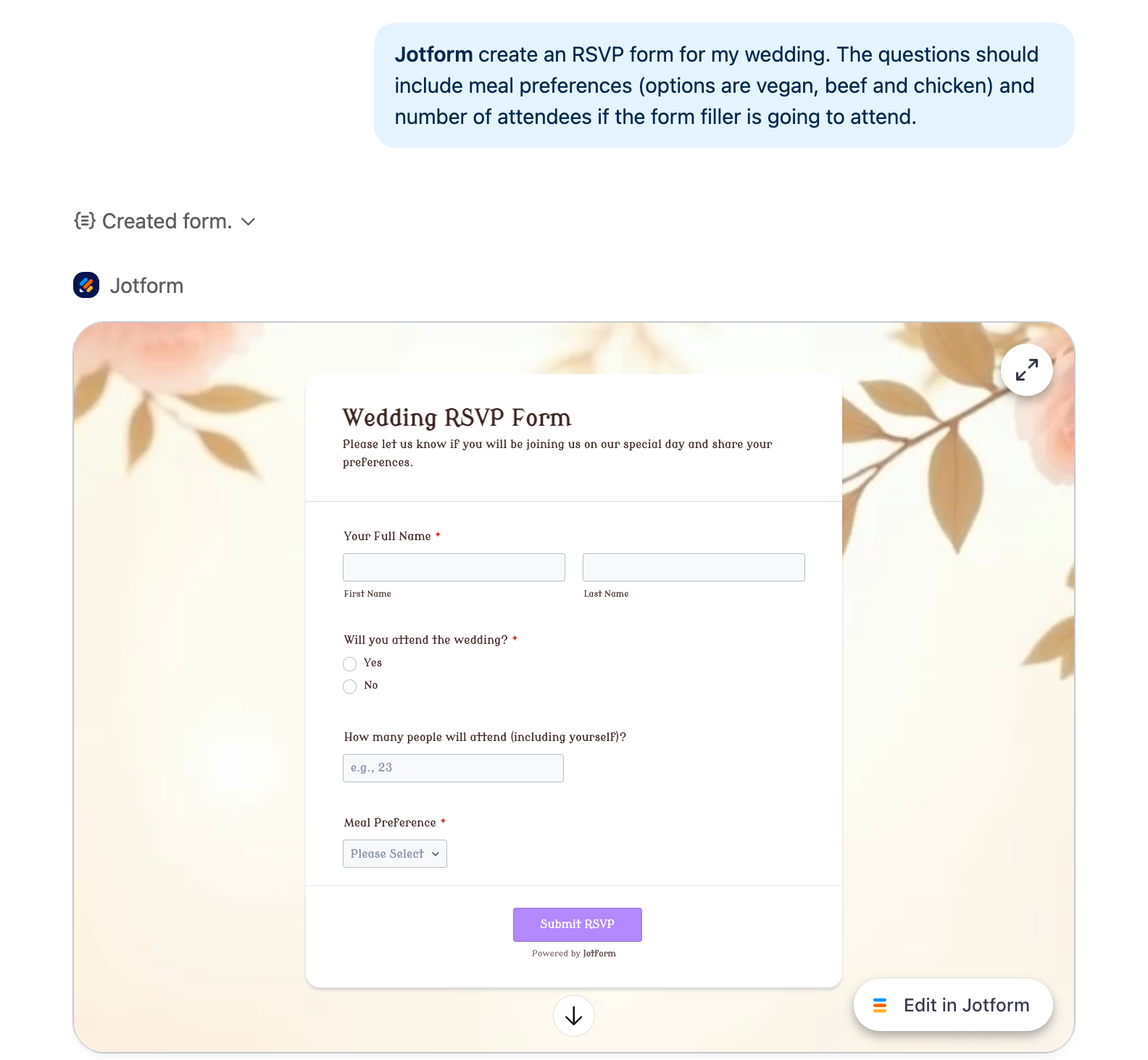
Instead of focusing on visual layout, the app centers on structuring data collection experiences, which are a foundational part of many product, marketing, and research workflows. You can generate forms from prompts, adjust fields through conversation, list existing forms, and review submissions without switching between tools.
For teams building surveys, registration flows, quizzes, or other data-driven experiences, this conversational approach complements AI UI and graphic design tools by handling the functional layer behind user interactions.
If your workflow calls for more, Jotform AI extends that same conversational approach natively inside Jotform, handling everything from form generation to conditional logic and brand design without leaving the platform.
Build faster with Jotform AIDescribe what you need, and let Jotform AI build it for you instantly.
Get Started Now
Designing with ChatGPT: Finding the right balance
ChatGPT-powered design apps are changing how teams move from ideas to usable outputs, but they are not replacing design expertise. Instead, they remove friction from early stages, speed up repetitive tasks, and streamline structured workflows.
Tools such as Canva and Adobe Express help teams create brand-ready visuals quickly. Photoshop brings professional image editing into conversational workflows. Figma supports collaborative design and presentations. BioRender makes accurate scientific communication easier. The Jotform ChatGPT App complements these tools by handling the functional layer of data collection and analysis.
Together, these tools show that the future of AI-powered design is not about a single platform but about choosing the right assistant for the job. When used thoughtfully, ChatGPT design apps can make your workflows faster, clearer, and more accessible without sacrificing quality or intent.
This article is for teams and individuals exploring ChatGPT-powered design tools who want to create visual assets faster, compare popular options, and understand which platforms fit different workflows, from marketing content to collaborative design and research visuals.


























































Send Comment: