
It was 6:42 p.m. on a Thursday, and I was looking at our team’s board wondering why it looked so calm. Nothing overdue. Nothing blocked. Every column, handled.
Then I started thinking about everything that had come in that week. I’d received a content request as a DM from a product manager, a topic idea buried in a comment on a shared doc, a formal request through our intake form, an email from a client-facing teammate asking for a one-off explainer, and a verbal ask in the hallway that I’d scribbled on a sticky note — and, if I’m honest, half-forgotten by Wednesday. Five requests. Exactly one of them had made it onto the board: the one that came in through the form.
The board wasn’t wrong. It just couldn’t see the work that arrived outside the one channel it recognized. Every request that showed up any other way than a manually created card stayed invisible until someone thought to translate it. And that’s what prompted me to start testing visual task management tools.
I tried six different options for our team’s needs: Jotform, Trello, Asana, ClickUp, monday.com, and Notion. I didn’t come away thinking there’s one perfect fit for everyone. Instead, I realized that the best visual task management tool depends on where your work begins.
If your work starts as requests and approvals, you need one kind of system. If it starts as creative planning, you need another. If it starts as cross-team projects and dependencies, the answer changes again. That’s the question you should be asking yourself when choosing a task management tool: not which tool has the best features, but which one fits the way work actually reaches your team.
Best visual task management tools by workflow
- Jotform: Best when task requests need structured intake
- Trello: Best when work starts with manually created task cards
- Asana: Best when work starts as cross-functional projects
- ClickUp: Best when teams want to design their own workflows
- monday.com: Best when managers need visual status tracking
- Notion: Best when tasks live alongside documentation
The moment I realized lists were not enough
A list can tell you what exists. A visual system tells you what’s happening. But after testing each tool, I realized that the visual layer — a kanban board’s flow, a timeline’s deadlines, a table’s structure, a dashboard’s progress view — was only half the story.
The bigger differentiator was how work entered the system in the first place. Was it a form? An email? A message? Or did someone have to remember to create a task manually? It’s this that made the tools feel very different in practice.
Jotform Boards made the most sense when tasks started as requests
Jotform stood out for a specific reason: It’s the only one of the six tools built as a form-first product. Asana, monday.com, and ClickUp can also turn a submission into a card automatically, so they’re not blind to a request either. But Jotform’s difference is upstream: The form is the core product, not a feature bolted onto a task tool.
Asana’s forms also don’t support native payment integrations, and monday.com’s WorkForms can only create new items, not update existing ones. Jotform’s forms carry conditional logic, native payment integrations, e-signatures, and 20,000-plus templates, so the form itself can hold more of the actual workflow.
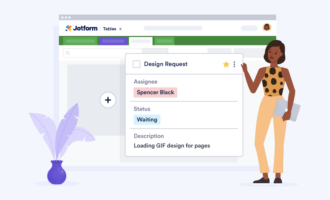
Where Jotform really shines, though, is with Jotform Boards, the visual layer purpose-built to receive what those forms collect. When work comes from form submissions, approvals, internal requests, client intake, event registrations, employee requests, or service tickets, the biggest problem is collecting the right information before the task exists. Jotform Boards is where that plays out visually: Link a board to an existing form, and submissions become cards automatically, organized into groups with fields for assignees, due dates, and priority.
The same data can also live in Jotform Tables and feed into approval workflows without being re-entered anywhere along the way.
Before: A request came in through email, and someone had to turn it into a task manually.
After: The form collected the details upfront, and the submission became a card on the board that the team could track visually.
That’s the part I liked most: Jotform didn’t just help me see the work — it helped me control how the work entered the system, with a genuinely deep form behind it. The honest limitation? It only catches what goes through the form. It doesn’t retroactively fix the DM, the doc comment, or the hallway ask — it just means that whatever comes in through the form gets handled better once it arrives.
For teams that manage requests, approvals, and structured workflows, it felt like the most practical option of the six — especially once a request needs a signature, a payment, or a multi-step approval. It’s not the tool I’d reach for on a pure Agile sprint board, but that’s a narrower case than most teams deal with.
Trello was the easiest tool to understand immediately
Trello was the tool I understood the fastest. There’s something satisfying about its simplicity. You create columns, add cards, and move work from one stage to another. There’s very little friction in getting started, which makes it a good choice when a team simply needs to stop managing work in scattered notes or messages.
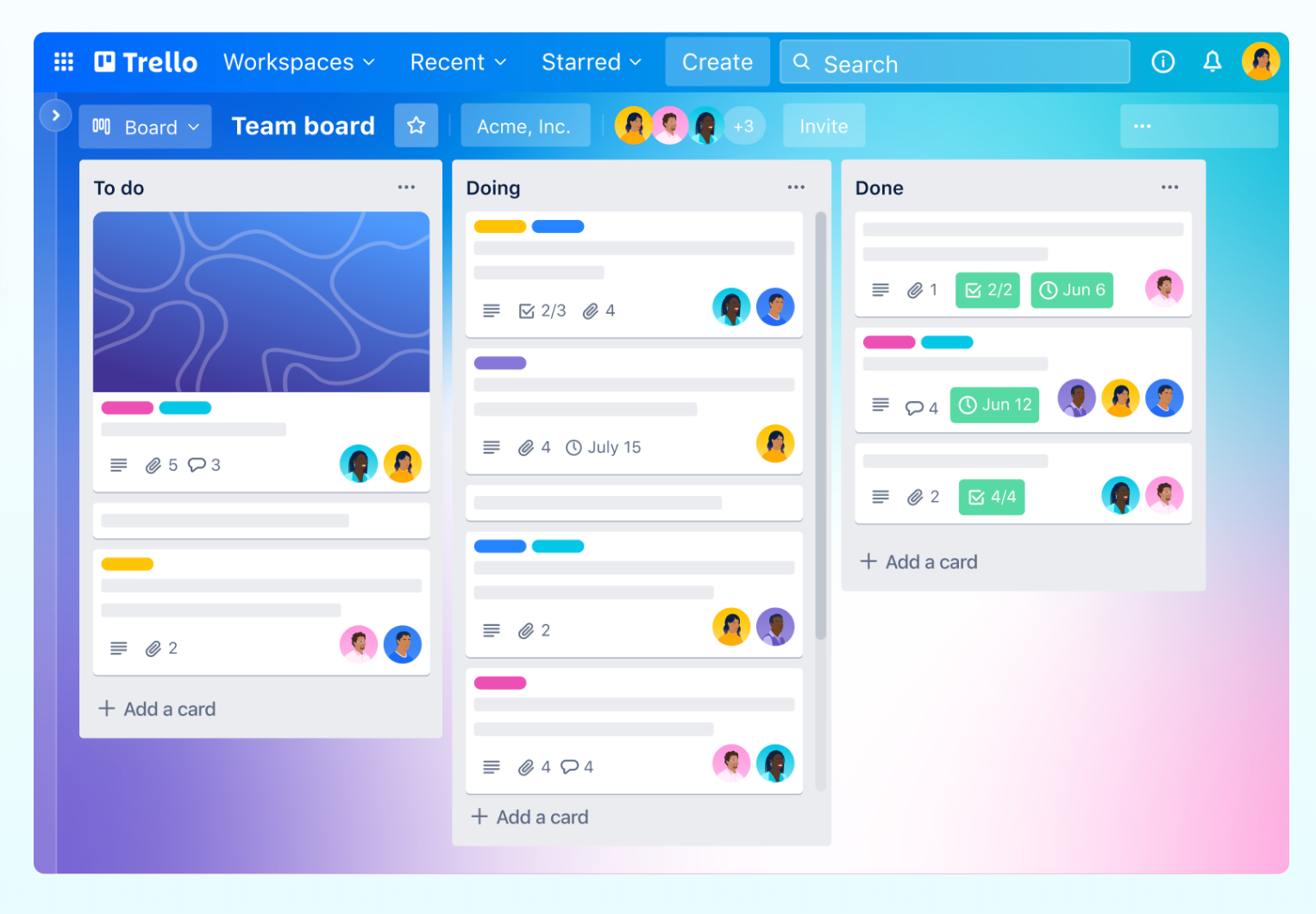
That simplicity is also its limitation. When the work became more complex, I started wanting more structure in the form of stronger reporting, clearer dependencies, and better ways to understand workload across projects. Trello can be extended, but at its core, it still feels best when the workflow is simple. I liked it for lightweight workflows: content ideas, small team projects, personal planning, simple backlogs, and repeatable task pipelines.
Of the tools on this list, Trello has the least built in in terms of intake. There’s no native form that creates a card on its own, and a DM about a new request won’t become a card unless a person makes it one — or unless the team wires up a Power-Up or third-party form to do it.
Ultimately, Trello is great when your main problem is “we need a clear board everyone will actually use.” It’s less ideal when your problem is “we need a full operational system.”
Asana felt strongest when projects had moving parts
Asana made more sense to me when the work involved multiple teams, dependencies, and timelines.
It’s not just about moving cards across a board. It helps show how work connects. That matters when one task can’t begin until another is finished, or when several teams need to stay aligned around the same deadline.
For that reason, I liked Asana for campaign planning, product launches, cross-functional projects, and work where milestones matter. The ability to move between list, board, calendar, and timeline views made it easier to look at the same project from different angles.
It’s worth noting, though, that Asana does have native forms — every project includes one — and a submission creates a task automatically, so it’s not blind to incoming requests the way Trello is.
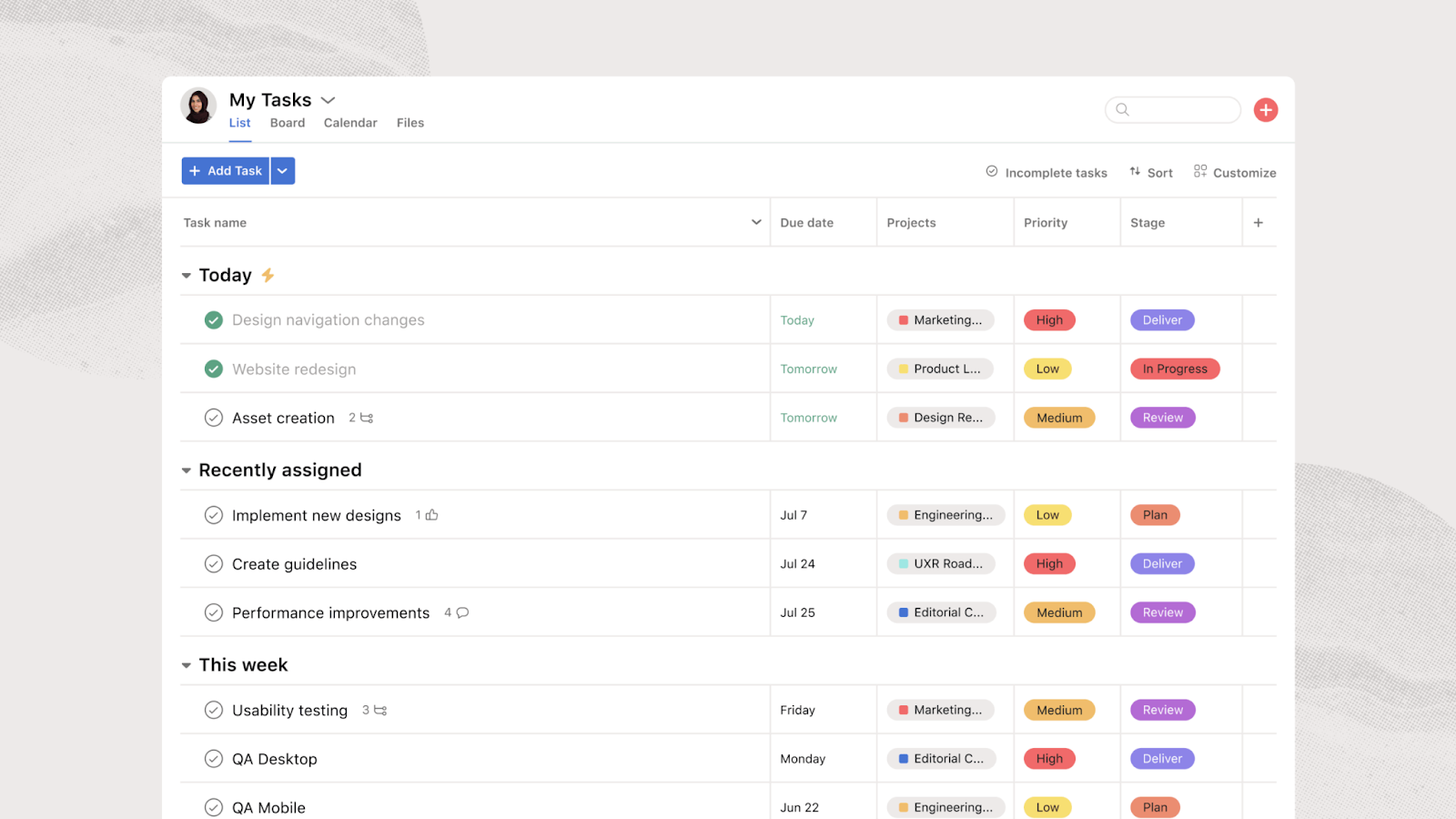
But Asana also asks more of the team using it than Trello does — in both setup and in ongoing discipline. If the team doesn’t keep projects updated, assign owners clearly, and maintain the structure, Asana can become another place where tasks go to sit. What Asana is genuinely strongest at is what happens after intake. Once a request becomes a task, Asana shows you what it’s blocking and who’s waiting on it.
Bottom line: Asana earns its complexity when your work actually has dependencies and deadlines to manage. It’s probably more than you need for a simple task board.
ClickUp gave me the most control, but also the most decisions
ClickUp felt like the tool for people who want to customize everything. And that customization is a real strength — it offers many ways to view and organize things like
- Work
- Lists
- Boards
- Calendars
- Gantt charts
- Timelines
- Dashboards
- Custom statuses
- Fields
- Automations
- Goals
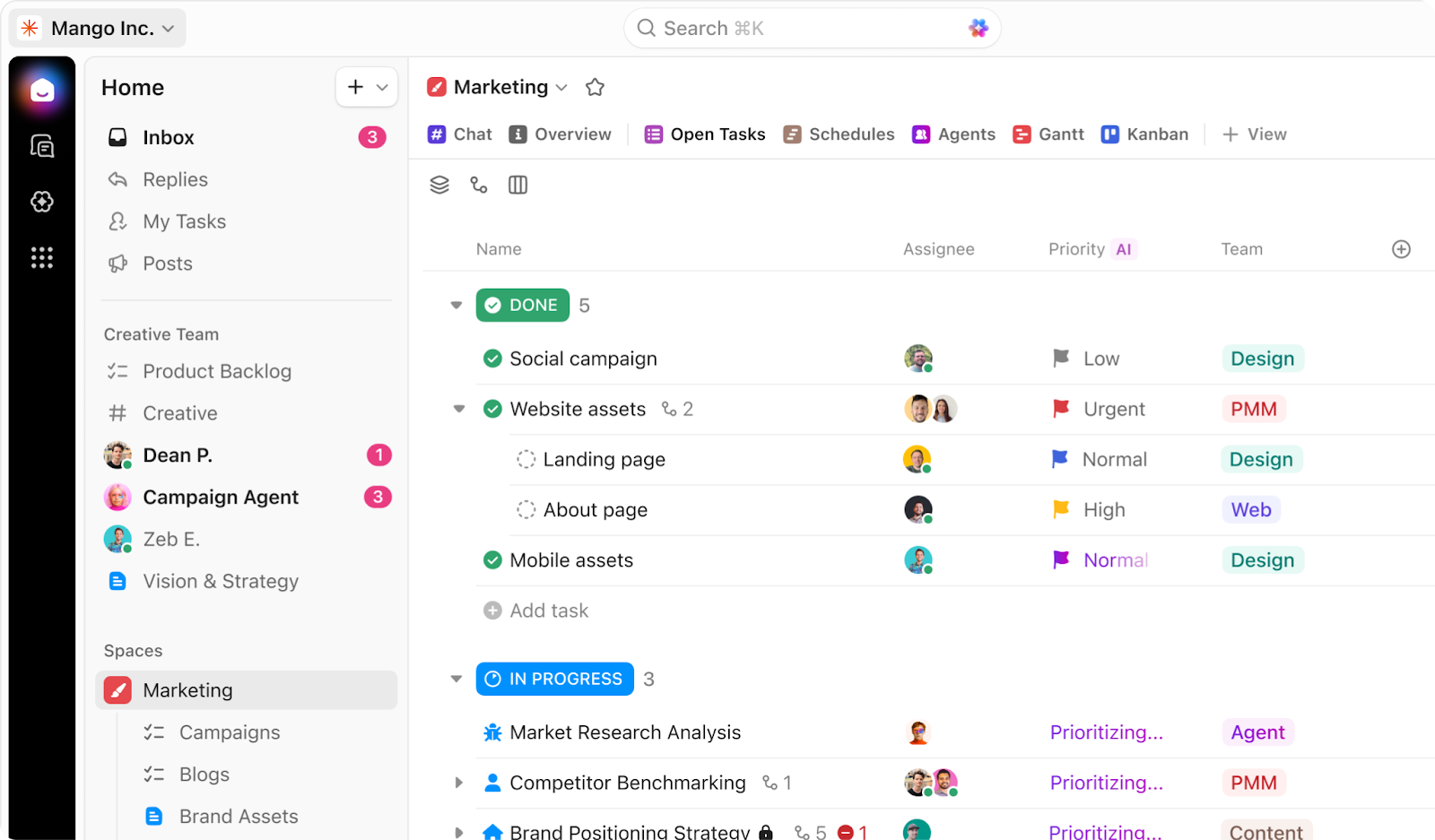
If your team has a specific way of working, ClickUp gives you a lot of room to build around it. But, again, that flexibility comes with a cost. I spent more time thinking about setup in ClickUp than I did in simpler tools. I found myself second-guessing what the statuses should be, which views the team should use, how much should be automated, and what should be a field versus a tag versus a list versus a folder.
ClickUp also has very capable native forms that create a task from each submission automatically, so intake isn’t something you have to build from scratch here either. But some of the polish, custom branding, and design elements sit behind the Business Plus plan — and the form itself doesn’t carry Jotform’s depth of field types, payment collection, or e-signatures without extra setup.
For some teams, that level of control is exactly what they need. For others, it may feel overwhelming. My honest take? ClickUp is powerful if your team is ready to design its own system. But if your team wants something simple and obvious from day one, the flexibility can slow you down before it helps you.
monday.com was the most visually polished
monday.com felt like the tool most designed for visual clarity at a management level. The boards are colorful, status-driven, and easy to scan. It’s also good at showing progress and status in a way that feels accessible, especially for teams that want dashboards, planning views, automations, and high-level reporting. You don’t have to dig very far to understand what is moving, what is stuck, and what needs attention.
I could see monday.com working well for operations teams, project managers, marketing teams, and departments that need to coordinate work across multiple people without making the interface feel too technical.
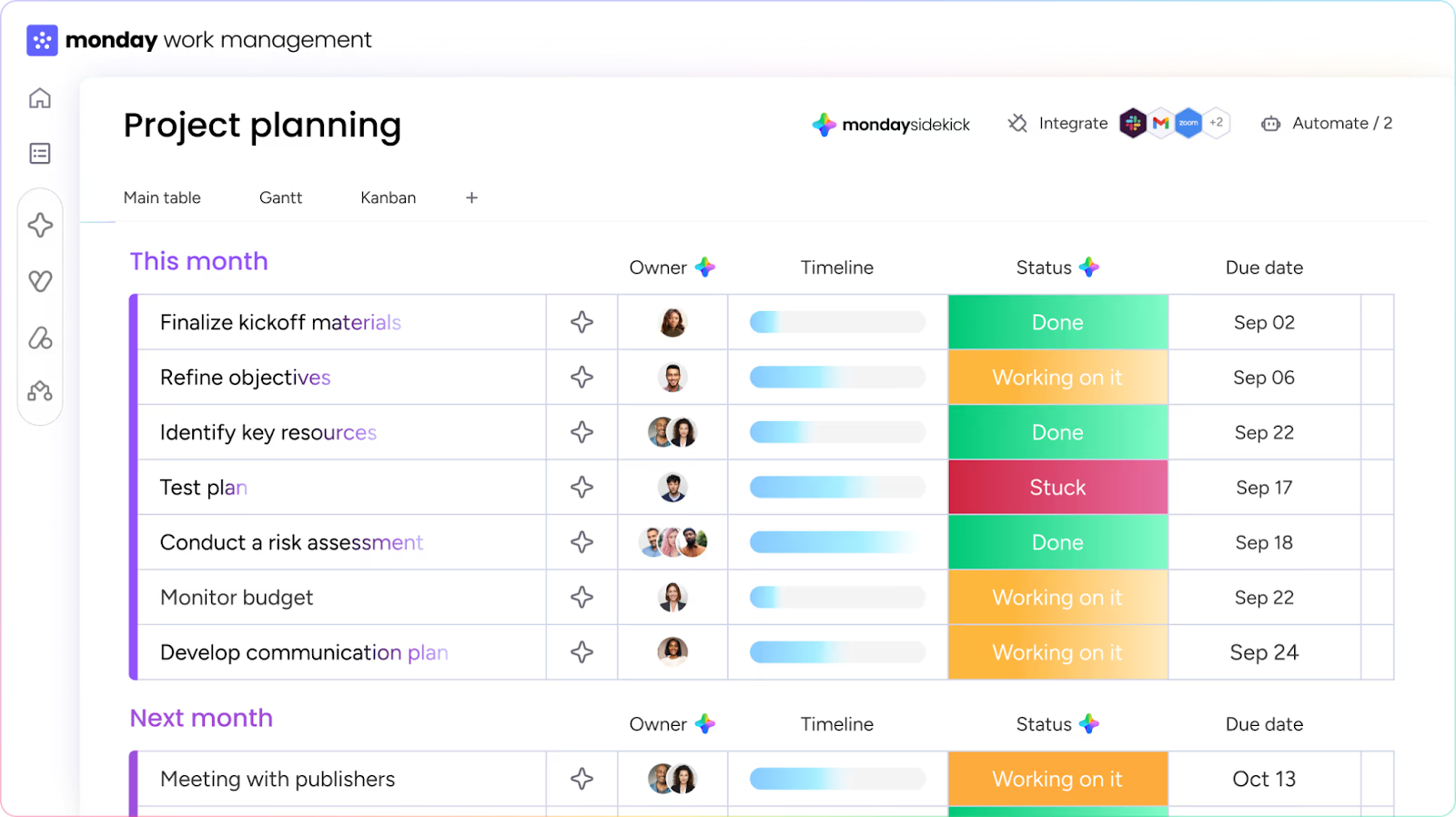
monday.com also has native WorkForms, where submissions become board items automatically, on every plan including the free one. The catch is that the forms can only create new items — they can’t update existing ones. That means that a follow-up submission on something already on the board creates a duplicate rather than updating the original. It’s a well-documented limitation, and one of the most requested fixes in monday.com’s own community forum.
Aside from this, the big tradeoff is that monday.com can become more expensive and more structured as teams grow. It’s visually friendly, but it still needs thoughtful setup to avoid becoming a colorful version of the same messy process.
In short, monday.com earns its place when visibility and reporting matter, especially for teams that need stakeholders to understand progress at a glance.
Notion worked best when tasks needed context
Notion felt different from the others in one specific way: Tasks aren’t the main unit, pages are. A task in Notion is just one more block on a page that can also hold notes, briefs, and research side by side, whereas the other five tools are all built around the task or the card as the central object first.
That is both its strength and its weakness.
I liked Notion most when tasks needed to live close to notes, documents, briefs, research, meeting summaries, and team knowledge. For content planning, creative work, documentation-heavy projects, and internal wikis, it felt natural. A task could sit next to the thinking behind it, and that context is useful.
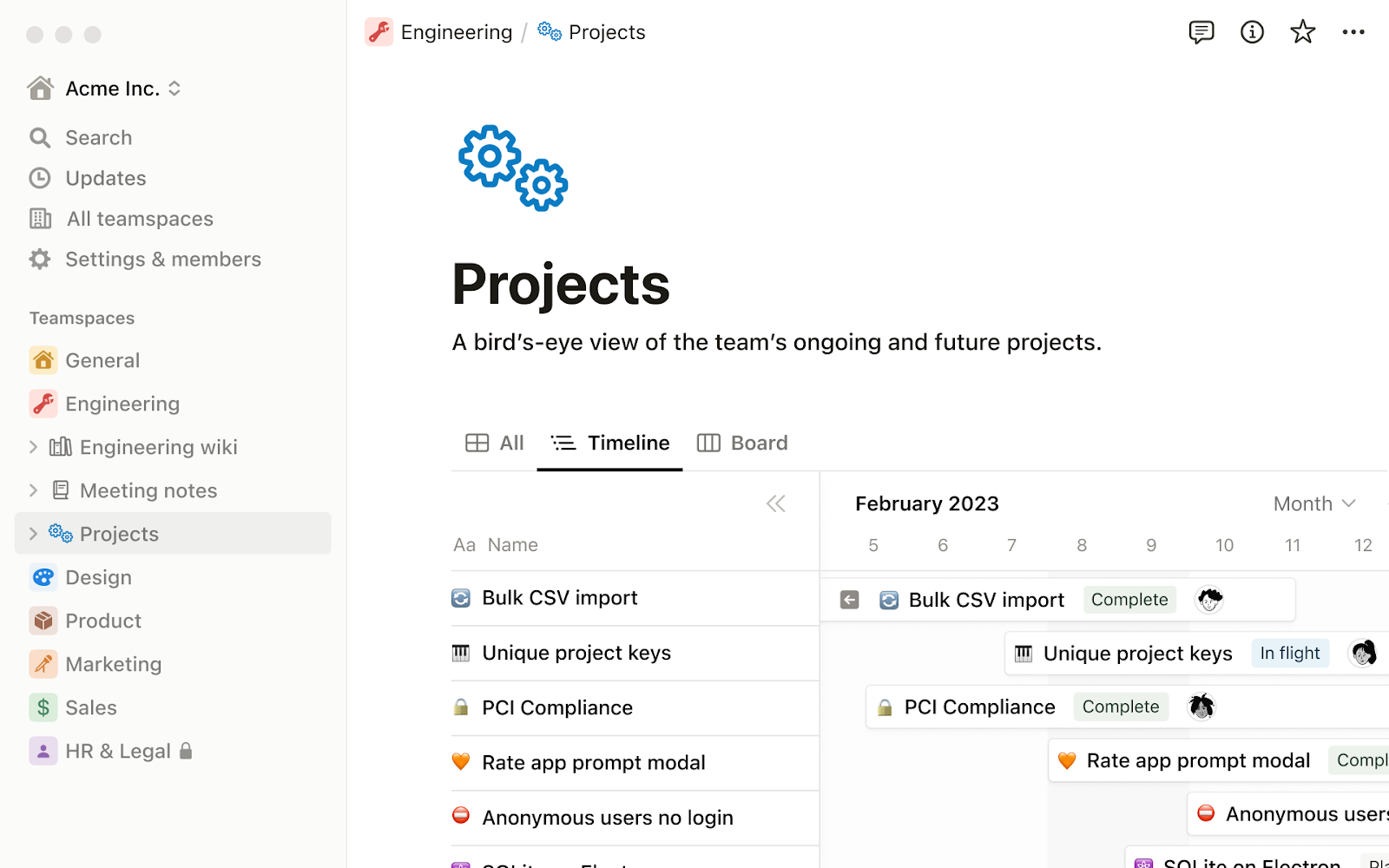
But Notion also depends heavily on how well you design the workspace. If you build a clean system, it can feel elegant. If everyone creates pages differently, it can become messy quickly. It doesn’t enforce process as strongly as some project management tools, either — so the team needs to be disciplined. Of the six, Notion has the least built-in structure around how new work arrives, and there’s no native form that creates a task on submission. It’s not designed to catch a stray request at all; it’s designed for work you already know about and want to think alongside.
For all those reasons, Notion is best when your work is knowledge-heavy. It is less ideal when you need strict workflow enforcement, approval steps, or advanced project controls.
What I learned, and how I’d choose a tool now
After trying these six visual task management tools, I stopped thinking of visual task management as a prettier task list. The real value isn’t just seeing tasks on a board. It’s seeing how work moves, where it slows down, who owns it, and what information is missing. That’s why the best tool depends on the shape of your work.
Jotform, Asana, monday.com, and ClickUp can all turn a form submission into a task automatically now. Trello and Notion can’t without extra setup. But that basic capability hides real differences. Jotform’s forms go deepest, with payments, e-signatures, and conditional logic built in. monday.com’s WorkForms can create new items but never update existing ones. And once a request lands, each tool handles it in a unique way: Jotform Boards visualizes the intake-to-completion flow, Asana surfaces dependencies, monday.com favors status visibility, and ClickUp gives you the building blocks for either. Notion and Trello have no form built in at all — a request only becomes visible once someone manually adds it as a page or card.
For our team’s shape of work, which consists mostly of requests and approvals, Jotform Boards came out on top. But I’d go for Trello for simple visual tracking, Asana for cross-team structure and dependencies, ClickUp for teams that want to configure their own intake, monday.com for visual status reporting, and Notion for documentation-heavy work.
None of this started from one big wake-up moment — just an ordinary week where the math on five requests didn’t add up to what the board showed. That’s usually how it goes. Visual task management isn’t only about organizing what’s already on your plate. Done well, it also helps more of the right things land on it in the first place.
This article is for operations managers, project managers, content teams, marketing teams, business leaders, and anyone who wants to choose the right visual task management tool based on how work enters, flows through, and is managed within their organization.


























Send Comment: