With Jotform AI, you can easily enhance your forms by adding powerful widgets that expand what they can do. Collect feedback, streamline workflows, or create more interactive experiences—widgets help you build forms that better match your needs.
Jotform AI helps you find and apply the right widgets based on what you want your form to accomplish—just describe the process or outcome you have in mind, and it takes care of adding and configuring the appropriate tools. It’s a great fit for anyone who regularly creates forms, for internal processes or to deliver smoother, more engaging interactions.
Whether you’re creating a new form or updating an existing one, you can easily add widgets with Jotform AI to do more with it. Here’s what to do:
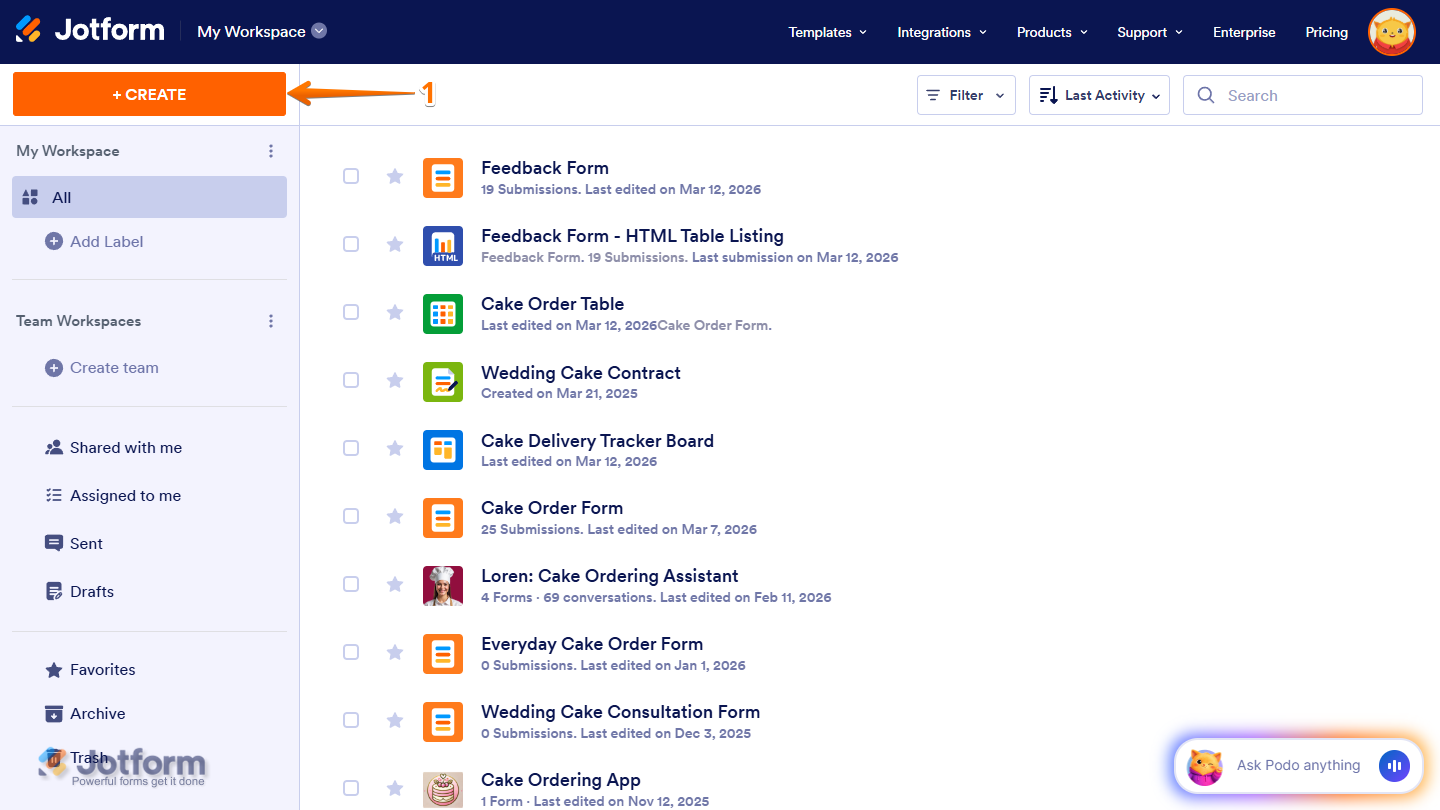
- In your Workspace, click on Create on the top-left side of the page.
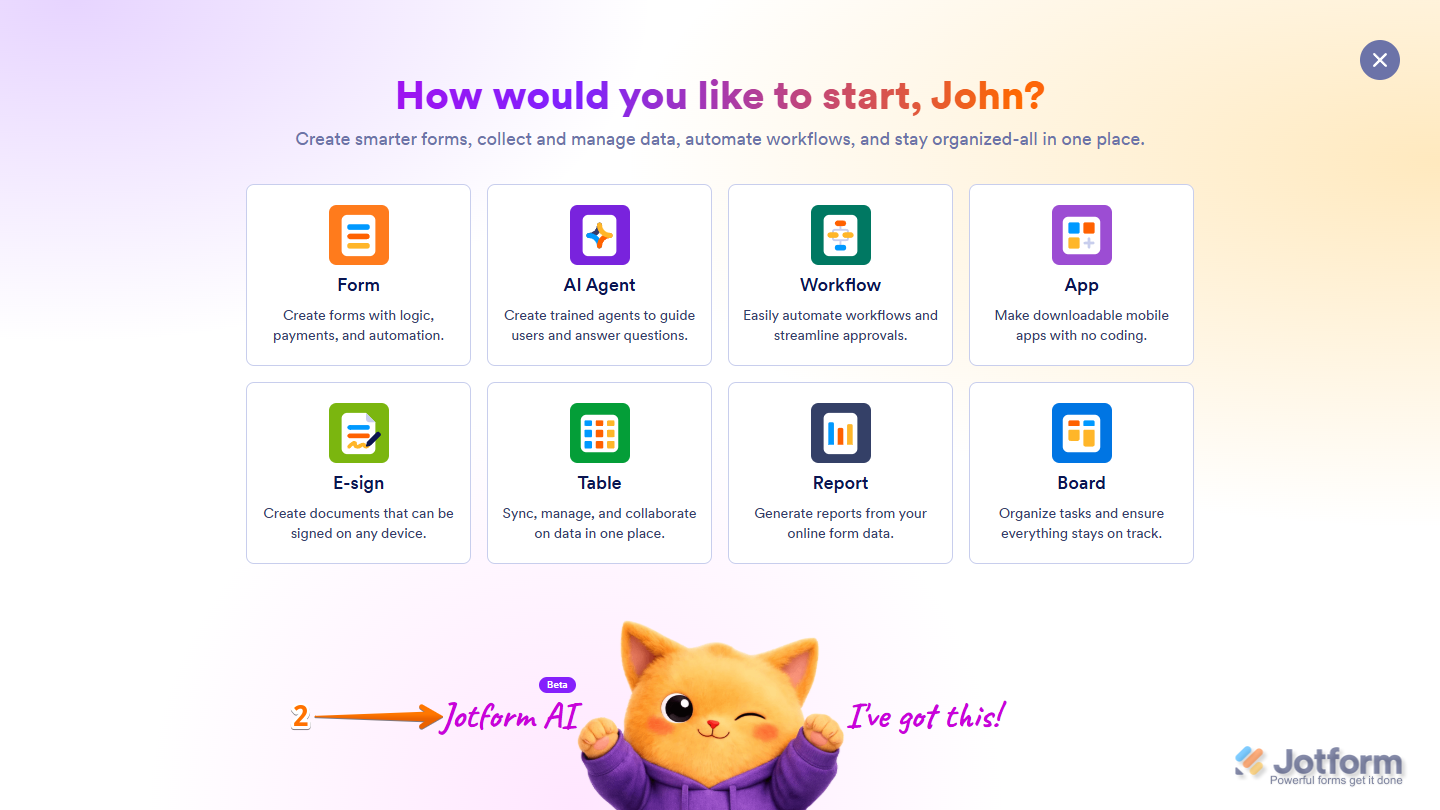
- Then, at the bottom of the window that opens up, click on Jotform AI.
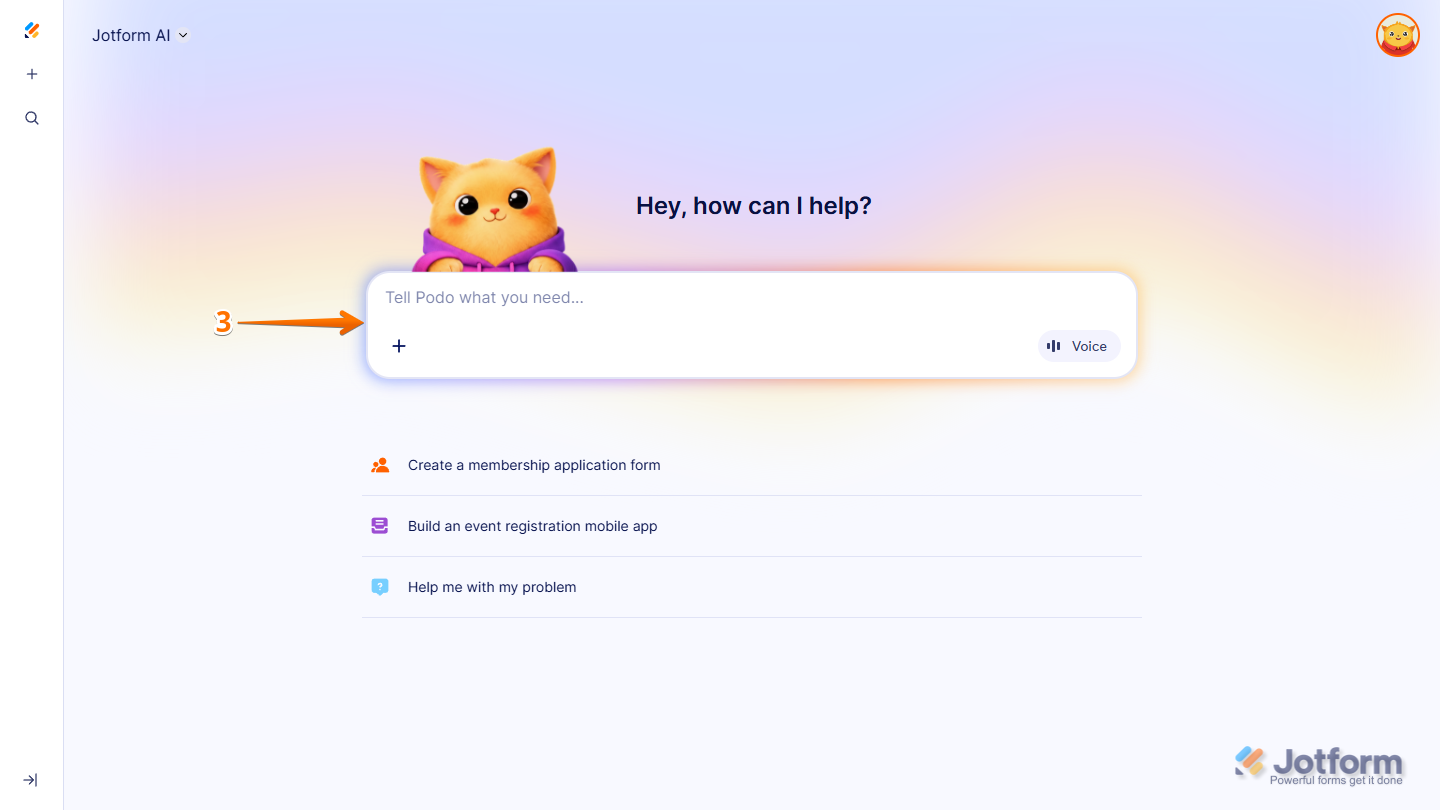
- Now, in the prompt box at the center of the page, enter what you want to add and the name of the form in your account where you want it added.
Here are some example prompts you can try if you already know which widget you want to add and what it does:
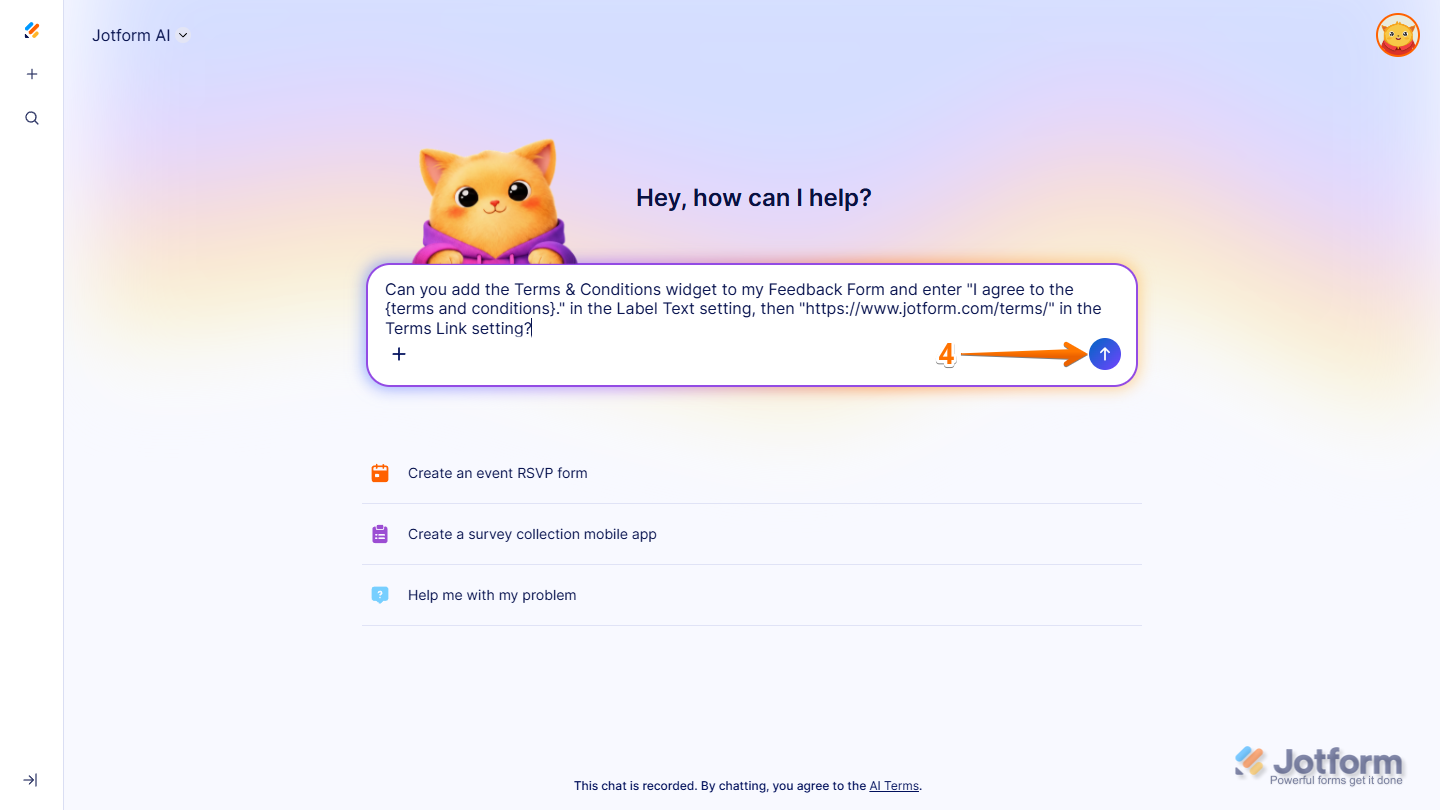
- Can you add a Terms & Conditions widget to my [Form Title Here] and enter [your Terms Link here, e.g., “https://www.jotform.com/terms/”] in the Terms Link setting?
- Can you add an Image Slider widget to my [Form Title Here] and include images of different kinds of pastries?
- Can you add a Get Visitor Location widget to my [Form Title Here] and set its Google Maps API Key settings to [Your Google Maps API Key]?
- Can you add the QR Code widget to my [Form Title Here] and enter [your message here, e.g., “This is a test”] in the Message to Encode setting?
- Can you add a Form Calculation widget to my [Form Title Here] and set it up to [your equation here, e.g., multiply the Number of Tickets field by 10], then label it “Grand Total”?
You can also write your prompts like the following when you have something in mind that you’d like to have on your form, but aren’t sure if there’s an available widget to do it:
- Can you add something to my [Form Title Here] that generates a unique serial number for each submission? The serial number should start with “ORD” followed by a series of numbers.
- In my [Form Title Here], can you add images of my cake flavors—Vanilla, Chocolate, Red Velvet, Mocha, Blueberry, and Lemon—in a gallery format at the top of the form, just below the heading?
- Can you add a field to my [Form Title Here] that lets people arrange this list of tasks to prioritize at work—Emails, Reports, Meetings, Project Work, Team Check-ins—in the order they think is most important?
- Can you add a field to my [Form Title Here] that lets people add multiple entries and provide the name, birthdate, gender, and height (cm) for each entry?
- Can you add a field to my [Form Title Here] that lets people take their photos and submit their signatures?
- Can you add a field to my [Form Title Here] that lets users upload their photos and preview them on the form at the same time?
- Once you’re done, press the Enter key or click on the Upward Arrow button on the right side of the prompt box.
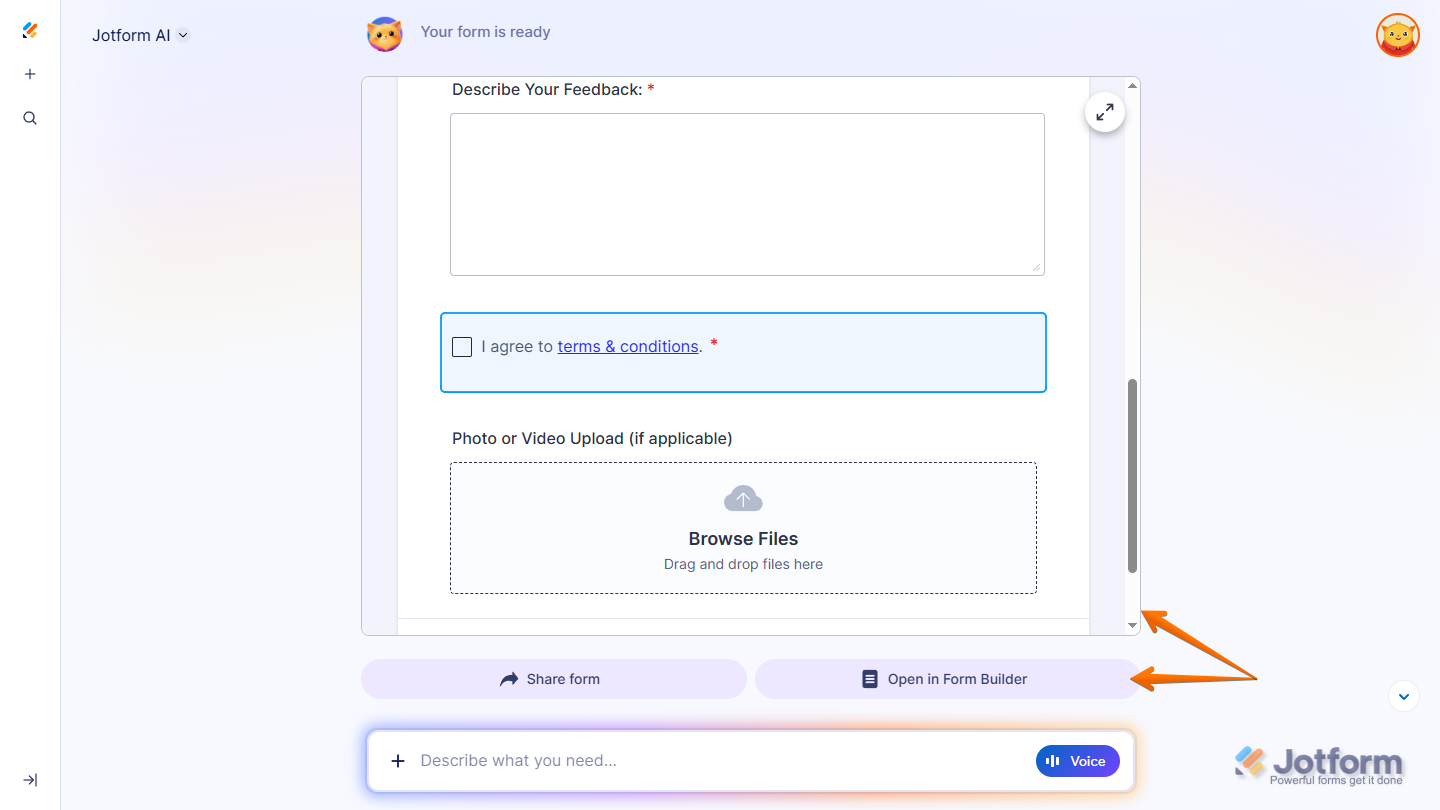
That’s it. You’ll receive a confirmation that your form is ready, along with a preview of your updated form that you can test. You’ll also have the option to open your form in Form Builder in a new browser tab to view the changes and continue working on your form.
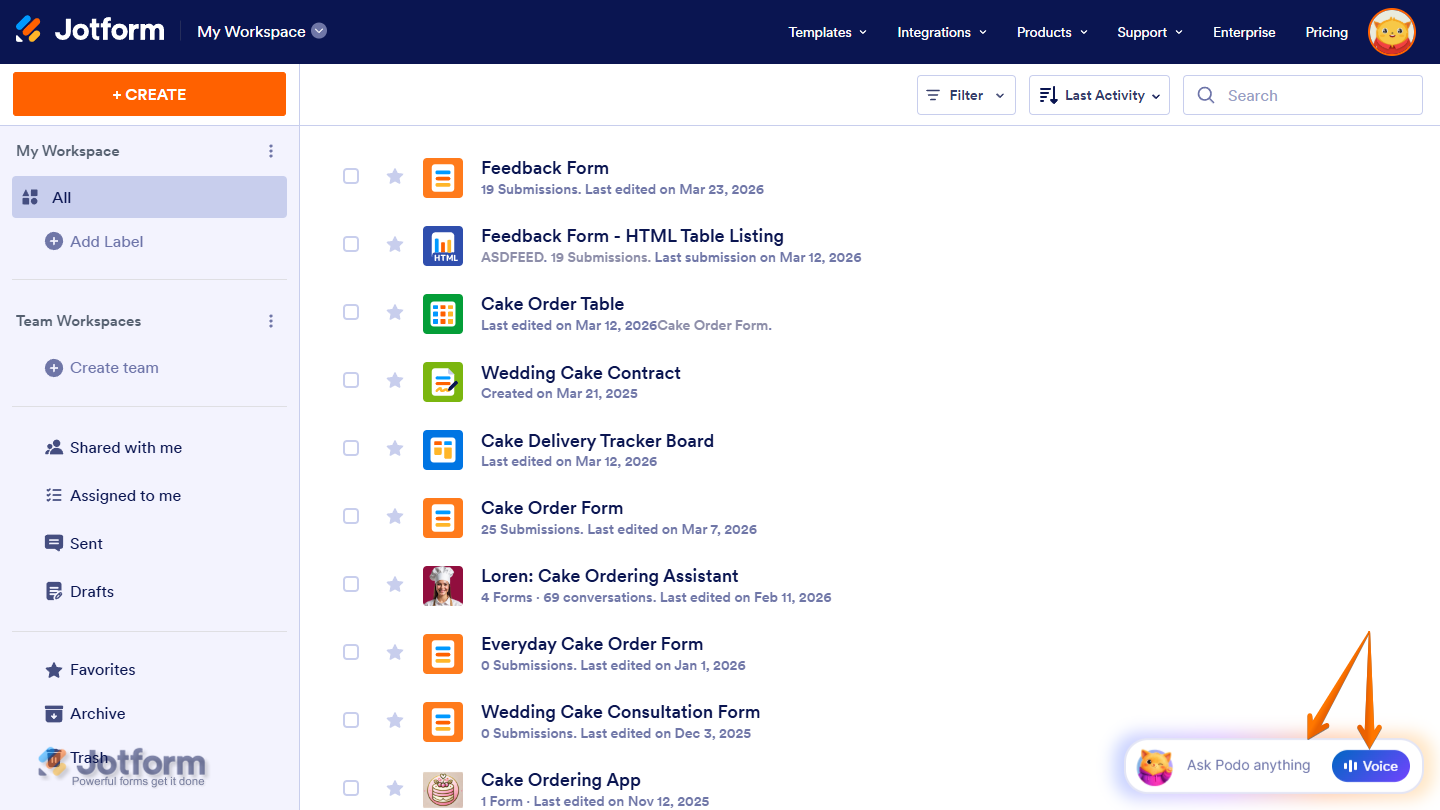
You can also start a conversation with Jotform AI by clicking Ask Podo Anything in the bottom-right corner of your Workspace page. If you prefer using voice for your prompts, you can click on the Voice button on the right side of the chatbox, then allow your browser to access your device’s microphone.

Send Comment: