Jotform AI keeps track of your past conversations, making it easy to go back to earlier chats, reuse prompts, and continue working on your forms. Instead of starting from scratch each time, you can pick up where you left off and keep building. It’s a simple way to stay organized and keep your workflow moving.
Notes
- There’s no need to save your conversations manually—Jotform AI does that automatically.
- If you don’t see a previous chat, check that you’re logged into the correct Jotform account.
Viewing Chat History in Jotform AI
Viewing your chat history in Jotform AI makes it easy to stay on track, reuse prompts, and continue your work without starting over. Here’s how to get going:
- On the top-left side of your Workspace page, click on Create.
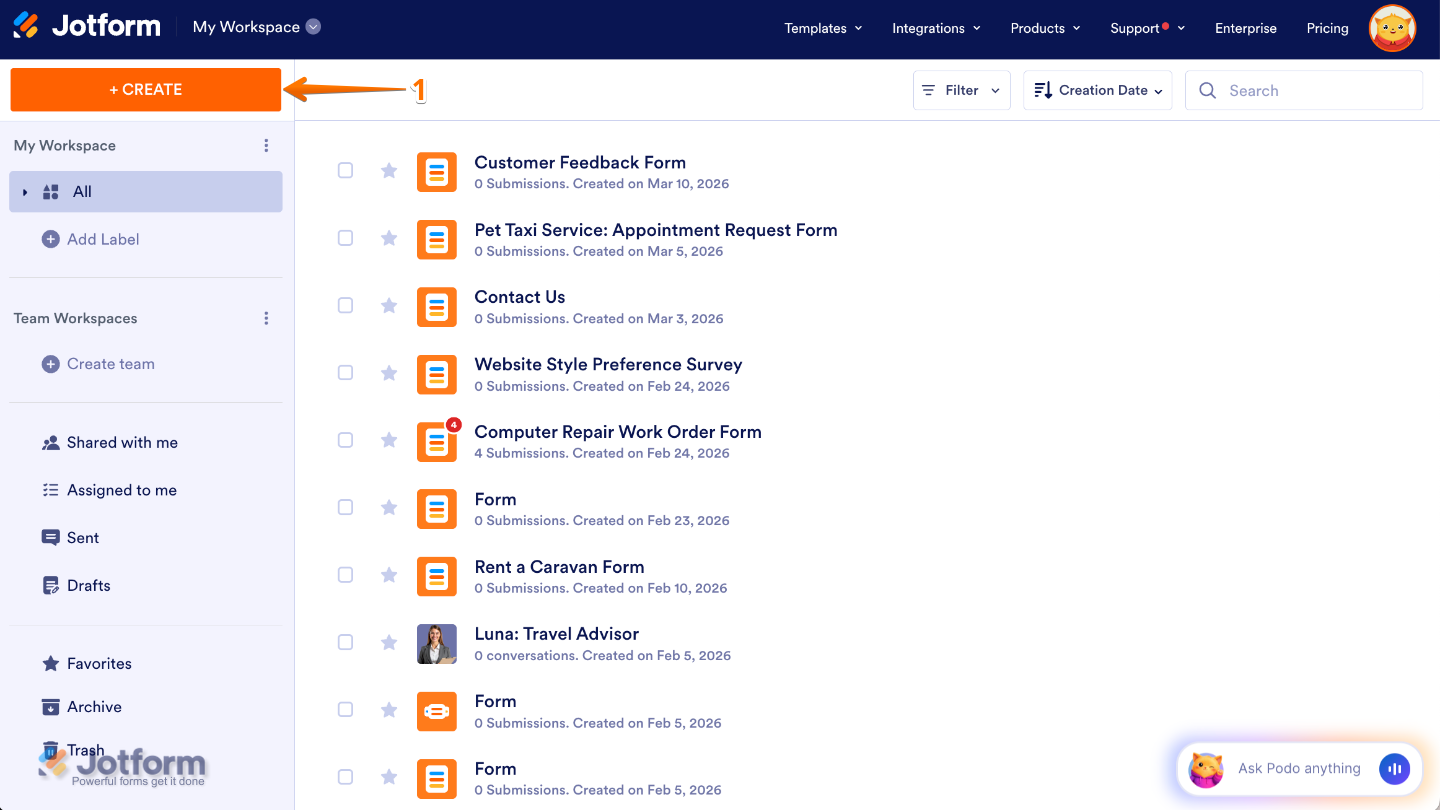
- Then, at the bottom of the window that opens up, click on Jotform AI.

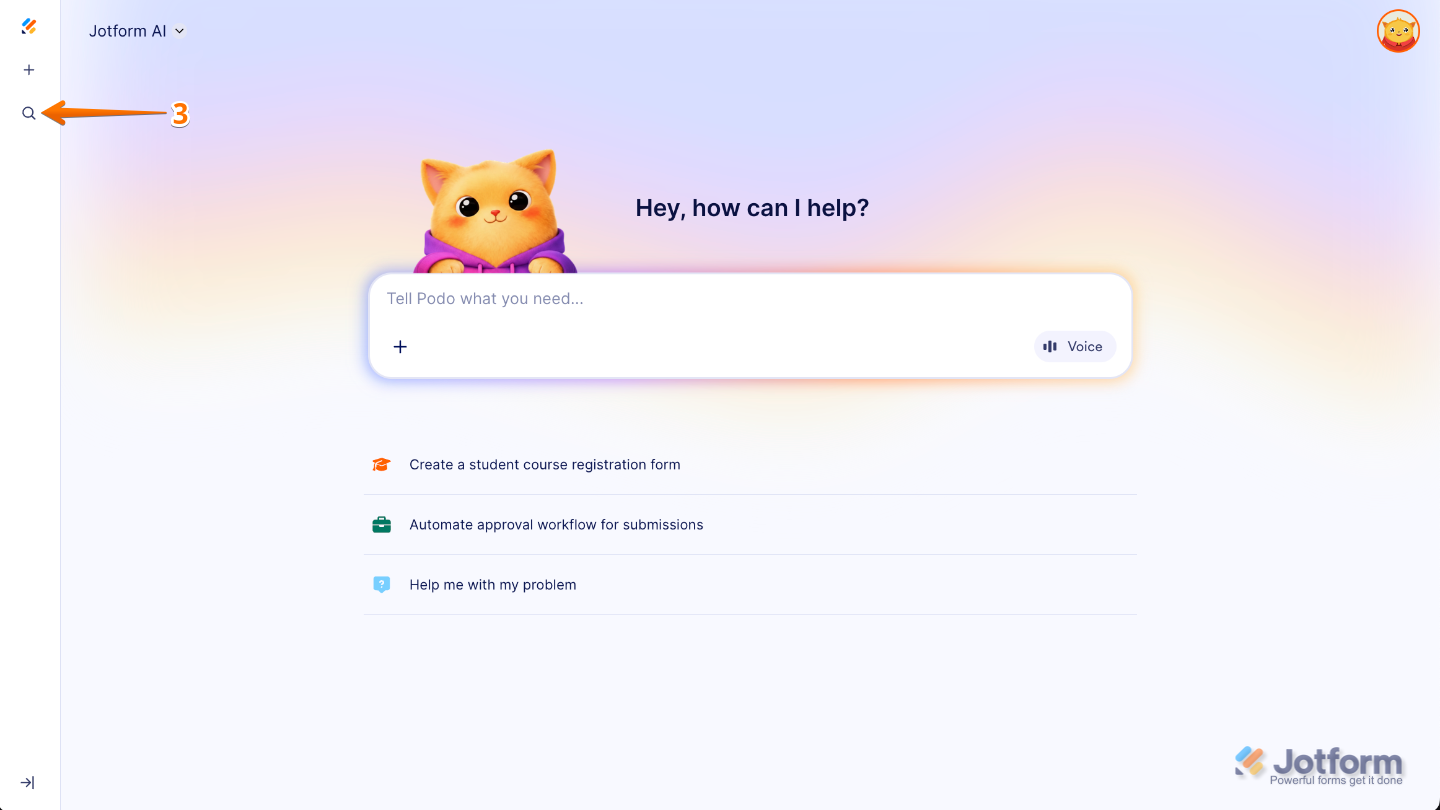
- Next, click on the Magnifying Glass icon on the top-left side of the page.
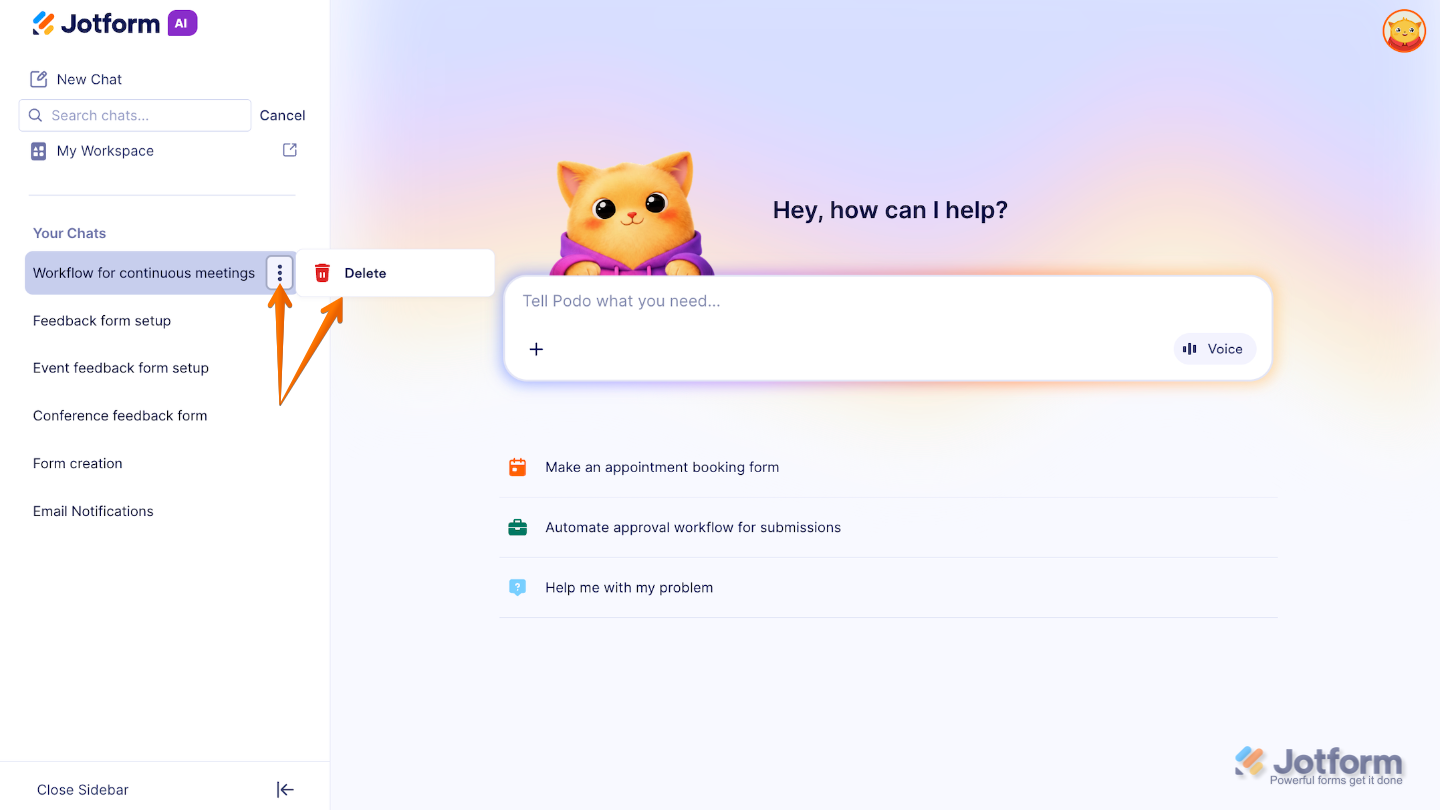
- Now, under the Your Chats section, select a chat you want to continue.

To delete a chat, simply click on it, then click the Three Dots icon, and select Delete.
That’s it. Now you can view and manage your chat history in Jotform AI, making it easy to continue past conversations, reuse prompts, and pick up right where you left off.
Pro Tips
- Use clear and descriptive titles when renaming your chats so it’s easier to find them later.
- Save time by going back to previous conversations and reusing prompts that worked well for you.
- Organize your chats regularly—remove ones you no longer need to keep your workspace clean and clutter-free.
- Pick up where you left off and keep refining your forms without starting from scratch.

Send Comment: