With Jotform AI, creating a personalized Thank You page is quick and easy, with no coding required. You can add your own text, images, or links to make the experience feel thoughtful, professional, and tailored to your audience.
The Thank You page is the final touchpoint your users see after submitting a form, making it a great opportunity to leave a lasting impression. You can use it to thank users, share important details, provide next steps, or direct them to another page, website, or resource.
Notes
- Changes to the Thank You page take effect immediately for all future submissions.
- You can update or enhance it anytime in Jotform AI.
Customizing the Thank You Page with Jotform AI
Whether you’re creating a new Thank You page or giving an existing one a fresh, personalized touch, Jotform AI makes it fast and easy. Here’s a quick how-to:
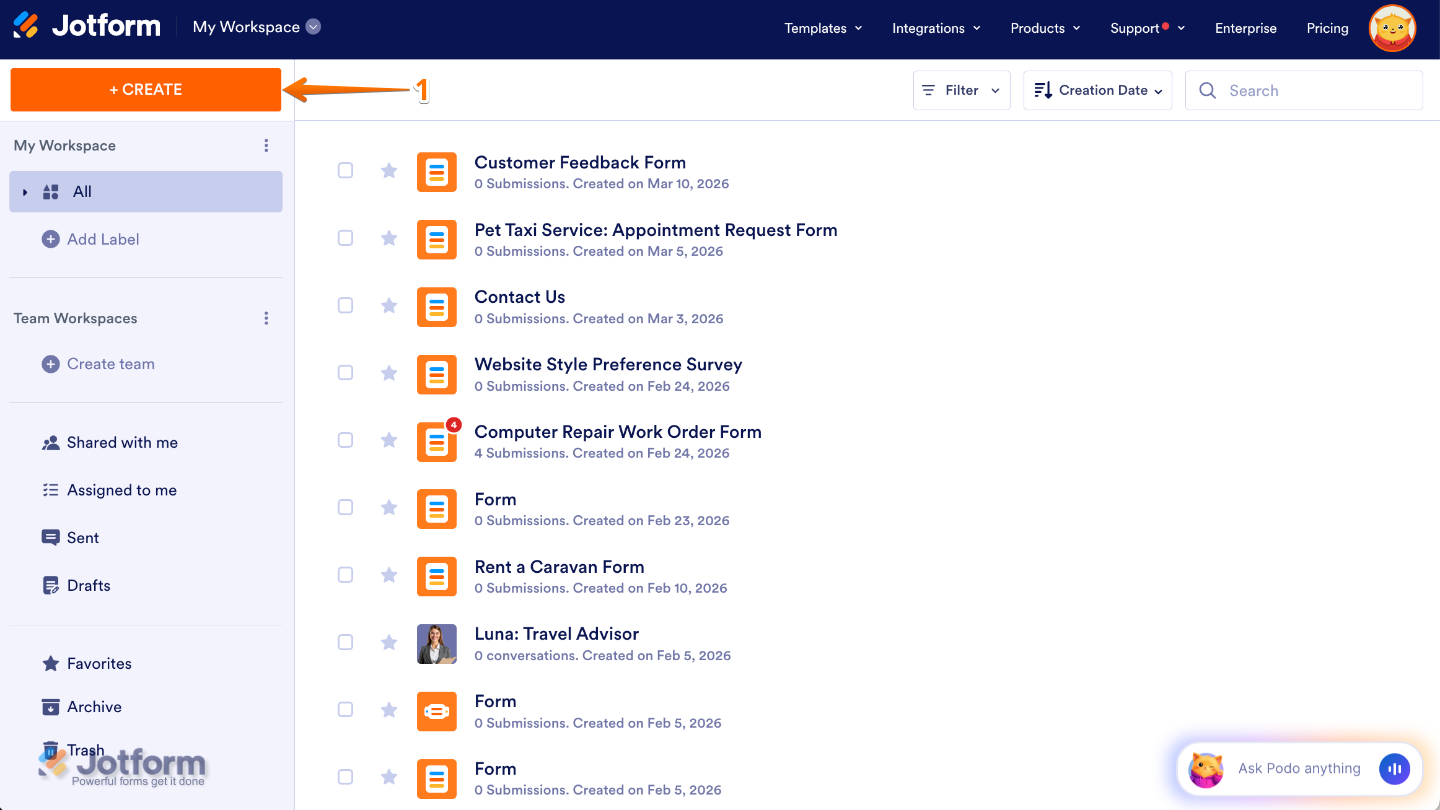
- On the top-left side of your Workspace page, click on Create.
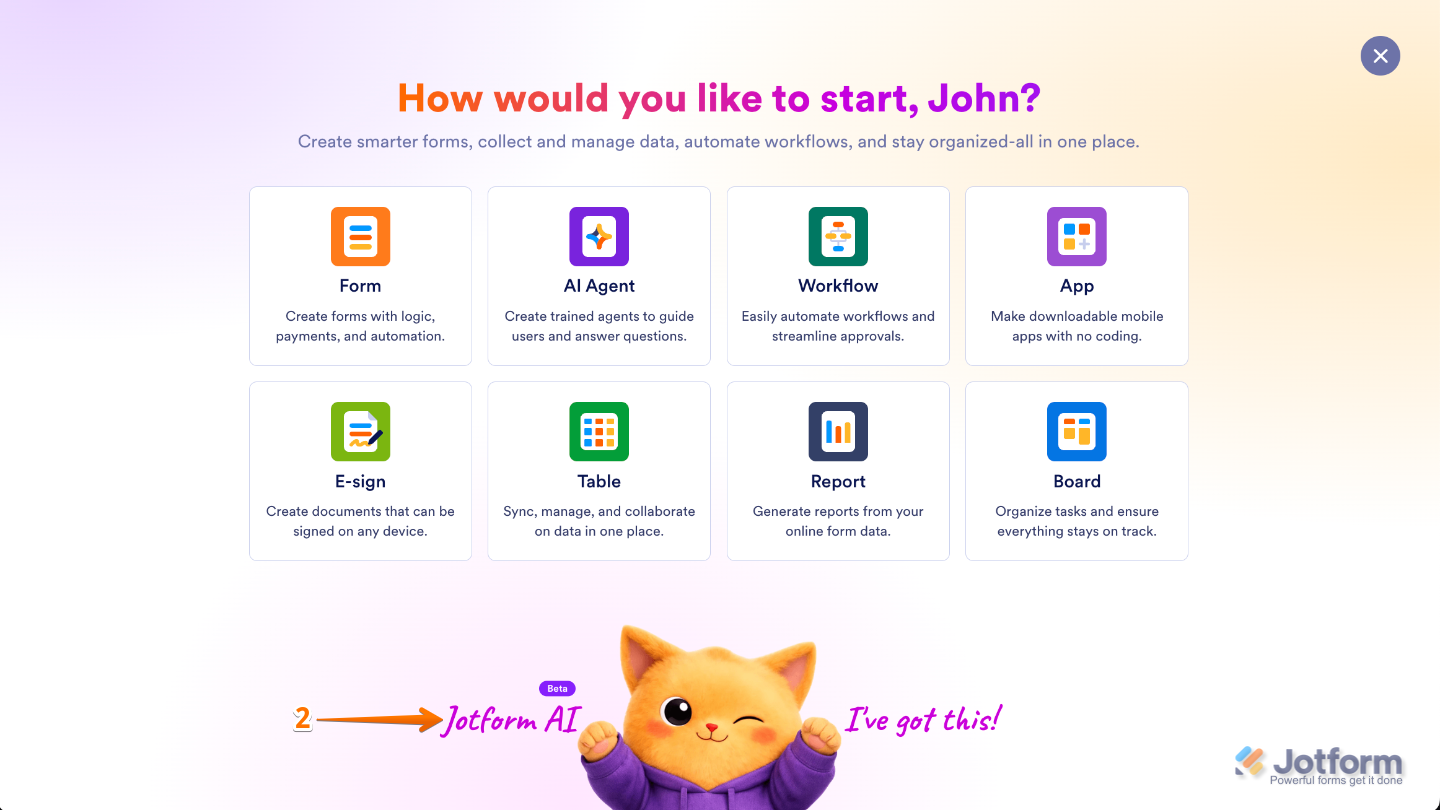
- Then, at the bottom of the window that opens up, click on Jotform AI.
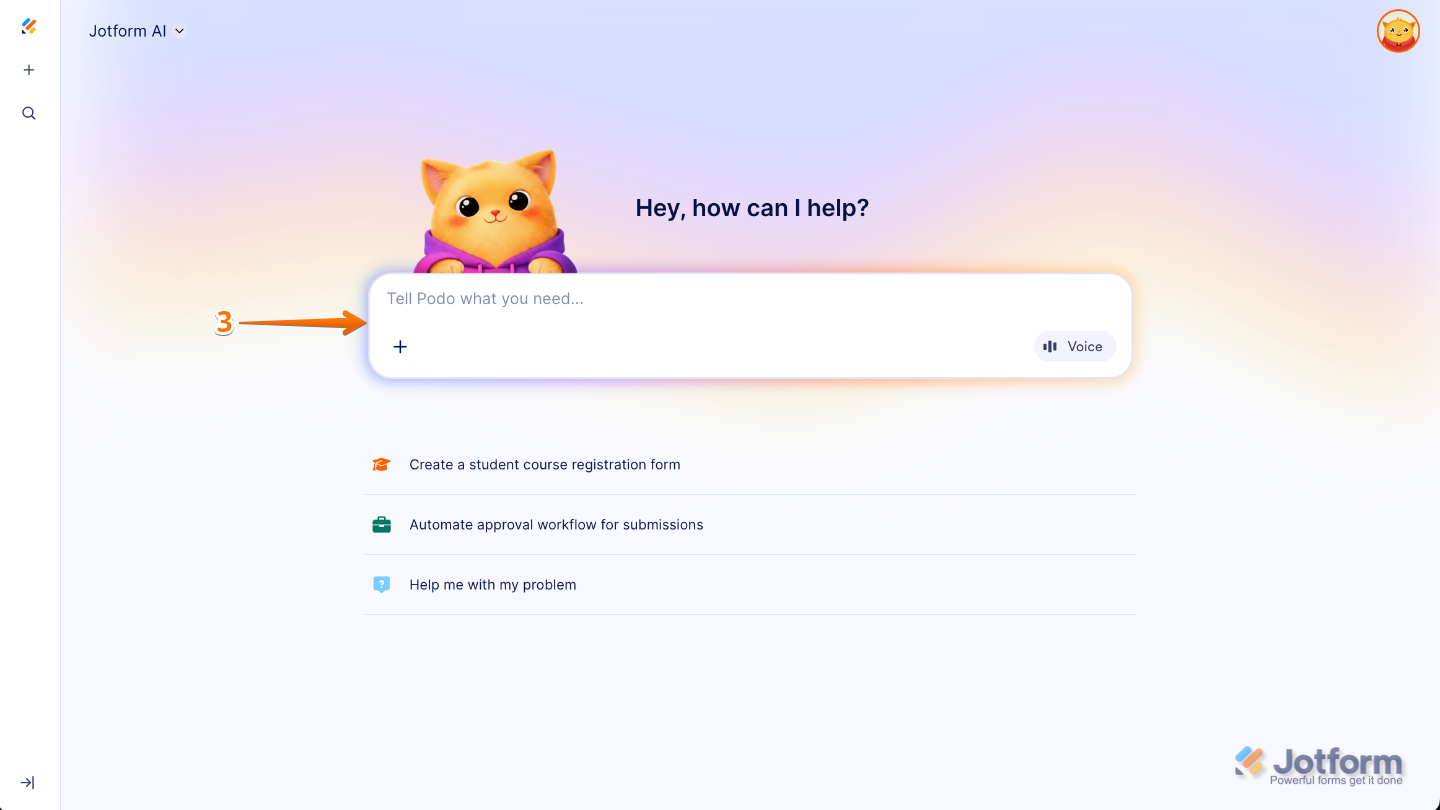
- Now, in the Prompt box in the middle of the page, enter the Thank You page details you want to apply, along with the name of the form you want the changes applied to.
Here are some example prompts you can try to customize your form’s Thank You page:
- Create a friendly Thank You message for the form titled [Form Title] that confirms the submission. Let users know their response has been received and that our team will review it and get back to them soon.
- Add a warm Thank You message to the [Form Title] form’s Thank You page and include social media buttons that link to our Facebook, Instagram, and LinkedIn pages so users can stay connected with us. Here’s the link to our social media platform: [URL]
- Make the [Form Title] Thank You page more engaging by adding a friendly message that thanks users for their time and clearly explains the next steps, such as checking their email for confirmation or updates.
- Customize the Thank You page of the form titled [Form Title] by adding a message that thanks users for their submission, and include a button labeled Submit Another Response so they can easily fill out the form again.
- Add a short confirmation message to the [Form Title] Thank You page and include a button labeled Download Your Submission that allows users to download a PDF copy of their submitted form.
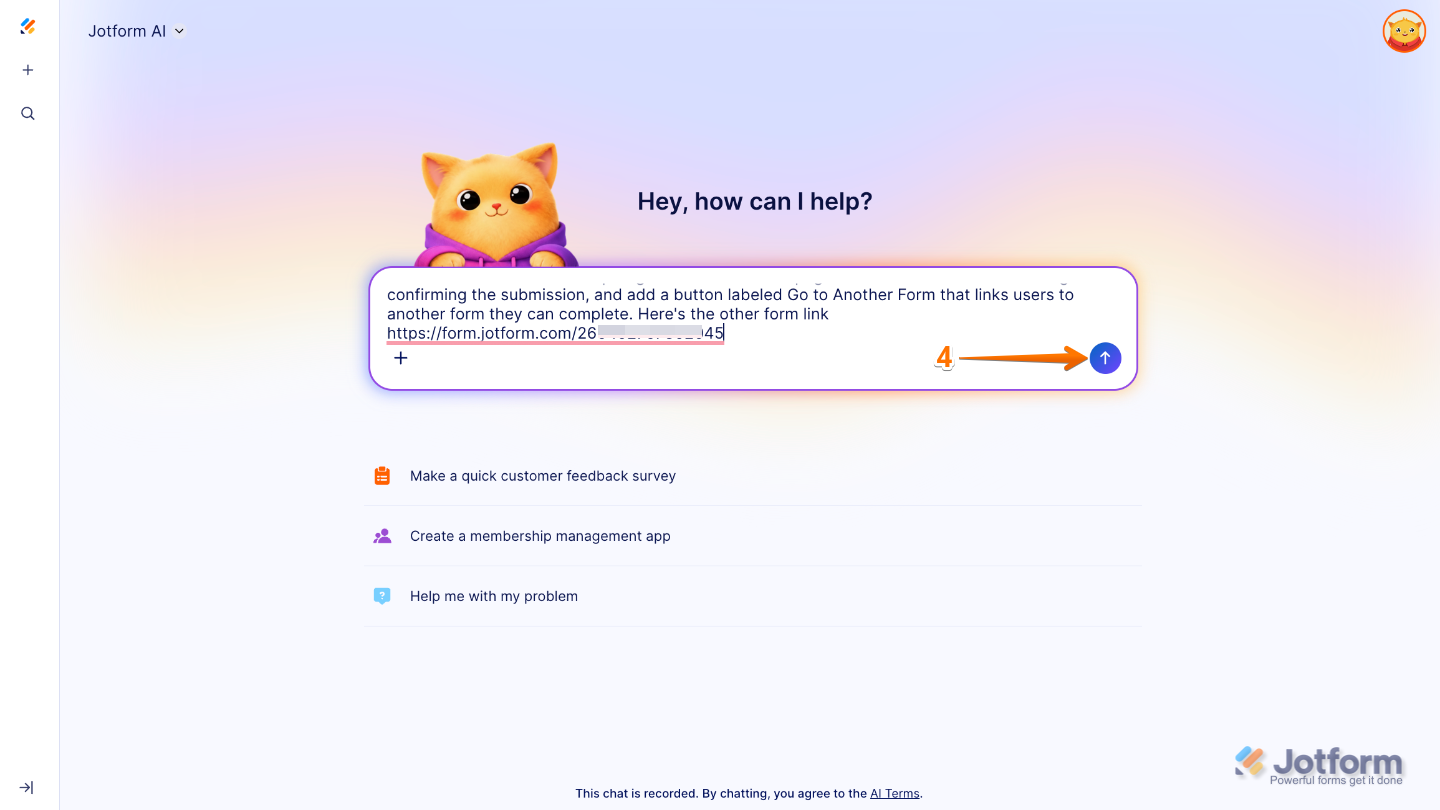
- Customize the [Form Title] Thank You page with a brief Thank You message confirming the submission, and add a button labeled Go to Another Form that links users to another form they can complete. Here’s the link to the other form: [Form URL]
- Once you’re done, press the Enter key on your keyboard or click on the Upward Arrow icon on the right side of the Prompt box.
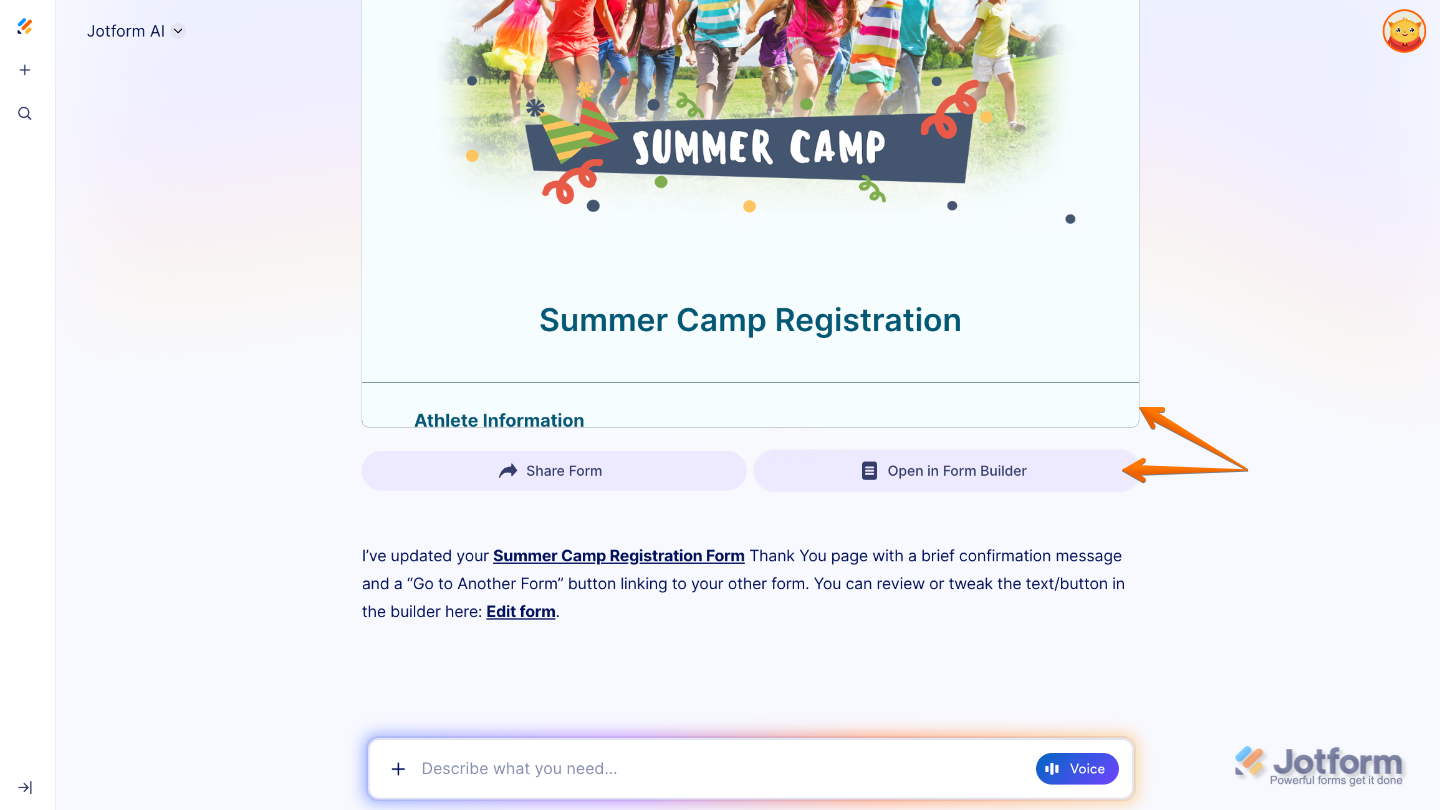
That’s it! You’ll get a confirmation letting you know your form’s Thank You page has been updated, along with a preview so you can test it out. You can also click on Open in Form Builder to open it in a new browser tab to see your changes and keep customizing it.
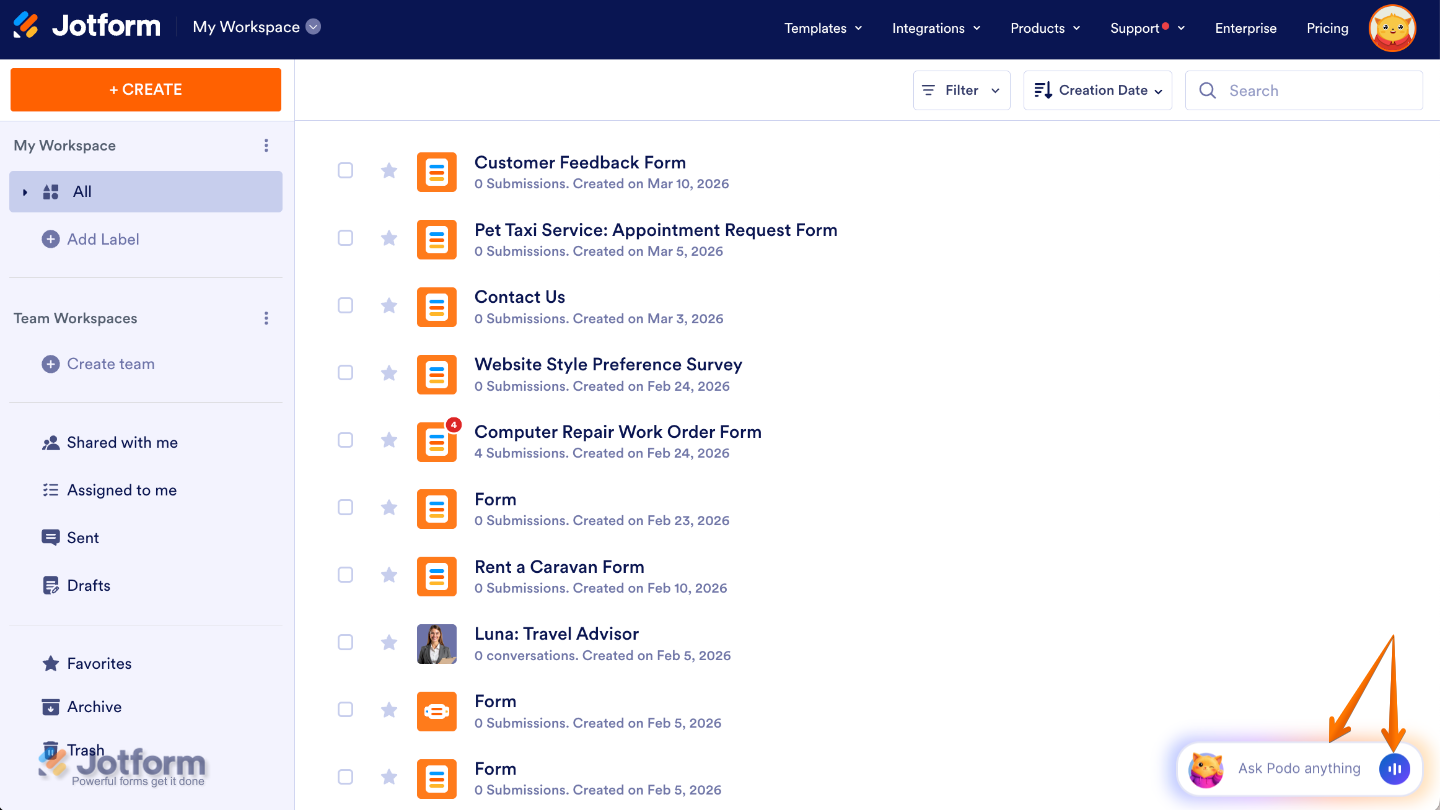
You can also start a conversation with Jotform AI—just click on the Jotform Chatbot in the bottom-right corner of your Workspace page. And, if you prefer speaking, click on the Voice icon on the right side of the Chatbox, and then allow your browser to access your device’s microphone.
Pro Tips
- Keep your message short and friendly so it’s easy for users to read and understand.
- Add a Call-to-Action to encourage users to visit your website, follow up on an offer, or take the next step.
- Include images or graphics to make your Thank You page more visually engaging and memorable.
- Don’t forget to submit a form to test the page so you can see exactly how it’ll look to your users.

Send Comment: