With Jotform AI, you can customize your form design to match your brand, style, or personal preferences. From adjusting colors and fonts to adding backgrounds and refining layout spacing, it helps you create forms that look polished and professional.
You can experiment with different design elements without needing any design experience, giving you full control over what your form looks like. It’s especially useful for forms used in work, events, surveys, or personal projects, so you can build visually consistent forms without extra effort.
Whether you’re creating a new form or updating an existing one, you can easily customize its design with Jotform AI to make it look just the way you want. Here’s what to do:
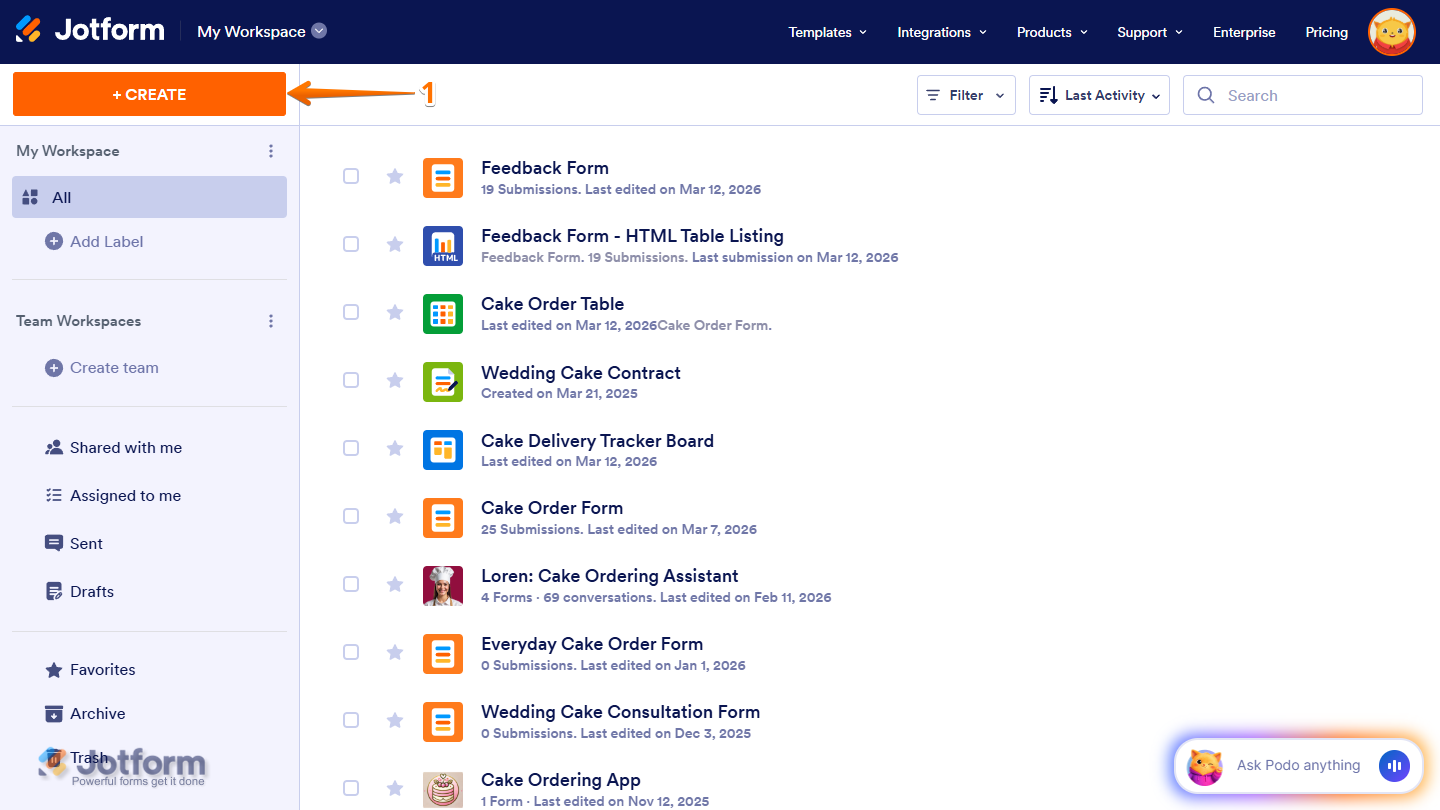
- On the top-left side of your Workspace page, click on Create.
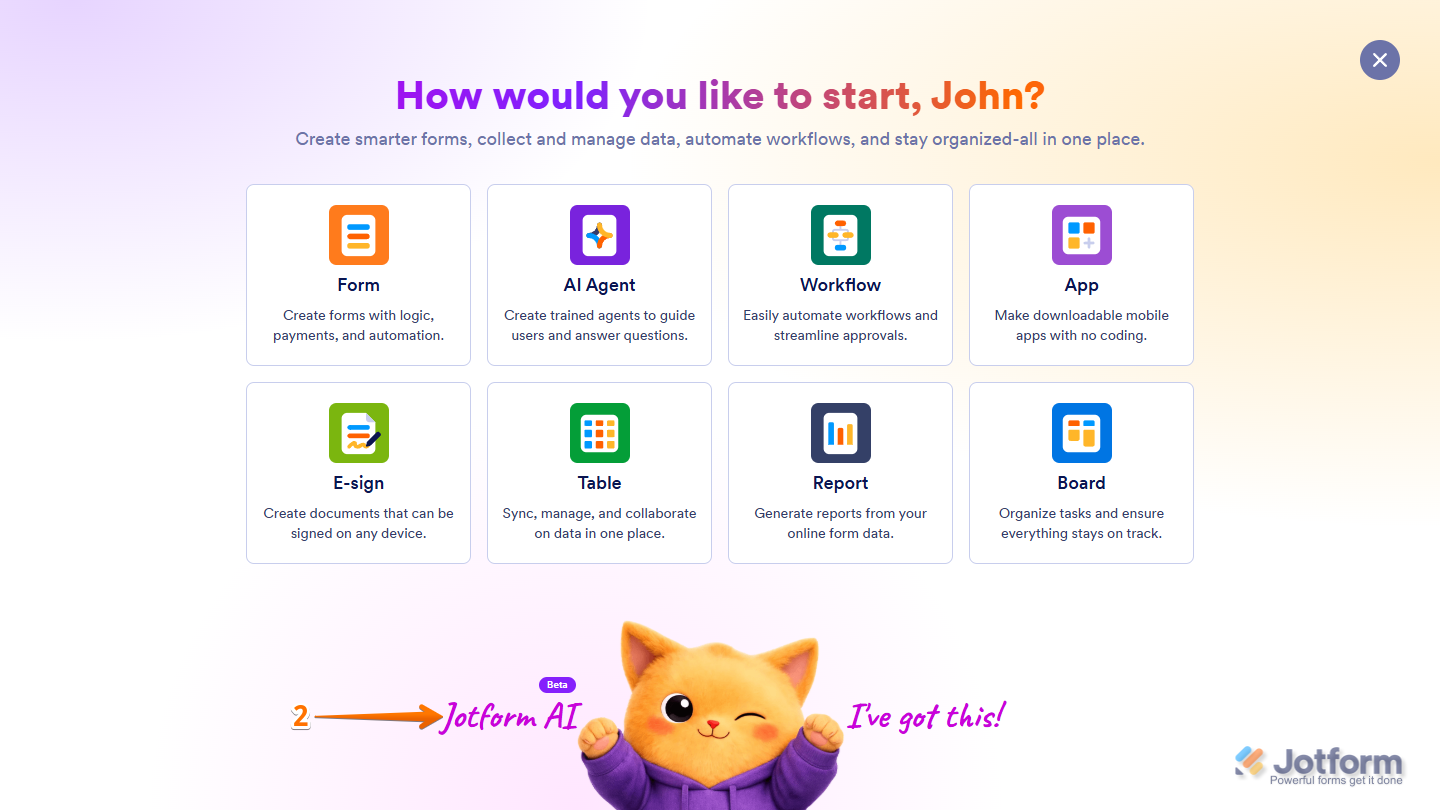
- Then, at the bottom of the window that opens up, click on Jotform AI.
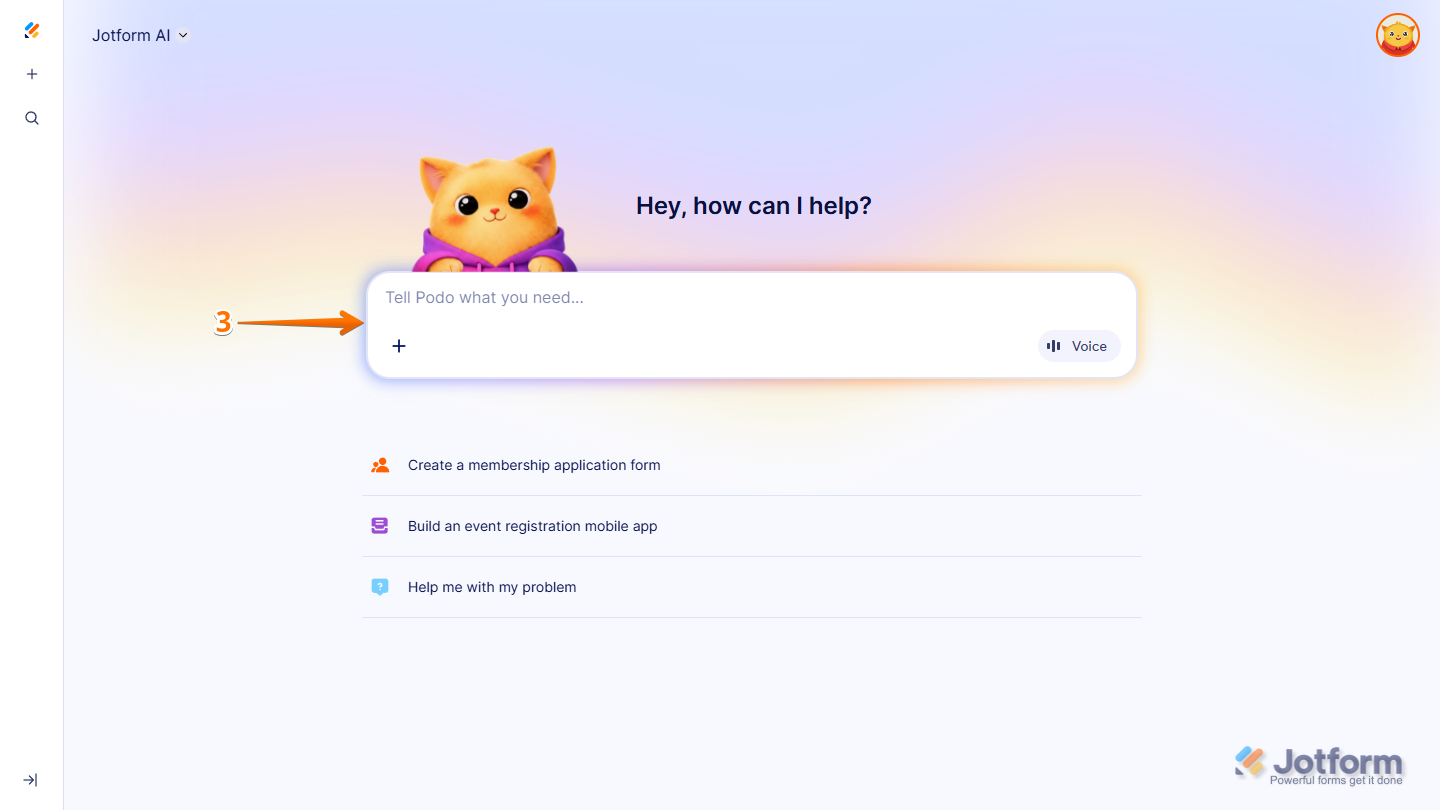
- Now, in the Prompt box in the middle of the page, enter the design changes you want to make and the name of the form in your account that you want them applied to.
Here are some example prompts you can try if you already know which parts of your form you want to customize and how you want them to look:
- On my [Form Title Here], can you set the Form Width to 400px?
- Can you change the Label Alignment in my [Form Title Here] to the right?
- On my [Form Title Here], can you change the Input Background to light yellow?
- Can you change the Font Color in my [Form Title Here] to magenta?
- Can you change the Font in my [Form Title Here] to Comic Sans?
- On my [Form Title Here], can you set the Font Size to 10px?
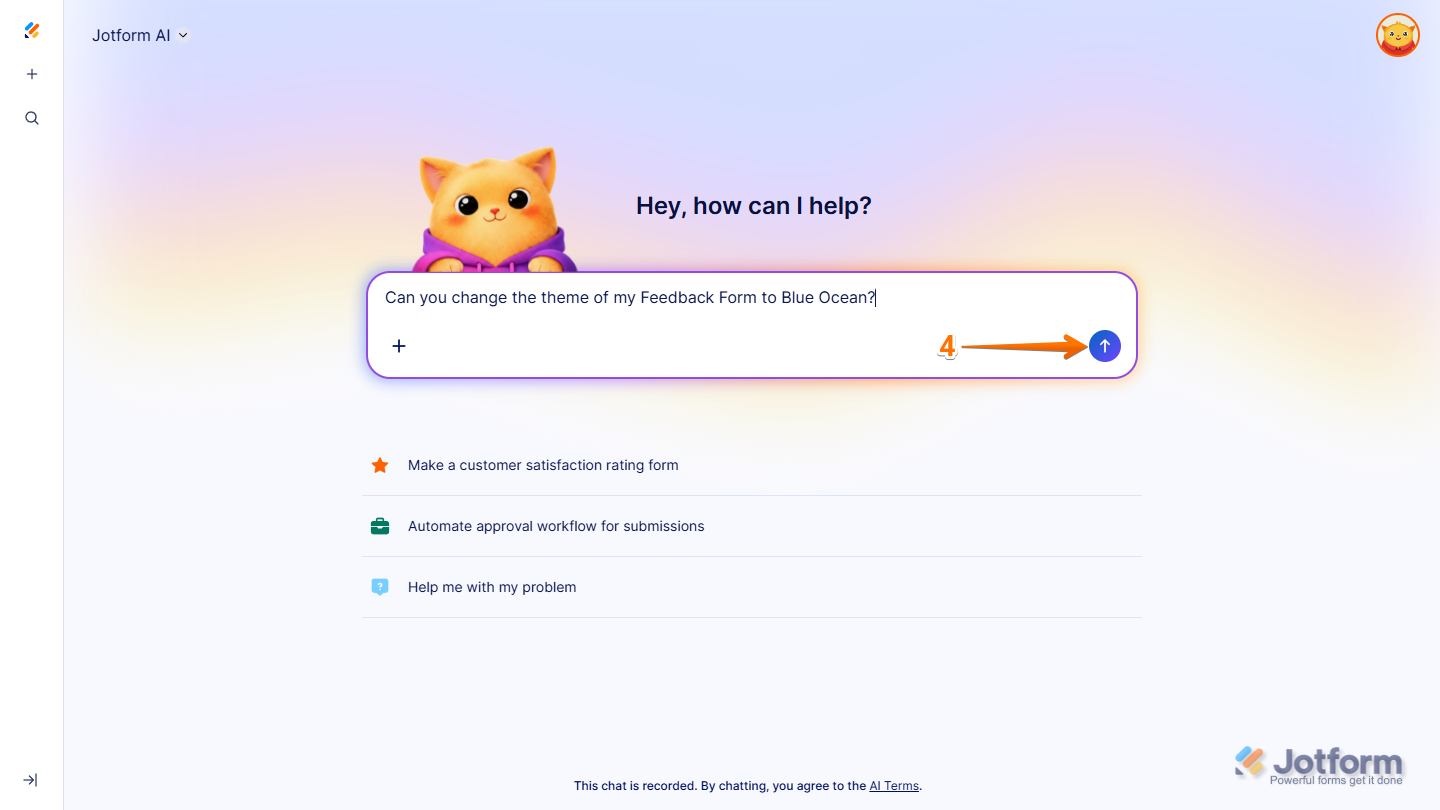
- Can you change the theme of my [Form Title Here] to Blue Ocean?
You can also write your prompts like the ones below if you have a design idea for your form but aren’t sure if a specific option or style is available:
- Can you change the page background of my [Form Title Here] to light yellow?
- Can you change the background color of my [Form Title Here] to light blue?
- On my [Form Title Here], can you set the spacing between questions to 50px?
- Can you change the color scheme of my [Form Title Here] to something close to green?
- On my [Form Title Here], can you resize the form logo to 180px and move it to the right side?
- Can you change the color of the submit button in my [Form Title Here] to maroon with a gradient?
- On my [Form Title Here], can you change the layout to Card/Classic?
If the style you want to apply isn’t available in Form Designer Settings, you can try prompts that may inject custom CSS into your form:
- Can you remove the shadow of my [Form Title Here]?
- On my [Form Title Here], can you change the background color of the header to light yellow?
- Can you change the color of the Full Name field label in my [Form Title Here] to green?
- On my [Form Title Here], can you change the color of the field sublabels, field highlight effect, and required field indicator to purple?
- Once you’re done, press the Enter key on your keyboard or click on the Upward Arrow icon on the right side of the Prompt box.
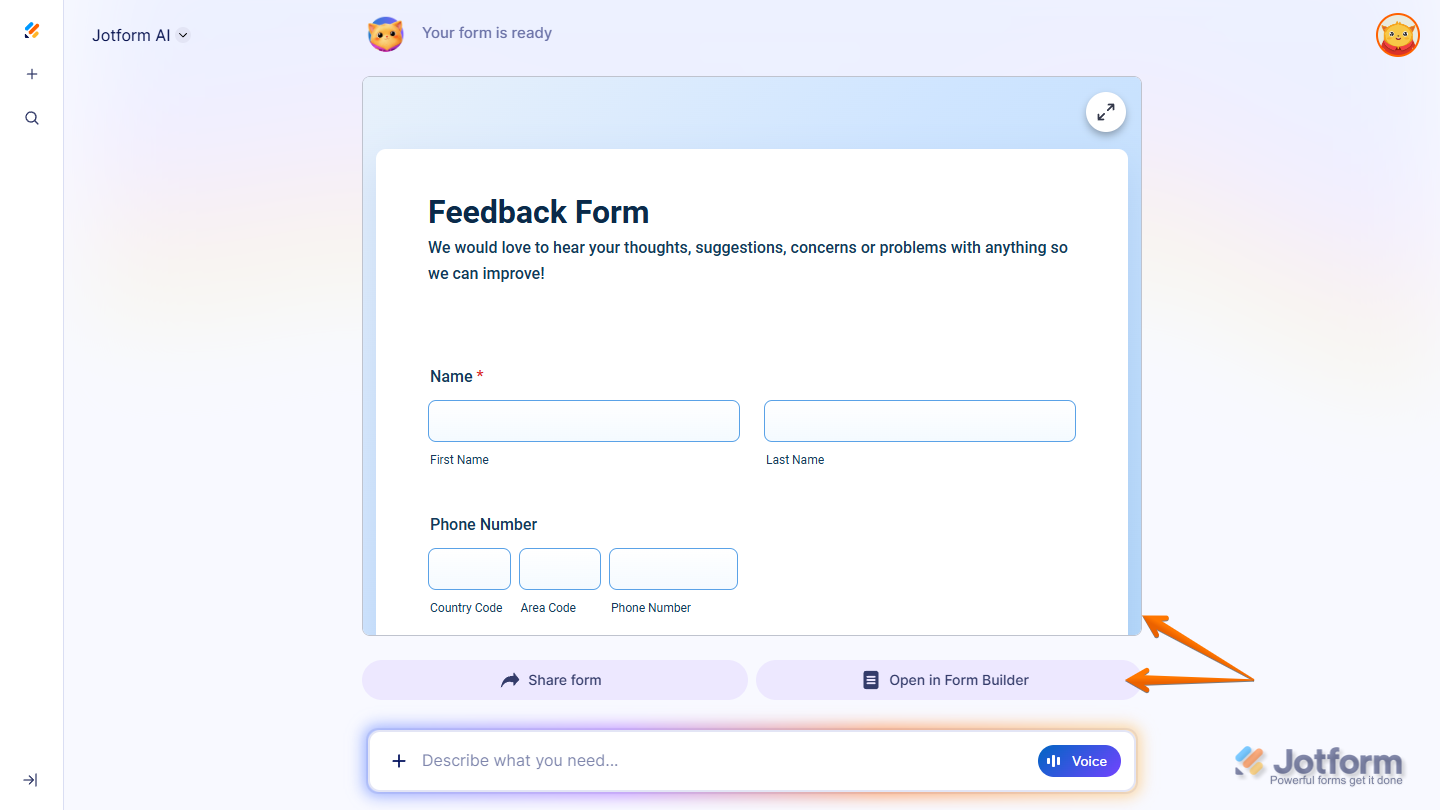
That’s it. You’ll get a confirmation that your form design has been updated. You’ll also have the option to open your form in Form Builder in a new browser tab to review the changes and continue customizing it.
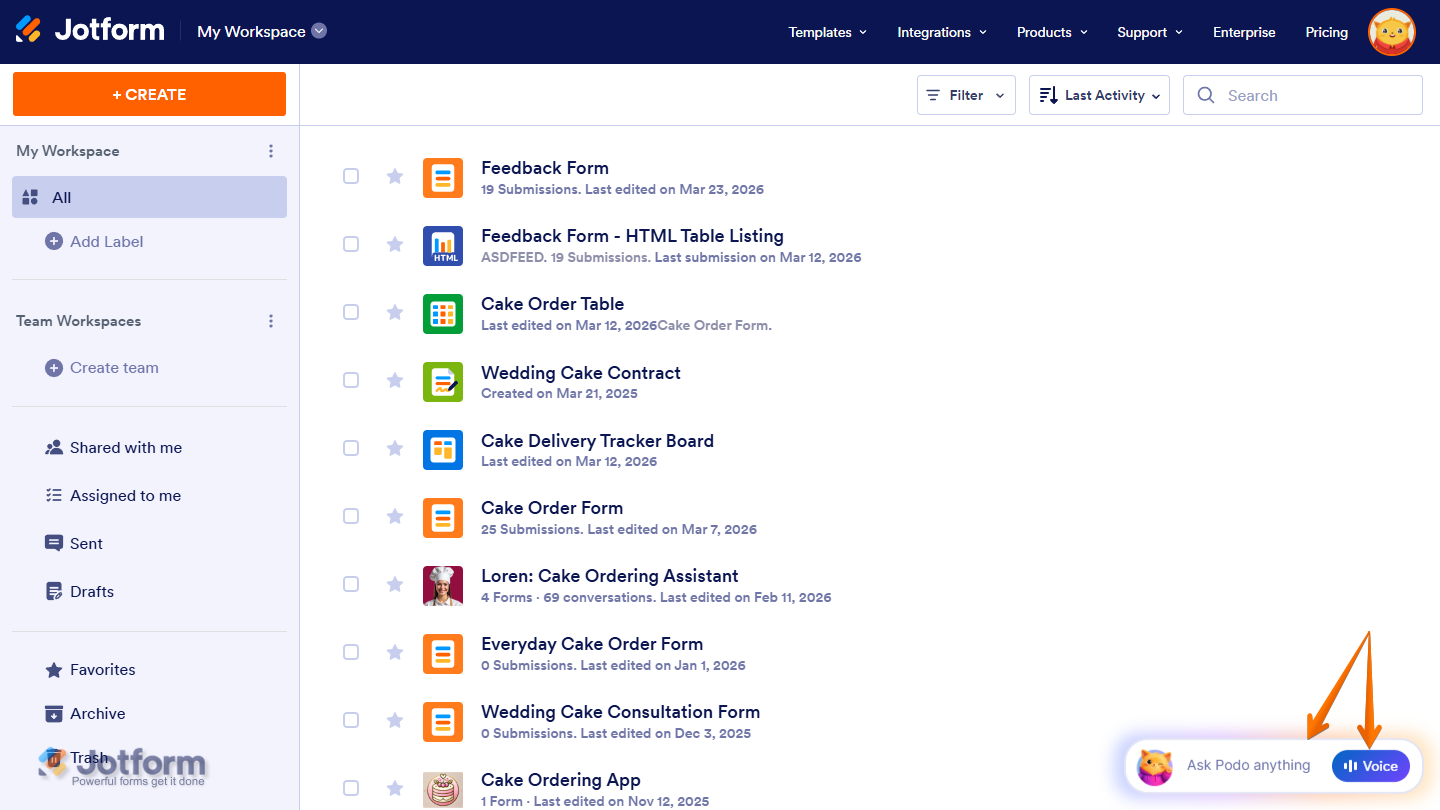
You can also start a conversation with Jotform AI—just click on Ask Podo Anything in the bottom-right corner of your Workspace page. If you’d rather use voice for your prompts, just click on the Voice button on the right side of the Chatbox, and then allow permission for your browser to access your device’s microphone.

Send Comment: