Creating forms doesn’t have to begin with typing or manually adding fields. With Jotform AI, you can simply speak your requirements and let the platform generate a complete form in seconds. By turning voice input into structured questions and fields, the process becomes faster and eliminates the need for step-by-step setup.
This is especially helpful when capturing ideas quickly, building forms on the go, or working more comfortably without typing. Whether drafting a survey, setting up a registration form, or collecting information for a project, using voice with Jotform AI provides a more intuitive way to build forms.
Whether you need a simple contact form, a registration form, a booking form, a survey, or a feedback form—whatever you have in mind—you can create it effortlessly with Jotform AI using just your voice. It only takes a few simple steps. Here’s what to do:
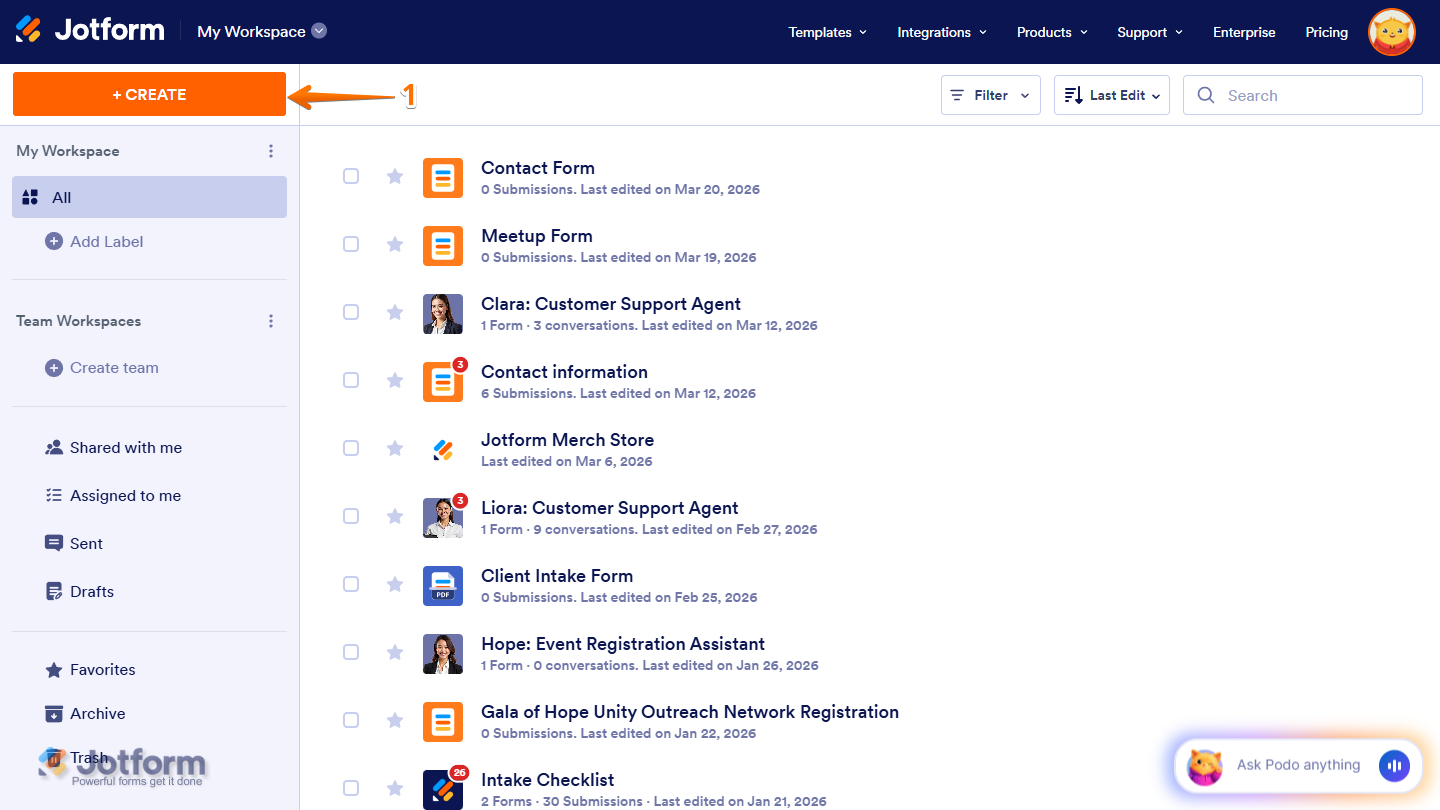
- On your Workspace page, click on Create on the top-left side of the page.
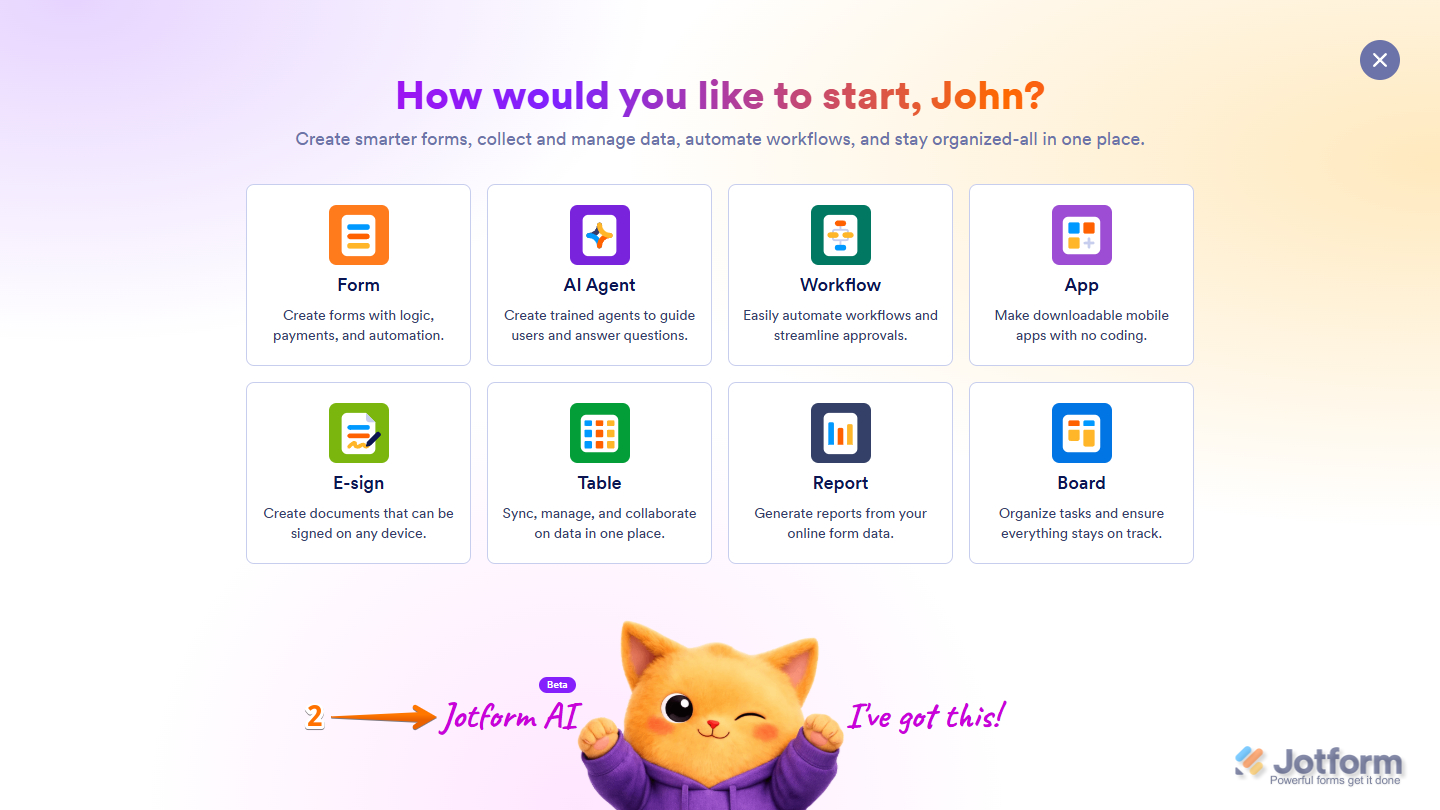
- Then, at the bottom of the window that opens up, click on Jotform AI.
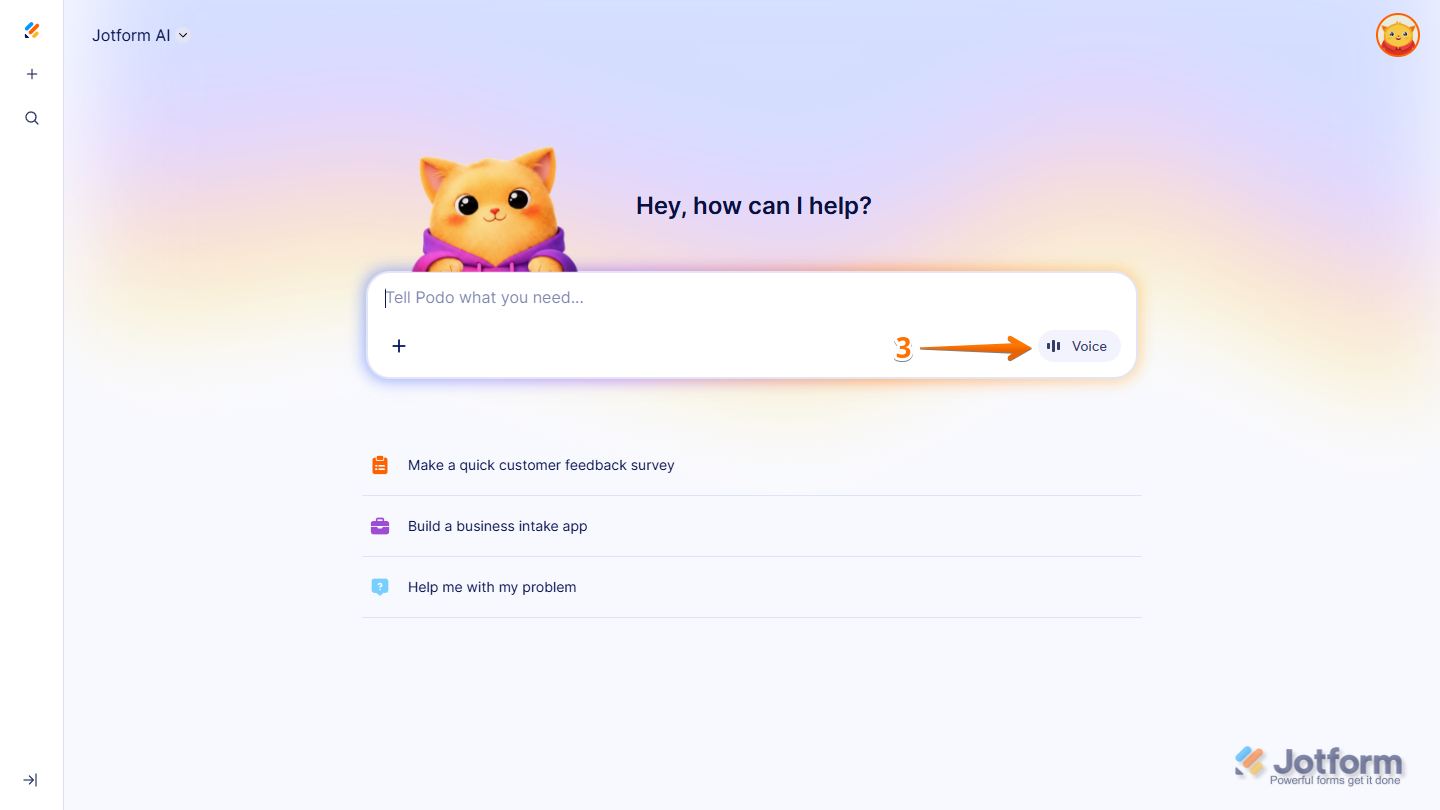
- Next, in the Jotform AI page, at the bottom-right side of the Prompt box, click on Voice.
Note
Jotform AI will prompt you to allow your browser to access your device’s microphone. Simply grant permission so it can capture your voice prompts.
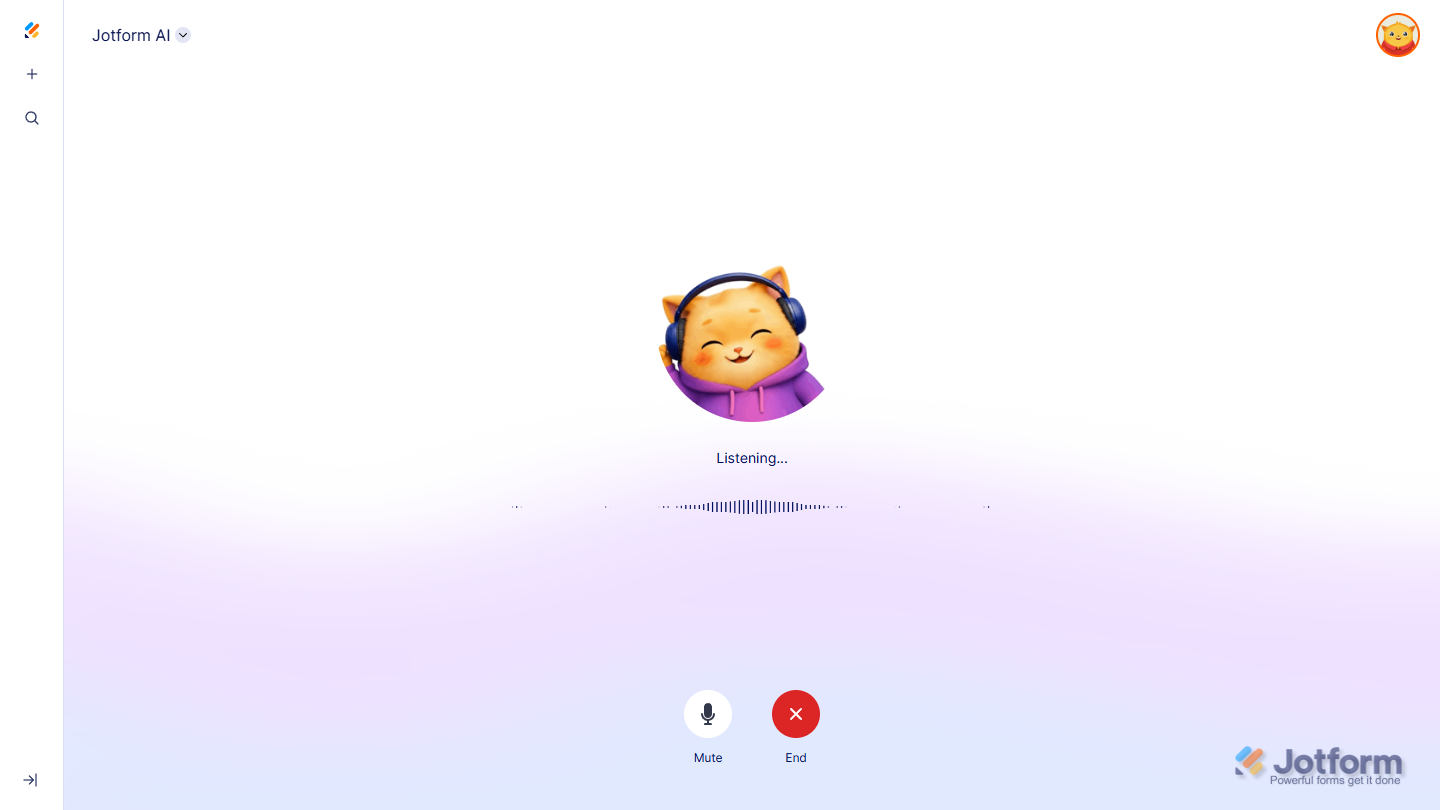
- Now, speak with Jotform AI about your form. It will listen and do as you said. Here are a few examples of voice prompts that you can try to create your form—from basic to advanced forms with widgets and payment elements:
- Create a contact form. Add fields for full name, email address, phone number, and message. Make all fields required except phone number. Add a submit button labeled Send Message.
- Create an event registration form. Add fields for full name, email address, and phone number. Include a dropdown to select attendance type: In-person or Virtual. Make all fields required. Add a submit button labeled Register.
- Create a feedback form. Add fields for full name and email address. Include a rating scale from 1 to 5 for satisfaction. Add a long text field for comments. Make the rating and comments required. Add a submit button labeled Submit Feedback.
- Create an appointment booking form. Add fields for full name, email address, and phone number. Include a date picker for selecting an appointment date and a time field for the preferred time. Make all fields required. Add a submit button labeled Book Appointment.
- Create a workshop registration form. Add fields for full name, email address, and phone number. Include a dropdown for workshop type with options Basic and Advanced. Add a configurable list widget for selecting add-ons like printed materials and lunch, with prices. Include a PayPal payment section with a base fee of 300 pesos and selected add-ons. Make all fields required. Add a submit button labeled Register and Pay.
Notes
- You can ask Jotform AI to create a form based on its own suggestions—for example, simply say, “Create a basic contact form for me.” However, if you have specific elements or features in mind, it’s best to mention them clearly in your prompt to ensure the form is created exactly the way you need.
- Jotform AI can automatically add payment integrations to your form. However, you’ll need to connect and authorize your payment account manually on your end.
- For third-party integrations, Jotform AI can guide you through the setup process, but the actual connection must also be completed manually.
After speaking, Jotform AI will start creating the requested form. You will see the following screen:
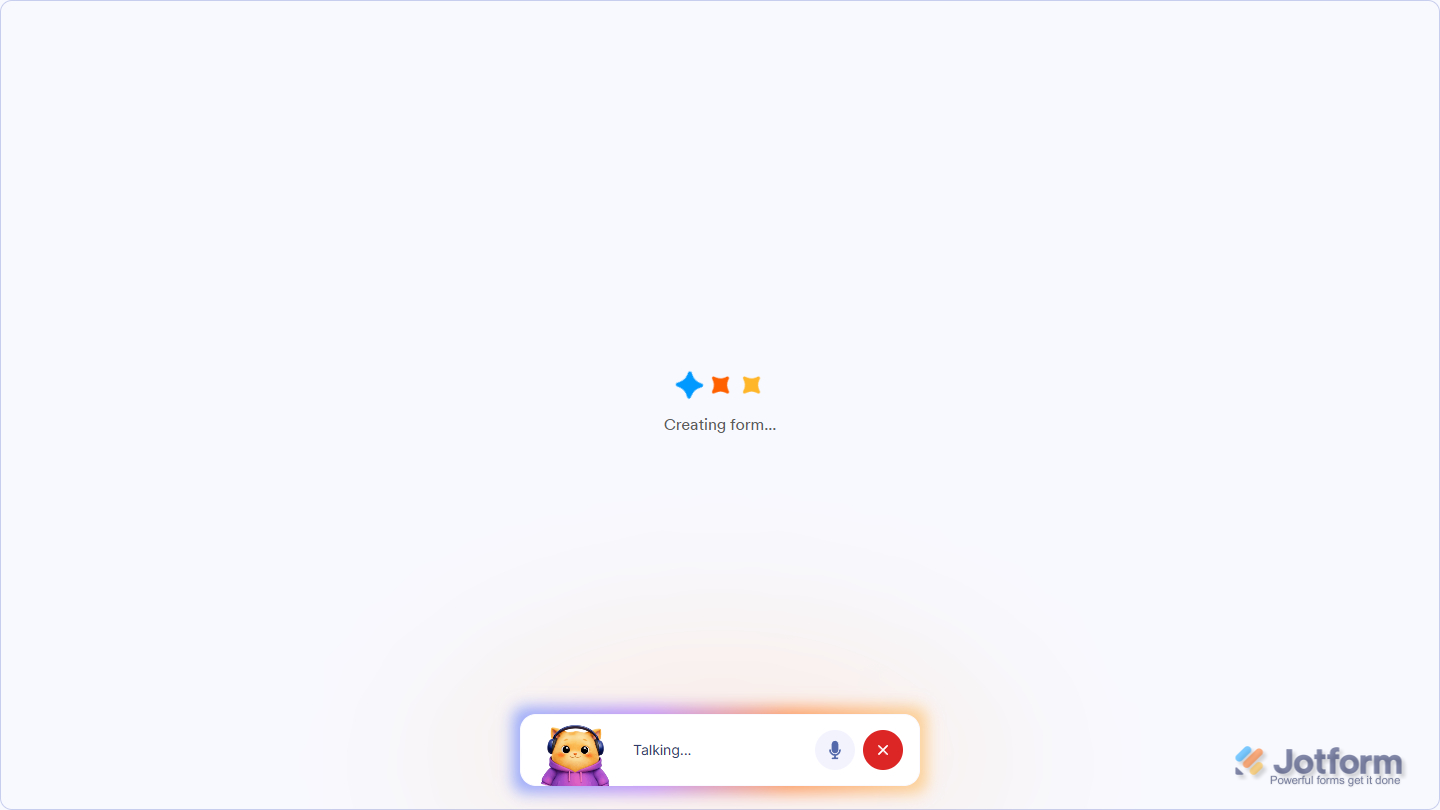
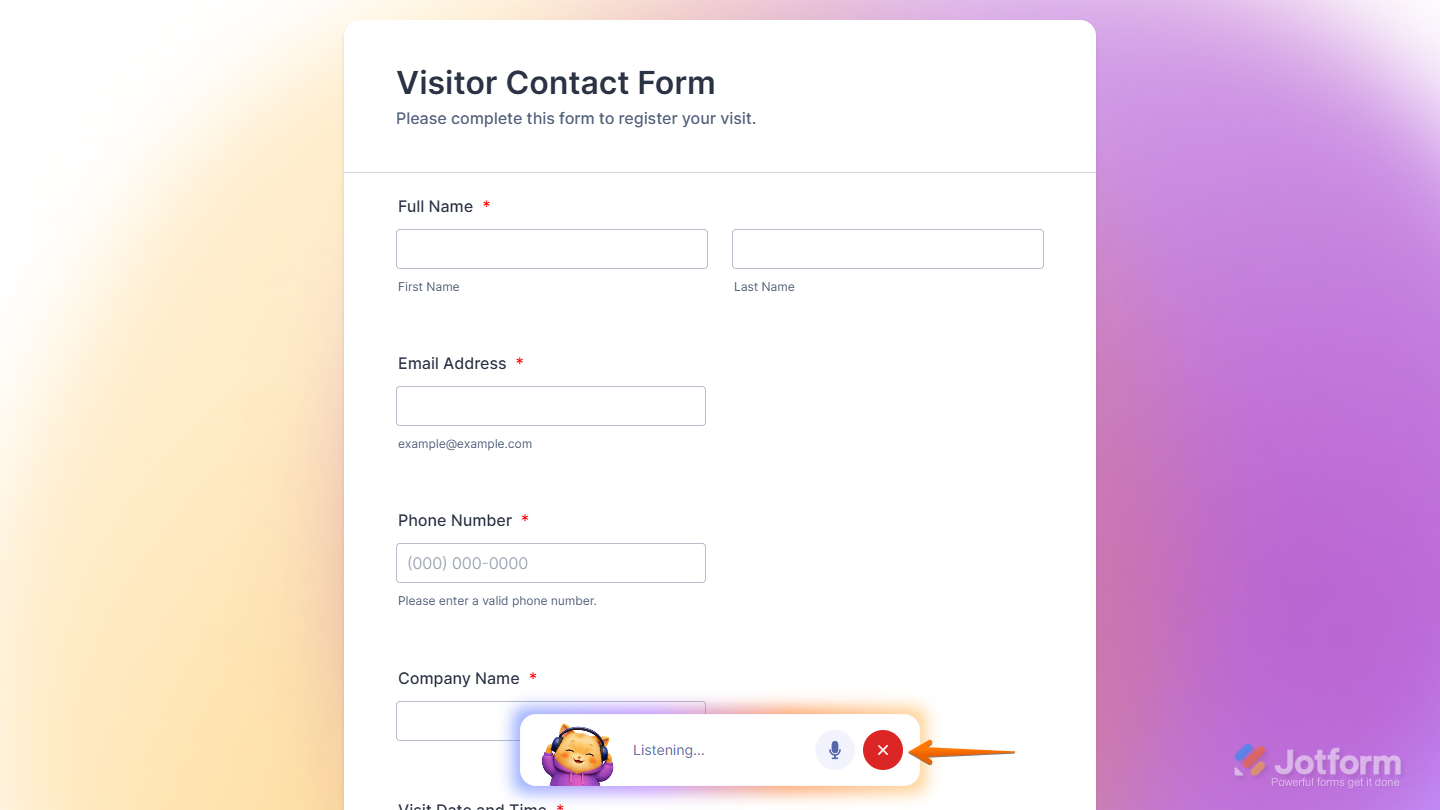
At this stage, Jotform AI has created your form and displayed it on the screen, while still listening for additional voice prompts. You can continue refining the form, ask it to end the session, or simply click the X icon to exit.
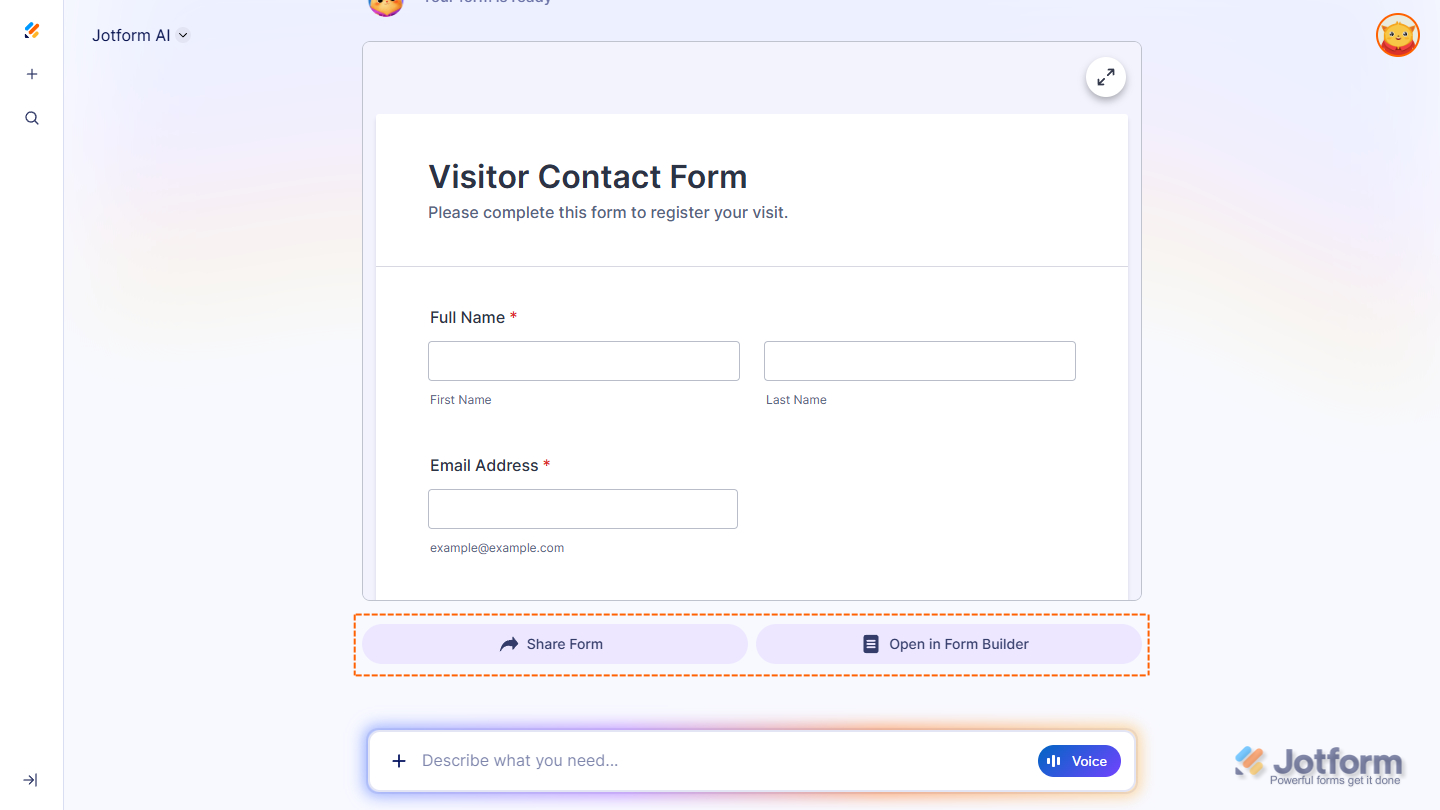
Scroll to the bottom, and you’ll find the Share Form button, which takes you to the Publish tab of the Form Builder, and the Open in Form Builder button, which allows you to continue building and customizing your form on the Form Builder page.
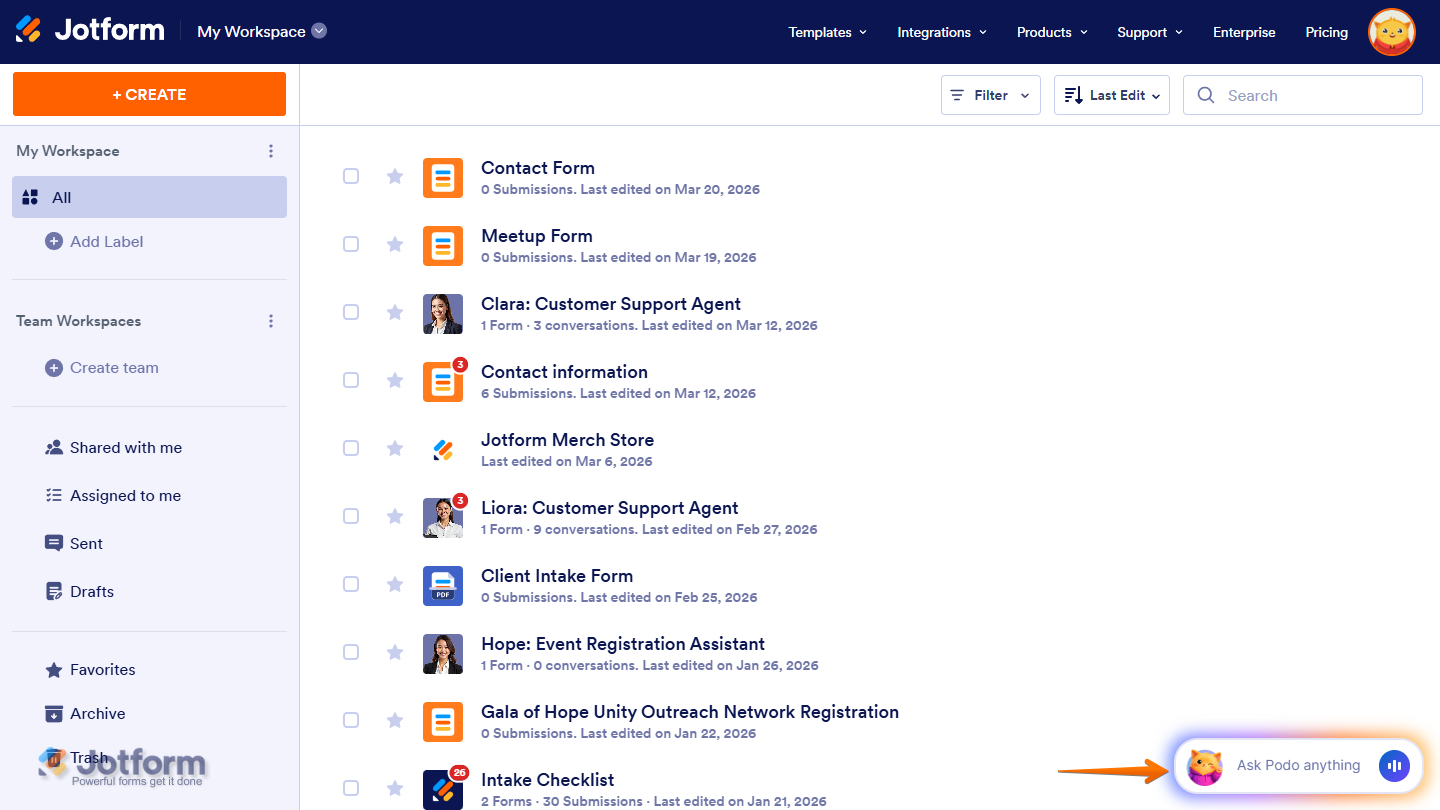
You can also create a form, still by using voice with Jotform AI, by clicking Ask Podo Anything in the bottom-right corner of your Workspace page.

Send Comment: