With Jotform AI, creating a personalized Thank You page is quick and easy—you don’t need any coding skills. You can add your own text, images, or links, making the experience feel thoughtful, professional, and tailored to your audience.
The Thank You page is the final touchpoint your users see after submitting a form, making it a great opportunity to leave a positive, lasting impression. By customizing this page, you can thank your users, share important details, provide next steps, or even direct them to another page, website, or resource.
Notes
- Changes to the Thank You page will apply immediately to all future form submissions.
- You can always return to Jotform AI to update or enhance your Thank You page later.
Customizing the Thank You Page with Jotform AI
Whether you’re creating a brand-new Thank You page or giving an existing one a fresh, personalized touch, Jotform AI makes it fast and easy. Here’s a quick how-to:
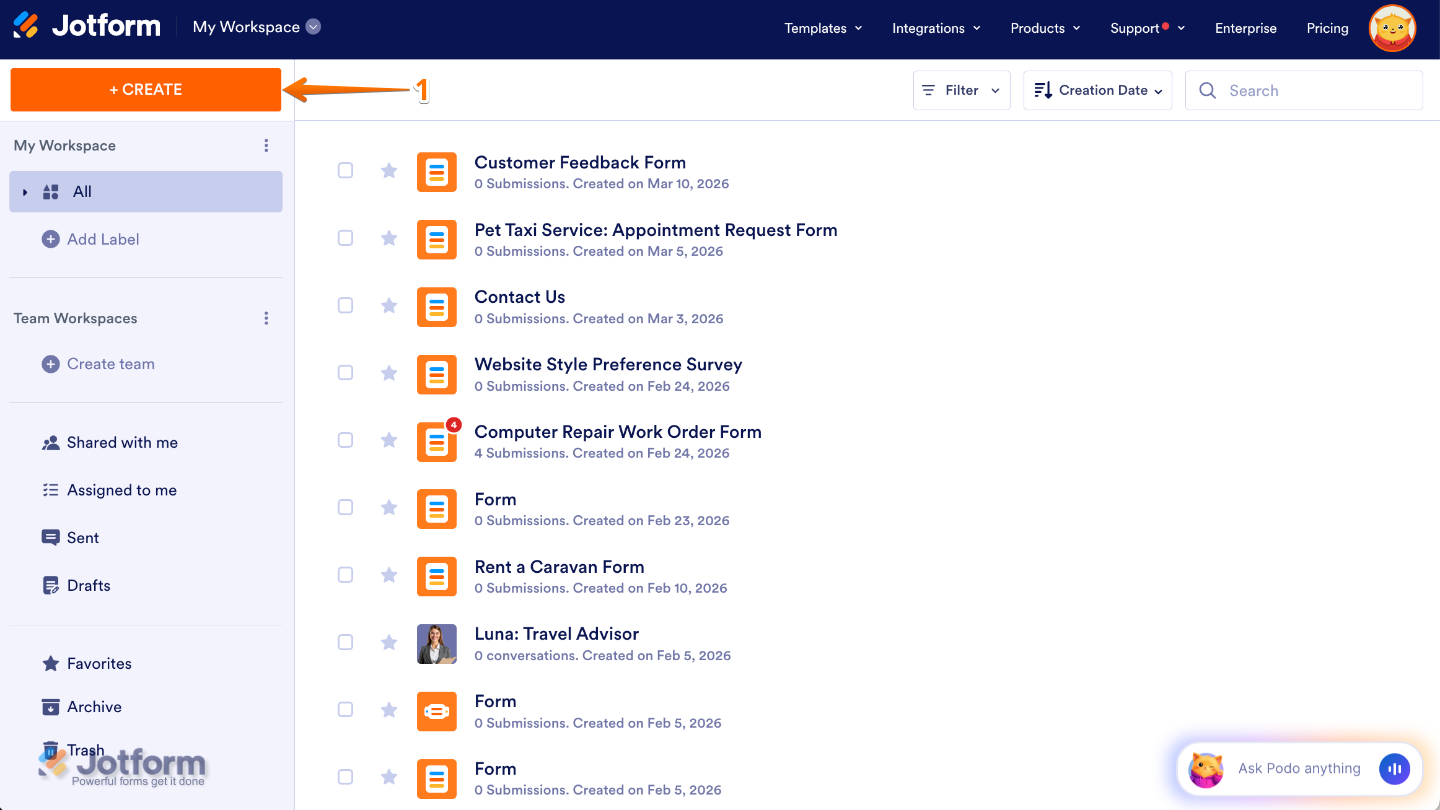
- In your Workspace, click on Create on the top-left side of the page.
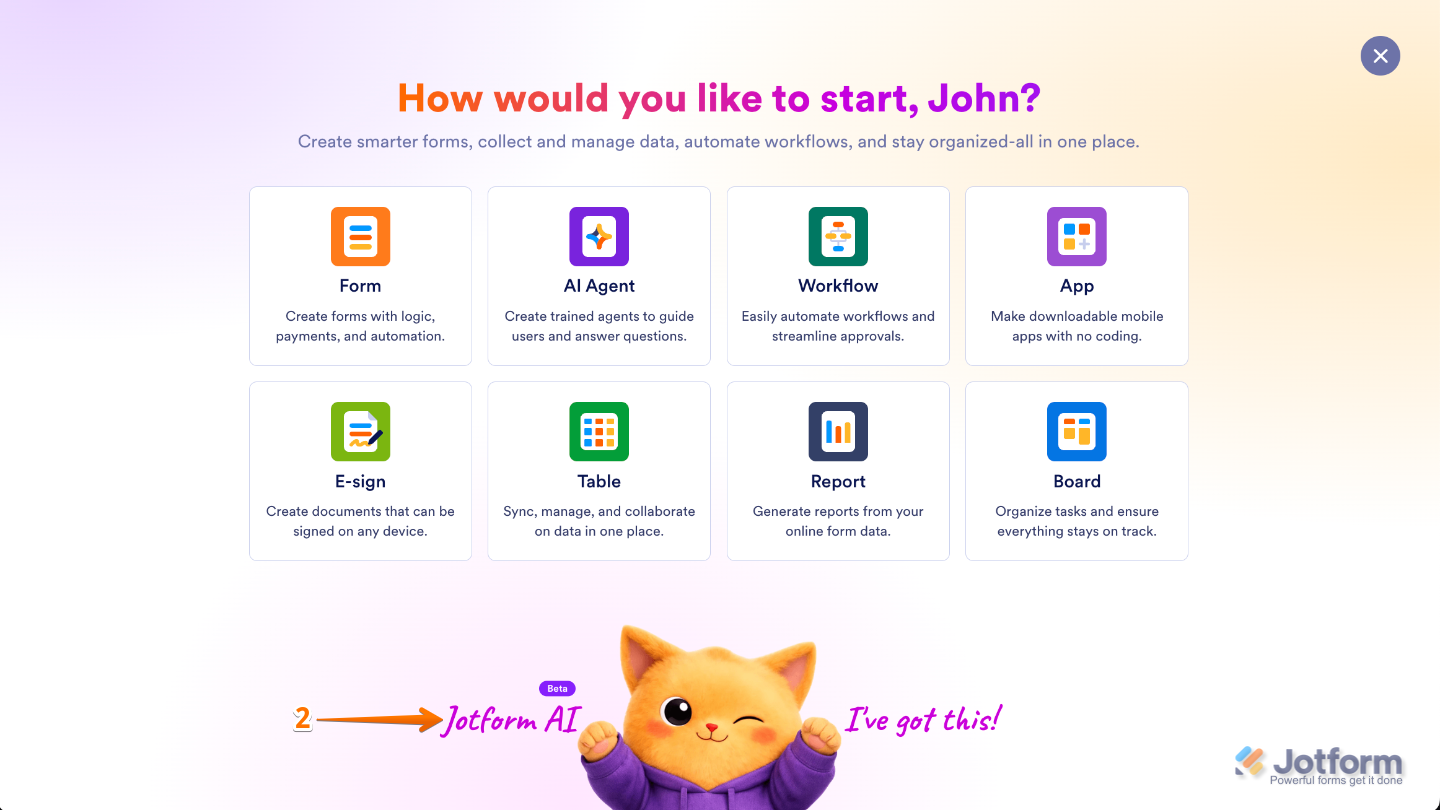
- Then, at the bottom of the window that opens up, click on Jotform AI.
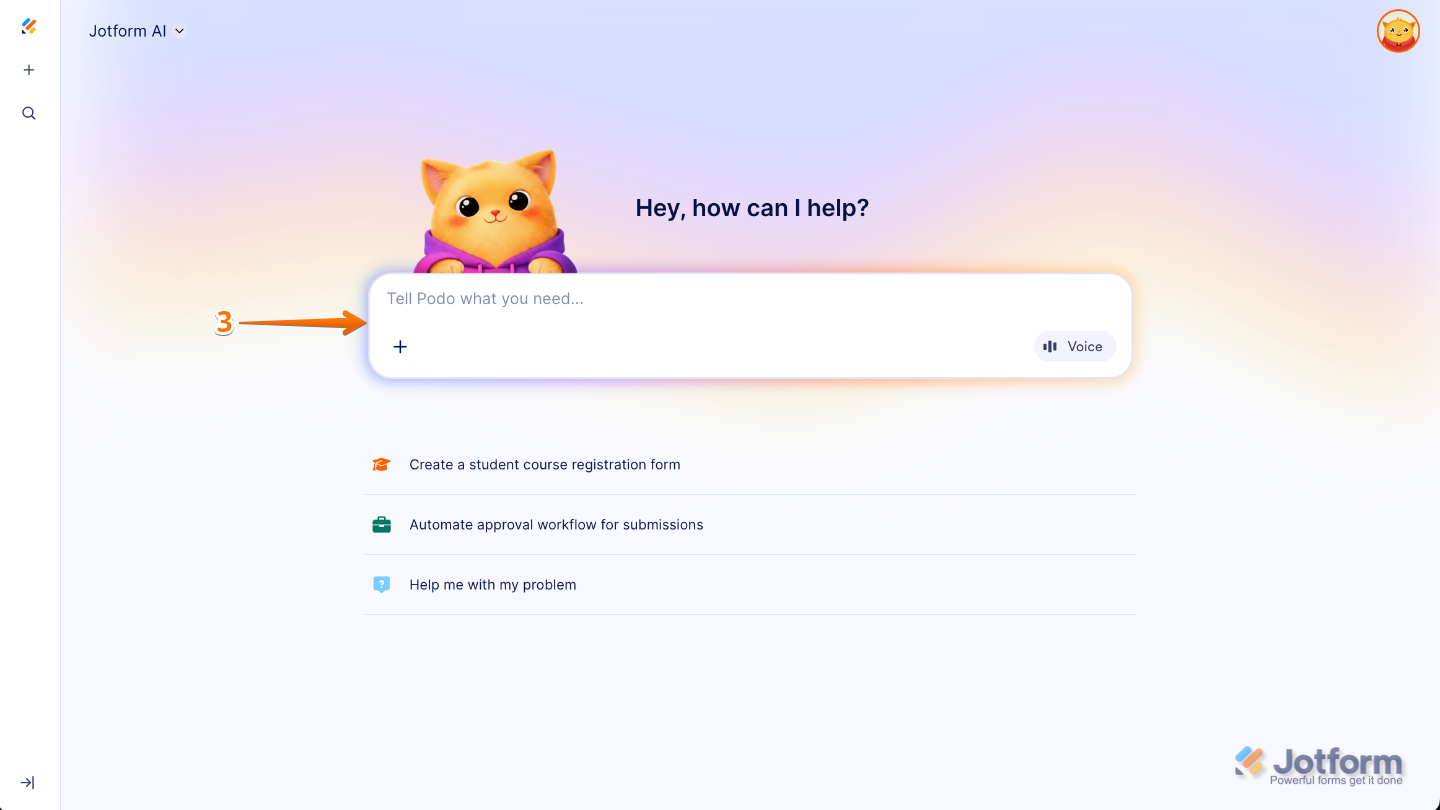
- Now, in the prompt box at the center of the page, enter the Thank You page details you’d like to apply, along with the name of the form in your account where you want the changes to be made.
Here are some example prompts you can try to customize your form’s Thank You page:
- Create a friendly Thank You message for the form titled [Form Title] that confirms the submission. Let users know their response has been received and that our team will review it and get back to them soon.
- Add a warm Thank You message to the [Form Title] form’s Thank You page, and include social media buttons that link to our Facebook, Instagram, and LinkedIn pages so users can stay connected with us. Here’s the link to our social media platform: [URL]
- Make the [Form Title] Thank You page more engaging by adding a friendly message that thanks users for their time and clearly explains the next steps, such as checking their email for confirmation or updates.
- Customize the Thank You page of the form titled [Form Title] by adding a message that thanks users for their submission, and include a button labeled Submit Another Response so they can easily fill out the form again.
- Add a short confirmation message to the [Form Title] Thank You page and include a button labeled Download Your Submission that allows users to download a PDF copy of their submitted form.
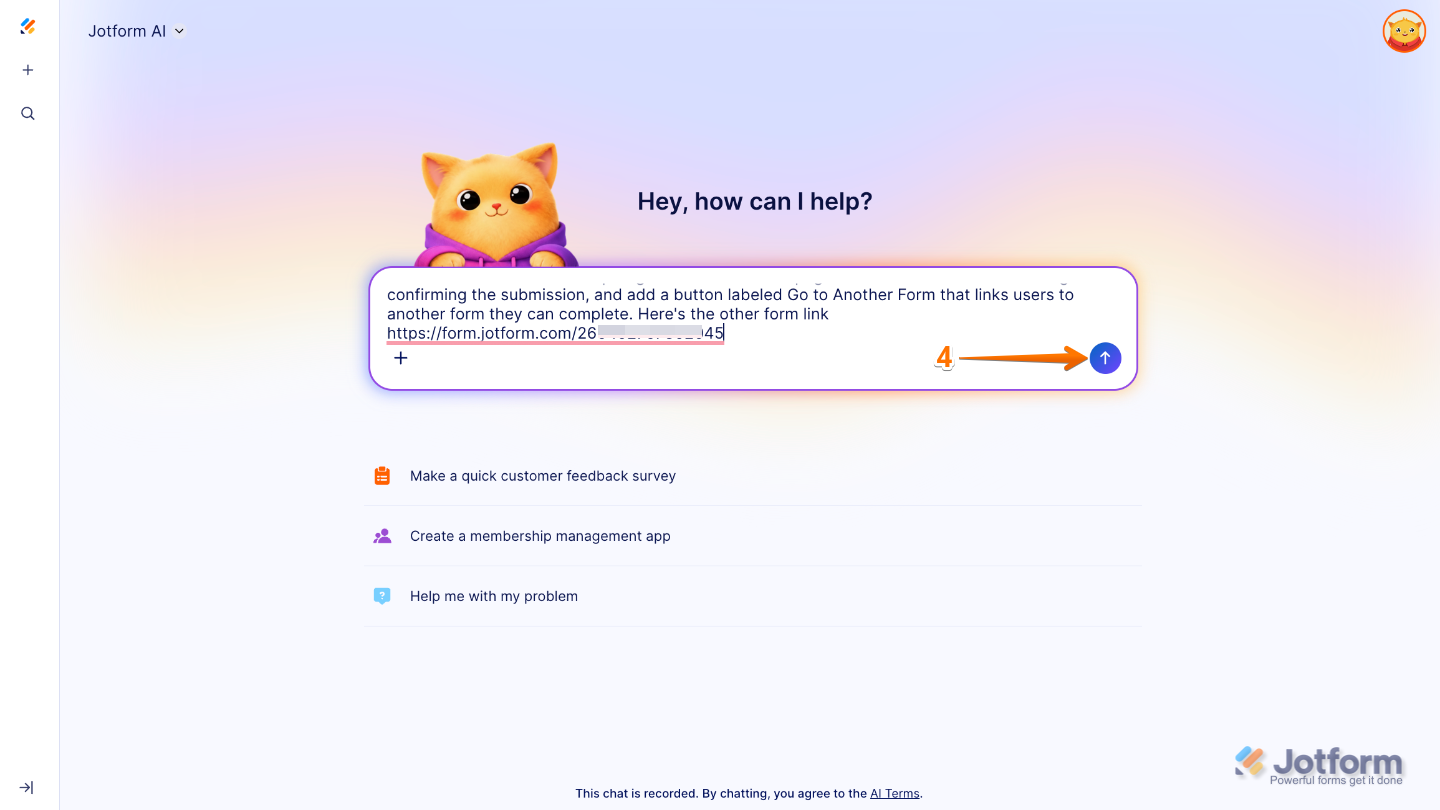
- Customize the [Form Title] Thank You page with a brief Thank You message confirming the submission, and add a button labeled Go to Another Form that links users to another form they can complete. Here’s the link to the other form: [Form URL]
- Once you’re done, press the Enter key or click on the Upward Arrow button on the right side of the prompt box.
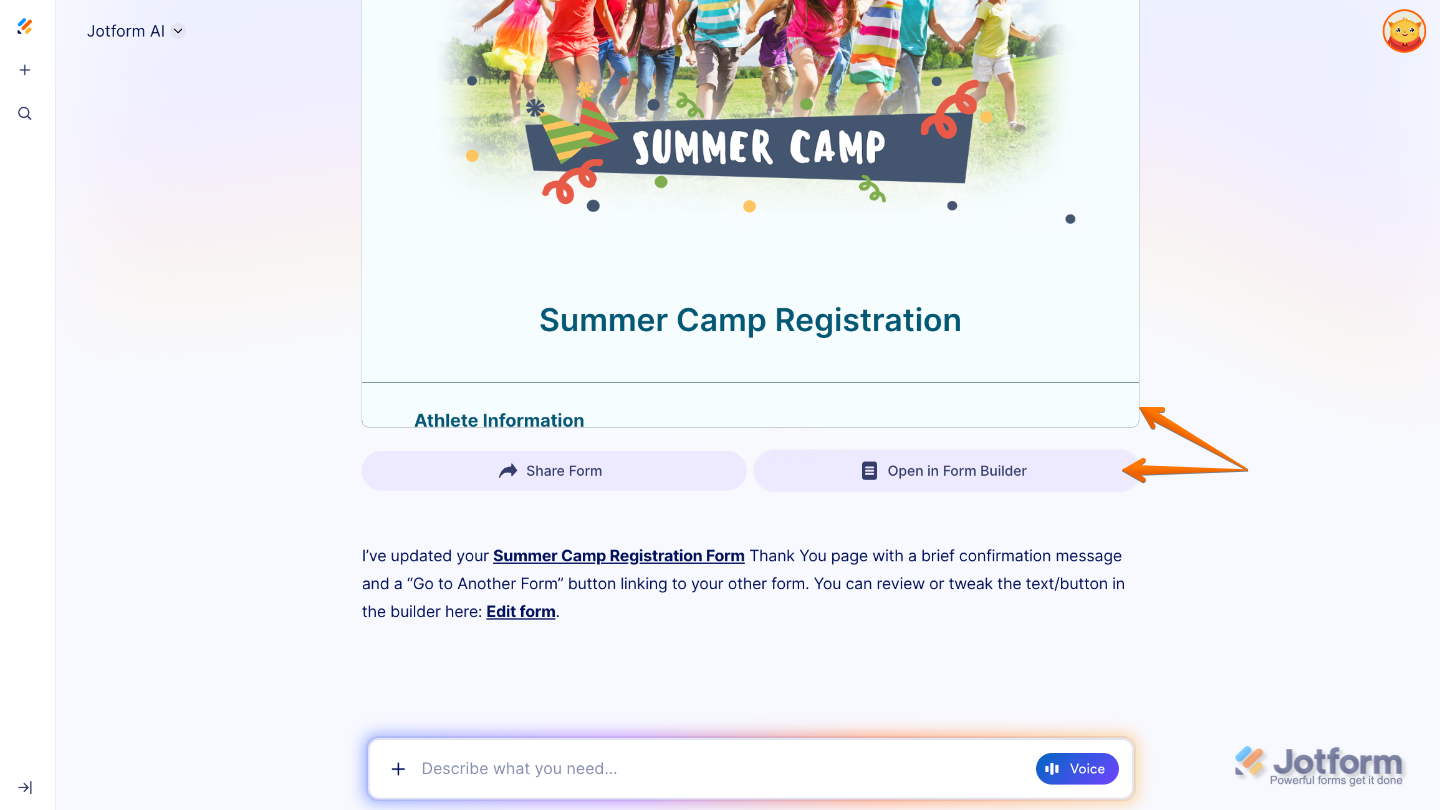
That’s it! You’ll get a confirmation letting you know your form’s Thank You page has been updated, along with a preview so you can test it out. If you’d like, you can also click on Open in Form Builder to open your form in the form builder in a new browser tab to see your changes and keep customizing it.
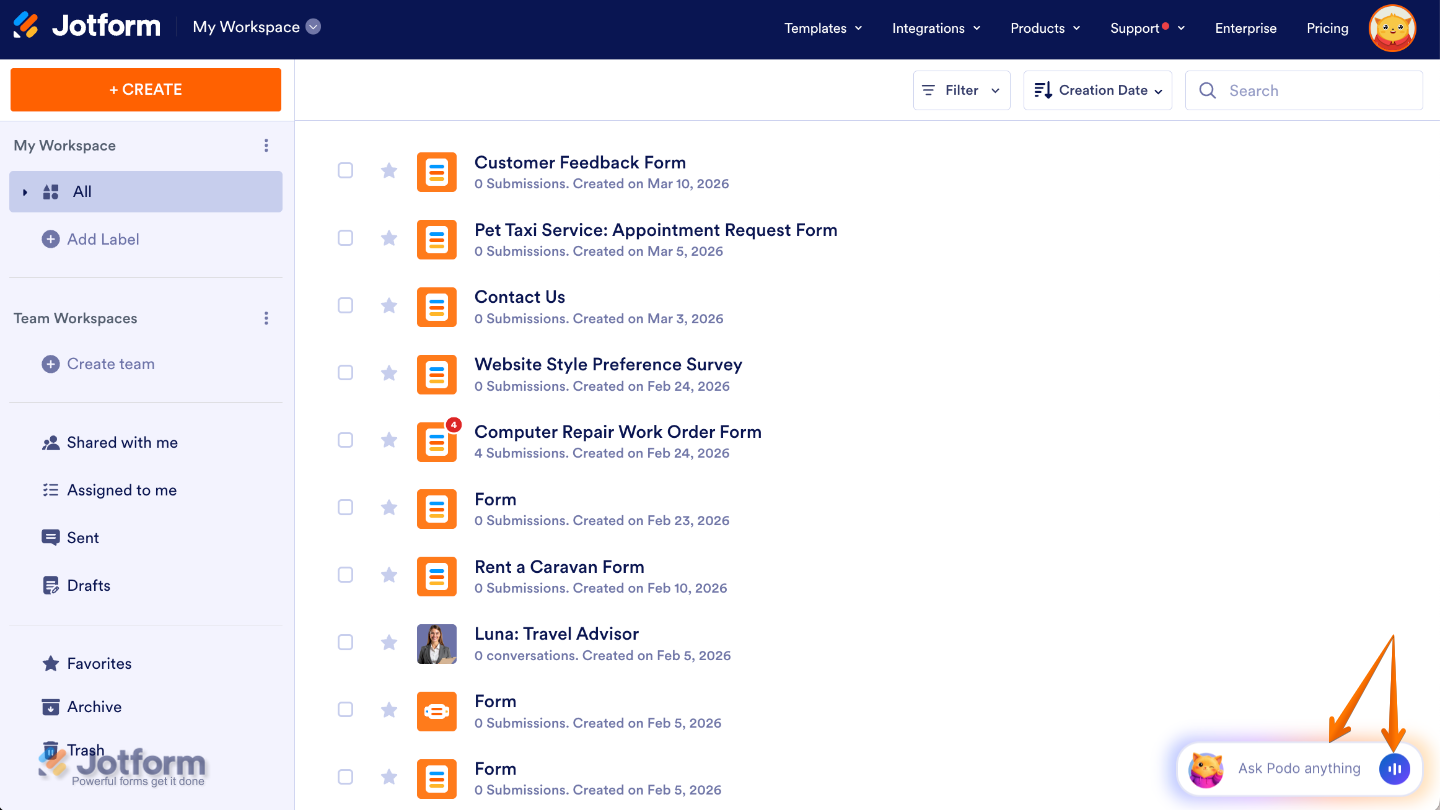
You can also start a conversation with Jotform AI by clicking Ask Podo Anything in the bottom-right corner of your Workspace page. If you prefer using voice for your prompts, you can click on the Voice button on the right side of the chatbox, then allow your browser to access your device’s microphone.
Pro Tips
- Keep your message short and friendly, so it’s easy for users to read and understand.
- Add a call-to-action to encourage users to visit your website, follow up on an offer, or take the next step.
- Include images or graphics to make your Thank You page more visually engaging and memorable.
- Don’t forget to test the page by submitting a form, so you can see exactly how it will appear to your users.

Send Comment: