Jotform AI takes the hassle out of generating a QR code for your forms. Instead of going through complicated settings or menus, you can simply type a prompt and get a ready-to-use QR code in seconds.
This makes it easy to share your forms anywhere—whether you’re displaying an order form at your store, sharing a feedback form at an event, or making a registration form accessible to walk-in customers with just a quick scan.
Generating a QR code for your form is as simple as typing a prompt. Here’s how to get started:
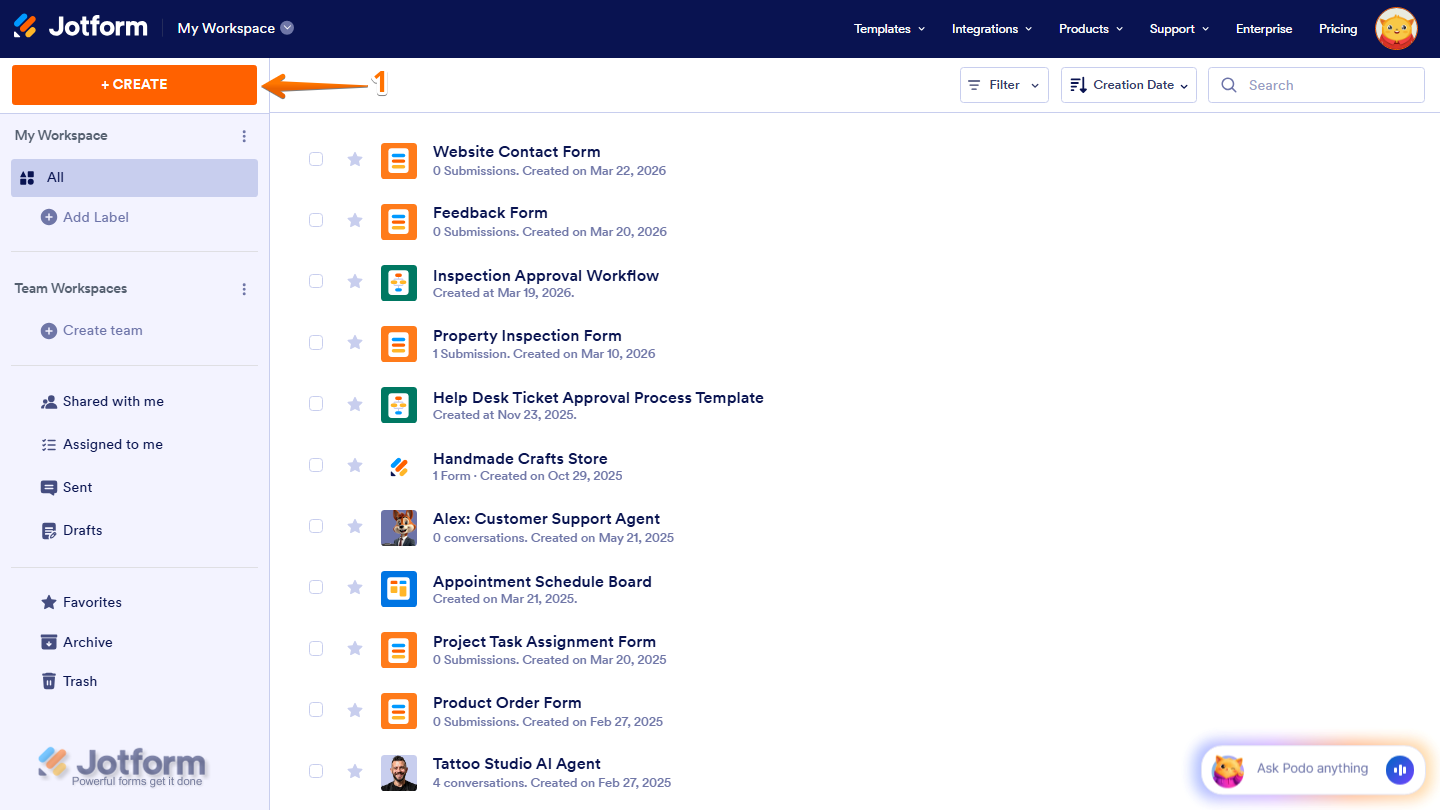
- On your Workspace page, click Create on the top-left side of the screen.
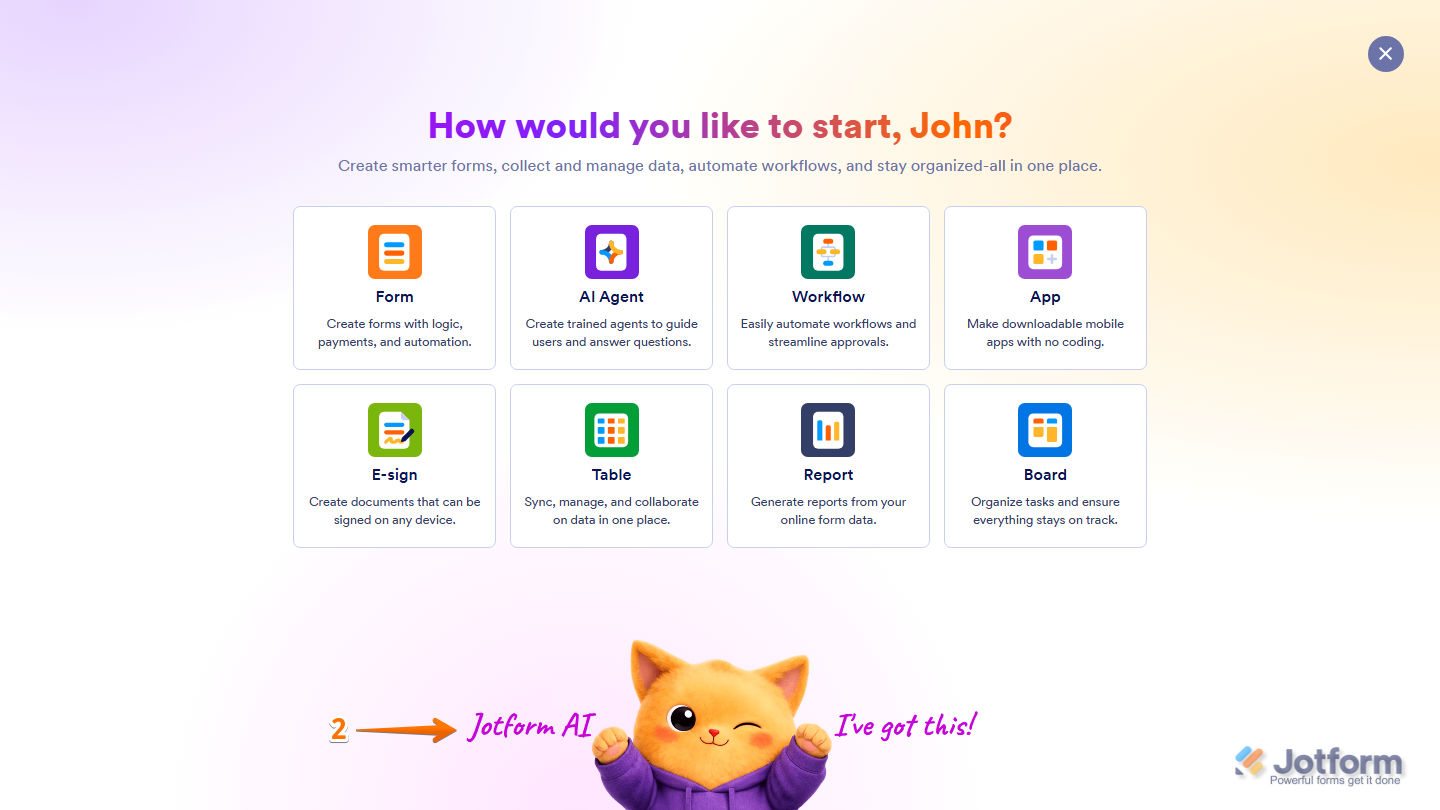
- Then, at the bottom of the window that opens up, click on Jotform AI.
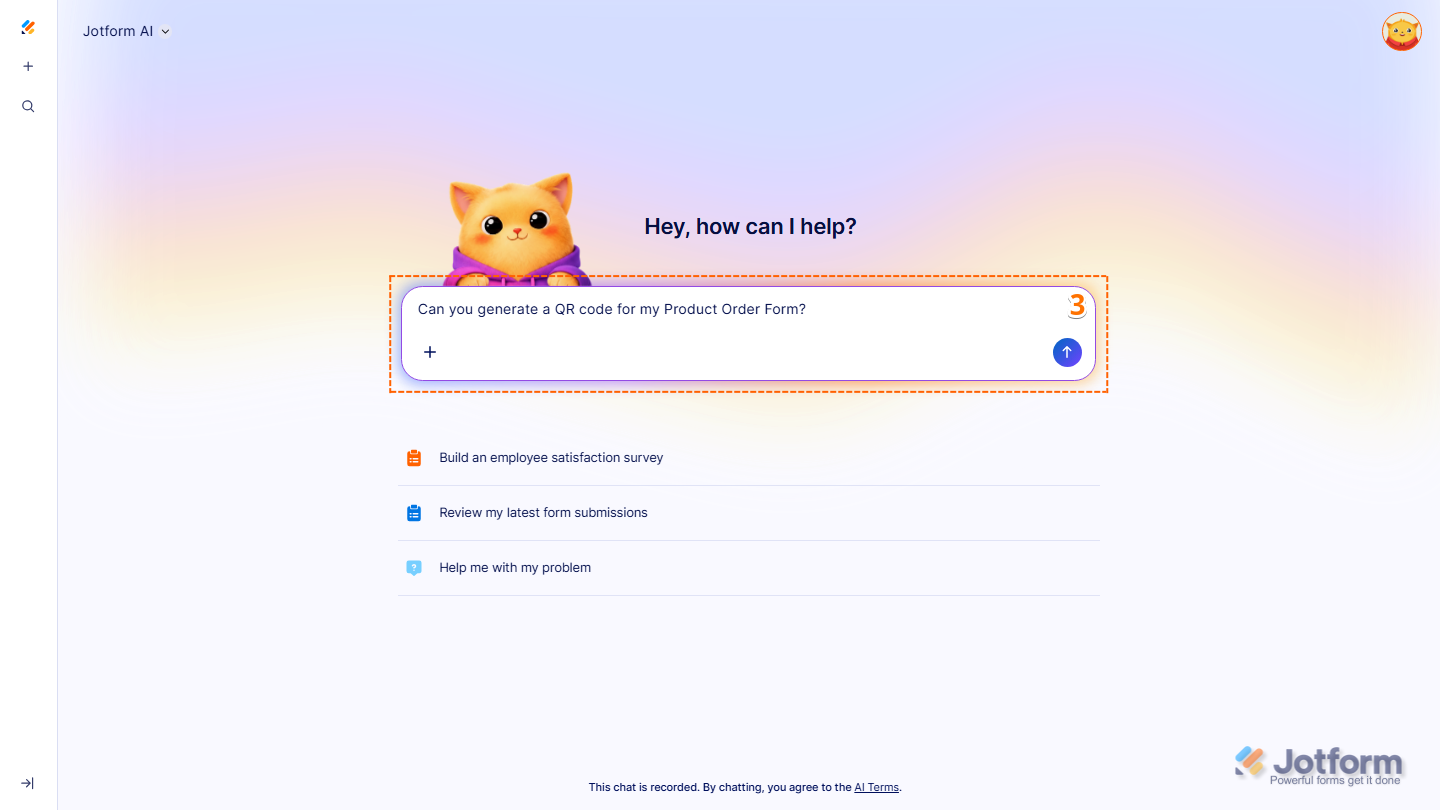
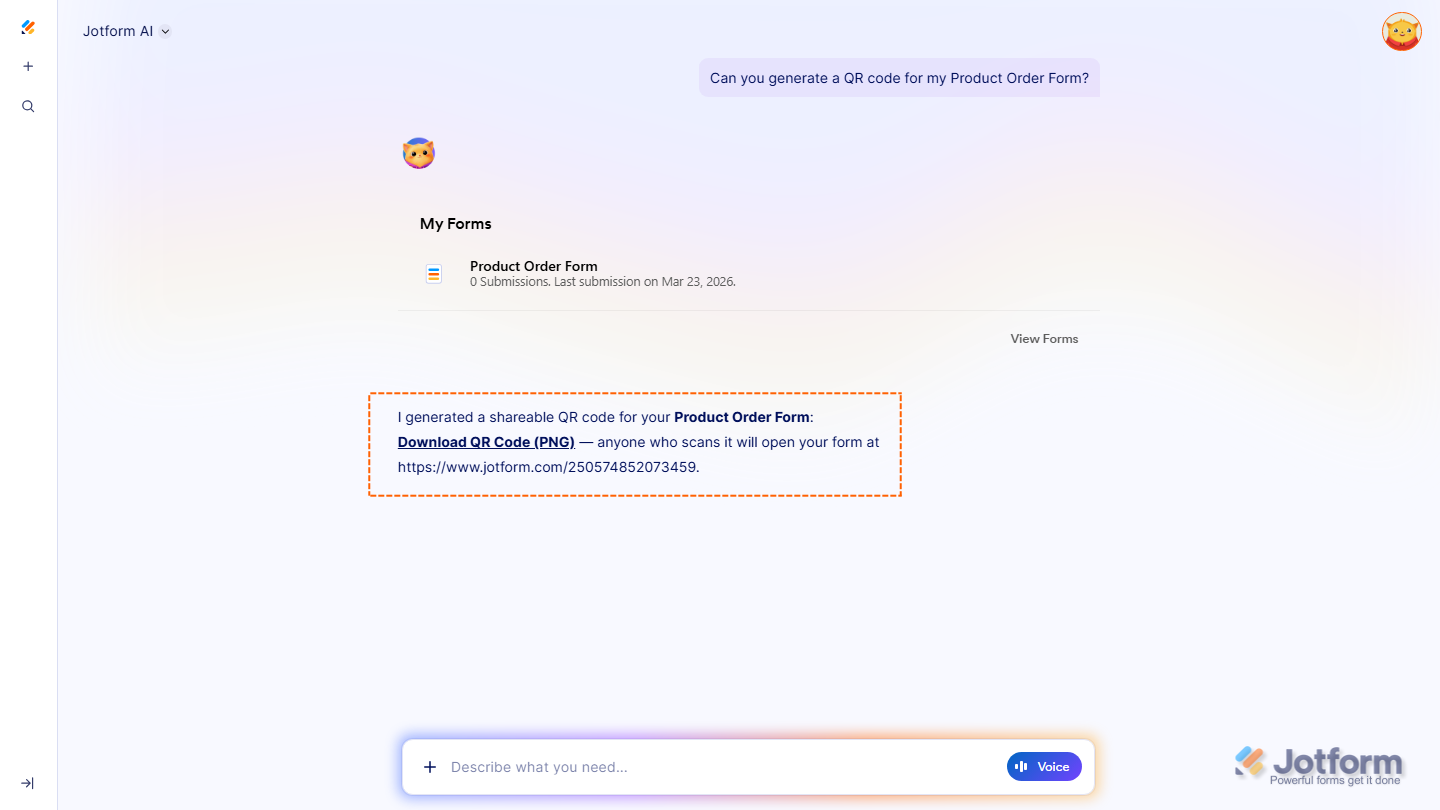
- Next, in the prompt box at the center of the page, enter your prompt and include the form URL or the name of the form you want to generate a code. Here are a few prompts you can try:
- Generate a QR code for my [Form Name].
- Create a printable QR code for my [Form Name].
- Generate a QR code for my [Form Name] that I can share at my store.
Pro Tip
You can also check out the Prompt Examples When Generating QR Code section below for more prompts you can try.
- Now, press Enter on your keyboard or click on the Upward Arrow icon to submit your prompt, and you’re done.
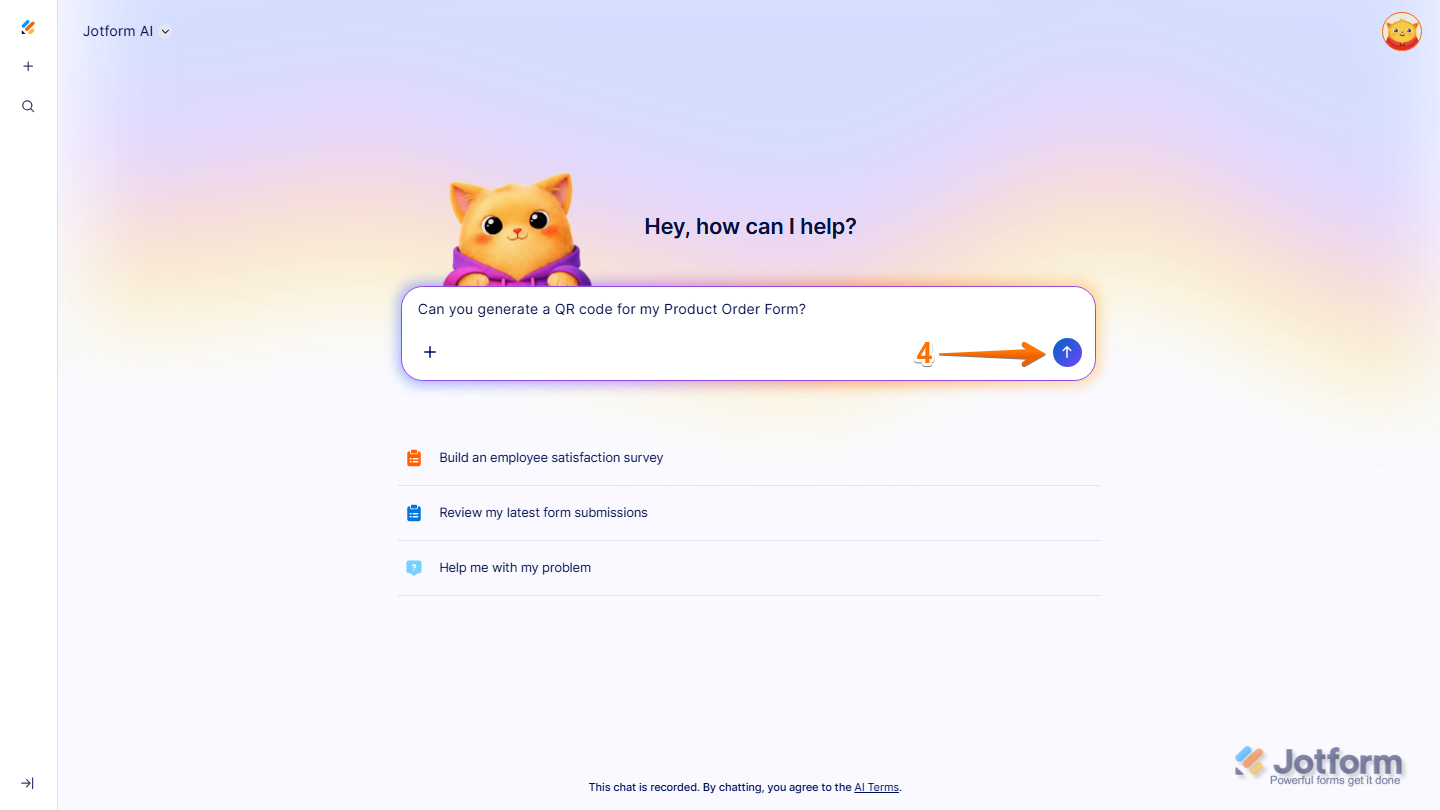
That’s it. Jotform AI will then generate a QR code for your form that you can download and use right away.
Note
Make sure to mention the name of the form you want to generate a QR code for in your prompt. You can also add an existing asset to give Jotform AI more context. Check out our guide on How to Use Your Existing Jotform Assets in Jotform AI to learn more about it.
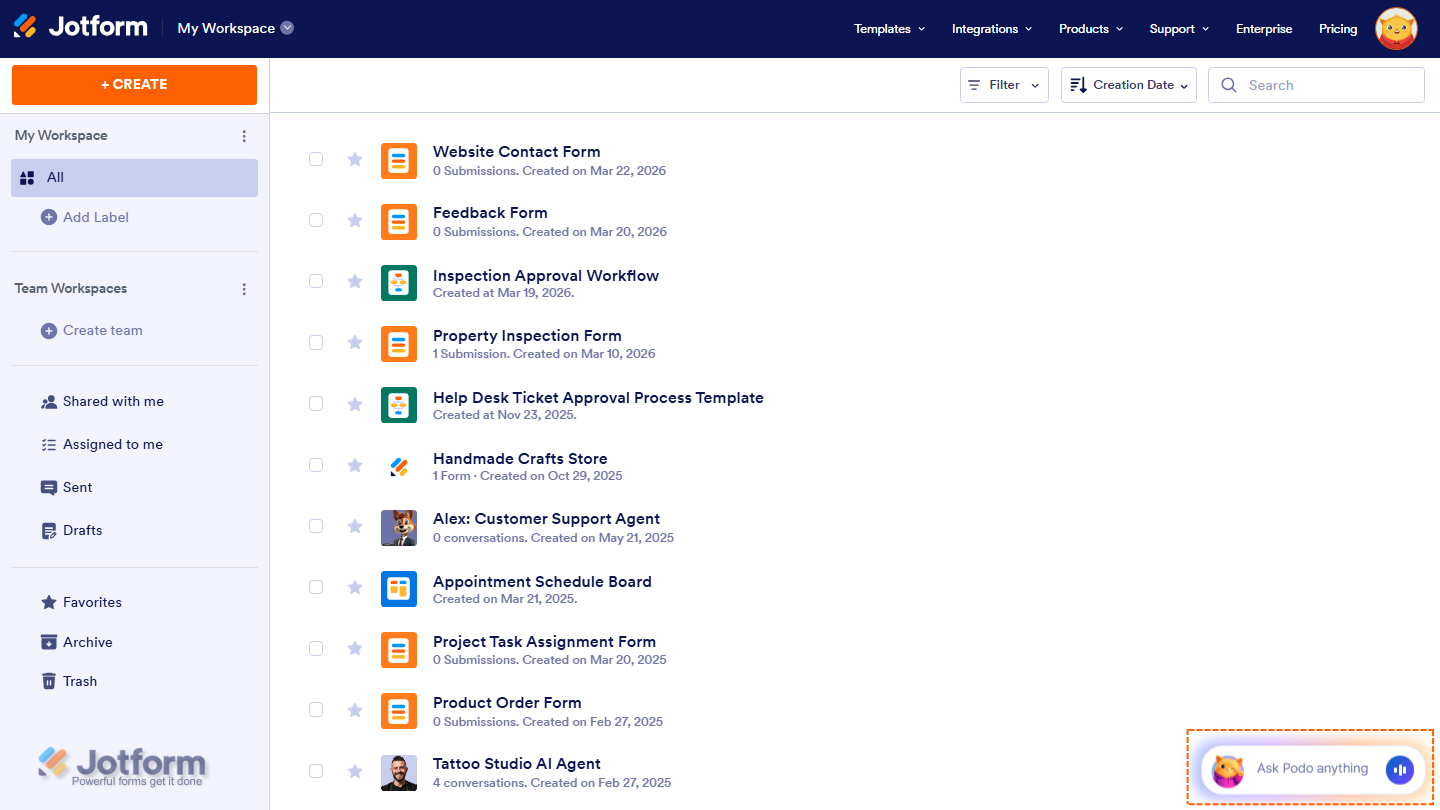
You can also start a conversation with Jotform AI by clicking the Jotform Chatbot in the bottom-right corner of your Workspace page. If you prefer using voice for your prompts, you can click on the Voice button on the right side of the chatbox, then allow your browser to access your device’s microphone.
Prompt Examples When Generating QR Code
Here are some prompts you can try:
Basic QR Code Generation
- Generate a QR code for my [Form Name].
- Create a printable QR code for my [Form Name].
- Generate a QR code for my [Form Name] that I can share at my store.
Customizing the QR Code
- Generate a high-resolution QR code for my [Form Name] for print materials.
- Generate a QR code for my [Form Name] and make it downloadable as a PNG file.
- Create a QR code for my [Form Name] that I can embed on my website.

Send Comment: