Jotform AI makes it easy to import an existing form directly into your account. Instead of rebuilding everything from scratch, just tell Jotform AI what you want and it will take care of the rest.
This saves you time and effort, especially when migrating from another platform or reusing forms you’ve already built. It’s a quick and simple way to get your forms into Jotform without losing any of your work.
Here are two ways to do it:
Note
- Make sure the form you want to import is set to Public and Cloning is turned on. If it’s set to Private, Jotform AI won’t be able to import it.
- When the form is imported, it’ll be saved as a copy in your Jotform account with a new name.
Importing a Form Using Jotform AI
The quickest way to import a form is by simply telling Jotform AI what you need. Here’s what to do:
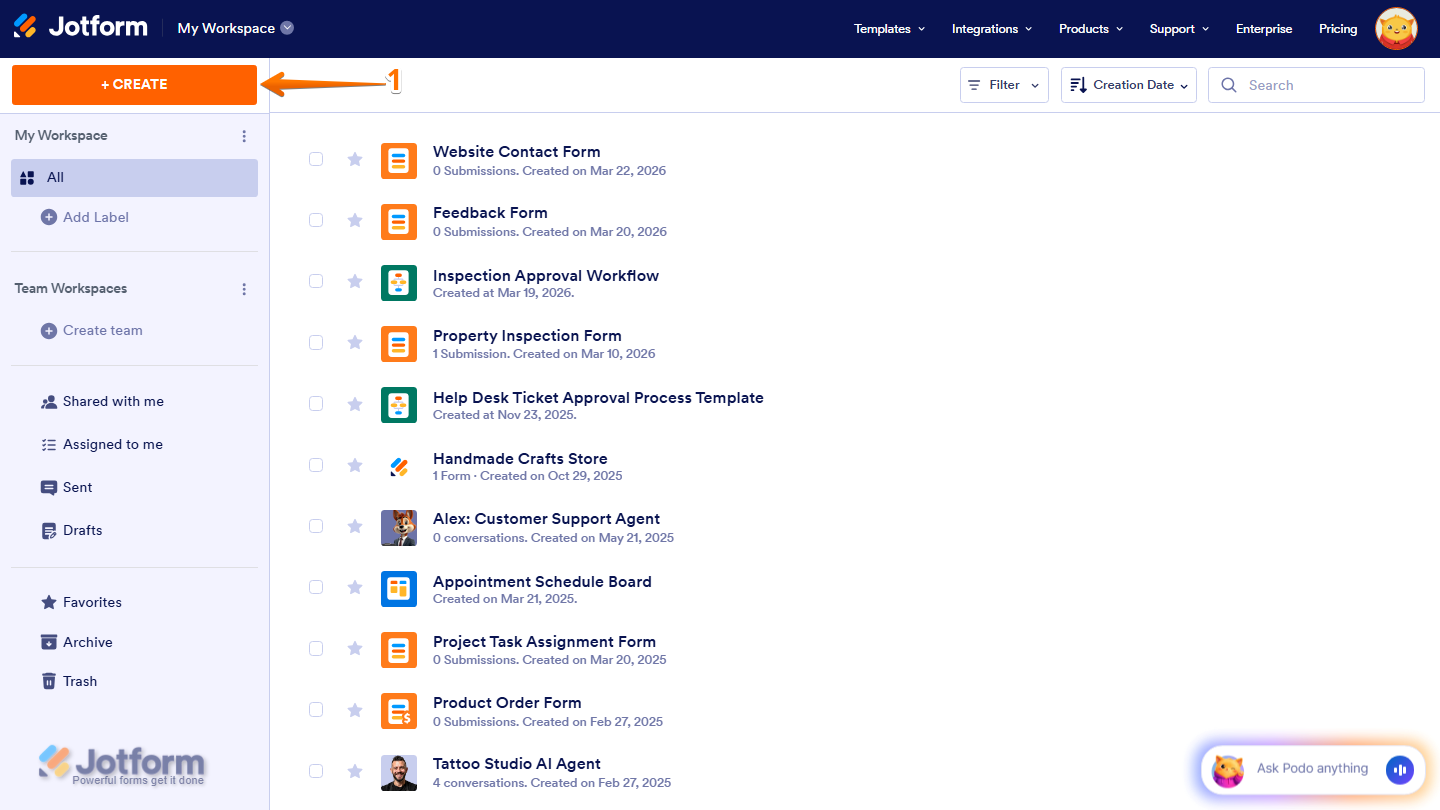
- On your Workspace page, click Create on the top-left side of the screen.
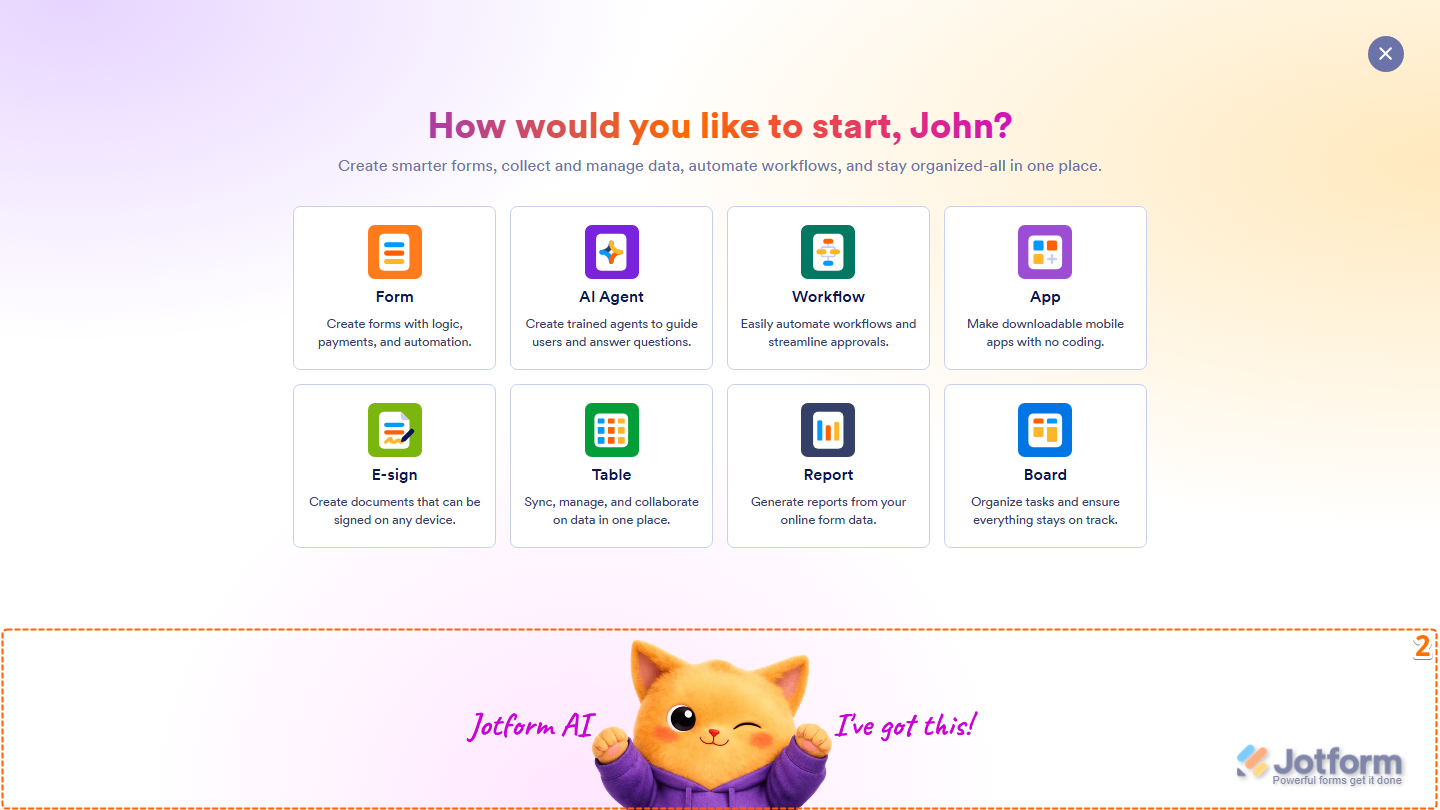
- Then, at the bottom of the window that opens up, click on Jotform AI.
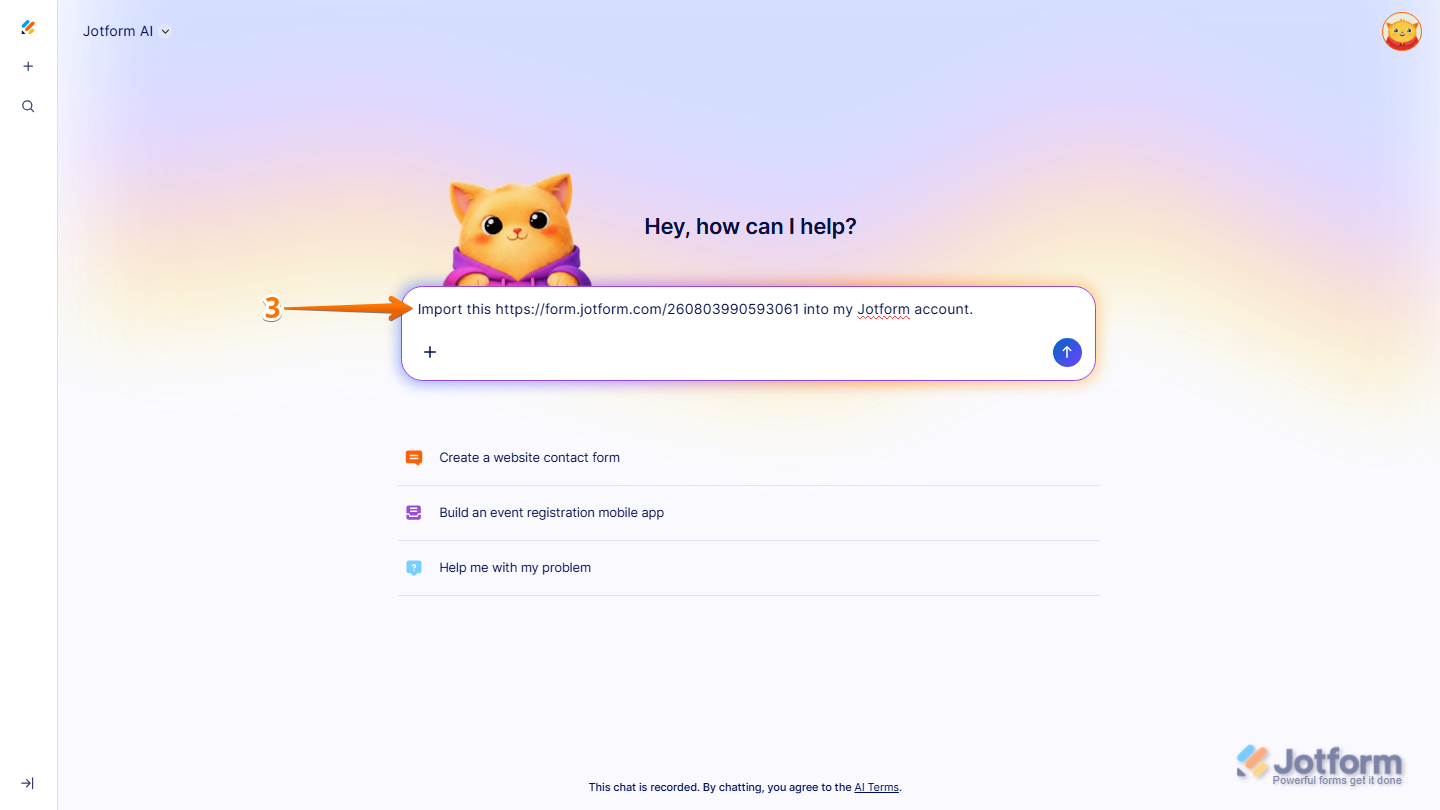
- Next, in the prompt box at the center of the page, enter your prompt and include the form URL or the name of the form you want to import. Here are a few prompts you can try:
- Import this [Form URL or Form Name] into my Jotform account.
- Convert this [Form URL or Form Name] into a Jotform form.
- Clone this [Form URL or Form Name] into my account.
Pro Tip
- You can also check out the Prompt Examples When Importing Forms section below for more prompts you can try.
- You can also add your existing Jotform assets as context before importing to help Jotform AI deliver more accurate results. Check out our guide on How to Use Your Existing Jotform Assets in Jotform AI to learn more.
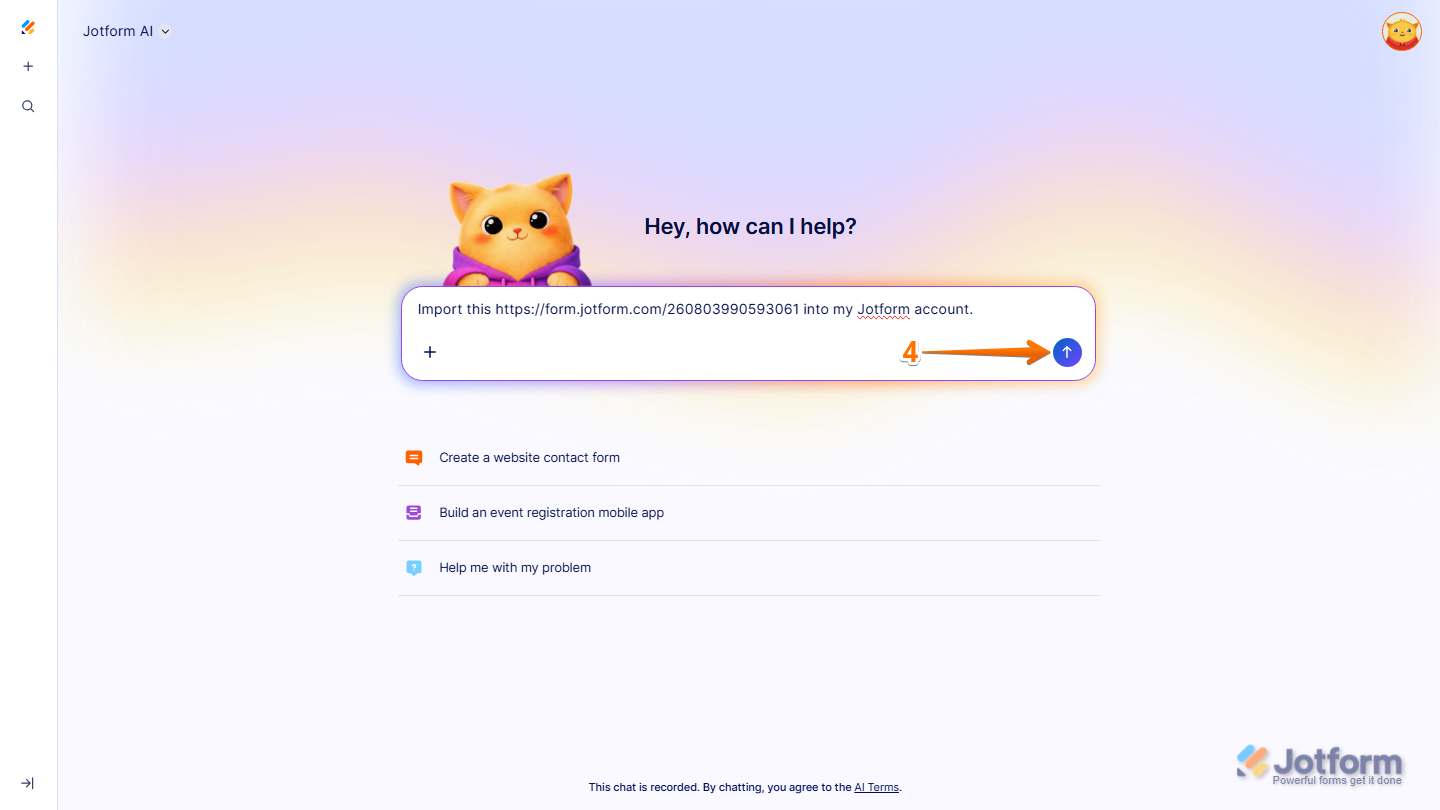
- Now, press Enter on your keyboard or click on the Upward Arrow icon to submit your prompt, and you’re done.
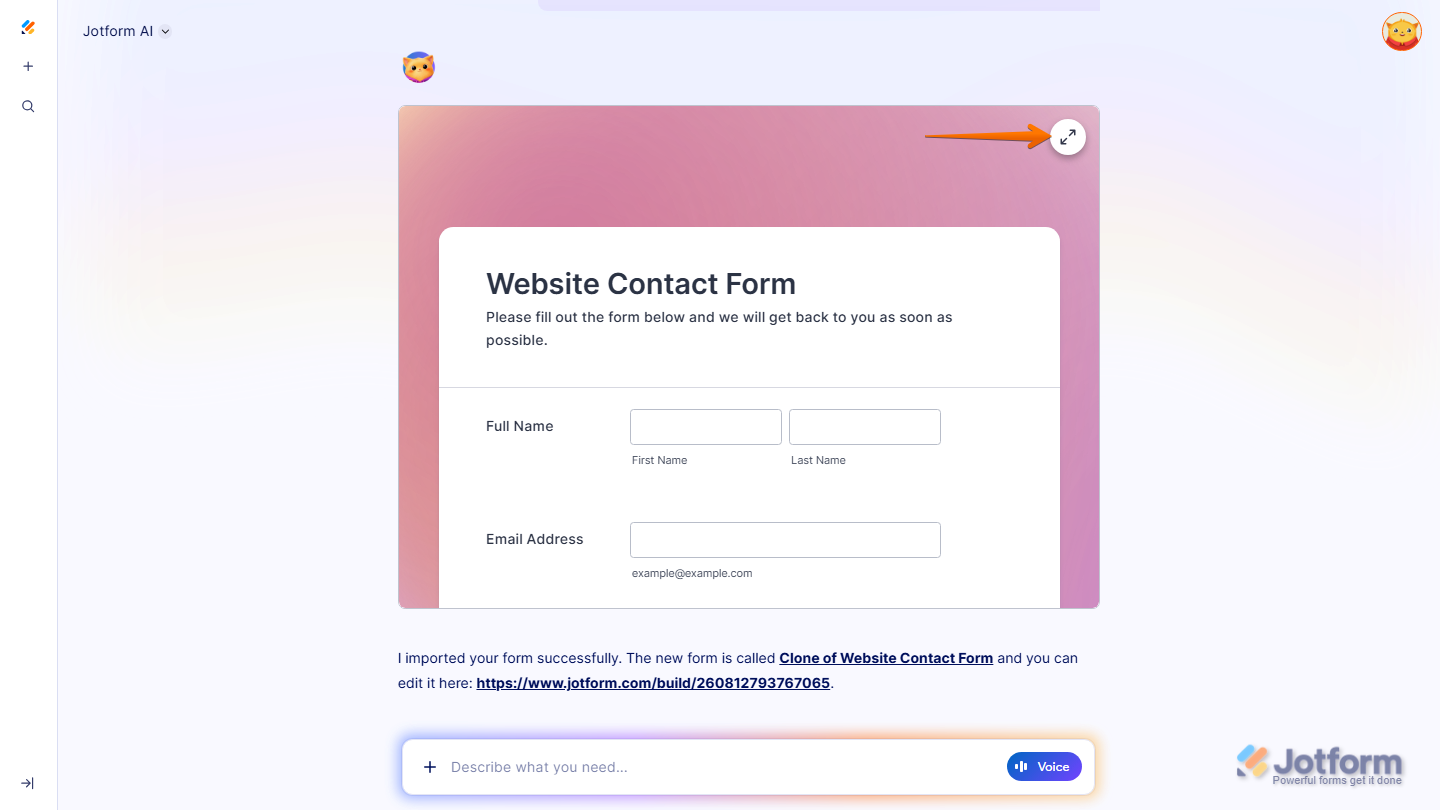
Jotform AI will import the form and show a preview in the chat. Once it’s ready, you can click on the Arrows from Center icon in the top-right corner of the preview to view the full form and start editing it right away using prompts.
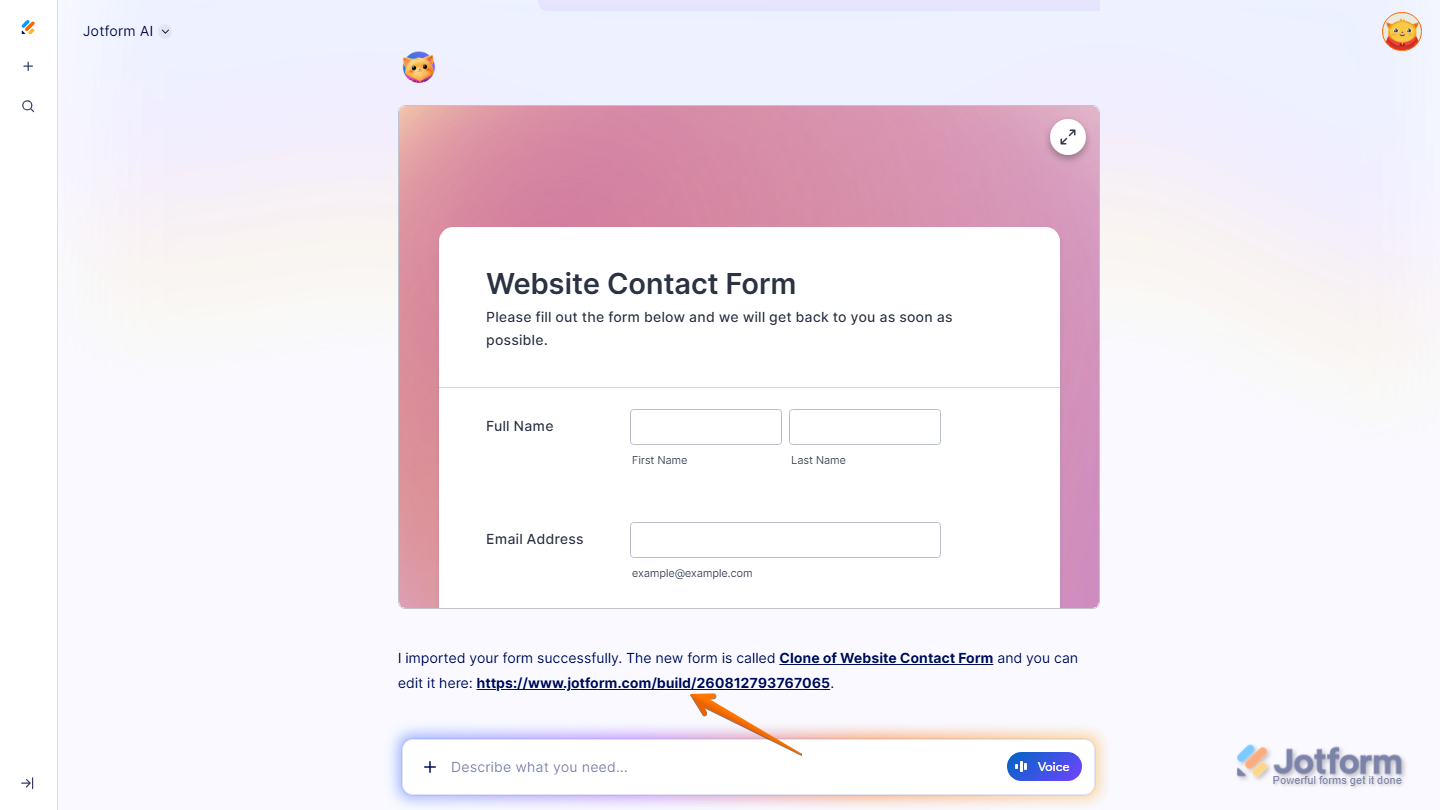
Or, you can click on the Form Builder link in the chat to open the form directly in Form Builder.
Importing a Form Using the Jotform AI Chatbot
If you’d rather not go through the Create button, you can also import a form directly from your Workspace using the Jotform AI chatbot. Here’s what to do:
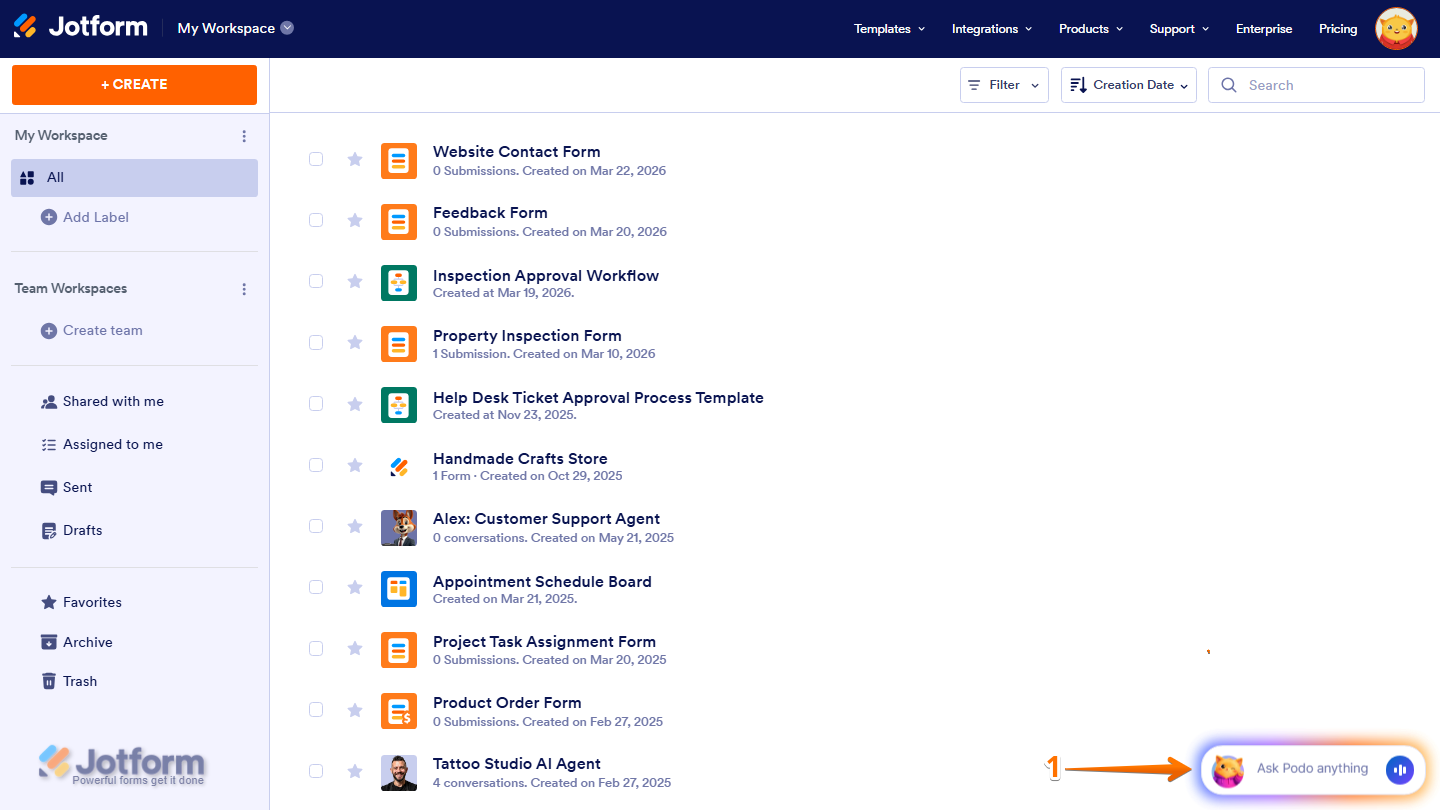
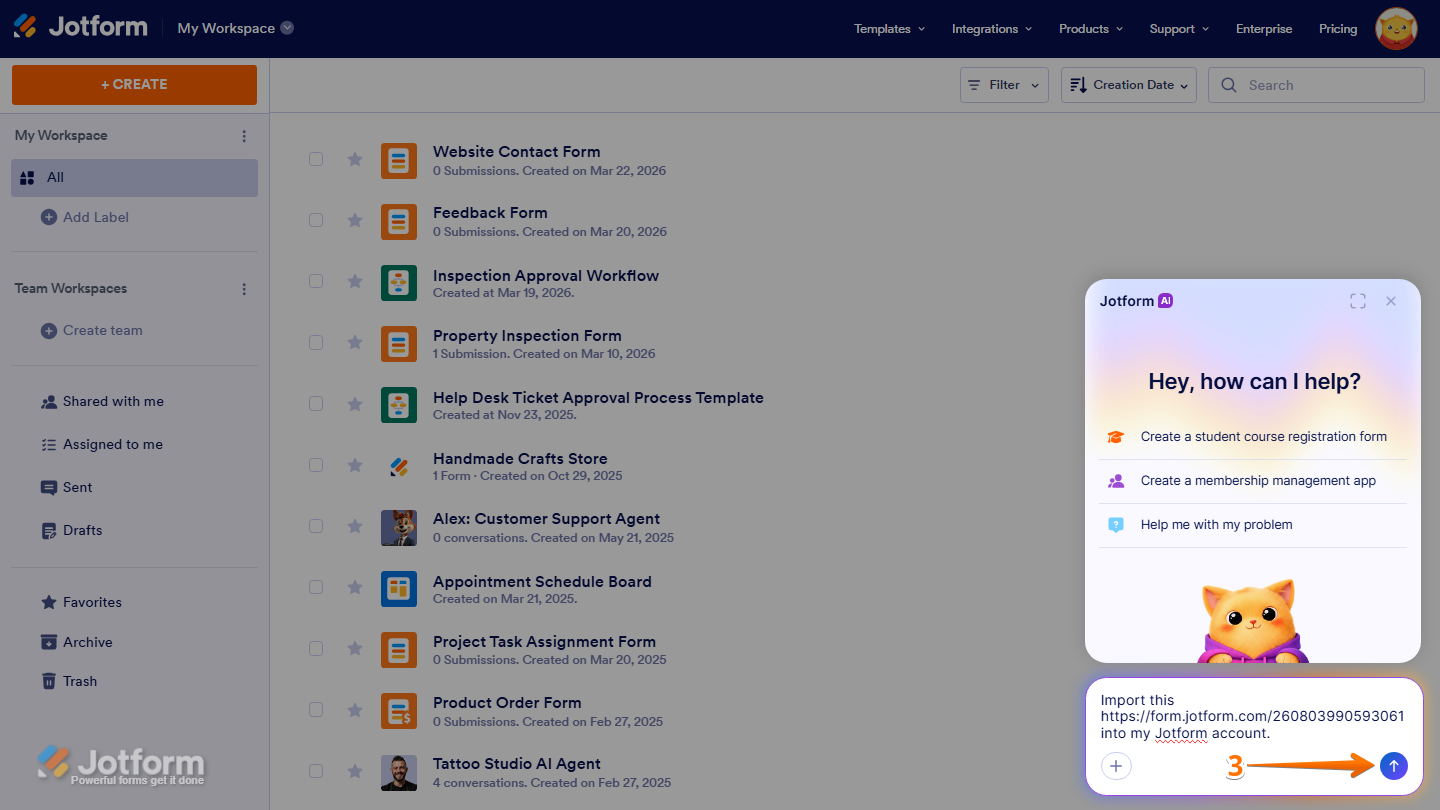
- On your Workspace page, click on the Jotform AI Chatbot in the bottom-right corner of the screen.
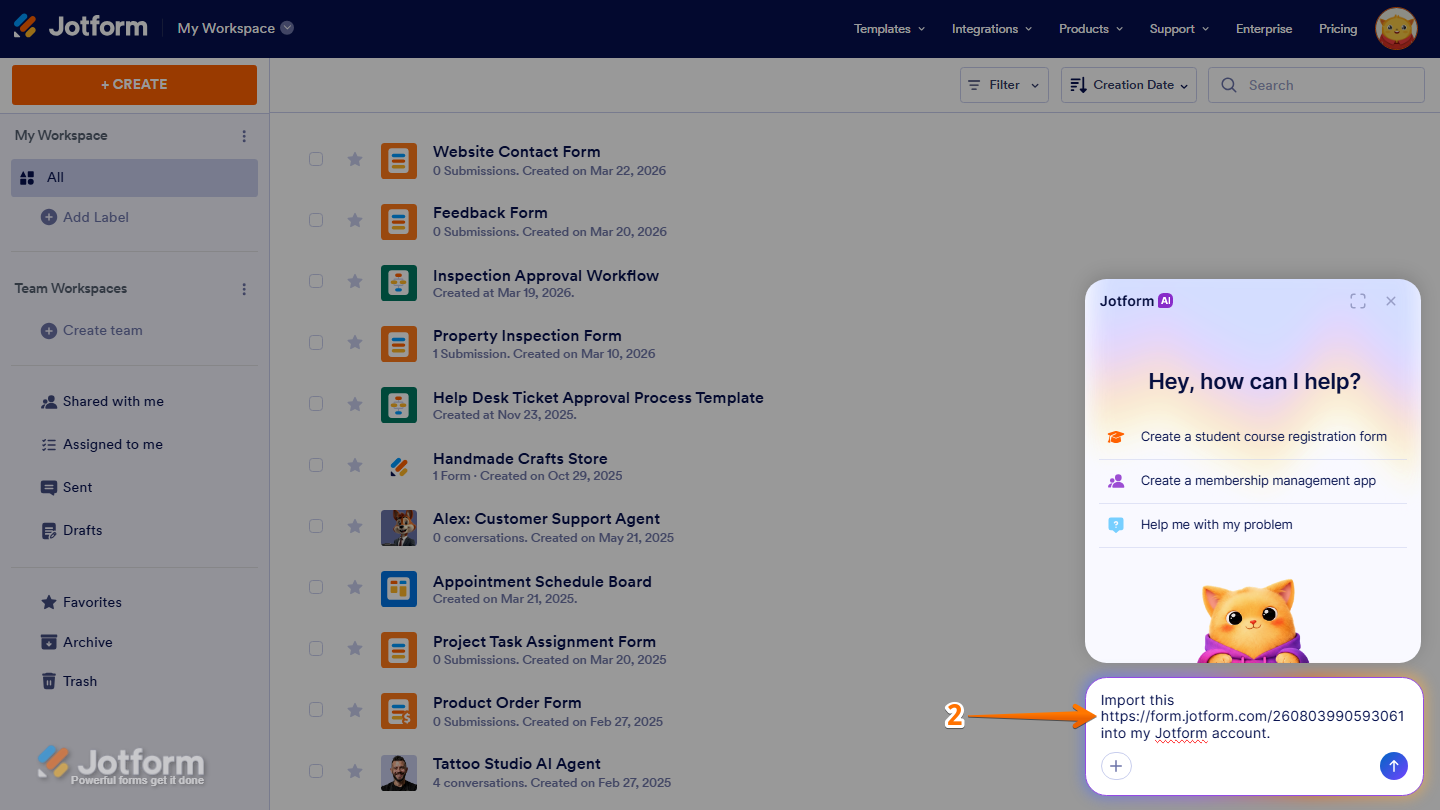
- Then, in the chat, enter your prompt, including the form URL or the name of the form you want to import. Here are a few examples you can try:
- Import this [Form URL or Form Name] into my Jotform account.
- Convert this [Form URL or Form Name] into a Jotform form.
- Clone this [Form URL or Form Name] into my account.
Pro Tip
You can click on the Expand icon on the top-right corner of the chatbot to get a bigger view of the chat for a better experience.
- Now, press Enter on your keyboard or click on the Upward Arrow icon to submit your prompt, and you’re good to go.
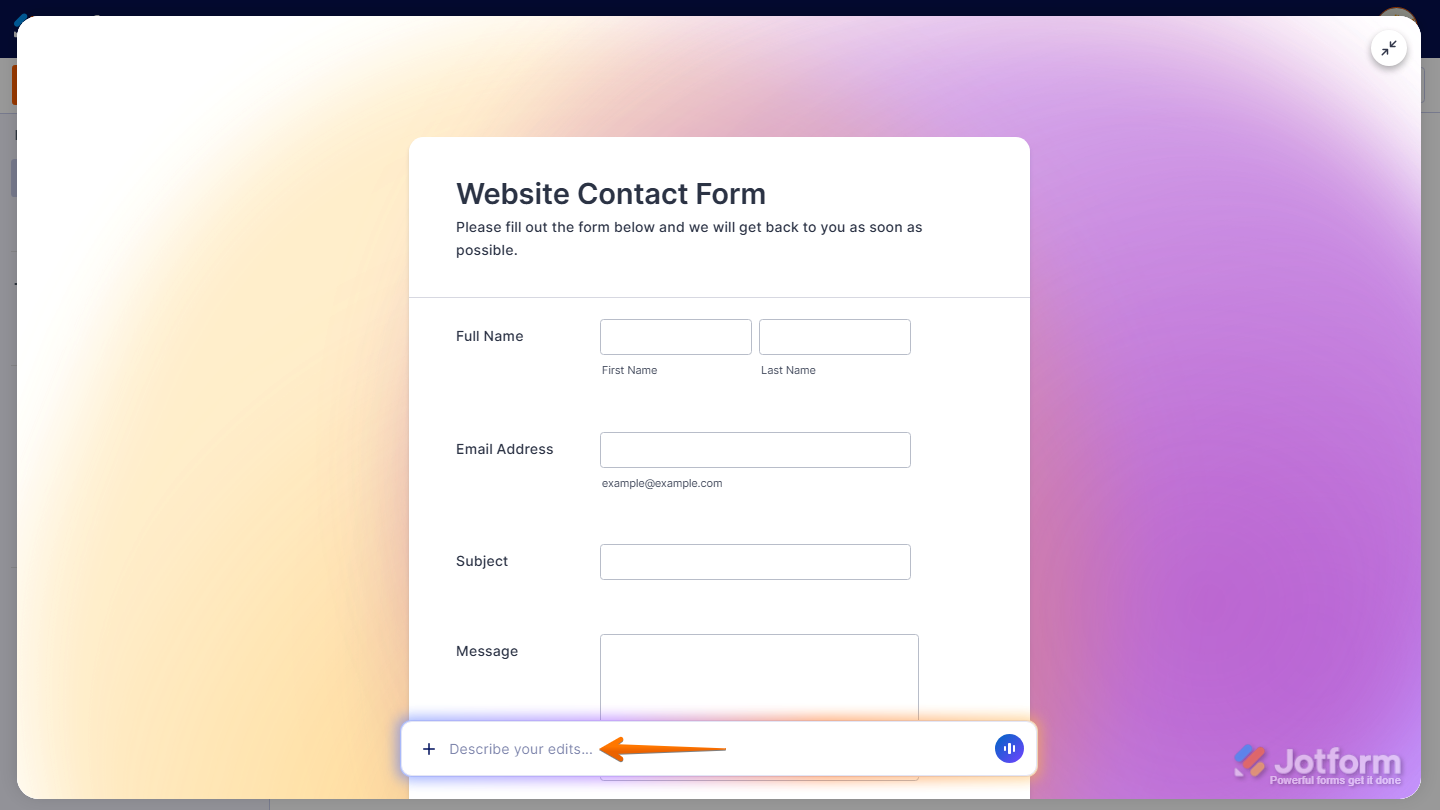
Jotform AI will import the form and show a full preview in the chat. From there, you can start editing it right away by typing your changes in the Describe Your Edits field at the bottom of the screen.
Prompt Examples When Importing Forms
Here are more prompts you can try. Feel free to replace the placeholder with your own form URL.
Importing a Form
- Import this [Form URL] into my Jotform account.
- Convert this [Form URL] into a Jotform form.
- Clone this [Form URL] into my account.
Importing and Customizing
- Import this [Form URL] and add a signature field to it.
- Import this [Form URL] and make it mobile-friendly.
- Import this [Form URL] and change the theme to match my brand colors.
Importing and Restructuring
- Import this [Form URL] and remove any fields that aren’t essential.
- Import this [Form URL] and reorganize the fields so the contact information comes first.
- Import this [Form URL] and split it into multiple pages.

Send Comment: