With Jotform AI, you can easily manage your form fields to make your forms more organized, functional, and tailored to your needs. From duplicating or deleting fields to adjusting their position, alignment, or visibility, Jotform AI helps you make these changes quickly and accurately.
It’s designed to simplify form editing by understanding your instructions and applying them directly, so you can focus on collecting the right information without spending extra time on manual adjustments. This makes it ideal for anyone creating or updating forms for work, events, surveys, or personal projects.
Whether you’re creating a new form or updating an existing one, you can easily manage your form fields with Jotform AI to control how your form looks and functions. Here’s what to do:
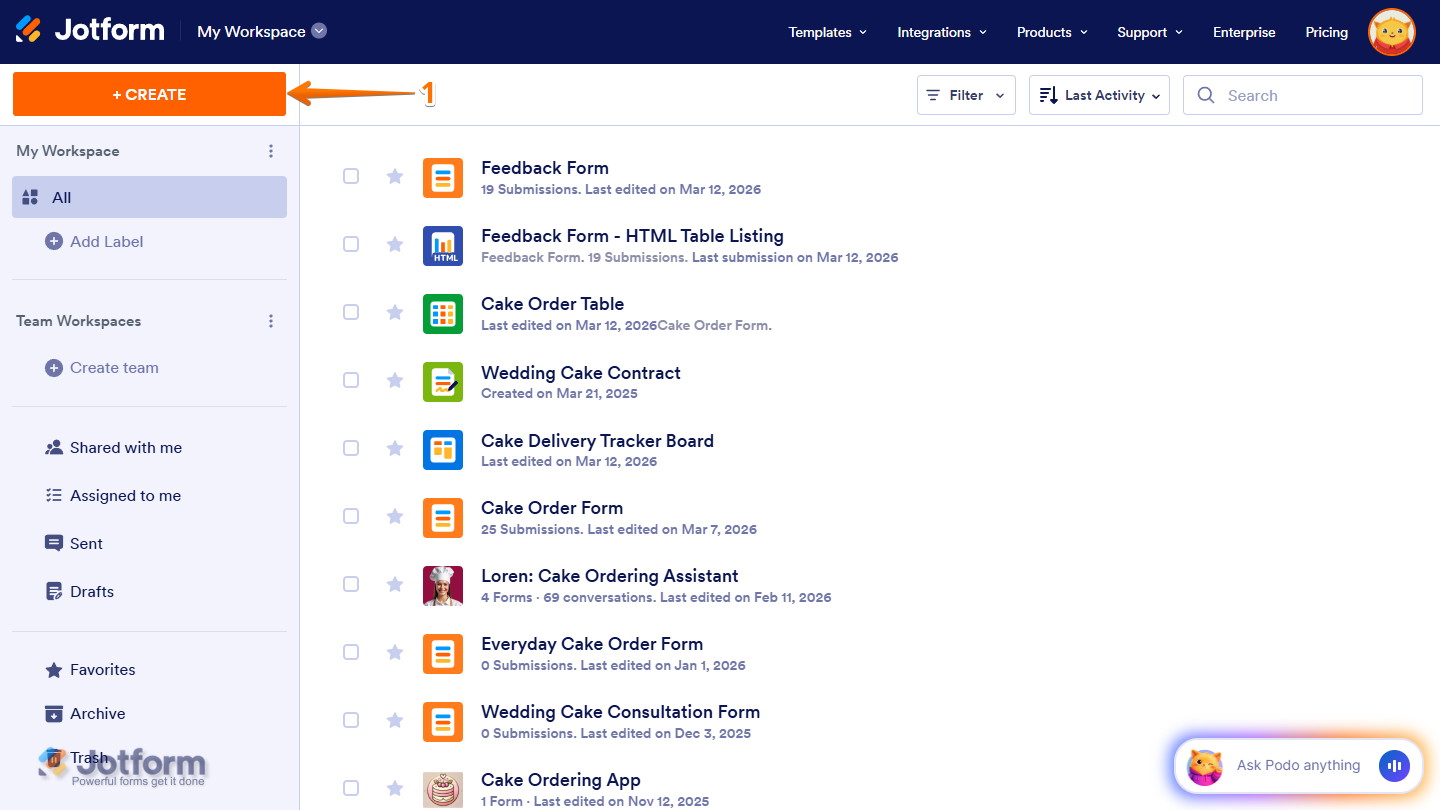
- In your Workspace, click on Create on the top-left side of the page.
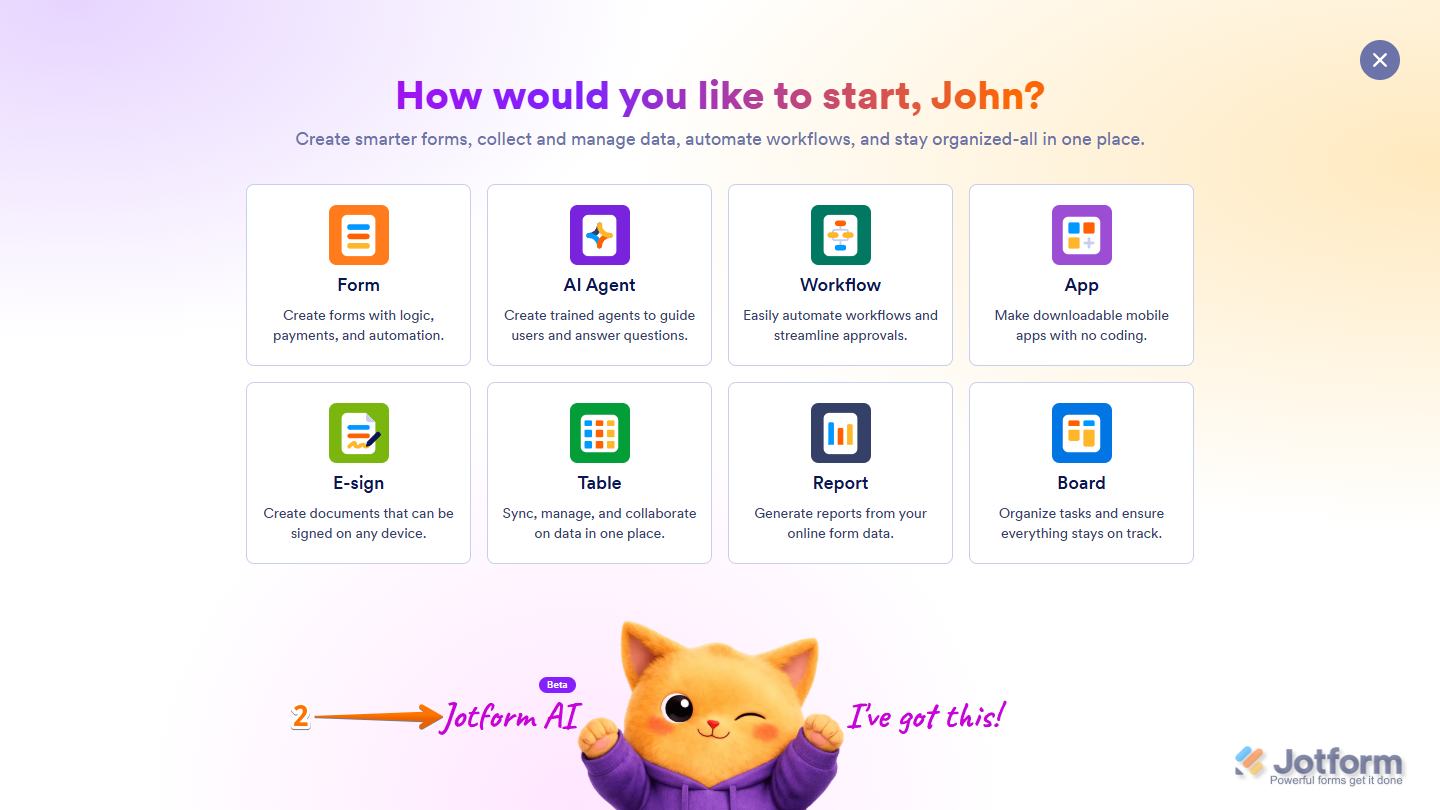
- Then, at the bottom of the window that opens up, click on Jotform AI.
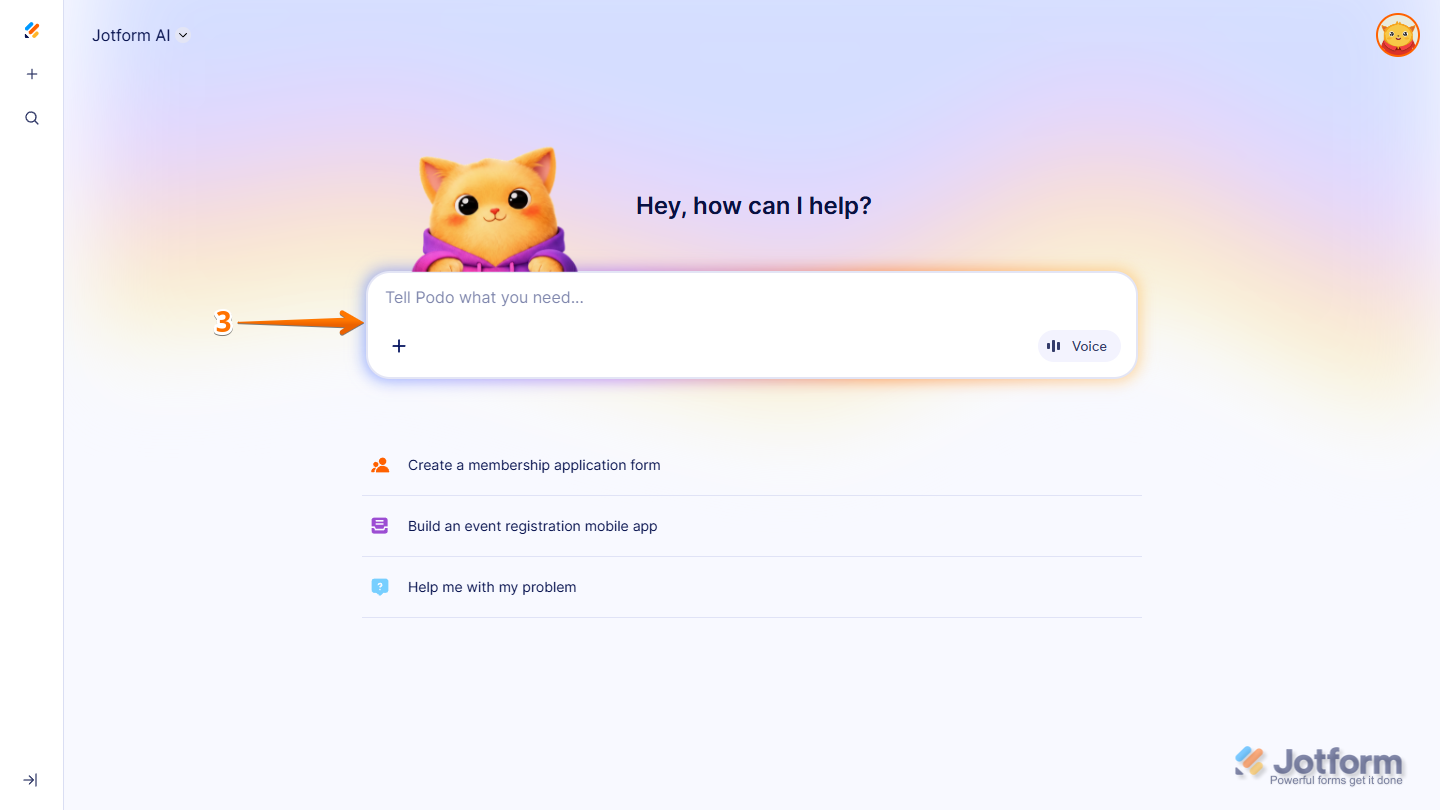
- Now, in the prompt box at the center of the page, enter the changes you want to make to your form fields and include the name of the form in your account where you want them applied.
Here are some example prompts you can try if you already know which fields you want to manage and what you want them to do:
- Can you make the [Field Label Here] required in my [Form Title Here]?
- Can you move the [Field Label Here] up/down in my [Form Title Here]?
- Can you move the [Field Label Here] to the start/end of my [Form Title Here]?
- Can you duplicate the [Field Label Here] in my [Form Title Here]?
- Can you delete the [Field Label Here] in my [Form Title Here]?
- Can you require/unrequire the [Field Label Here] in my [Form Title Here]?
- Can you show/hide the [Field Label Here] in my [Form Title Here]?
You can also write your prompts like the following if you have something in mind for your form fields, but aren’t sure if a specific field type or option is available:
- In my [Form Title Here], can you create a new page and move the [Field Label Here] to it?
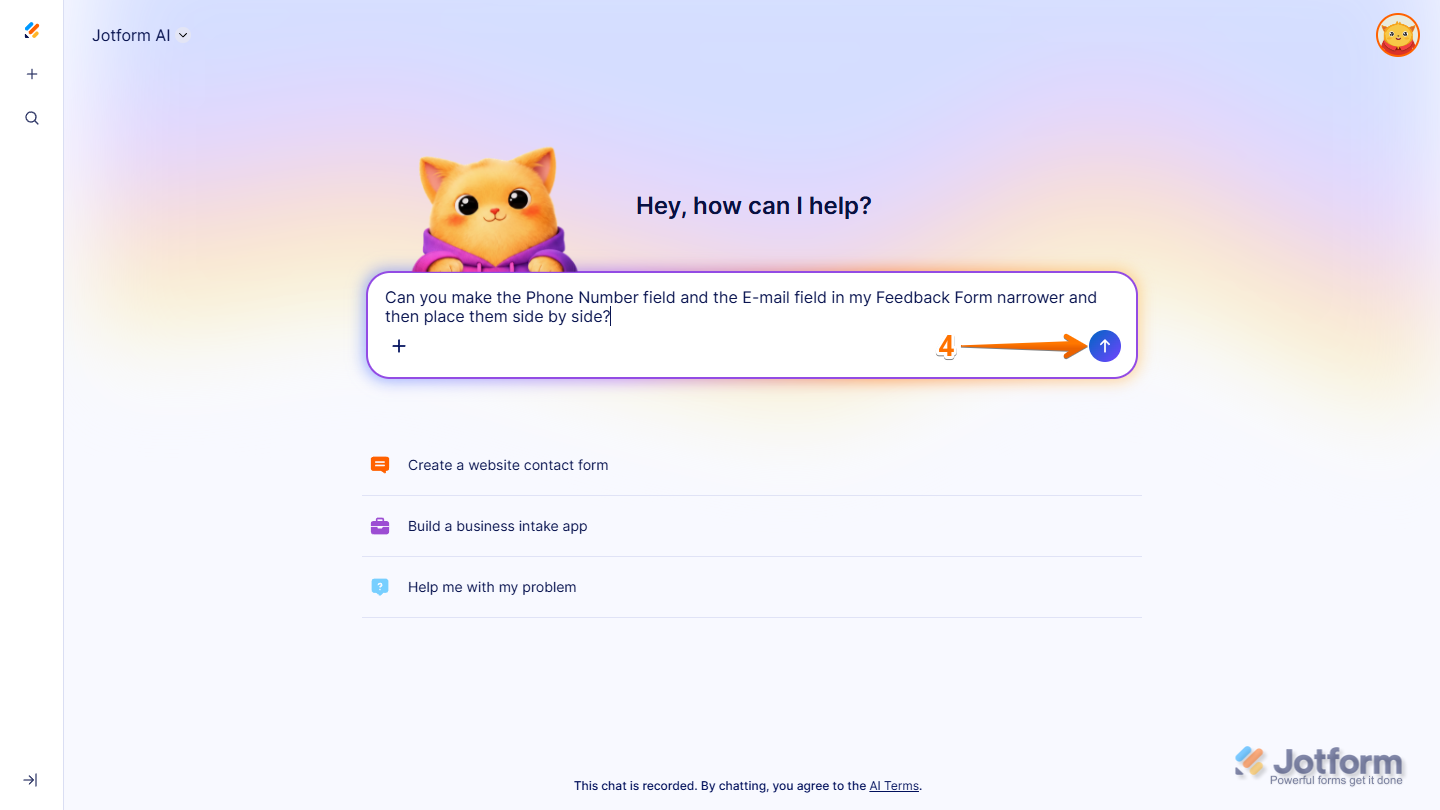
- Can you make the [Field Label Here] and the [Other Field Label Here] narrower and then place them side by side in my [Form Title Here]?
- Can you set the [Field Label Here] as read-only in my [Form Title Here]?
- Can you change the Label Alignment of the [Field Label Here] in my [Form Title Here] to left/right/top?
- Can you move the [Field Label Here] on top of/below the [Other Field Label Here] in my [Form Title Here]?
- Once you’re done, press the Enter key or click on the Upward Arrow button on the right side of the prompt box.
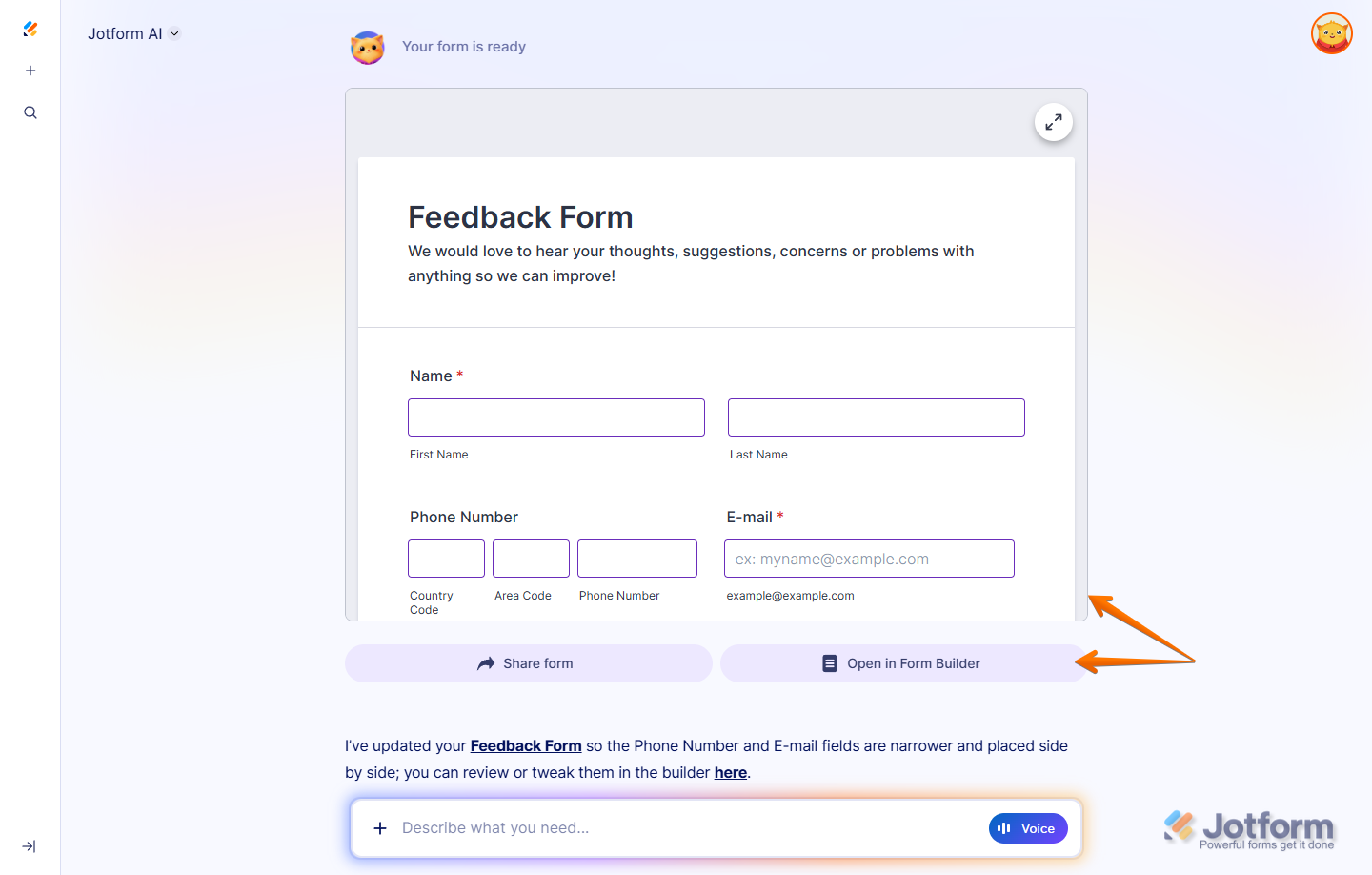
That’s it. You’ll receive a confirmation that your form fields have been updated. You’ll also have the option to open your form in Form Builder in a new browser tab to review the changes and continue organizing your form.
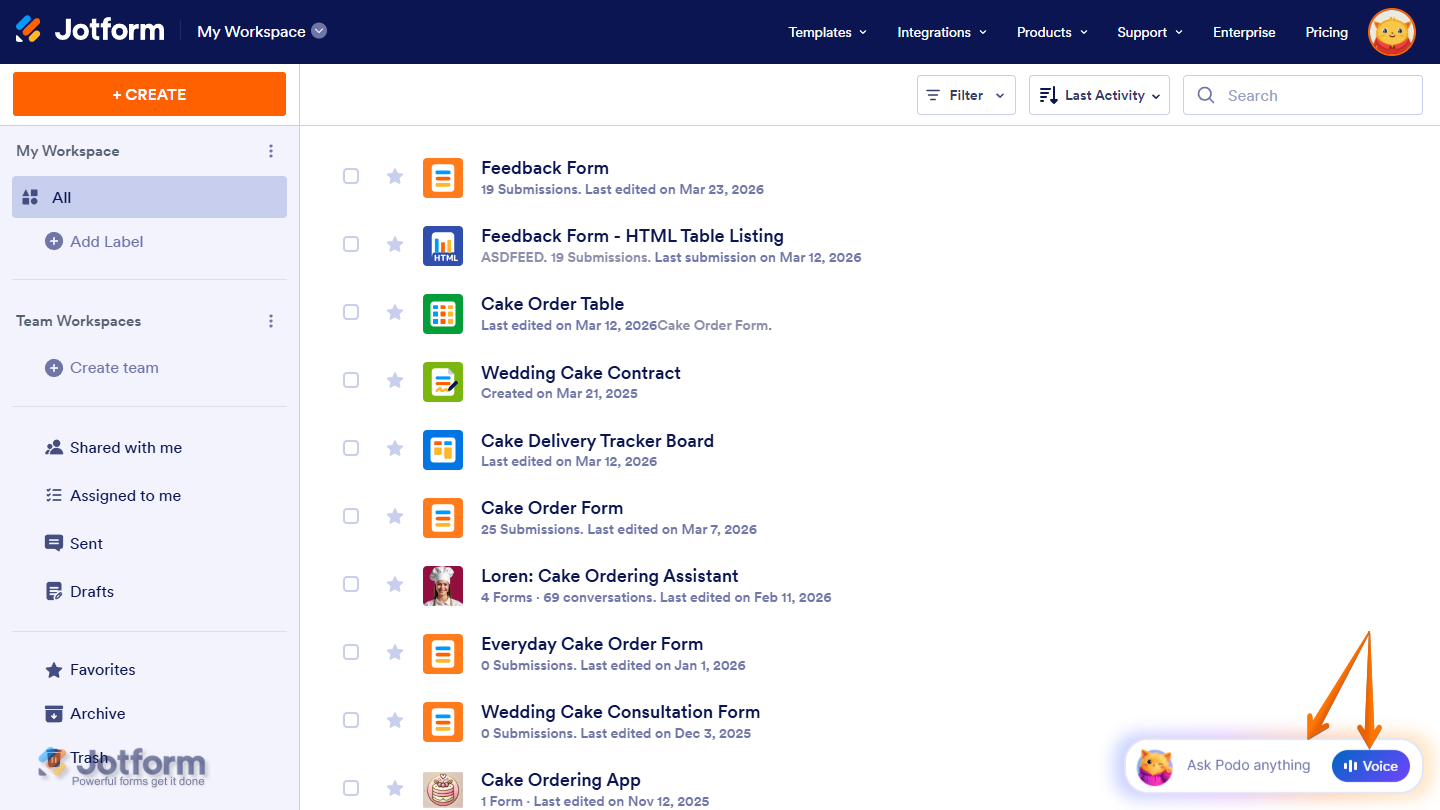
You can also start a conversation with Jotform AI by clicking Ask Podo Anything in the bottom-right corner of your Workspace page. If you prefer using voice for your prompts, you can click on the Voice button on the right side of the chatbox, then allow your browser to access your device’s microphone.

Send Comment: