With Jotform AI, you can easily manage your email notifications to stay updated on form submissions and important responses. You can be instantly alerted when someone submits a form, or pause notifications temporarily—this feature gives you the flexibility to control how and when you receive updates.
Jotform AI makes it simple to toggle notifications on or off, helping you avoid unnecessary emails while ensuring you never miss important submissions. It’s useful for anyone who regularly manages forms for work, team projects, or personal workflows, so you can focus on what matters most without being overwhelmed by notifications.
Whether you’re creating a new form or updating an existing one, you can easily turn its email notifications sent during submissions on or off with Jotform AI. Here’s what to do:
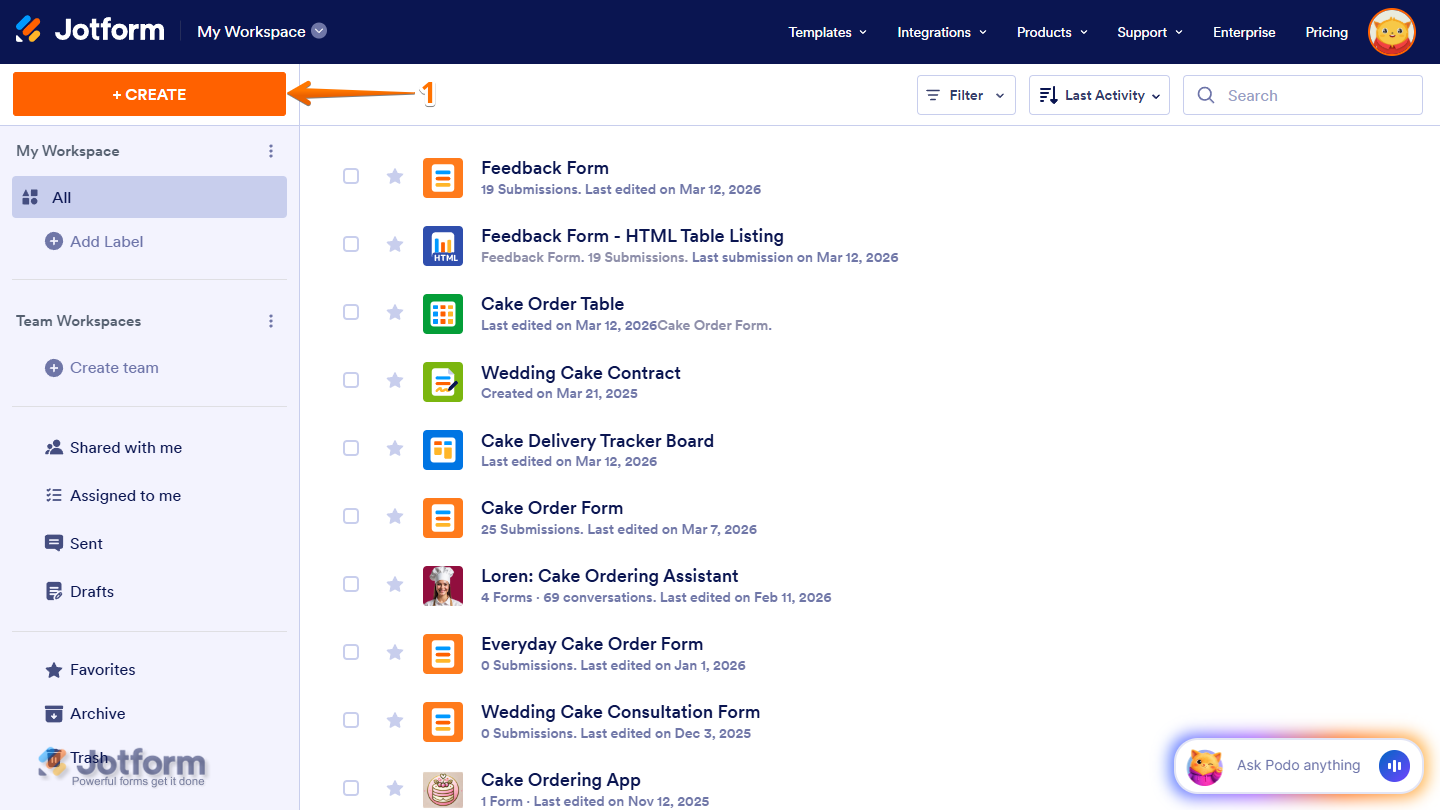
- In your Workspace, click on Create on the top-left side of the page.
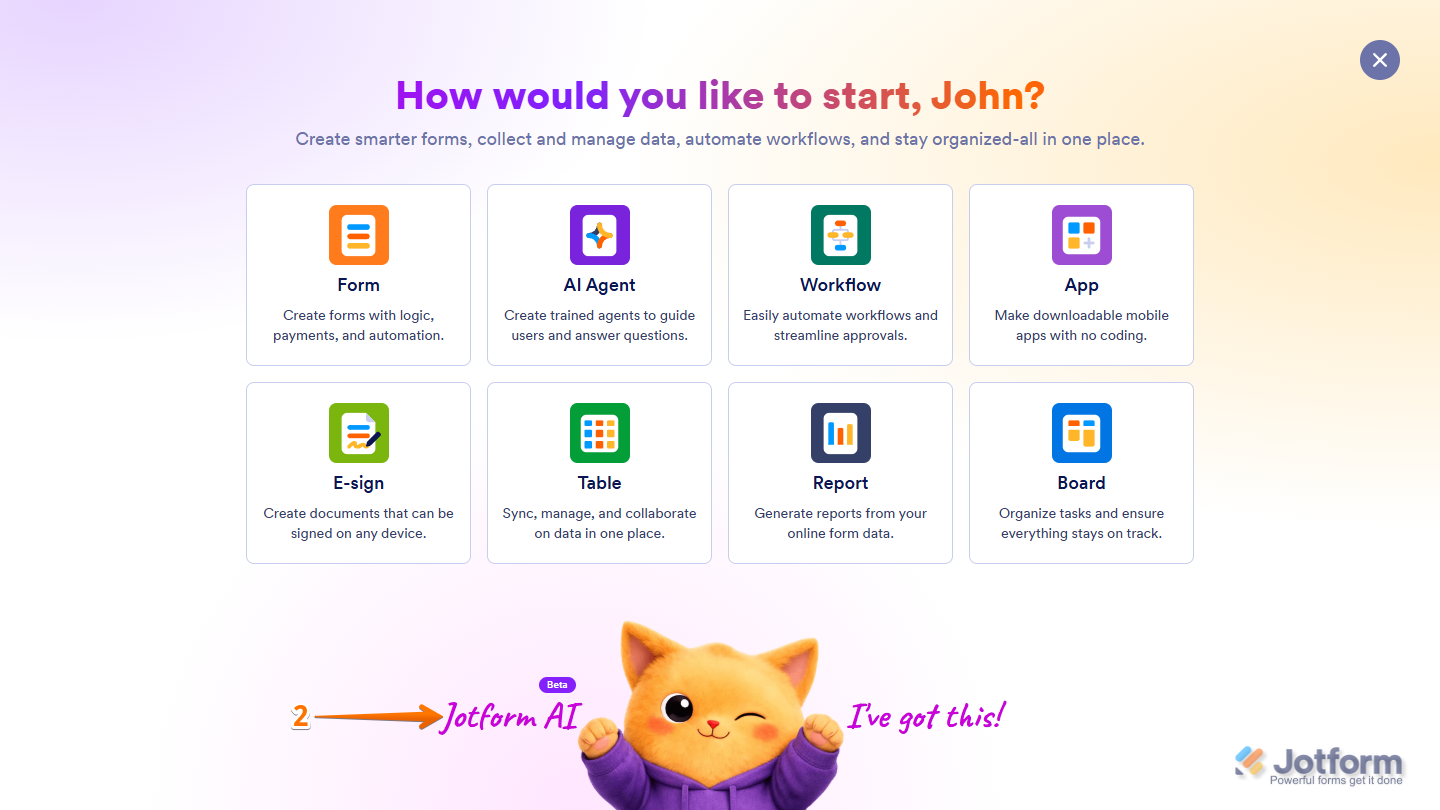
- Then, at the bottom of the window that opens up, click on Jotform AI.
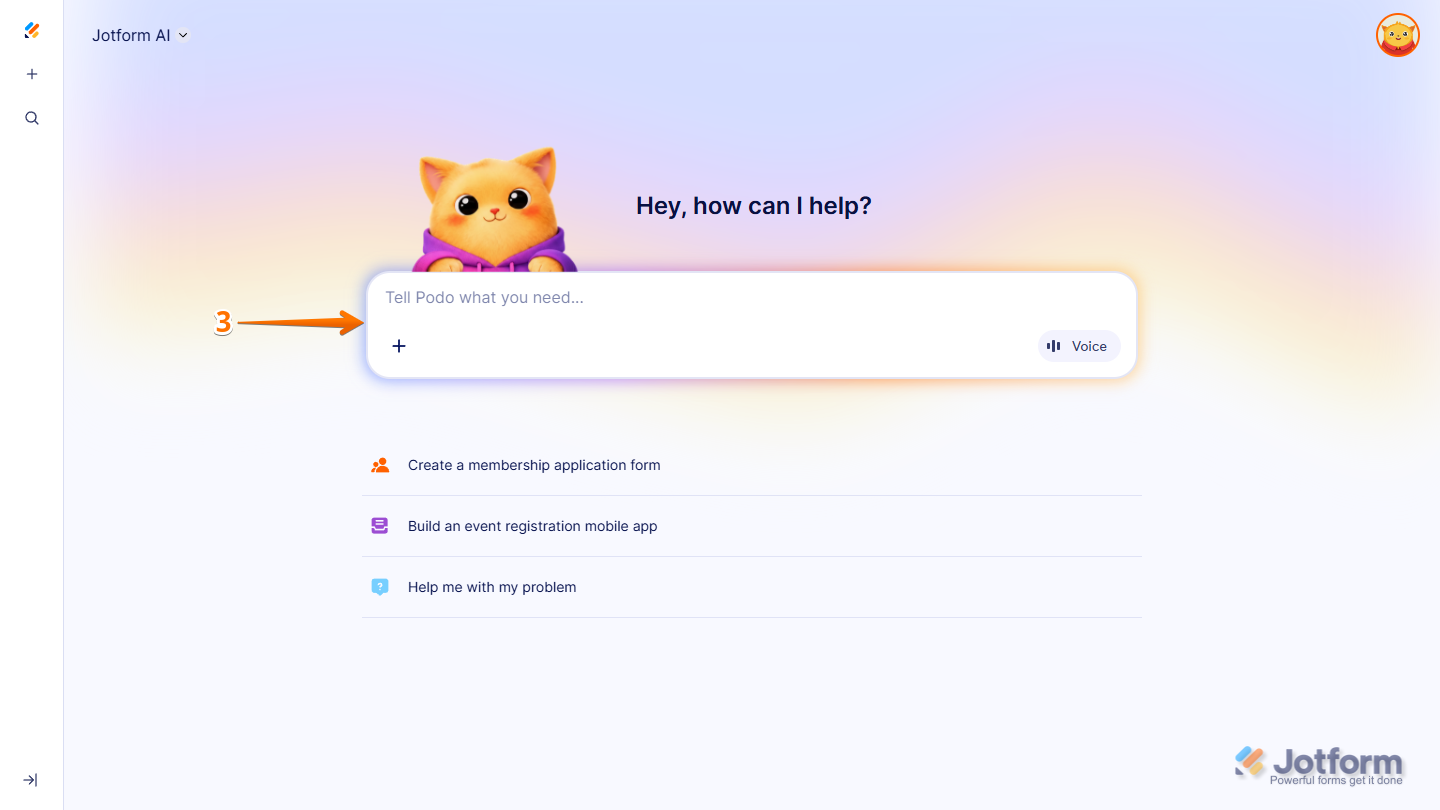
- Now, in the prompt box at the center of the page, enter which Notification Email(s) you want to enable or disable and the name of the form in your account where you want the changes applied.
Here are some example prompts you can try to disable specific or all Notification Emails in your form:
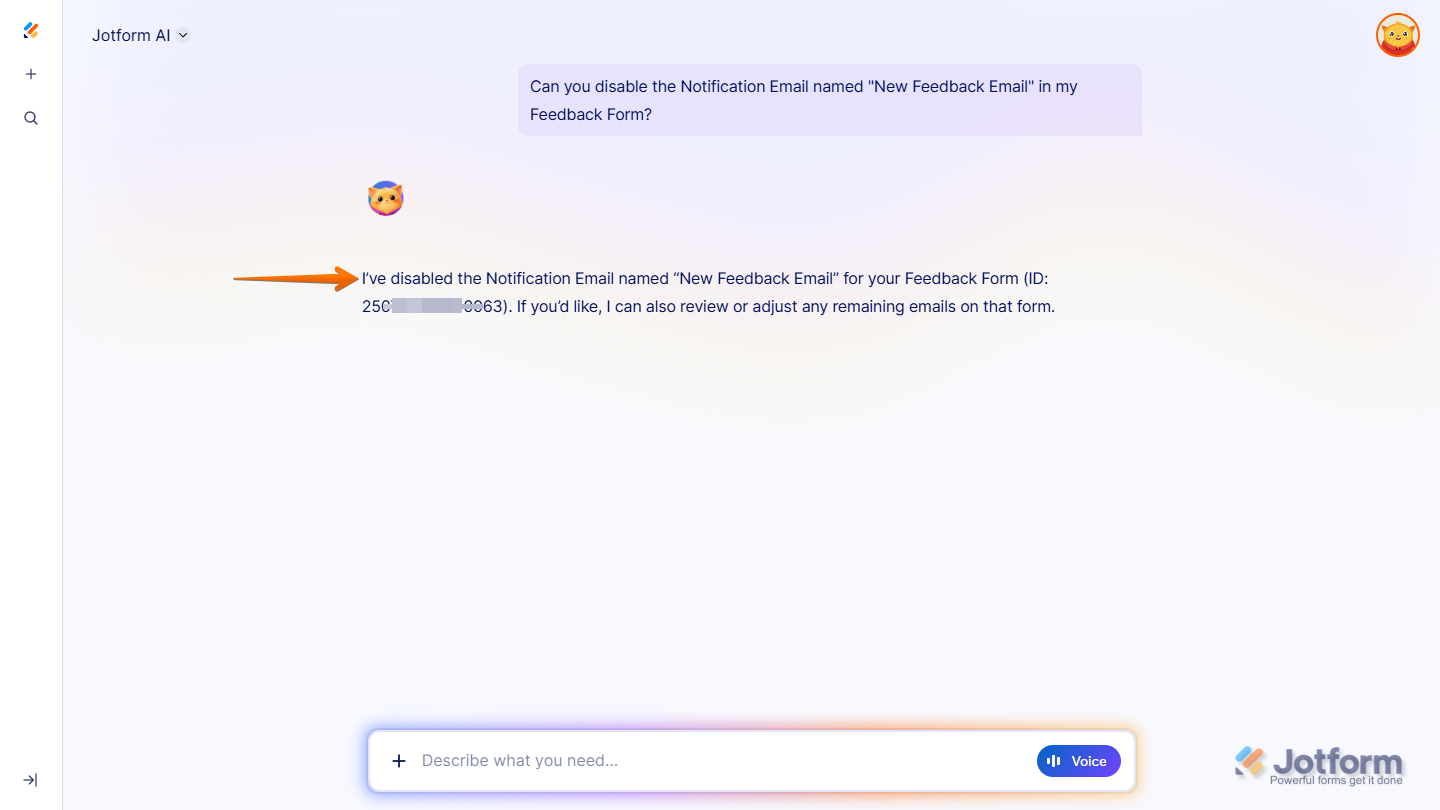
- Can you disable the Notification Email named [Notification Email title here] in my [Form Title Here]?
- Can you enable the Notification Email named [Notification Email title here] in my [Form Title Here]?
- Can you disable the Notification Email in my [Form Title Here] with the subject [Email Subject Here]?
- Can you enable the Notification Email in my [Form Title Here] with the subject [Email Subject Here]?
- Can you disable all Notification Emails in my [Form Title Here]?
- Can you enable all Notification Emails in my [Form Title Here]?
- Once you’re done, press the Enter key or click on the Upward Arrow button on the right side of the prompt box.
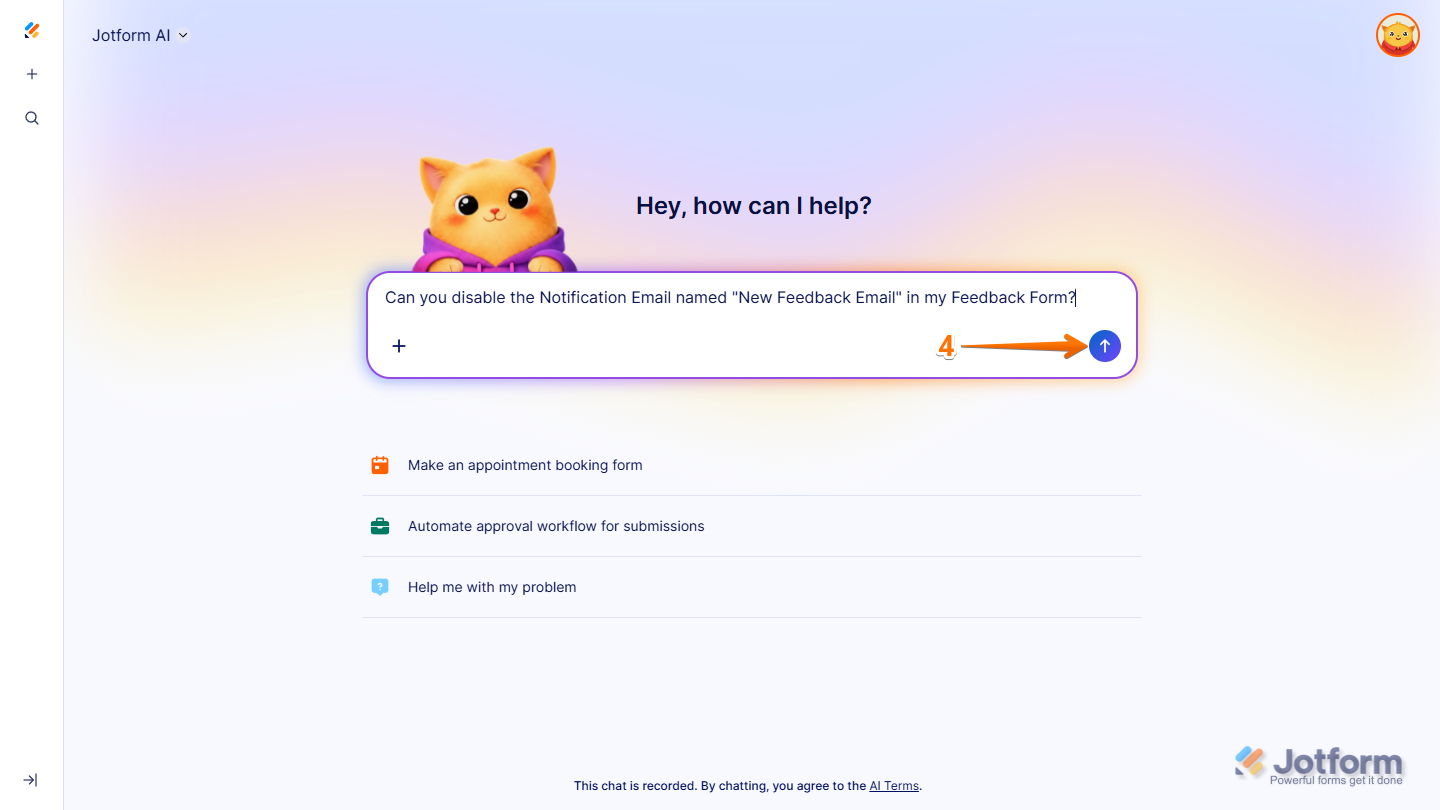
That’s it. You’ll receive a confirmation that your Notification Email has been updated.
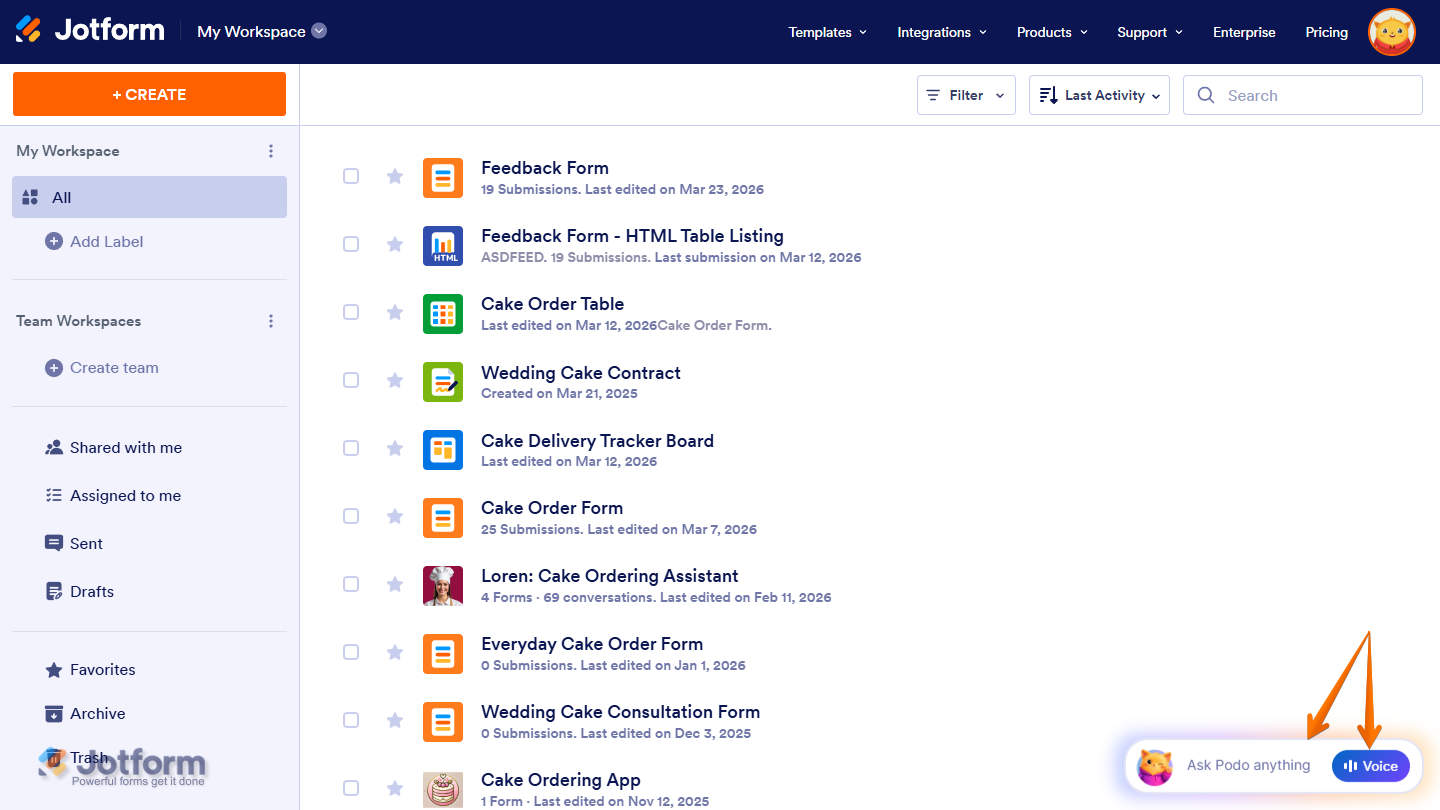
You can also start a conversation with Jotform AI by clicking Ask Podo Anything in the bottom-right corner of your Workspace page. If you prefer using voice for your prompts, you can click on the Voice button on the right side of the chatbox, then allow your browser to access your device’s microphone.

Send Comment: