Jotform AI makes it easier than ever to create forms, generate content, and streamline your workflows—all with just a few simple prompts. Instead of starting from scratch, you can quickly turn your ideas into fully functional forms, complete with suggested questions, layouts, and even ready-to-use content.
This isn’t just about forms. With Jotform AI, you can also enhance other products across the platform. You can use it to build PDF documents with smart, pre-filled content, create and customize apps using Jotform Apps, and even improve your tables and workflows by organizing and generating data more efficiently. It can also help with drafting emails, creating approval flows, and refining the overall structure of your projects.
Note
Jotform AI is designed to make things easier, but it’s always a good idea to review and fine-tune the content it generates. This helps ensure everything matches your exact needs, tone, and branding before you share it with others.
Accessing Jotform AI
Accessing Jotform AI is quick and easy, so you can start creating and streamlining your work right away. Here’s a quick how-to:
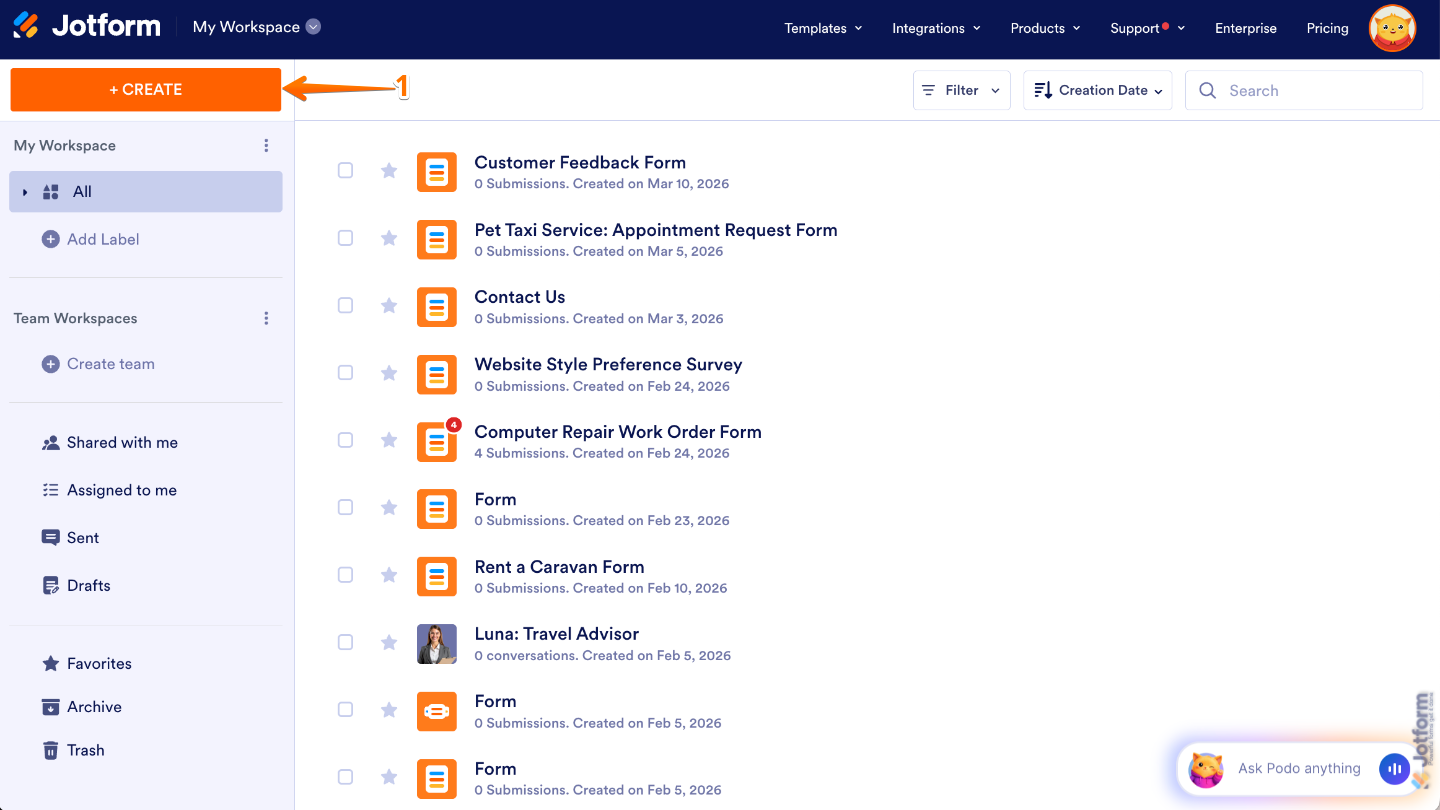
- On your Workspace page, click on Create on the top-left side of the screen.
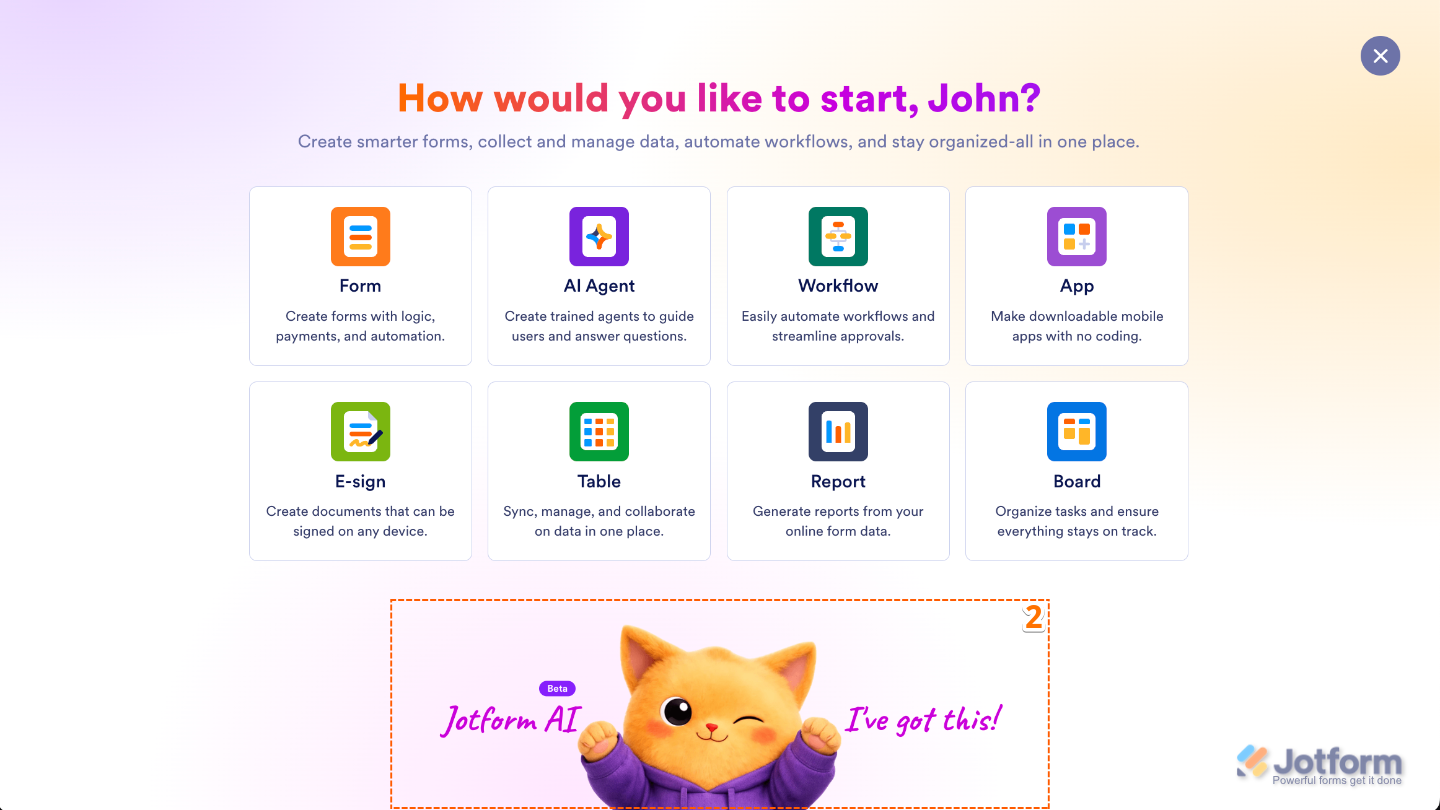
- Then, at the bottom of the window that opens up, click on Jotform AI.
Using Jotform AI
Whether you’re building something new or optimizing what you already have, Jotform AI helps you work faster, reduce manual effort, and bring everything together in one place—no technical skills needed. It’s easier than you think:
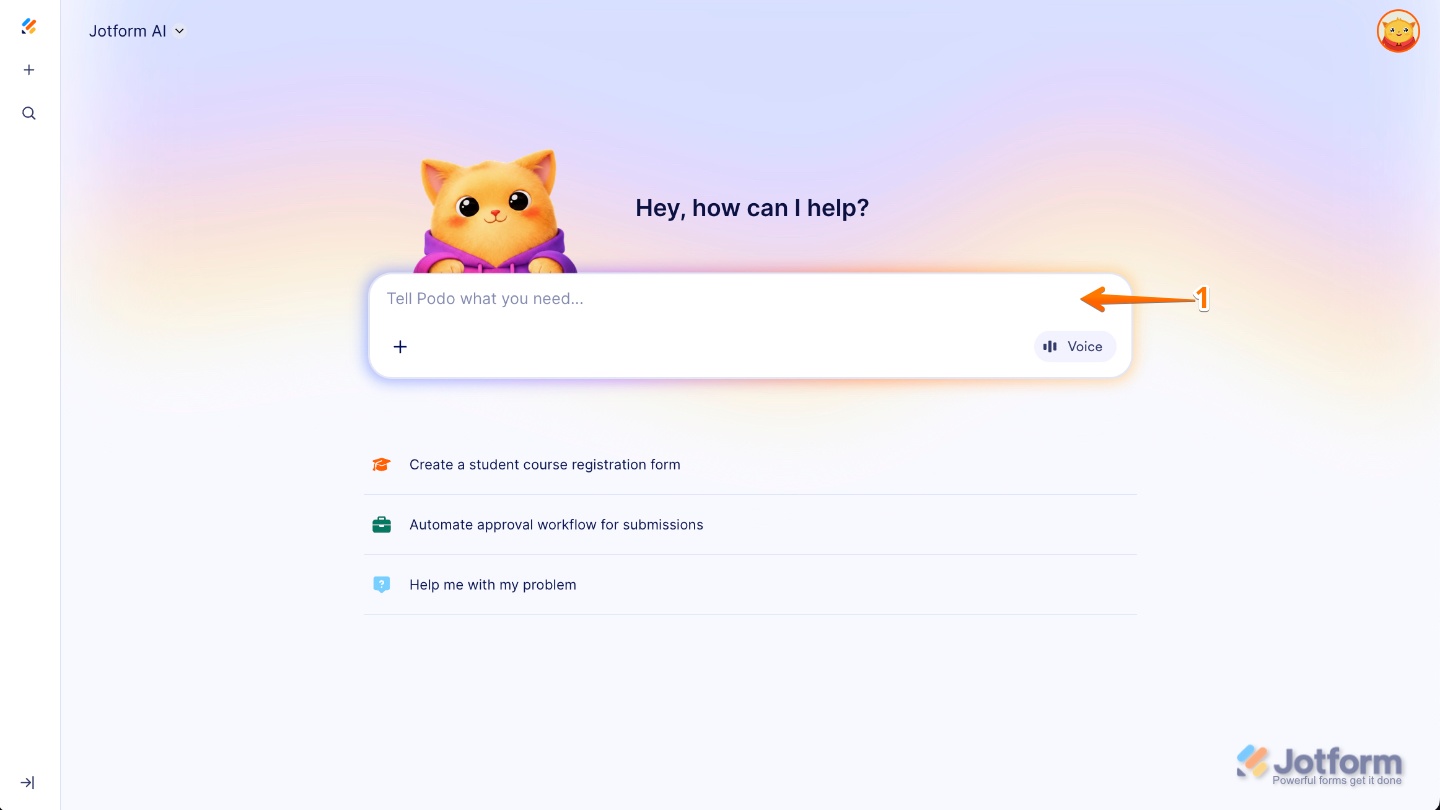
- In the prompt box at the center of the page, enter what you want to create, specifying all the details you want included in the form.
Here are a few example prompts you can use to create a form, complete with all the necessary settings and setups:
- Registration Form
- Create an event registration form titled [Form Title Here] with all the essential fields like name, email, and ticket type. Make the questions clear and easy to understand, and give the form a clean, modern look. Add conditional logic for ticket options or special requests, set up email confirmations and reminders, and enable simple submission tracking. You can also schedule when the form opens and closes, and wrap it up with a friendly thank-you page that shares event details or next steps.
- Application Form
- Create a job application form titled [Form Title Here] with fields for personal information, experience, and resume uploads. Make the questions clear, professional, and easy to follow, while applying a clean, modern design. Include conditional logic for role-specific questions, set up email notifications for the hiring team, and enable easy tracking of submissions. You can also set limits or deadlines for applications, and finish with a warm thank-you page that confirms receipt and shares next steps.
- Survey Form
- Create a survey form titled [Form Title Here] with all the necessary fields to gather responses, making the questions clear, concise, and engaging. Apply a clean, modern design and add conditional logic to show follow-up questions based on responses. Set up email notifications for completed surveys, enable submission tracking, and generate quick reports. You can also control when the survey is open or closed, and finish with a friendly thank-you page to show appreciation for participants’ time.
- Feedback Form
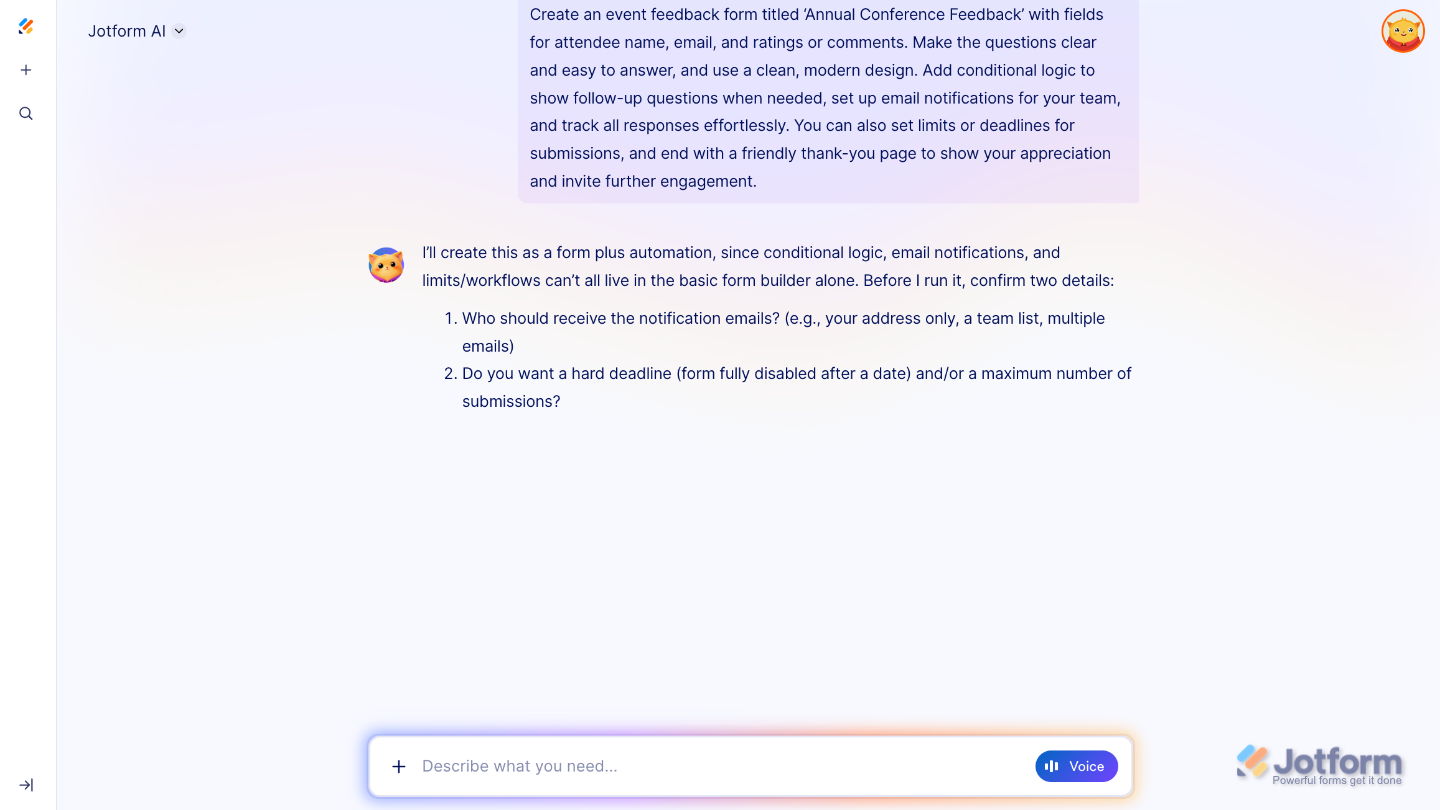
- Create an event feedback form titled [Form Title Here] with fields for attendee name, email, and ratings or comments. Make the questions clear and easy to answer, and use a clean, modern design. Add conditional logic to show follow-up questions when needed, set up email notifications for your team, and track all responses effortlessly. You can also set limits or deadlines for submissions, and end with a friendly thank-you page to show your appreciation and invite further engagement.
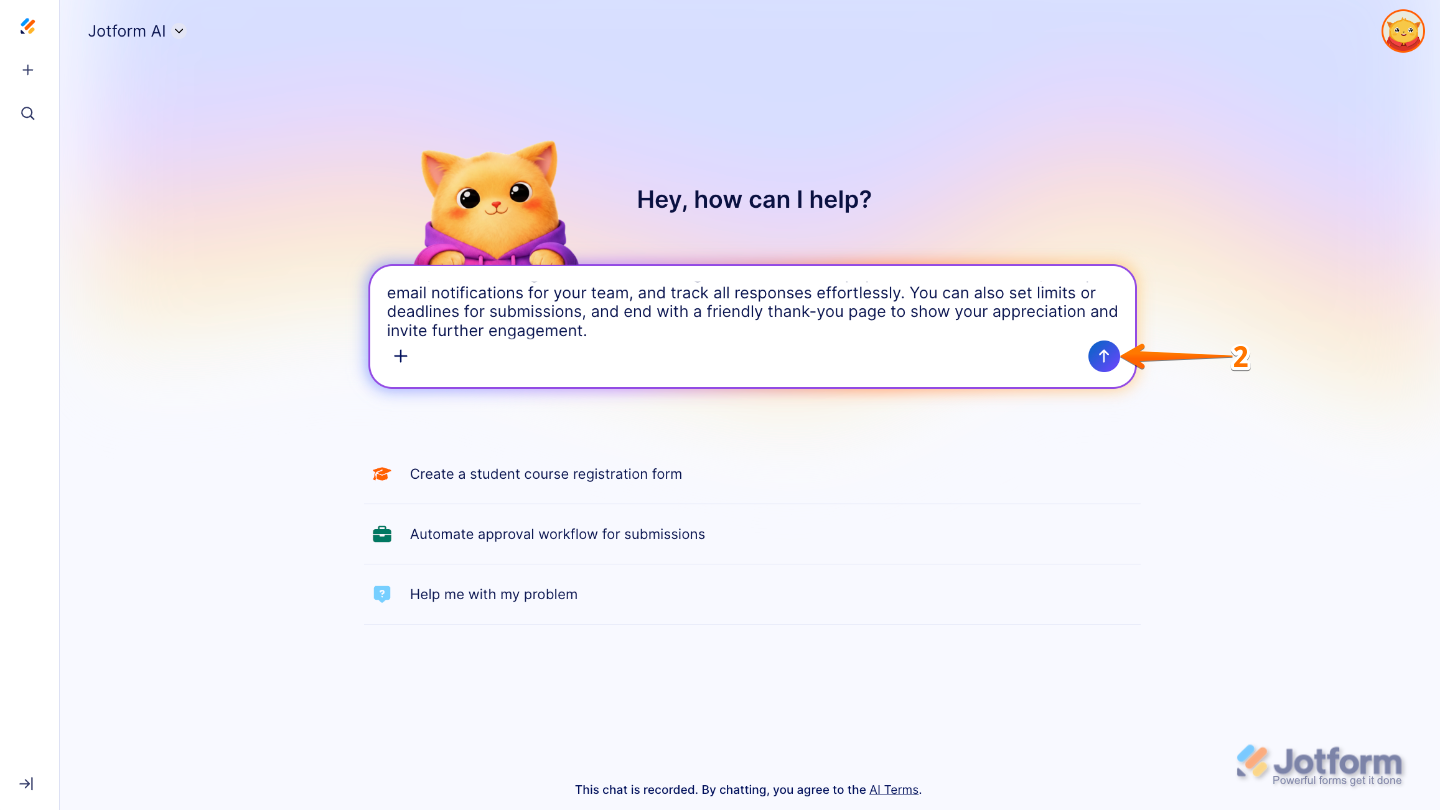
- Once you’re done, press the Enter key or click on the Upward Arrow button on the right side of the prompt box.
If any details are missing, Jotform AI will prompt you to provide the additional information needed.
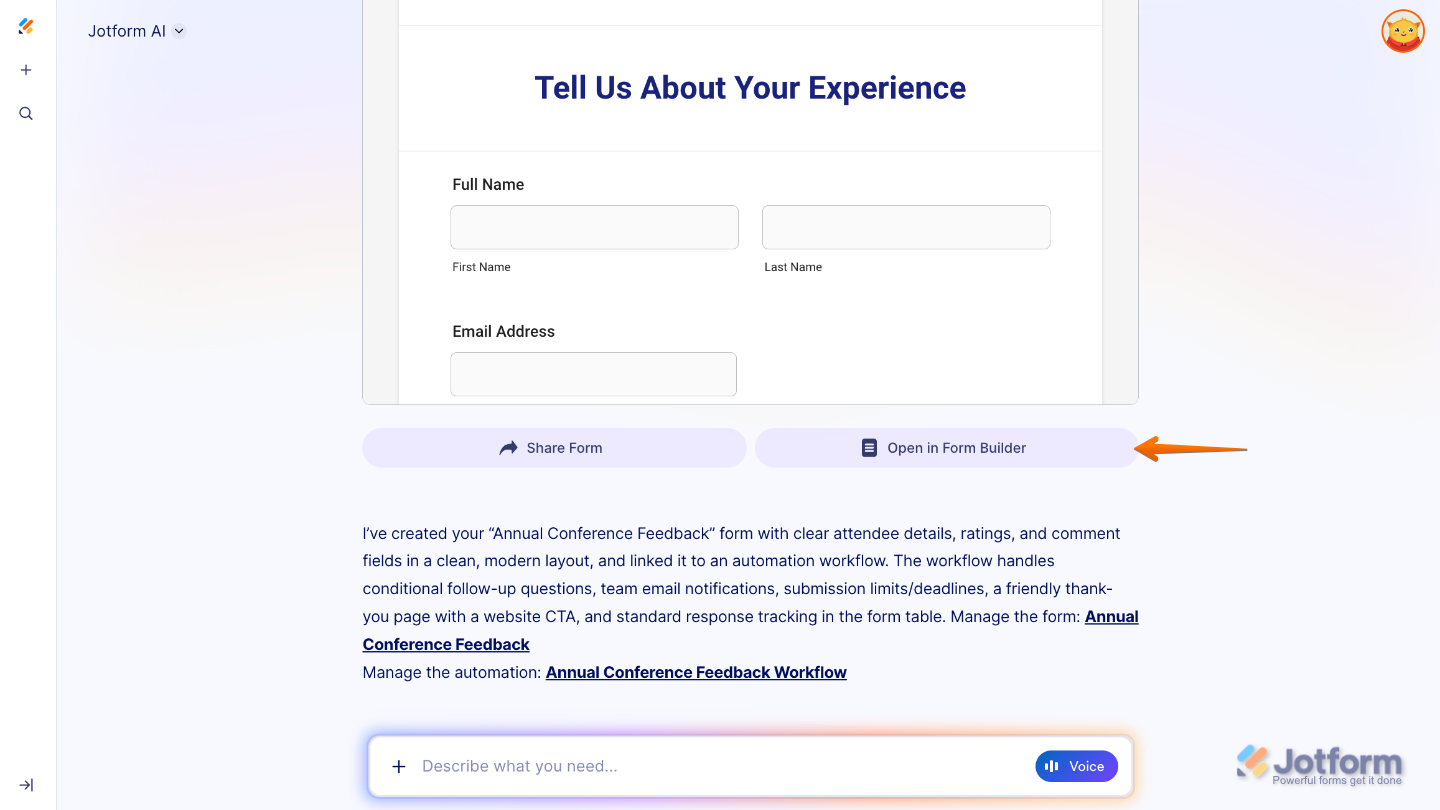
That’s it! You’ll get a confirmation letting you know your form is ready, along with a preview so you can test it out. If you’d like, you can also click on Open in Form Builder to open your form in the form builder in a new browser tab to see your changes and keep customizing it.
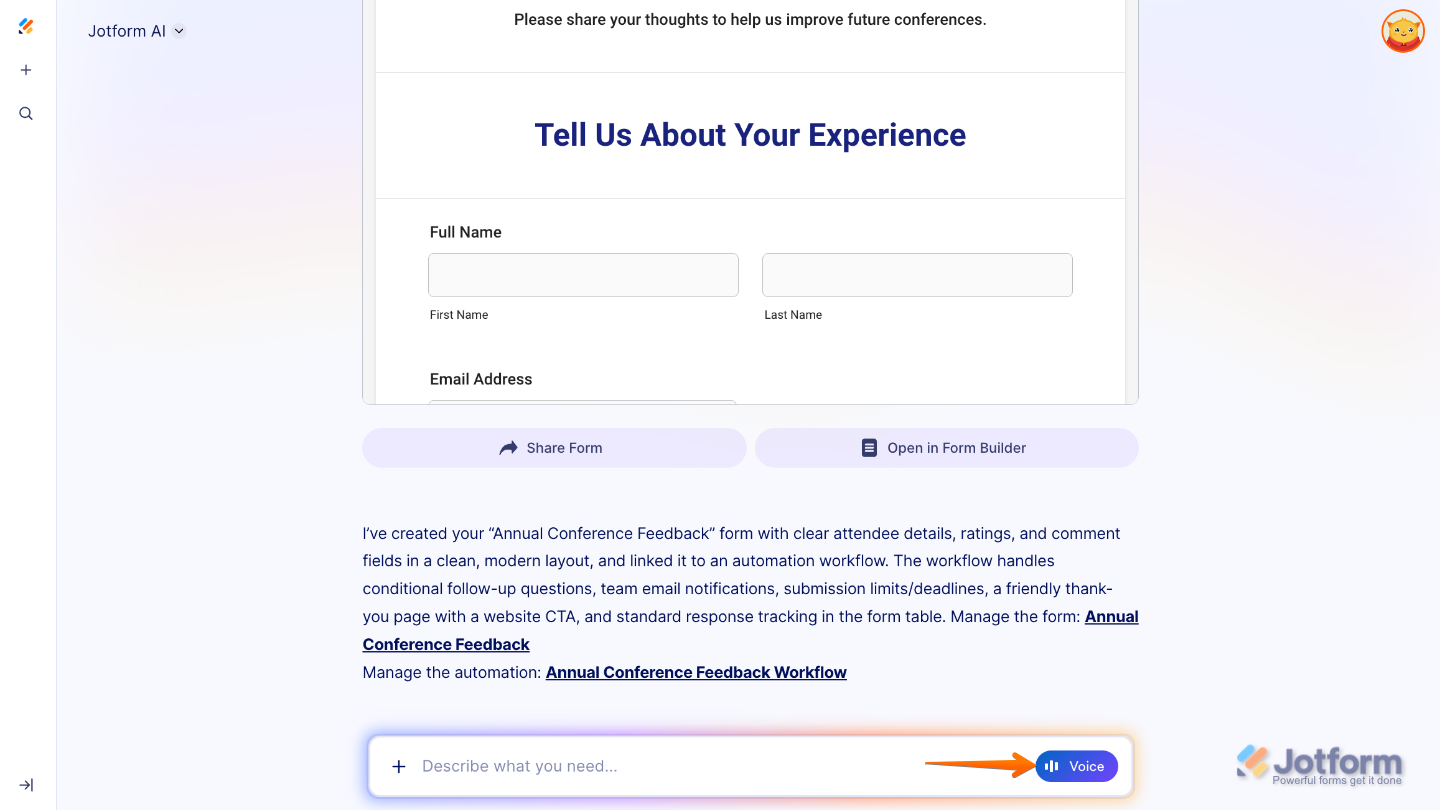
If your form is missing any details, no worries, you can just enter another command and continue the conversation with Jotform AI to update or refine it. You can also use a voice command. Just click on Voice and talk to Jotform AI to continue the conversation, update your form, or refine your content.
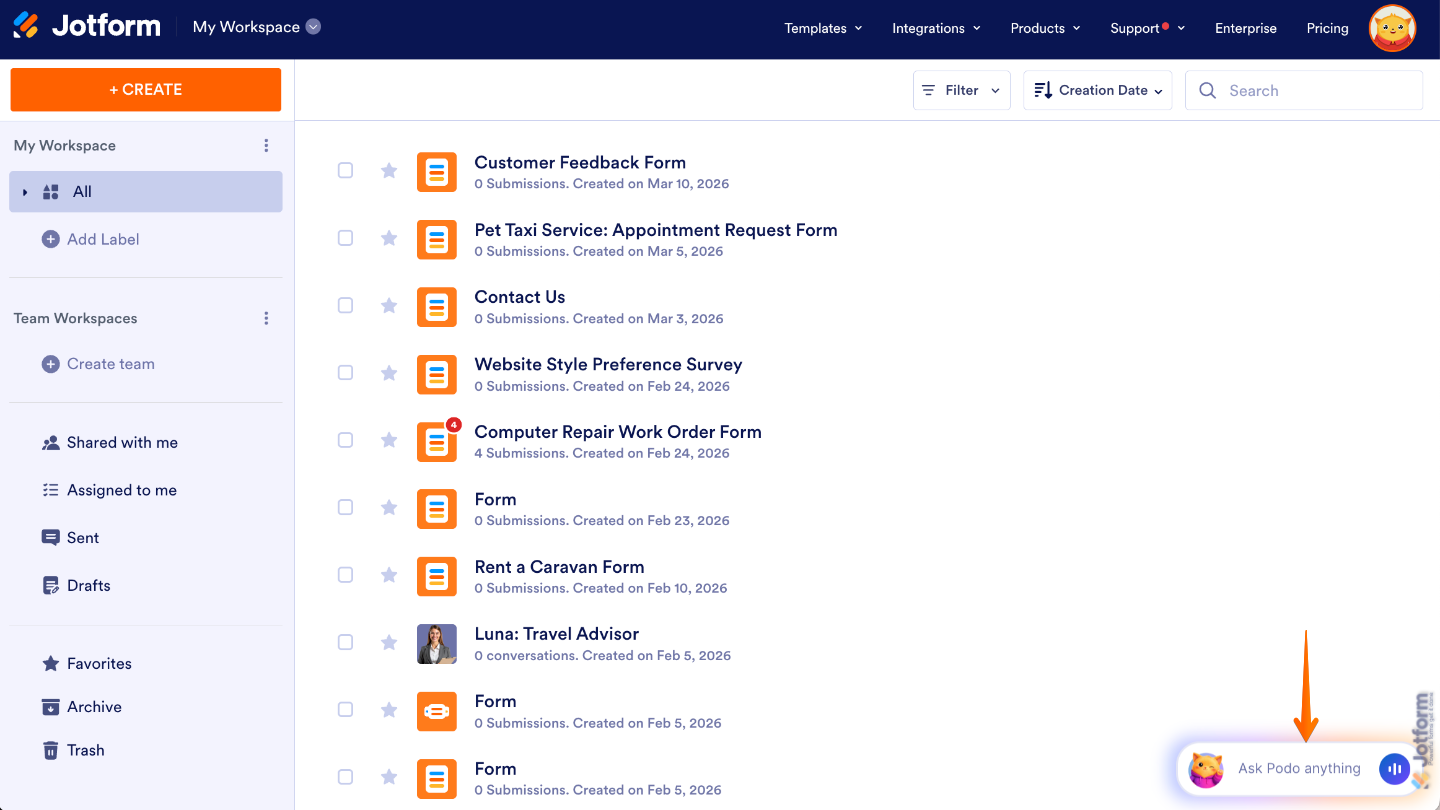
You can also start a conversation with Jotform AI by clicking the Jotform Chatbot in the bottom-right corner of your Workspace page.
Short Prompt Examples for Creating a Form Step by Step with Jotform AI
You can use Jotform AI by simply describing what you need. Here are some examples of short prompts to help you get started:
Creating a Form
- Create a customer feedback form for a restaurant.
- Build a job application form for a marketing assistant role.
- Generate an event registration form for a webinar.
Customizing Form Fields
- Add a phone number field and make it required.
- Include a dropdown for selecting preferred appointment times.
- Add a file upload field for resumes.
Improving Form Questions
- Make these questions sound more professional.
- Simplify the language for a general audience.
- Rewrite this question to be more engaging.
Setting Up Conditional Logic
- Show a follow-up question if the user selects Yes.
- Hide the payment section unless Paid Event is selected.
- Create conditions based on user responses.
Designing the Form
- Apply a modern and clean design to this form.
- Use a dark theme with blue accents.
- Make the form more visually appealing.
Configuring Notifications
- Send an email notification when the form is submitted.
- Create an autoresponder email for respondents.
- Notify my team when a high-priority request is submitted.
Managing Submissions
- Show me how to export submissions to a spreadsheet.
- Filter responses by date.
- Summarize the latest submissions.
Generating Reports
- Create a report based on form responses.
- Summarize survey results.
- Highlight key insights from submissions.
Enabling or Disabling Forms
- Disable this form after 100 submissions.
- Close the form on a specific date.
- Reopen the form for new entries.
Customizing the Thank You Page
- Create a friendly thank you message for users.
- Add a call-to-action to visit our website.
- Include social media links on the thank you page.
These examples show how you can use simple, natural language to quickly build and customize your forms with Jotform AI. You can always refine your prompts to get more specific results.
Pro Tips
- Be specific with your prompts, as clear and detailed descriptions usually lead to more accurate and helpful results.
- Always take a moment to review and edit AI-generated content before publishing to make sure everything looks right.
- Think of AI as a starting point, then customize the form to better match your exact needs and preferences.
- Don’t forget to test your form by submitting a sample response to ensure everything works smoothly.

Send Comment: