Jotform AI lets you use your existing assets as context when working on your forms. By selecting an asset from your account, you can give Jotform AI the information it needs to deliver more accurate and relevant results.
This makes it simple to build on what you’ve already created, whether you want to duplicate a form, make changes to an existing one, or use it as a starting point for something new.
Here are two ways to do it:
- Using Existing Jotform Assets via Jotform AI
- Using Existing Jotform Assets via the Jotform AI Chatbot
Using Existing Jotform Assets via Jotform AI
The best way to get started is by going through the Jotform AI page. Here’s how to do it:
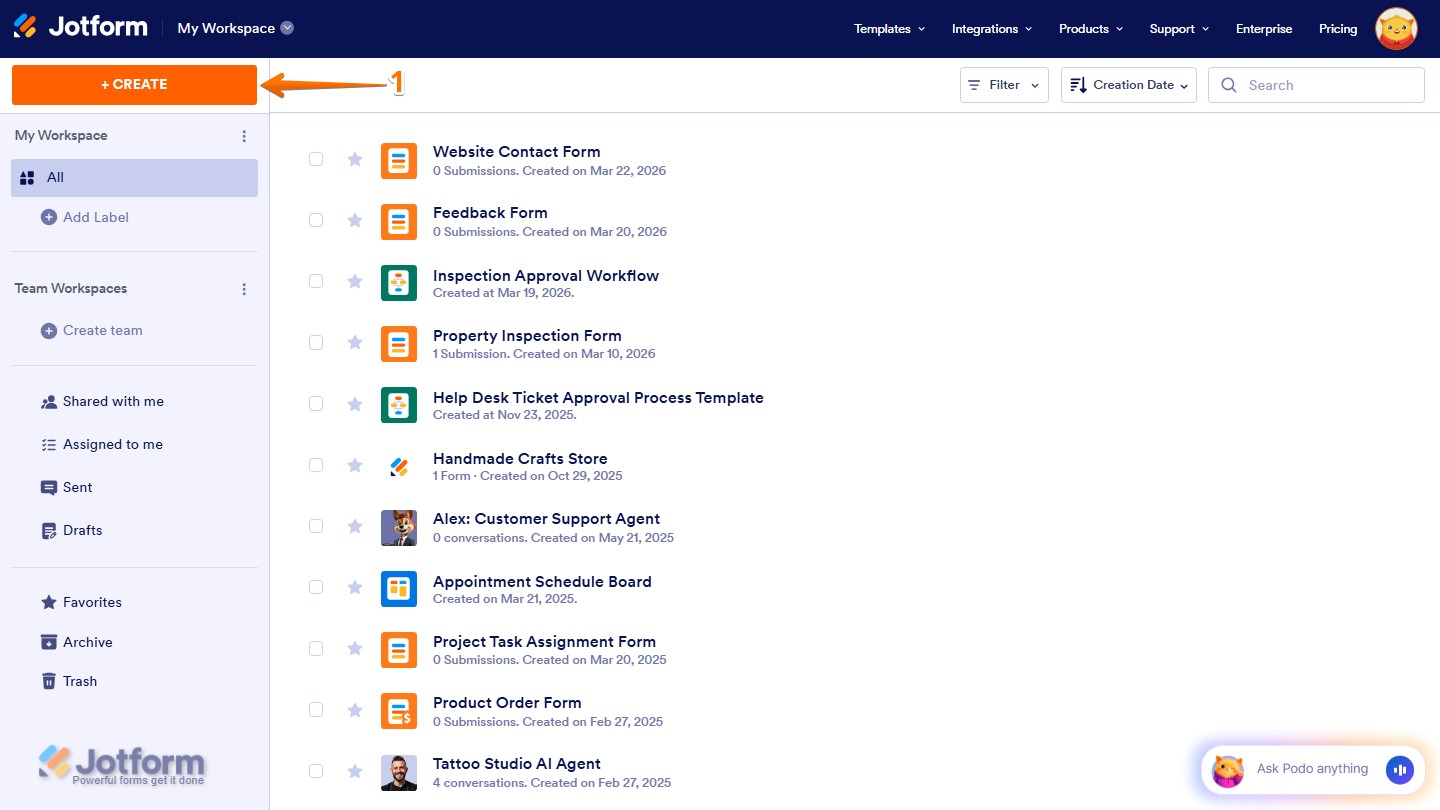
- On your Workspace page, click Create on the top-left side of the screen.
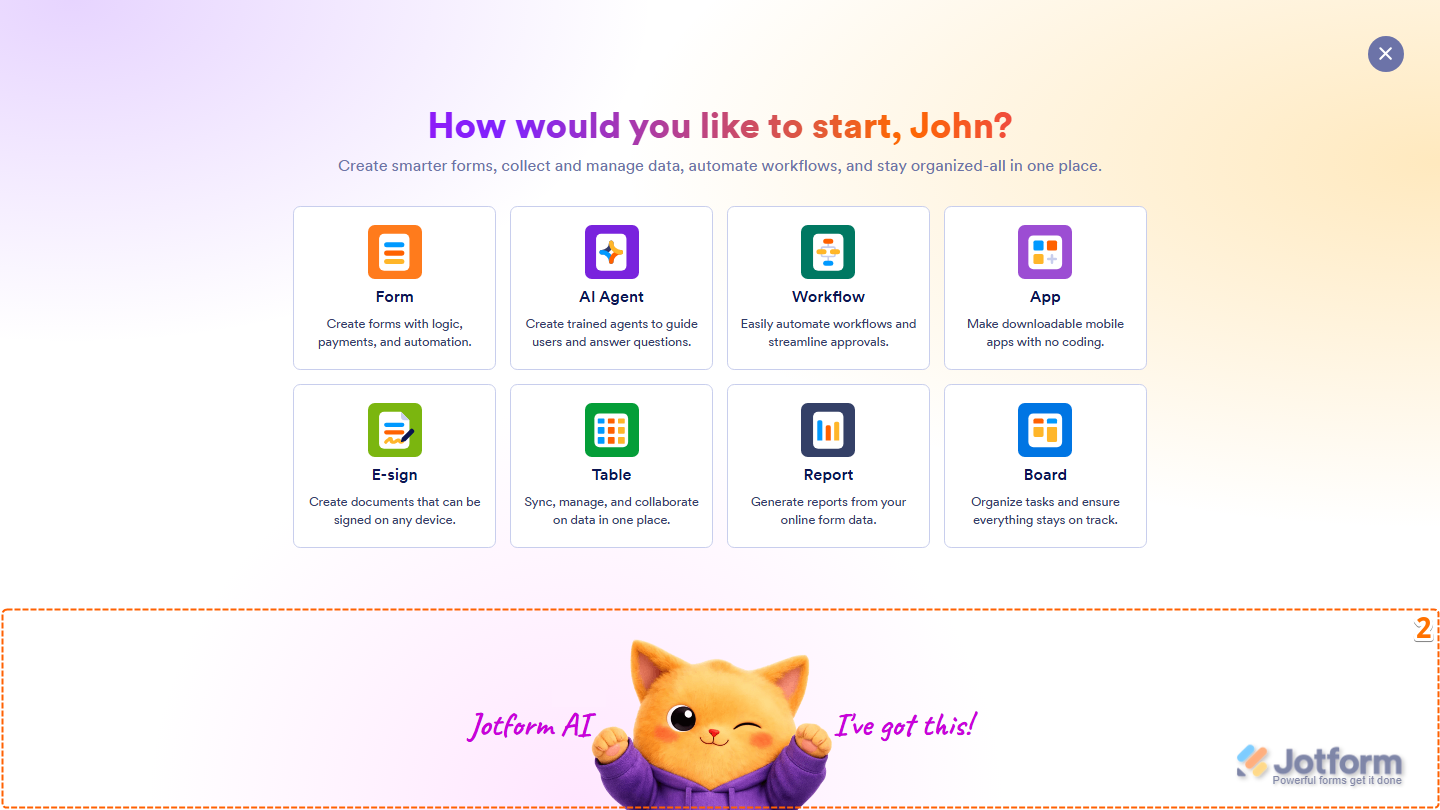
- Then, at the bottom of the window that opens up, click on Jotform AI.
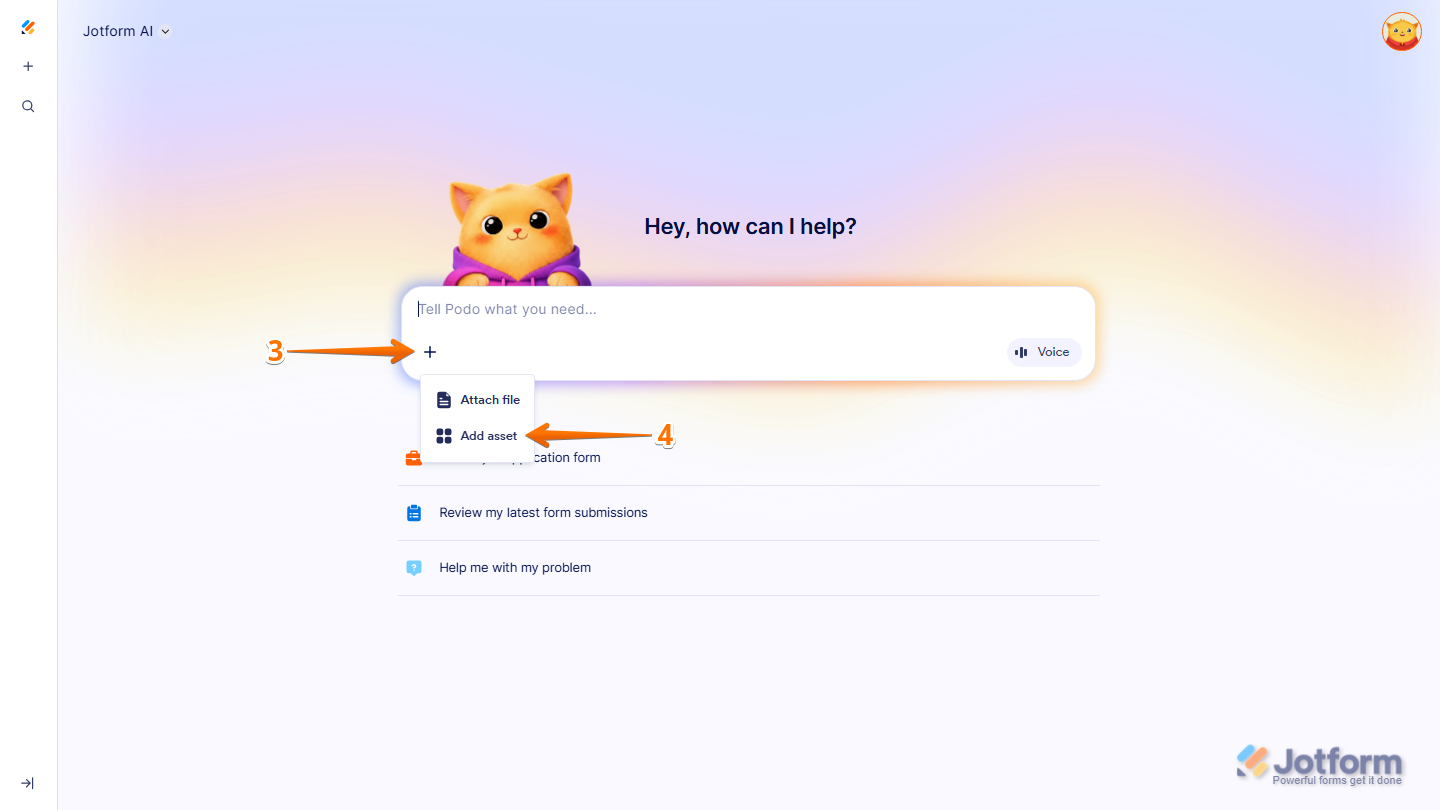
- Next, in the prompt box at the center of the page, click on the Plus icon at the bottom-left corner of the window.
- Then, in the menu that comes up, click on Add Asset.
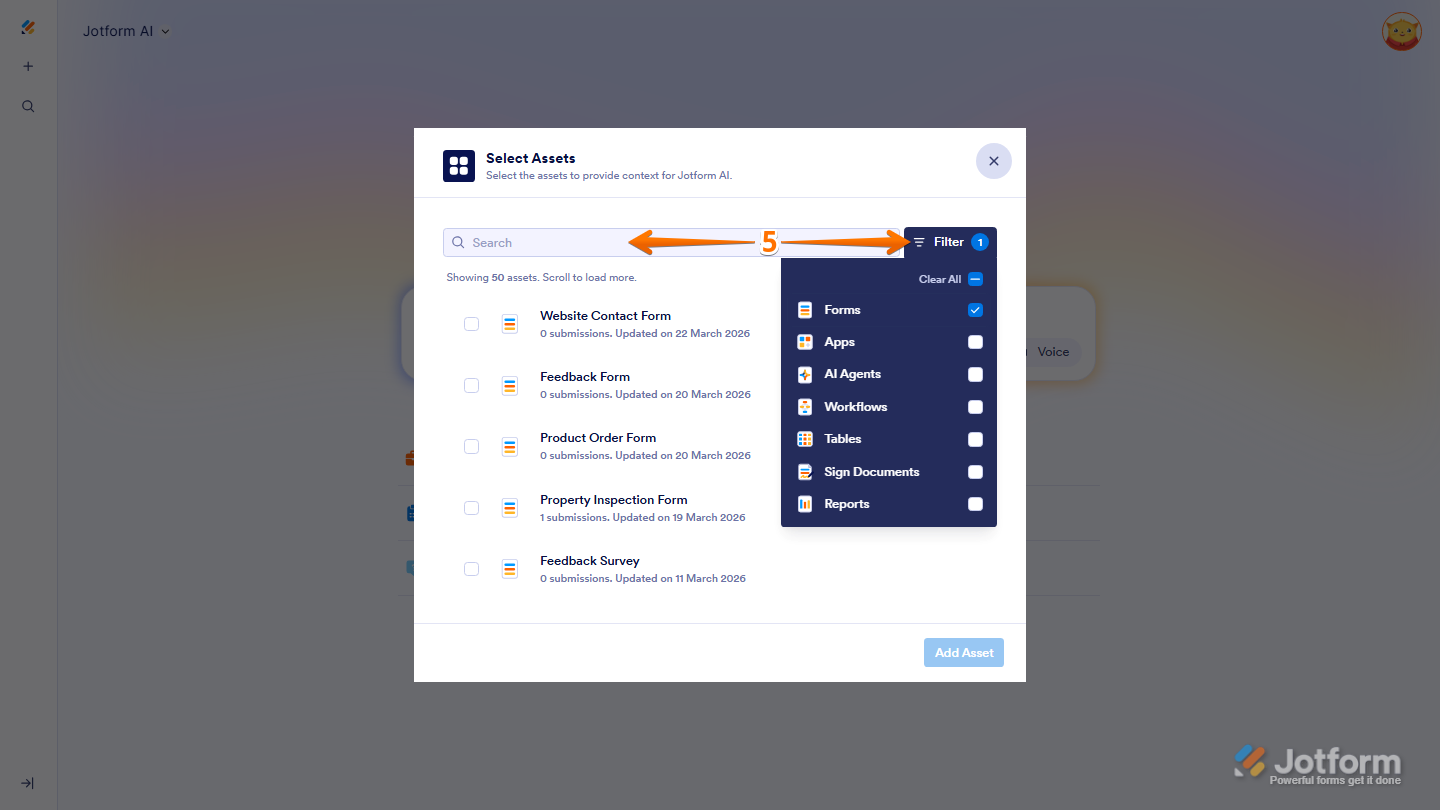
- Now, in the Select Assets window that appears, use the Search bar to find the asset you want to use. Or, you can also click on Filter next to the search bar to narrow down the list of assets.
- Now, put a check in the box next to the asset you want to add. For example, Product Order Form.
- Then, click on Add Asset.
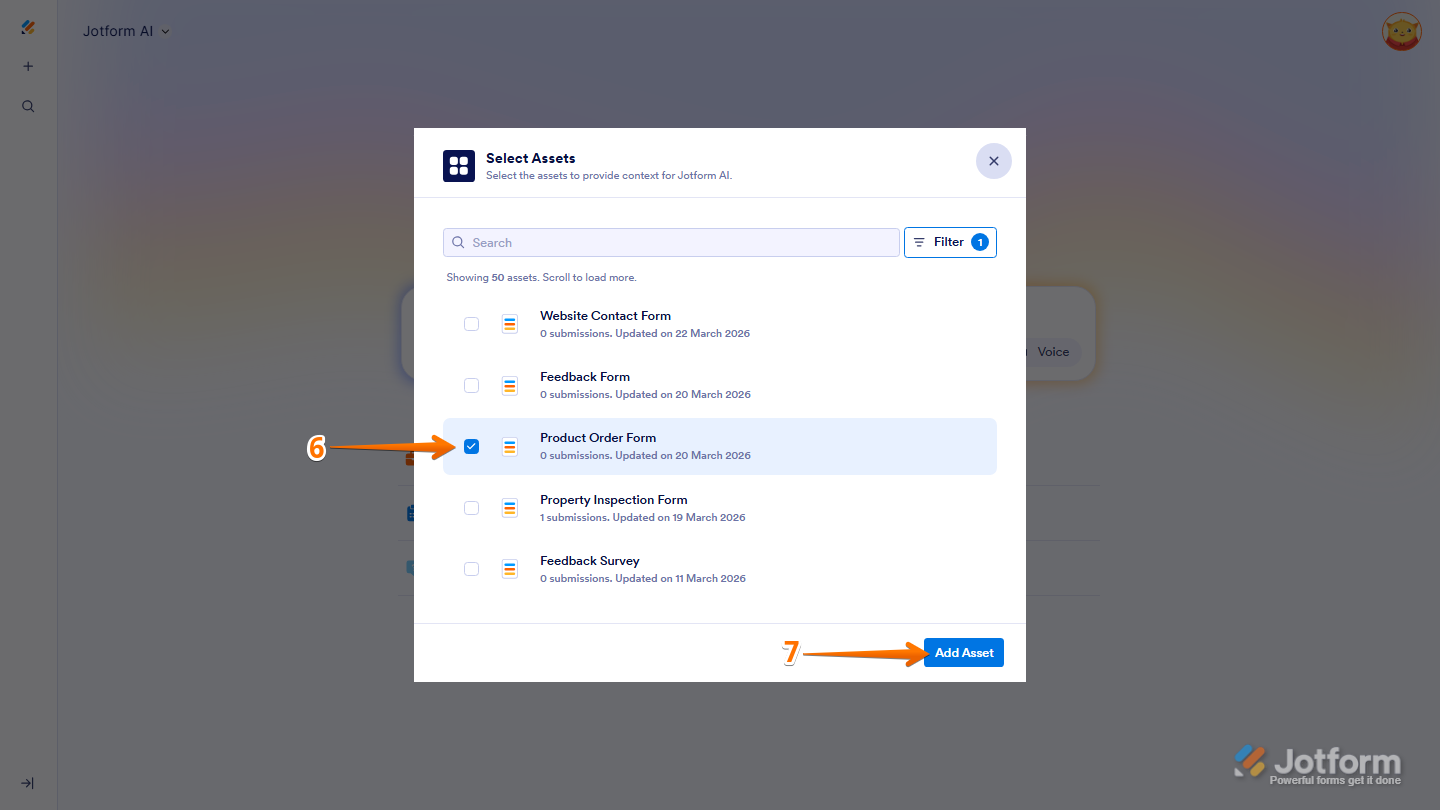
The asset will then appear in the conversation as a reference, letting Jotform AI know which asset to work with.
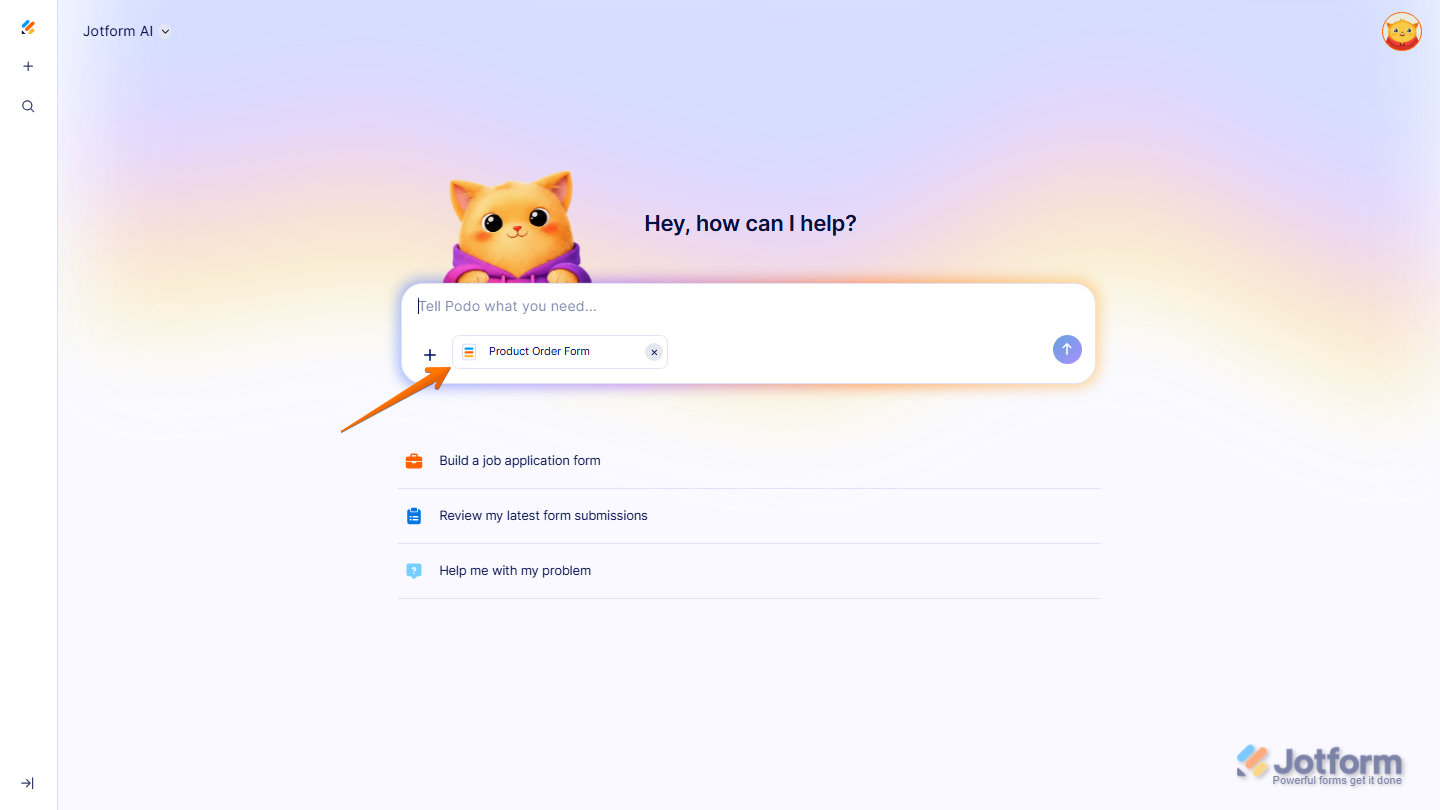
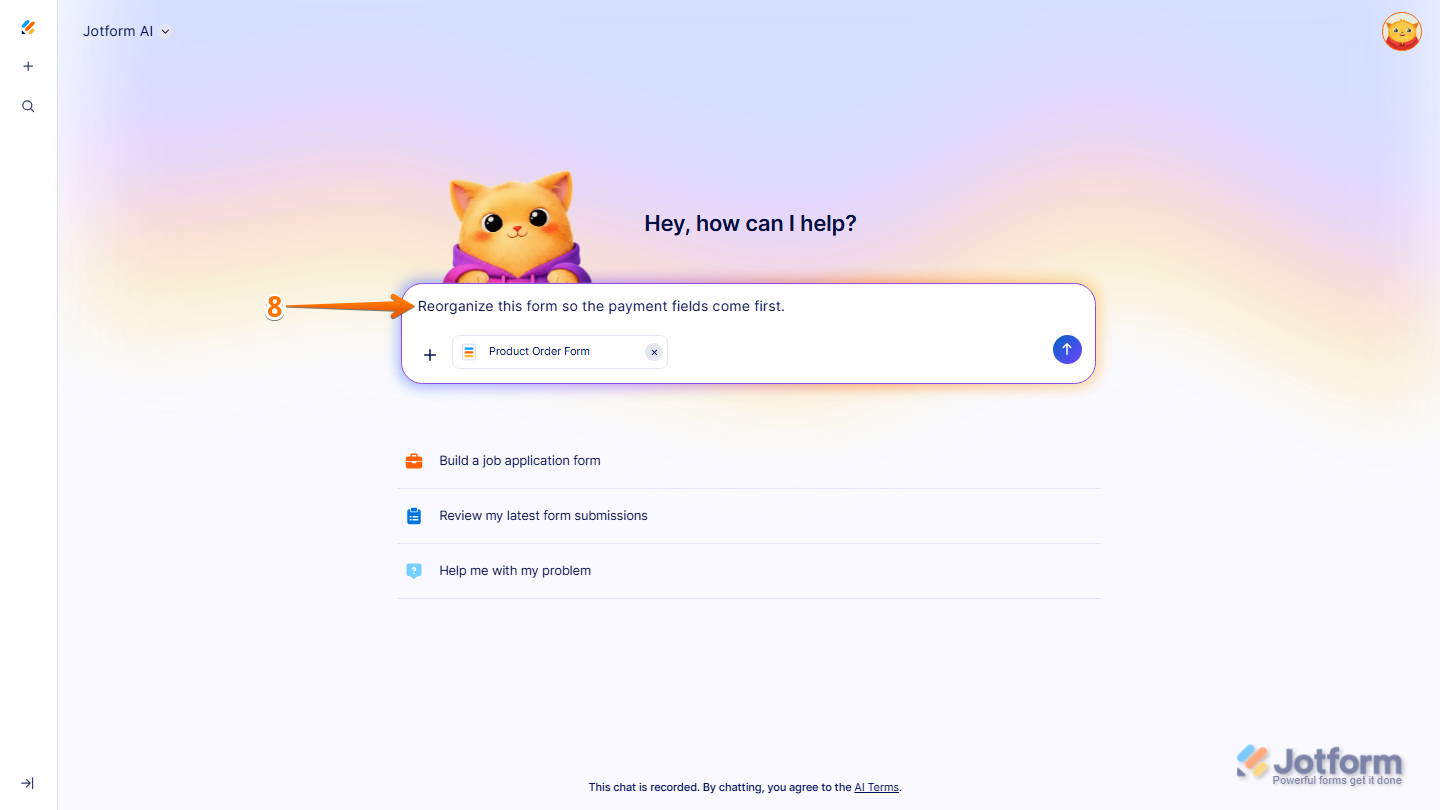
- Next, in the chat, type your prompt. Here are a few prompts you can try:
- Make this form shorter but keep the essential questions.
- Rewrite the descriptions in a more professional tone.
- Reorganize this form so the payment fields come first.
Pro Tip
You can also check out the Prompt Examples When Using Existing Jotform Assets section below for more prompts you can try.
- Finally, press Enter on your keyboard or click the Upward Arrow icon to submit your prompt, and you’re done.
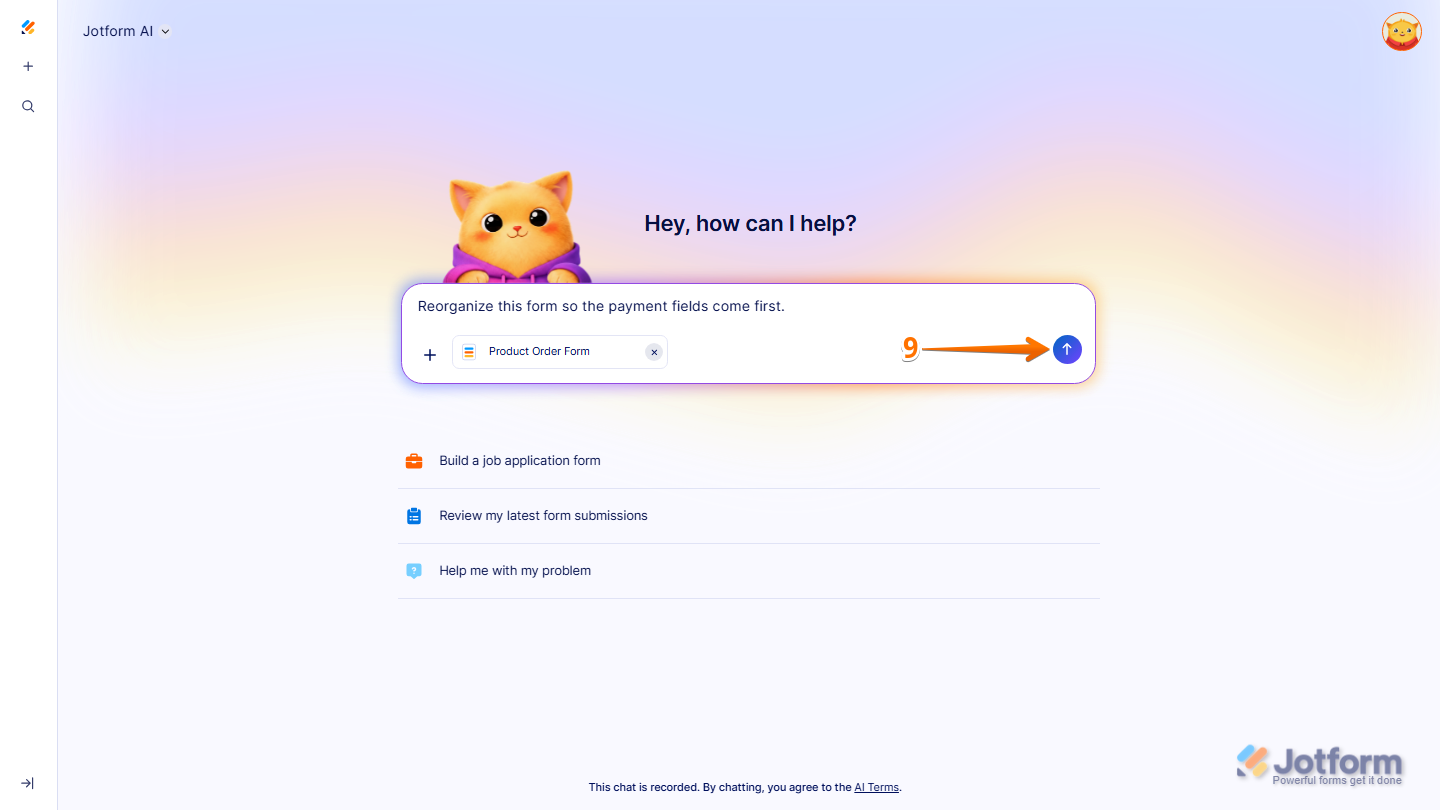
And that’s it. Jotform AI will then use the selected asset as context to generate a more accurate and relevant form.
Note
You can select multiple assets at once by checking more than one checkbox in the Select Assets window.
Using Existing Jotform Assets via the Jotform AI Chatbot
If you’d prefer to stay on your Workspace page, you can also add assets through the Jotform AI chatbot. Here’s what to do:
- On your Workspace page, click on the Jotform AI Chatbot in the bottom-right corner of the screen.
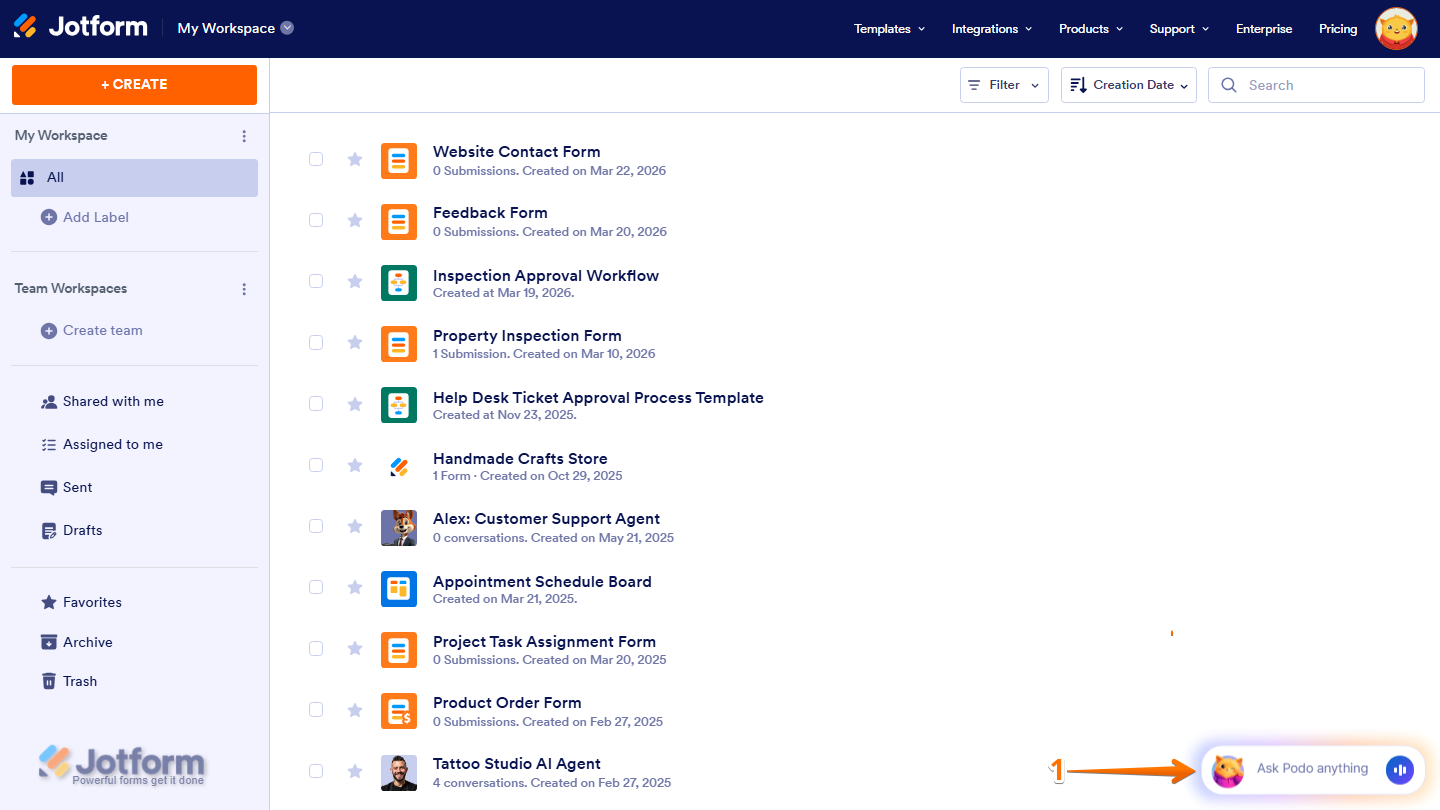
- Next, in the chat window that opens, click on the Plus icon at the bottom-left corner of the window.
- Then, in the menu that comes up, click on Add Asset.
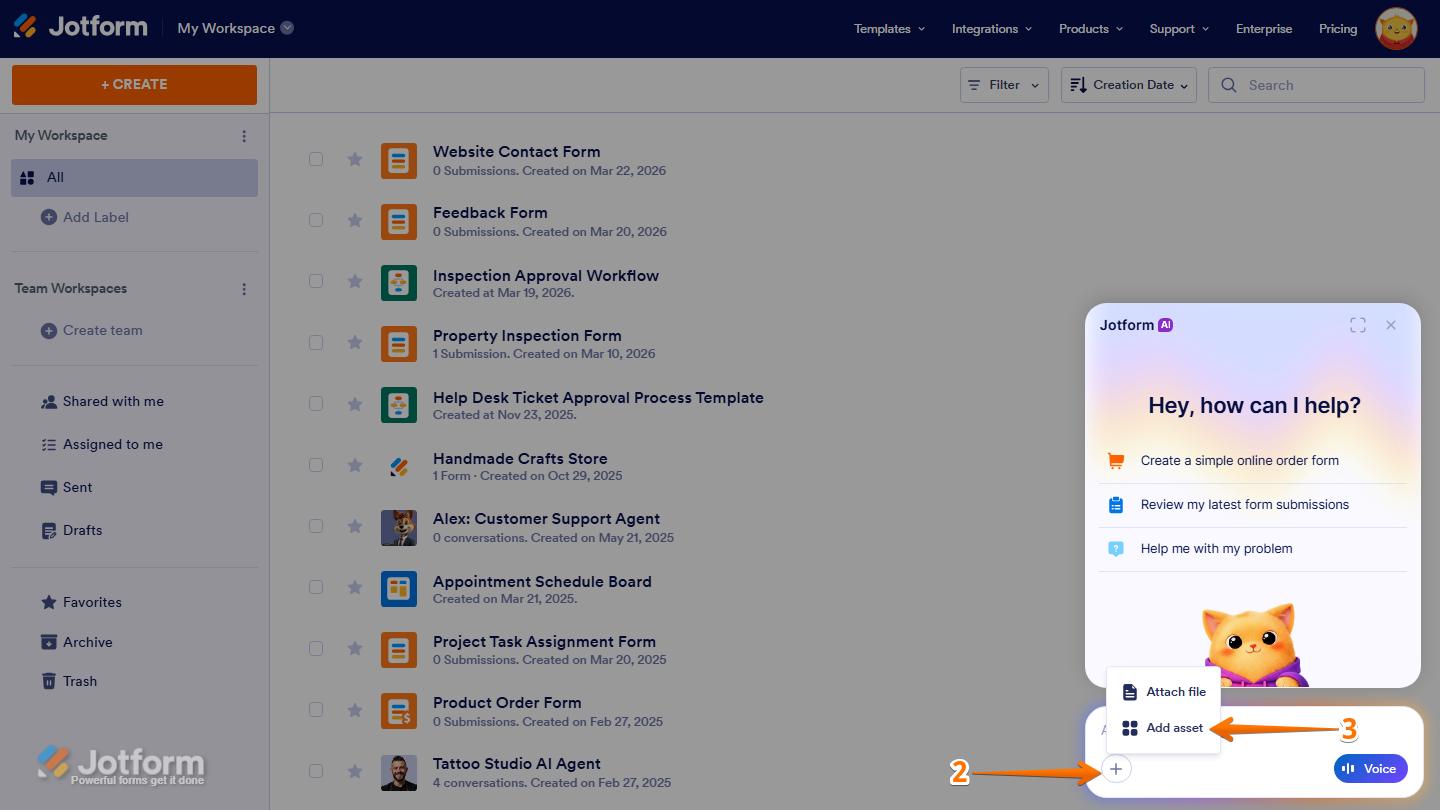
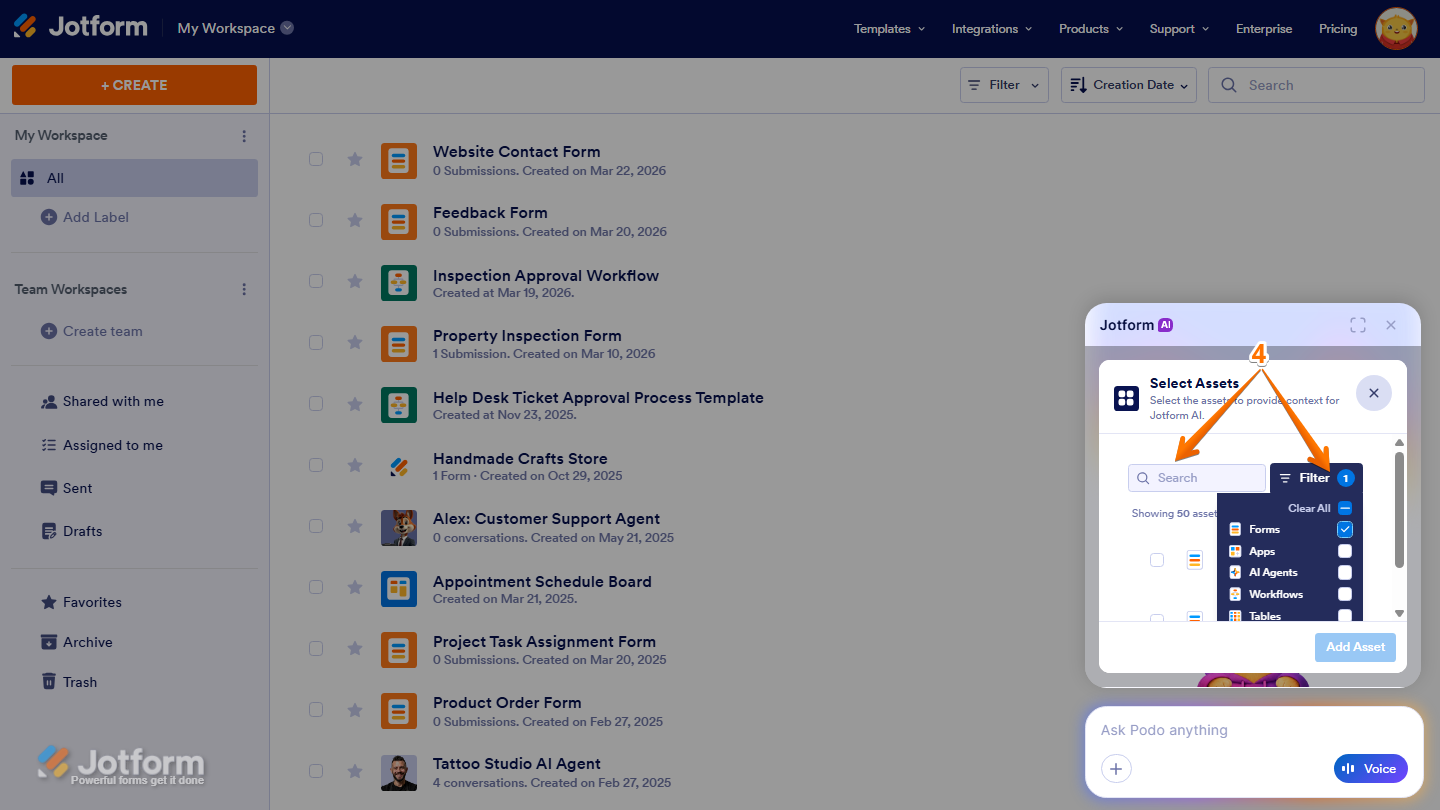
- Next, in the Select Assets window that appears, use the Search bar to find the asset you want to use. Or, you can also click on Filter next to the search bar to narrow down the list of assets.
- Now, check the box for the asset you want to add. For example, Product Order Form.
- Then, click on Add Asset.
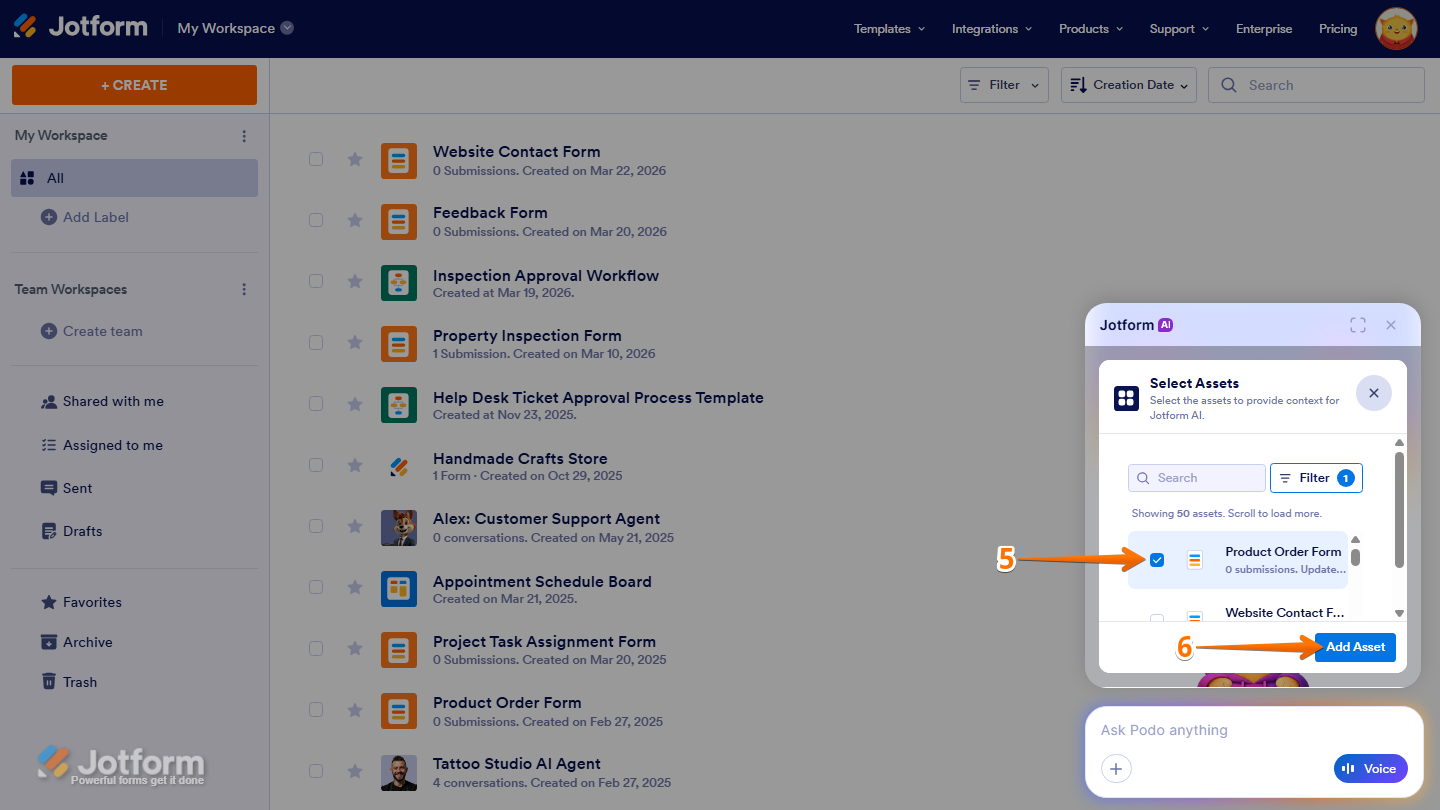
The asset will then appear in the conversation as a reference, letting Jotform AI know which asset to work with.
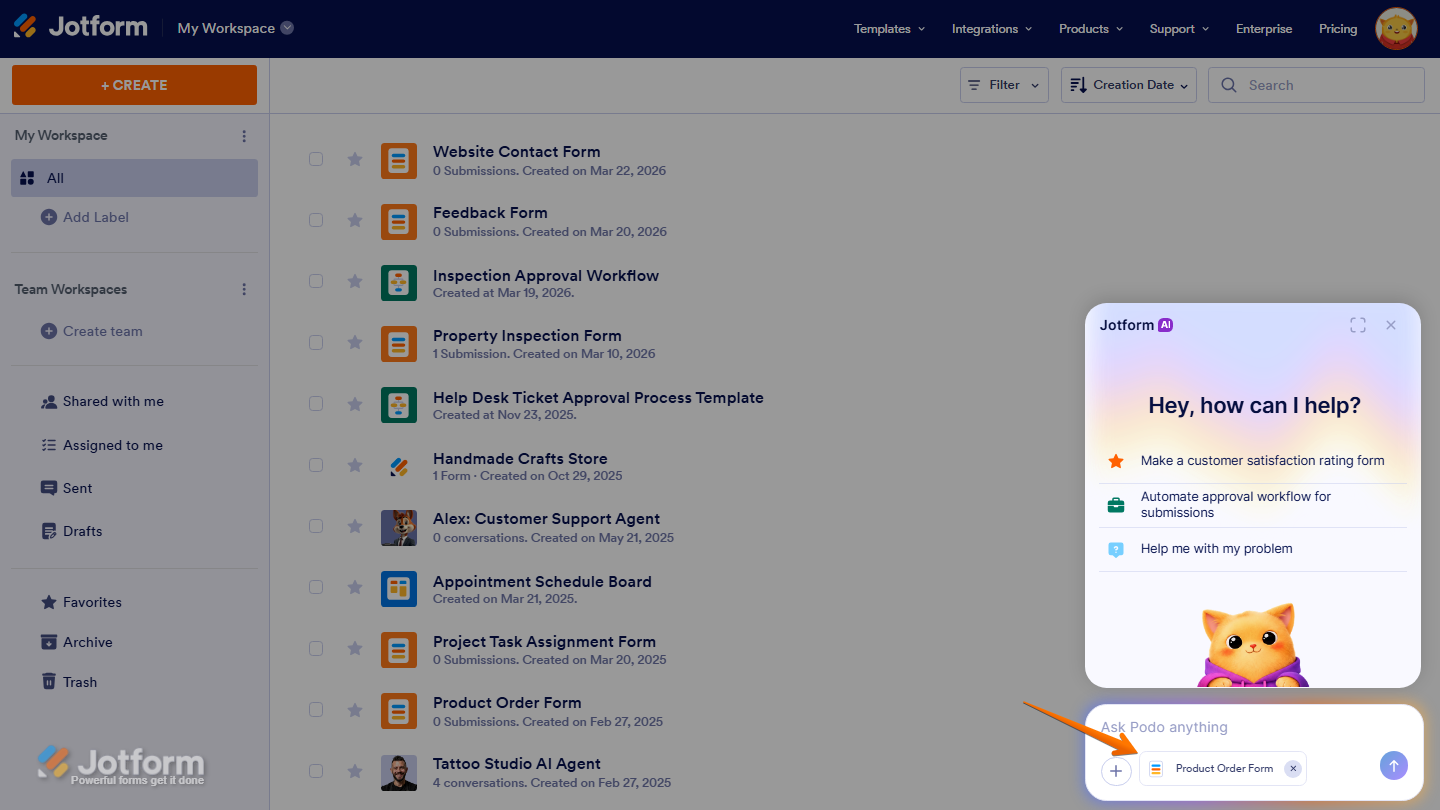
- Next, in the chat, type your prompt. Here are a few prompts you can try:
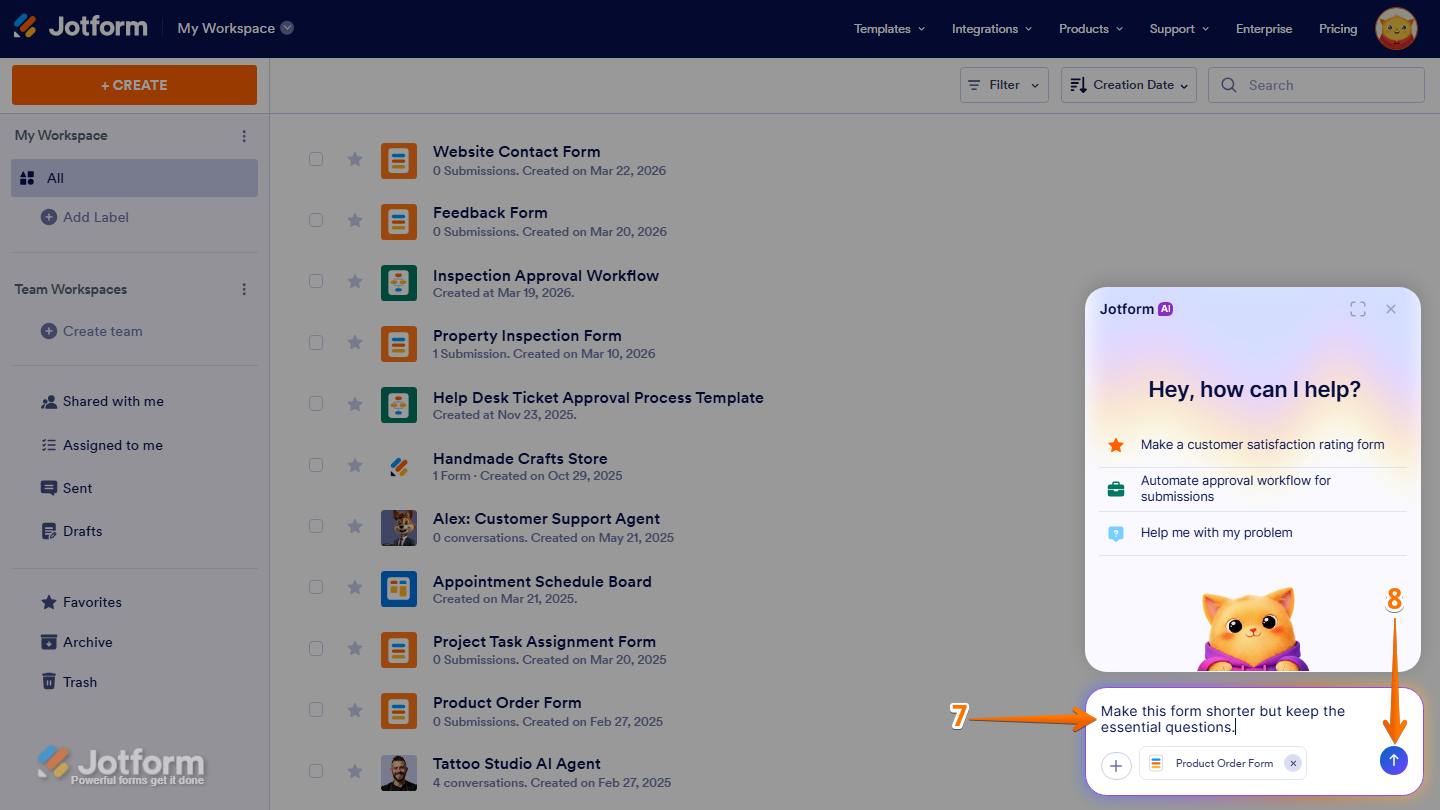
- Make this form shorter but keep the essential questions.
- Rewrite the descriptions in a more professional tone.
- Reorganize this form so the payment fields come first.
- Finally, press Enter on your keyboard or click the Upward Arrow icon to submit your prompt, and you’re good to go.
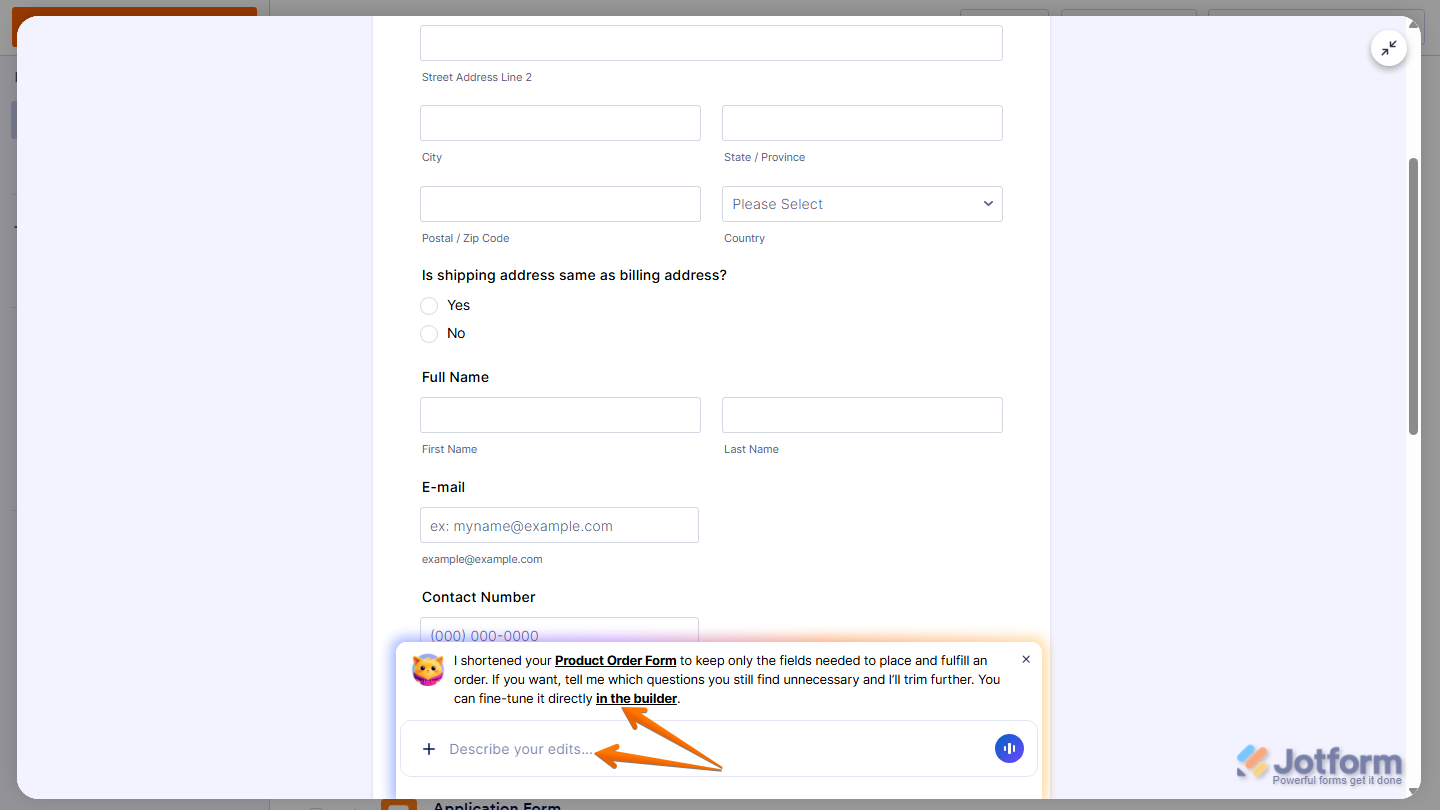
Jotform AI will apply the changes directly to your form and show a preview on the screen. It will also provide a short explanation of what was updated in the chat. From there, you can type more edits in the Describe your Edits field or click on the Form Builder link to fine-tune it further in the Form Builder.
Prompt Examples When Using Existing Jotform Assets
Not sure what to ask? Here are some prompts you can try after adding your asset:
Improving a Form
- Review this form and suggest improvements to the questions and wording.
- Make this form shorter but keep the essential questions.
- Add a progress bar to this form.
Reusing or Redesigning Content
- Use this form’s questions to create a simplified onboarding form.
- Turn this form into a post-event survey.
- Create a simpler version of this form for a different audience.
Checking Clarity or Tone
- Check this form’s text for clarity and make it more user-friendly.
- Rewrite the descriptions in this form in a more professional tone.
- Rewrite the labels in this form to make them clearer and easier to understand.
Reorganizing a Form
- Reorganize this form so the payment fields come first.
- Group the shipping and billing fields together in this form.
- Move the product selection fields to the top of this form.
Troubleshooting a Form
- There are too many required fields in this form. Make some of them optional.
- Check this form and suggest ways to reduce form abandonment.”
- Add a discount code field to this form.
Pro Tip
- Be specific in your prompt. For example, Shorten to 10 questions maximum or Make it friendlier for first-time users.
- Mention your audience or use case. For example, For internal HR onboarding or For event attendees.
- If you need to attach more than one asset, explain how they relate in your prompt. For example, use this old form and this new policy to create an updated consent form.

Send Comment: