Jotform AI keeps track of your past conversations, making it easy to revisit your ideas, prompts, and generated forms whenever you need them. Instead of starting from scratch each time, you can go back to a previous chat, reuse a prompt, or continue building on an earlier project. It’s a helpful way to stay organized and keep your workflow moving without losing track of your progress.
Notes
- Your chat history is saved automatically, so you don’t need to manually save your conversations.
- If you don’t see a previous chat, make sure you’re logged into the correct Jotform account.
Viewing Chat History in Jotform AI
Whether you’re picking up where you left off or looking back at past ideas, viewing your chat history in Jotform AI makes it easy to stay on track, reuse prompts, and continue your work without starting over. Here’s how to get going:
- In your Workspace, click on Create on the top-left side of the page.
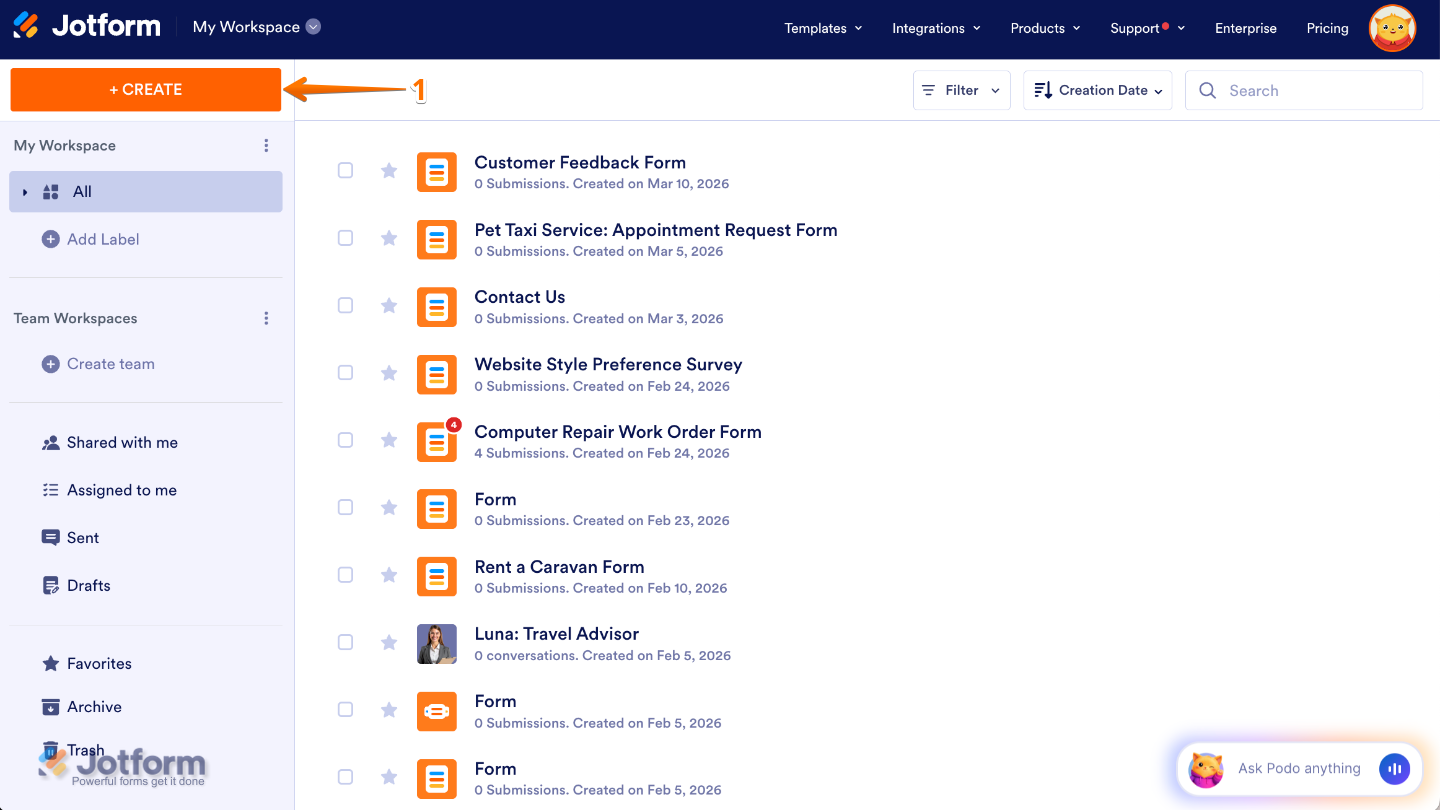
- Then, at the bottom of the window that opens up, click on Jotform AI.

- Next, click on the Magnifying Glass icon in the top-left side of the page.
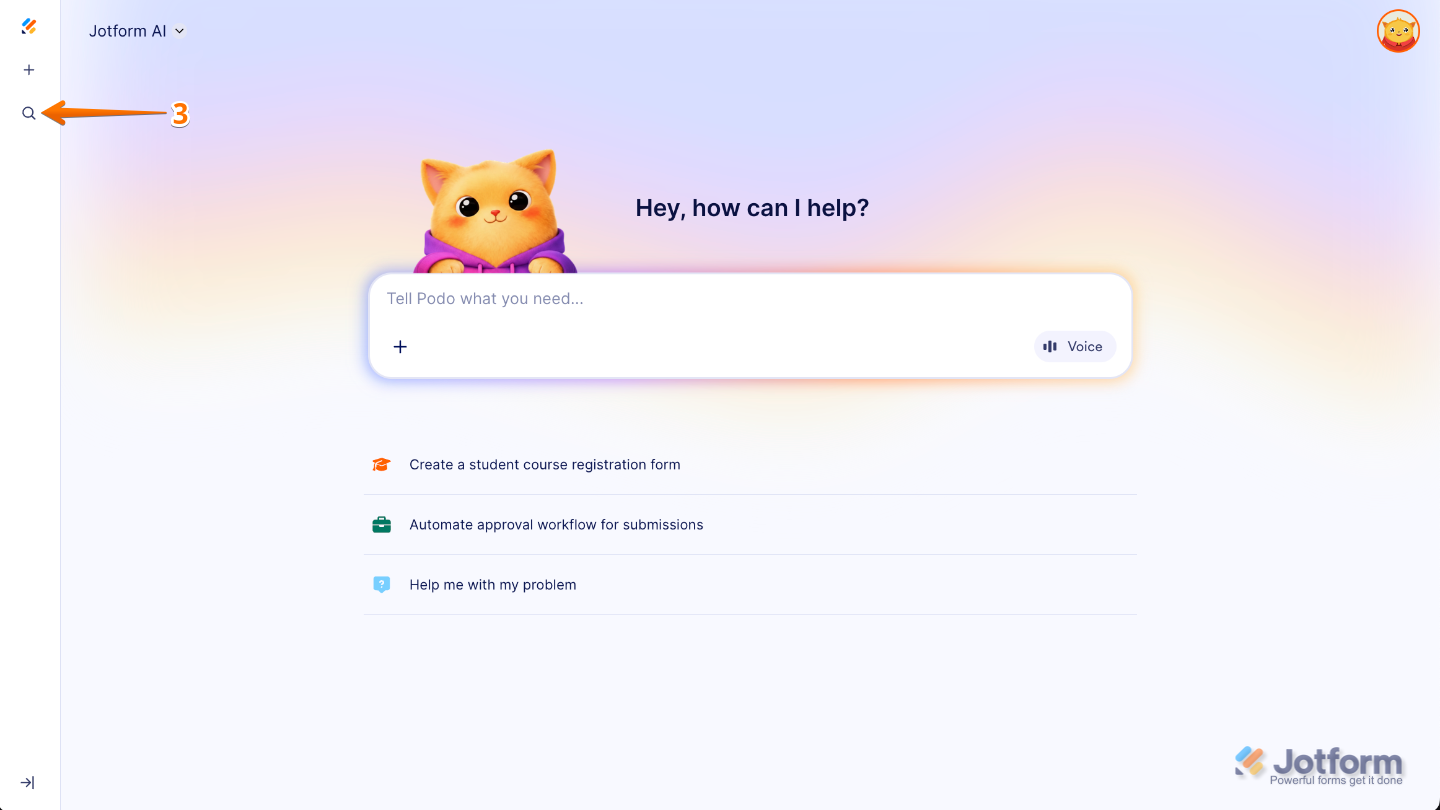
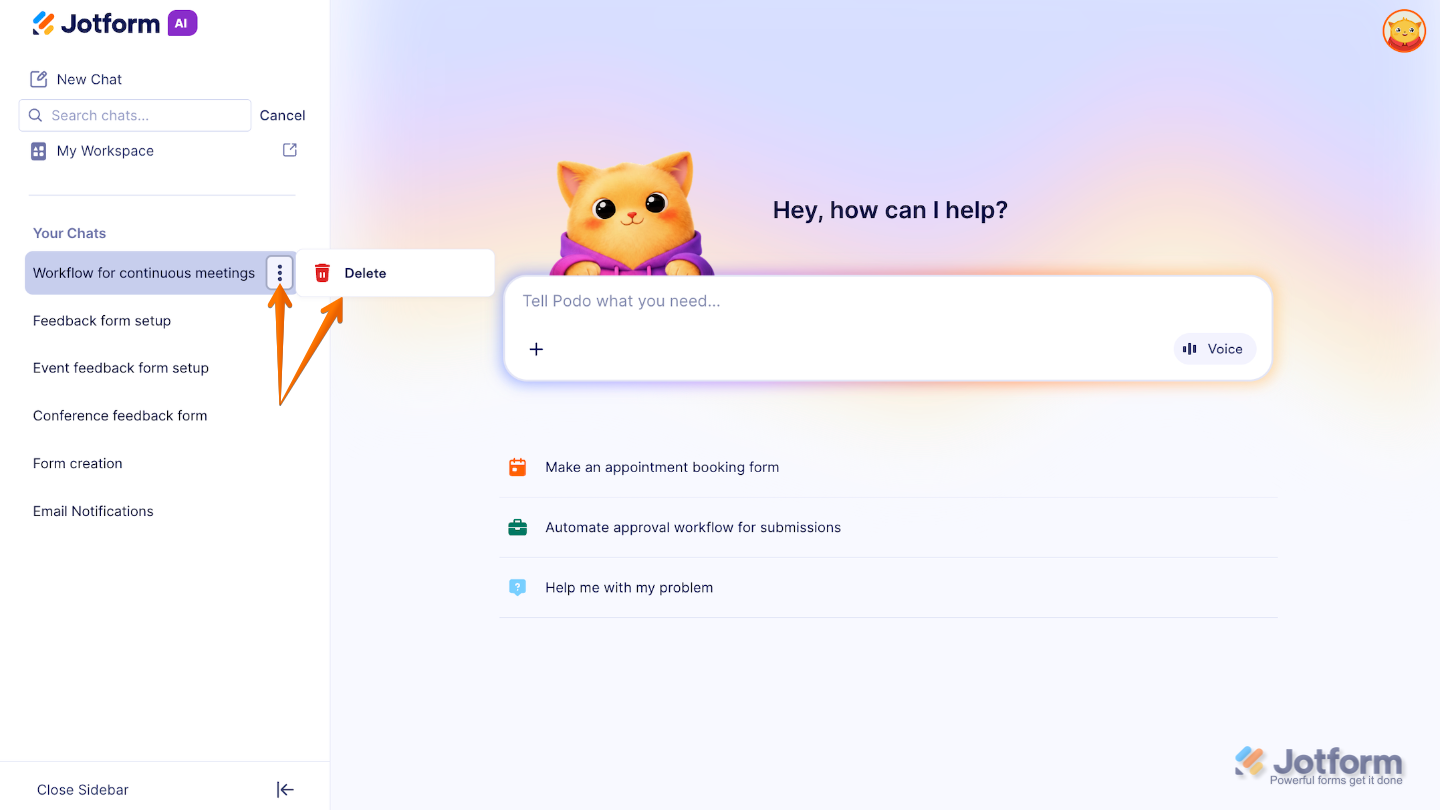
- Now, under the Your Chats section, select a chat you want to continue.

To delete a chat, simply click on the chat, then click the Three Dots icon, and select Delete.
That’s it. You now know how to view and manage your chat history in Jotform AI, making it easy to revisit past ideas, reuse prompts, and pick up right where you left off.
Pro Tips
- Use clear and descriptive titles when renaming your chats so it’s easier to find them later on.
- Save time by going back to previous conversations and reusing prompts that worked well for you.
- Take a moment to organize your chats regularly by removing ones you no longer need to keep your workspace clean and clutter-free.
- Pick up right where you left off by continuing to refine your forms without having to start from scratch each time.

Send Comment: