
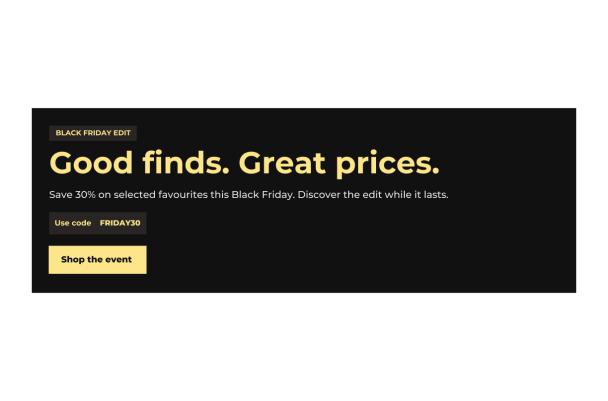
Midnight Chapter New Year Banner
We couldn't create your widget. Please try again.
We couldn't create your widget. Please try again.

We couldn't create your widget. Please try again.

We couldn't create your widget. Please try again.

We couldn't create your widget. Please try again.
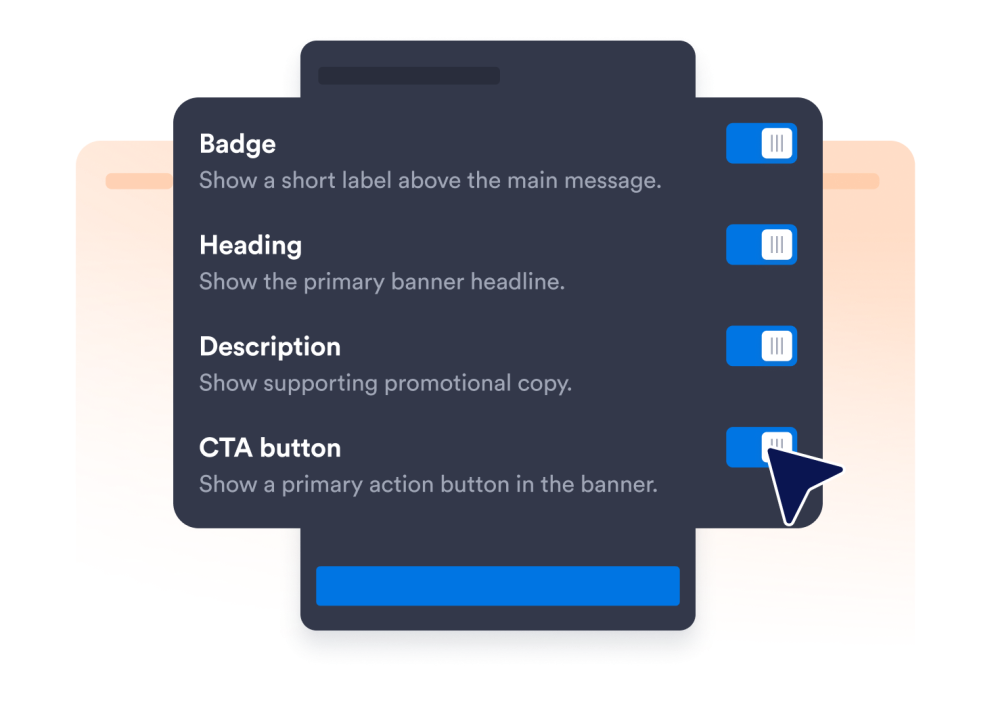
Choose the content and elements you want to show to your website visitors and tailor your widget to your needs.
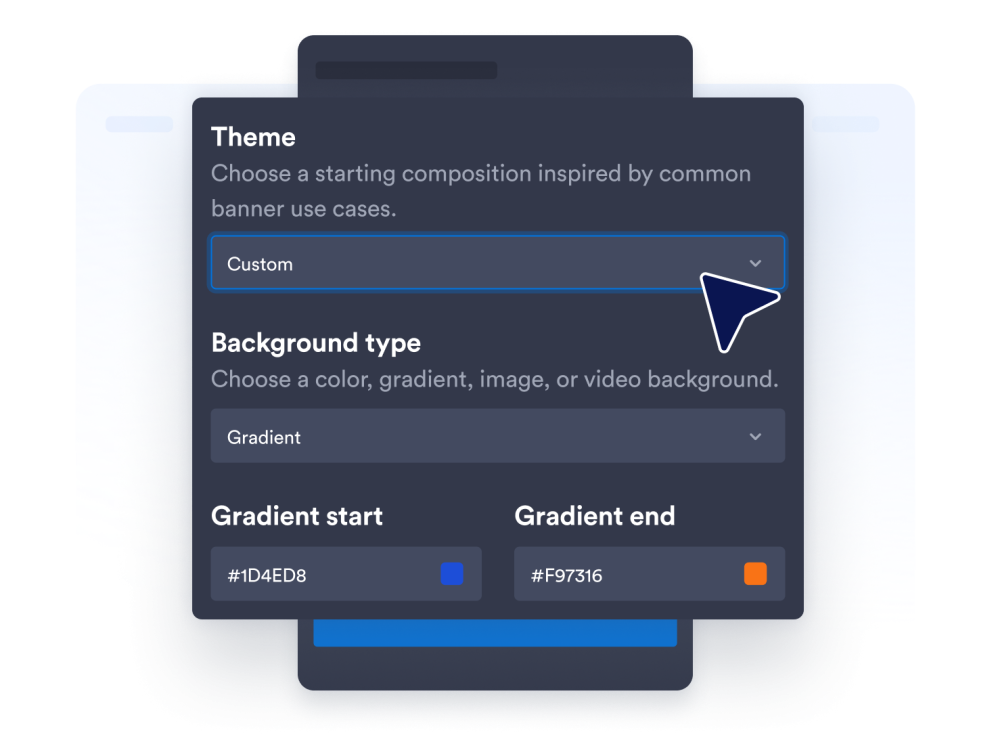
Customize your widget's appearance by adjusting colors and other design settings to match your website's style.
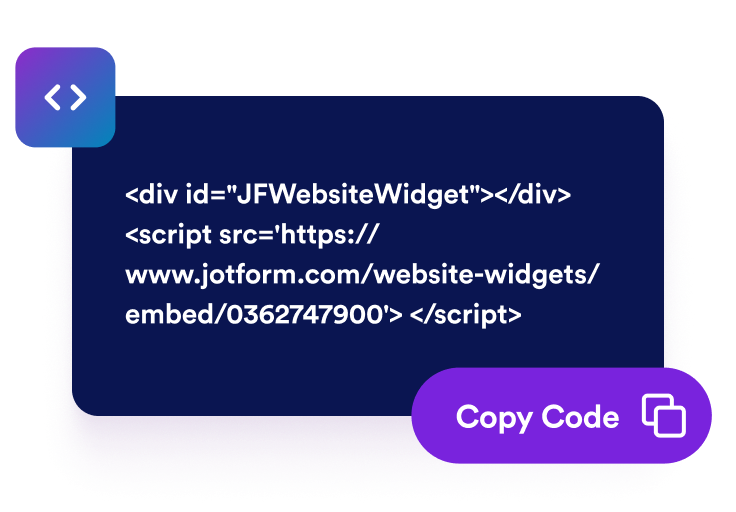
Paste the embed code into a custom HTML or embed block, then publish your page to display the website widget.
Create banners for sales, product launches, events, webinars, restaurant promotions, travel deals, and seasonal campaigns. Ready-made banner styles give you a useful starting point while leaving room to adapt the message to your audience and goal.
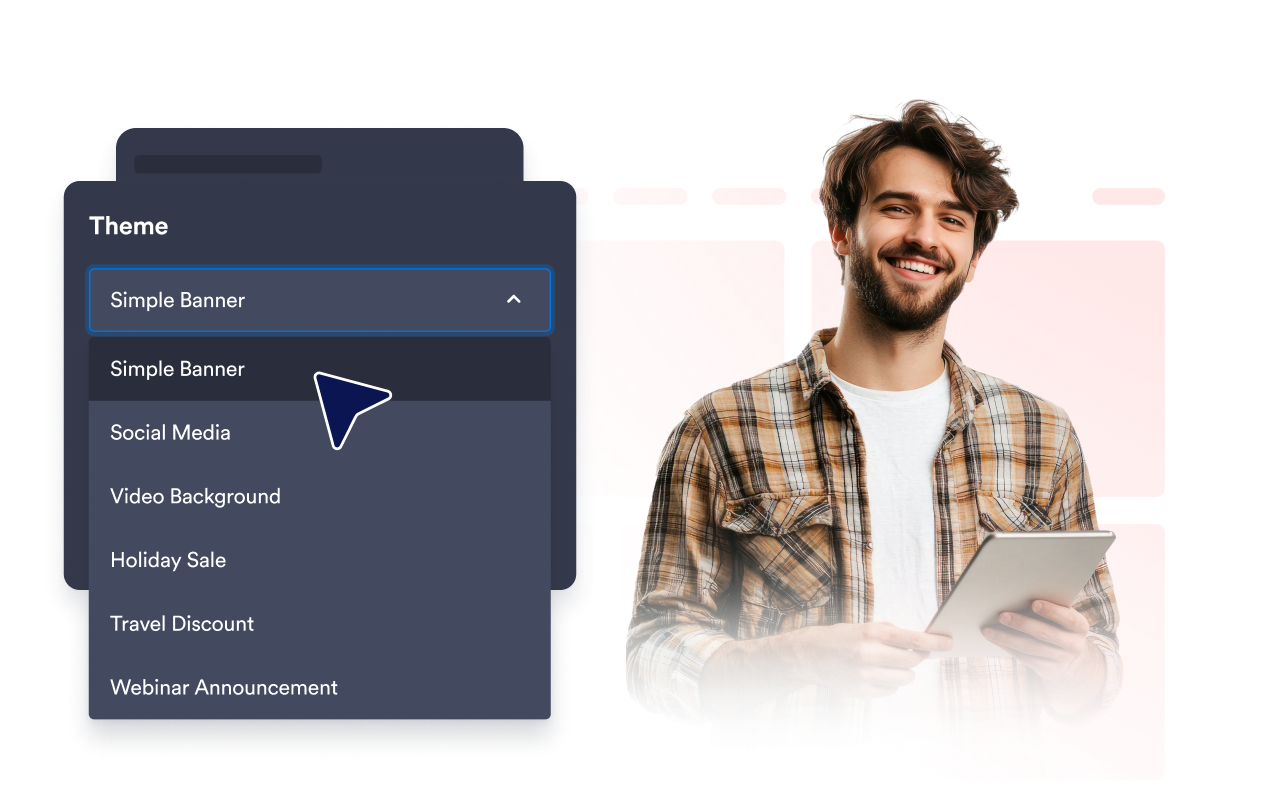
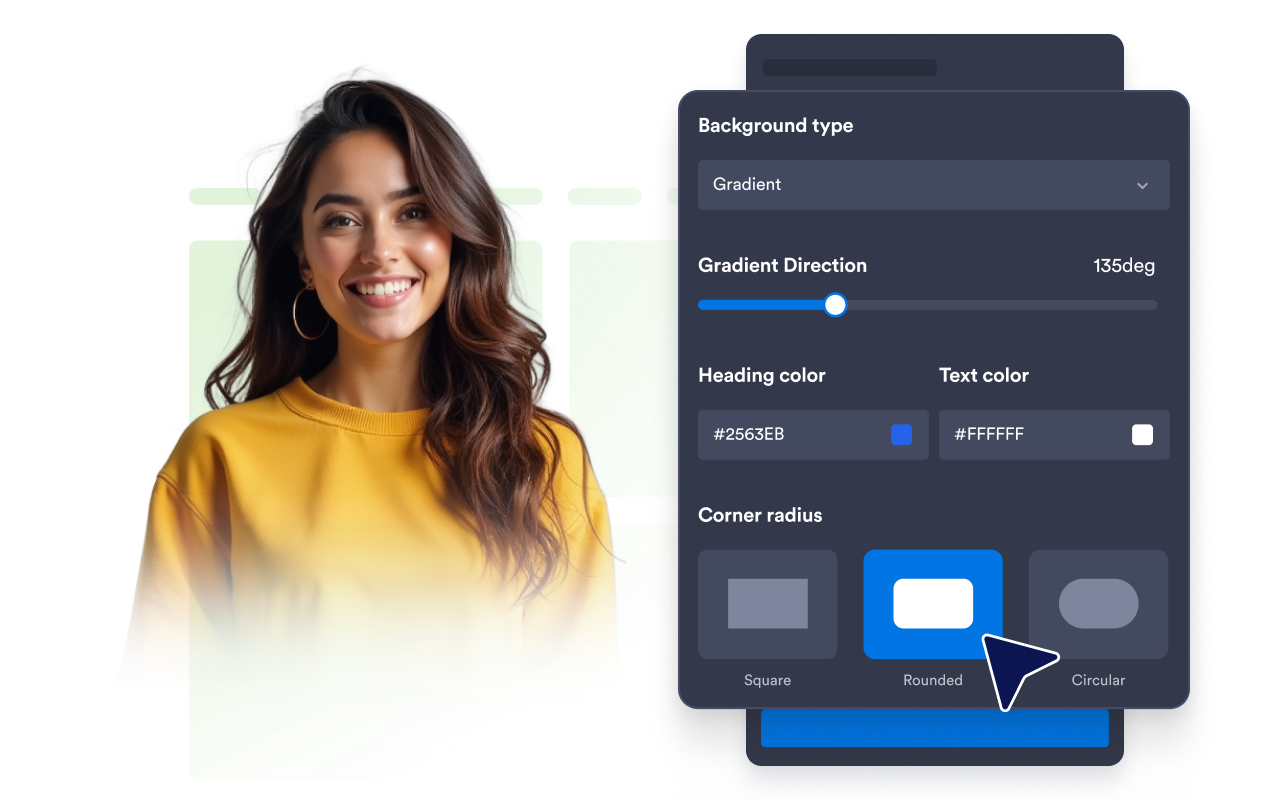
Make important messages easier to notice with solid colors, gradients, images, or YouTube and Vimeo video backgrounds. Adjust brightness, stretching, and rounded corners to create a banner that complements the rest of your page.
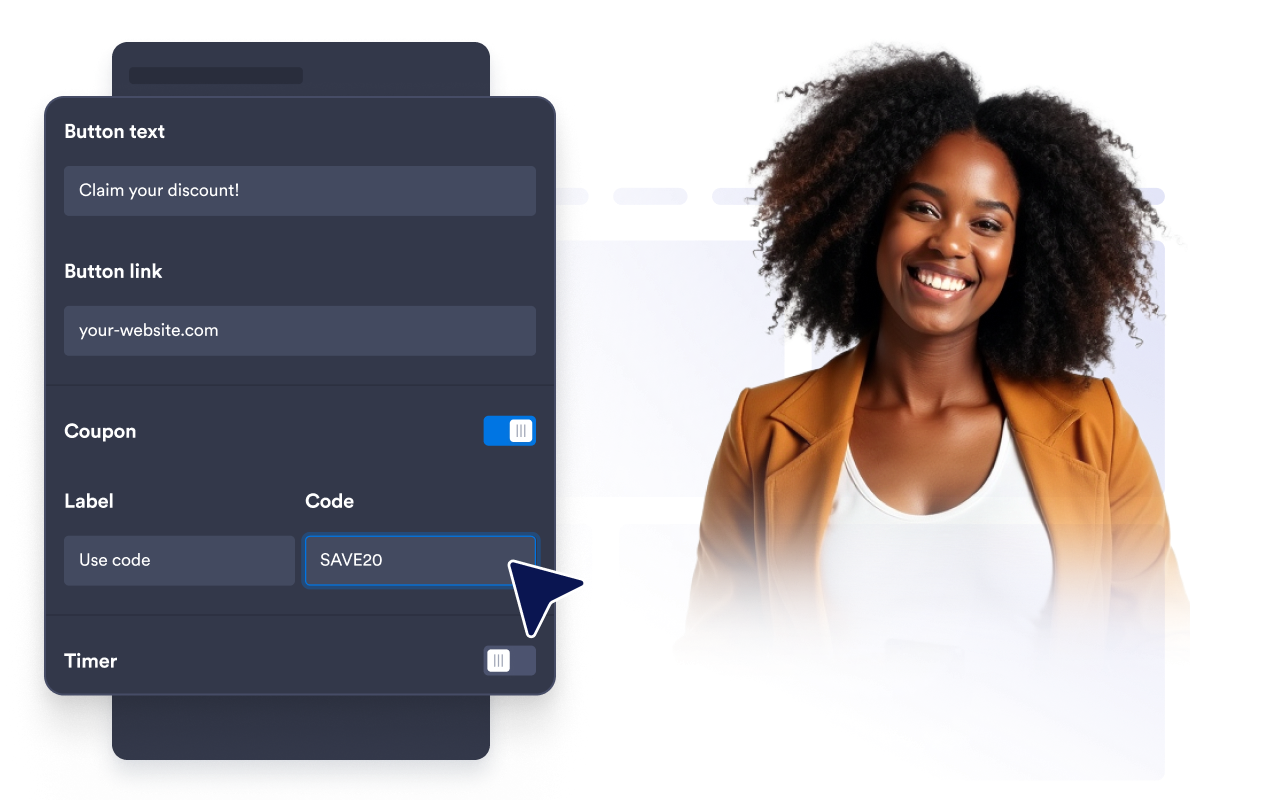
Direct visitors to the next step with CTA buttons, text links, clickable banner areas, coupon codes, countdown timers, or email forms. Combine the appropriate elements to promote an offer, collect interest, or share time-sensitive information.
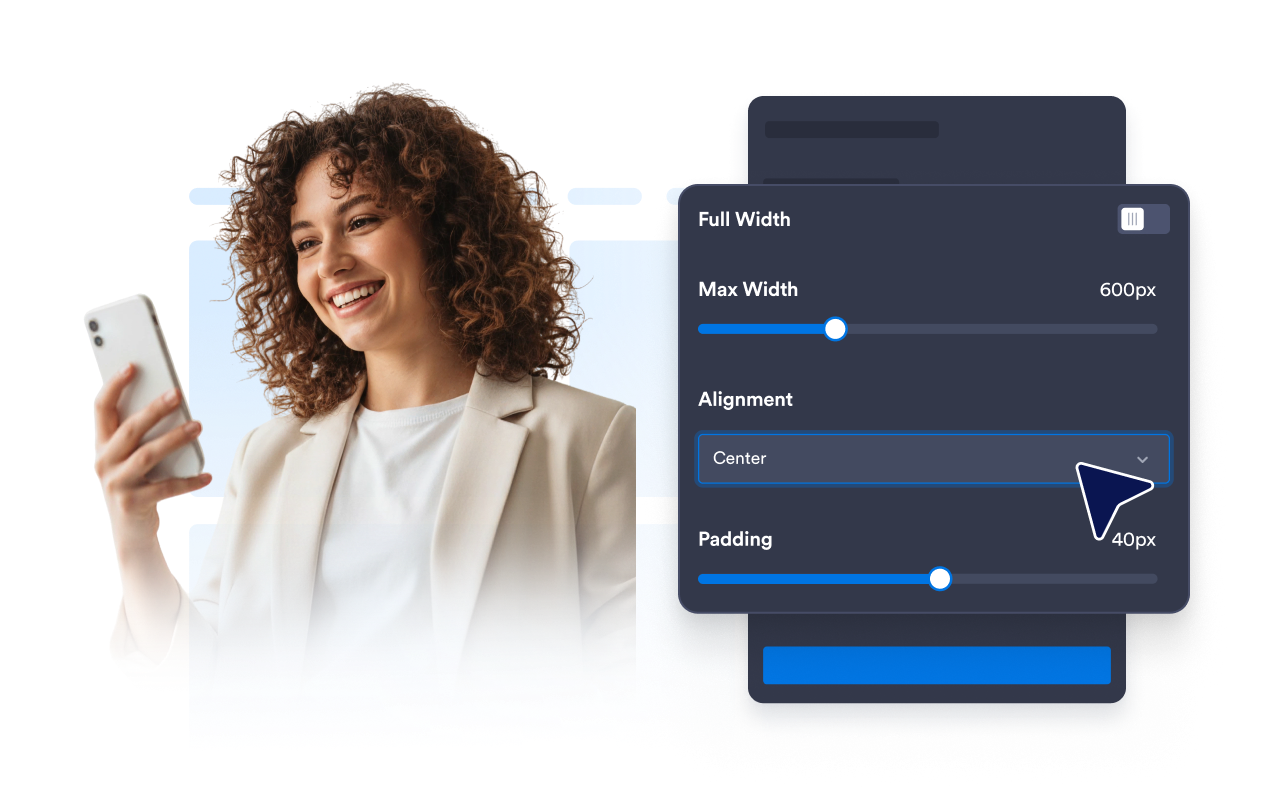
Choose horizontal or vertical layouts, set a custom or full width, and adjust alignment, padding, and spacing. Device visibility settings let you control whether a banner appears across all screens or only on desktop or mobile devices.
Jotform’s widgets make your website more interactive and increase conversions. There are many tools available, from star ratings and testimonial sliders to social proof popups and media embeds. Add widgets to your forms or landing pages to collect data, display proof, and capture leads — no coding required.
Add Jotform widgets to your website with a simple embed code. Customize the widget, preview how it looks, and paste it into any page that supports custom HTML or embed blocks, all without a developer.
Use Jotform Website Widgets to collect leads, show customer feedback, display social proof, embed media, or add helpful web page tools. Each widget helps visitors interact with your business directly from your website.
If you need help setting up, customizing, embedding, or troubleshooting your widget, Jotform’s customer support team is available 24-7. You can move forward with confidence, knowing that help is there when you need it.
Place banners where visitors need to notice an offer, understand an announcement, or take the next step.
Homepage hero areas to promote launches, announcements, and seasonal campaigns.
Product and pricing pages to highlight discounts, coupons, bundles, or shipping offers.
Event and webinar pages to feature registration buttons, forms, and countdowns.
Restaurant websites to promote menus, openings, events, or limited-time offers.
Travel and hospitality pages to present booking promotions and seasonal packages.
Blog and resource pages to direct readers to newsletters, related offers, or campaigns.
Turn engagement into action with Jotform. Create powerful forms that capture leads, collect payments, and automate responses, all in one place. Every submission lands in your Jotform Inbox, where you can follow up or connect with your favorite apps.
Get Started — It’s Free!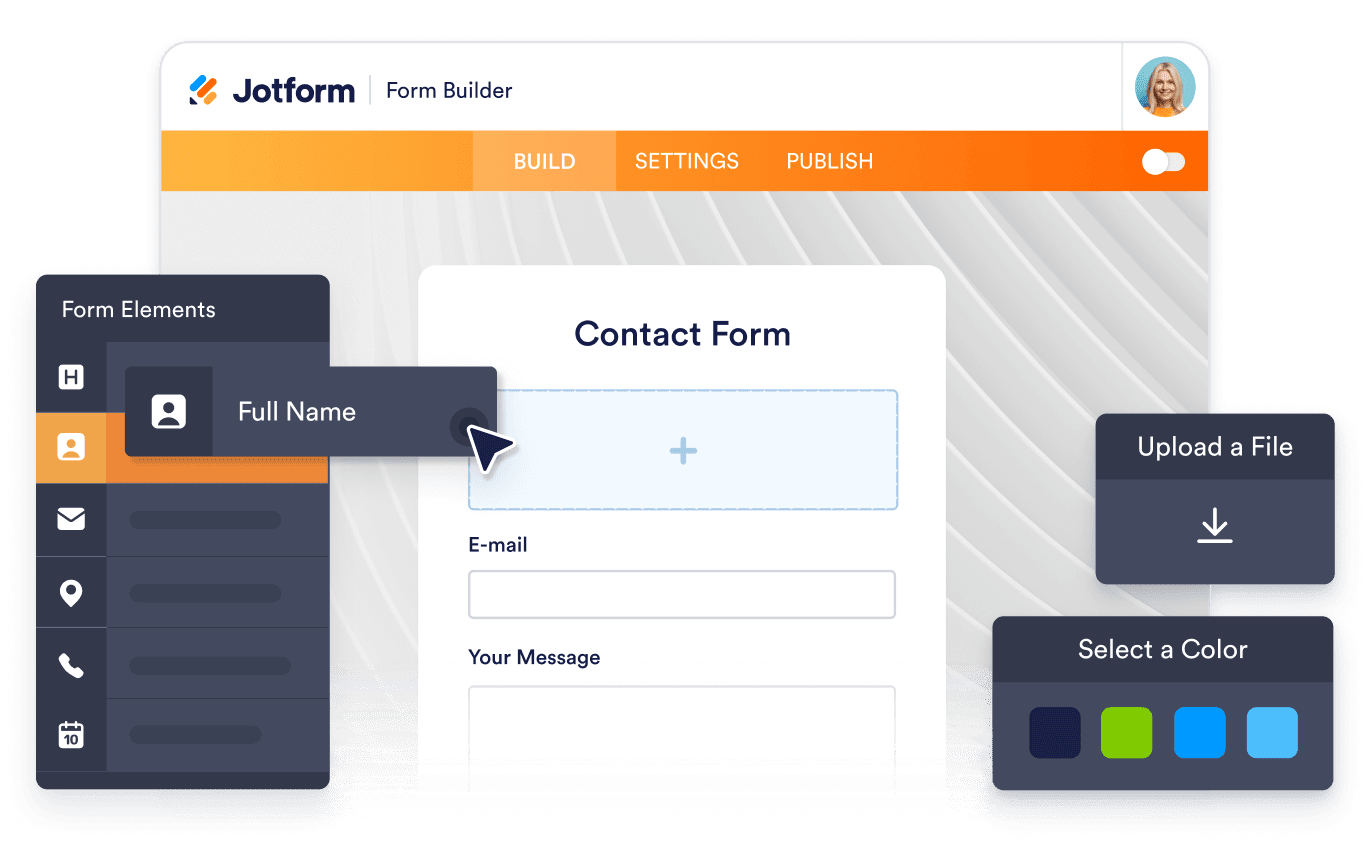
A Banner Widget is a customizable promotional section you can embed on your website. Use it to present announcements, discounts, events, product launches, coupons, media, signup opportunities, and other calls to action.