
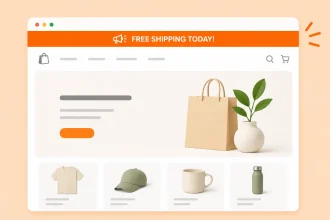
An eye-catching promotional banner is one of the most powerful conversion drivers for online stores. It’s the first thing a shopper sees when they open your website, so a clear call to action (CTA) can dramatically improve add-to-cart rates and overall sales. Whether you’re driving shoppers to a Black Friday sale, announcing free-shipping thresholds, or capturing leads in exchange for a discount code, a promotional banner is one of the best tools for the job.
But why use just a static banner? A countdown timer can create a sense of urgency, rich media can give the banner more impact, and an email capture form can generate leads immediately. Unfortunately, Shopify doesn’t make it easy to include any of these things. Shopify’s OS 2.0 themes include native “announcement bar” and “image bar” sections, but they’re limited to plain text along the top of the page and two static images, some text, and two buttons on the banner.
If you want to embed a promo banner on Shopify with a lead capture form that displays differently on mobile or desktop devices or that has a countdown timer or video, you can’t do it without writing custom Liquid and JavaScript. Shopify Magic, Shopify’s AI builder, can generate a custom Liquid banner on Shopify, but it offers no support. And unless you understand the code Shopify Magic has created, your store’s speed and accessibility can take a hit.
That leaves most merchants with two options: Install a premium third-party app from the Shopify App Store, or use a free, lightweight, serverless widget that protects your page speed and theme architecture.
Let’s look at how to add a banner to a Shopify website.

Option 1: Install a dedicated Shopify App Store integration
Adding a Shopify announcement bar to your store with a third-party-banner or popup app is effective, but it has its drawbacks. More on that later.
Here’s how to set it up:
1. Go to the Shopify App Store and search for a banner or popup app. I went with Essential Announcement Bar, but you can choose any app you like.
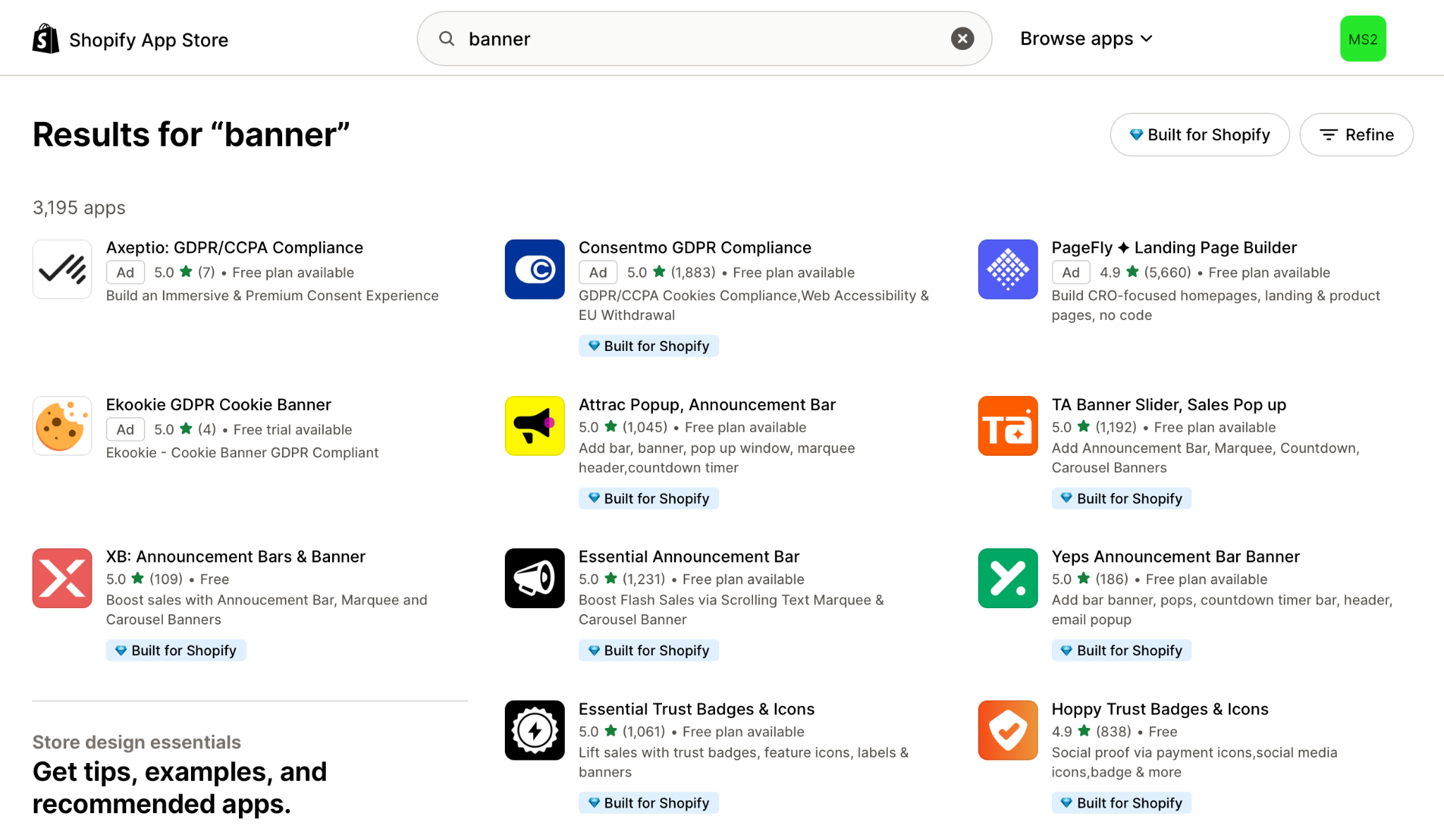
2. Click Install.
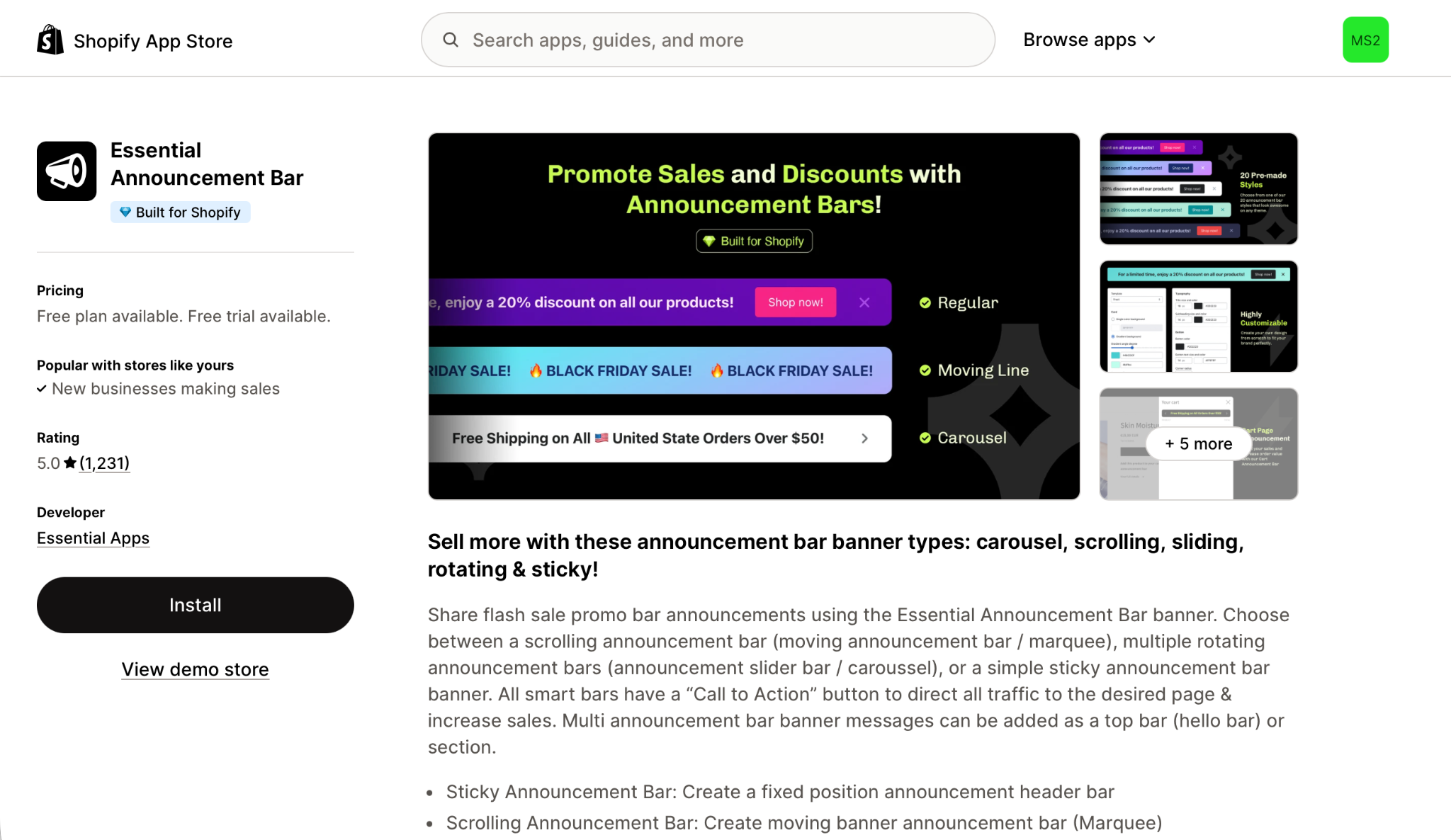
3. Work through any onboarding or setup guide so you understand the plug-in’s basics.
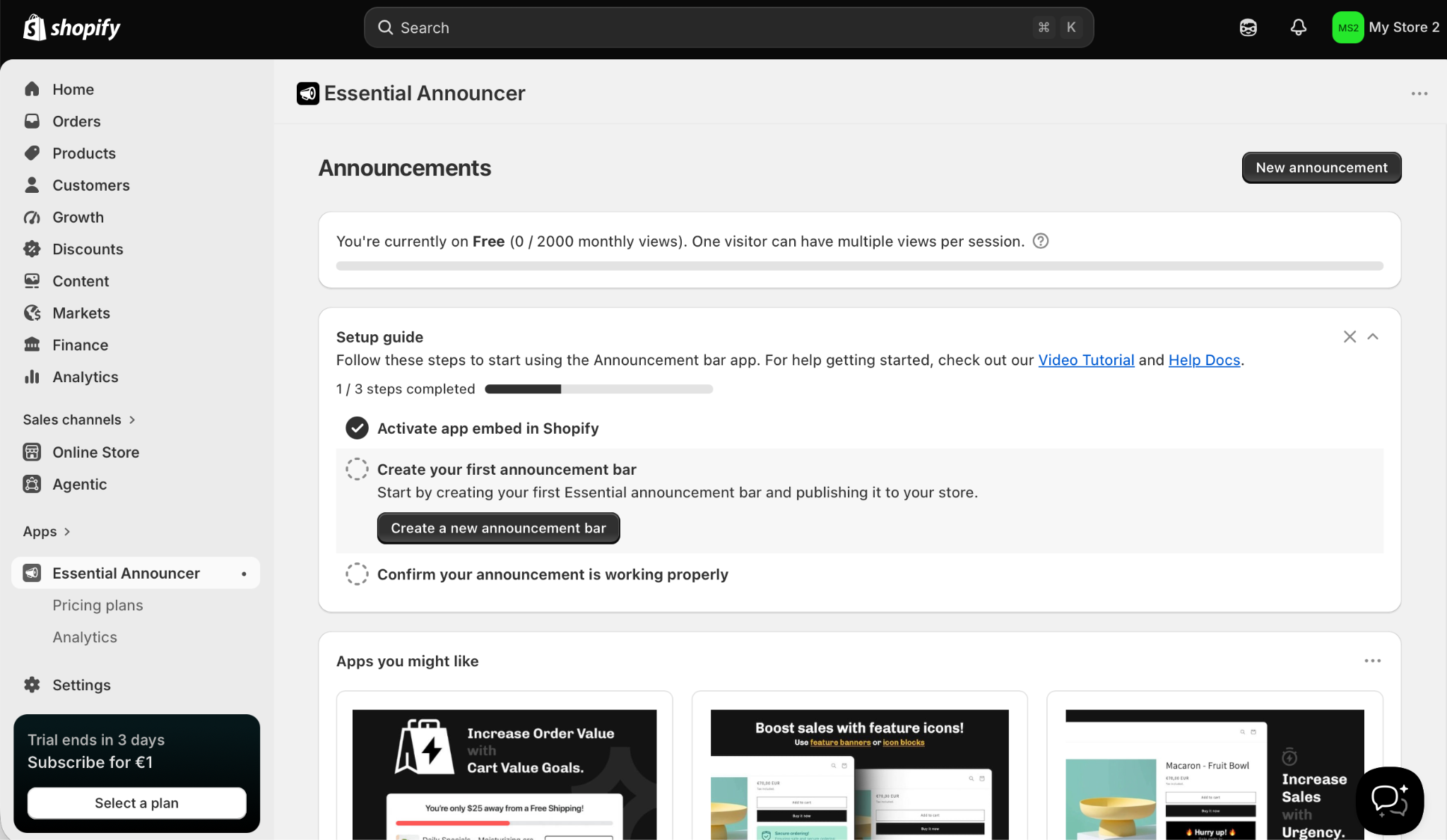
4. Configure your banner or popup in the app. You can customize the text, design, placement, and other features. When you’re done, click Publish.
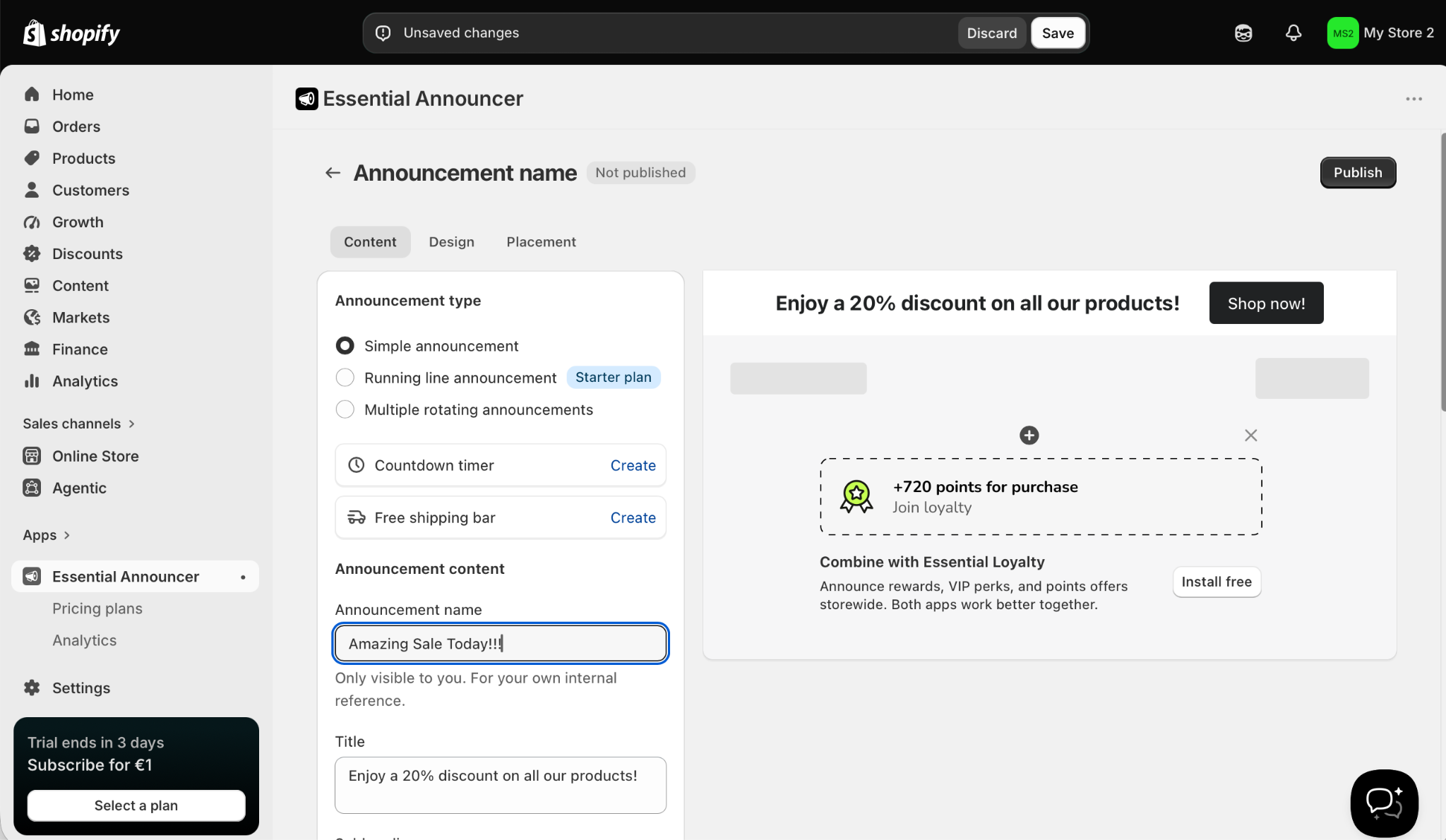
The announcement bar or popup will now appear in your store. So far, so good.
However, every app you install for your Shopify store adds its own CSS and JavaScript to your storefront. This can affect your Core Web Vitals, make your site run slower, cause lag during the checkout process, and affect your SEO ranking. While adding one app is seldom an issue, adding dozens can have a real impact. If you can do something without installing an app, it gives you more room to install necessary apps.
Also, Shopify’s third-party apps can require paid subscriptions. A free version will likely have a limited feature set, work only for the first 1,500 impressions per month, include a watermark, or otherwise not be very effective. If you want advanced features or simply a clean, unbranded banner that can handle high holiday traffic, you usually must pay a monthly subscription fee.
If you want to guarantee that your banner does what you need and is visible to all your customers, without paying a monthly fee, there’s a better option.
Option 2: Add a free, interactive banner widget (recommended)
If you want a dynamic, high-converting banner with rich media, coupons, forms, and countdowns, without having to pay a monthly subscription, slow down your site, or worry about Core Web Vitals, the smartest option is to use a reliable hosted embed like the Jotform Banner Widget. All the heavy lifting happens outside your Shopify store, so you get a flawless and responsive banner with none of the downsides of using an installed third-party app. It’s the best free banner widget for Shopify.
Here’s how to set it up:
1. Head to Jotform Banner Widget and log in to your Jotform account. If you don’t have one, you can sign up for free.
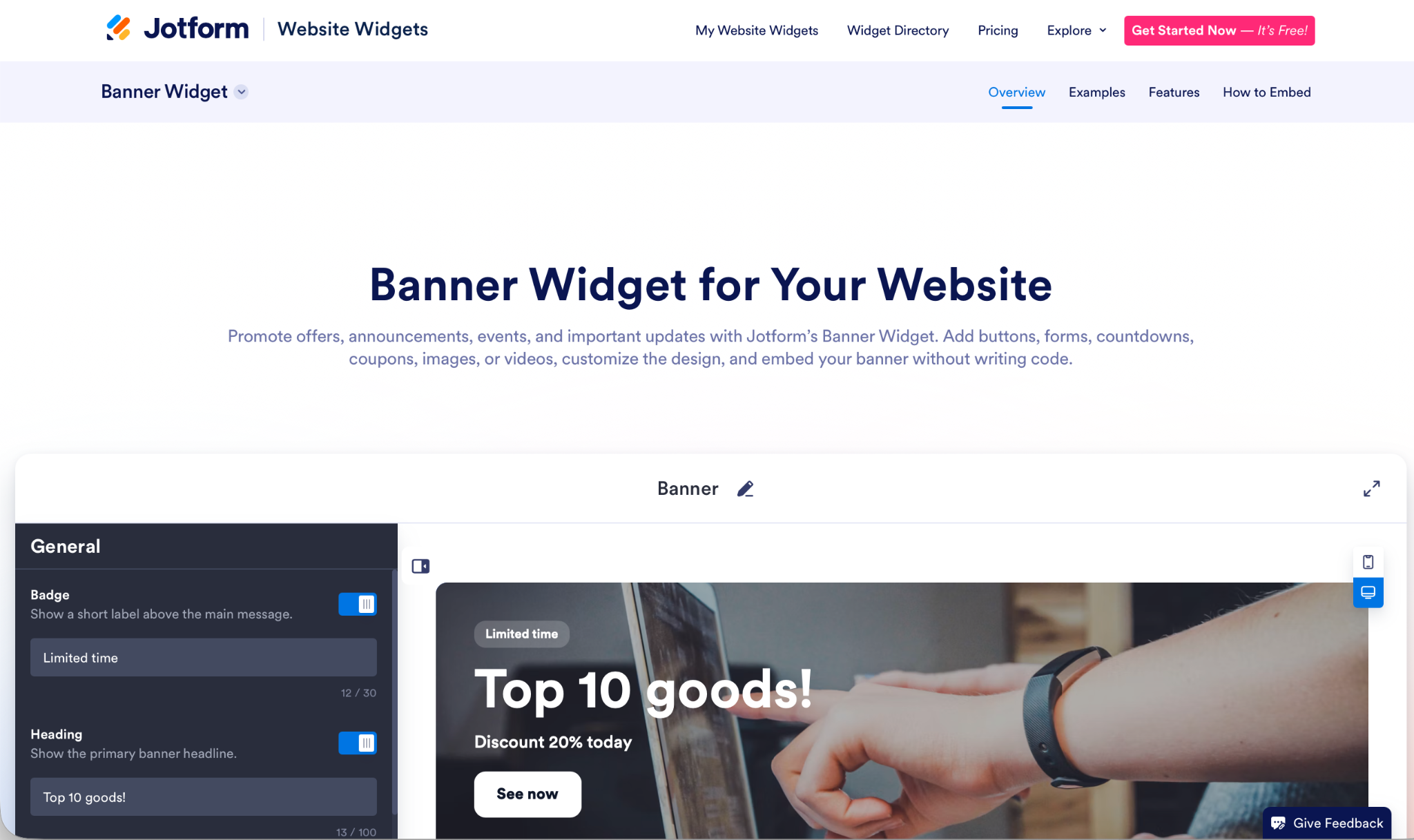
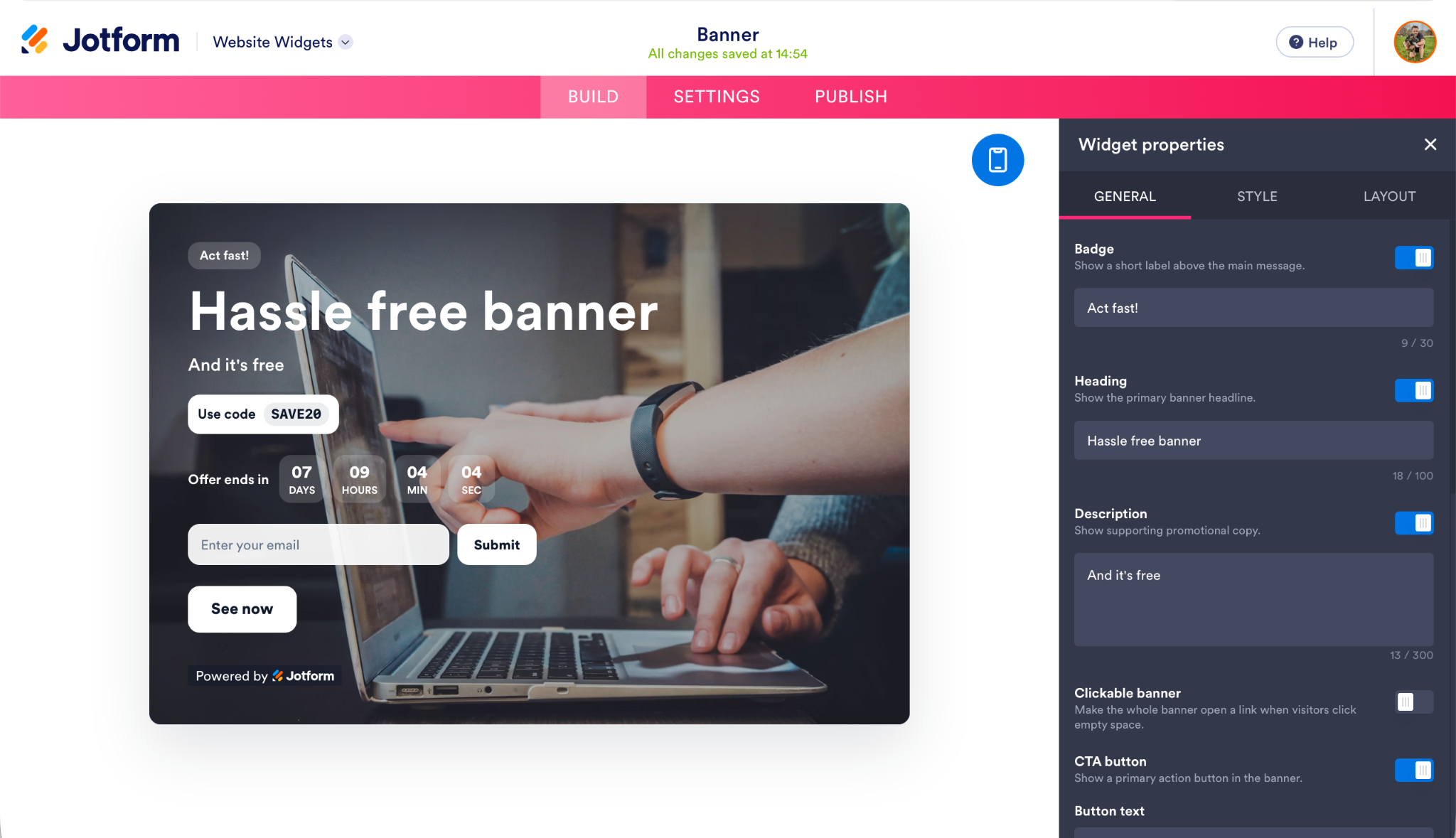
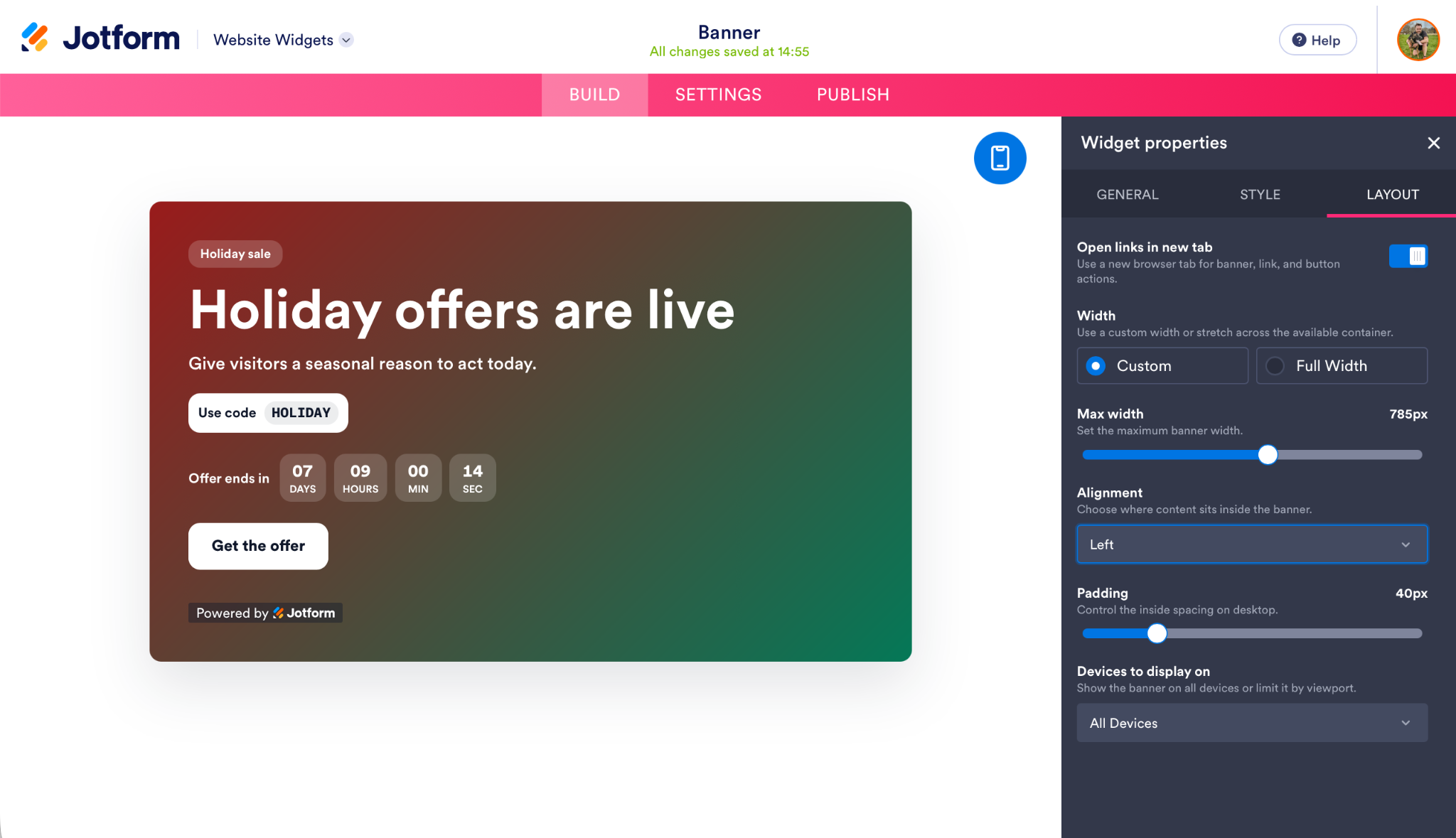
2. Add a badge, heading, and description to your banner. You can make the whole thing clickable and add features including a CTA button, countdown timer, coupon, and email capture form.
3. Use the Style tab to adjust your banner’s appearance. You can set a custom font, use custom CSS, and turn off Jotform branding.
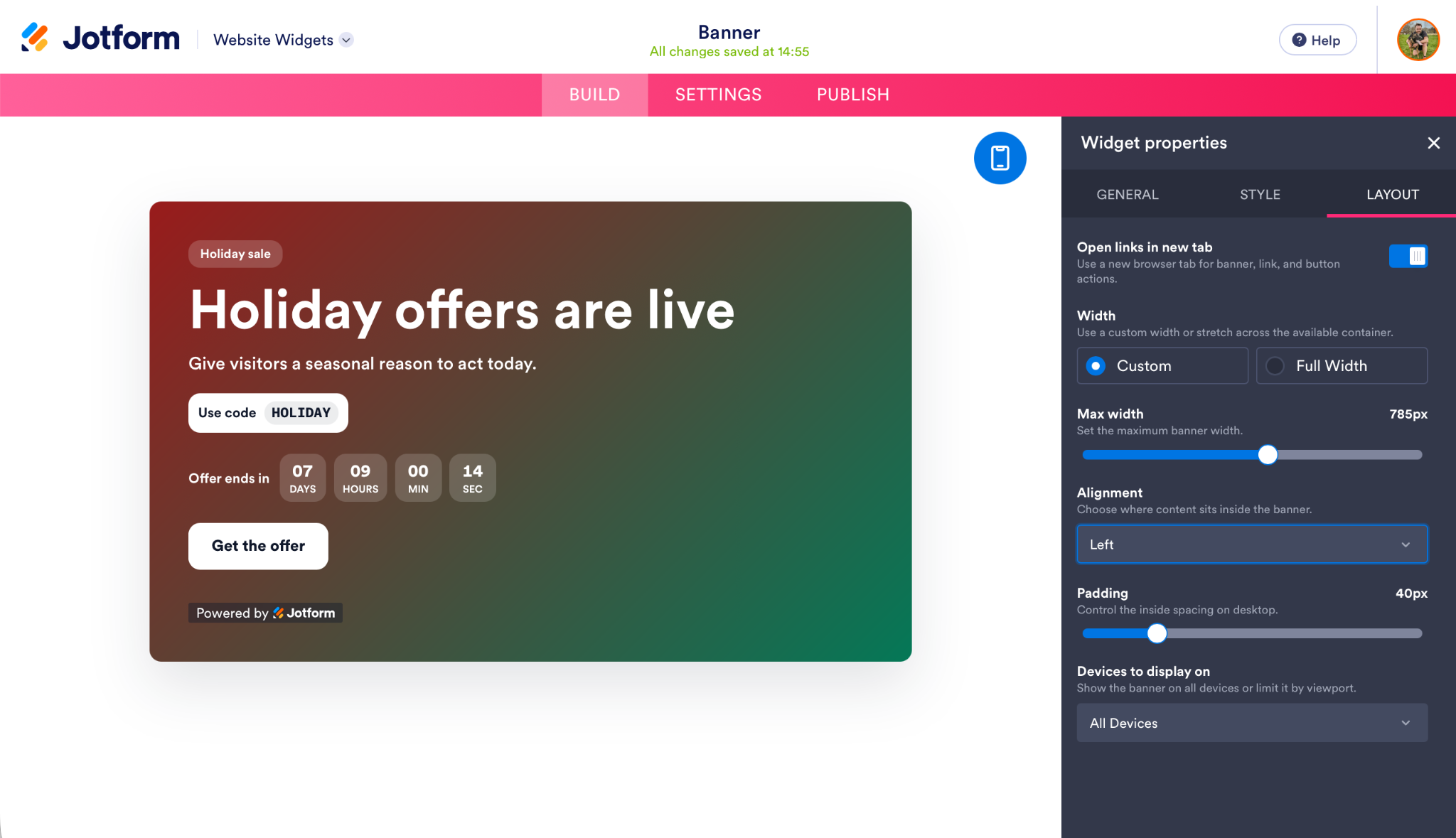
4. Use the Layout tab to control how things appear on your banner. You can also set whether it’s visible on desktops, mobile devices, or both.
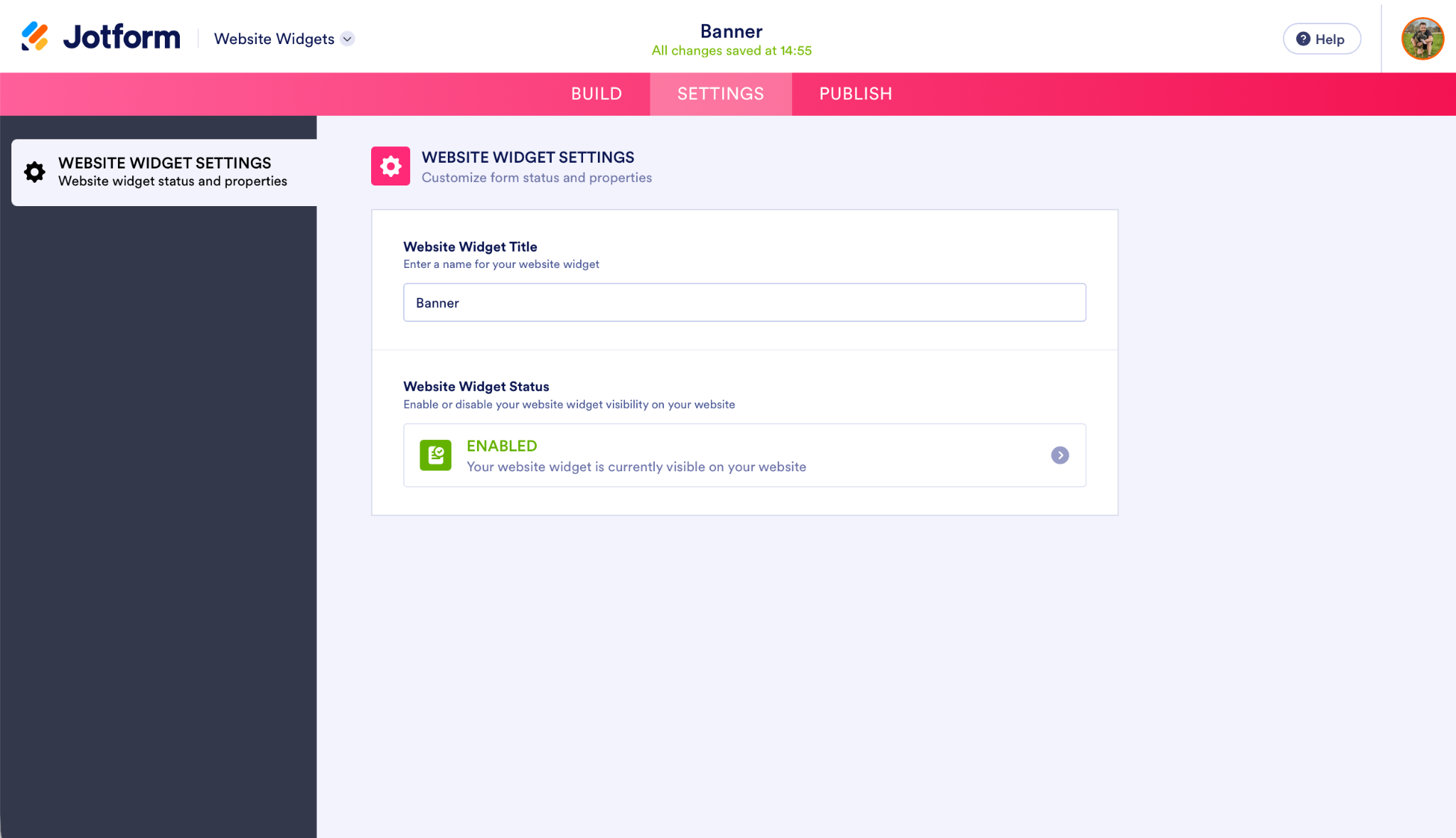
5. Click through to the Settings tab, where you can give your banner a title. You can also enable or disable it, which is helpful if you want to create holiday sales banners in advance.
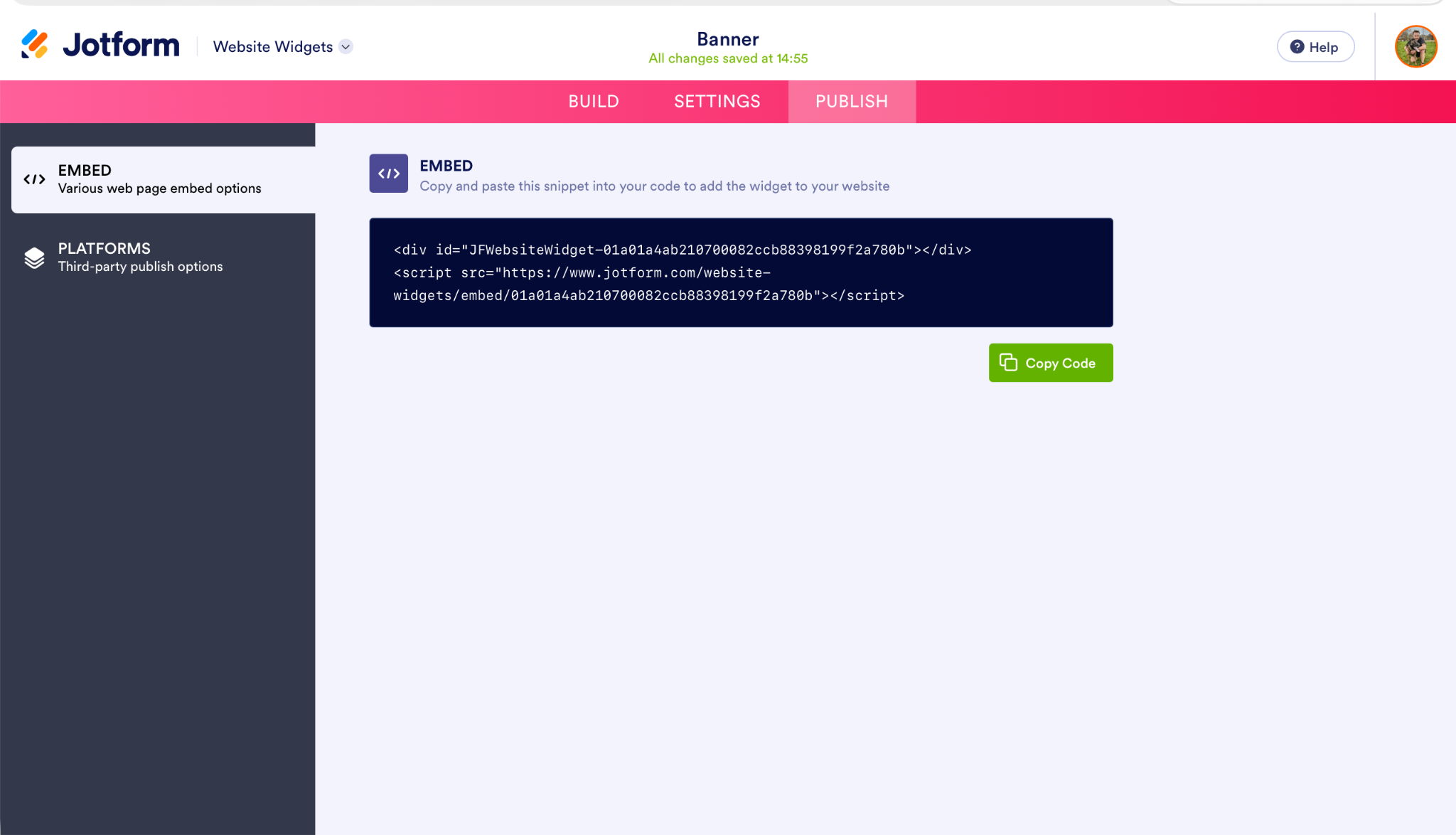
6. Click through to Publish, and then Copy Code to grab the embed code for your banner.
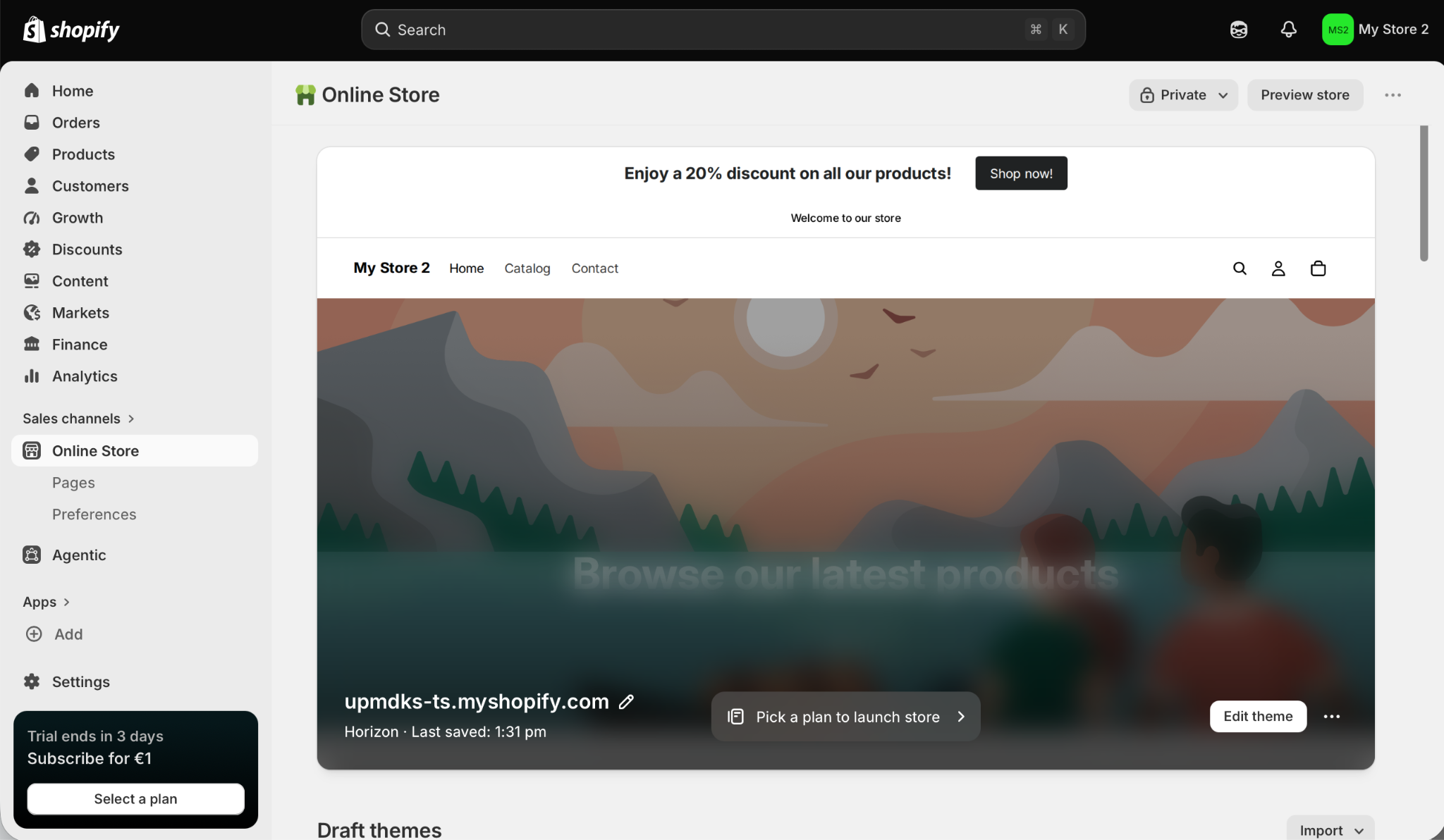
7. Head back to Shopify. Select Online Store in the sidebar and then Edit Theme.
8. Click Add Section and then Custom Liquid.
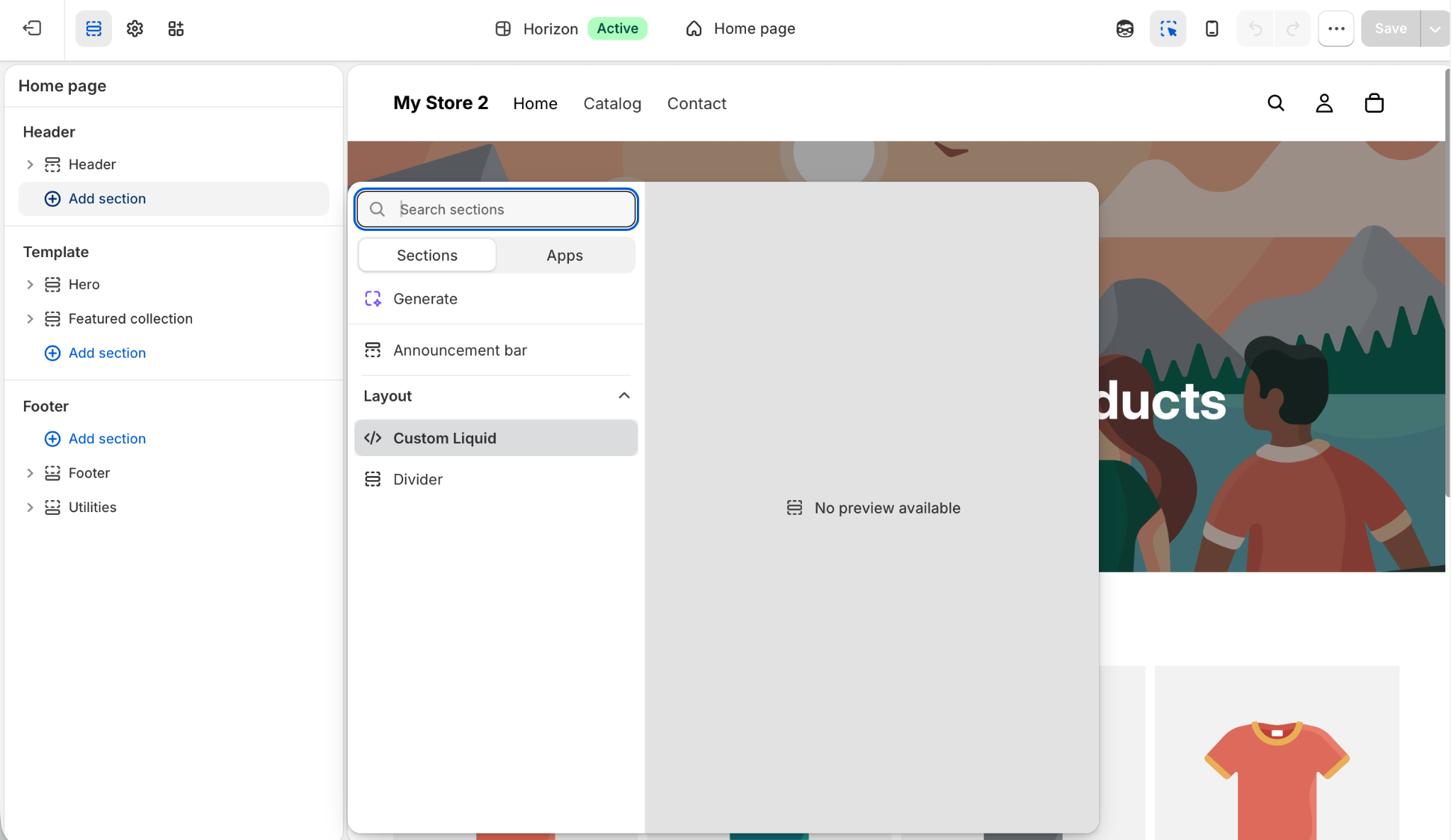
9. Paste the embed code in the Custom Liquid box. You can then position the announcement banner wherever you want and also configure its appearance.
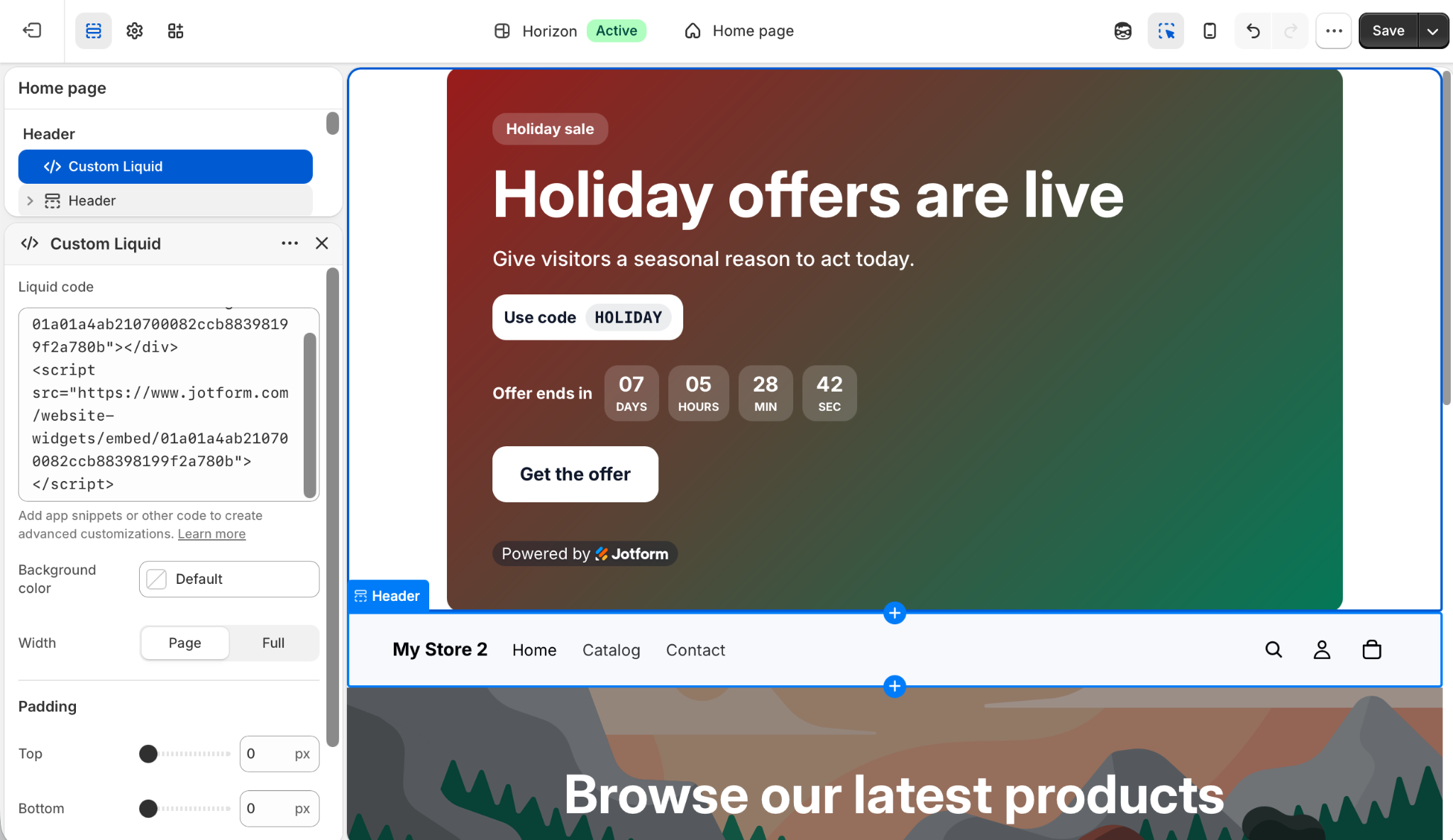
10. When you’re done, click Save, and your banner will be live on your site.
The biggest advantage of the Jotform Banner Widget is that you get unparalleled visual control of the banner without needing a premium subscription or coding skills. With the easy-to-use editor, you can customize the banner’s background image or even embed a YouTube or Vimeo video. You can also add CTA buttons, a countdown timer, or an email signup form, all at no cost.
To install your custom banner for Shopify, just copy and paste the embed code into Shopify. Because Jotform builds the banner off-server, it won’t conflict with Shopify’s global site styles or affect your page load speed. You get a powerful banner that will keep your campaigns running smoothly.
Supercharge your Shopify store with smart, serverless widgets
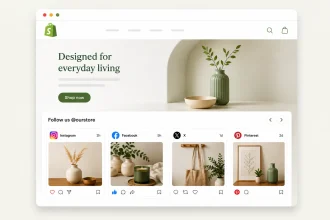
The Jotform Website Widgets directory is packed with great free website widgets, including the Jotform Banner Widget. Using Jotform widgets, your Instagram feed widget can show your product in use, testimonials can highlight how popular it is, sales notifications can spotlight every sale, and a size chart can help people find the right product fit. Loads of other free tools can maximize your add-to-cart conversions while keeping your store fast-loading and lightweight.
By removing some of the hassle of selling on Shopify, Jotform Website Widgets allow you to focus your time and budget on sourcing great products, running online marketing, and building a successful e-commerce store. You don’t need to pay for a simple banner on a product page.
If you want to do more with Shopify, check out the full Jotform + Shopify integration. You can use it to add forms to your Shopify store, take payments, and so much more.
This article is for Shopify store owners, dropshippers, and e-commerce managers who want to embed rich, interactive promotional banners with countdowns or lead capture forms without relying on basic native blocks or installing bloated apps.










































Send Comment: