
Keystone Home Services WhatsApp Chat
We couldn't create your widget. Please try again.
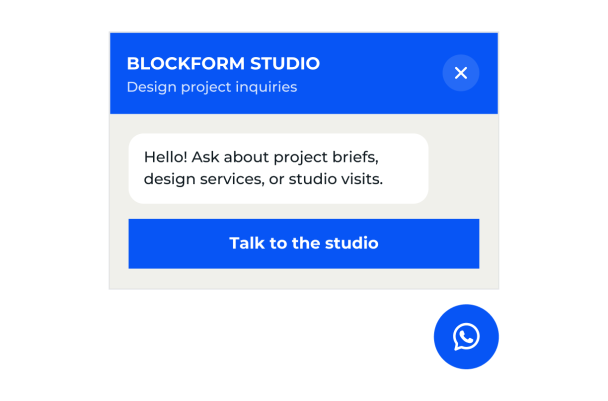
We couldn't create your widget. Please try again.

We couldn't create your widget. Please try again.

We couldn't create your widget. Please try again.

We couldn't create your widget. Please try again.
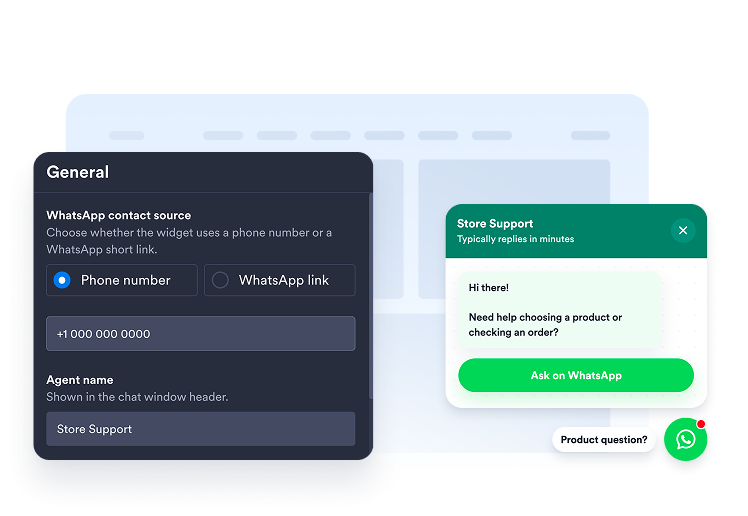
Enter your WhatsApp phone number or add a supported short link. You can also prepare a default message to help visitors begin the conversation.
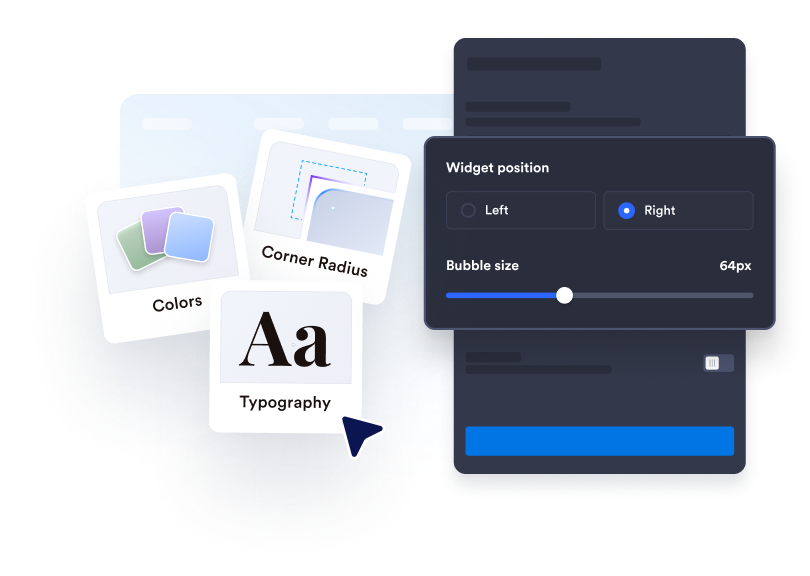
Edit the agent name, welcome message, button text, colors, size, badge, and screen placement to fit your website.
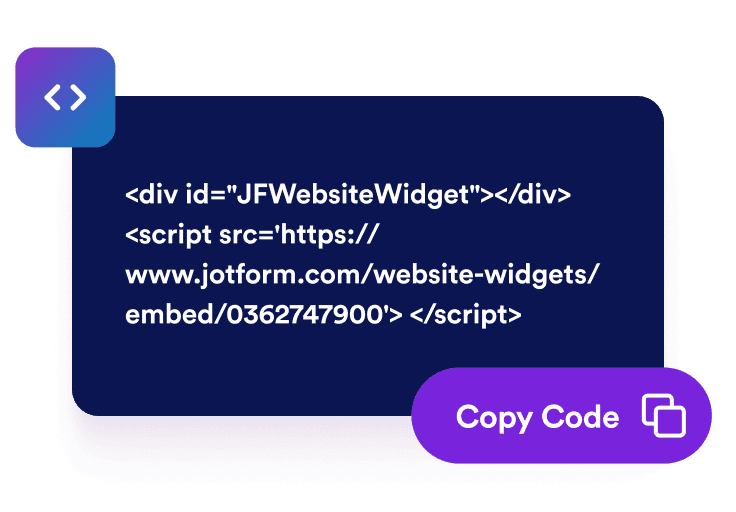
Copy the generated embed code and paste it into a custom HTML or embed block on your website.
Connect the widget using a phone number, wa.me link, api.whatsapp.com link, or wa.link URL. Visitors can move from your website to the appropriate WhatsApp conversation without searching for your contact information.
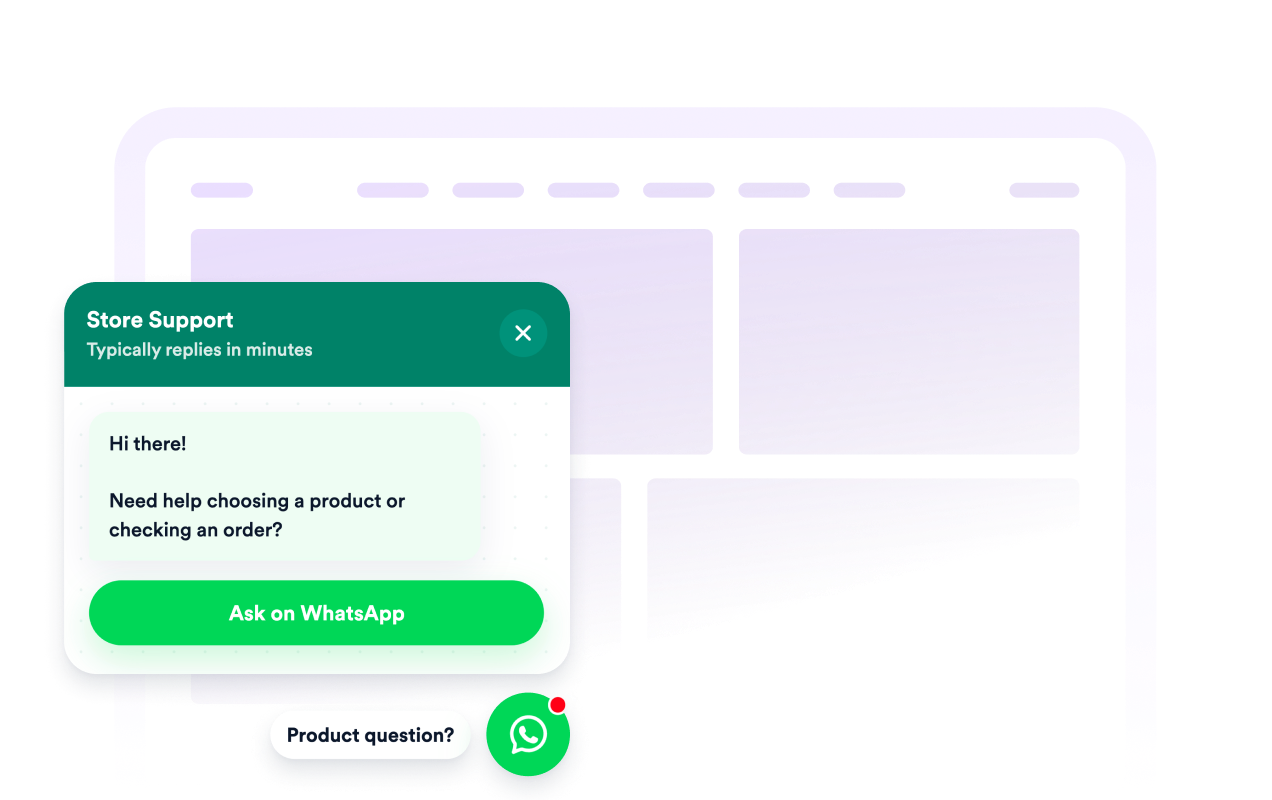
Use the welcome message, agent name, and caption to introduce your business and explain what visitors can ask about. Clear context helps customers understand whether the chat is intended for sales, support, bookings, quotes, or general questions.
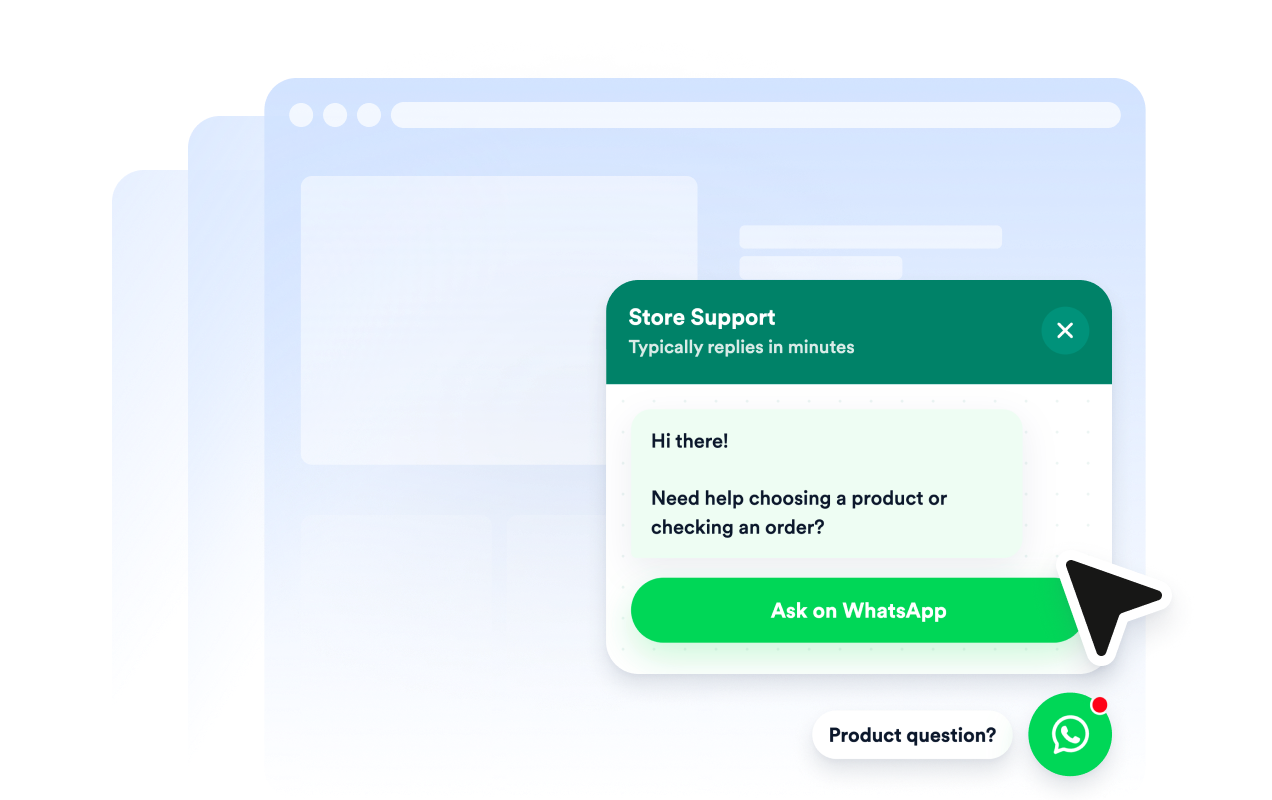
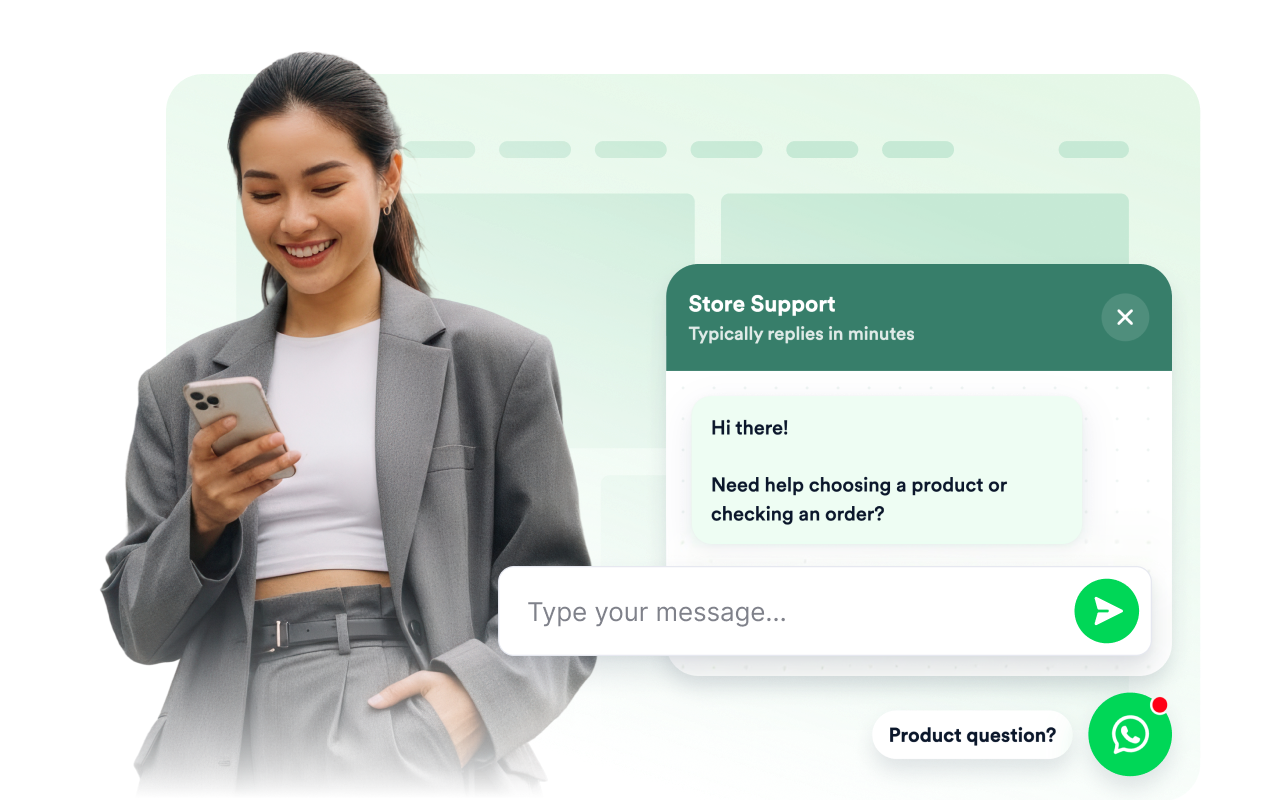
Display a clear CTA button or let visitors type a short message before continuing to WhatsApp. A default or visitor-written message can give your team useful context before the conversation begins.
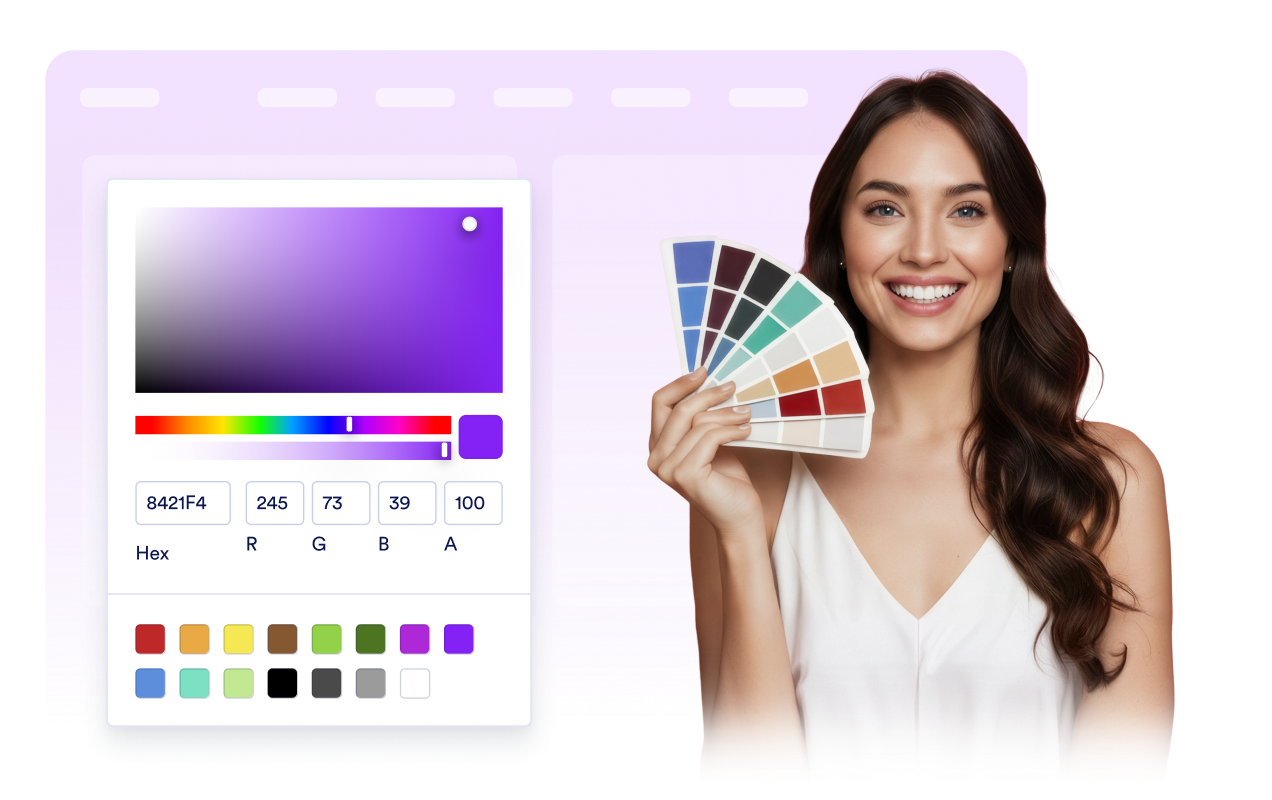
Customize the chat bubble, header, message background, CTA colors, width, badge, rounded corners, and screen position. Create a recognizable contact option that complements your website and remains accessible across desktop and mobile screens.
Jotform’s widgets make your website more interactive and increase conversions. There are many tools available, from star ratings and testimonial sliders to social proof popups and media embeds. Add widgets to your forms or landing pages to collect data, display proof, and capture leads — no coding required.
Add Jotform widgets to your website with a simple embed code. Customize the widget, preview how it looks, and paste it into any page that supports custom HTML or embed blocks, all without a developer.
Use Jotform Website Widgets to collect leads, show customer feedback, display social proof, embed media, or add helpful web page tools. Each widget helps visitors interact with your business directly from your website.
If you need help setting up, customizing, embedding, or troubleshooting your widget, Jotform’s customer support team is available 24-7. You can move forward with confidence, knowing that help is there when you need it.
Add the widget to pages where visitors may need assistance, additional information, or a convenient way to continue the conversation.
Online stores to answer questions about products, availability, delivery, and orders.
Service business pages to discuss quotes, appointments, project requirements, or availability.
Booking and event pages to clarify schedules, registration details, locations, and requirements.
Local business websites to handle inquiries for restaurants, salons, clinics, real estate businesses, and other local services.
Turn engagement into action with Jotform. Create powerful forms that capture leads, collect payments, and automate responses, all in one place. Every submission lands in your Jotform Inbox, where you can follow up or connect with your favorite apps.
Get Started — It’s Free!
A WhatsApp Chat Widget is a floating website contact button and chat preview that directs visitors to a WhatsApp conversation with your business. It provides a convenient contact option without adding a complete messaging inbox to your website.