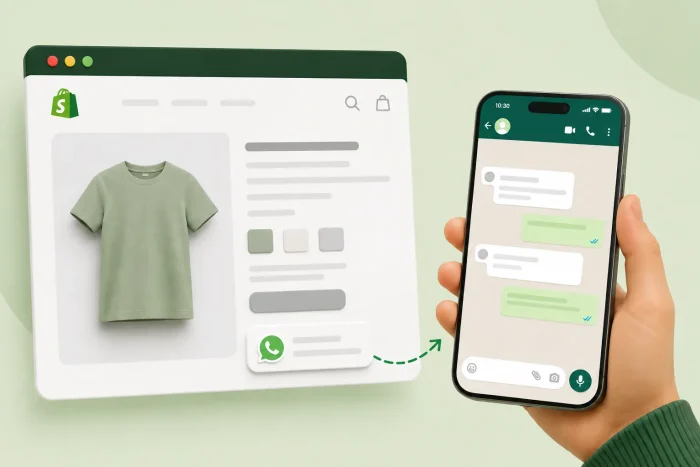
If you’re selling on Shopify, your shoppers could have last-minute questions right before they proceed to checkout. Maybe they want to know whether a jacket fits true to size, when their order would arrive, or whether a sold-out size is coming back. Without a way to ask and receive a quick reply, they could abandon their cart altogether.
A floating WhatsApp button in the corner of their screen as they browse lets them know they’re one tap away from starting a conversation in an app they already use daily. There’s no form to fill out and no new account to create, which means a shopper who would have left with an unanswered question can get a response that turns into a sale.
Shopify doesn’t include a native WhatsApp button; its built-in messaging option, Shopify Inbox, sends conversations through Shopify’s own chat rather than WhatsApp. And although you can paste a plain wa.me link onto a contact page, a text link doesn’t follow shoppers as they browse, nor does it look like an apparent invitation to chat.
So, if you’re a Shopify merchant or dropshipper who wants to answer customer questions instantly through a welcoming chat interface, this guide covers ways to add a WhatsApp button to Shopify as a premium third-party app, or use a free, lightweight serverless widget that keeps costs low and site speed fast.

Option 1: Install a dedicated Shopify App Store integration
The usual way to add a floating chat button to Shopify is through the Shopify App Store, where dozens of WhatsApp chat apps compete for the same job. You install one, connect your number, and configure the button from the app’s own dashboard.
To add a WhatsApp button to Shopify using an App Store integration, follow these steps:
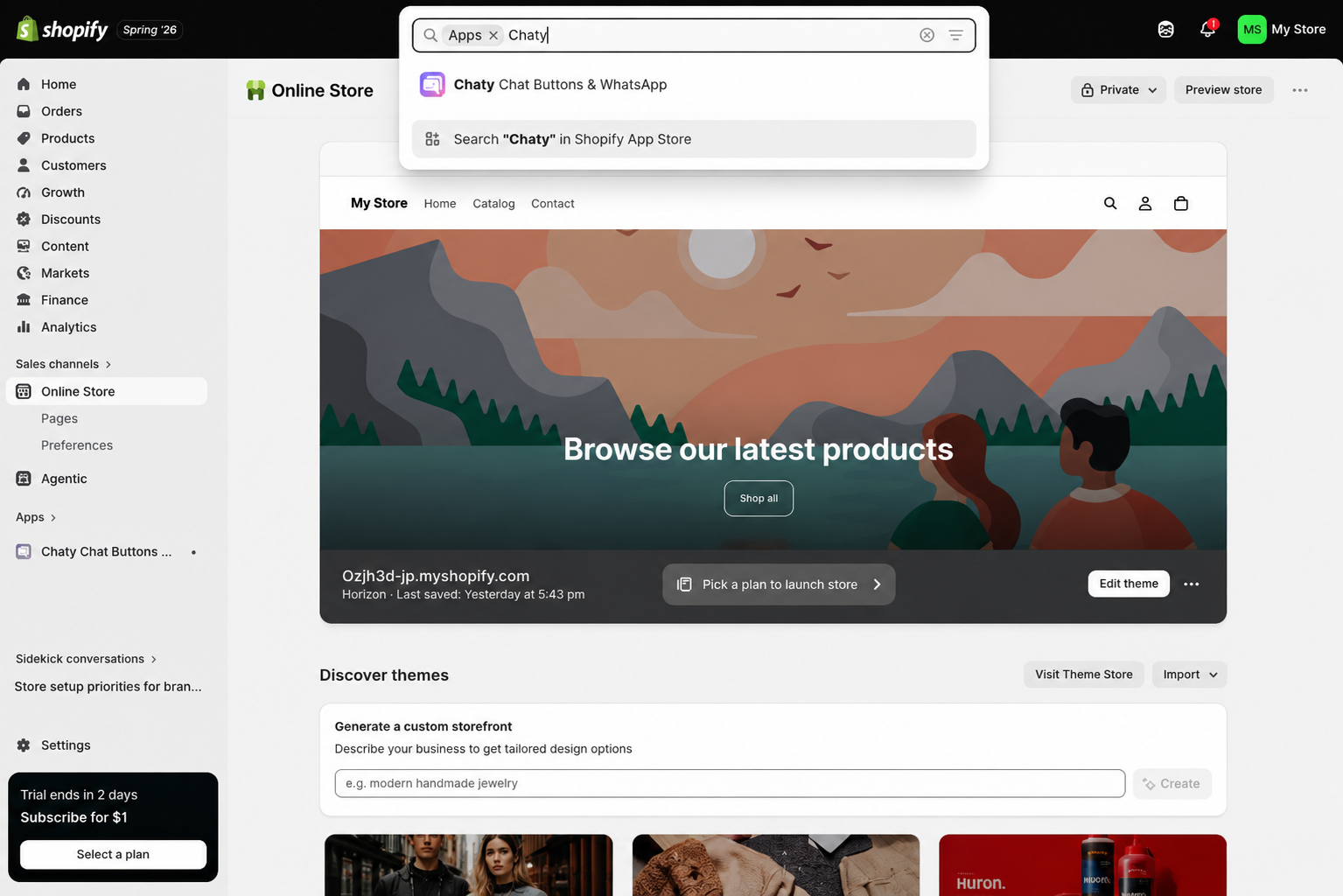
- Find and install an app: From your Shopify admin, click Apps in the left navigation, and a Shopify App Store pop-up will appear. Search for the chat button app you want. Click Install, review the data access the app requests on the authorization screen, and confirm.
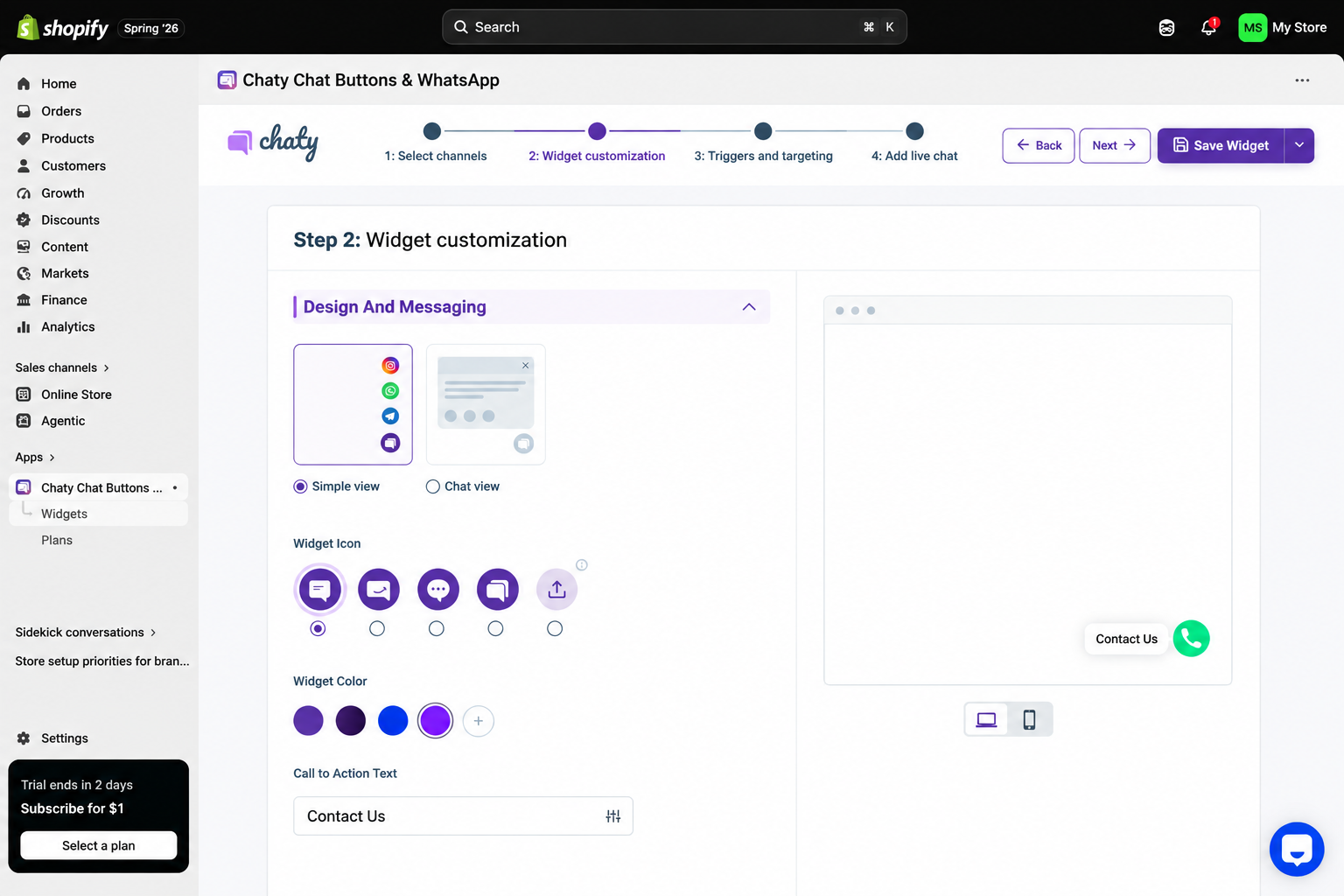
- Configure your button: In the app’s dashboard, enter your WhatsApp number, write your call-to-action text, and set the button’s color and screen position. Most apps also let you choose whether it appears on desktop, mobile, or both.
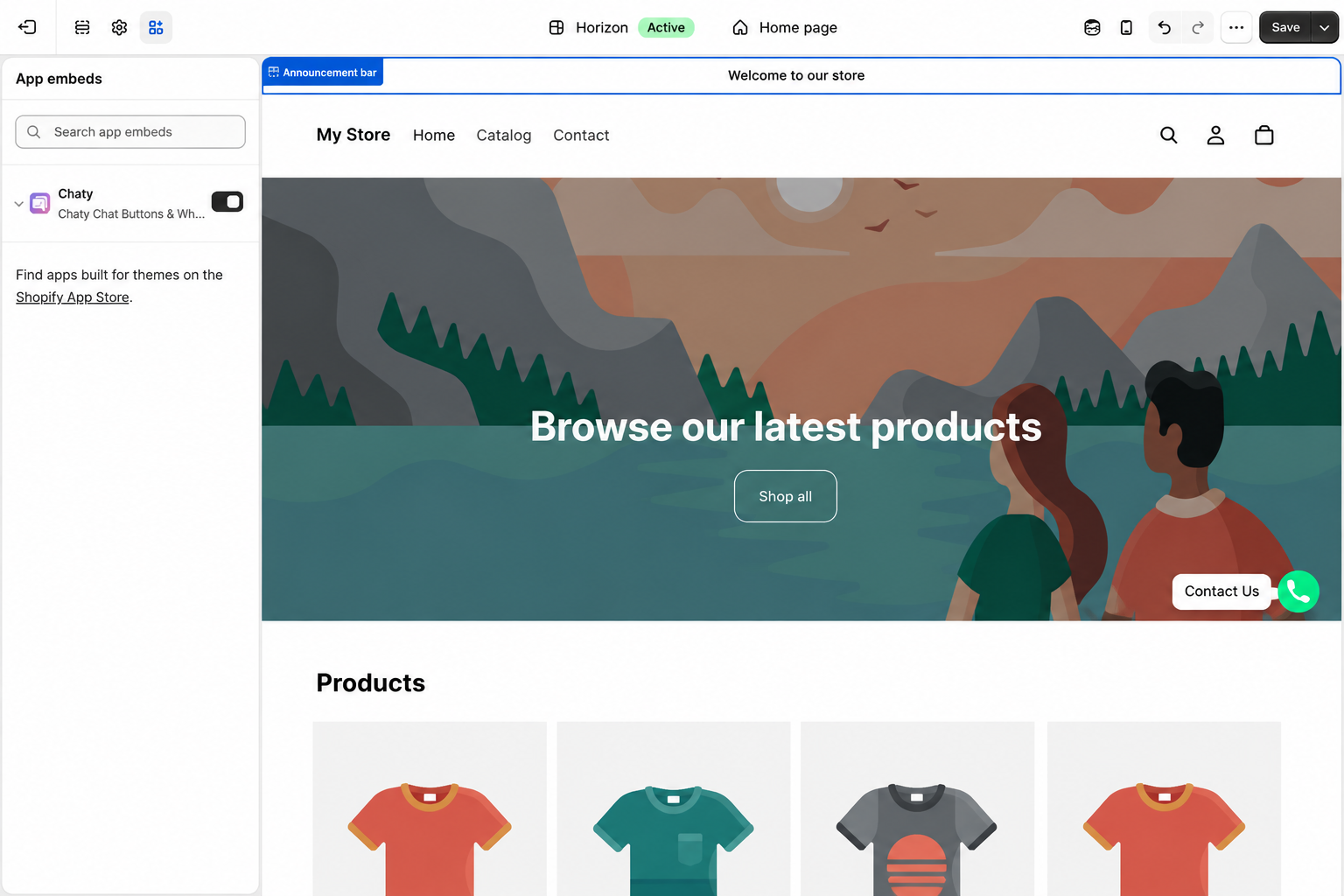
- Enable it on your theme: Go to Online Store and select Themes to open your live theme in the editor. Click the App embeds icon next to the Theme settings icon at the top of the far-left sidebar, search your app in the list, toggle it on, and save.
What “free plan available” means varies widely across these apps. Chaty’s free tier caps you at 500 visitors a month, with paid plans starting at $15 a month for 10,000. MyShop lists “brand name hidden” as a paid feature, which means the free version shows the app’s branding on your storefront. The pattern repeats across the category, where the button is free until you need it to handle real traffic or look like it belongs to your store.
Each app is also a full installation on your store, with its own scripts, permissions, and dashboard to manage. For a button with the sole purpose of opening a WhatsApp conversation, that’s a lot of infrastructure, which is why you may look for a Shopify WhatsApp chat alternative you can embed yourself.
Option 2: Add a free, customizable WhatsApp widget (recommended)
If you’d rather not install an app or pay a monthly fee for a button, a hosted WhatsApp chat widget for Shopify does the same job with an embed code. You set it up in a visual builder, copy the code, and paste it into a Custom Liquid block in your theme editor, so nothing installs on your store, and there’s no separate dashboard to manage.
Jotform’s WhatsApp widget connects to your number and displays a floating button with a chat preview. Visitors see your agent name, welcome message, and CTA before they tap through to WhatsApp, and you can prefill a default message or let them type a short question first, so your team has context before the conversation starts.
To add a WhatsApp button to your Shopify store with a widget, follow these steps:
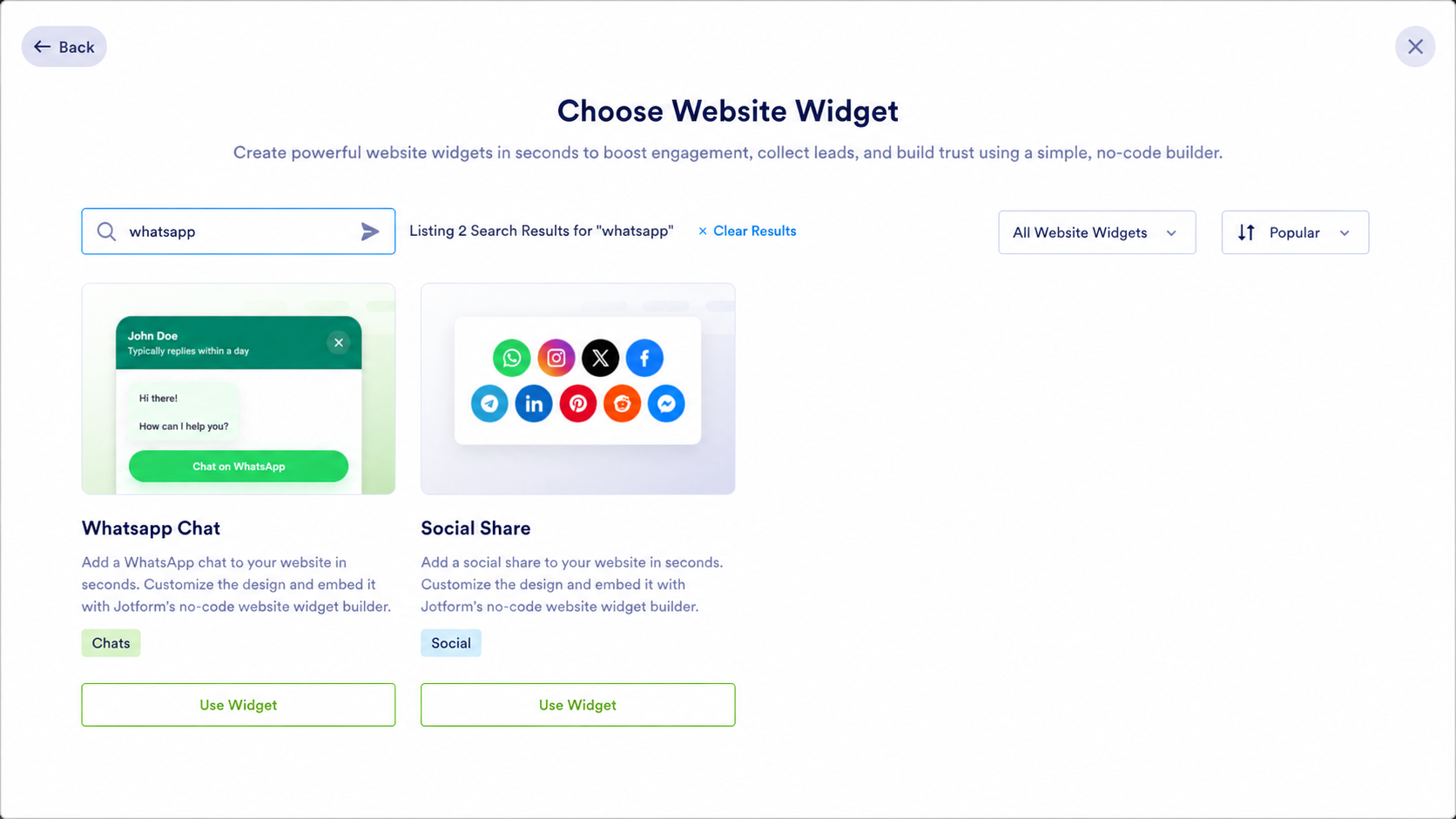
- Create the widget: On your Jotform Workspace page, click Create, select Website Widget, search for WhatsApp Chat, then click Use Widget.
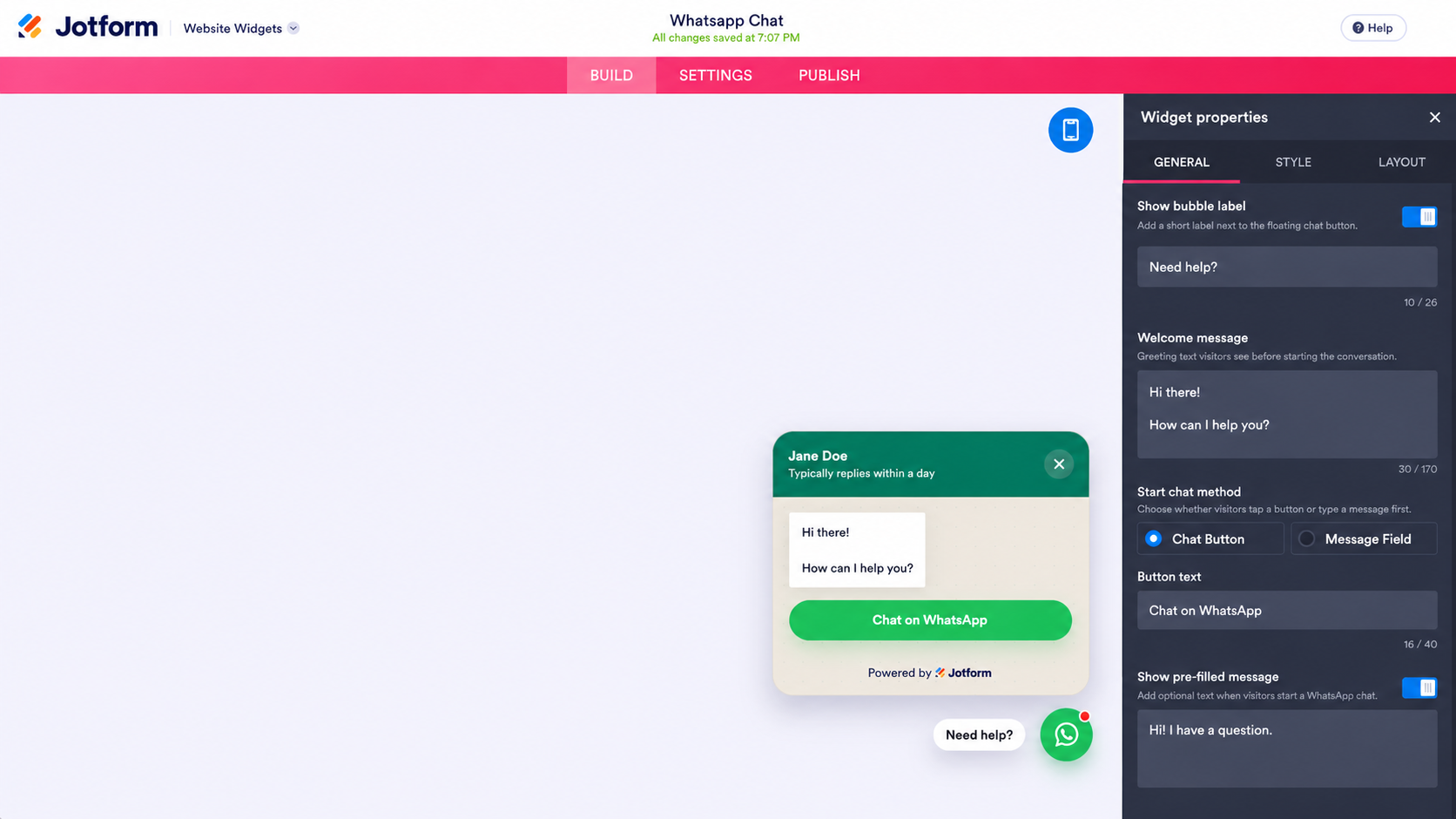
- Connect your WhatsApp contact: Under the General tab, enter your phone number in full international format, or add a wa.me, api.whatsapp.com, or wa.link URL. Add a default message if you want visitors to start with context.
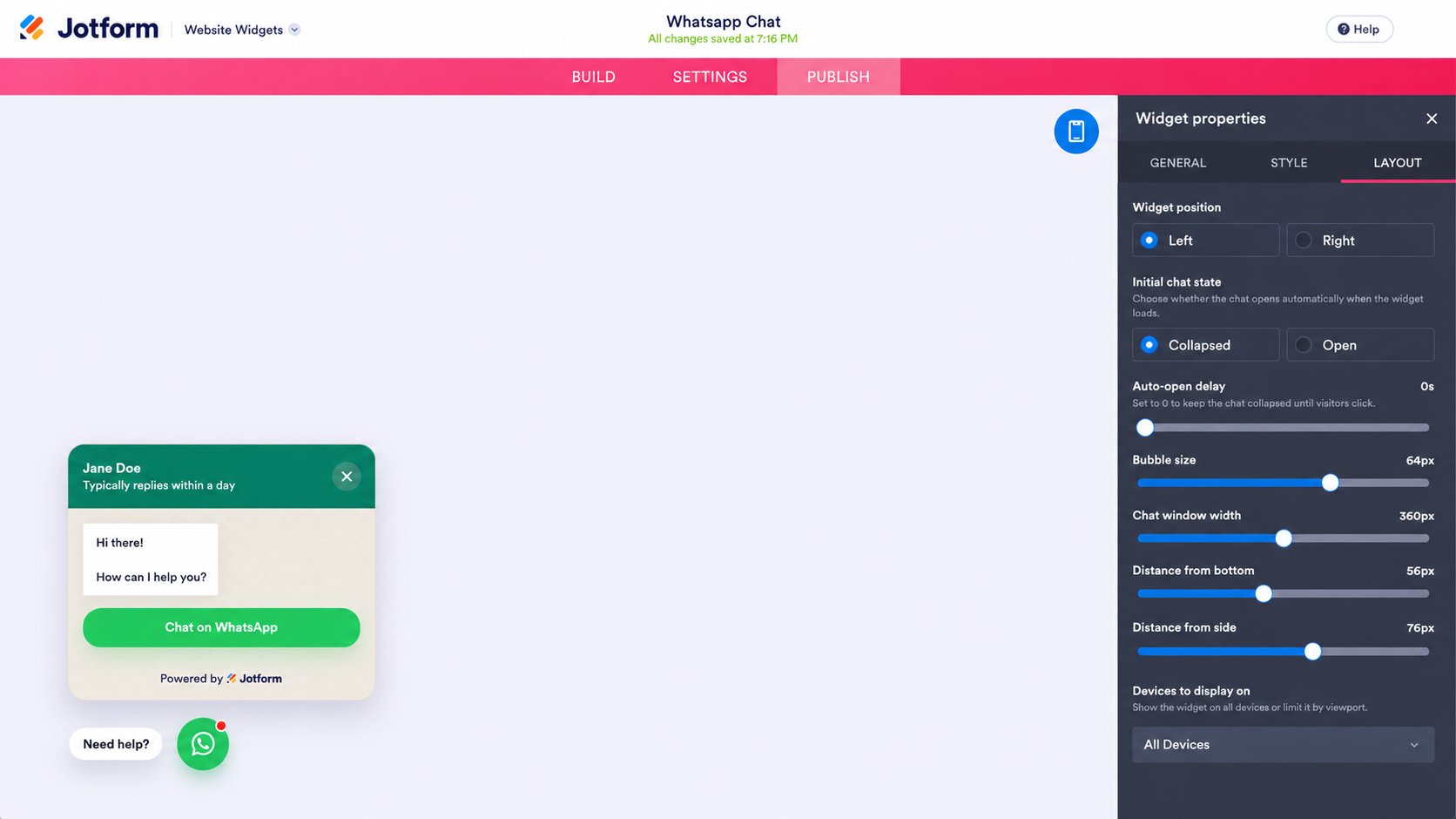
- Customize and position it: Under the General tab, fill in your Agent Name, Welcome Message, and Bubble Label. Then switch to the Layout tab to set the floating position, button size, and whether the button should appear on desktop, mobile, or both.
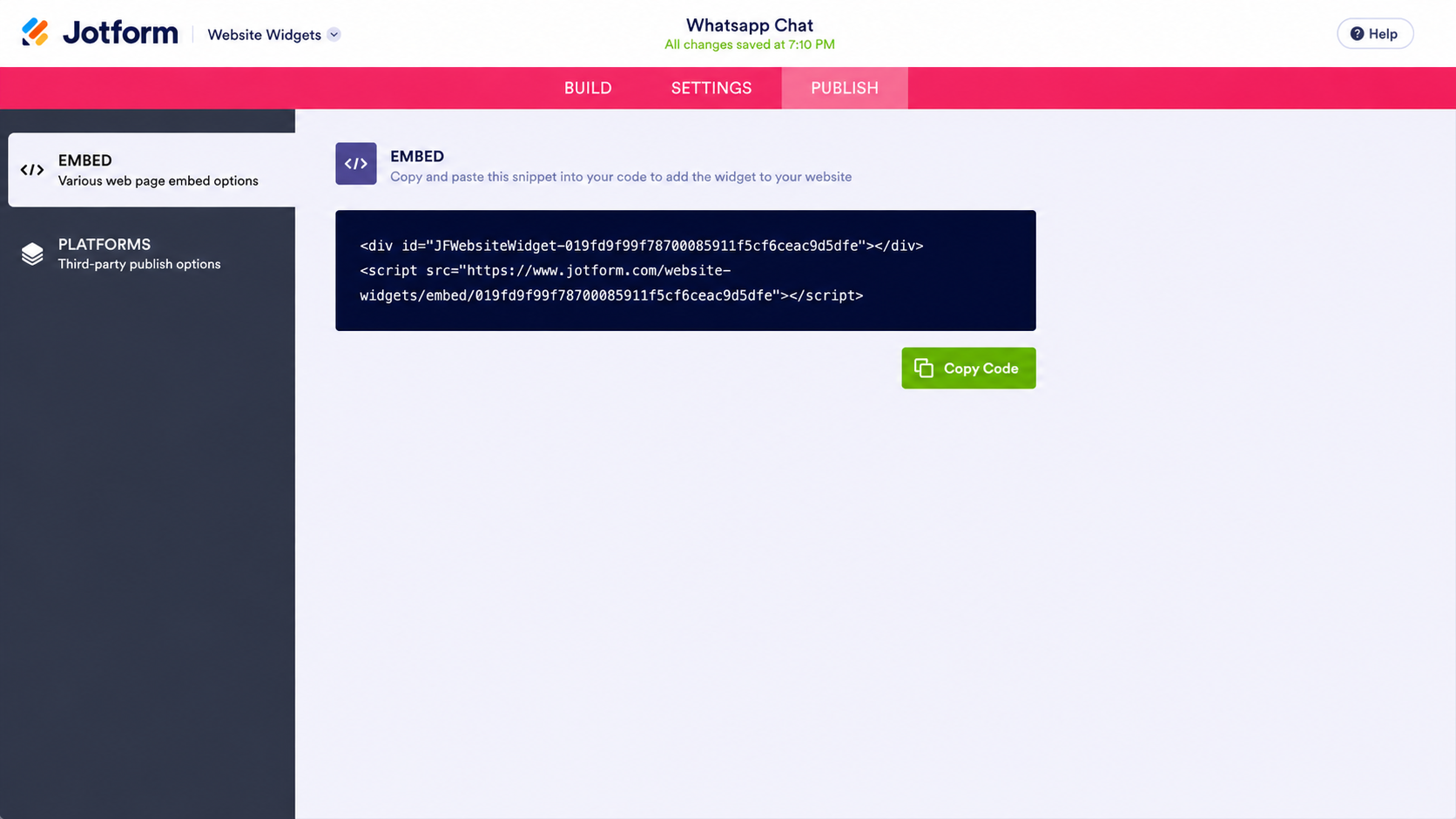
- Publish and embed the WhatsApp Shopify code: Click Publish in the top navigation bar, then Copy Code in the Embed section. The Platforms menu also has a Shopify-specific embedding option.
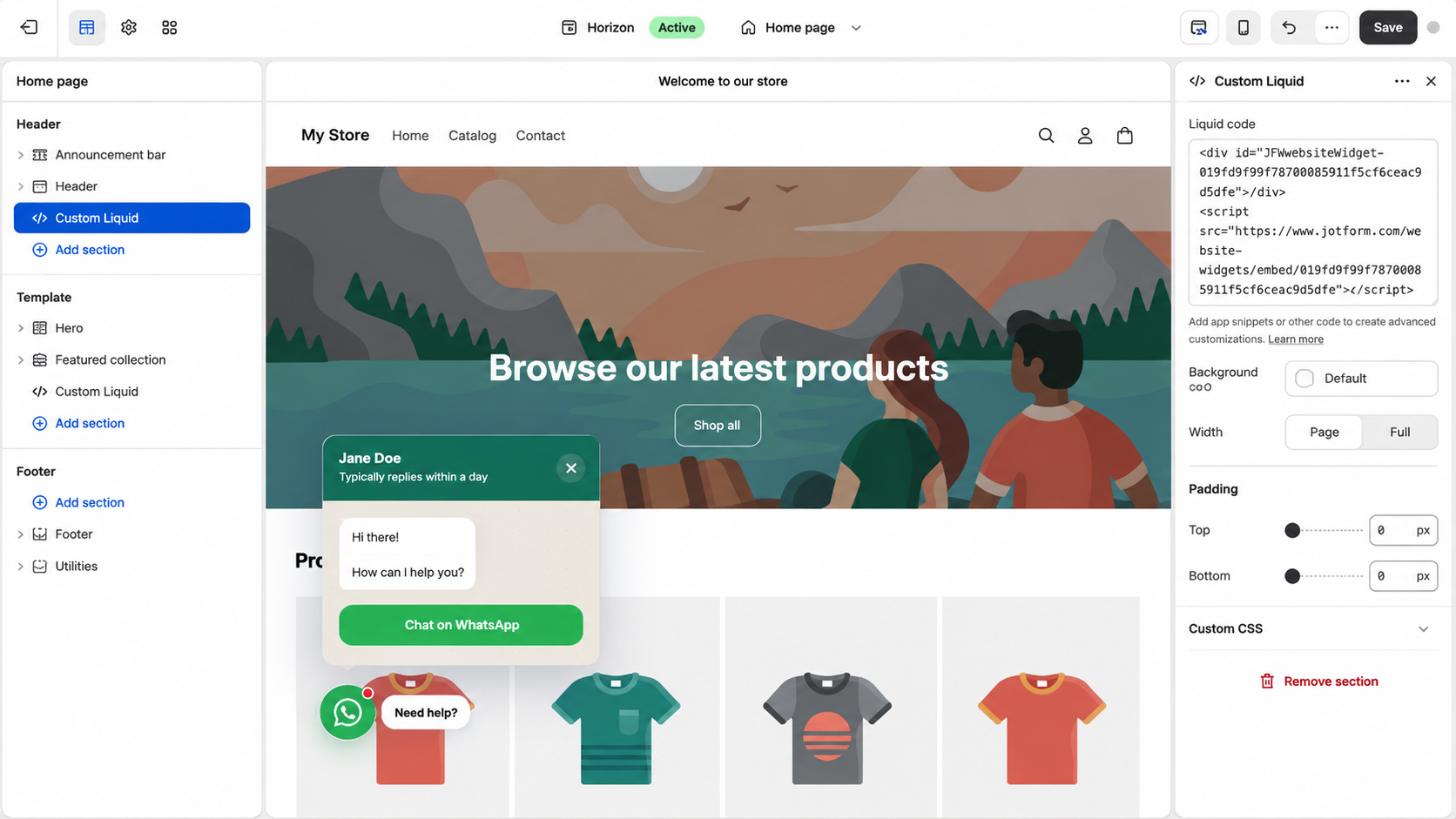
- Add it to Shopify: In your theme editor, click Add section, choose Custom Liquid, paste your embed code, and save. Adding it to your header or footer makes the button appear on every page rather than just one.
Because the widget is styled in Jotform rather than installed on your store, changing your greeting or button color means editing the widget instead of upgrading a plan to unlock a color picker. It works across desktop and mobile, and Jotform’s free Starter plan covers both, including hiding Jotform branding.
Pro Tip
This is a click-to-chat button, not a messaging system. Conversations happen in WhatsApp itself, so if you need automated replies or order handling, Jotform Shopify integration and Jotform’s AI Chatbot app are the tools for that.
Supercharge your Shopify store with smart, serverless widgets
A free WhatsApp button for Shopify is one of several widgets you can add to a storefront without agreeing to another monthly app fee. Jotform’s free website widgets directory has more than 150 options. If some of your customers prefer a different messaging app, there are Telegram and Viber chat widgets that work the same way, which matters if you sell into markets where those are the default. A Help Center widget answers the repeat questions before anyone needs to message you at all, and a Buy Button sends shoppers straight to a product, cart, or checkout URL from a landing page.
Each one embeds the same way as the WhatsApp button, so you aren’t adding an app subscription every time you want a simple feature on your store.
As an e-commerce brand, your budget should go toward acquiring customers and sourcing products, not on a monthly fee to display a chat button. The WhatsApp widget gives you an off-server support channel your customers already know how to use, on a plan that costs you nothing.
This article is for Shopify store owners, e-commerce merchants, and dropshippers who want to offer instant customer support and capture leads via WhatsApp without paying monthly app subscriptions or slowing down their store.








































Send Comment: