Jotform makes it easy to calculate sales tax by location with the Quaderno Tax Rates widget. This widget uses your customer’s location to automatically determine the correct rate—sales tax, VAT, or GST—so you don’t have to manage different rules across regions. It’s ideal for businesses that sell across multiple countries or states, ensuring accuracy and compliance without extra effort.
With Jotform, you can keep your forms efficient and reliable, giving every customer the right tax rate from the start. It’s a valuable tool for online sellers, freelancers, and growing companies who want a stress-free way to handle tax compliance.
Here are a few ways to use it:
- Use this widget on your order forms to automatically calculate sales tax based on customer location.
- Use it on subscription forms to ensure recurring payments include the correct tax.
- Include it in sales invoice forms so clients always see accurate VAT, GST, or sales tax.
- Add it to service estimate forms to provide tax-inclusive quotes upfront.
What You Need for This Setup
- Quaderno Private Key — If you’re not sure how to get it, check out Getting Your Quaderno Private Key.
- Address field — Add and set this up in your form. You can check out our guide on How to Add and Set Up the Address Field to learn more.
Adding and Setting up the Quaderno Tax Rates Widget
Whether you’re creating a new form or updating an existing one, you can add and set up the Quaderno Tax Rates widget in a few easy steps. Here’s how to do it:
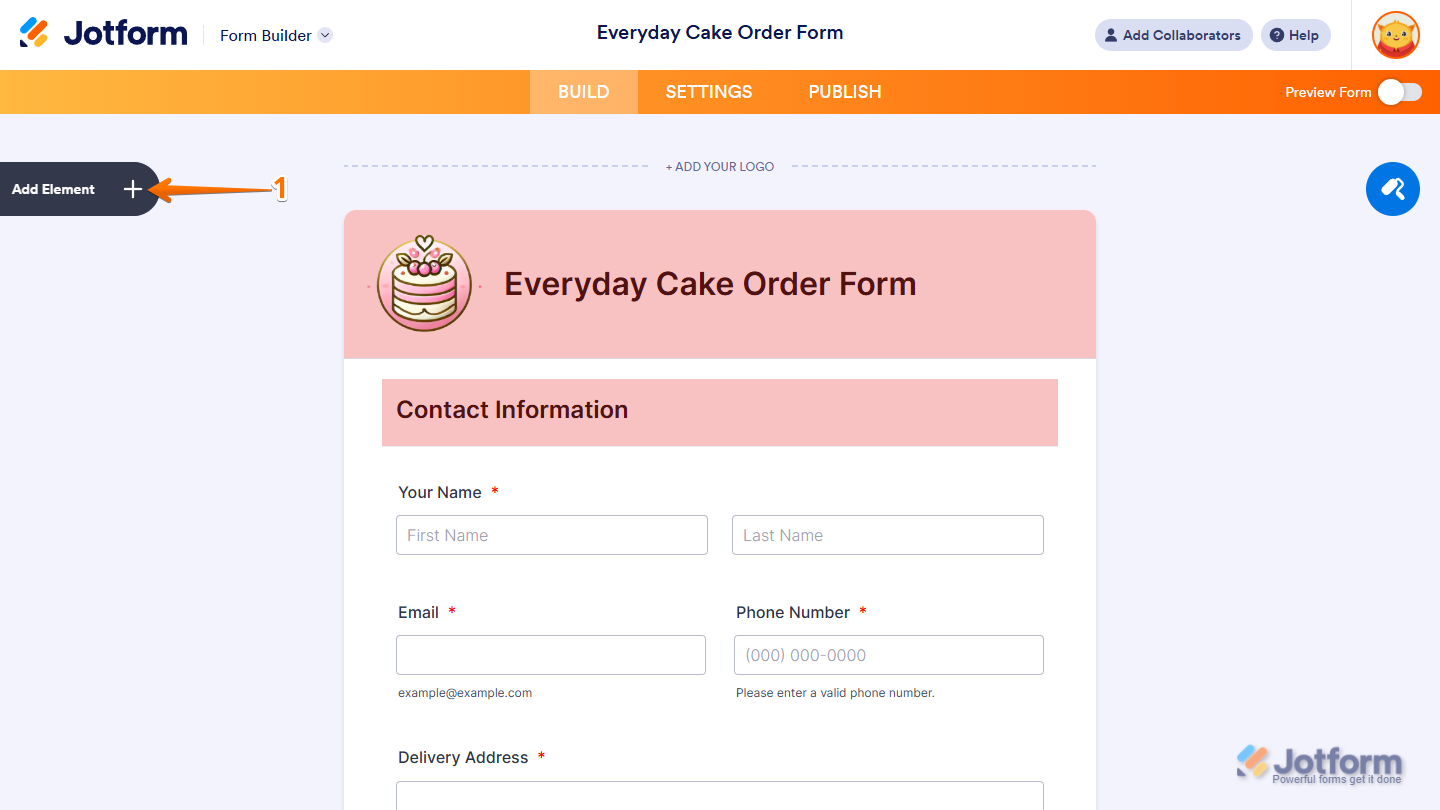
- In Form Builder, click on Add Element on the left side of the page.
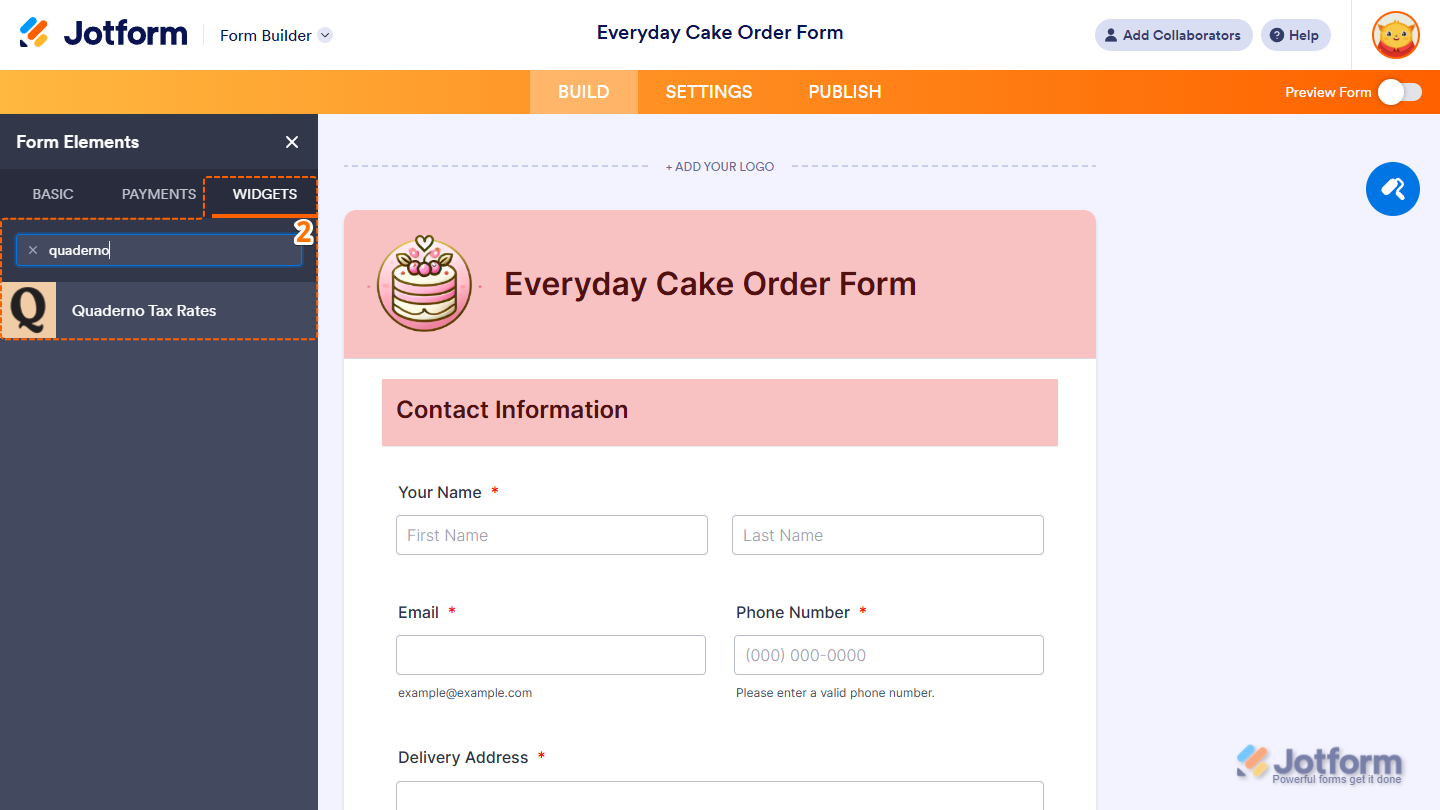
- Now, in the Form Elements menu, under the Widgets tab, search for Quaderno Tax Rates and click on it. Or, just drag and drop it to where you want it to be on your form.
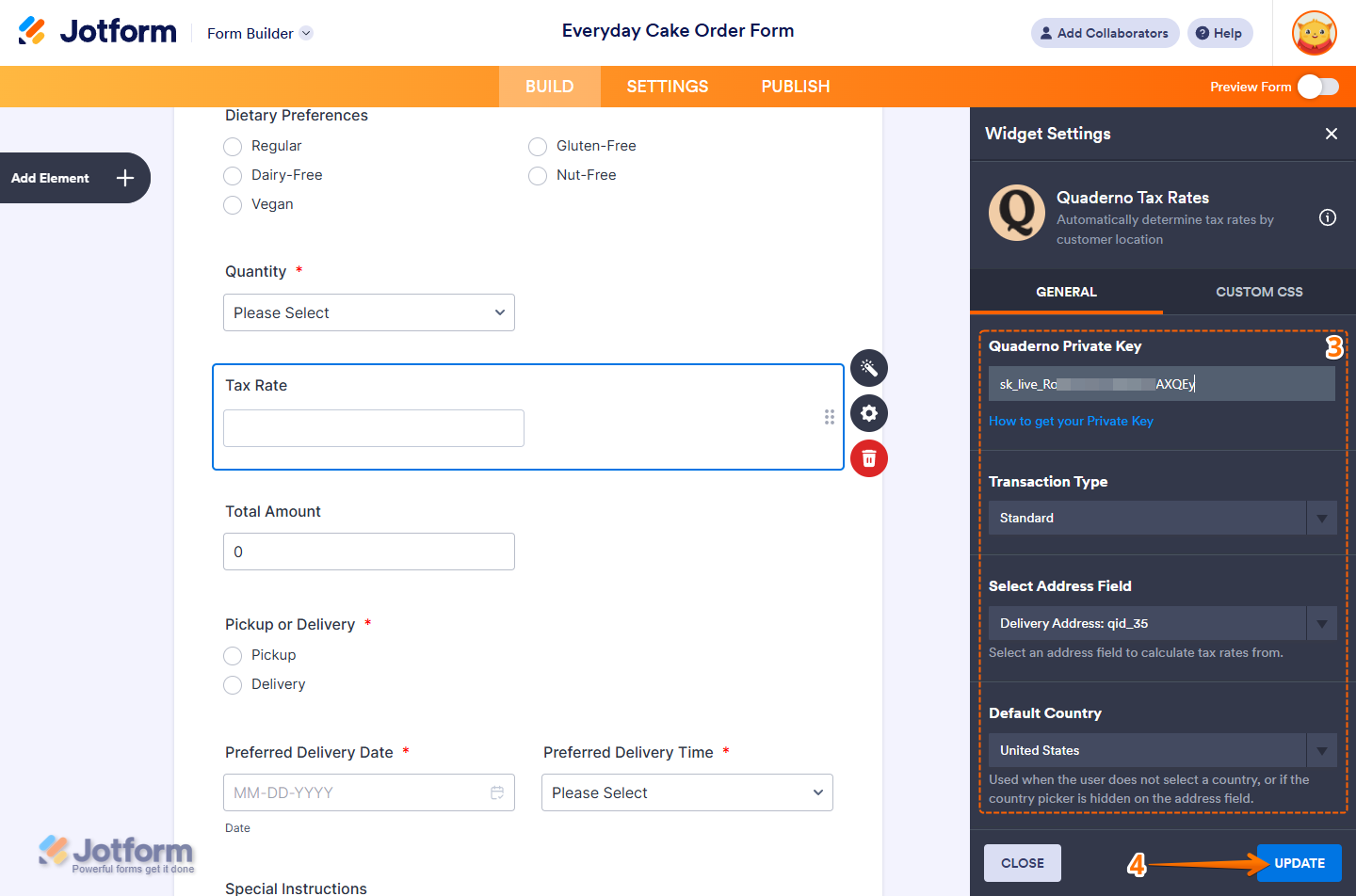
- Next, in the Widget Settings menu that opens on the right side of the page, under the General tab, you’ll see this list of settings you can configure:
- Quaderno Private Key — Enter the private key from your Quaderno account.
- Transaction Type — Select the tax code that matches what you’re selling. The default option is Standard. Not sure which one to choose? Check out Quaderno’s support article on Tax Code.
- Select Address Field — Select the address field in your form that should be used to calculate tax rates.
- Default Country — Select the country to use when a respondent doesn’t choose one in the address field or if the country option is hidden. The default option is United States.
- After reviewing your settings, click on Update.
That’s it. The Quaderno Tax Rates widget is ready to calculate tax on your form.
Note
For advanced styling of the Quaderno Tax Rates widget, you can add your own custom CSS code under the Custom CSS tab in the Widget Settings. Our guide on How to Inject CSS Codes to Widgets walks you through everything.
Pro Tip
The Quaderno Tax Rates widget shows the calculated tax on your form, but it can’t be added directly to a payment field’s total. You can still use it in a calculation by inserting it into a Form Calculation widget, then passing that widget’s value to your payment field. Check out our guide on How to Pass a Calculated Value to a Payment Field to learn more. If you’d like to apply sales tax directly to your payment fields, take a look at our guide on How to Apply Sales Tax to Products on Your Payment Form for more details.
Getting Your Quaderno Private Key
To set up the widget, you’ll need your Quaderno private key. Here’s how to get it.
- Log in to Quaderno and, on the top-right side of your Account Dashboard, click on the Users icon.
- Then, in the menu that comes up, click on API Keys.
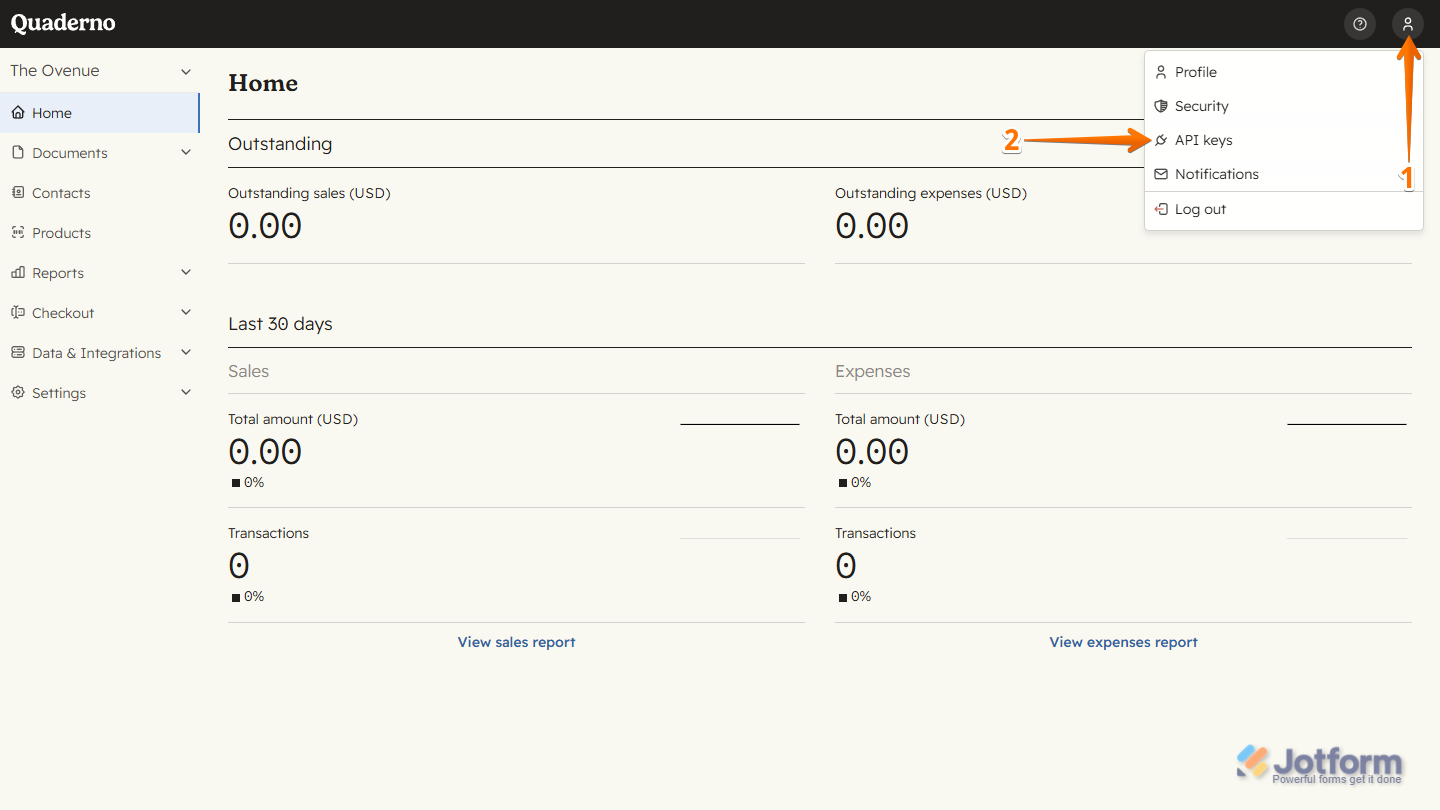
- Now, under the API Keys section, on the right side of your Private Key, click on the Copy icon.
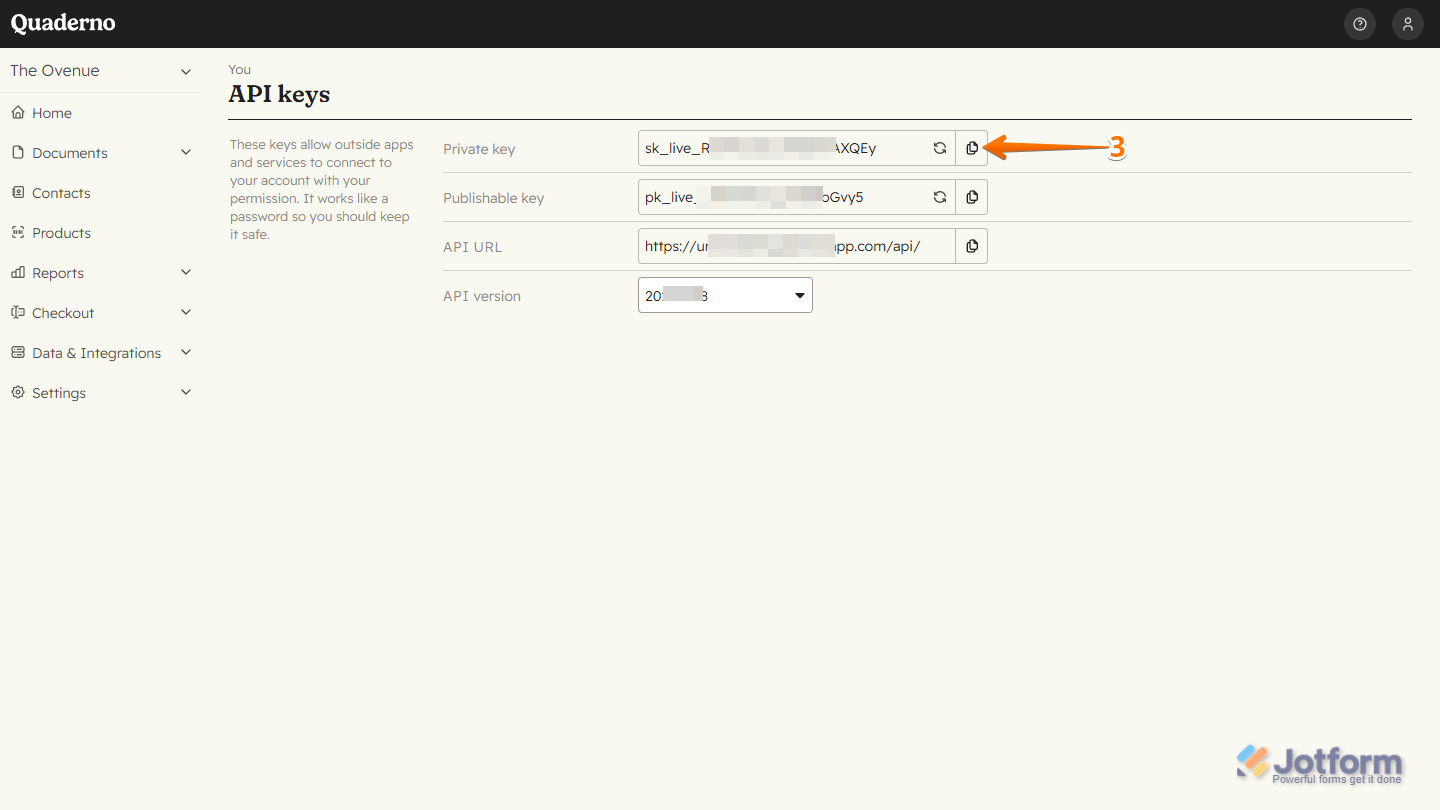
That’s all it takes to get your private key. Now you’re ready to add and set up the widget.

Send Comment:
2 Comments:
December 3, 2024
I want to be able to calculate the fields in the form and have it all add up at the bottom.
March 9, 2022
Its not working for me