With Jotform’s Telegram Feed Widget, you can display posts from your public Telegram channel directly on your website. Simply connect your channel, customize the widget’s appearance, and embed it on your website so visitors can stay up to date with your latest announcements and content.
Adding a Telegram feed is a great way to keep your website fresh with real-time updates while encouraging visitors to follow your channel. Whether you’re sharing news, promotions, community updates, or announcements, this widget helps you extend your Telegram content to your website in an engaging and accessible way.
Note
The widget can only display content from Telegram channels or sources that are publicly accessible.
Before you can add the Telegram Feed Widget to your website, you’ll first need to connect your Telegram channel, customize how the feed is displayed, and copy its embed code. You’ll just need to do this:
- On the top-left side of your Workspace page, click on Create.

- Then, in the menu that opens up, select Website Widget.

- Next, in the Search bar in the upper-left corner of the Choose Website Widget menu, enter Telegram Feed.
- Then, at the bottom of the search results, click on Use Widget.

- Now, in the Widget Properties menu that opens on the right side of Website Widgets, under the General tab, set up these properties:
- Connected Sources — Choose the Telegram channel or source you want to display in the widget.
- Header — Show or hide the widget header at the top of the feed.
- Title — Enter a custom title to appear in the widget header.
- Description — Add a short description to provide context or introduce your Telegram feed.

- Then, scroll down and adjust these settings:
- Post Limit — Set the maximum number of Telegram posts displayed in the widget.
- Author Name — Show or hide the name of the post’s author or channel.
- Author Picture — Show or hide the author’s or channel’s profile picture.
- Publication Date — Show or hide the date each Telegram post was published.
- Post Text — Show or hide the content of each Telegram post.
- Source Label — Show or hide a label indicating that the content is from Telegram.
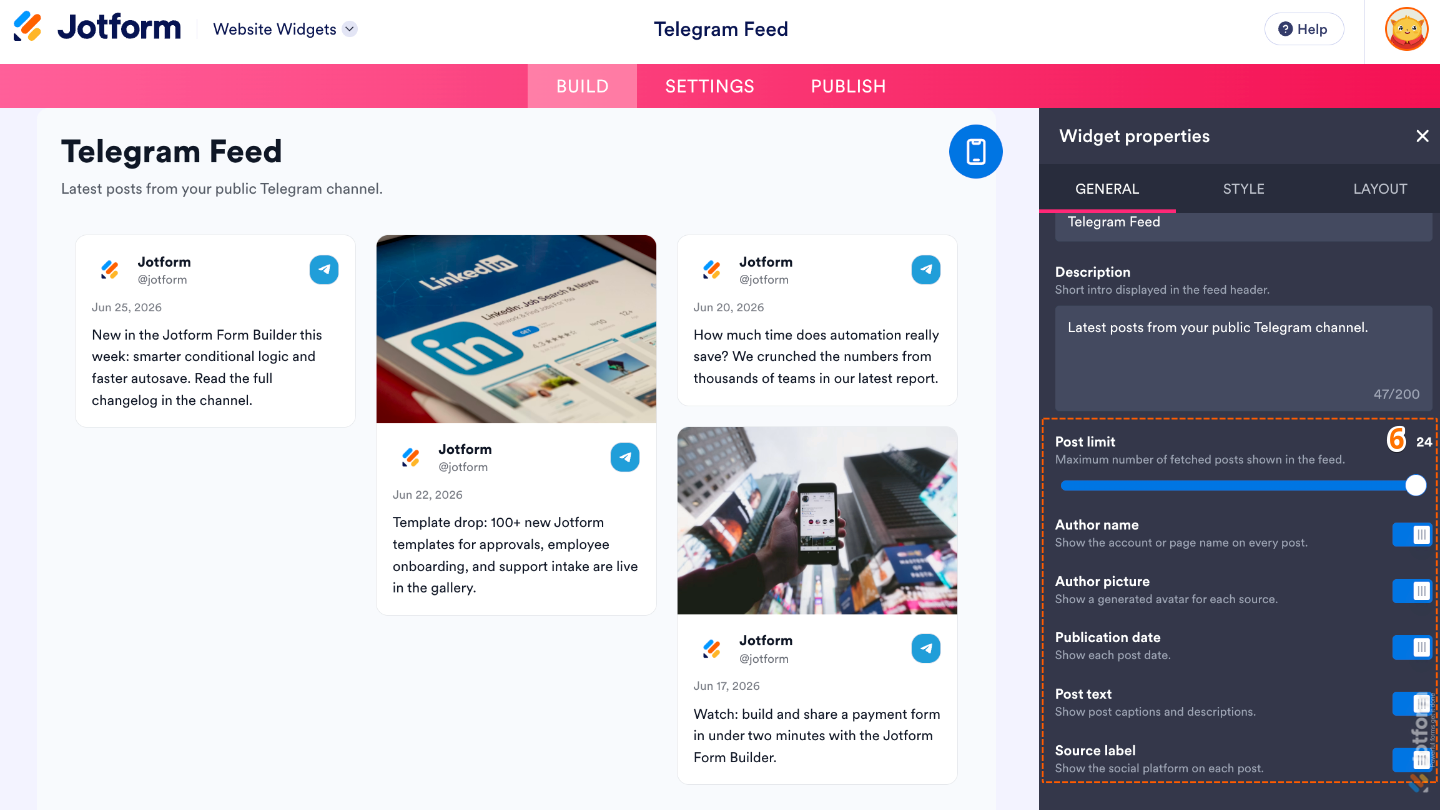
- Next, under the Styles tab, customize these properties:
- Theme — Choose a visual theme that matches your website’s design and branding.
- Corner Radius — Adjust how rounded the corners of the feed cards appear.
- Post Style — Choose the visual style used to display each Telegram post.
- Action on Post Click — Choose what happens when visitors click a post, such as opening it in a popup or redirecting them to Telegram.
- External Links — Control how links included in Telegram posts behave when visitors click them.
- Popup Style — Customize the appearance of the popup window if posts are opened in a popup.

- Then, scroll down and configure these options:
- Image Ratio — Choose how images are cropped or scaled within each post.
- Post Meta Data — Choose which additional post information, such as the author or publication date, is displayed.
- Text Size — Adjust the size of the text displayed in the widget.
- Card Shadow — Add or remove a shadow around each post card to create more visual depth.
- Source Style — Customize how the Telegram source or channel information is displayed.
- Jotform Branding — Show or hide Jotform branding on the widget.
- Font — Select the font used throughout the widget.
- Custom CSS — Apply your own CSS code for advanced styling beyond the built-in settings.

- Now, under the Layout tab, configure these properties:
- Display Mode — Choose how Telegram posts appear in the widget.
- Layout — Select how Telegram posts are arranged within the widget.
- Width — Adjust the overall width of the Telegram feed.
- Columns — Choose how many columns of posts are displayed.
- Rows — Set the number of rows displayed in the widget.
- Space Between Items — Adjust the spacing between individual Telegram posts.
- Header Alignment — Choose how the widget header is aligned, such as left, center, or right
- Once you’ve finished configuring the widget, in the pink navigation bar at the top of the page, click on Publish.

Note
You’ll be asked to log in to your Jotform account or sign up for one. Once you’ve done that, you’ll be able to get the embed code for your widget.
- Then, in the Embed section, click on Copy Code, and, if you already know how, paste that into the Embed section on your platform, and you’re good to go.
- To view embedding instructions for your widget, click on Platforms in the menu on the left side of the page.

- Next, in the Platforms section on the right, select the platform you want to view embedding instructions for. Or, use the Search bar at the top of the section to find it easily.

- Then, follow the steps in the How to Embed Your Widget section to add it to your website.

That’s it! Your Telegram Feed Widget will now appear on your website with the channel, design, and settings you selected, allowing visitors to view your latest Telegram posts without leaving your website. See the screenshot below for an example of how it looks on a website:

Note
You can manage the website widgets you’ve created at any time from your account. For a full breakdown of how to do it, head over to our guide on How to Manage Website Widgets.
Pro Tips
- Add a clear title and short description to help visitors understand what kind of content they’ll find in your Telegram feed.
- If your posts include images, experiment with different image ratios to find the layout that best fits your website’s design.


Send Comment: