Jotform’s Google Play Reviews widget lets you showcase ratings and reviews from your app’s Google Play listing directly on your website. New reviews can appear automatically, making it easy to keep your site updated with the latest user feedback.
Whether you’re promoting an app, highlighting user experiences, or giving visitors more information before they download, the widget helps build trust by displaying authentic Google Play reviews directly on your website.
Note
Your app will need to be published on the Google Play Store and have at least one review. The widget can only display reviews from publicly available apps.
To embed a Google Play Review on your website, you’ll first need to set up the Google Play Reviews and copy the embed code for it. Here’s how to get going:
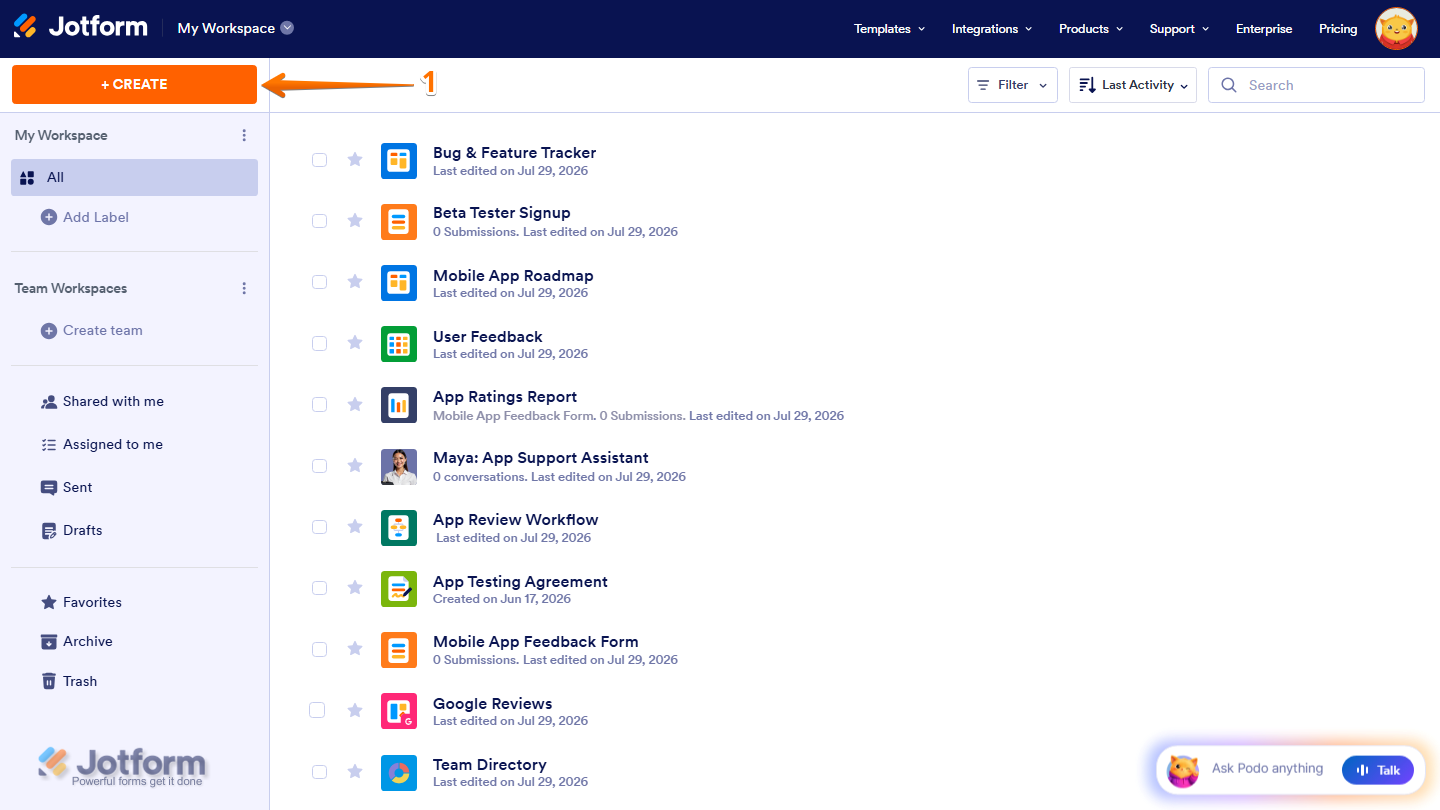
- On the top-left side of your Workspace page, click on Create.
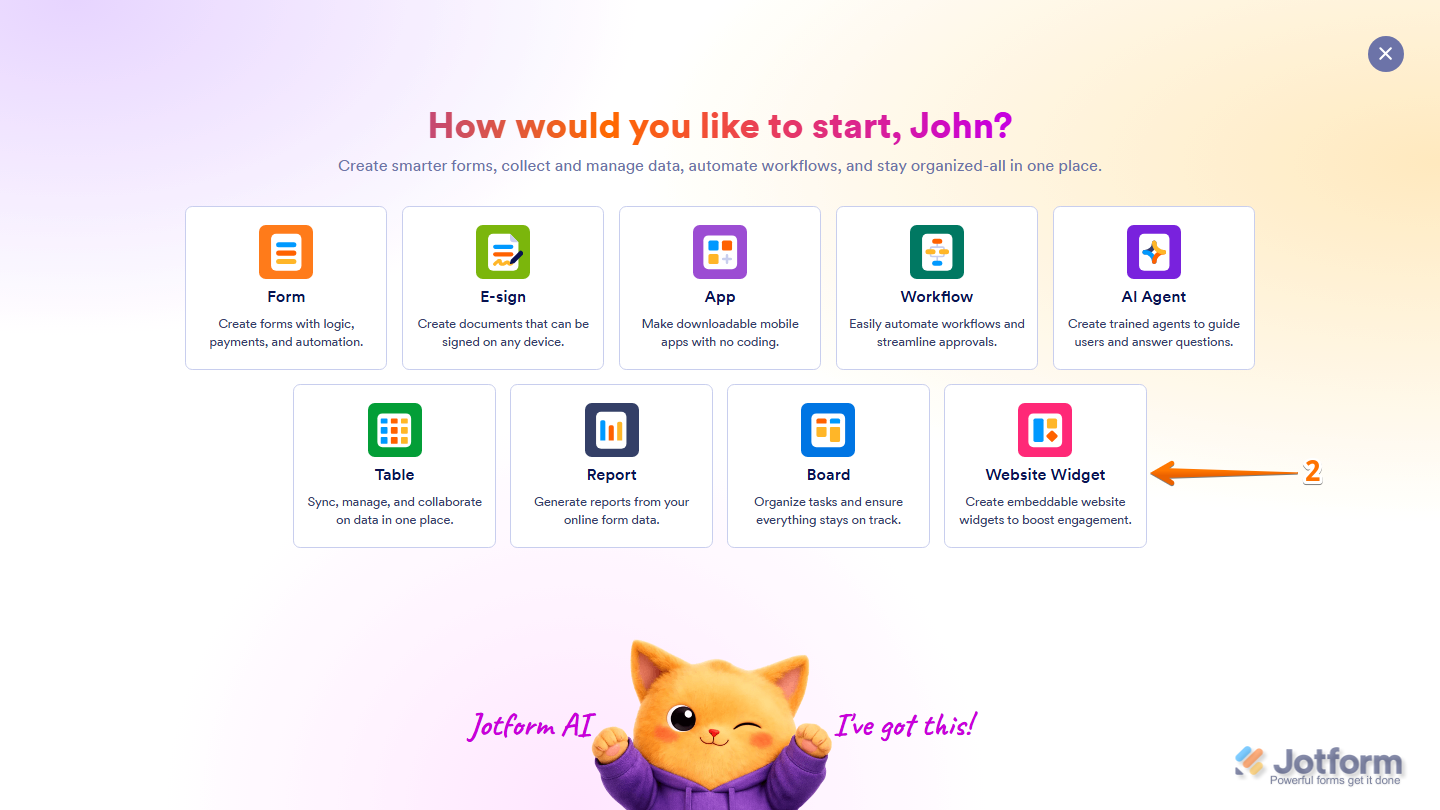
- Then, in the menu that opens up, select Website Widget.
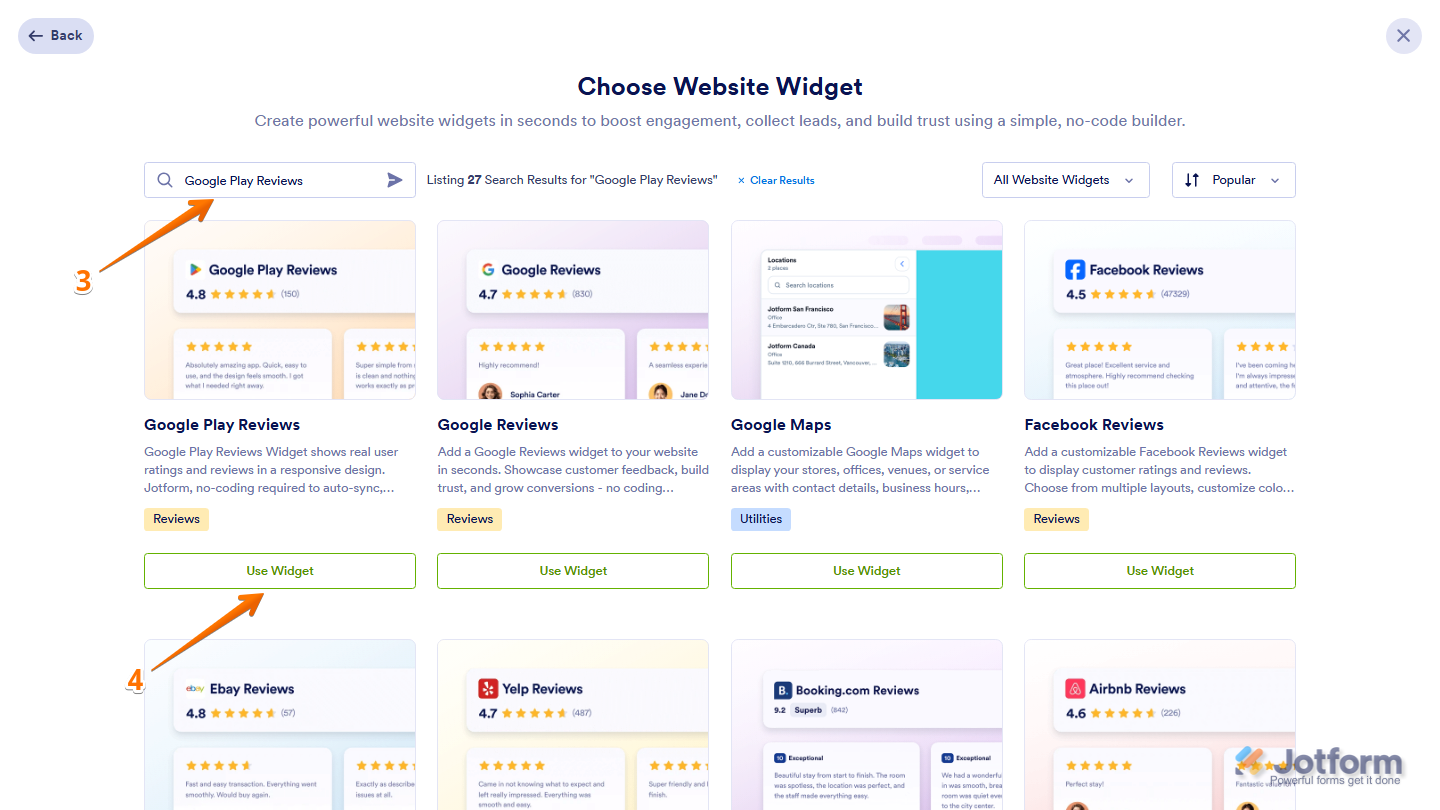
- Next, in the Search bar in the upper-left corner of the Choose Website Widget menu, enter Google Play Reviews.
- Then, at the bottom of the Google Play Reviews widget in the search results, click on Use Widget.
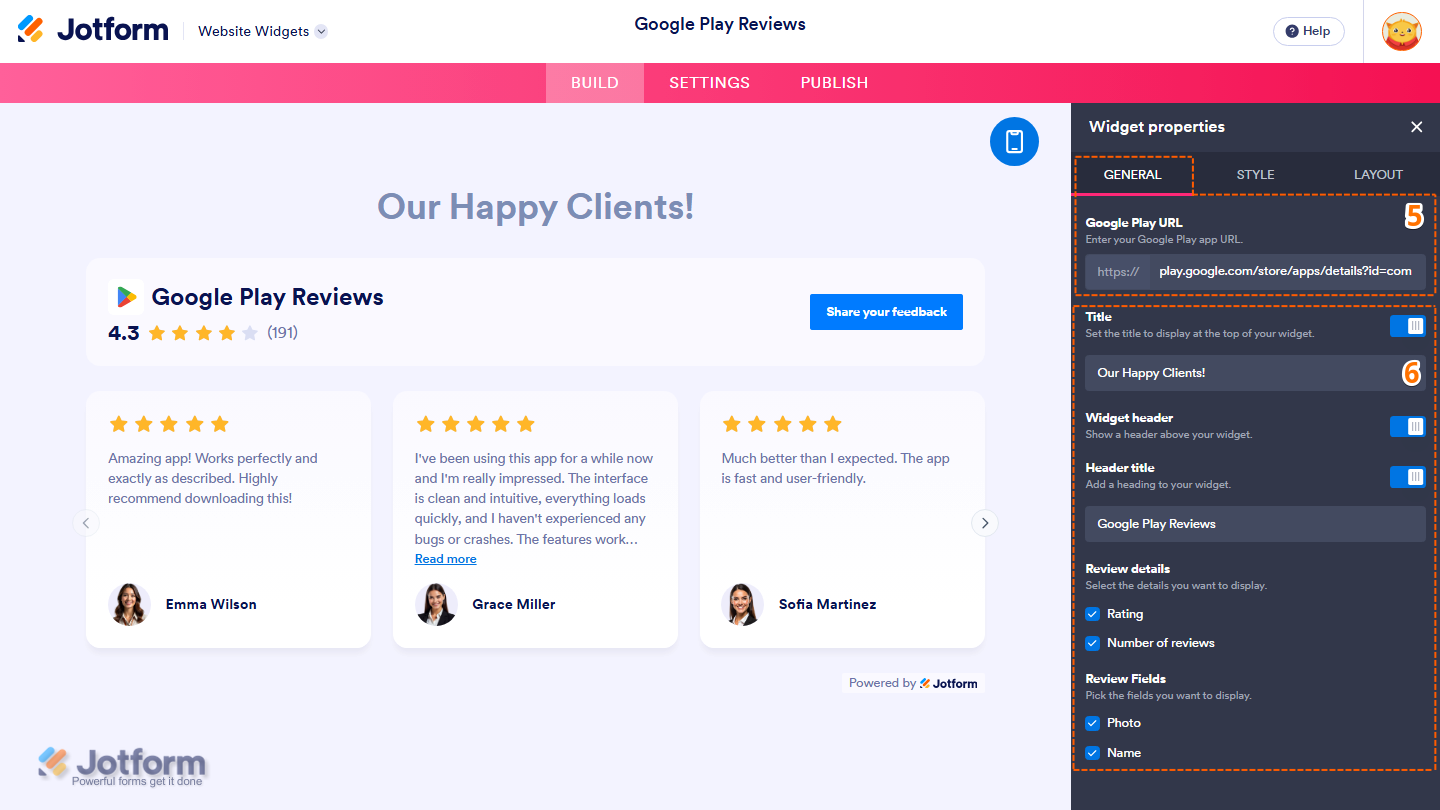
- Now, in the Widget Properties menu that opens on the right side of Website Widgets, under the General tab, in the Google Play URL field, enter your Google Play URL.
- Once the reviews have been fetched, set up these properties:
- Title — Enter the title you want to display at the top of the website widget.
- Widget Header — Toggle it off to hide the header above the reviews.
- Header Title — This is only shown when the Widget Header property is enabled. Toggle it off to hide the title in the widget header, or leave it enabled and, in the input box below it, delete the existing title and enter the title you want to display.
- Review Details — This is only shown when the Widget Header property is enabled. Select the details you want to display in the widget header:
- Rating — Select this to display the app’s overall rating.
- Number of Reviews — Select this to display the total number of reviews.
- Review Fields — Select the fields you want to display on each review card:
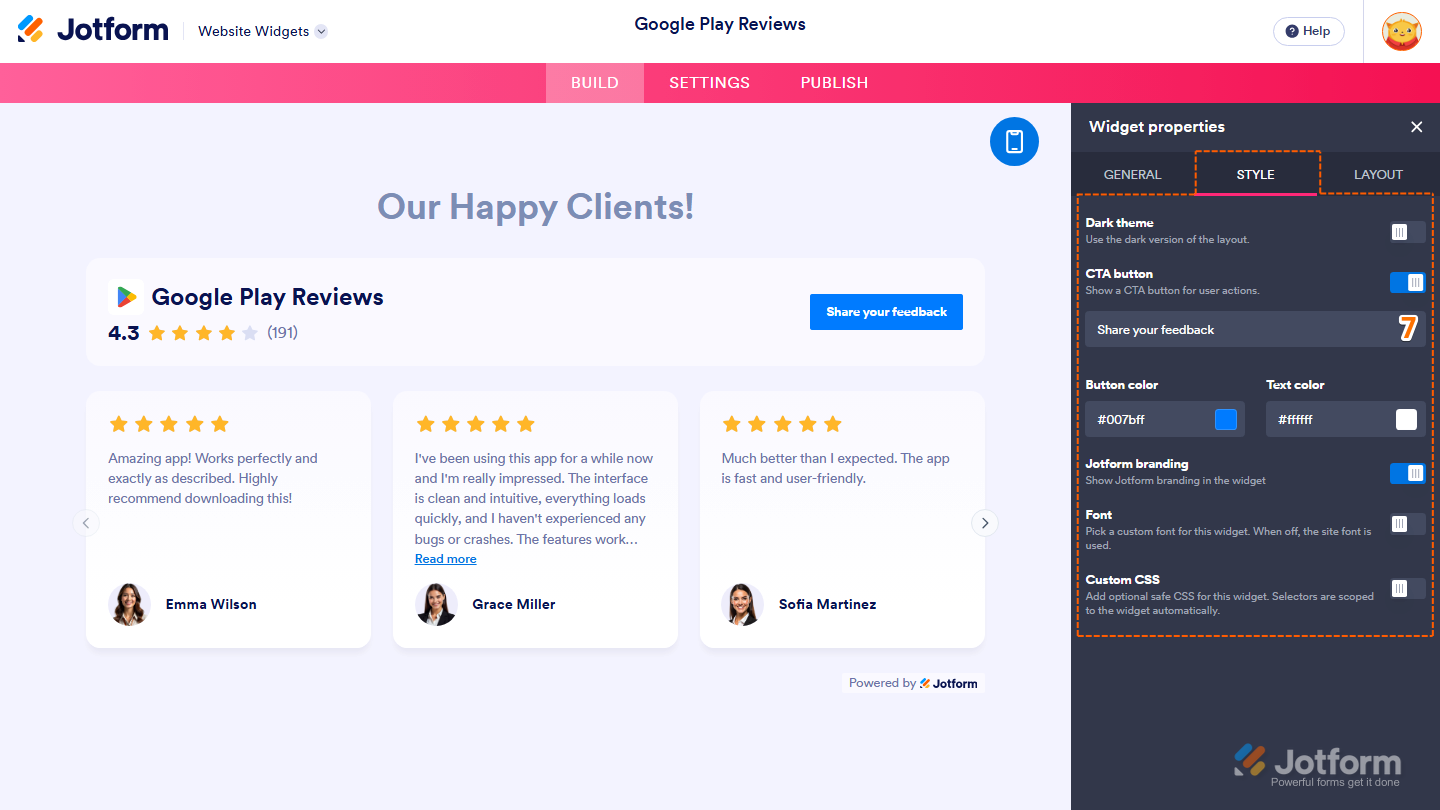
- Next, under the Style tab, customize these properties:
- Dark Theme — Toggle this on to use the dark version of the widget layout.
- CTA Button — Keep this on to display a call-to-action button in the widget, then delete the existing text in the input box below it and enter the button text you want to display. Toggle it off to hide the button.
- Button Color — This is only shown when the CTA Button property is enabled. Keep the default color, or enter a new one in the input box to change the CTA button background color.
- Text Color — This is only shown when the CTA Button property is enabled. Leave the default color as is, or enter a new one in the input box to change the CTA button text color.
- Jotform Branding — Keep this on to display Powered by Jotform in your widget, or toggle it off to hide it.
- Font — Toggle this on, then in the Dropdown menu that appears below it, keep Site Font selected to match the font used on your website, select System to use the font from each visitor’s device, or select another available font. Leave this off to continue using your website’s font.
- Custom CSS — Toggle this on, then in the code editor that appears below it, enter custom CSS to apply advanced styling to your widget.
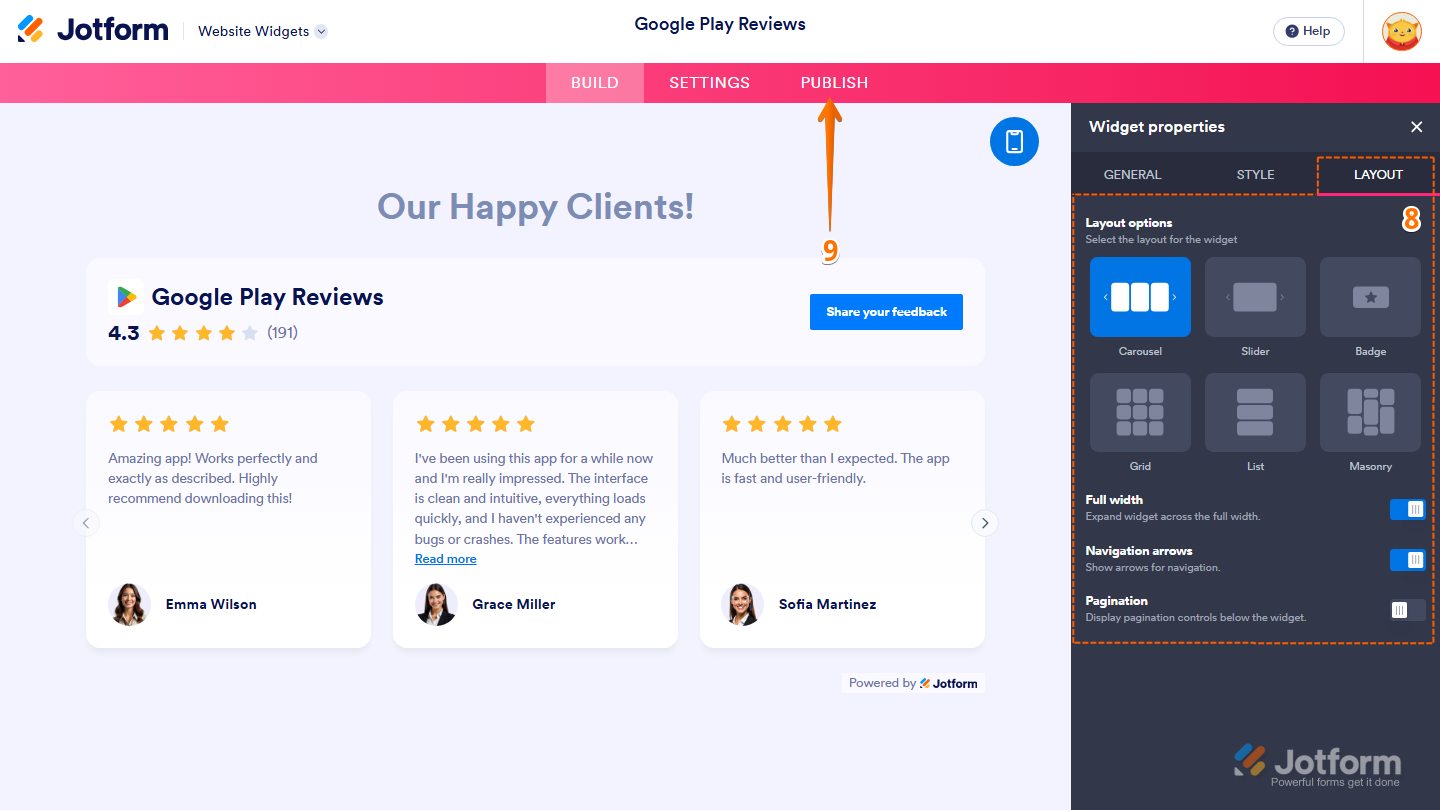
- Now, under the Layout tab, configure these properties:
- Layout Options — Select one of the following options to choose how the reviews are displayed:
- Carousel — This displays multiple review cards side by side that visitors can navigate horizontally.
- Slider — Use this to display one review card at a time that visitors can navigate through.
- Badge — Select this to display the reviews in a compact badge-style layout.
- Grid — This displays the review cards in rows and columns.
- List — Use this to display the review cards in a vertical list.
- Masonry — Select this to display the review cards in a masonry-style layout that accommodates cards with different content lengths.
- Full Width — Use this to expand the widget across the full width of the page.
- Navigation Arrows — This displays arrows for navigating through the reviews.
- Pagination — Toggle this on to display pagination controls below the widget
- Layout Options — Select one of the following options to choose how the reviews are displayed:
- Once you’ve finished configuring the widget, in the pink navigation bar at the top of the page, click on Publish.
Note
You’ll be asked to log in to your Jotform account or sign up for one. Once you’ve done that, you’ll be able to get the embed code for your widget.
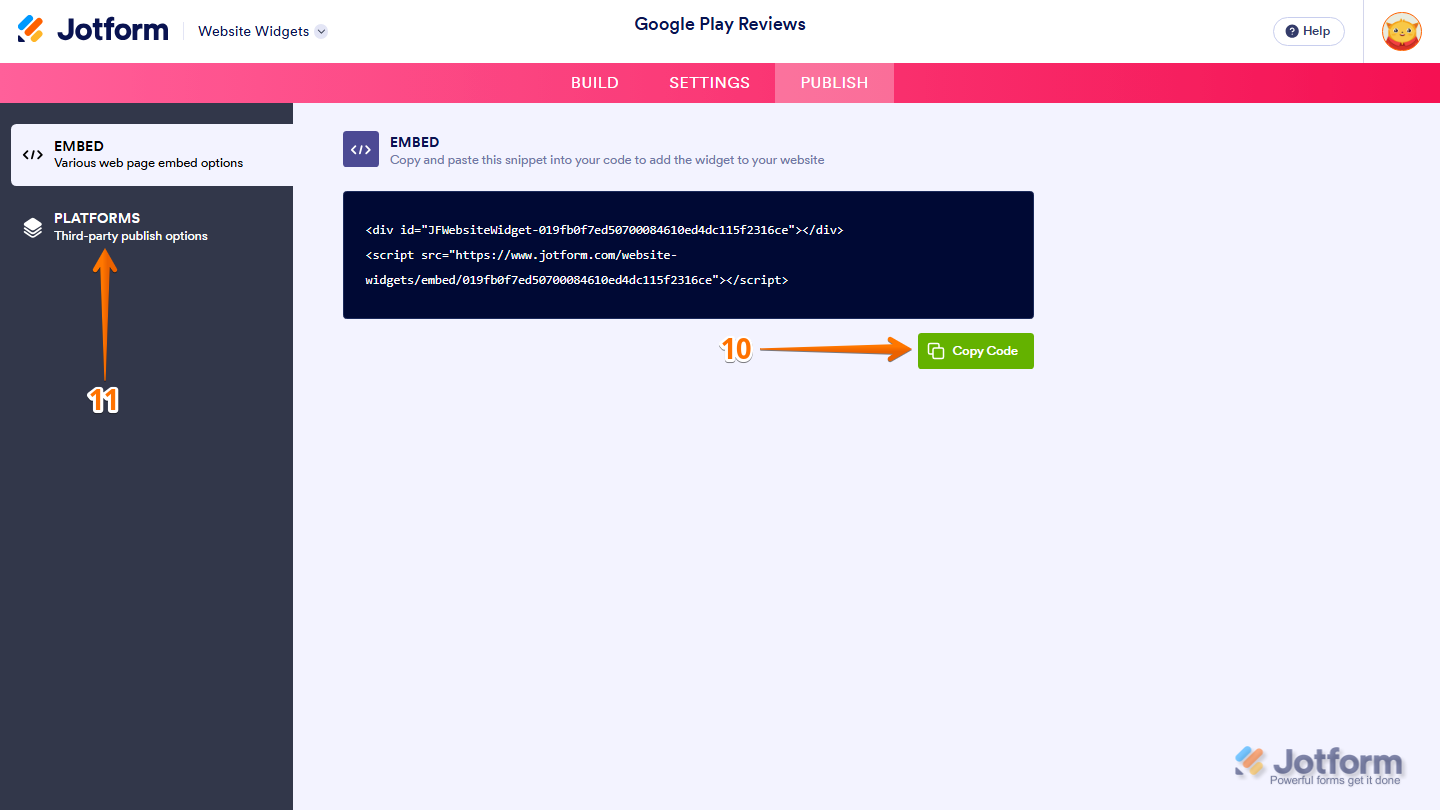
- Then, in the Embed section, click on Copy Code, and, if you already know how, paste that into the Embed section on your platform, and you’re good to go.
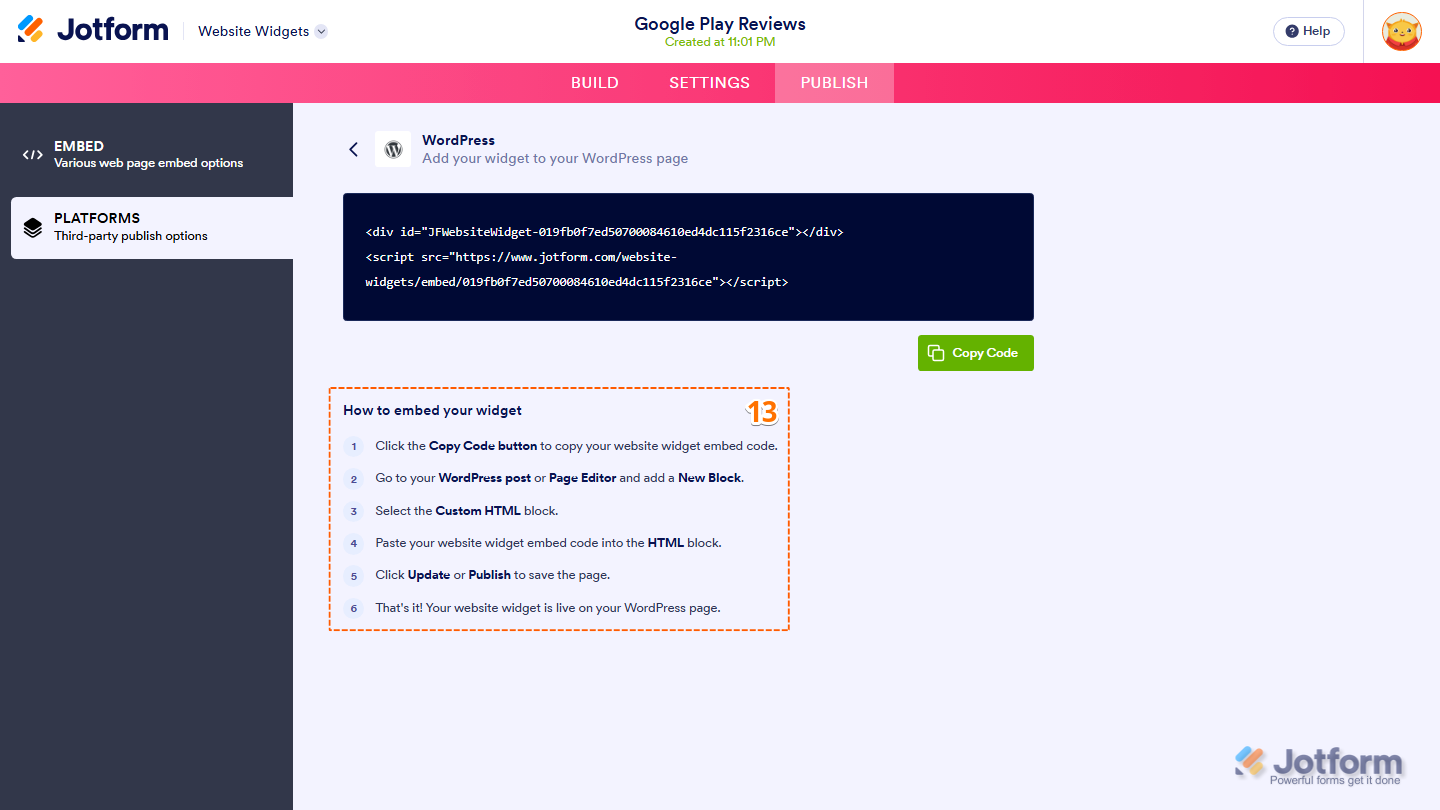
- To view embedding instructions for your widget, click on Platforms in the menu on the left side of the page.
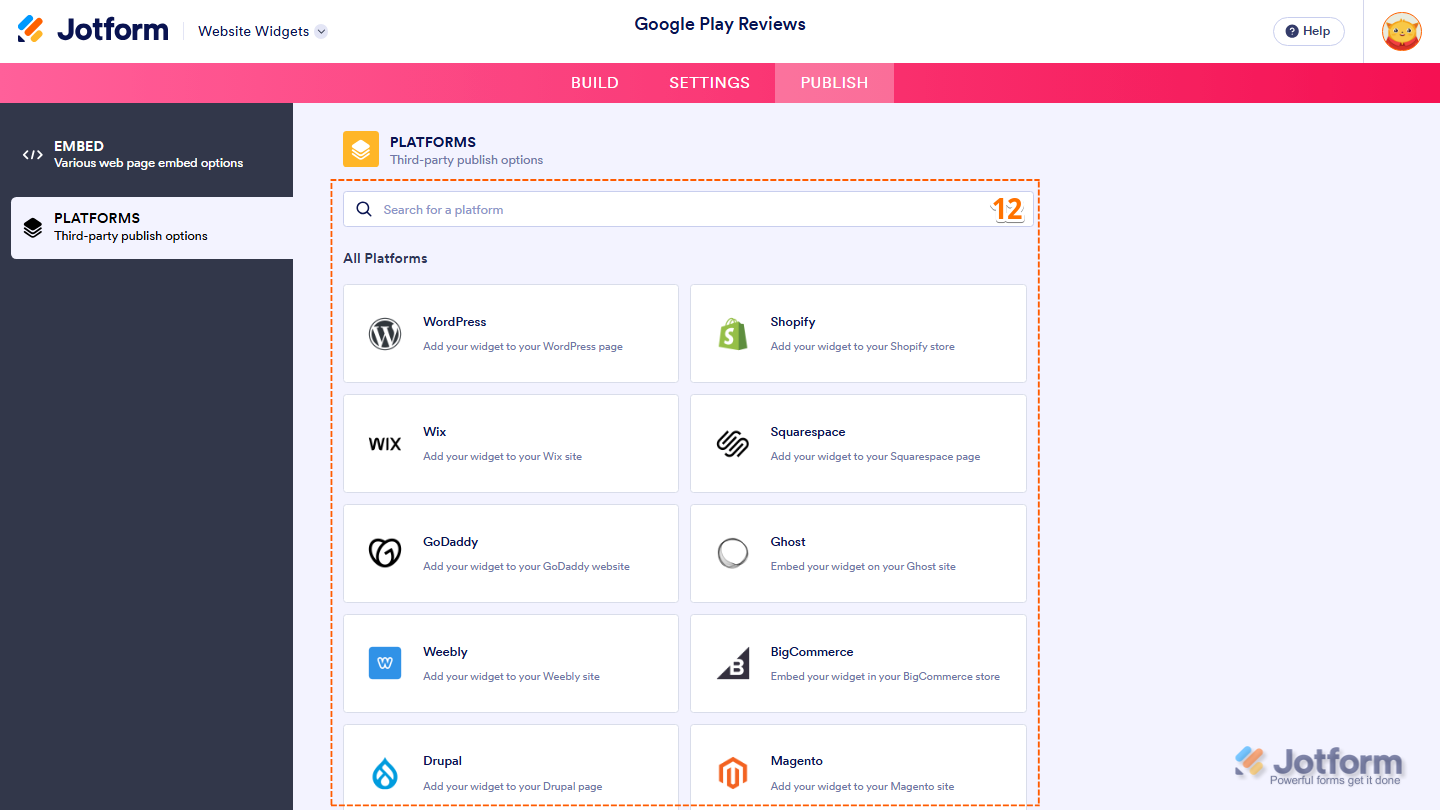
- Next, in the Platforms section on the right, select the platform you want to view embedding instructions for. Or, use the Search bar at the top of the section to find it easily.
- Then, follow the steps in the How to Embed Your Widget section to add it to your website.
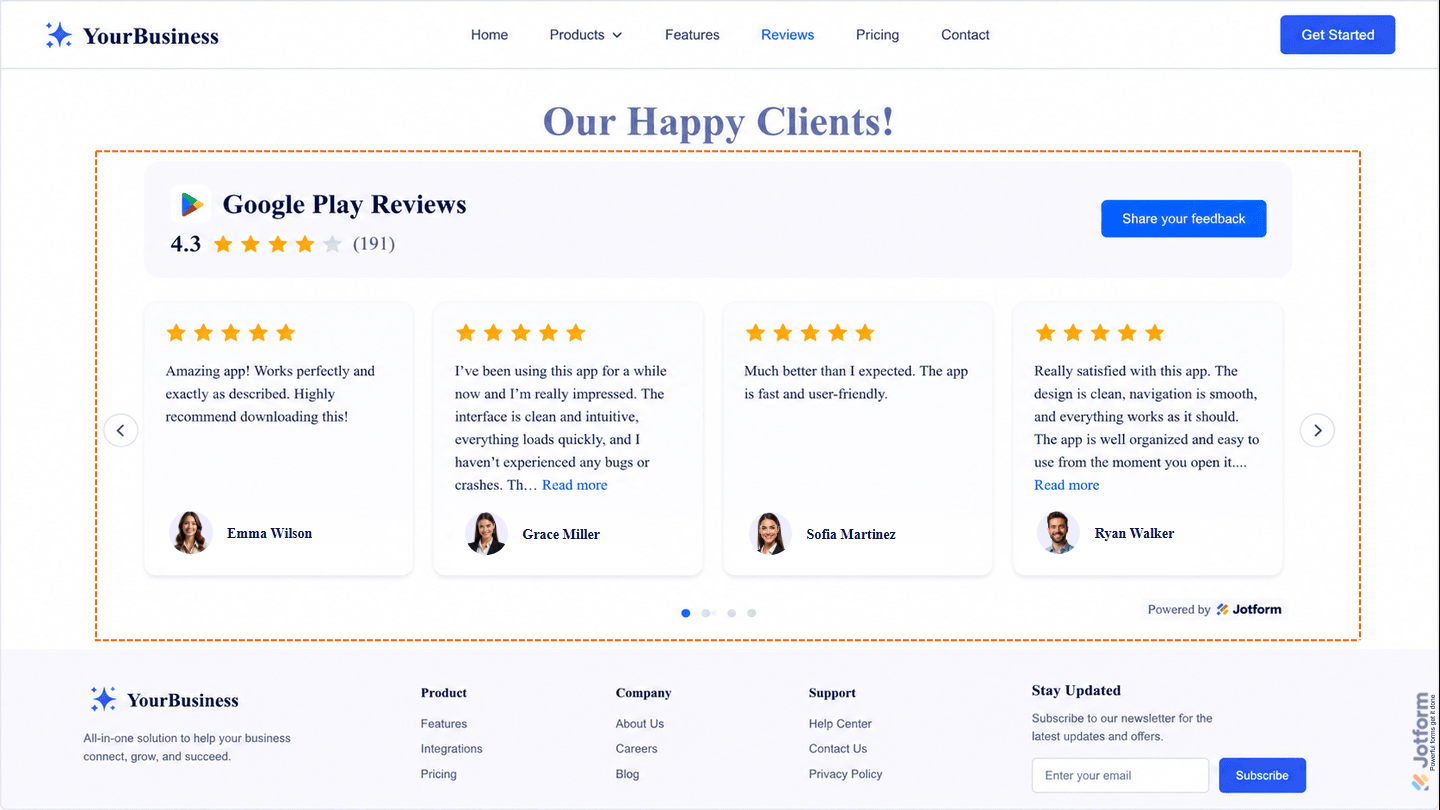
That’s it! Your Google Play Reviews widget will appear on your website just as you set it up. Take a look at the example below to see how it’ll look.
Note
You can manage the website widgets you’ve created at any time from your account. For a full breakdown of how to do it, head over to our guide on How to Manage Website Widgets


Send Comment: