Jotform’s TripAdvisor Reviews widget lets you showcase your overall rating and authentic TripAdvisor reviews on your website in a clean, responsive layout that looks great on any device. Simply connect your TripAdvisor listing, customize the widget’s appearance, and add it to your website in just a few steps.
Displaying authentic reviews on your website helps build trust and confidence with potential customers. If your business has earned positive feedback on TripAdvisor, you can highlight those experiences where visitors are most likely to see them.
Note
Before you dive in, make sure you can access your Tripadvisor business page. You’ll need it to grab your embed code and get your reviews looking great on your website.
Creating Your TripAdvisor Reviews Widget and Getting the Embed Code for it
Before you can add the TripAdvisor Reviews Widget to your website, you’ll first need to connect your TripAdvisor listing, customize how the reviews are displayed, and copy the embed code for it. Here’s how to get started:
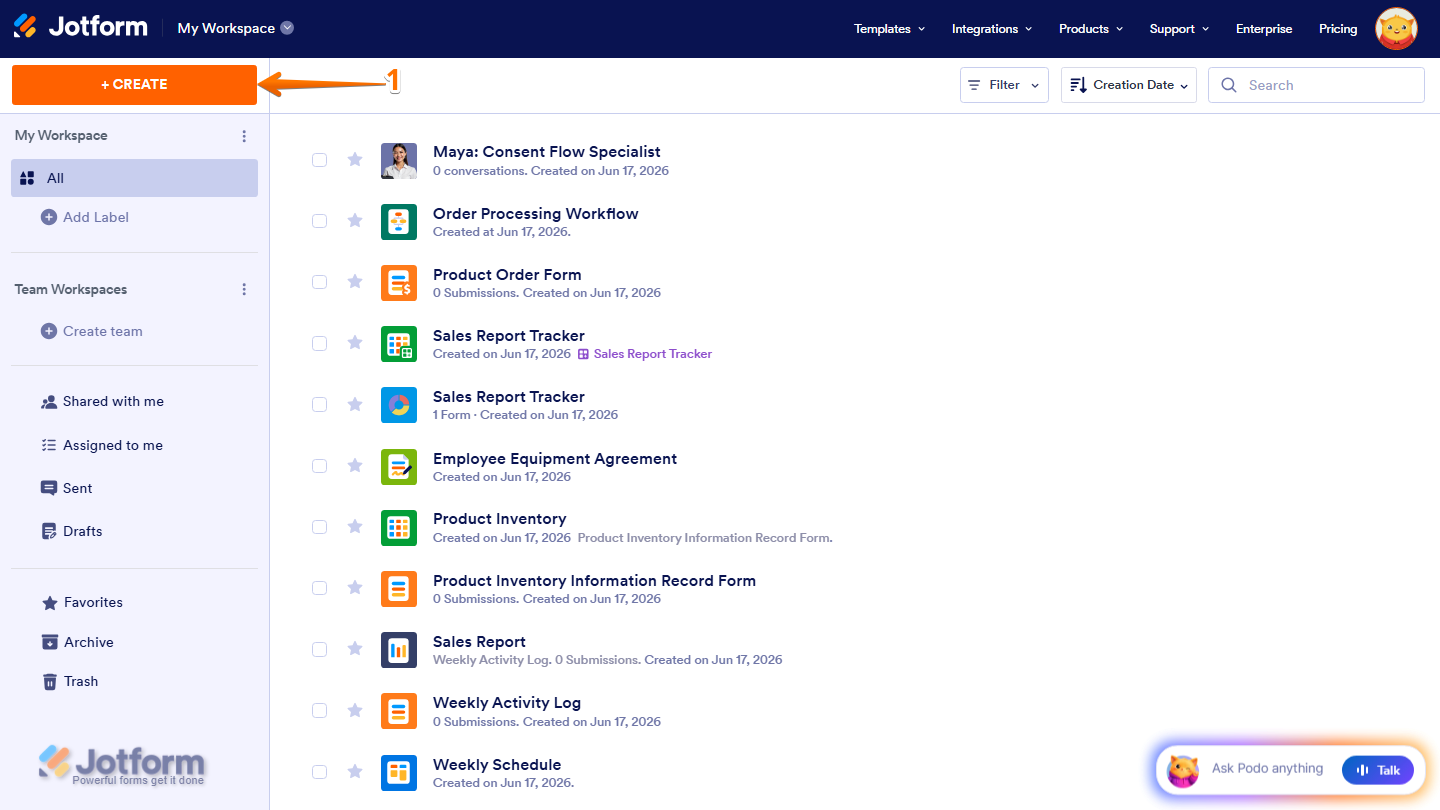
- On the top-left side of your Workspace page, click on Create.
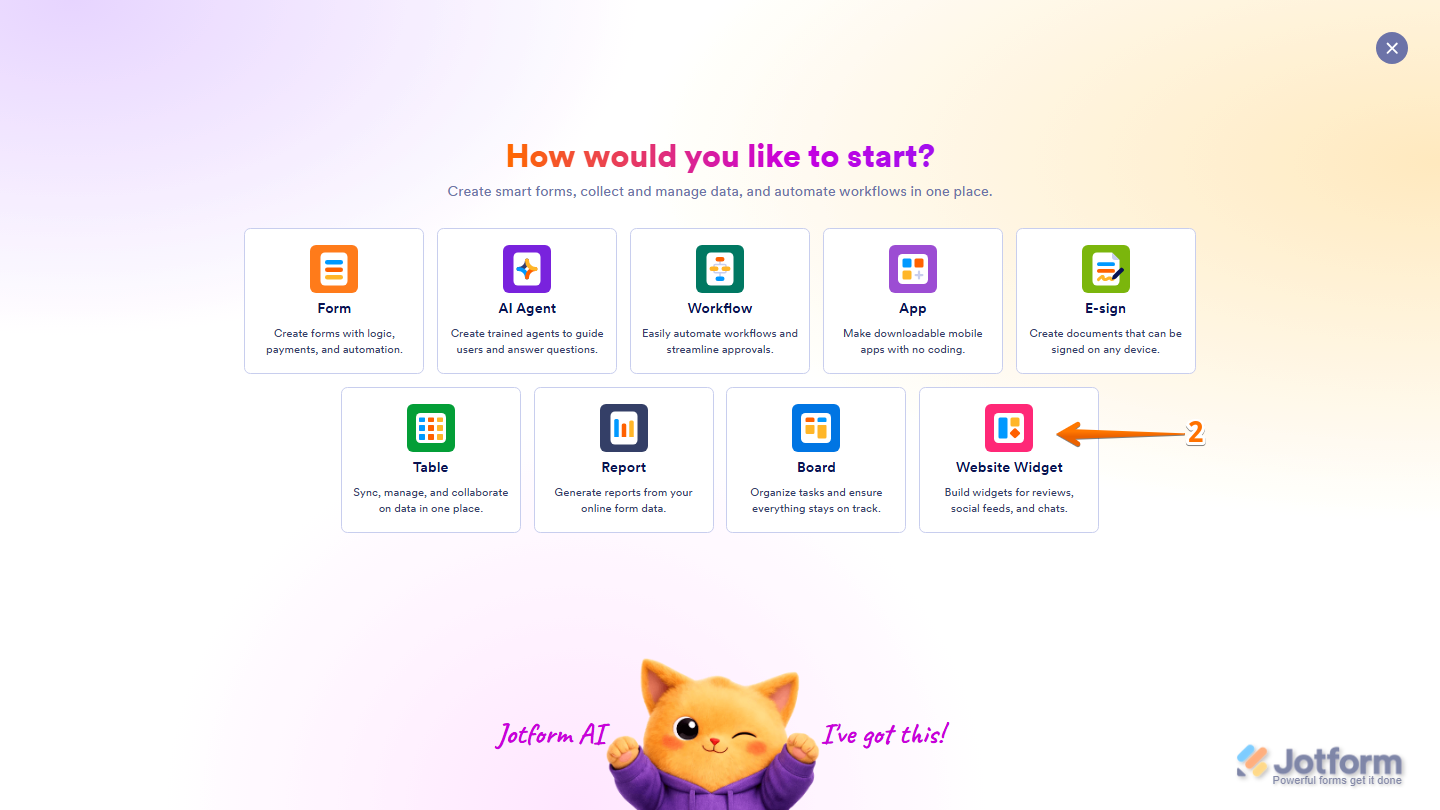
- Then, in the menu that opens up, select Website Widget.
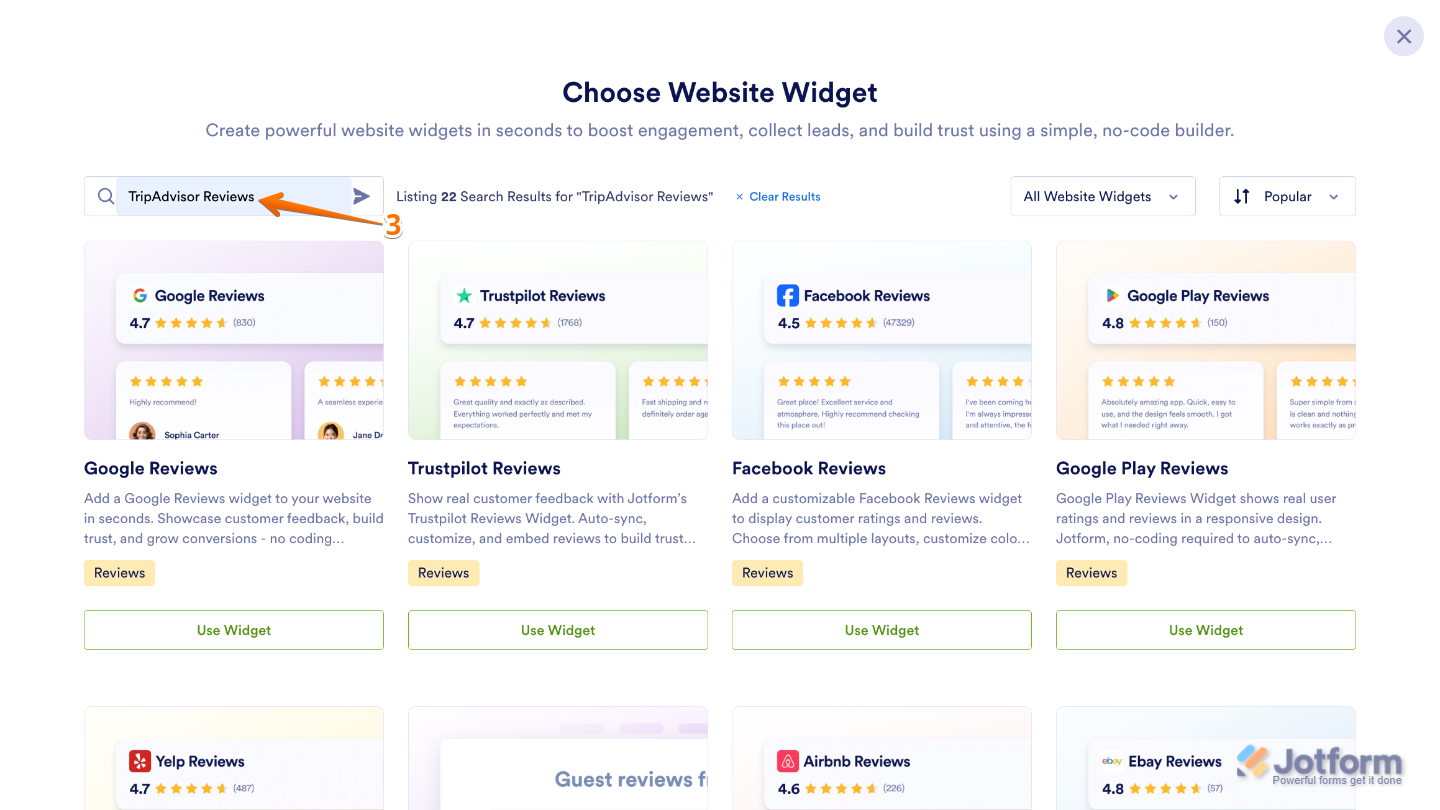
- Next, in the Search bar in the upper-left corner of the Choose Website Widget menu, enter TripAdvisor Reviews.
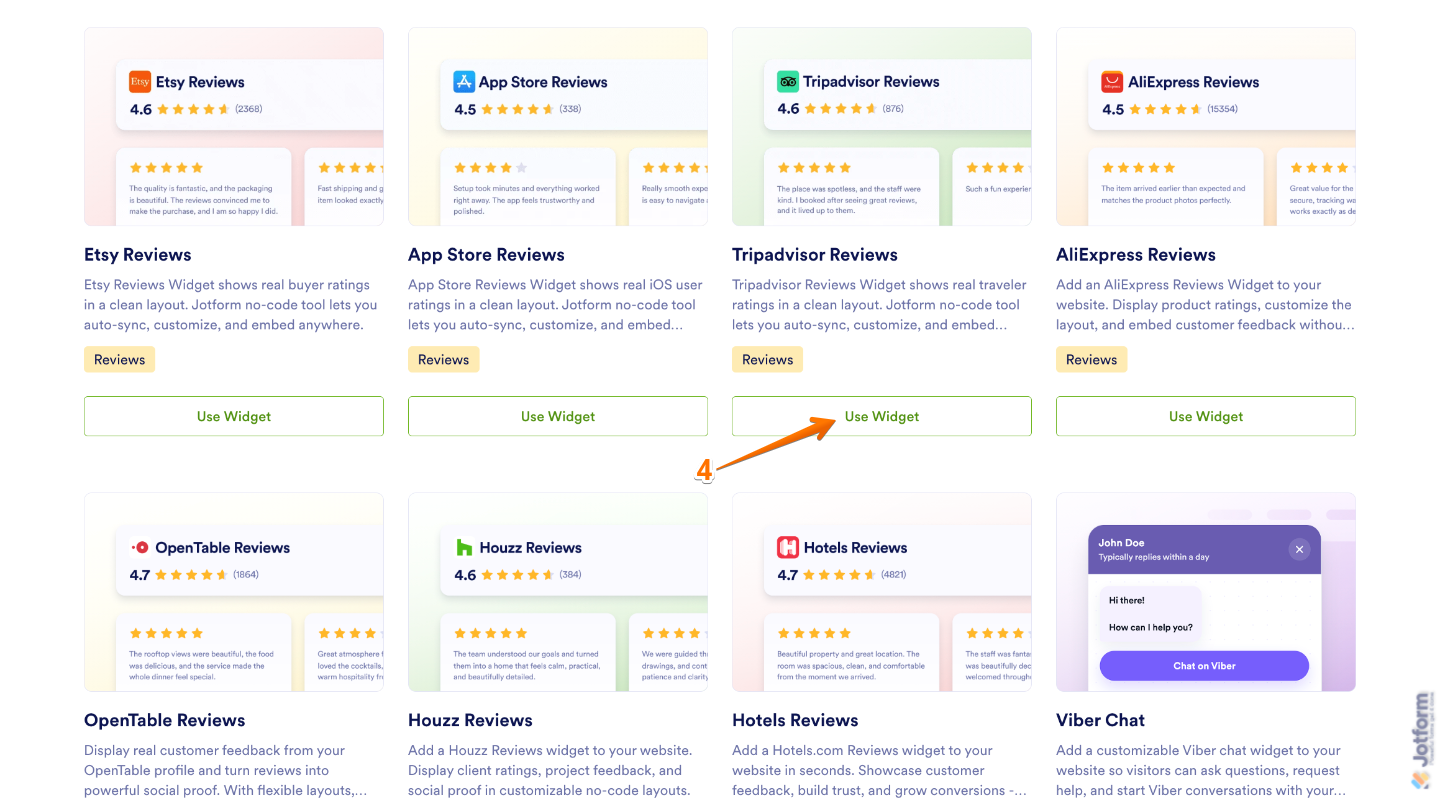
- In the search results, scroll down to the TripAdvisor Reviews widget and then click on Use Widget.
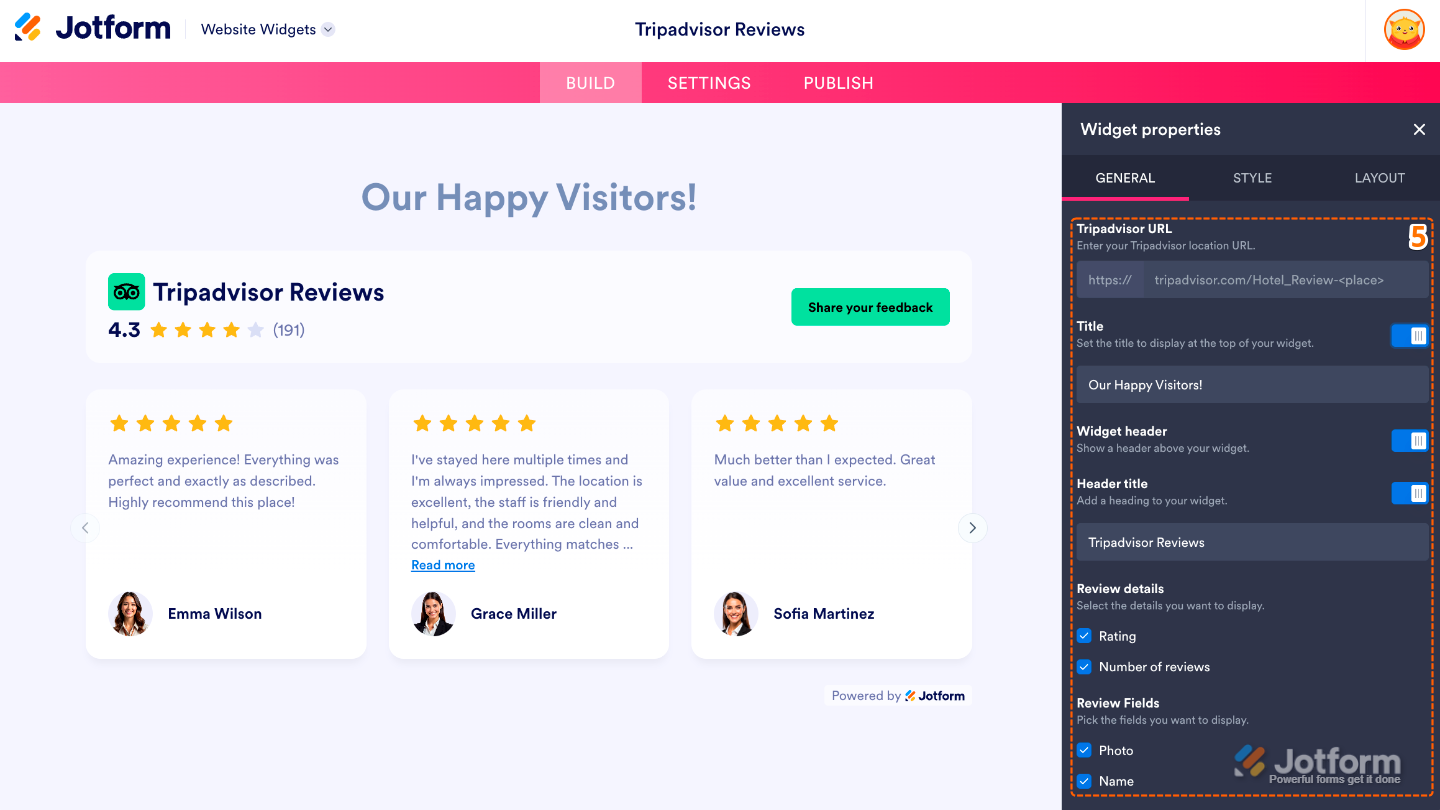
- Now, in the Widget Properties menu that opens on the right side of Website Widgets, under the General tab, set up these properties:
- TripAdvisor URL — Enter the URL of your TripAdvisor listing to display your business’s reviews and rating in the widget.
- Title — Set the title displayed above your TripAdvisor reviews.
- Widget Header — Show or hide the header section at the top of the widget.
- Header Title — Enter the text that appears in the widget’s header.
- Review Details
- Rating — Show or hide your overall TripAdvisor rating.
- Number of Reviews — Display the total number of reviews your business has received on TripAdvisor.
- Review Field
- Photo — Show or hide the reviewer’s profile photo.
- Name — Display the reviewer’s name with each review.
- Next, under the Styles tab, customize these properties:
- Dark Theme — Switch the widget to a dark color scheme that blends well with darker website designs.
- CTA Button — Show or hide the Call-to-Action button that encourages visitors to view your TripAdvisor profile or leave a review.
- Button Color — Choose the color of the Call-to-Action button.
- Text Color — Set the color of the text displayed throughout the widget.
- Jotform Branding — Show or hide the Jotform branding displayed on the widget.
- Font — Toggle this on to select and match your website’s font.
- Custom CSS — Turn this on to add custom CSS code and apply advanced styling to the widget.

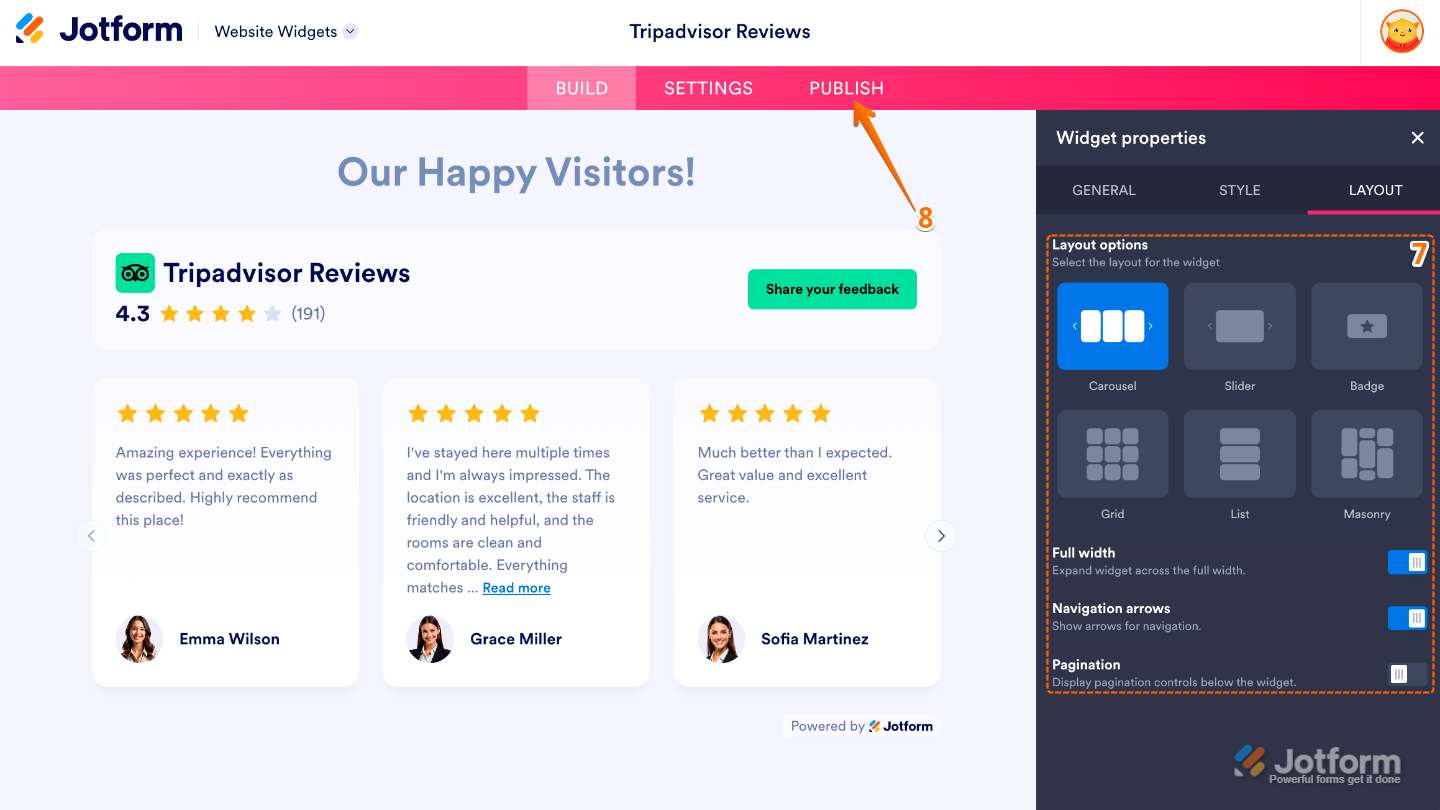
- Now, under the Layout tab, configure these properties:
- Layout Options — Choose how the reviews are arranged within the widget.
- Full Width — Expand the widget to fill the entire width of its card.
- Navigation Arrows — Show or hide arrows that let visitors navigate between reviews.
- Pagination — Display pagination controls so visitors can browse through multiple pages of reviews.
- Once you’ve finished configuring the widget, in the pink navigation bar at the top of the page, click on Publish.
Note
You’ll be asked to log in to your Jotform account, if you’re not already, or sign up for one. Once you’ve done that, you’ll be able to get the embed code for your widget.
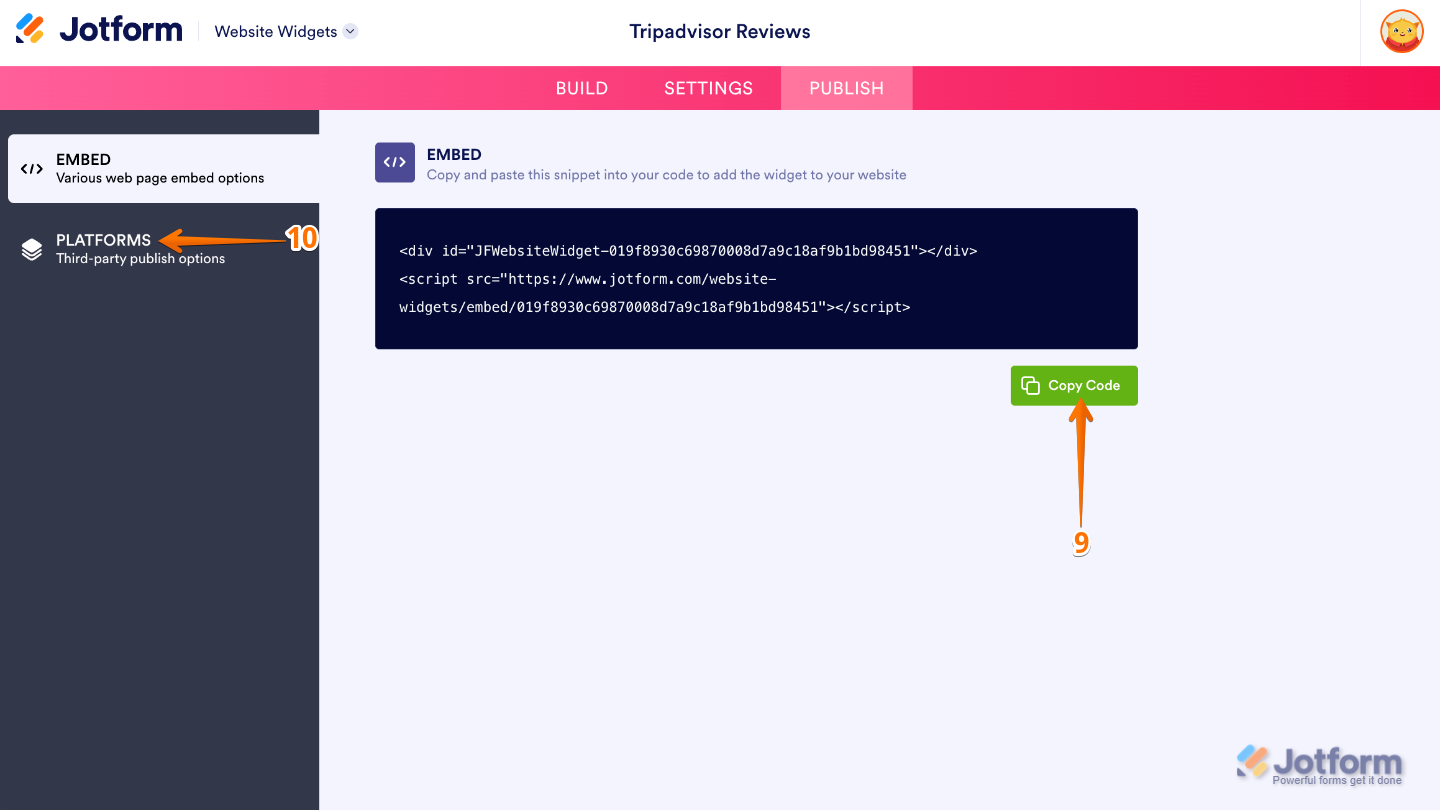
- Then, in the Embed section, click on Copy Code, and, if you already know how, paste that into the Embed section on your platform, and you’re good to go.
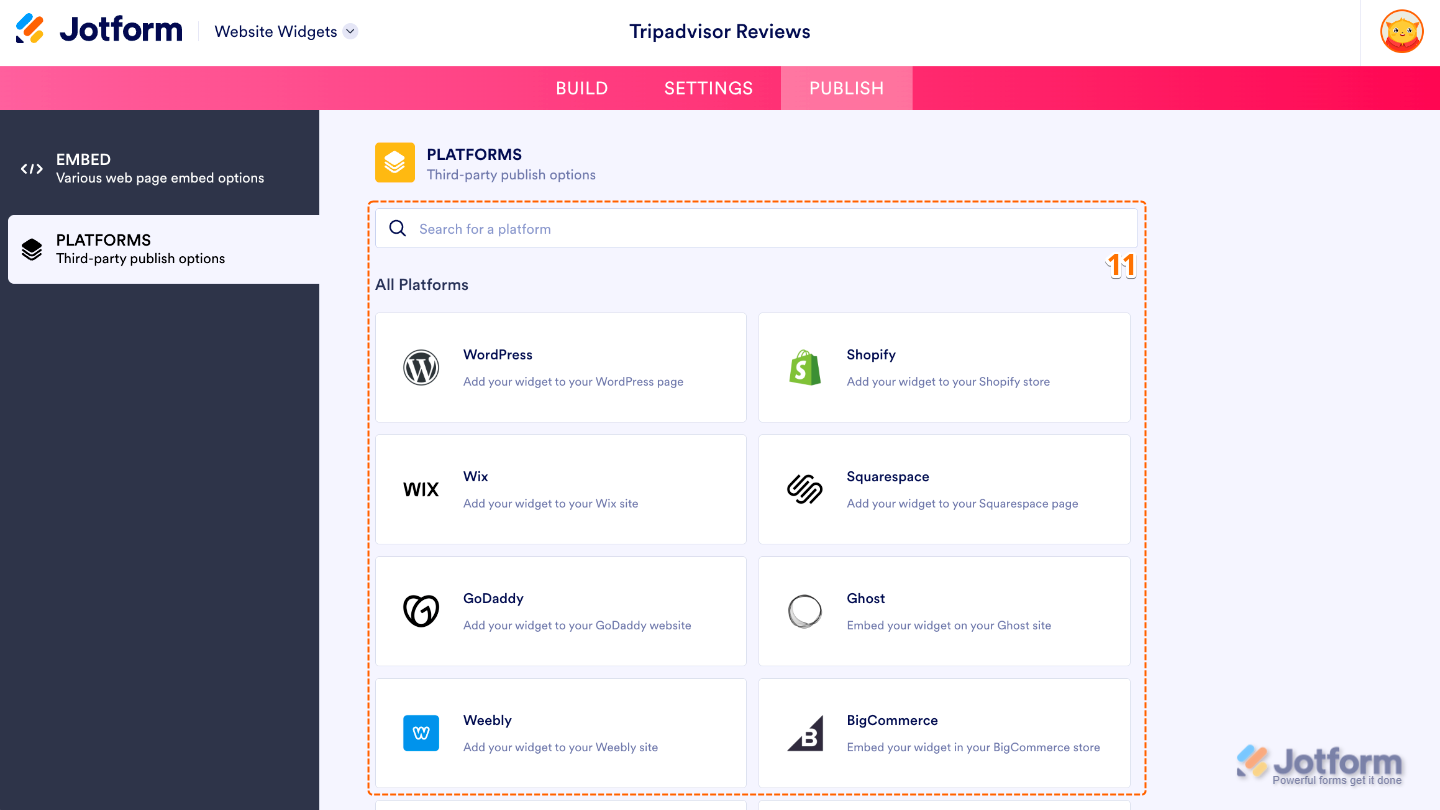
- To view embedding instructions for your widget, click on Platforms in the menu on the left side of the page.
- Next, in the Platforms section on the right, select the platform you want to view embedding instructions for. Or, use the Search bar at the top of the section to find it easily.
- Then, follow the steps in the How to Embed Your Widget section to add it to your website.
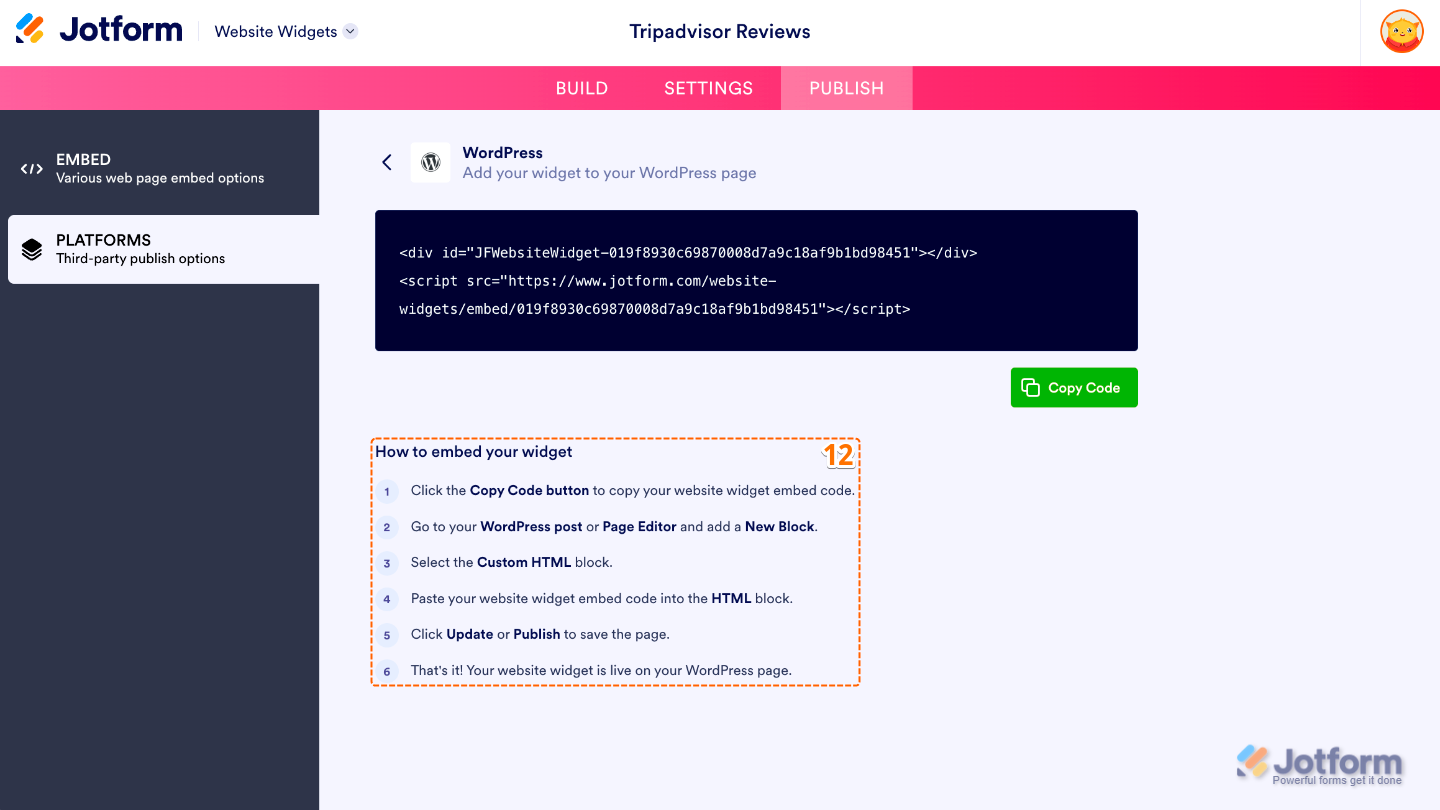
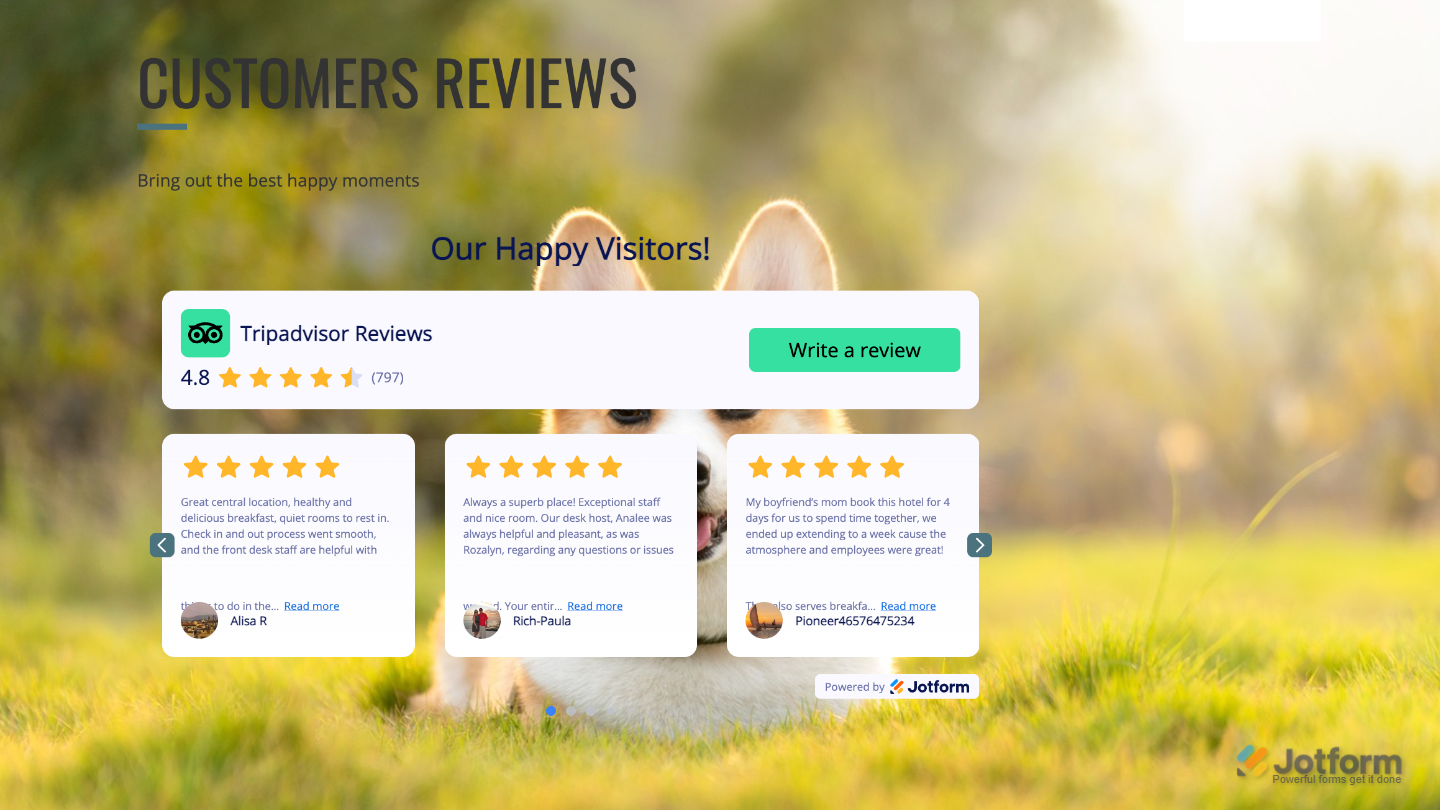
That’s it! Your Tripadvisor Reviews widget will appear on your website based on how you set it up. See the screenshot below for an example of how it looks on a website.
Note
You can manage the website widgets you’ve created at any time from your account. For a full breakdown of how to do it, head over to our guide on How to Manage Website Widgets.
Pro Tips
- Highlight your best reviews by featuring the highest-rated or most detailed reviews to make a strong impression on visitors.
- Keep it updated automatically to ensure new Tripadvisor reviews appear on your site without manual updates.


Send Comment: