Logging in to Jotform is quick and easy, giving you instant access to your forms, apps, submissions, and all your saved data in one place. With a secure and user-friendly sign-in process, you can pick up right where you left off and continue managing your work without any interruptions.
Logging In to Jotform
Whether you’re accessing your account from a desktop or mobile device, everything is designed to be smooth and convenient. It’s easier than you think:
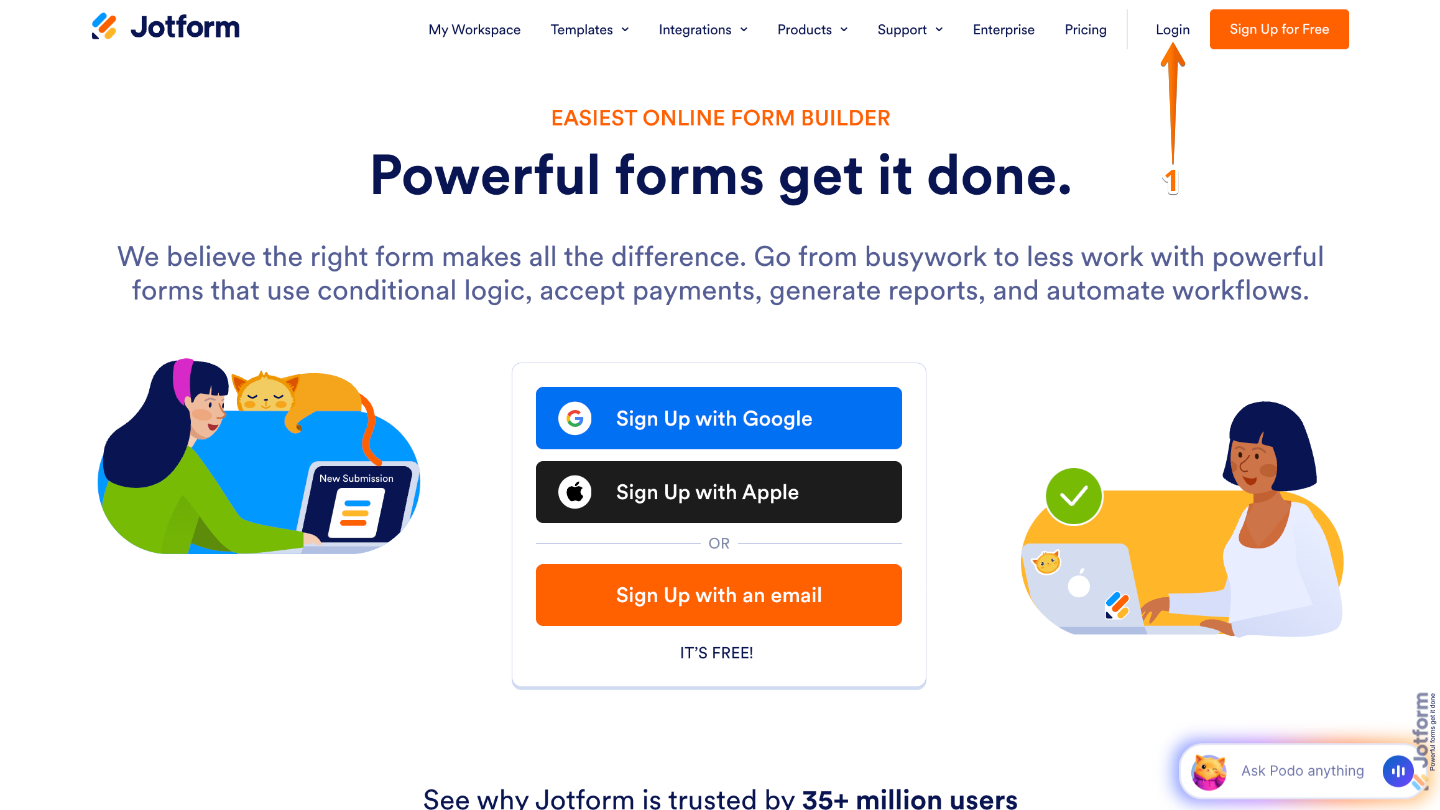
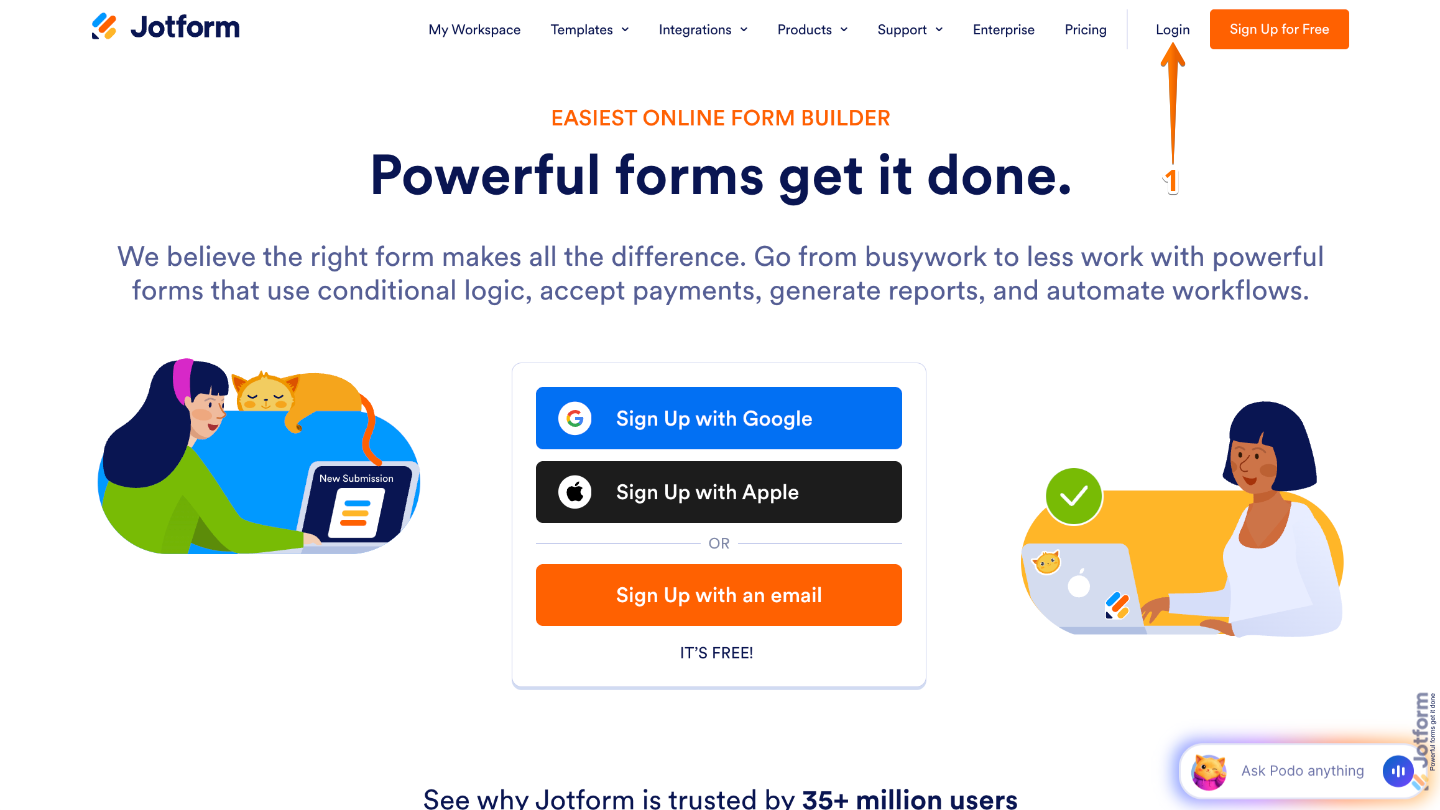
- Go to the Jotform Login page, and then click on Login in the upper-right corner.
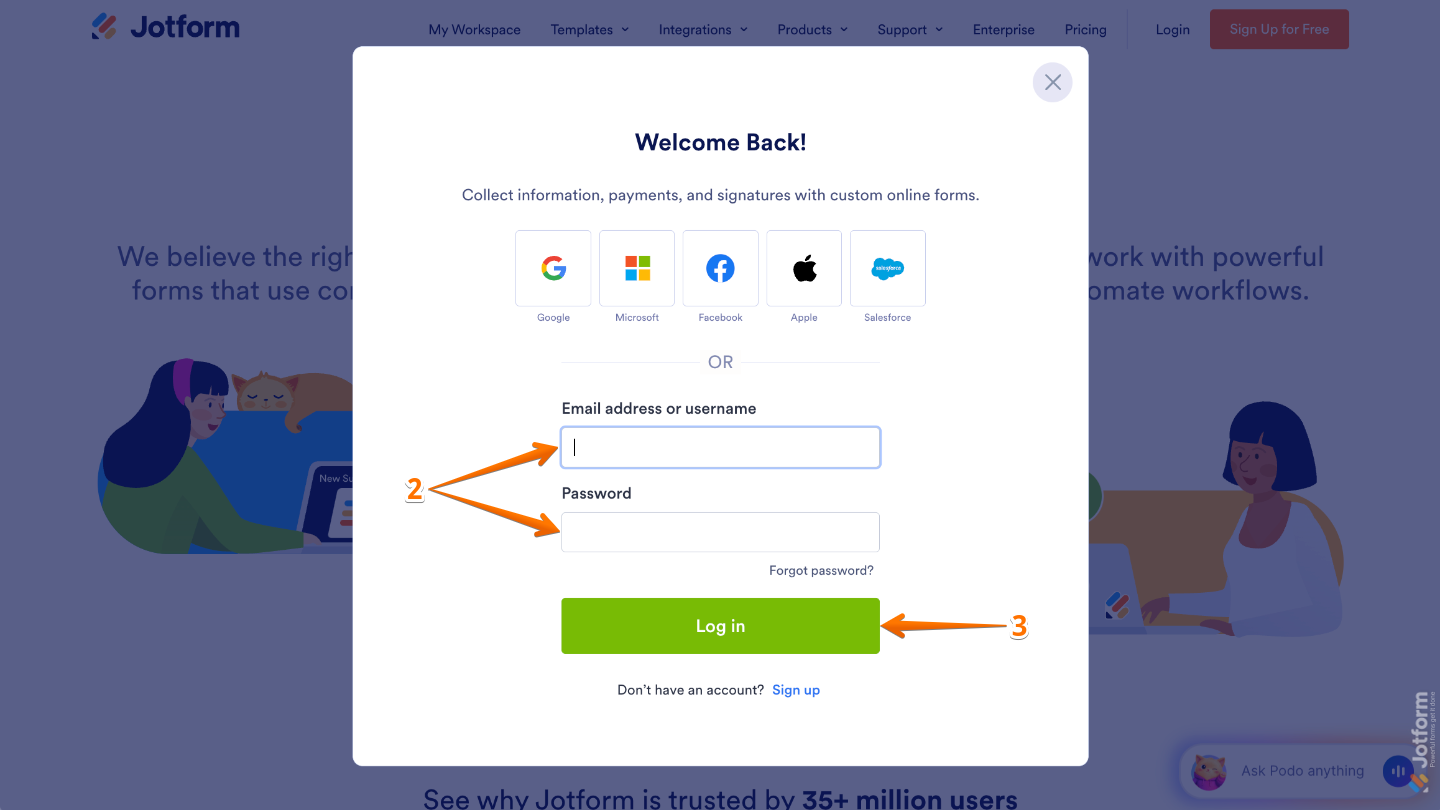
- In the window that pops up, enter your account username or email address in the Username field, then type your password in the Password field.
- Once done, click on Log in.
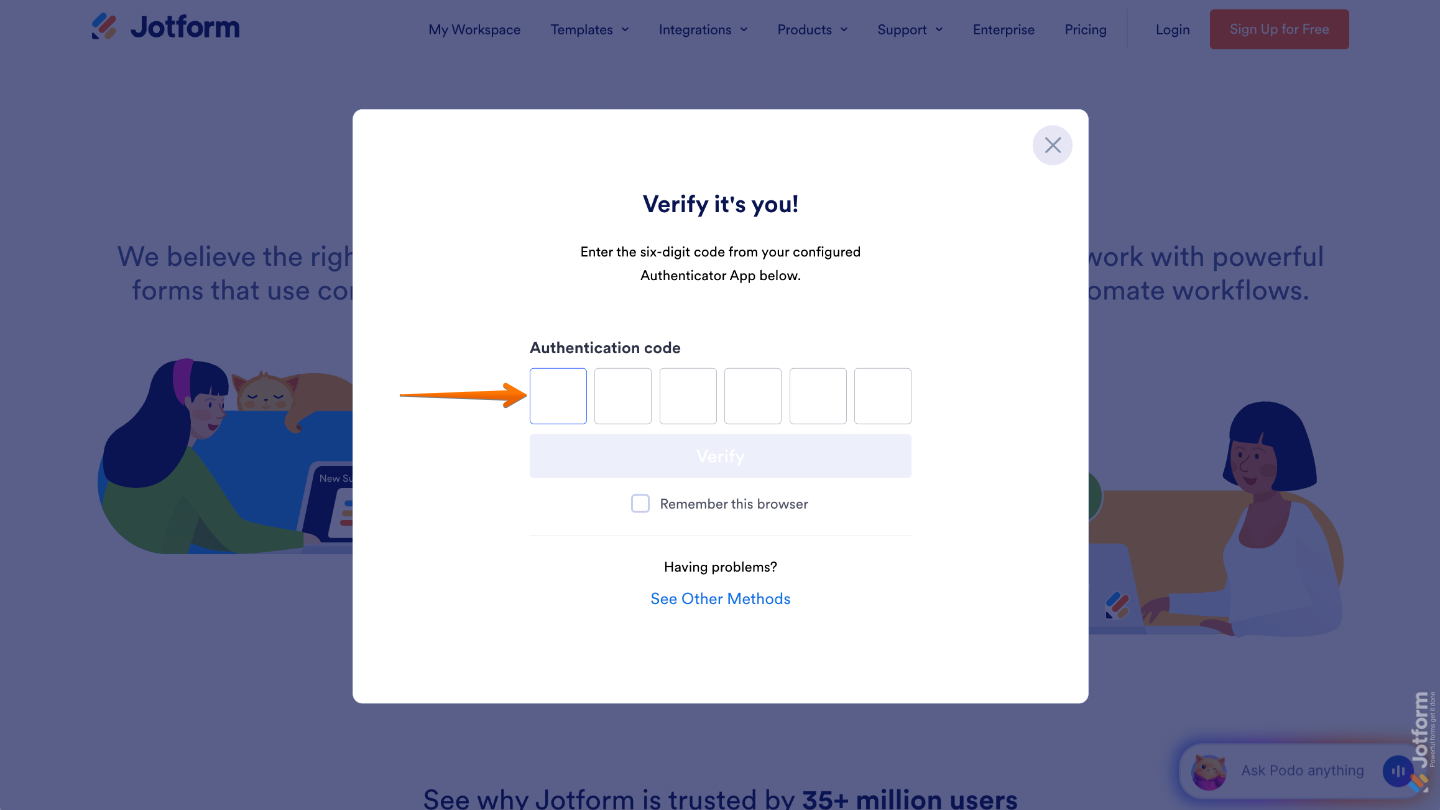
If two-factor authentication is enabled, the system will prompt you to verify your identity by entering a verification code from your authenticator app.
That’s it. You’ve successfully logged in to Jotform and can now access your dashboard to create and manage forms, apps, reports, and other tools available in your account.
Alternative Ways to Log In to Jotform
You can also log in to your Jotform account using your Google, Microsoft, Facebook, Apple, or Salesforce account, making the process quicker and more convenient. Instead of remembering another password, you can simply choose the account you already use and sign in with just a few clicks. This also helps keep your login secure while giving you flexible options to access your account anytime.
Logging in to Jotform Using a Google Account
- Go to the Jotform Login page, and then click on Login in the upper-right corner.
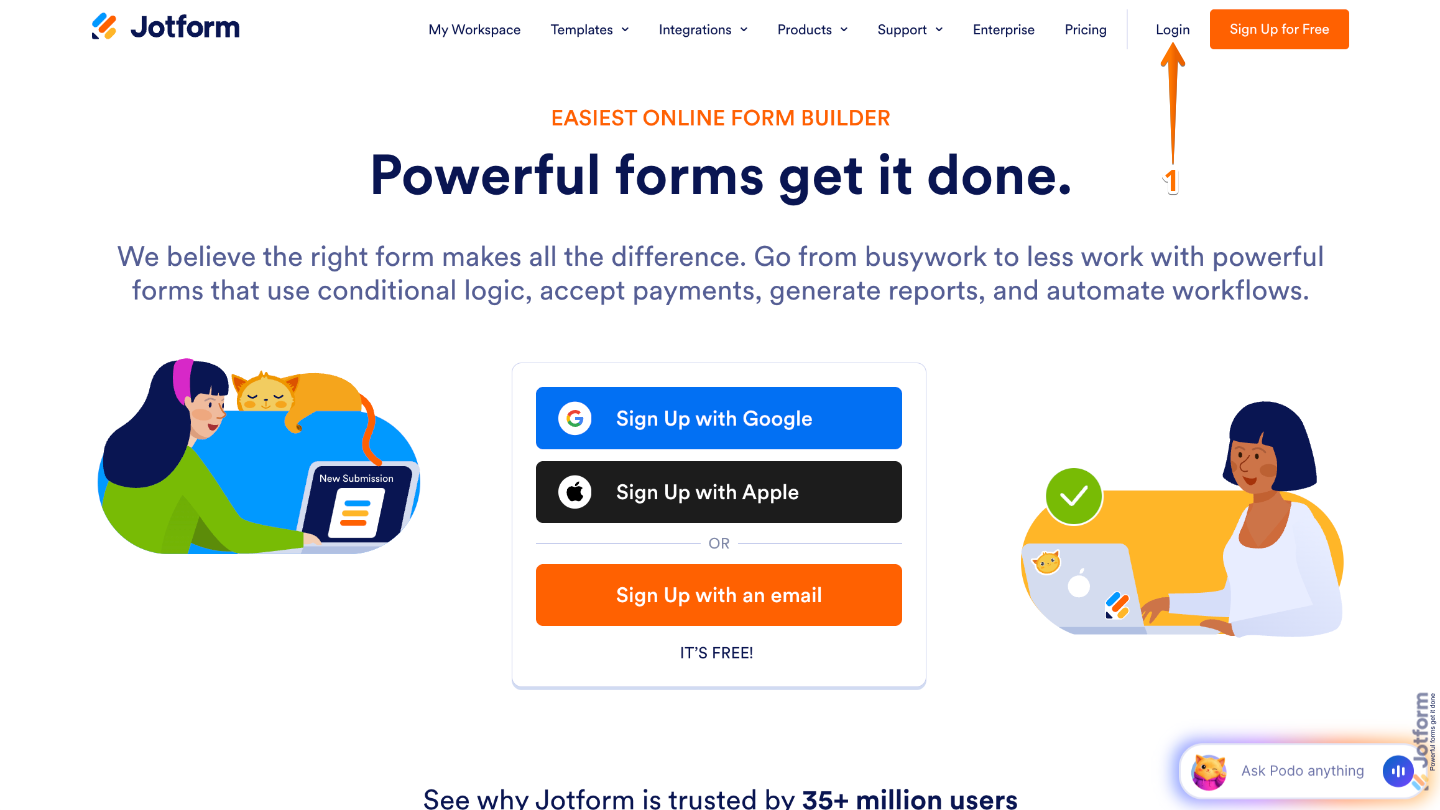
- Then, in the window that pops up, click on the Google icon.
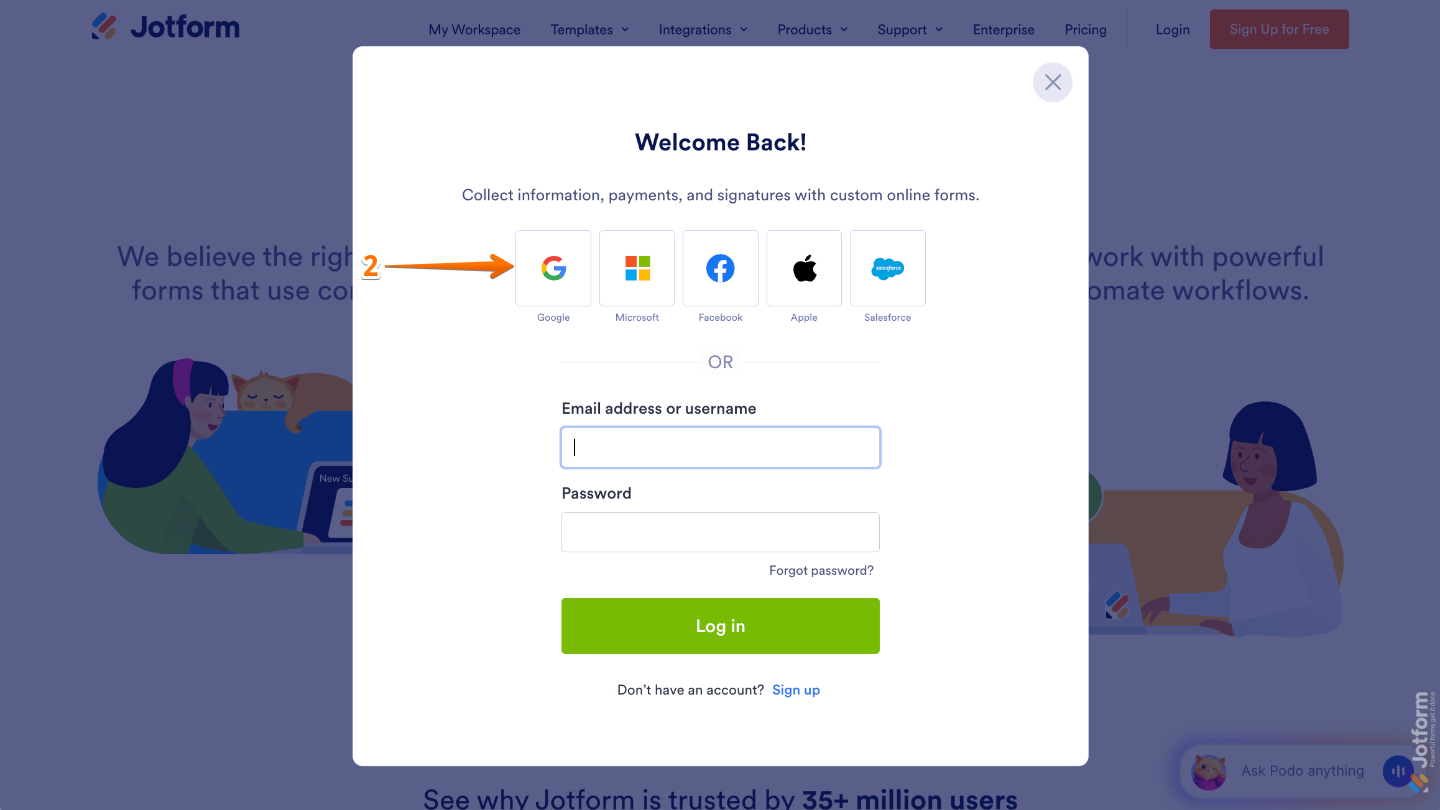
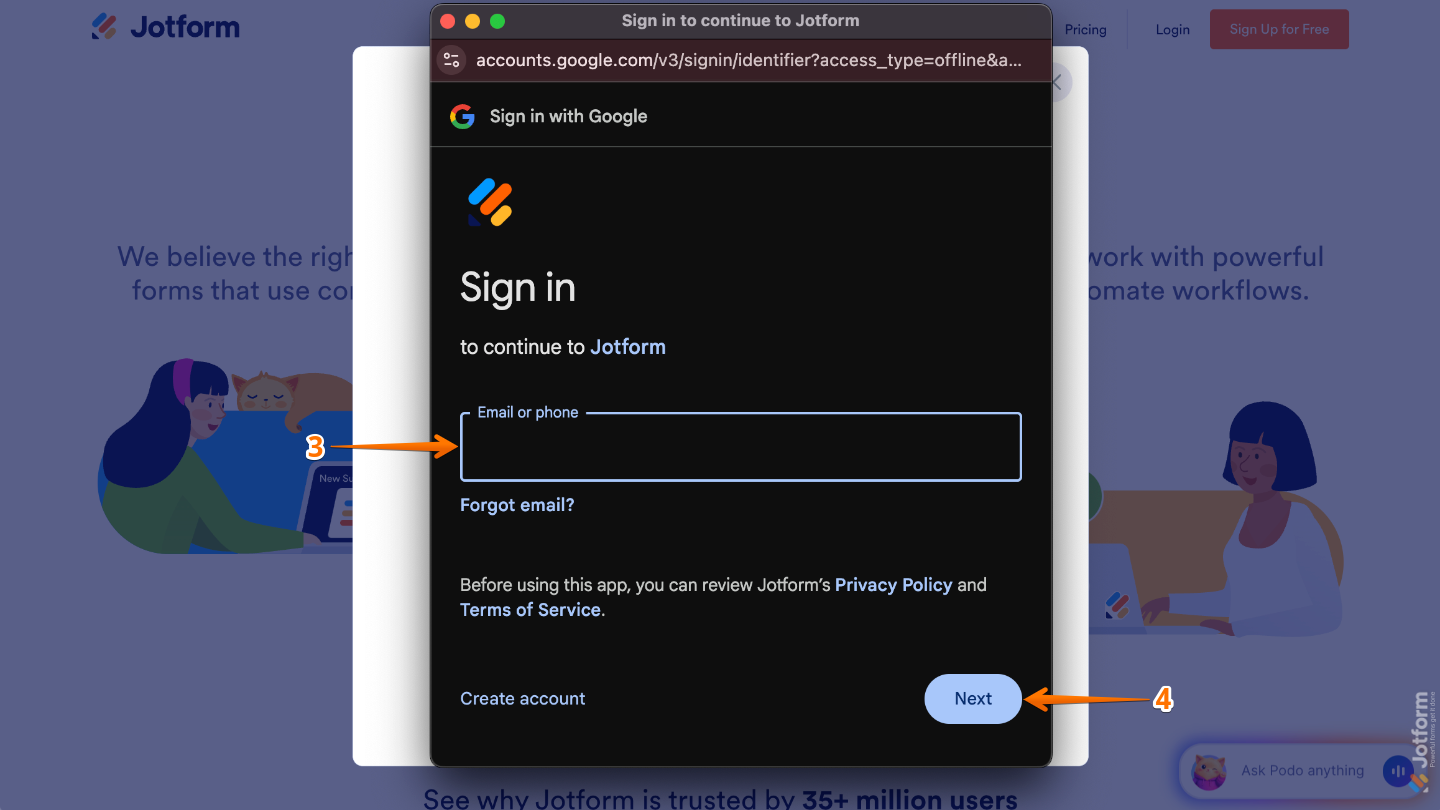
- Next, in the Google Sign-in window, enter your email address or phone number in the field provided.
- After that, click on Next.
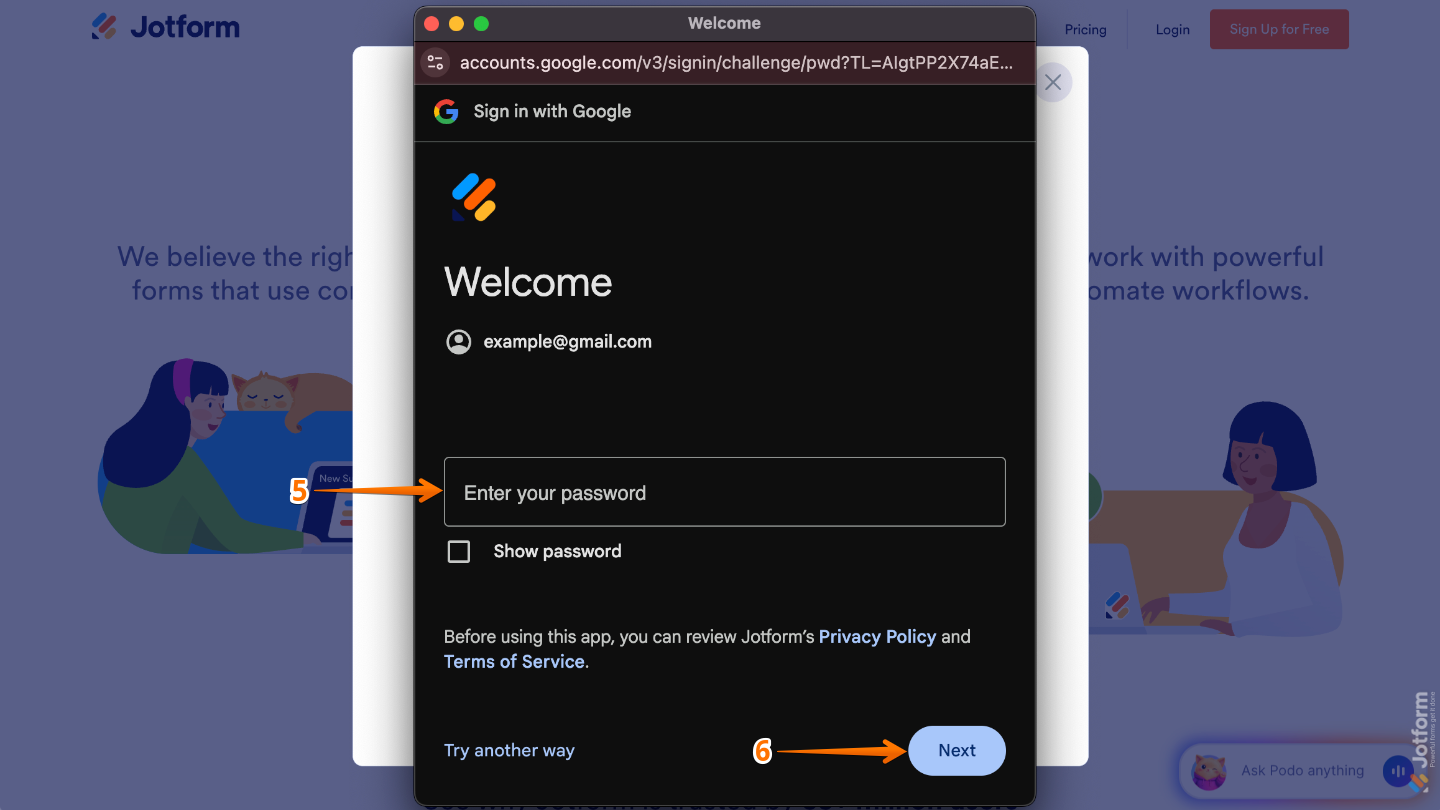
- Now, enter your password in the Password field.
- Once done, click on Next.
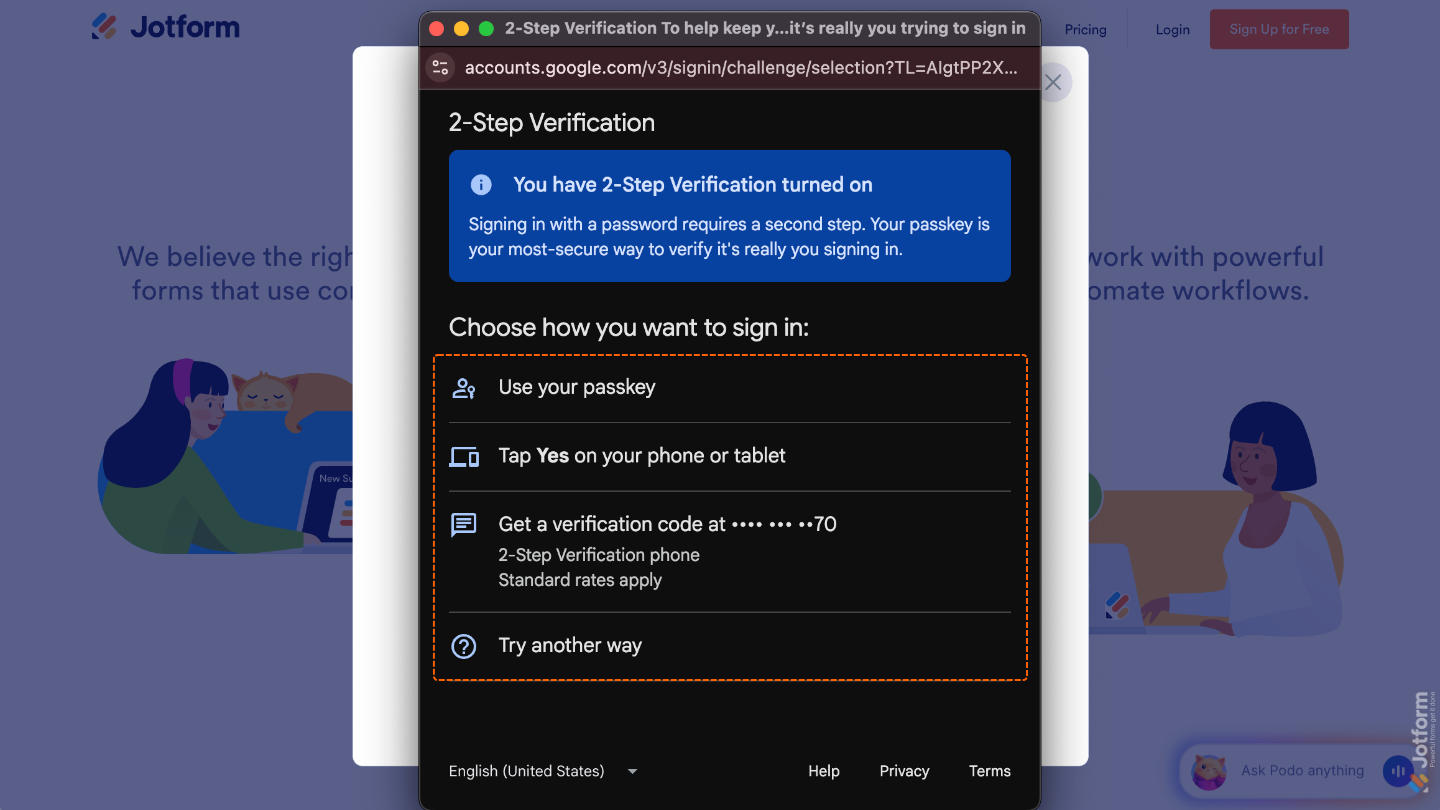
If you have 2-Step Verification enabled on your Google account, you’ll go through an extra step for added security. Just choose one of the available options and follow the prompt to complete the login.
Logging in to Jotform Using a Microsoft Account
- Go to the Jotform Login page, and then click on Login in the upper-right corner.
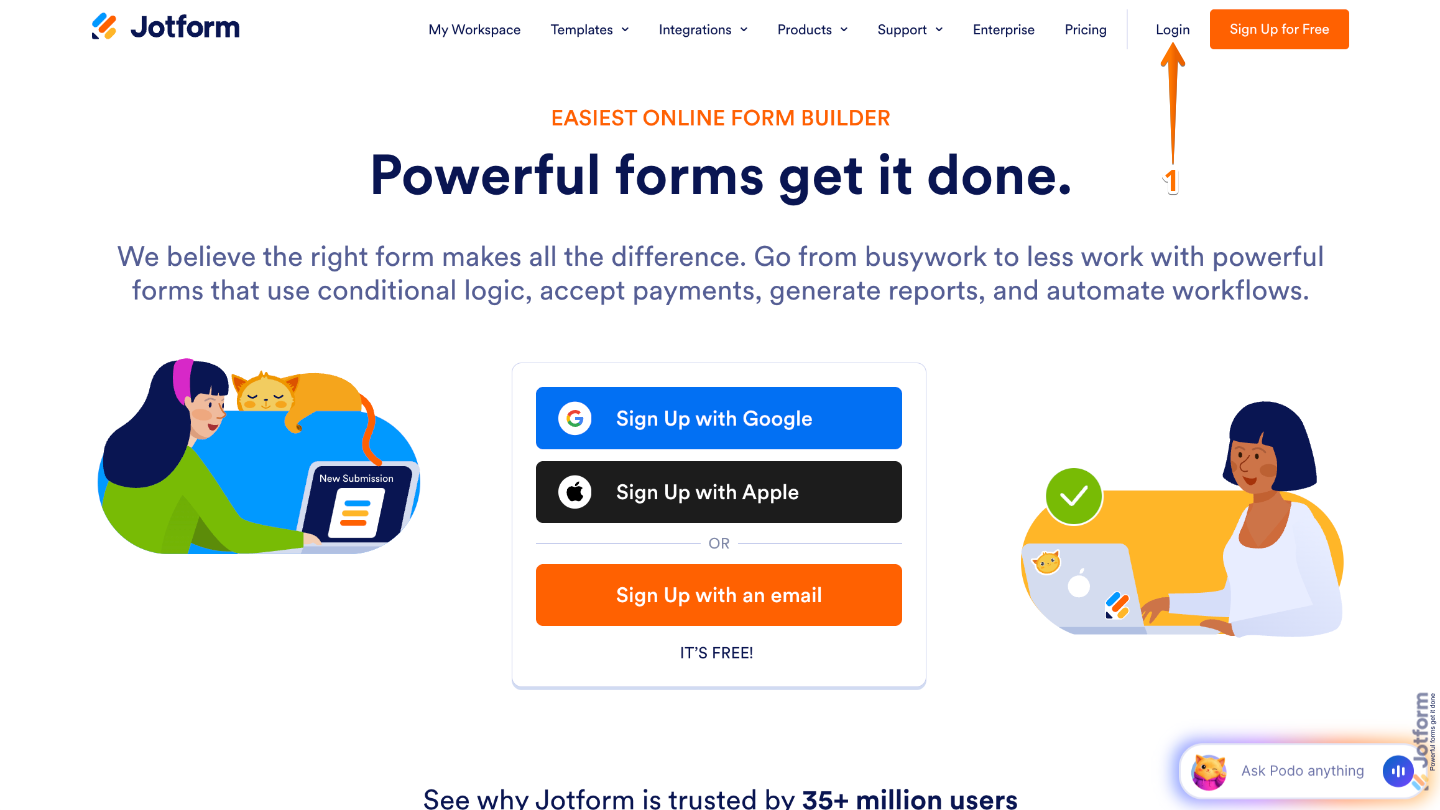
- Then, in the window that pops up, click on the Microsoft icon.
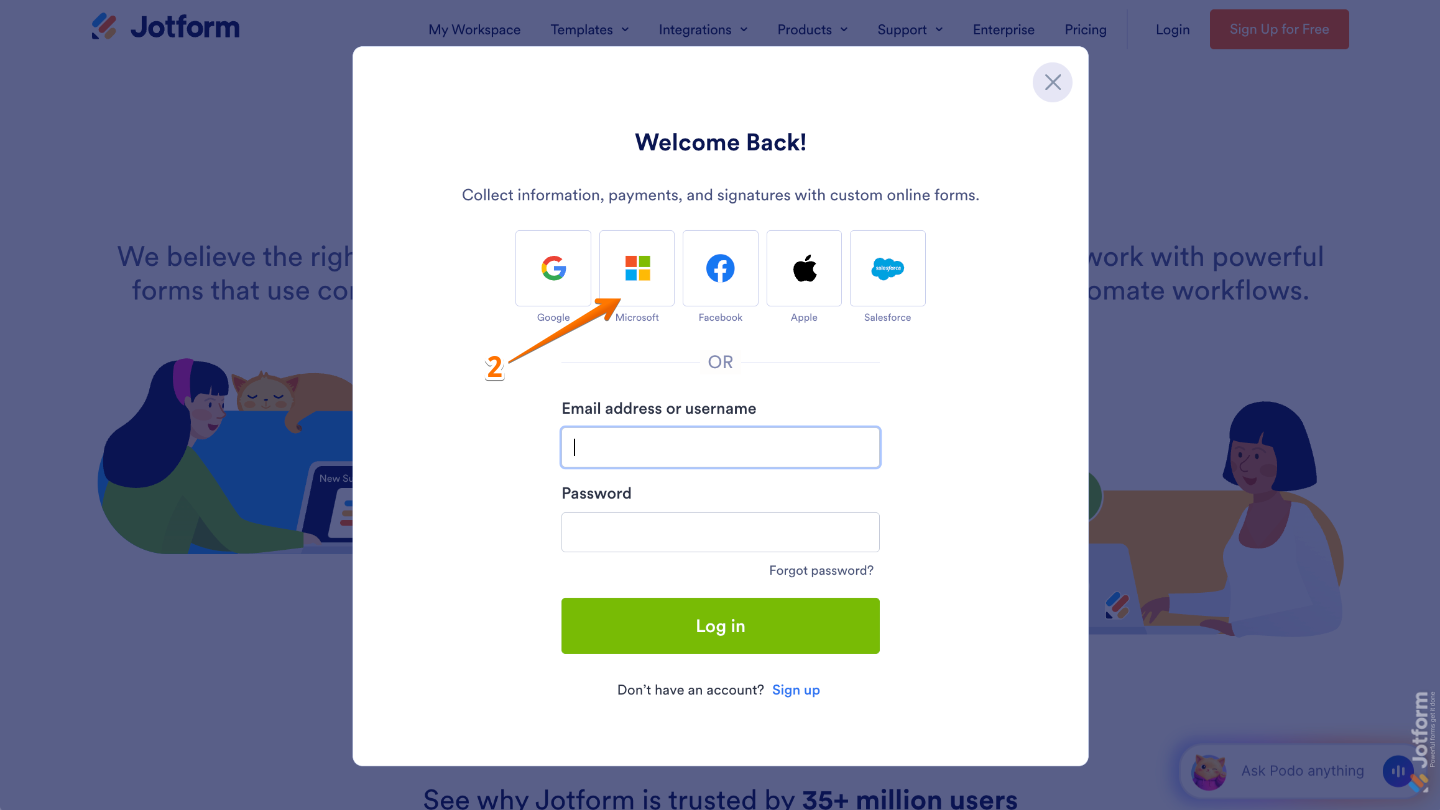
- Next, in the Microsoft Sign-in window, enter your email address, phone number, or Skype in the field provided.
- Once done, click on Next.
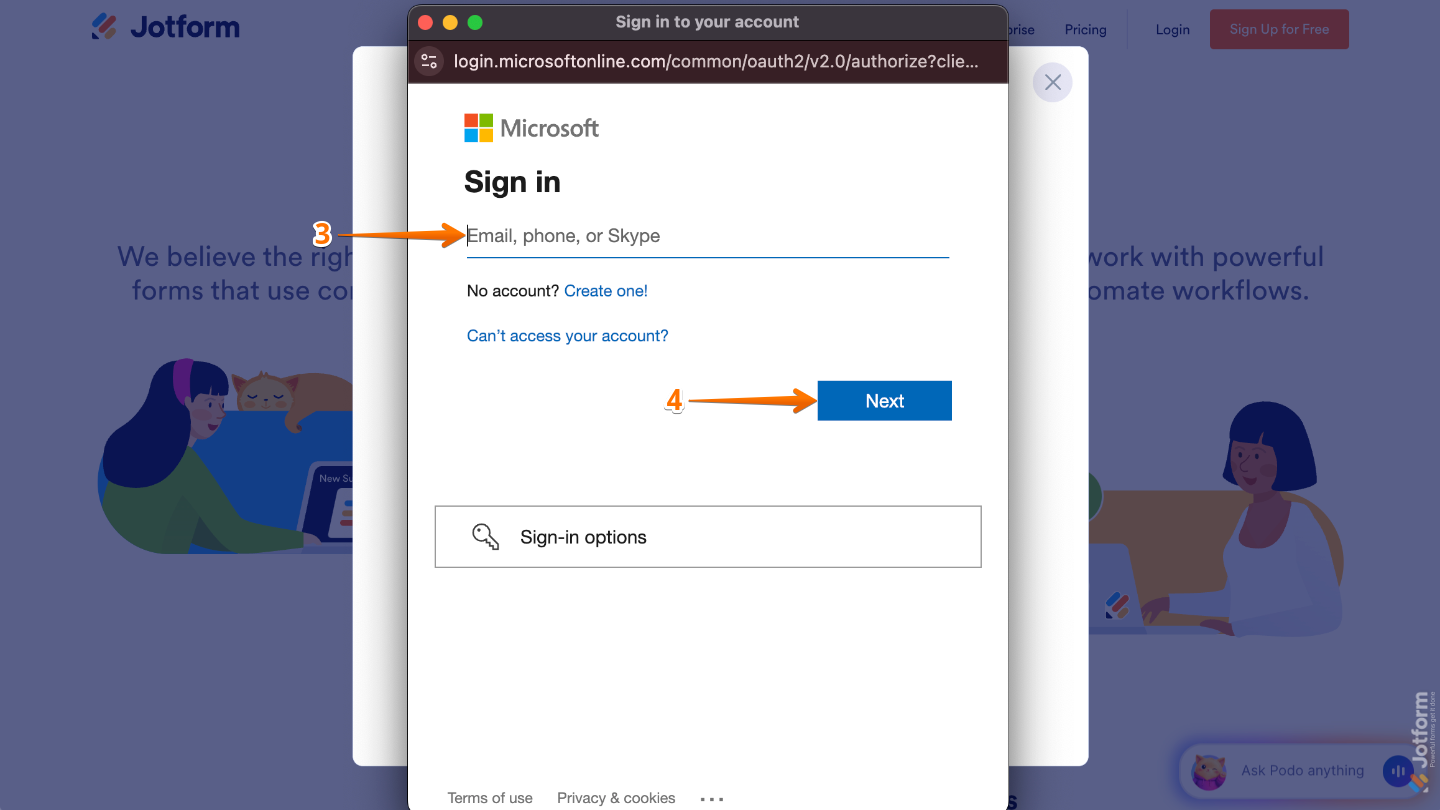
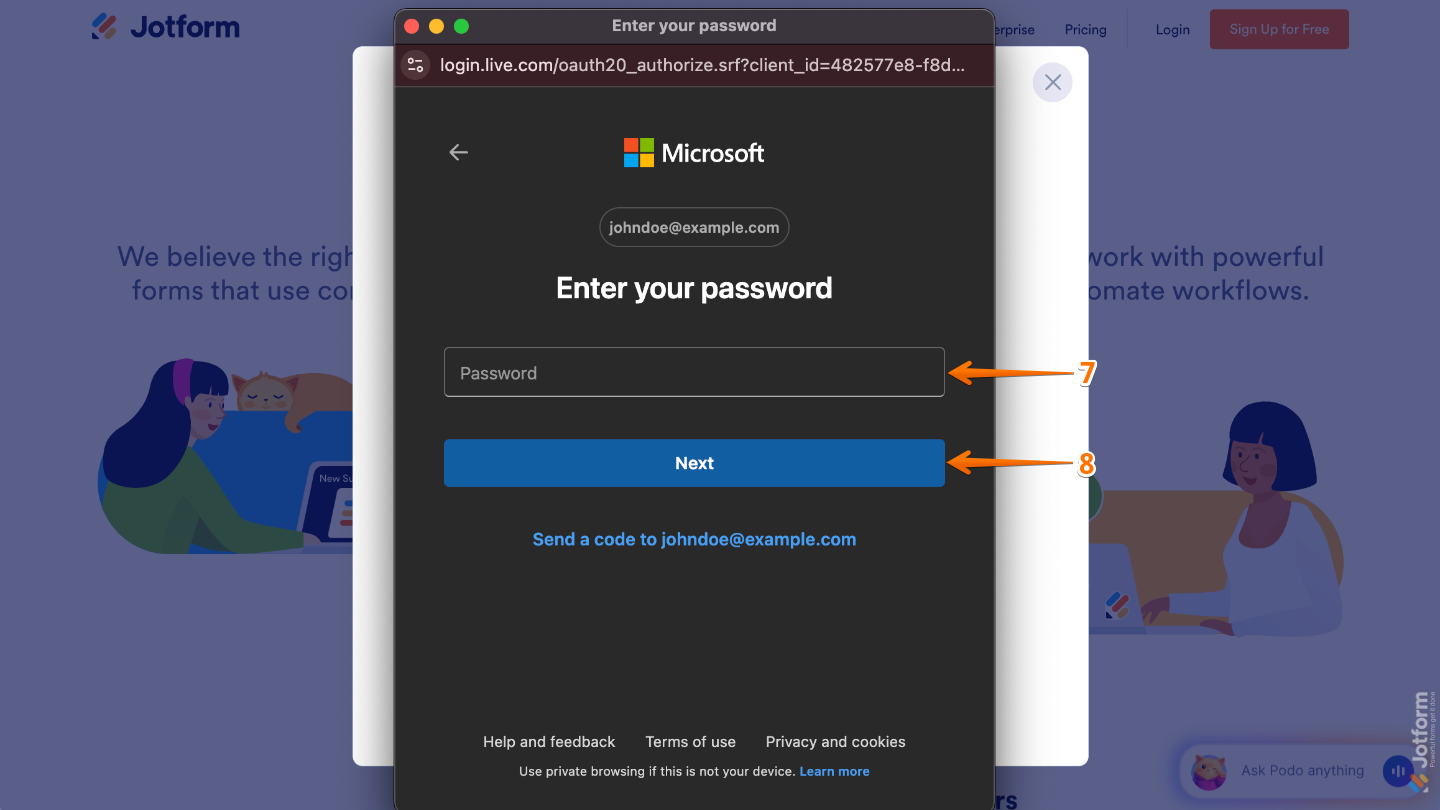
- To continue, choose either Send Code or Use Your Password.
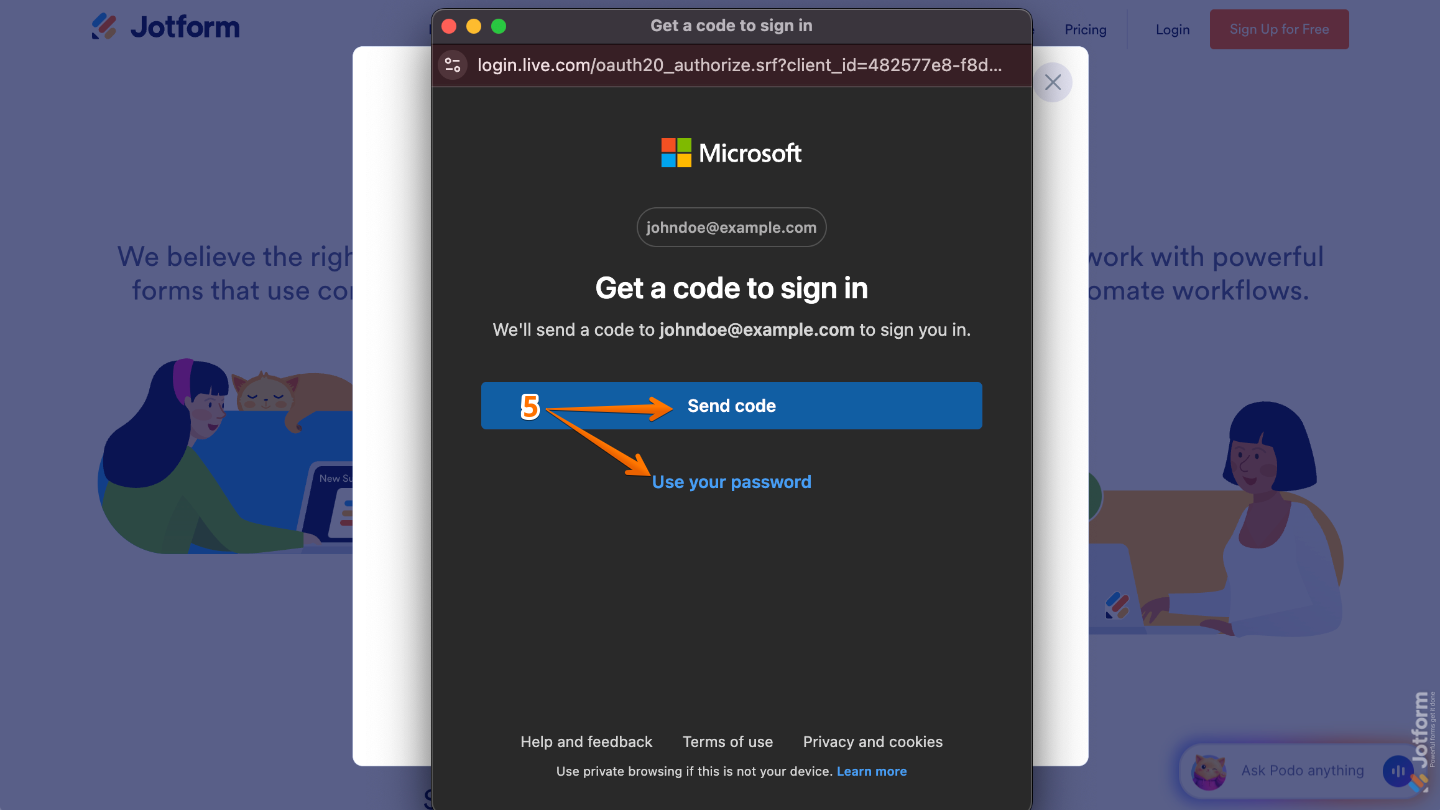
- If you select Send Code, Microsoft will send a Six-Digit code to your email address, phone number, or Skype, depending on the option you chose earlier. Enter the code in the field provided, and the system will automatically proceed after you type the last digit.
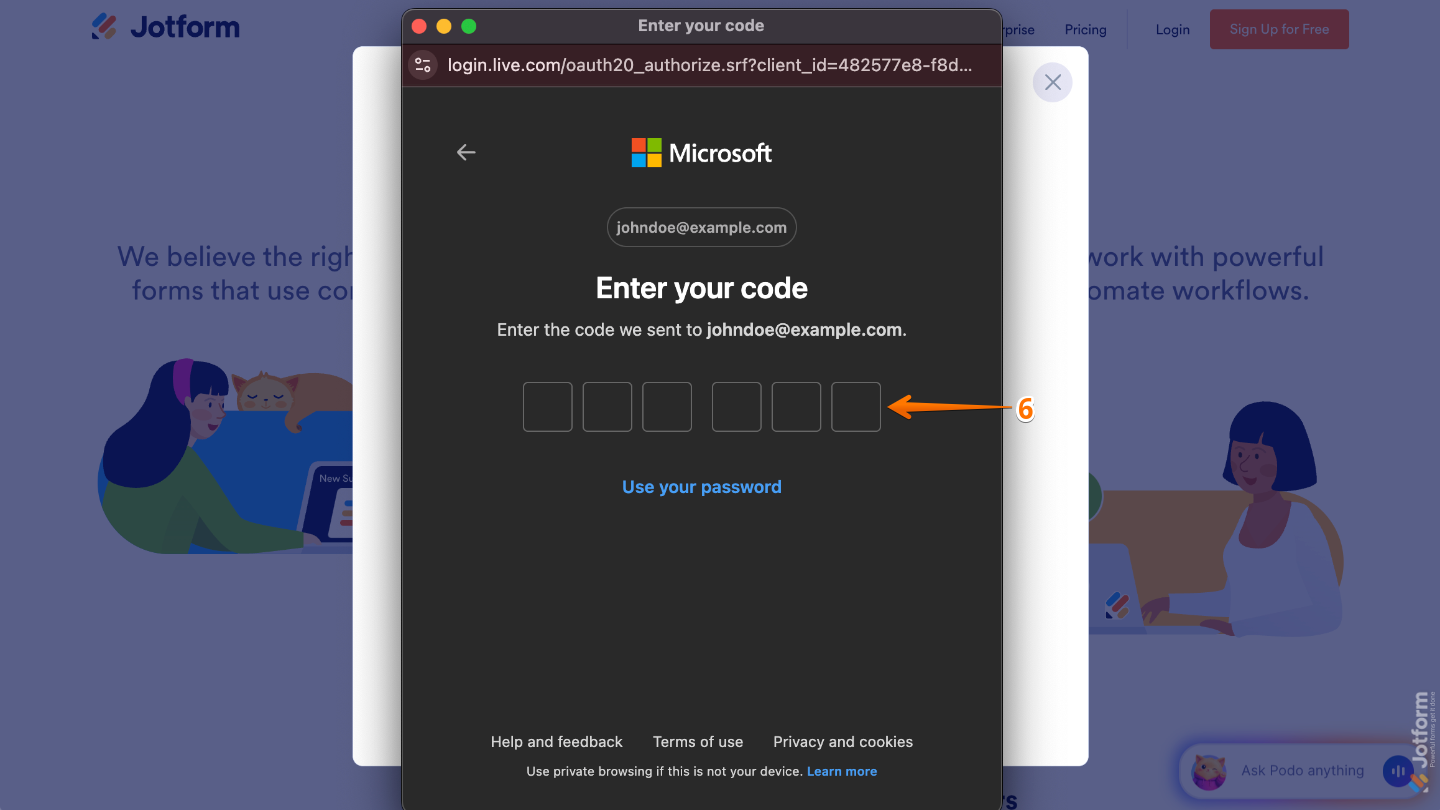
- If you select Use Your Password, enter your password in the Password field.
- Finally, click on Next.
Logging in to Jotform Using a Facebook Account
Note
Make sure your Facebook account is connected to a valid email address so you can easily log in.
- Go to the Jotform Login page, and then click on Login in the upper-right corner.
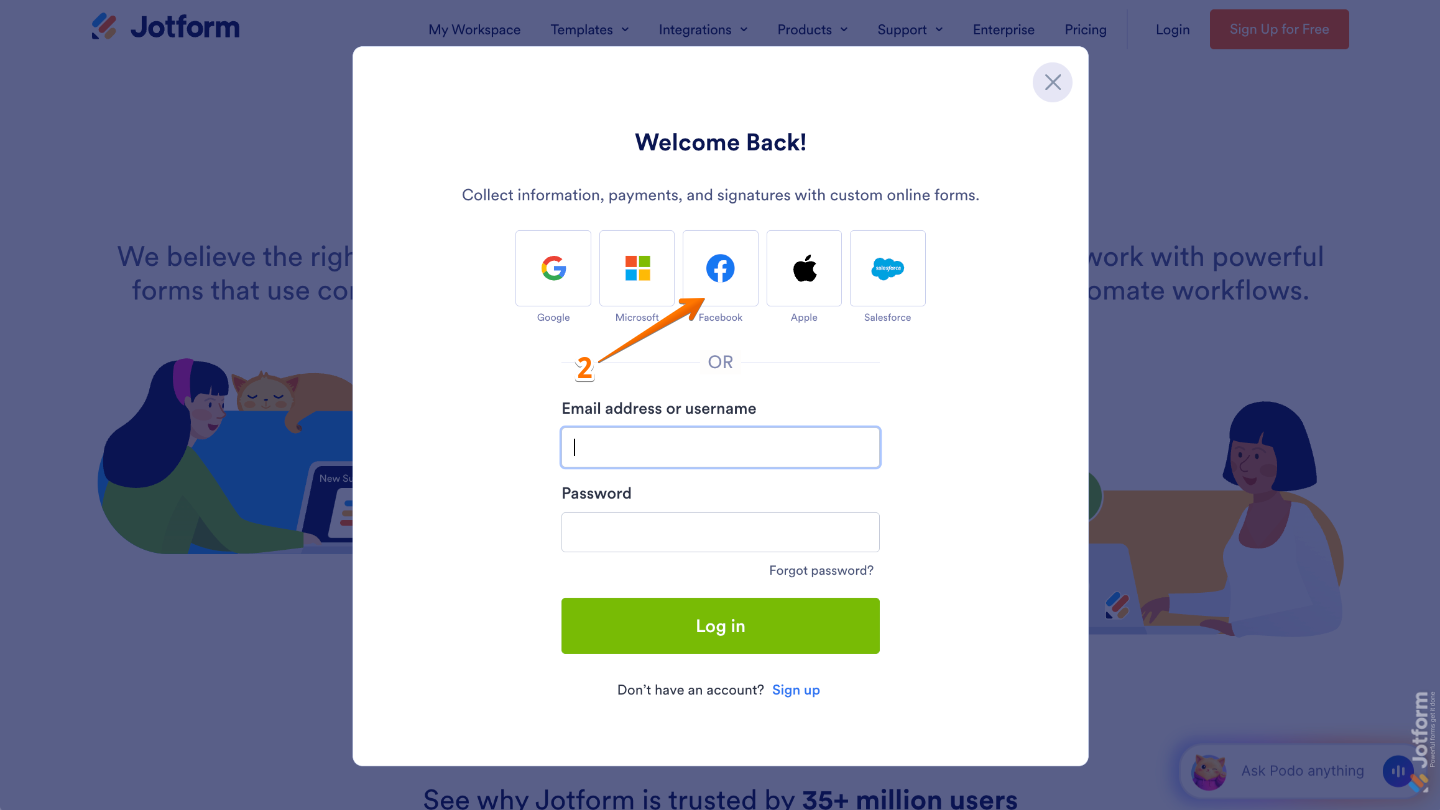
- Then, in the window that pops up, click on the Facebook icon.
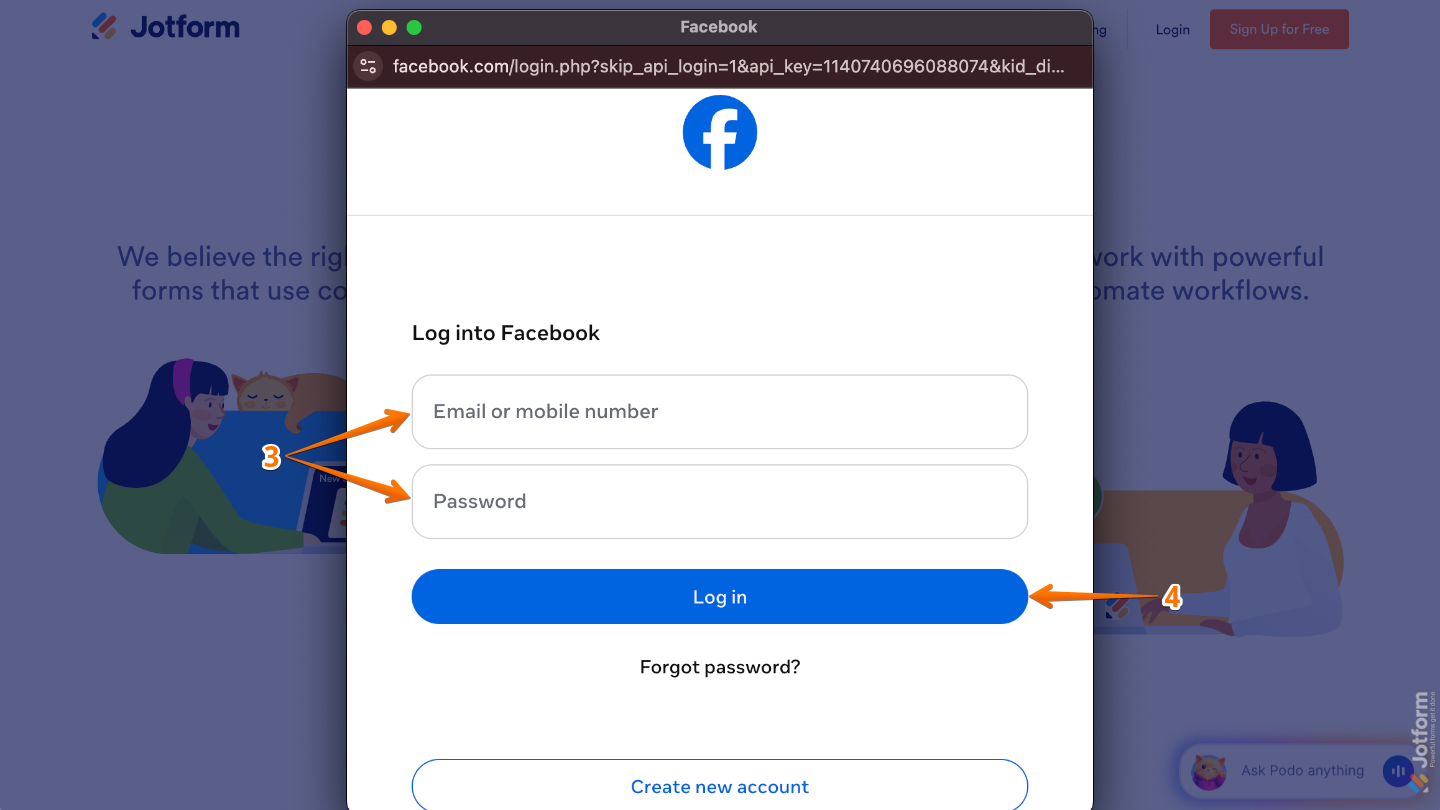
- Now, in the Facebook Sign-in window, enter your email address or mobile number in the Username field, then type your password in the Password field.
- Once done, click on Log In.
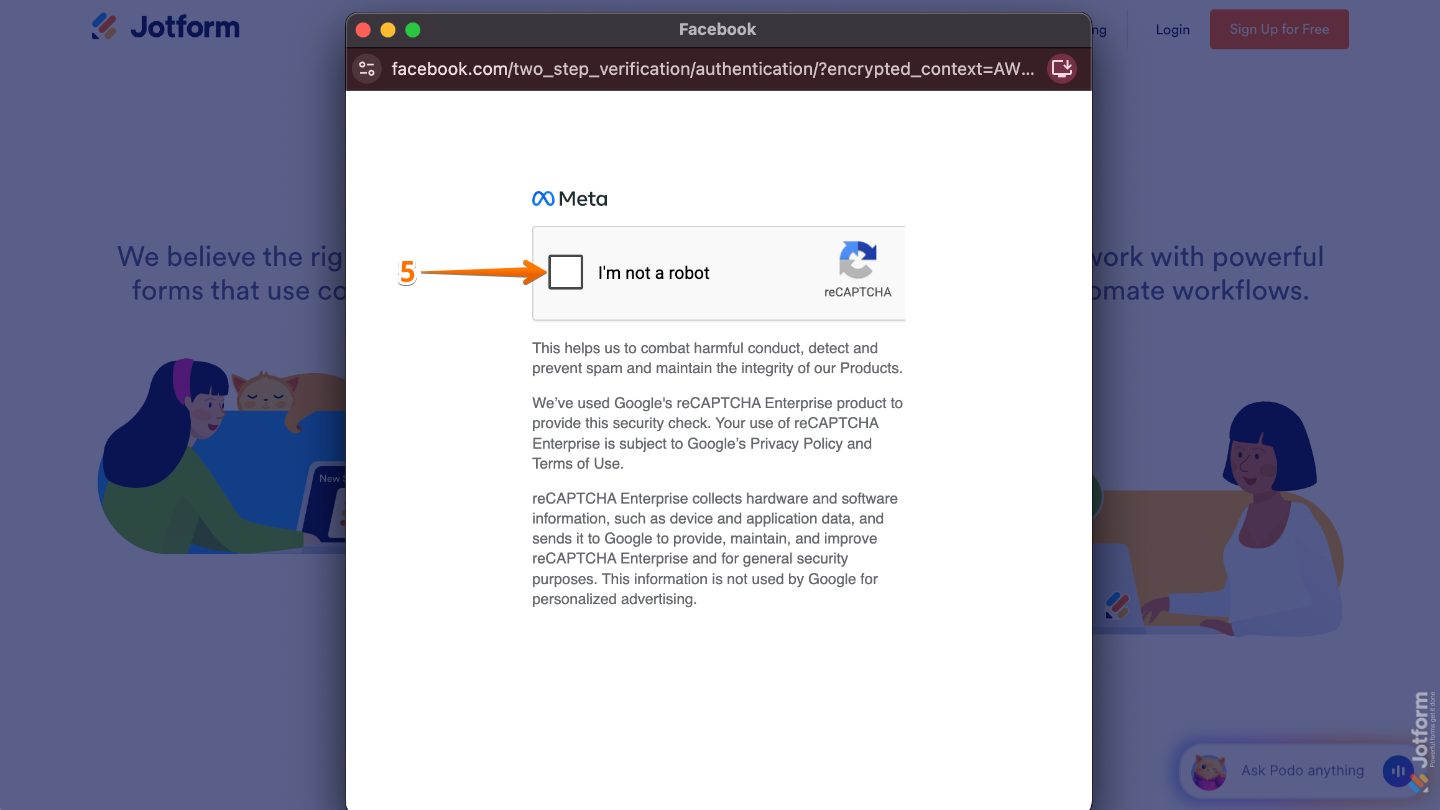
- Next, on the Security Check page, click the checkbox next to I’m not a robot to complete the verification.
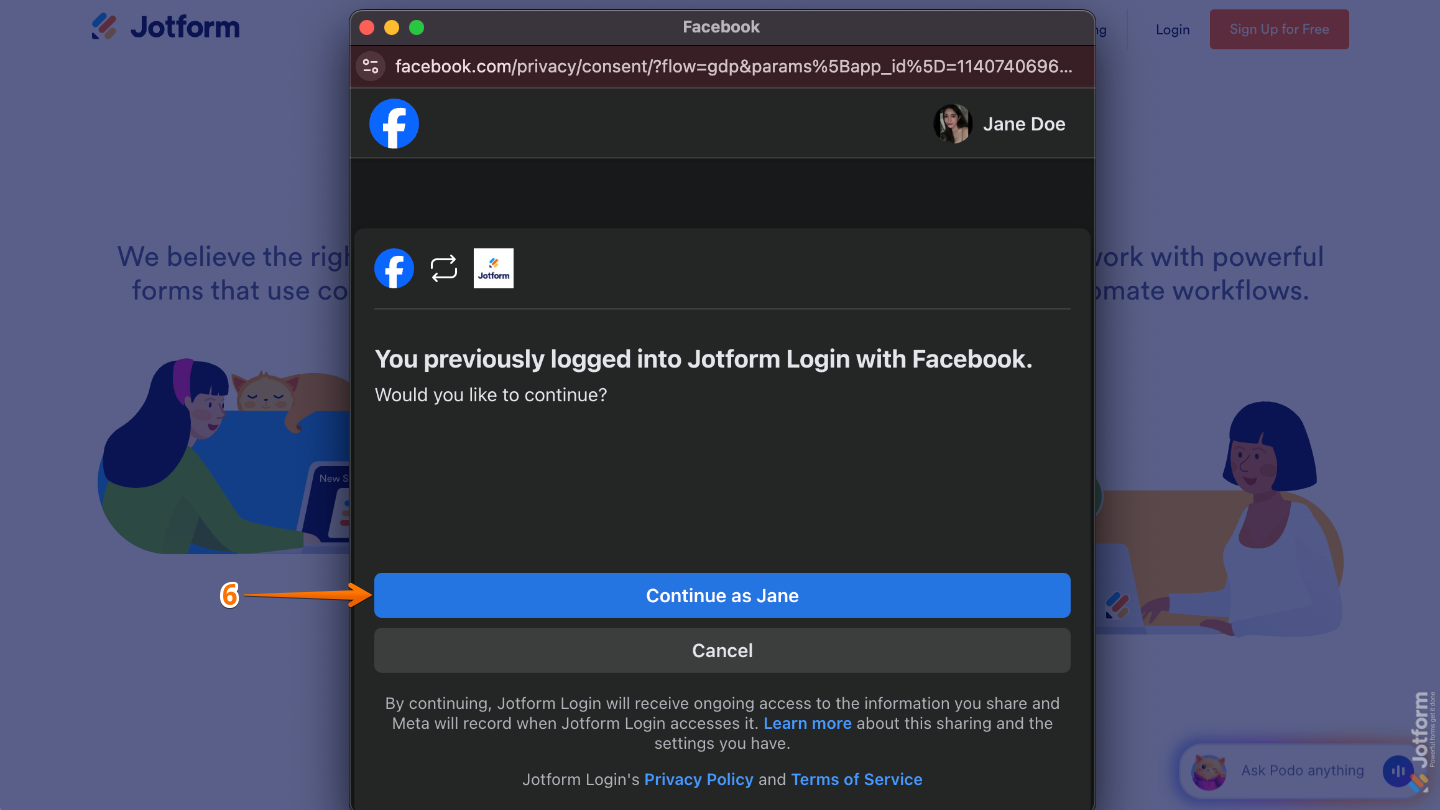
- Finally, click on Continue As.
Logging in to Jotform Using an Apple Account
- Go to the Jotform Login page, and then click on Login in the upper-right corner.
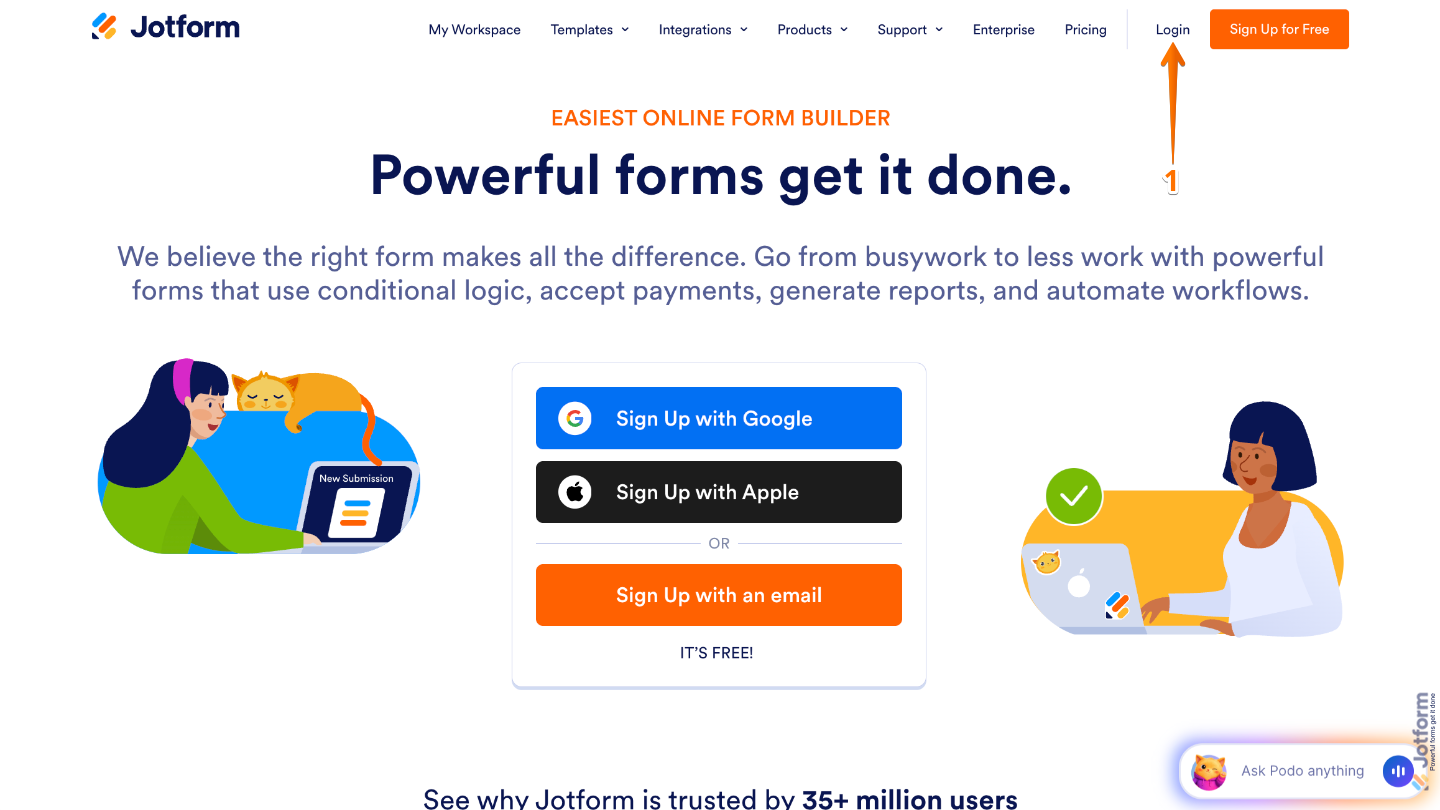
- Then, in the window that pops up, click on the Apple icon.
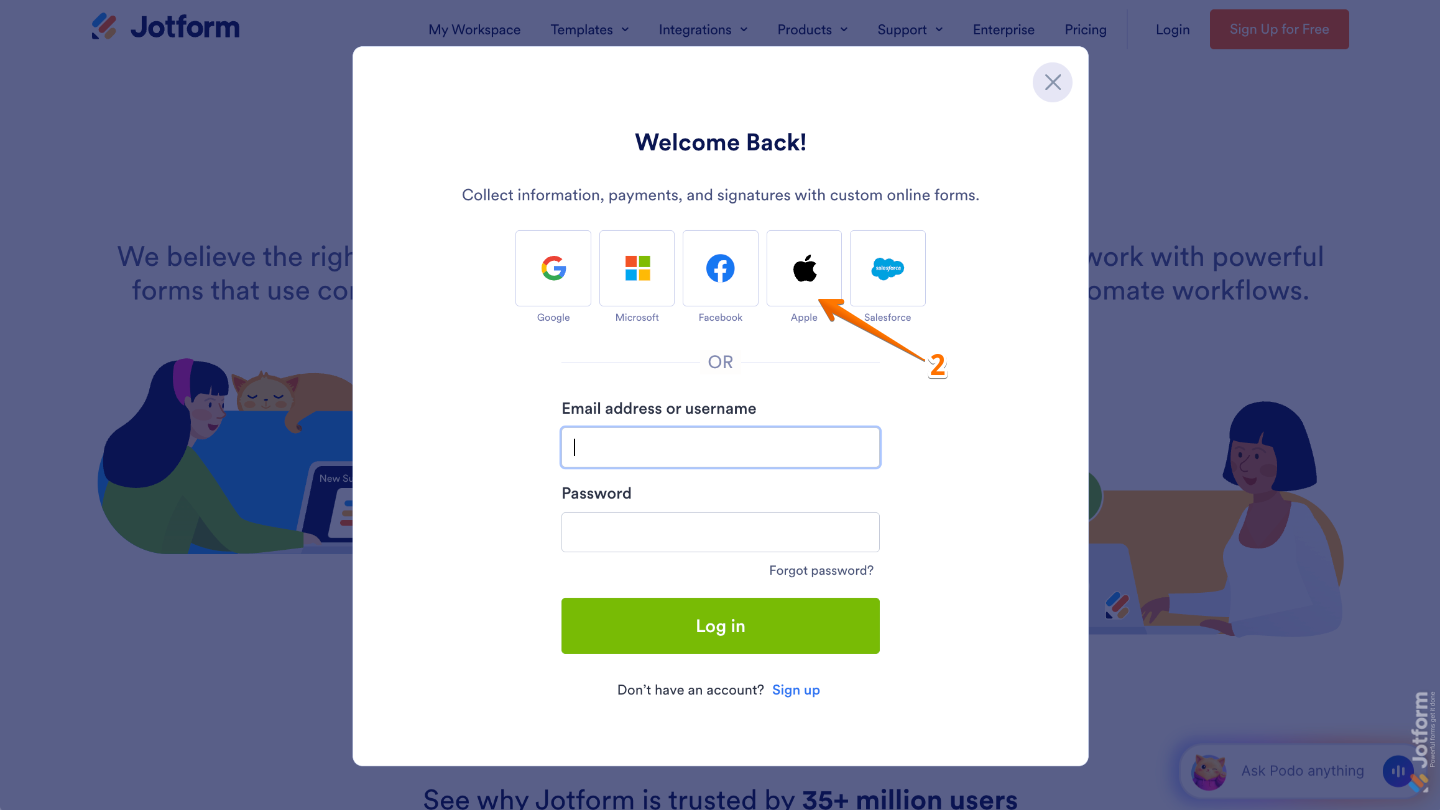
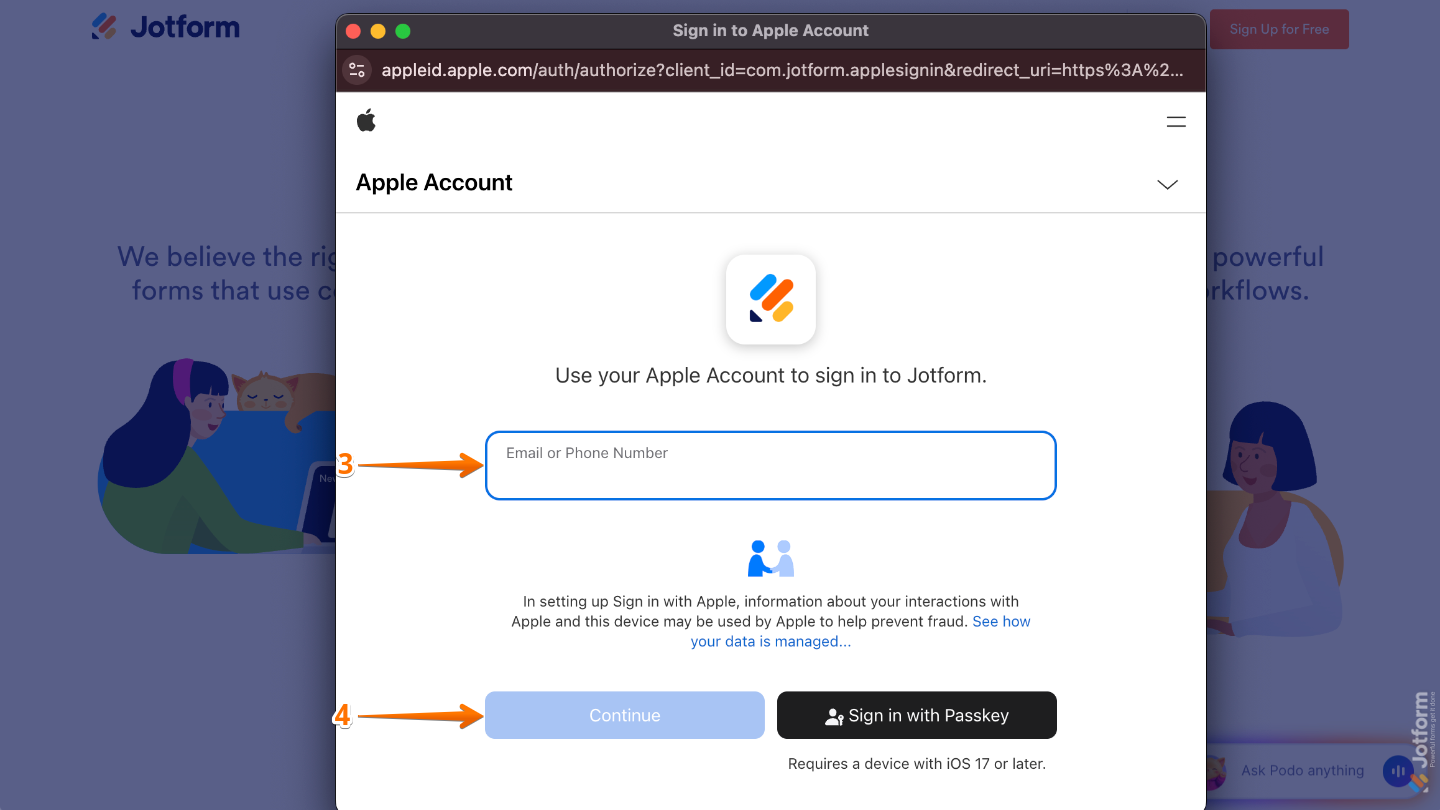
- Next, in the Apple Sign-in window, enter your email address or phone number in the field provided.
- Once done, click on Continue.
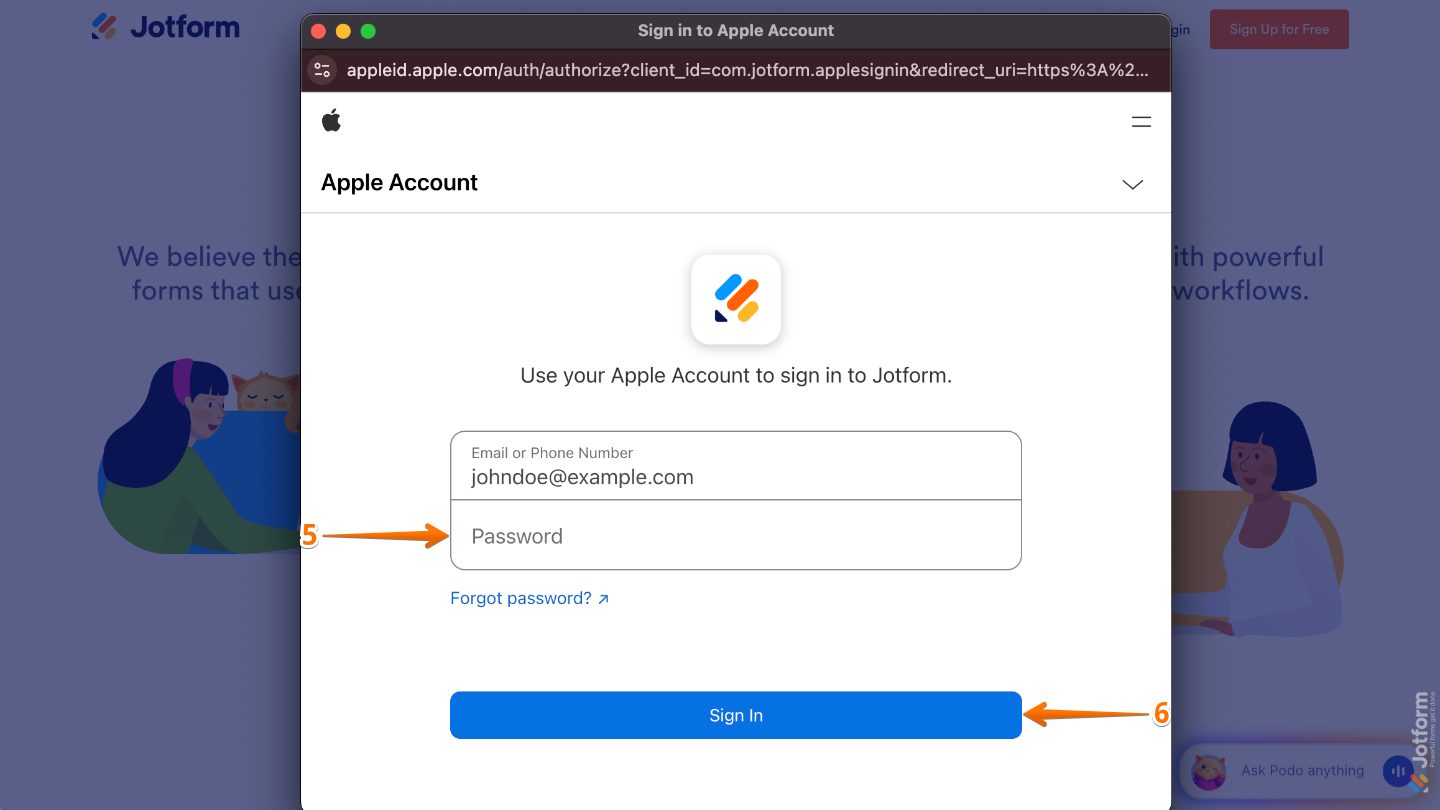
- Now, enter your password in the Password field.
- Then, click on Sign In.
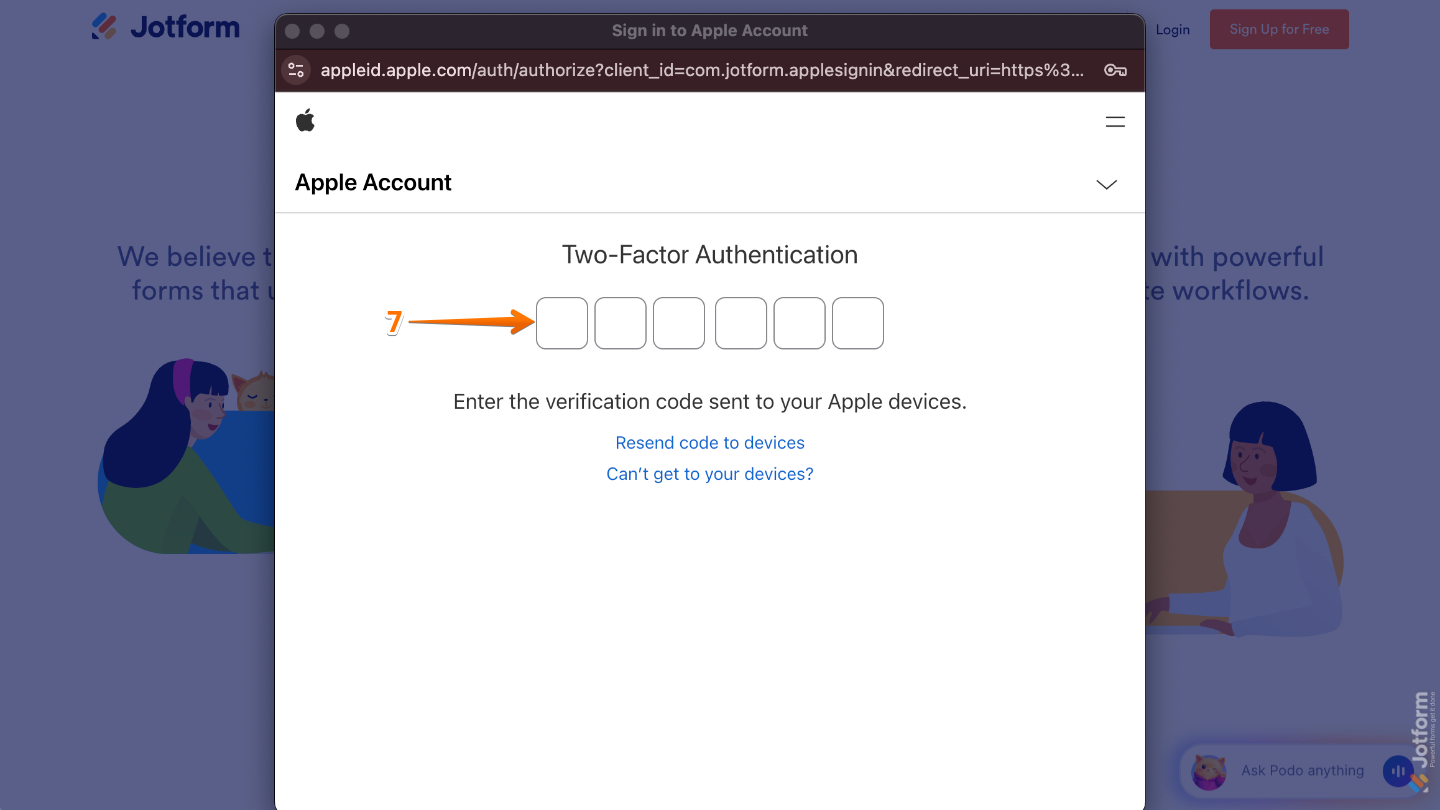
- After that, enter the Six-Digit code sent to your Apple device in the field provided. The system will automatically proceed once you enter the last digit.
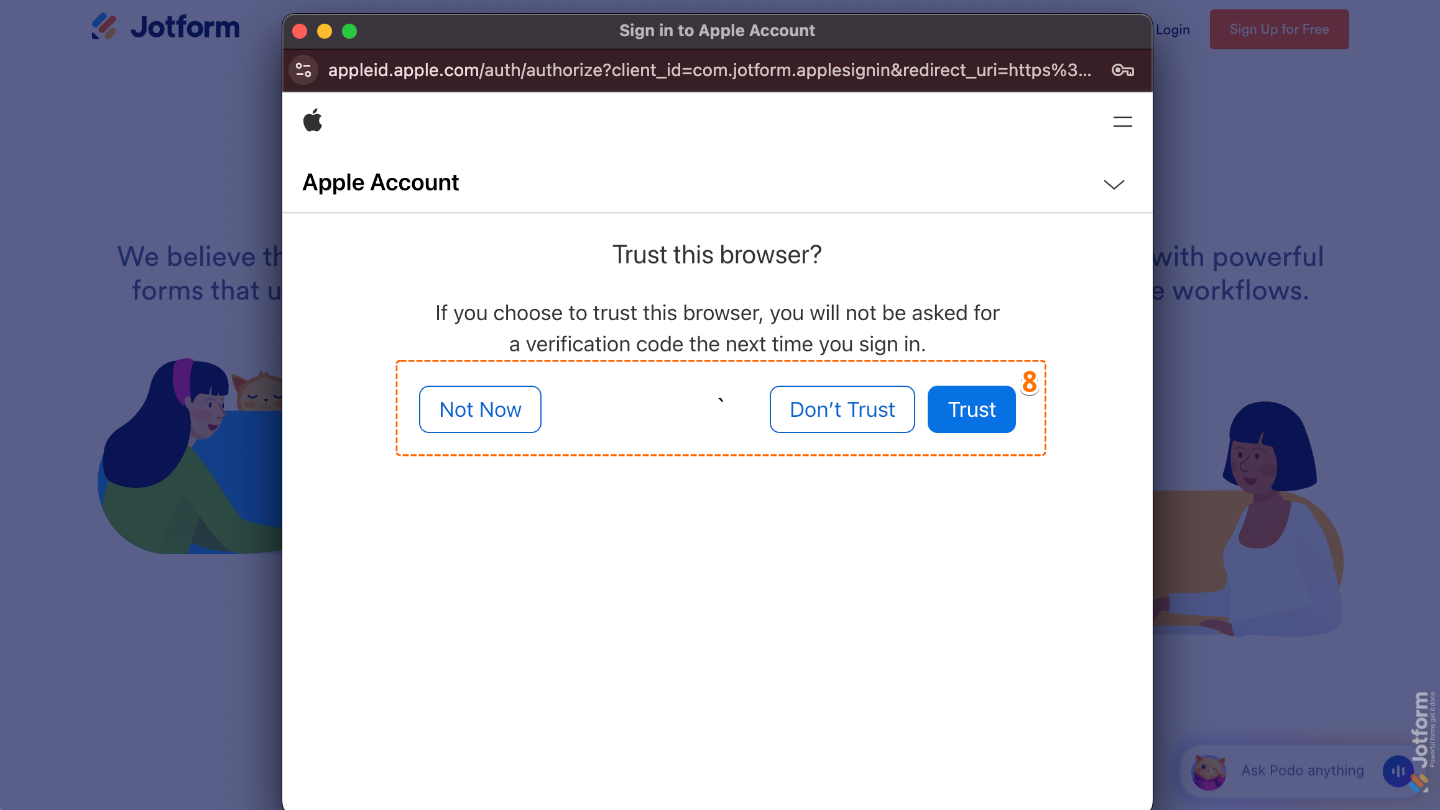
- In the Apple Account Authorization prompt, click on Not Now, Don’t Trust, or Trust.
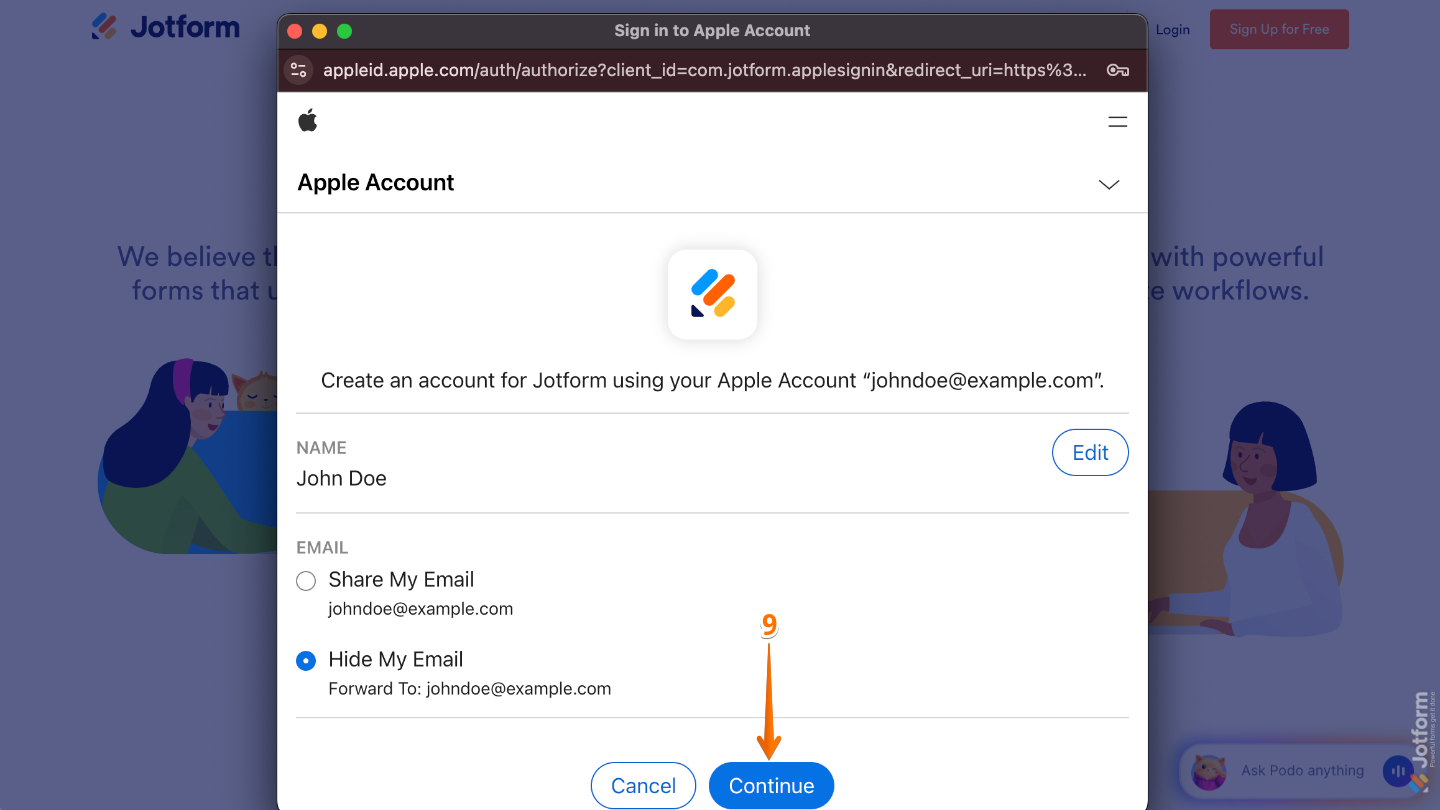
- Finally, click on Continue.
Logging in to Jotform Using a Salesforce Account
- Go to the Jotform Login page, and then click on Login in the upper-right corner.
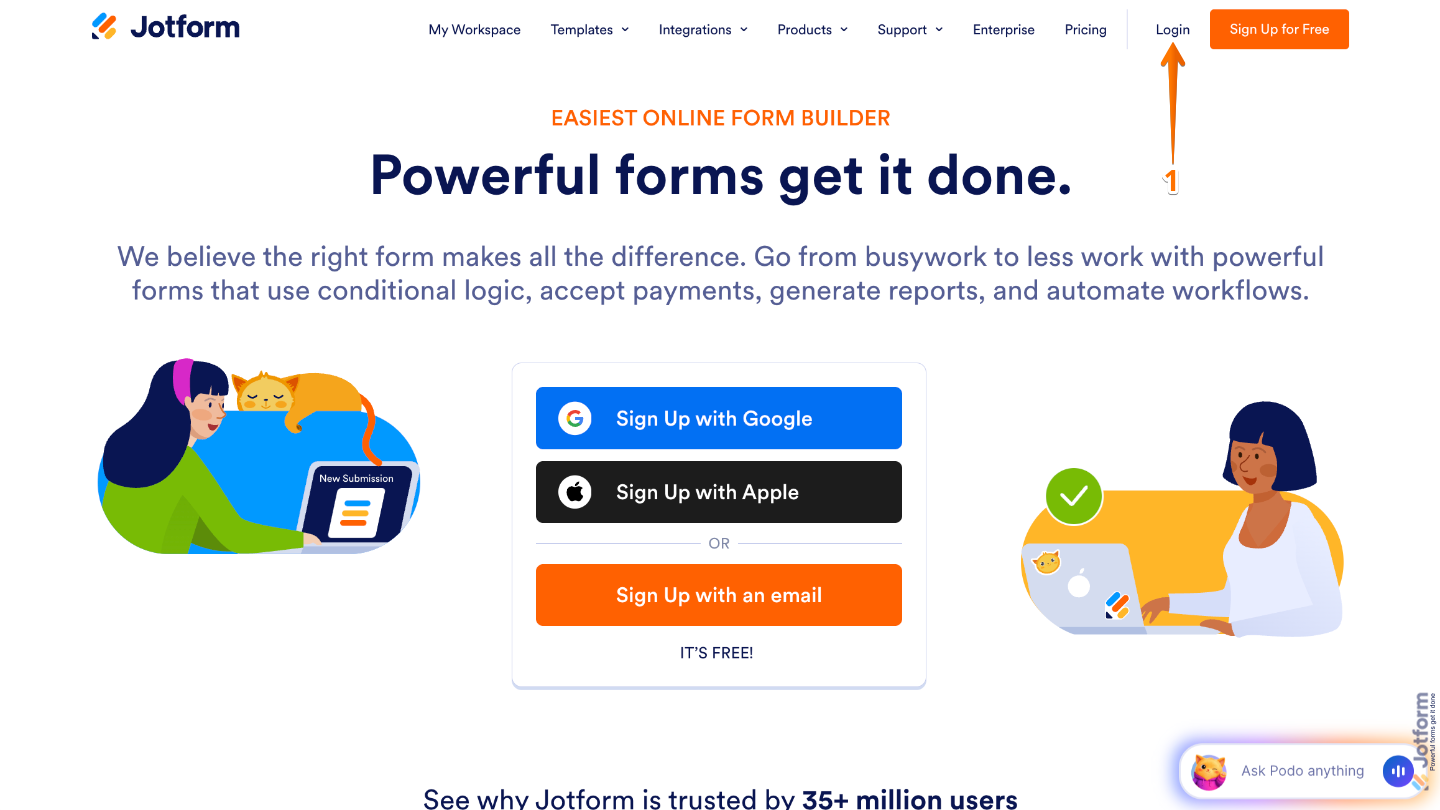
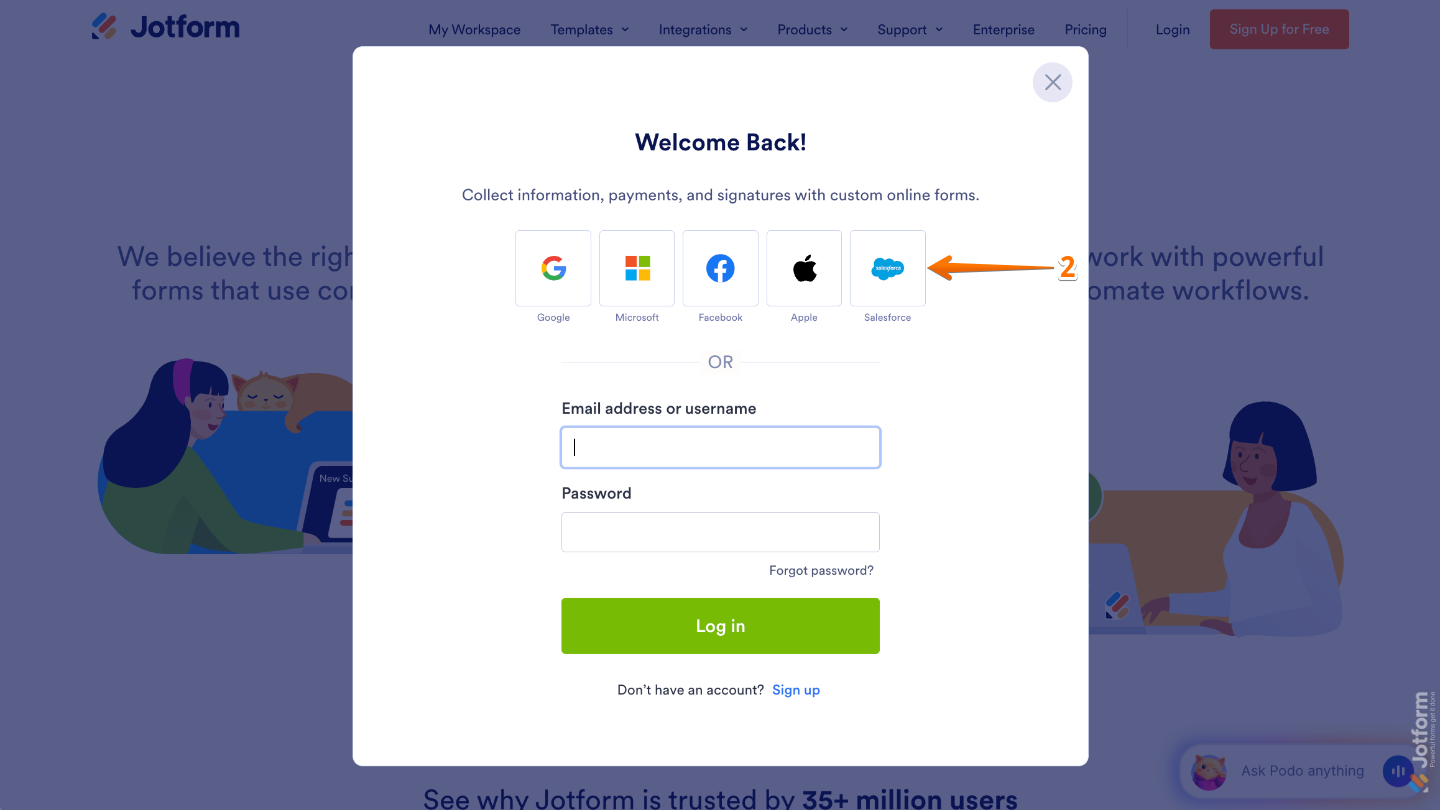
- Then, in the window that pops up, click on the Salesforce icon.
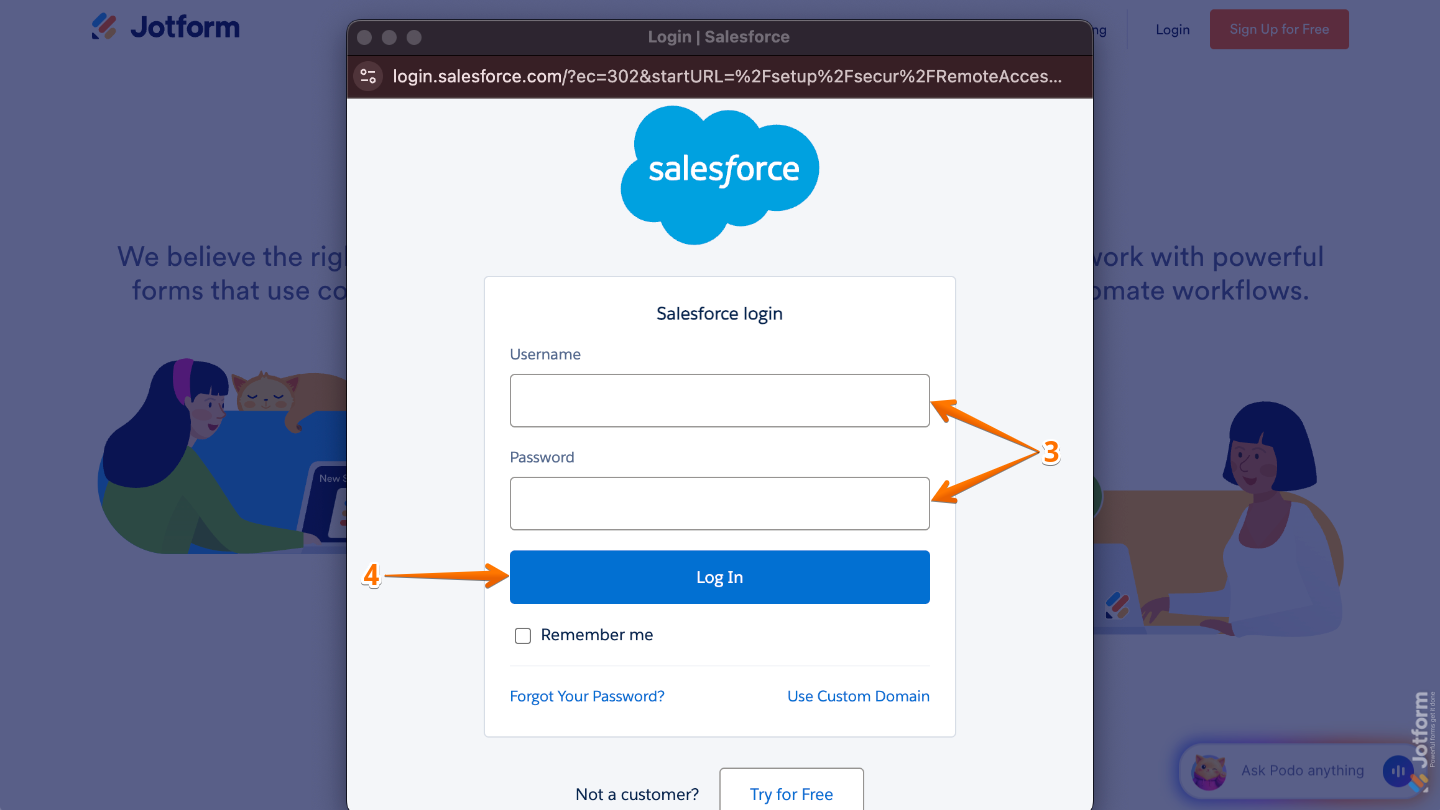
- Now, in the Salesforce Sign-in window, enter your username in the Username field, then type your password in the Password field.
- Once done, click on Log In.
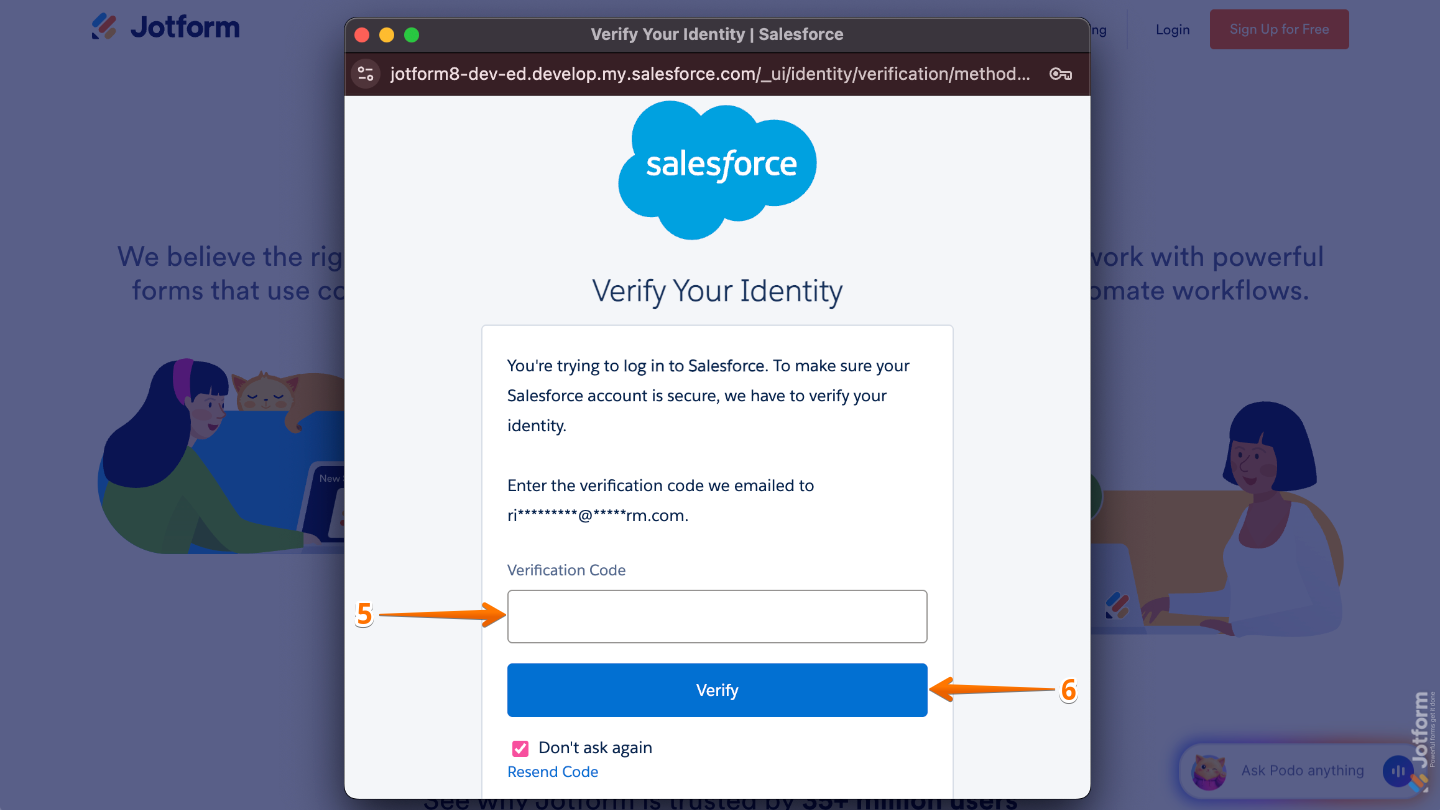
- Next, on the Security Check page, enter the Six-Digit code sent to the email address associated with the Salesforce account.
- Finally, click on Verify.

Send Comment:
1 Comment:
May 21, 2026
am cumparat de la un magazin o husa auto cu probleme...ex.marime mica...si vreau sa fac retur..magazinul este Magpro.ro ... ga***ti***tur@g***l.com Jotform.....ssite dar am scris e-mail degeaba....