Jotform AI App Builder lets you create and update apps using voice commands. Instead of manually building your app from scratch, you can simply describe what you want, and Jotform AI will generate an app based on your instructions.
You can use voice commands to create a new app, add features, modify existing content, and refine your app as you go.
Creating an App with Voice Commands Using AI App Builder
You can create an app by describing your idea out loud and letting Jotform AI App Builder generate it for you. Setting it up is quick—here’s how:
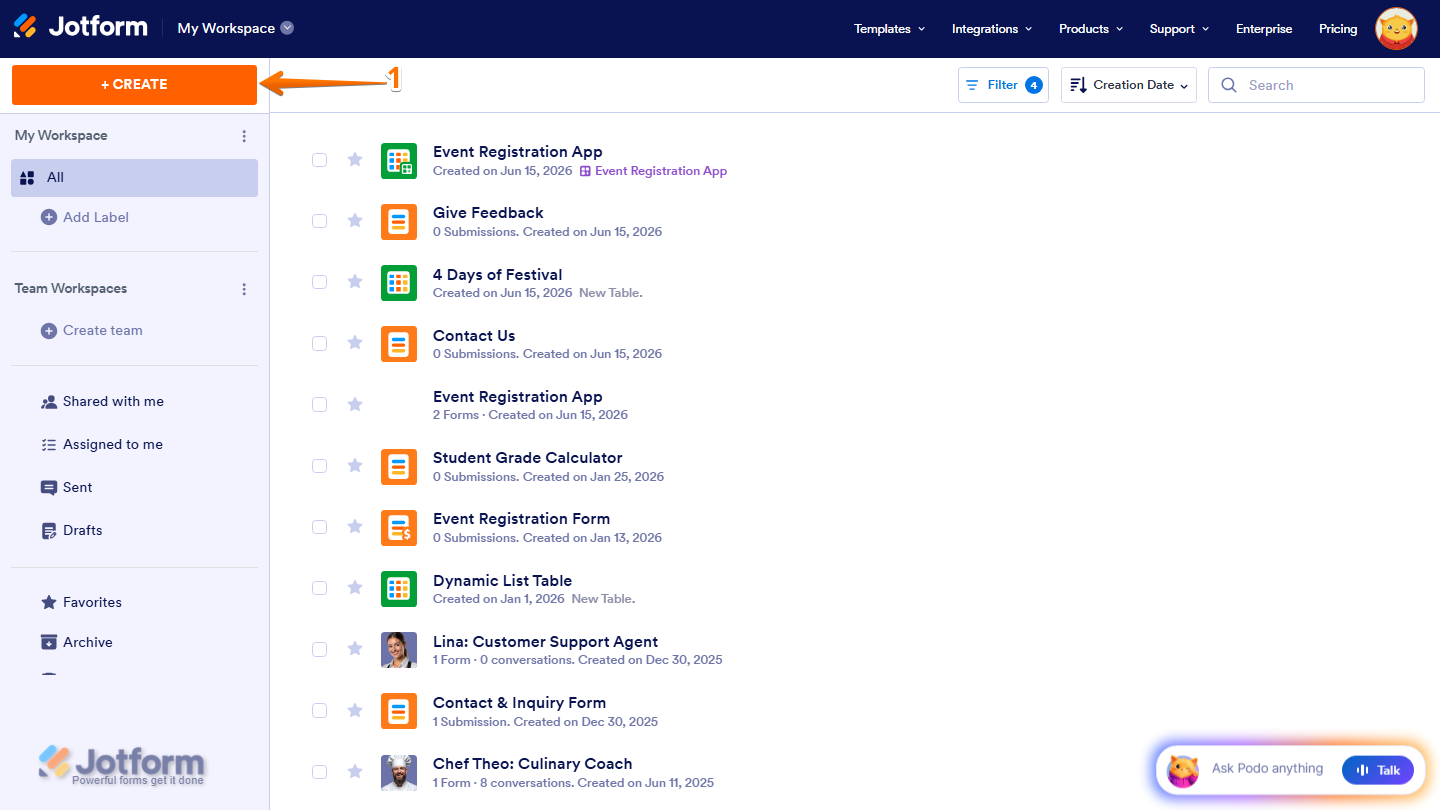
- On your Workspace page, click on Create on the top-left side of the page.
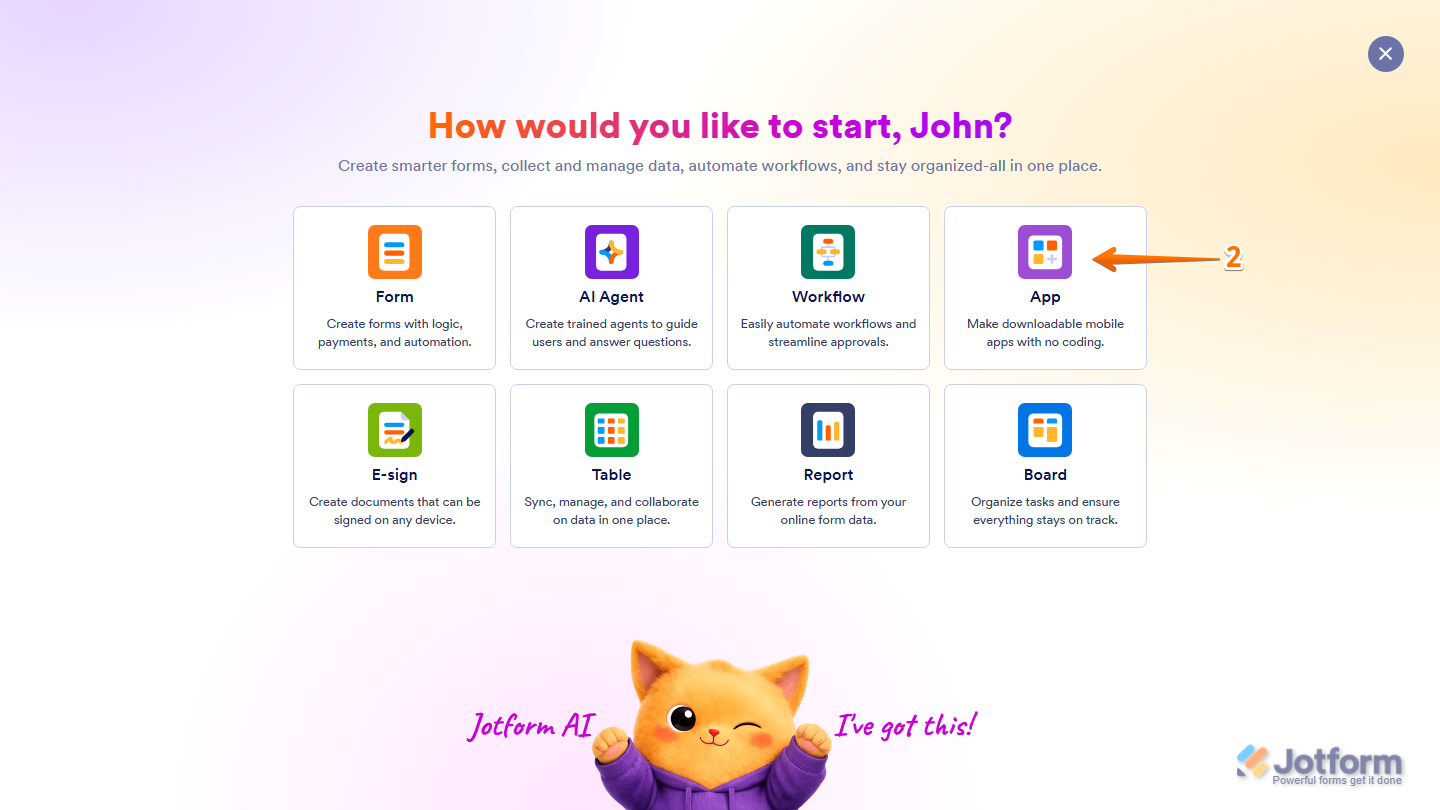
- Then, in the menu that opens, select App.
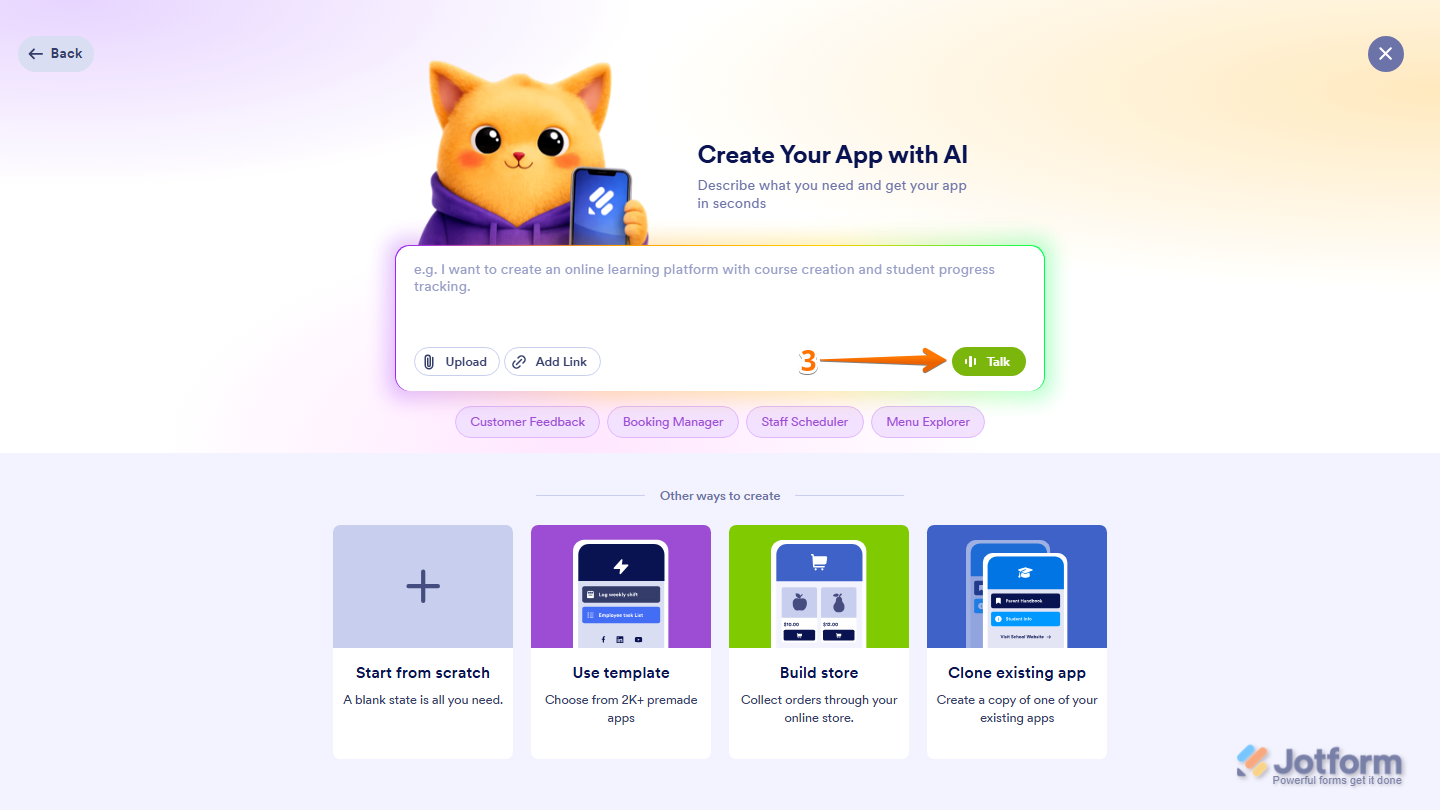
- Next, in the Create Your App with AI, at the bottom-right side of the Prompt box, click on Talk.
Note
Jotform AI App will prompt you to allow your browser to access your device’s microphone. Simply grant permission so it can capture your voice prompts.
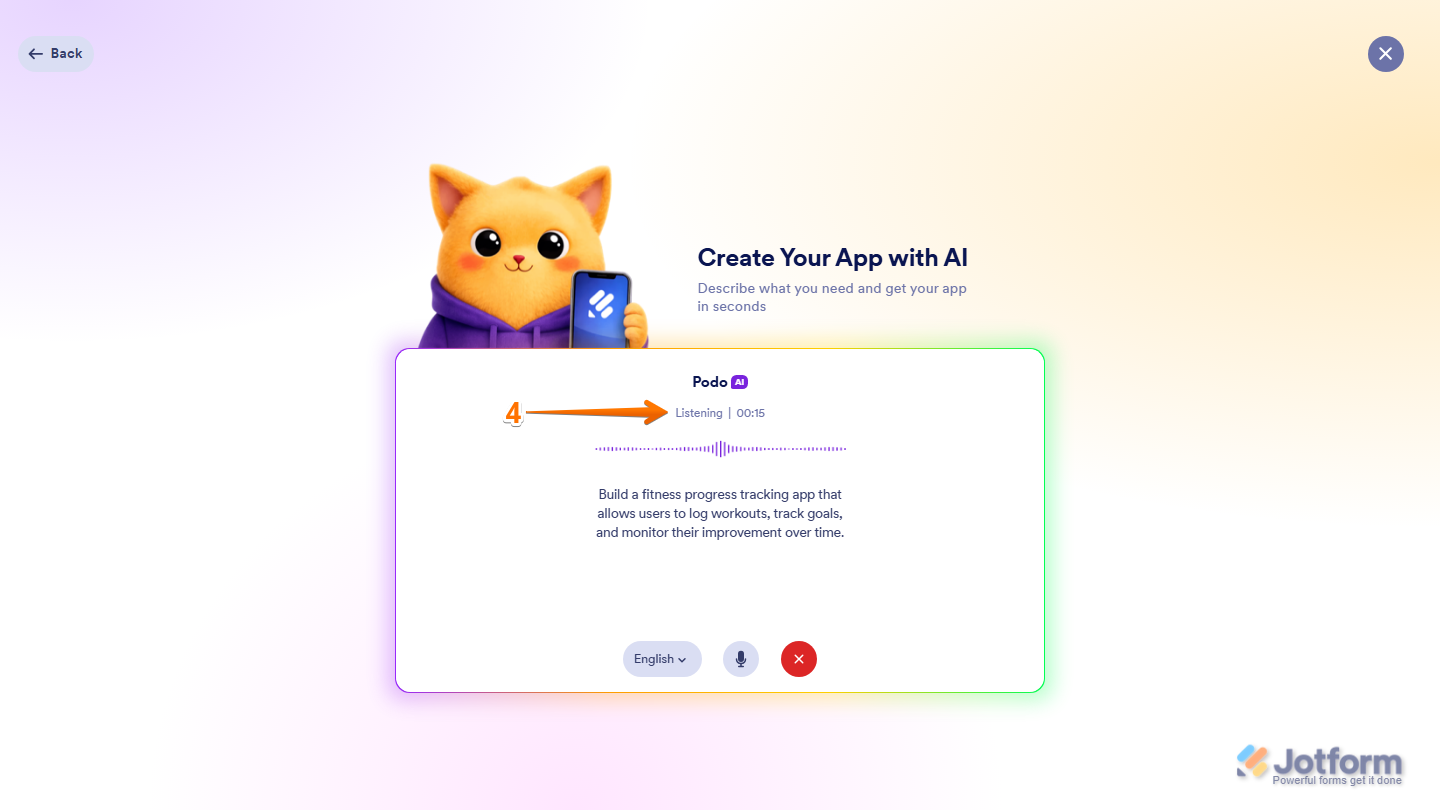
- Now, describe the app you want to create using your voice. While you’re speaking, the Podo AI will display a Listening status to indicate that it’s receiving your instructions. Here are a few example prompts you can try:
- Create a camp registration app where participants can enter their personal details, select a session, and provide any necessary medical or emergency information.
- Build a fitness progress tracking app that allows users to log workouts, track goals, and monitor their improvement over time.
- Design a language learning course app with structured lessons, progress tracking, and interactive sections for practicing new skills.
- Set up a hotel booking app where users can choose room types, select dates, and complete their reservation in a few simple steps.
- Once you’ve finished speaking, Jotform AI App will automatically generate your app based on your instructions. You can continue providing voice commands to refine the app or click on the X icon in the Build with Podo Chatbox at the bottom-left corner of the page to end the conversation.
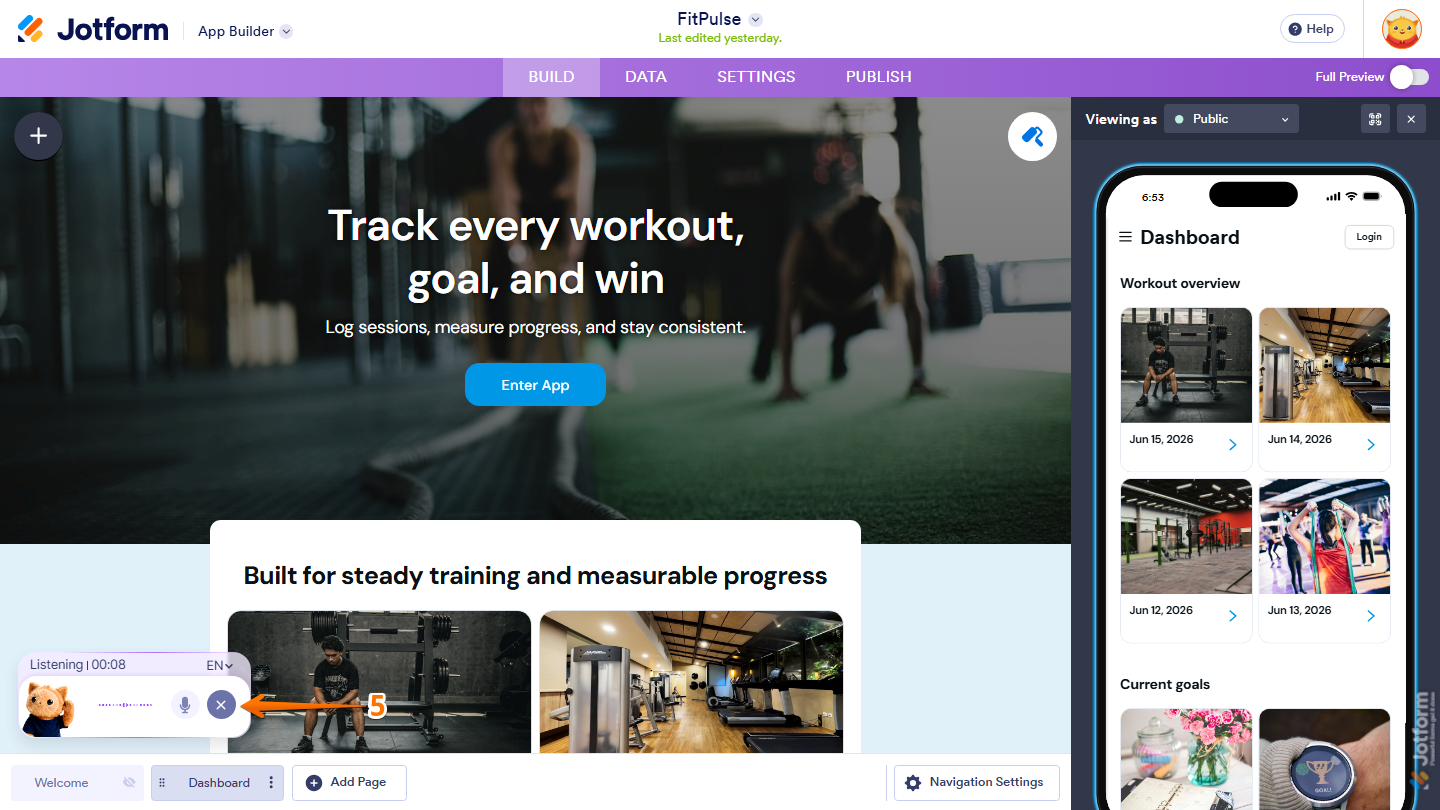
Pro Tip
- You can use simple prompts and let Jotform AI App generate a complete app from your idea. If your app requires specific features, elements, or functionality, be sure to mention them clearly in your prompt for more accurate results.
- AI App Builder may also generate sample content and dummy submissions. If you don’t upload any related documents, you’ll need to review and replace this information manually.
Editing an App with Voice Commands Using AI App Builder
Voice commands can also be used to update existing apps without manually editing each page or element. Here’s the quick way to do it:
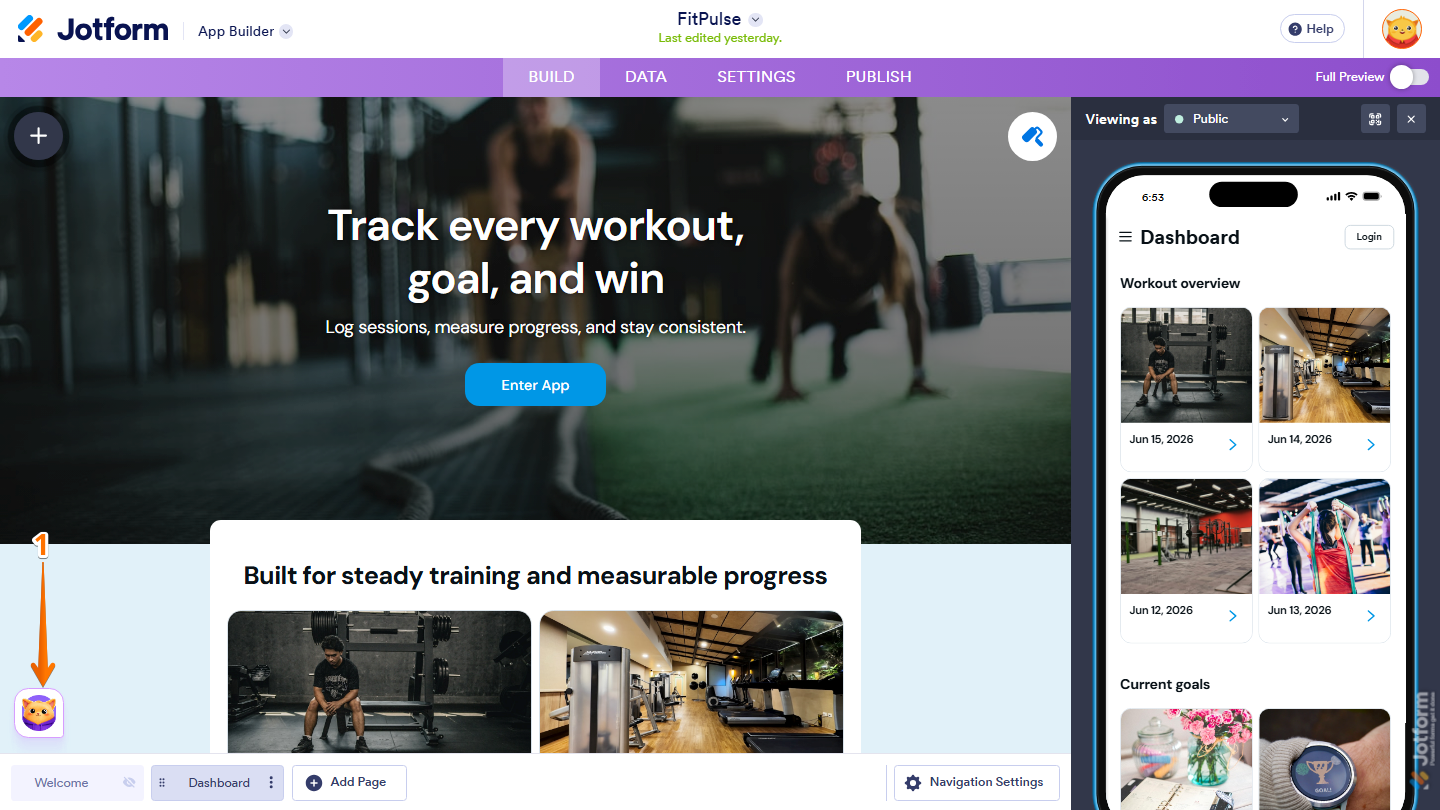
- In App Builder, in the bottom-left corner of the page, click on the Build with Podo Chatbox.
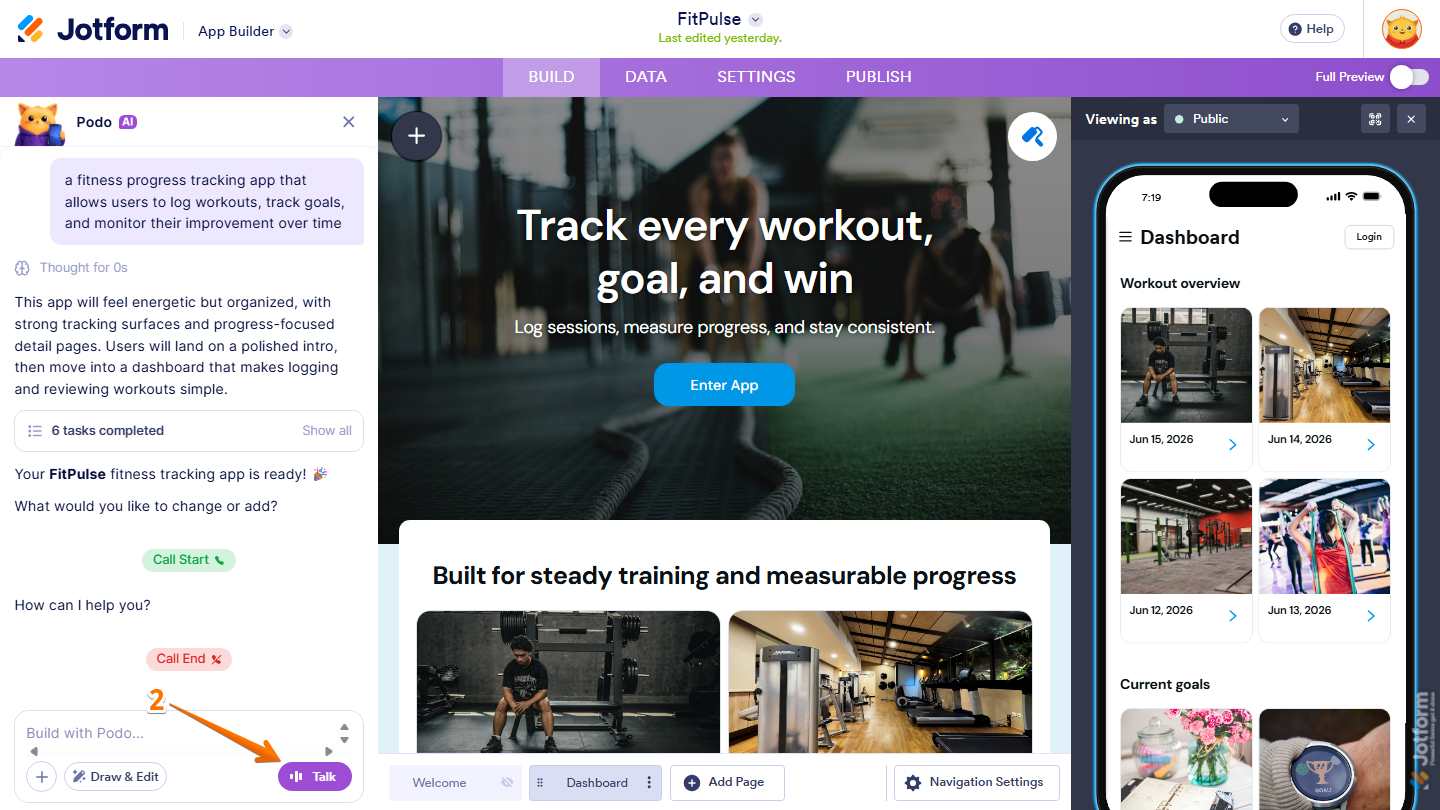
- Then, in the Build with Podo Chatbox that opens, click on Talk.
- Next, describe the changes you’d like to make to your app using your voice. The Podo AI will listen to your instructions and automatically apply the requested updates. While you’re speaking, the Build with Podo Chatbox will display a Listening status. Here are a few prompts you can try:
- Create a contact page with a form and company information.
- Add a photo gallery to showcase products, services, or events.
- Include a payment page where users can complete purchases online.
- Add a booking section that allows users to schedule appointments.
- Create a dashboard that displays charts and submission statistics.
- Add a search bar so users can quickly find content within the app.
- Change the app colors and typography to match my brand guidelines.
- Create an FAQ page with expandable questions and answers.
- Add a file upload section where users can submit documents and images.
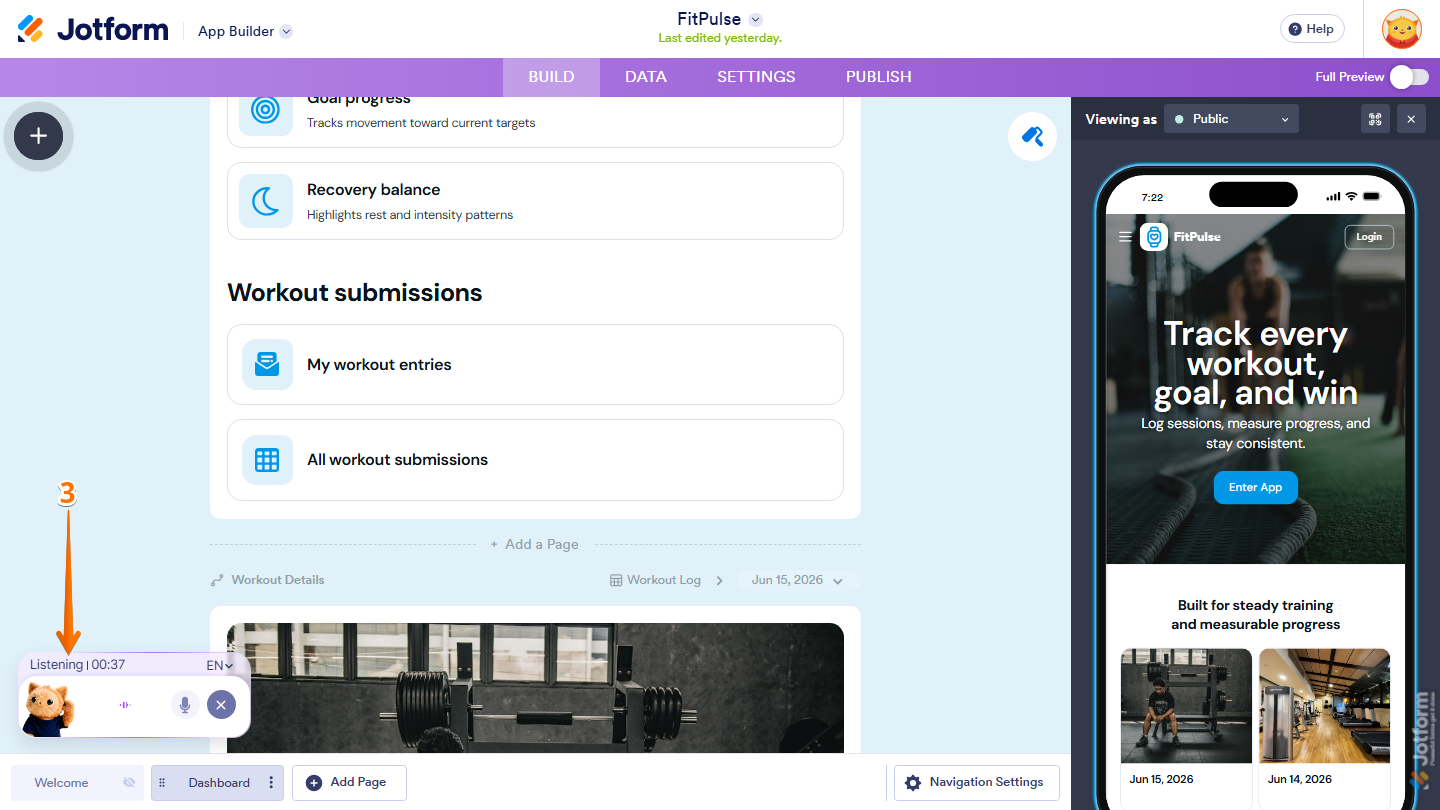
That’s it. Jotform AI App will automatically apply the requested changes and update your app.
Creating an App Using Ask Podo Anything
If you’re on your Workspace page, you can also create apps directly through Ask Podo Anything using voice commands. Here’s how to get started:
- On your Workspace page, in the Ask Podo Anything Chatbox in the bottom-right corner of the page, click on Talk.
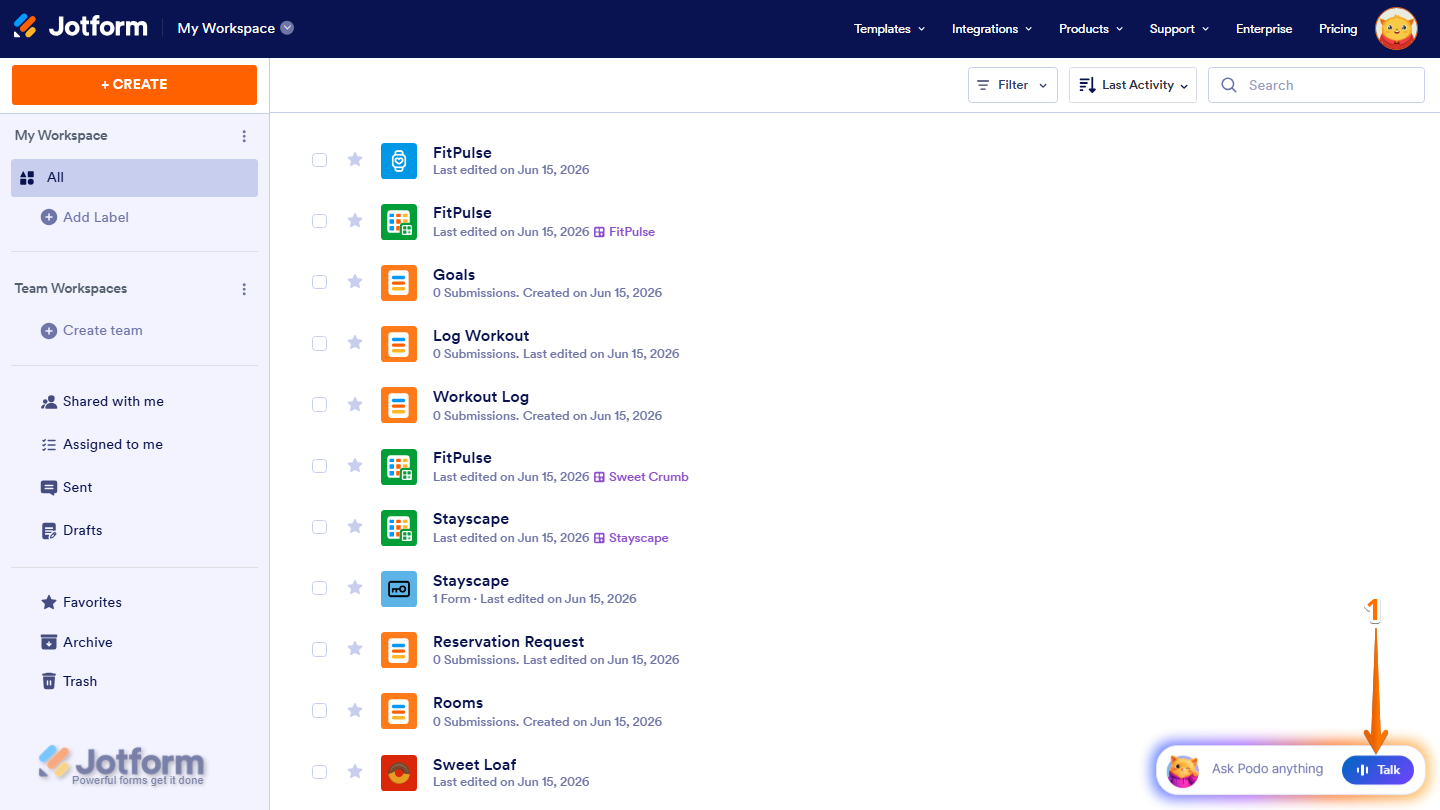
- Then, describe the app you want to create using your voice. Podo AI will listen to your instructions and generate the app based on your request. While processing your request, the Ask Podo Anything Chatbox will display a Working status to indicate that Podo is creating your app. Here are a few example prompts you can try:
- Create a restaurant ordering app that lets customers view the menu, place orders, and choose pickup or delivery options.
- Build a school portal app where students can access assignments, course materials, and announcements.
- Create an event registration app that allows attendees to sign up, view schedules, and receive event updates.
- Design a real estate app where users can browse property listings, view photos, and request showings.
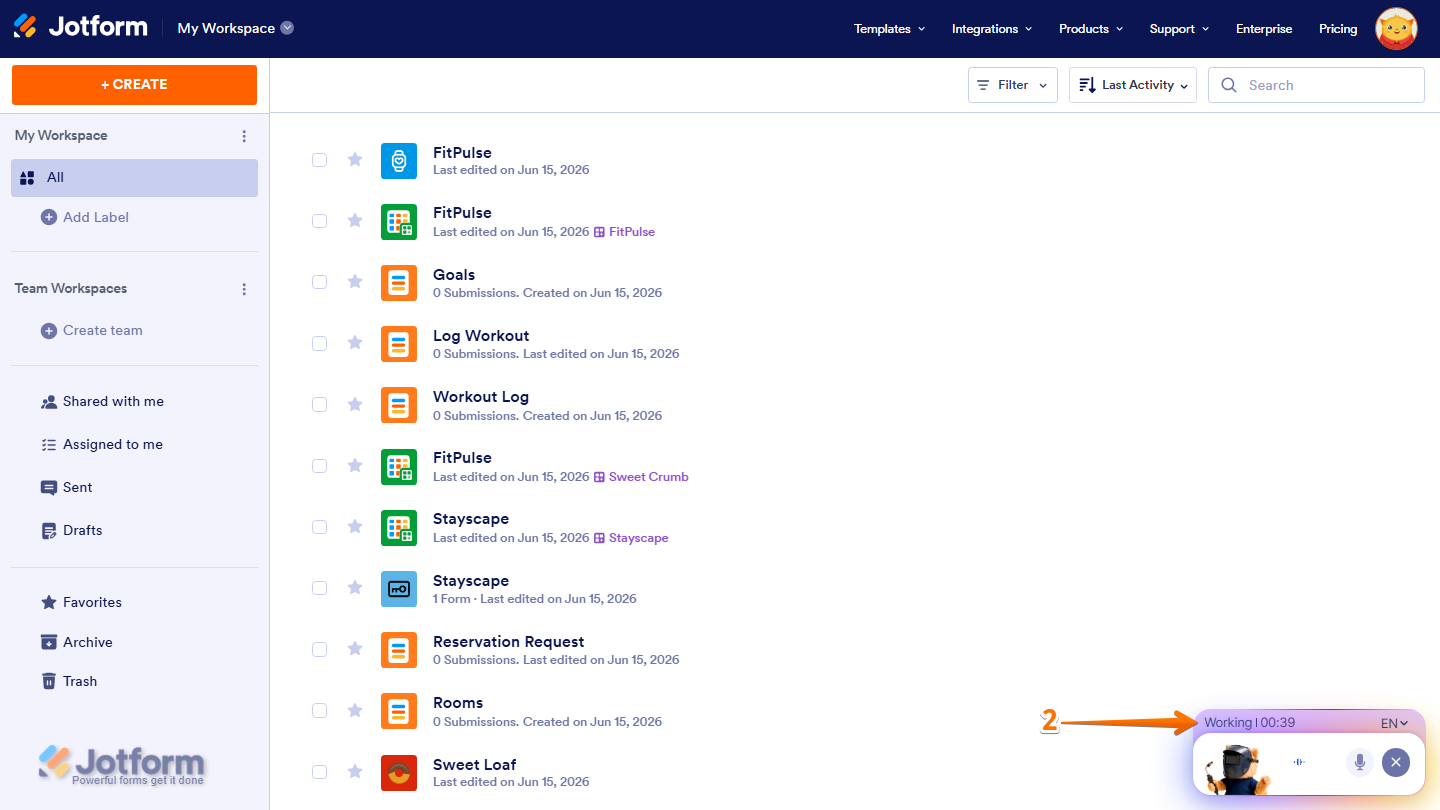
- After processing your request, Podo will automatically generate and display a preview of your app based on your instructions. You can continue providing voice commands to refine the app or click on the X icon in the Ask Podo Anything chatbox at the bottom-right corner of the page to end the conversation.
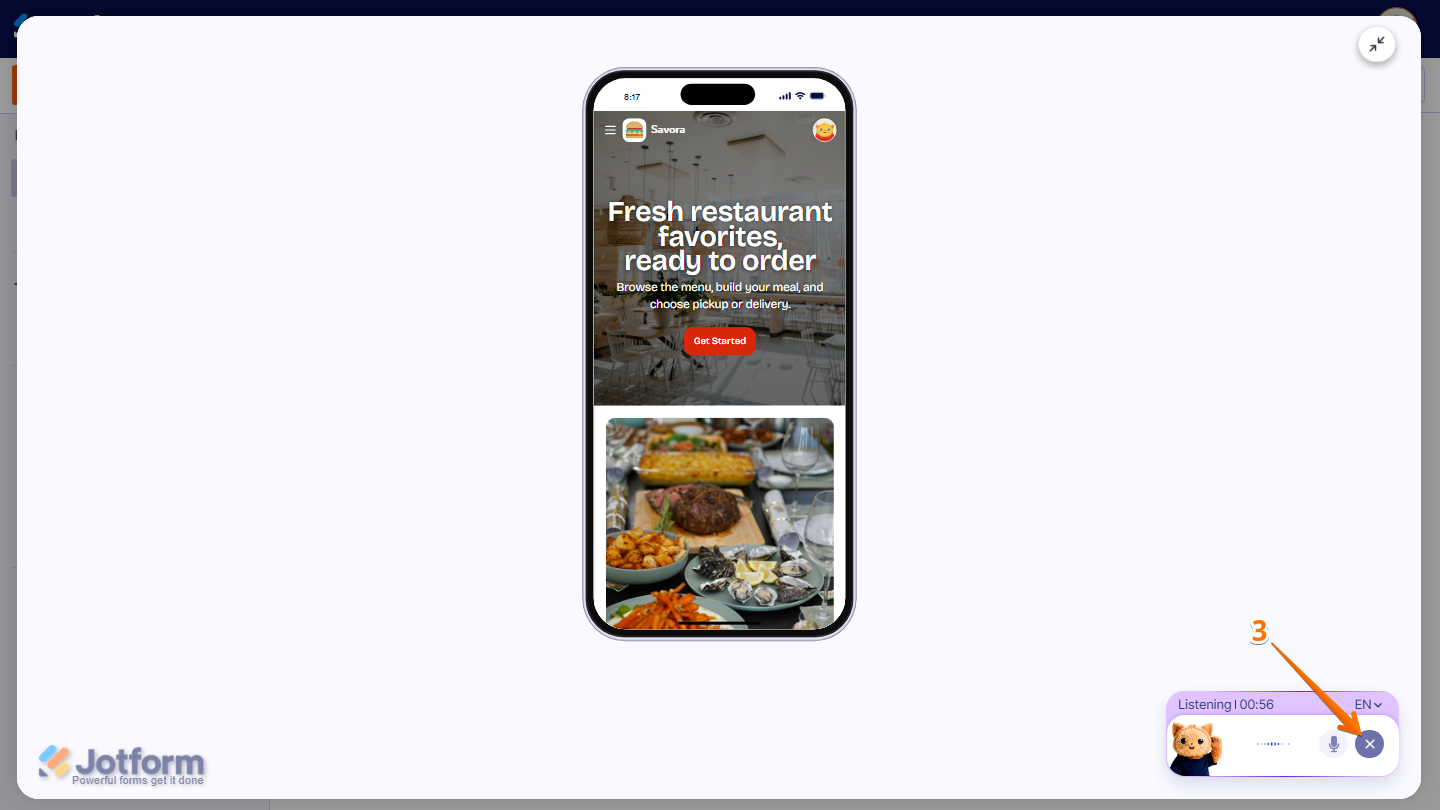
And you’re set! Your app is now ready for review. You can continue refining it through additional voice commands or make changes manually in the App Builder.

Send Comment: