Jotform’s AI App Builder makes it easy to turn your ideas into fully functional apps in just minutes. In addition to creating apps with text prompts, voice commands, or suggested templates, you can also use existing content as a starting point.
By uploading a document or providing a URL, the AI can analyze your content and automatically generate an app tailored to your needs. This is a great way to save time, especially if you already have information, resources, or workflows you’d like to transform into an app. In this guide, you’ll learn how to create an app from a URL or document using AI App Builder.
Creating an App from a URL
If you already have a website, landing page, or online resource, you can use its URL to help AI App Builder generate an app based on that content. Simply provide the link, and the AI will use the information it finds to create a tailored app for you. Get started like this:
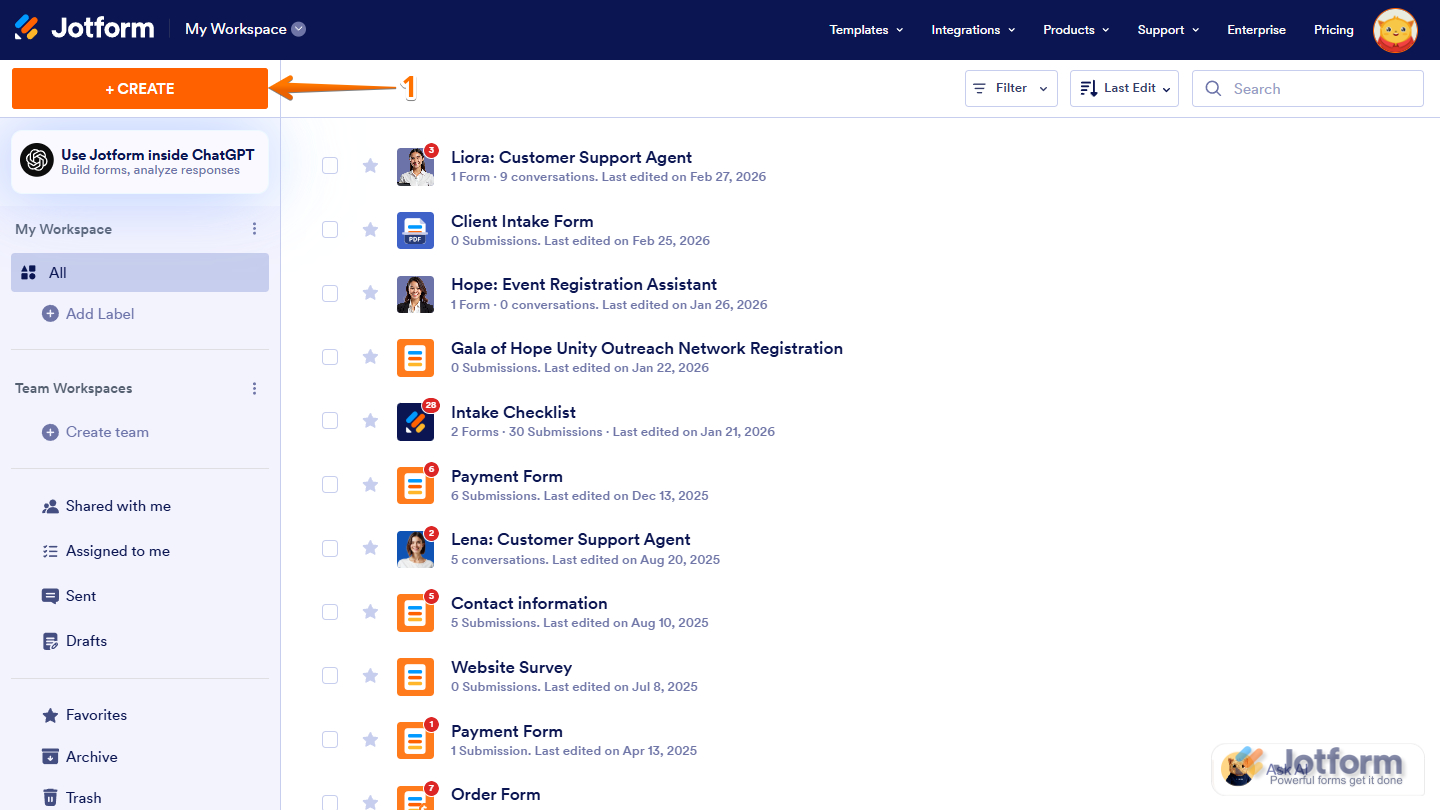
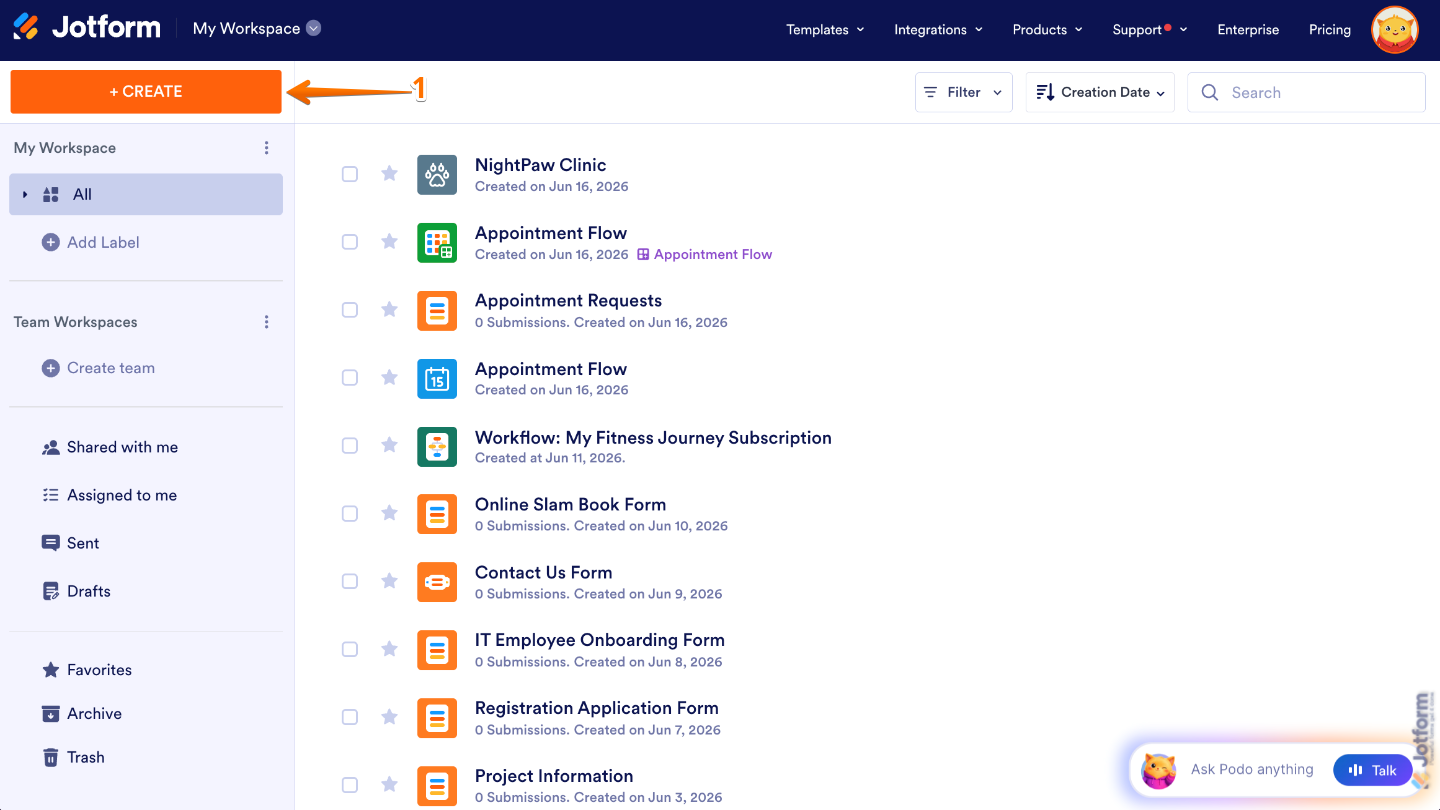
- On your Workspace page, click on Create on the top-left side of the page.
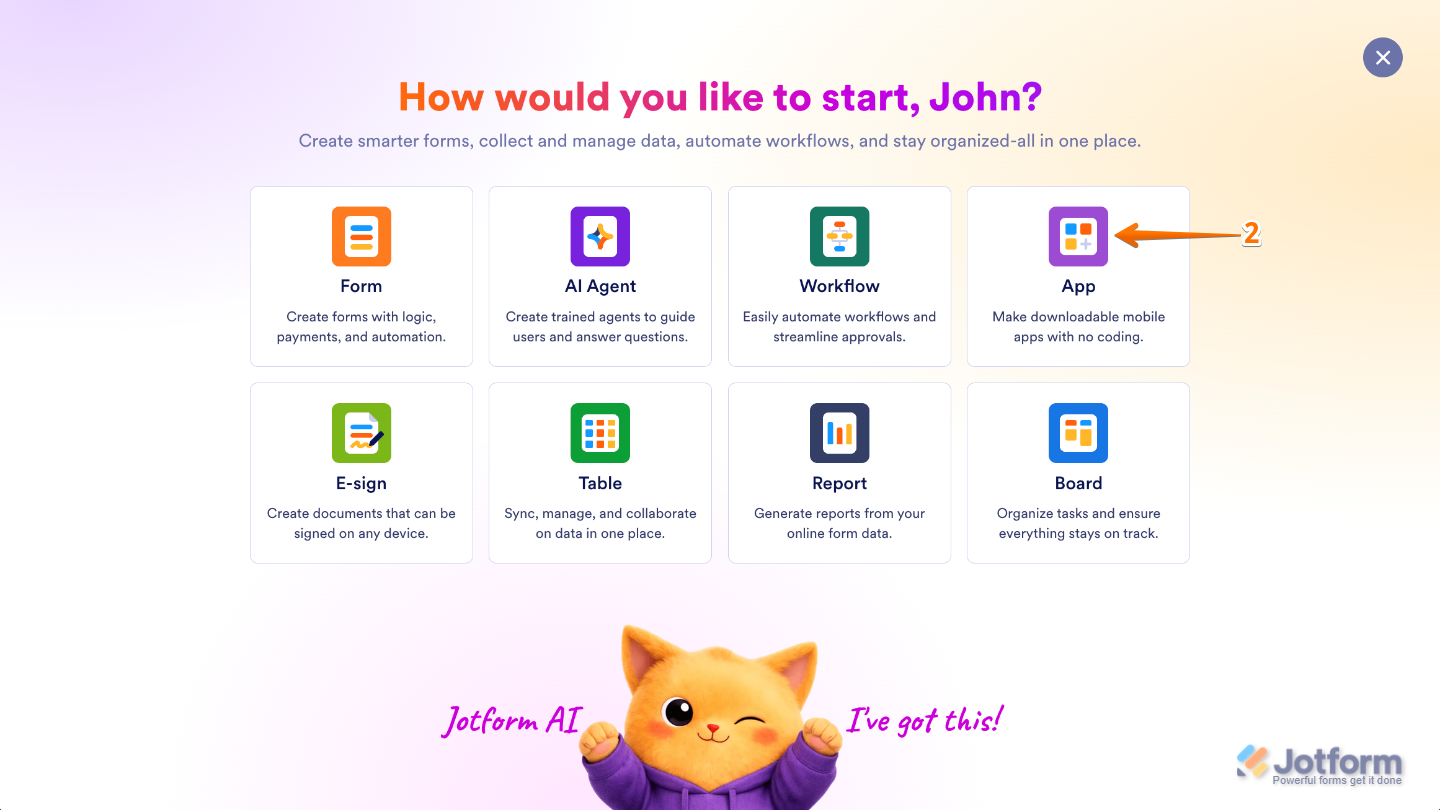
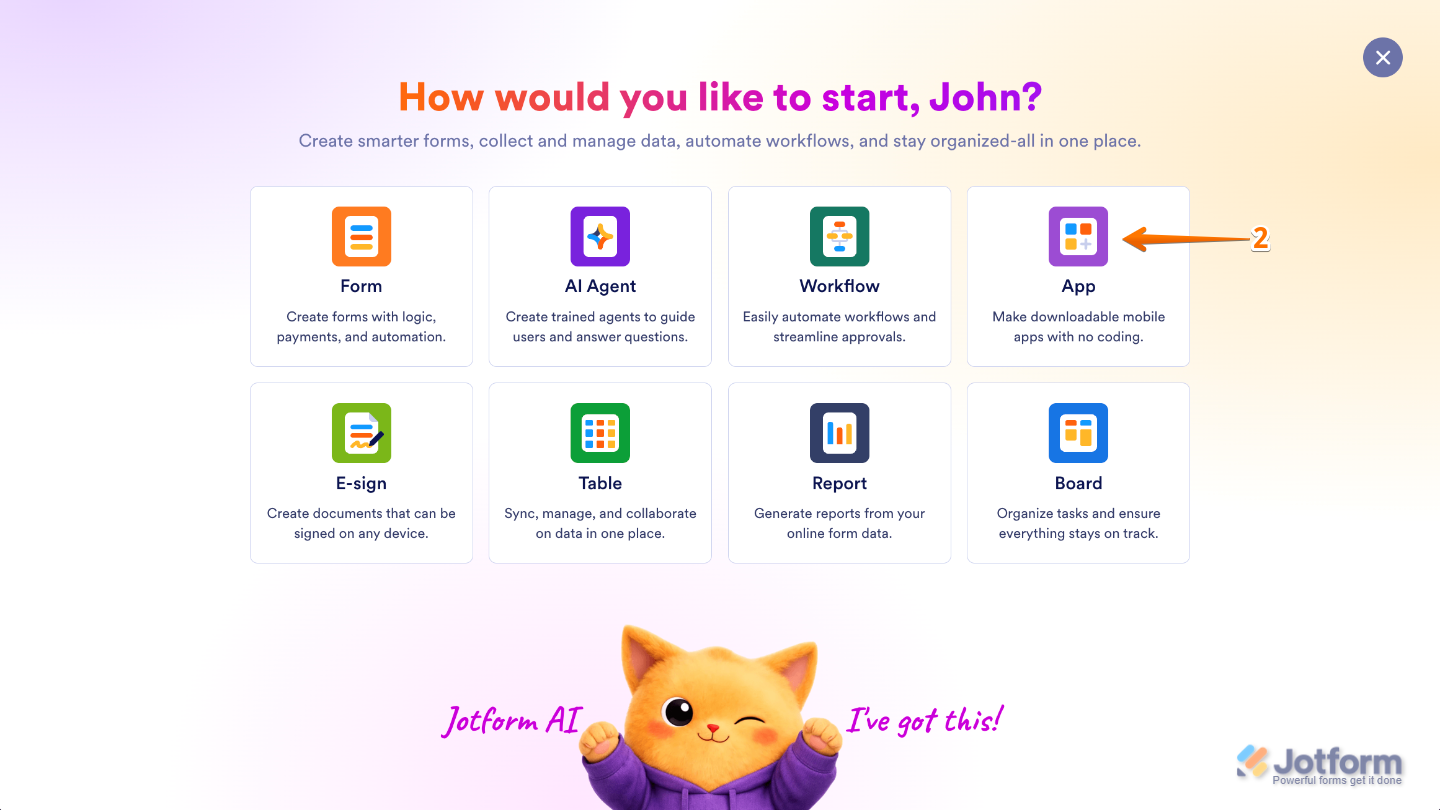
- Next, in the menu that opens, select App.
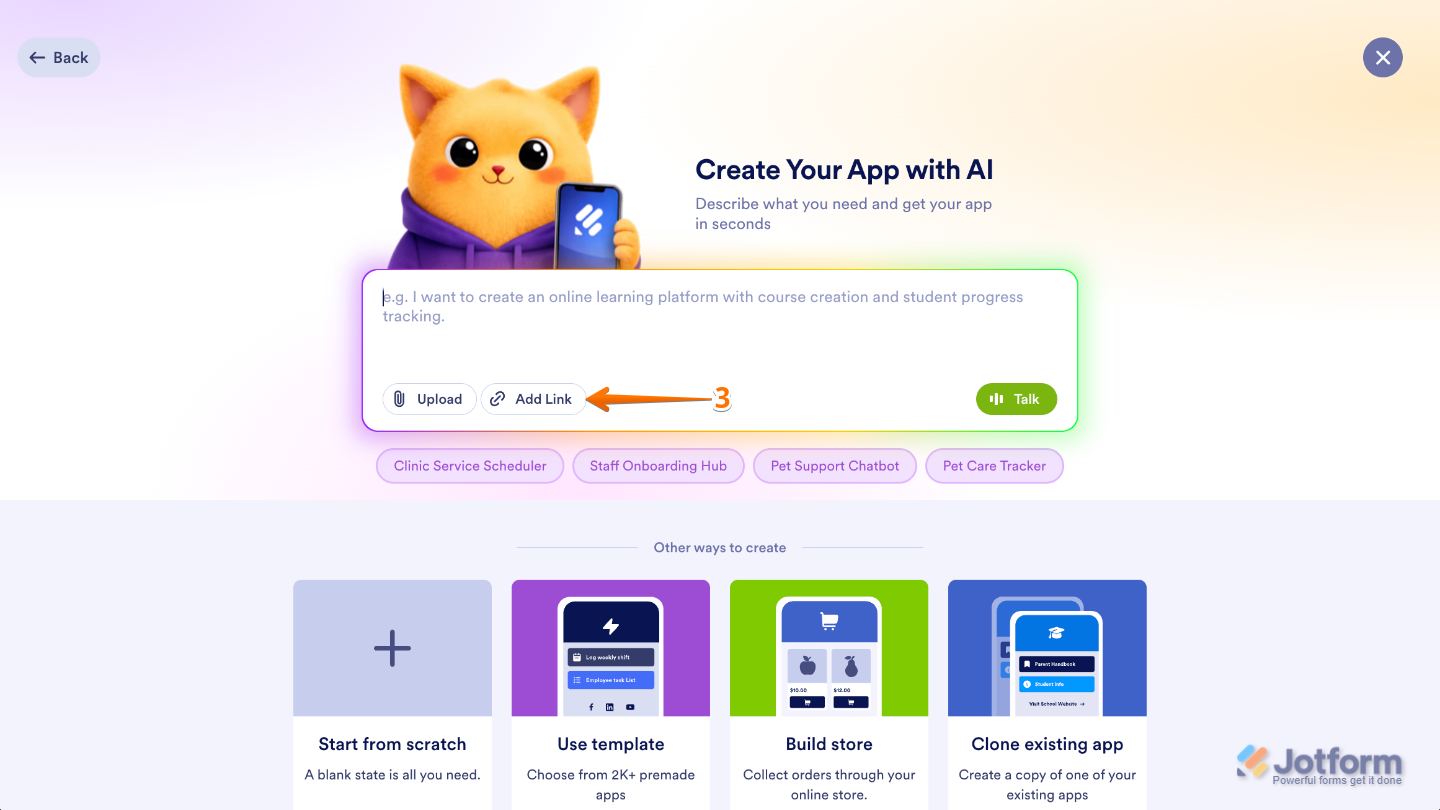
- Then, in the Create Your App with AI box, click on Add Link.
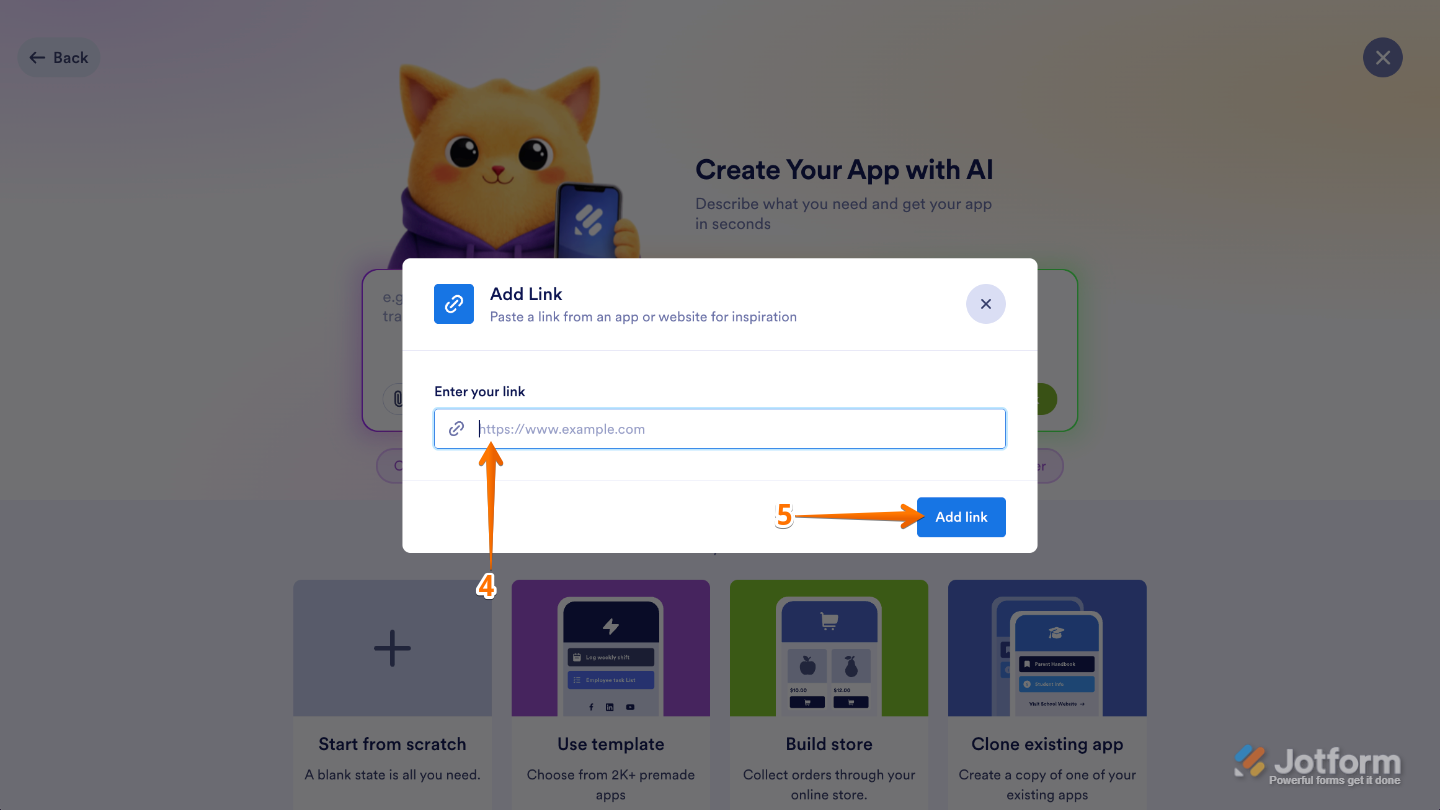
- In the Add Link window that comes up, enter your website address in the Enter Your Link field.
- After that, click on Add Link.
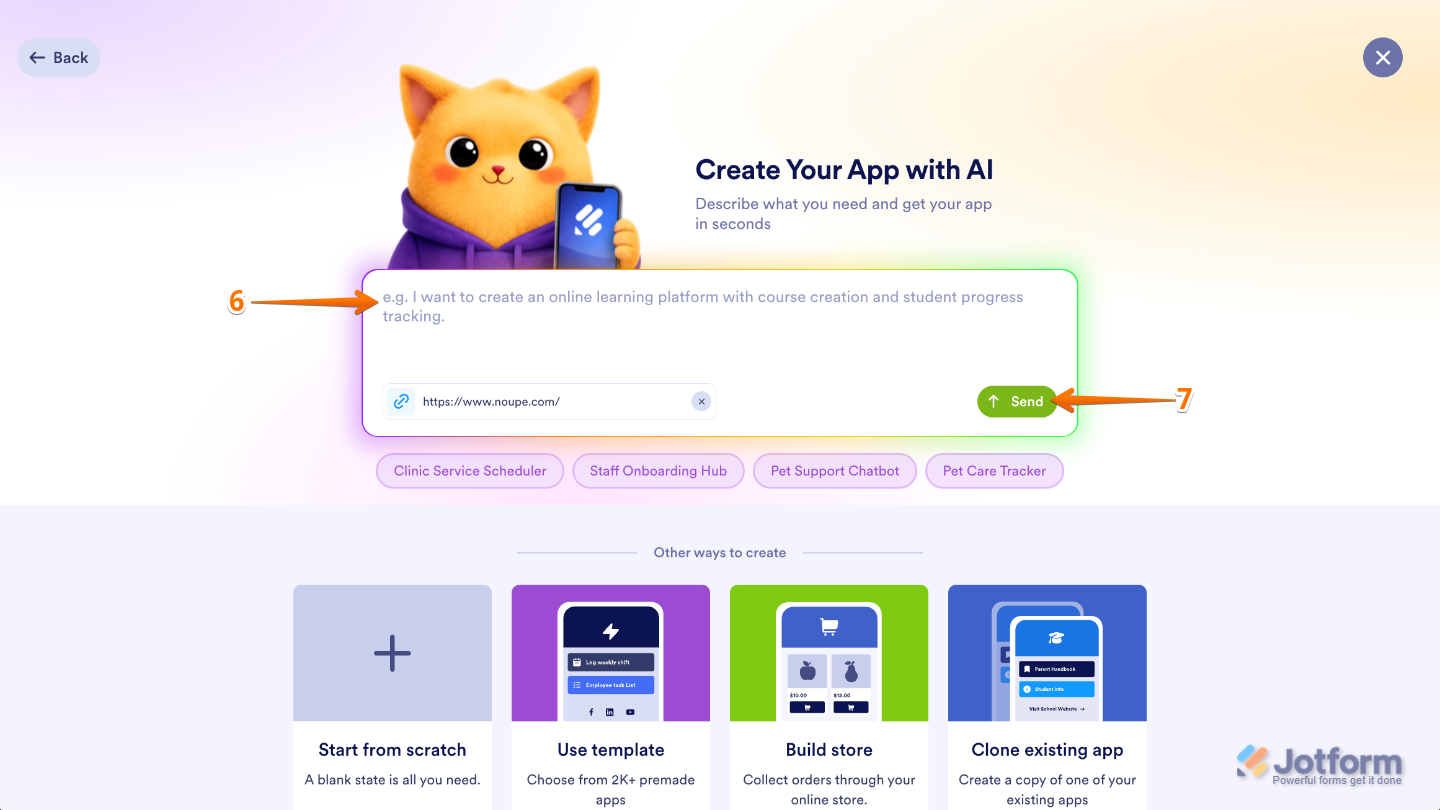
- Now, if you’d like, enter additional description of your desired app in the Create Your App With AI box.
- Once you’re done, click on Send.
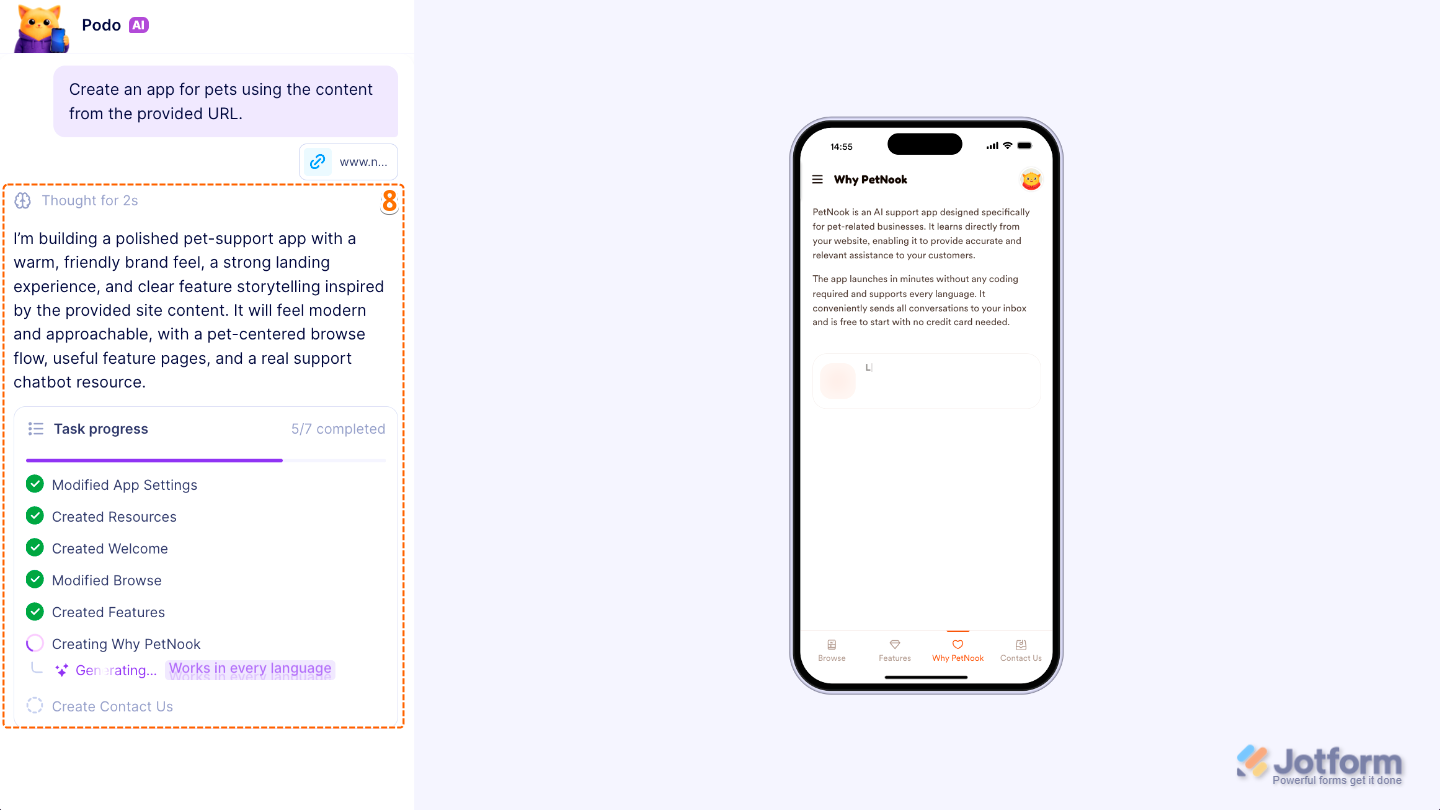
- Now, Jotform AI will analyze the page you provided along with any additional details you included to create an app tailored to your needs. Once it’s ready, you can review the app and make any adjustments you’d like.
Creating an App from a Document
If your content is stored in a document, you can upload it directly to AI App Builder. The AI will analyze the document and use the information it contains to create an app that matches your content and goals. It only takes a minute to set up—here’s how:
- On your Workspace page, click on Create on the top-left side of the page.
- Next, in the menu that opens, select App.
- Then, in the Create Your App with AI box, click on Upload.
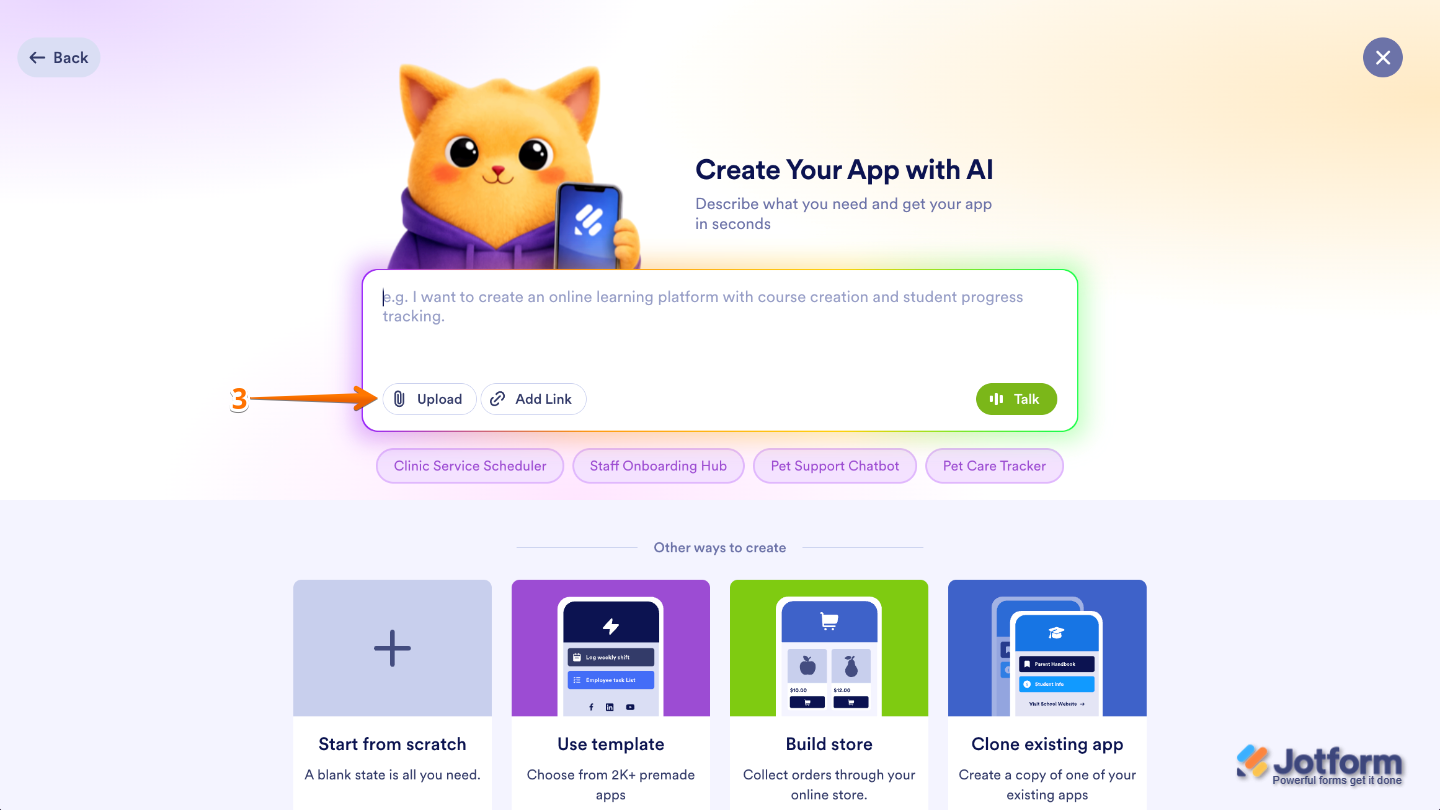
- In the dropdown menu that opens, select one of these options:
- Upload Image — Use this to upload an image from your device and let Jotform AI use its content as context when generating your app.
- Upload Document — Select this to upload a document, such as a PDF, Word file, or presentation, and Jotform AI will analyze the information to help build an app tailored to your content.
- Import Data — Imports existing data from a supported file or source, allowing Jotform AI to use that information when creating your app and populating its content.
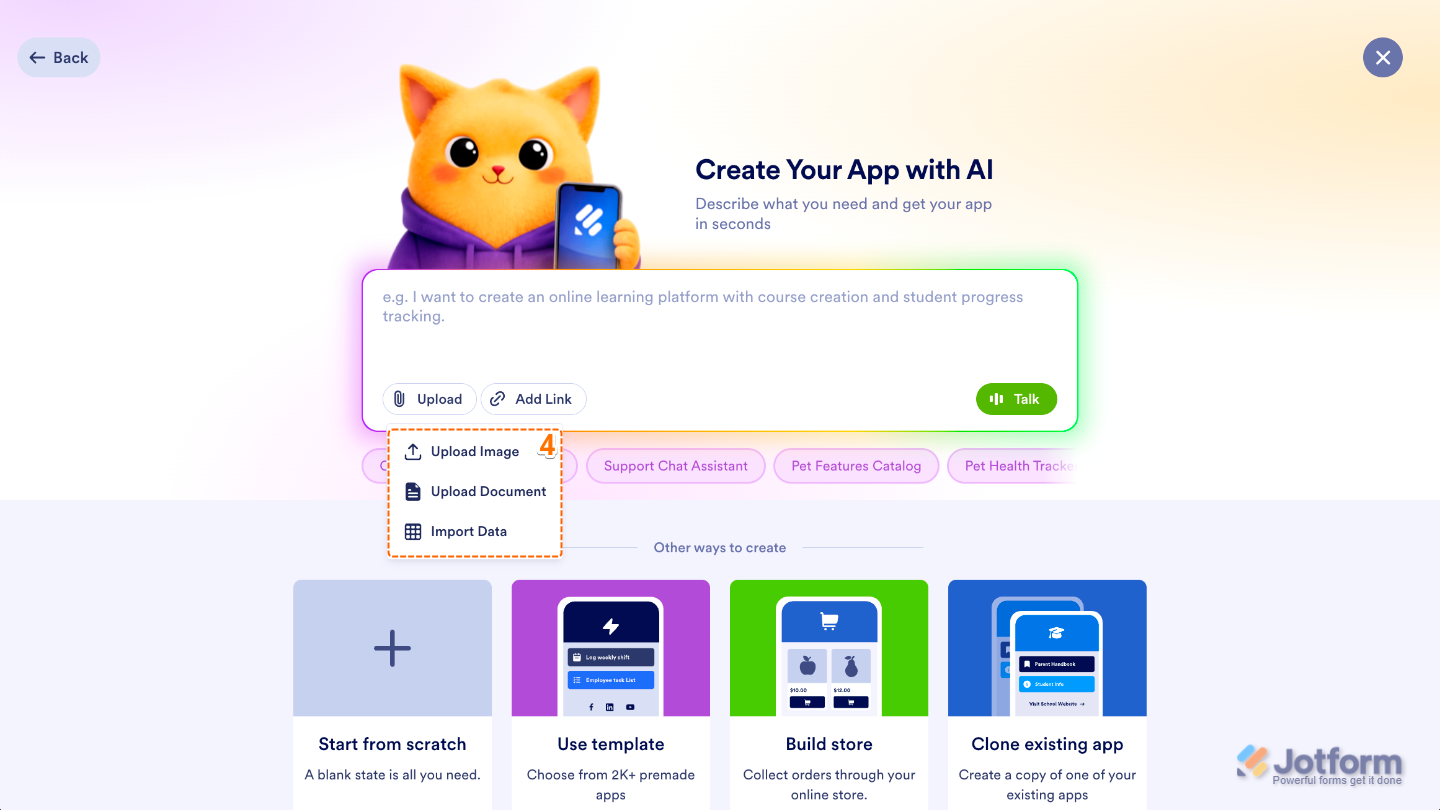
- After selecting a document, if you’d like, enter an additional description of your desired app in the Create Your App With AI box.
- Once you’re done, click on Send.
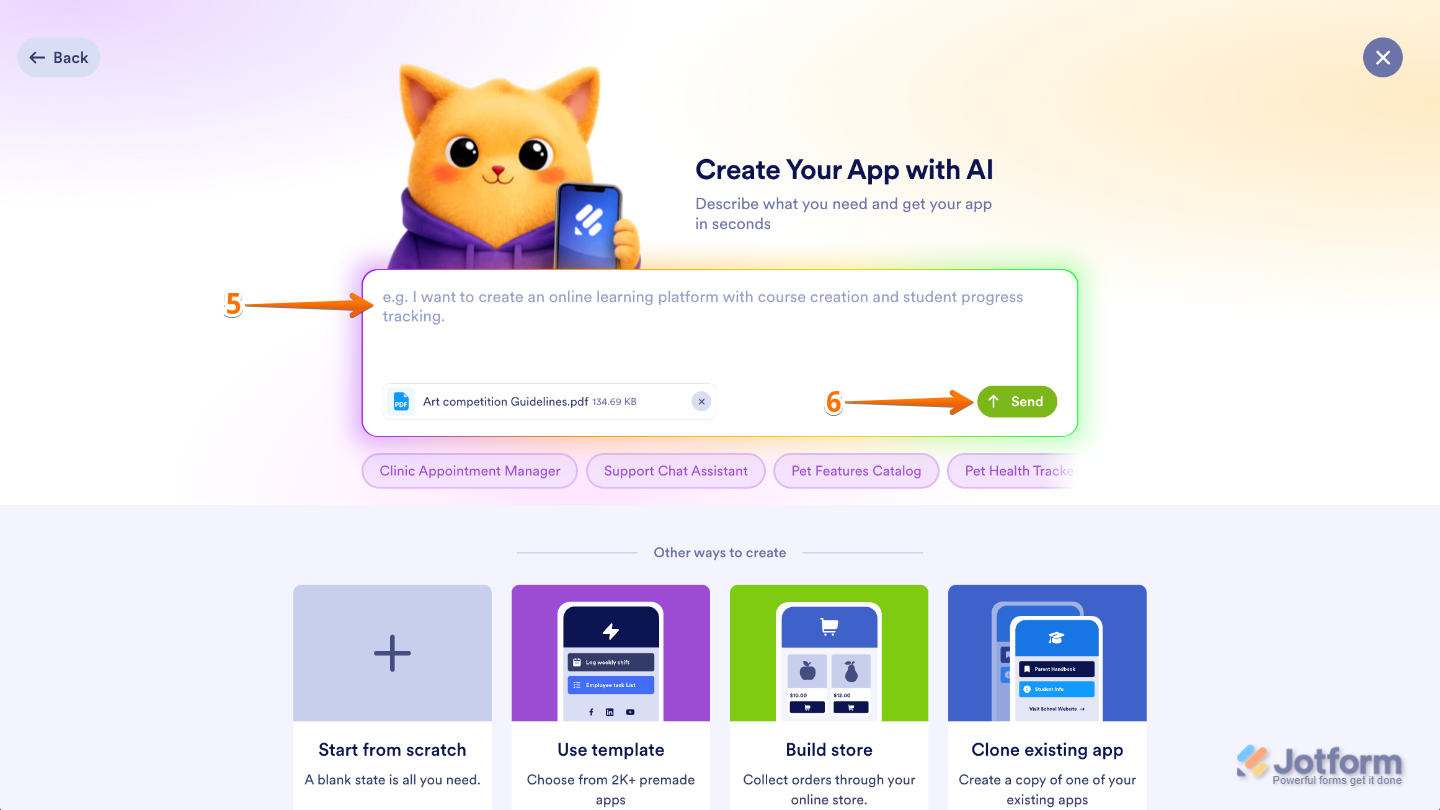
- Now, Jotform AI will analyze the document you provided along with any additional details you included to create an app tailored to your needs. Once it’s ready, you can review the app and make any adjustments you’d like.
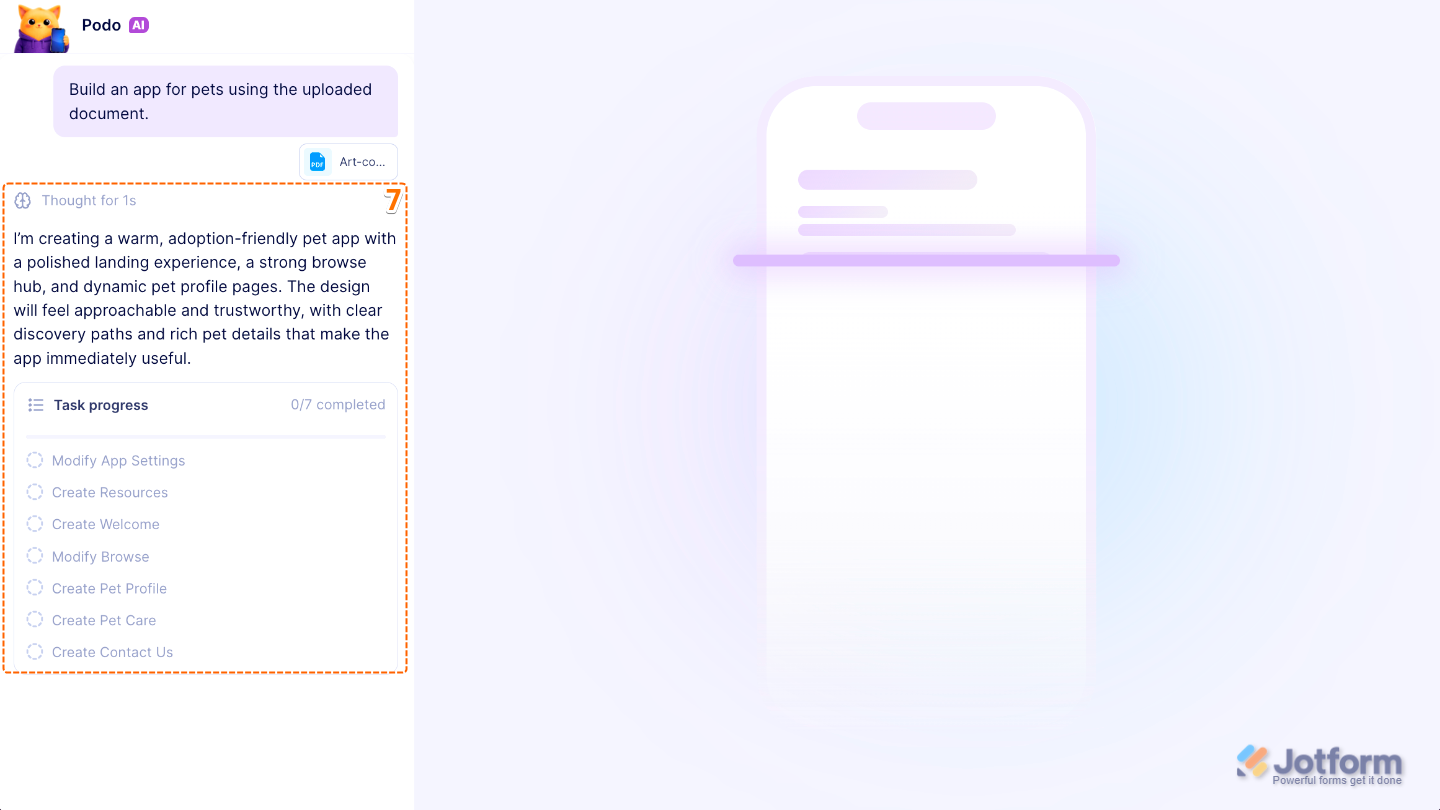
That’s it. You now know how to create an app using your existing content. By providing a URL or uploading a document, AI App Builder can do much of the heavy lifting for you, helping you get from idea to app faster. Once your app is generated, you can review, customize, and fine-tune it to fit your needs.
Pro Tips
- You can use document attachments and URLs to create apps from both the AI App Builder landing page and the Build with Podo section within App Builder.
- While a URL or document is enough to generate an app, adding a brief description of what you’d like the app to do can help the AI create a more accurate and tailored result.

Send Comment: