Jotform AI App Builder makes it easy to preview and share your app through simple AI-powered commands. You can ask Jotform AI to generate a live preview of your app to review its design and functionality, or request sharing options to quickly distribute it. This streamlined approach lets you test and share your app without navigating through multiple menus.
Previewing and Sharing Your App With AI App Builder by Typing
Whether you want to preview your app or generate sharing options, Jotform AI will quickly open the right tool for you. Just tell it what you need, and it will take you straight to the next step. Here’s what to do:
- In App Builder, click on Build with Podo at the bottom left side of the page.
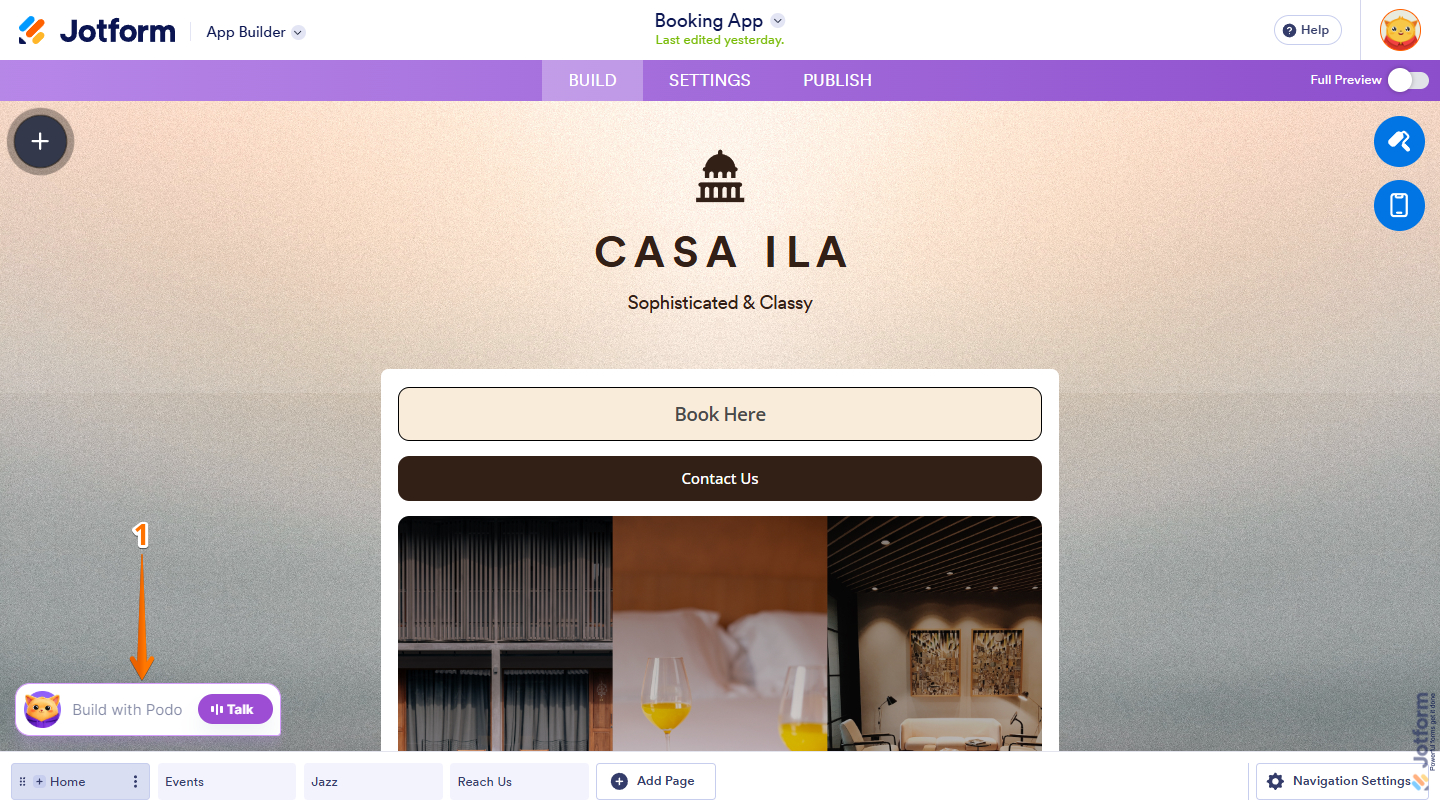
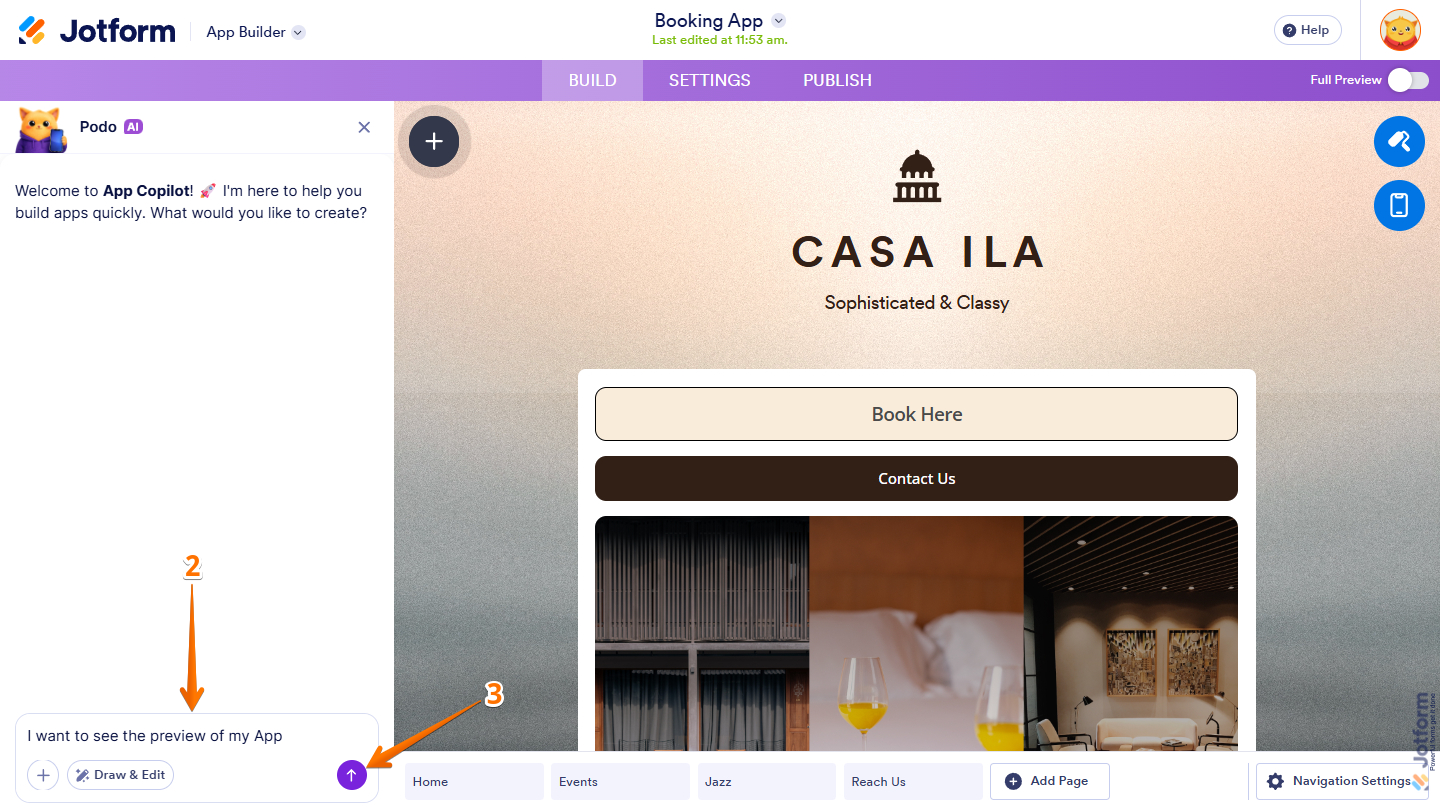
- Then, in the Podo AI menu that opens on the left side of the page, enter what you want to do in the Prompt box at the bottom. Here are direct prompts you can try to preview or share your app:
- I want to see the preview of my App.
- I want to share my app with my users.
- Now, press the Enter key on your keyboard or click on the Upward Arrow icon on the right side of the Prompt box to send your prompt.
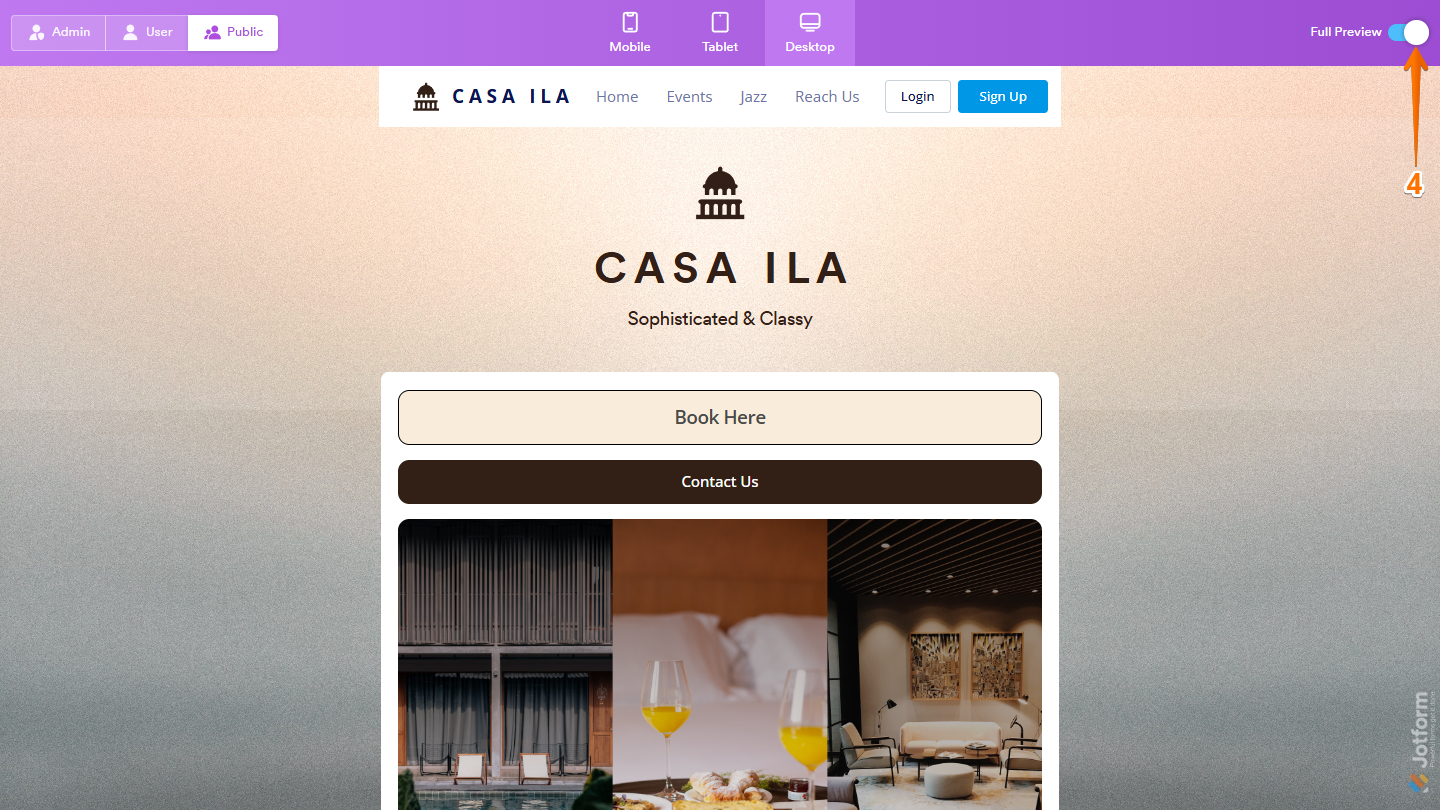
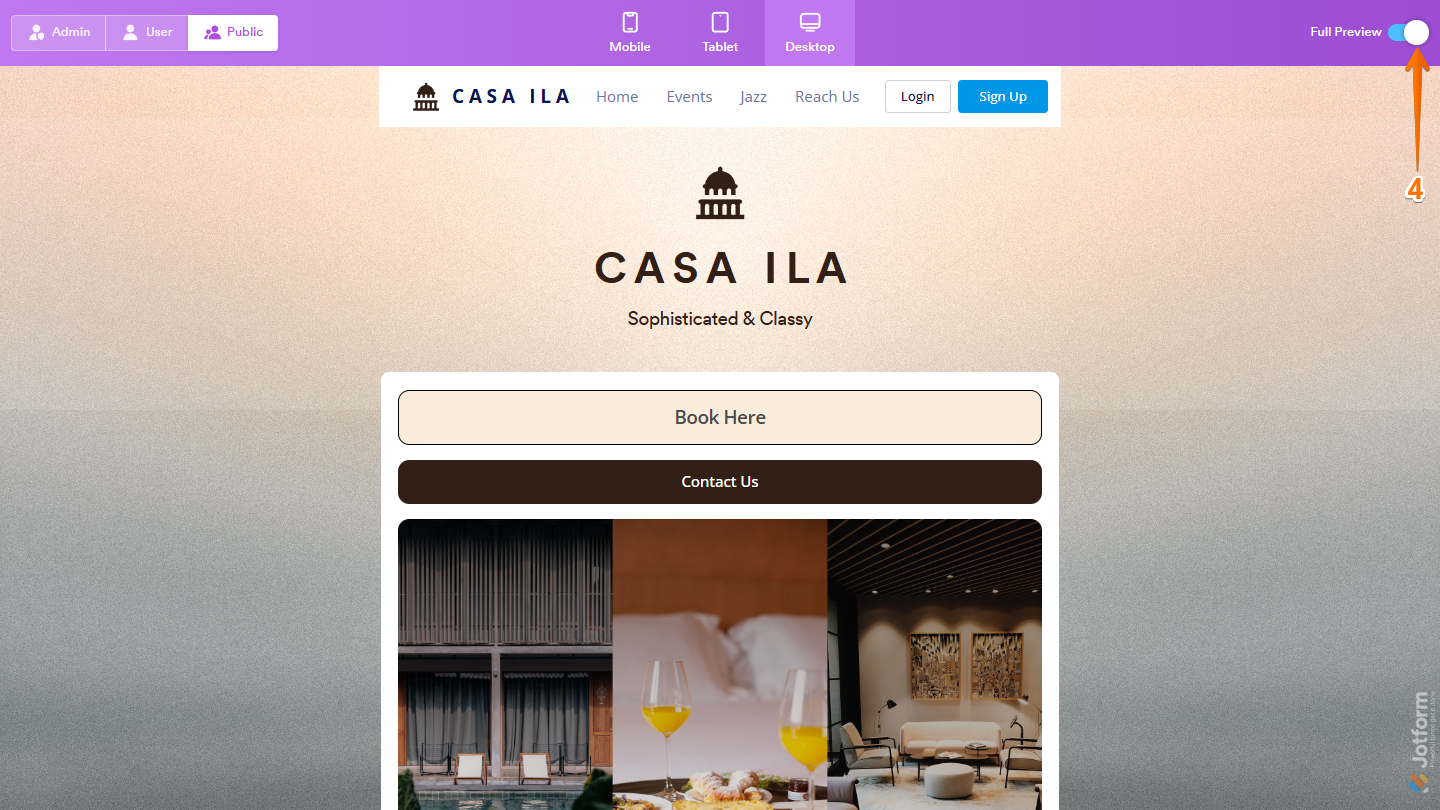
- If you’ve asked Jotform AI to preview your app, the Full Preview page will be enabled.
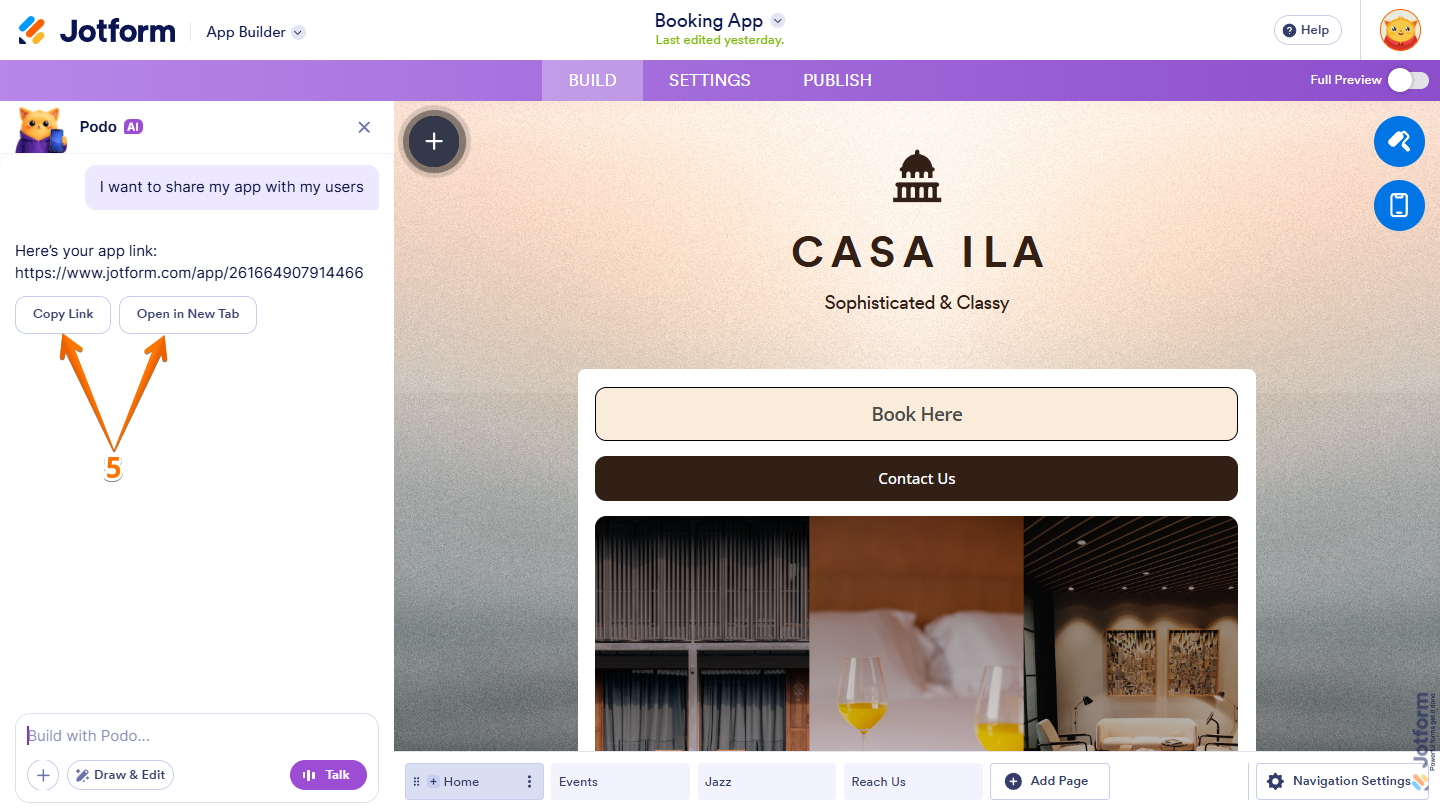
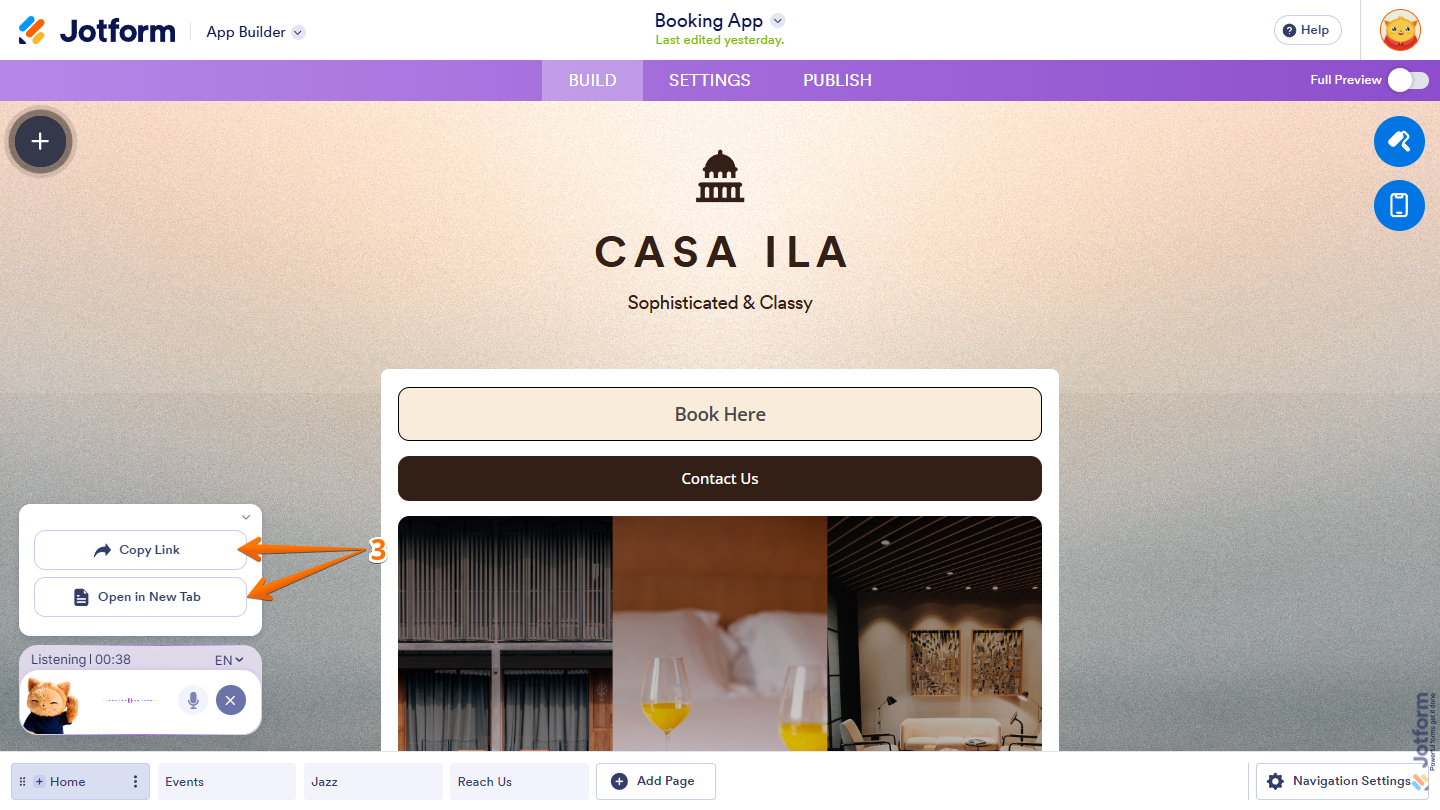
- If you’ve asked Jotform AI to share your app with your users, it will provide you with two buttons:
- Copy Link — Copies your app’s shareable URL to your clipboard so you can quickly paste and share it anywhere.
- Open in New Tab — Opens your app in a new browser tab, so you can view and test it as your users would.
Previewing and Sharing Your App With AI App Builder by Speaking
If you’d rather go hands-free, you can simply use your voice to preview or share your app. Just say what you’d like to do, and Jotform AI will understand your request and open the appropriate preview or sharing options. This is how it’s done:
- In App Builder, click on Talk next to the Build with Podo prompt box at the bottom-left of the page.
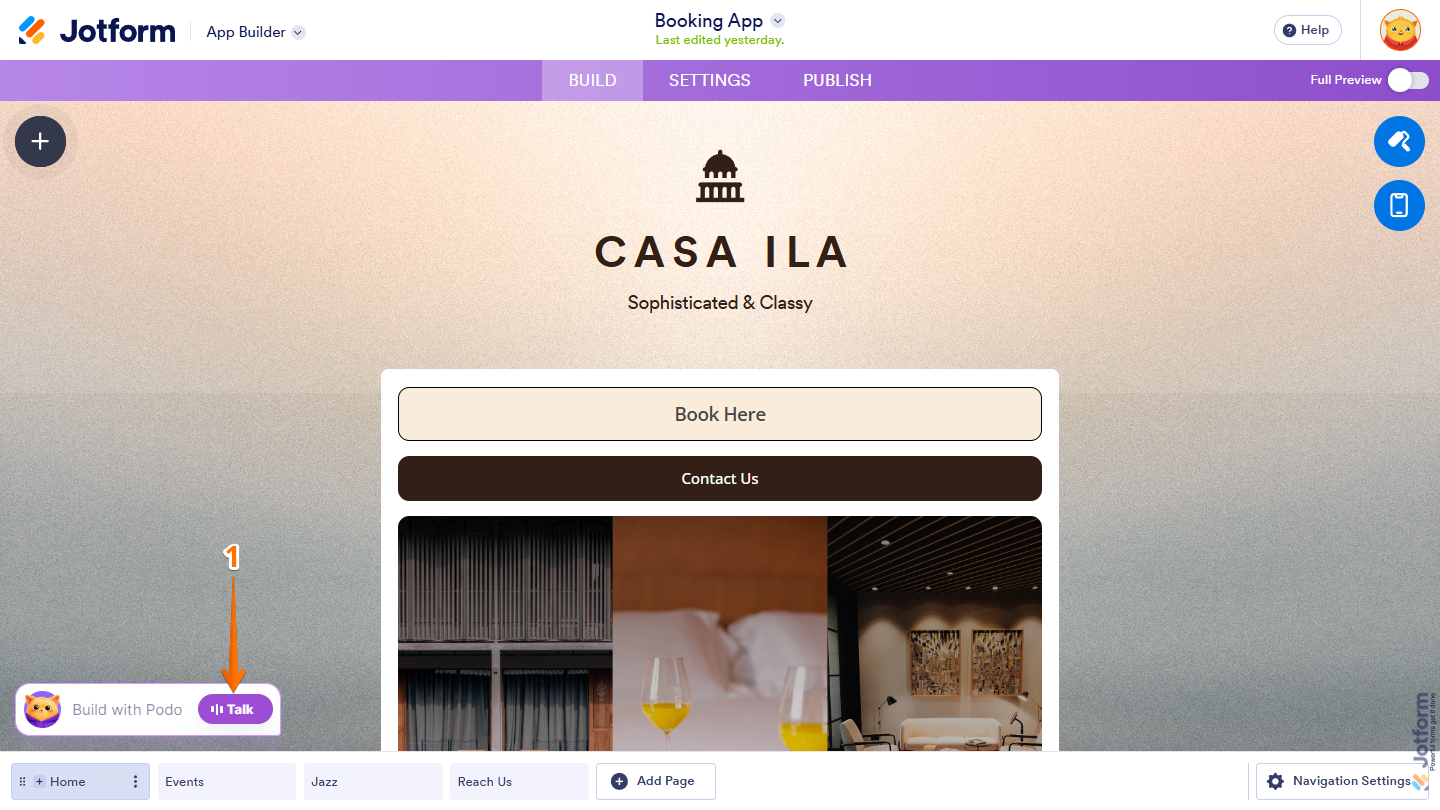
- Then, speak your request for a preview or to share your app. The page may ask for microphone permission, so allow the request to use the voice prompt. Here are direct voice prompts you can use to request a preview or share your app:
- I want to share my app. Can you provide me with the options?
- I want to preview my app. Please open the Preview mode.
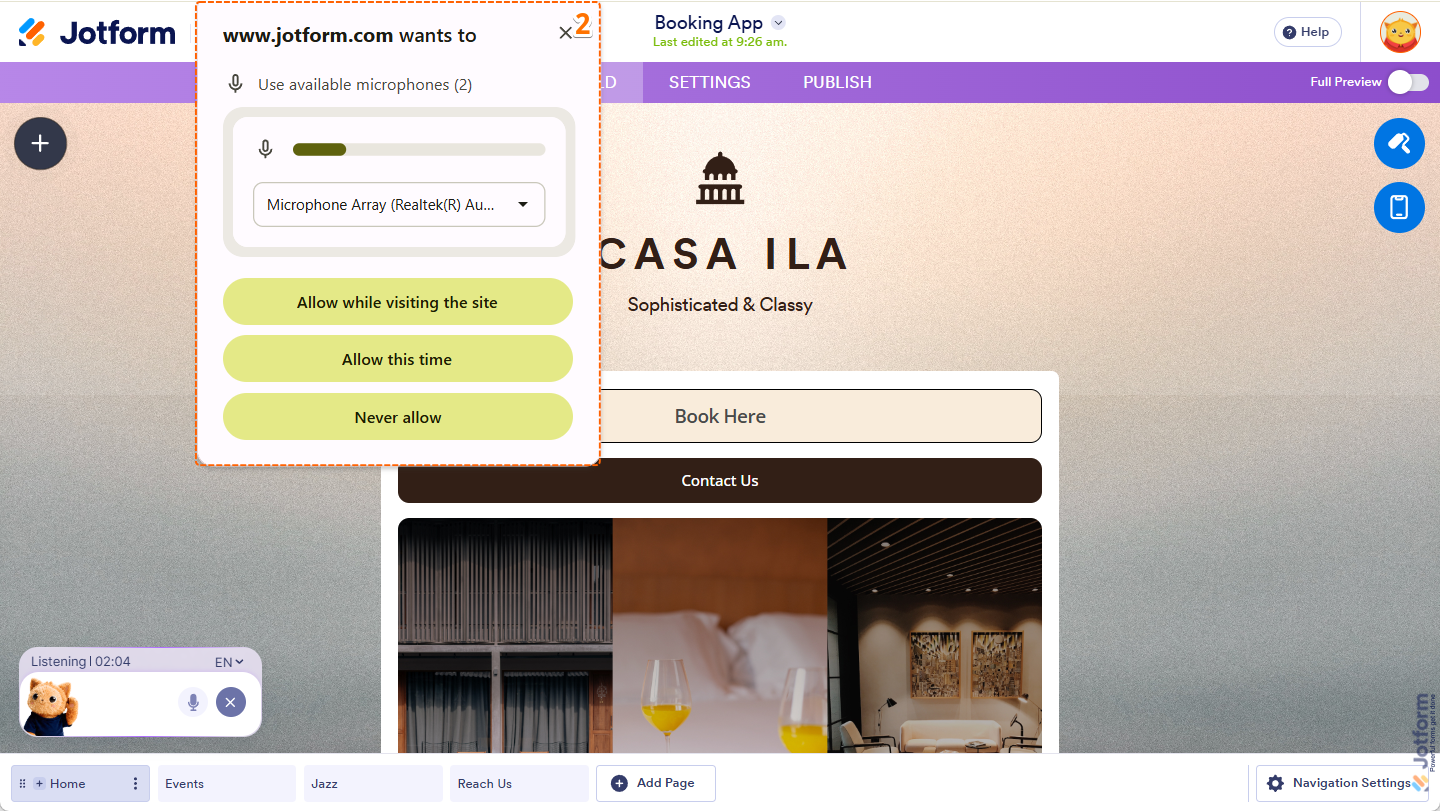
- Now, if you’ve asked Jotform AI to share your app with your users, it will provide you with two buttons:
- Copy Link — Instantly copies your app’s public URL, making it easy to share via email, messaging apps, or social media.
- Open in New Tab — Launches your app in a separate browser tab, allowing you to experience and review it from your users’ perspective.
- If you’ve asked it to preview the app, the Full Preview page will be enabled.
Notes
- The call to Jotform AI starts as soon as you click on Talk. It also ends when the Full Preview is displayed.
- The full transcript of the call can be viewed through the Podo AI menu after clicking the Build with Podo at the bottom-left of the page.
- Live Preview can also be opened manually via the Preview Switcher at the top-right corner, just below your Avatar/Profile Picture.

Send Comment: