
Top 6 visual task management software
Keeping work organized sounds simple in theory, but in practice, it’s one of the biggest challenges modern teams face. Projects involve multiple stakeholders, deadlines overlap, and priorities change quickly. When tasks live in long email threads or static spreadsheets, it’s easy for important details to get lost. This is where visual task management tools make a real difference.
As teams grow and projects become more complex, relying on ad hoc systems quickly leads to missed deadlines and miscommunication. In fact, 82% of companies use work and project management software to drive organizational efficiencies, highlighting how essential structured tools are for keeping teams aligned and working on track. Research from McKinsey also shows that teams using effective collaboration and task management tools can increase productivity by as much as 20–25%, reinforcing the value of clear, visual systems for managing work. Visual task management brings these benefits together by organizing work into clear, easy-to-understand formats that help teams stay focused, spot issues early, and move work forward with confidence.
What is visual task management?
Visual task management is an approach to organizing work that relies on visual layouts rather than text-heavy task lists. Tasks are displayed using boards, tables, charts, or timelines, allowing team members to quickly understand what’s happening and what comes next. This method emphasizes clarity, transparency, and shared ownership across teams.
Compared to traditional task management, visual task management is far more dynamic. Instead of checking items off a static list, tasks move through stages, change status, and update automatically as work progresses. Kanban boards are a classic example, where tasks flow from “To do” to “In progress” to “Done.” Gantt charts are another popular format, showing tasks on a timeline to highlight dependencies and deadlines.
Visual task management is widely used across industries. Marketing teams plan campaigns and content calendars, HR teams track onboarding and approvals, product teams manage backlogs, and operations teams monitor workflows. Any team that benefits from better visibility and accountability can use visual task management to improve how work gets done.
| Tool | Best for | Key features | Pricing |
|---|---|---|---|
 Jotform |
Form-based task management and approval workflows |
|
• Starter plan available (free) • Paid plans available from $34/month |
 Trello |
Simple Kanban boards |
|
|
 Asana |
Cross-team project tracking |
|
|
 ClickUp |
Customizable workflows |
|
|
 monday.com |
Visual project planning |
|
|
 Notion |
Combining task management with documentation |
|
|
Top visual task management software in 2026
Choosing the right visual task management tool depends on how your team works, how complex your processes are, and how much customization you need. Below are six tools that stand out for their visual capabilities, flexibility, and ability to support real-world team workflows.
1. Jotform
Best for: Teams that want flexible, form-driven visual task management
G2 rating: 4.7/5
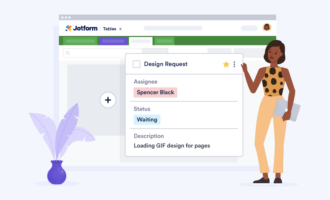
Jotform offers a flexible approach to visual task management by bringing forms, tables, boards, workflows, and reports into one connected system. Instead of manually creating tasks, teams can collect structured information through forms and instantly turn submissions into trackable tasks.
Form submissions automatically appear in Jotform Tables, where each row represents a task and columns track details like status, assignee, priority, and deadlines. Teams can get started quickly using industry-specific templates, such as the Employee Task List Template, without building task systems from scratch.
For teams that prefer a more visual, Kanban-style workflow, Jotform Boards provides a dedicated way to manage tasks as cards that move through customizable columns. Boards make it easy to visualize progress, spot bottlenecks, and understand workload distribution at a glance. Because Boards are directly connected to form submissions and table data, updates made in one view are instantly reflected across all views. This allows teams to switch between structured tables and visual boards without duplicating work or losing context.
For more structured processes, Jotform Workflows visually maps each step in an approval flow for use cases such as onboarding, expense reimbursement, and inventory management. Teams can then use Jotform Report Builder to turn task and workflow data into clear, shareable visual reports for stakeholders.
- Key features:
- Industry-specific form templates to collect and structure task data
- Task assignment, ownership, and deadline tracking
- Jotform Tables for organizing and monitoring tasks visually
- Jotform Boards for Kanban-style task views
- Jotform Workflows to manage approval processes
- Report Builder for creating visual task summaries
- Integrations with tools like Asana, Trello, and ClickUp
- Pros:
- Highly customizable without requiring any coding
- Supports both table-based and board-based task views
- Well suited for structured and approval-driven workflows
- Forms automatically create and update tasks in real time
- Cons:
- Not designed specifically for Agile sprint planning
- May offer more features than needed for very simple task lists
- Pricing:
- Starter (free): includes five forms and 100 monthly submissions
- Bronze ($34 per month): includes 25 forms and 1,000 monthly submissions, and 10,000 form views
- Silver ($39 per month): includes 50 forms, 2,500 monthly submissions and 100,000 form views
- Gold ($99 per month): includes 100 forms, 10,000 monthly submissions and 1,000,000 form views, highest limits outside of Enterprise, plus HIPAA-friendly features
2. Trello
Best for: Small teams that want simple, Kanban-style visual task tracking
G2 rating: 4.4/5
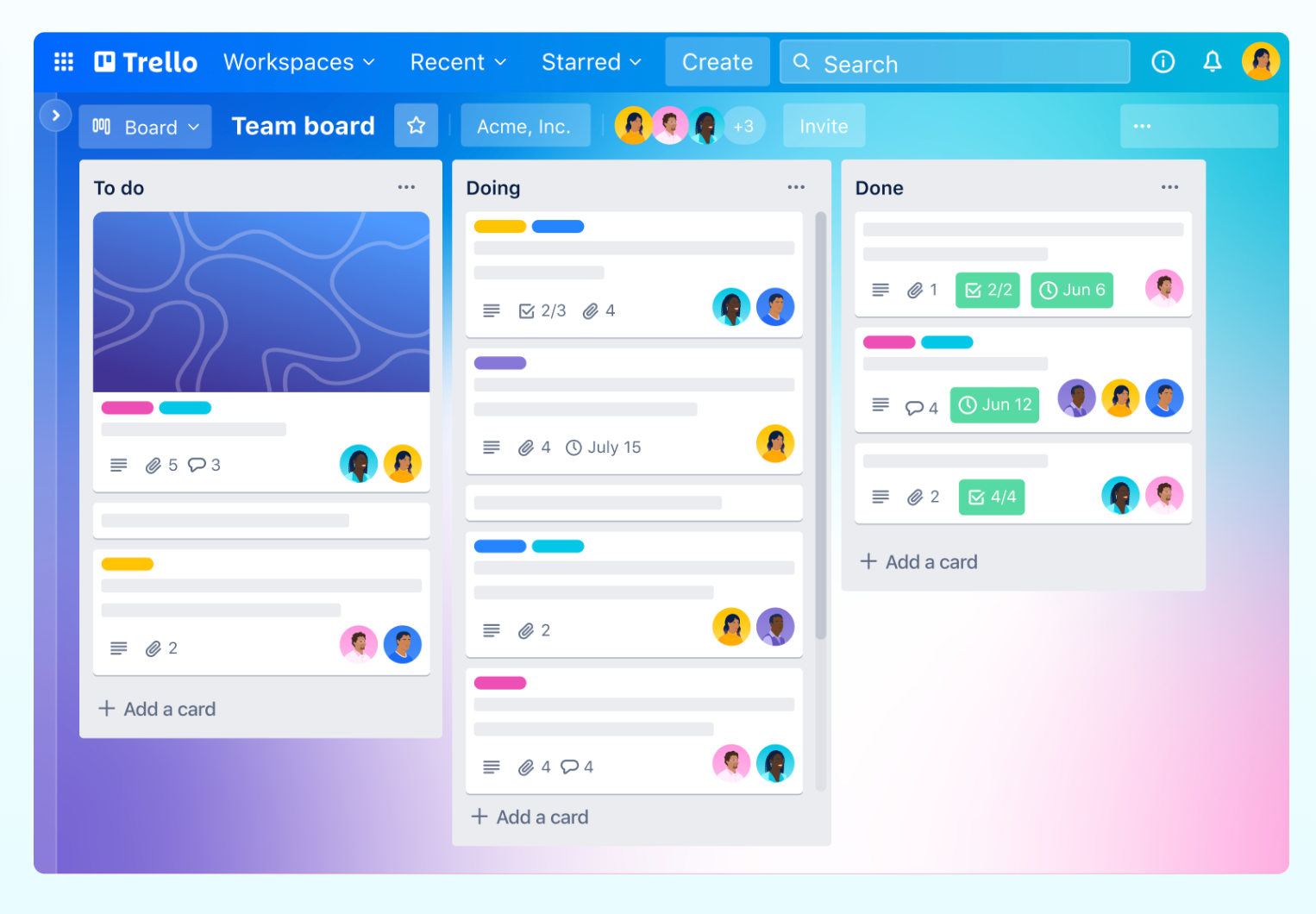
Trello is one of the most recognizable tools in visual task management, largely because of its simplicity. It uses Kanban-style boards made up of lists and cards, making it easy for teams to see what’s being worked on and what’s coming next. Tasks move visually from one column to another, which helps teams track progress without needing complex setup or training.
Because of its straightforward design, Trello works well for teams that want a lightweight visual system for organizing work. Marketing teams often use it for content pipelines, product teams for simple backlogs, and small teams for day-to-day task tracking. While Trello doesn’t offer deep reporting or advanced dependencies, its visual clarity makes it an accessible entry point into visual task management.
- Key features:
- Drag-and-drop Kanban boards
- Task cards with checklists, due dates, and tags
- Custom labels and color coding
- Power-Ups for integrations and workflow add-ons
- Pros:
- Extremely easy to set up and use
- Excellent for visual task tracking with minimal configuration
- Free plan supports unlimited cards and users
- Strong integrations via Power-Ups
- Cons:
- Limited native reporting or timeline views
- Not ideal for complex dependencies or large teams
- Pricing:
- Free: Unlimited cards or lists, 10 boards per team, unlimited Power-Ups
- Standard ($5 per user per month): Unlimited boards, advanced checklists, custom fields
- Premium ($10 per user per month): Atlassian intelligence, multiple project views, more security features
- Enterprise ($17.50 per user per month): Unlimited workspaces, organization-wide permissions, multi-board guests
Pro Tip
For a quick way to compare Trello-style platforms, browse our Trello alternatives roundup and shortlist tools that match how your team works.
3. Asana
Best for: Teams managing cross-functional projects with dependencies and timelines
G2 rating: 4.4/5
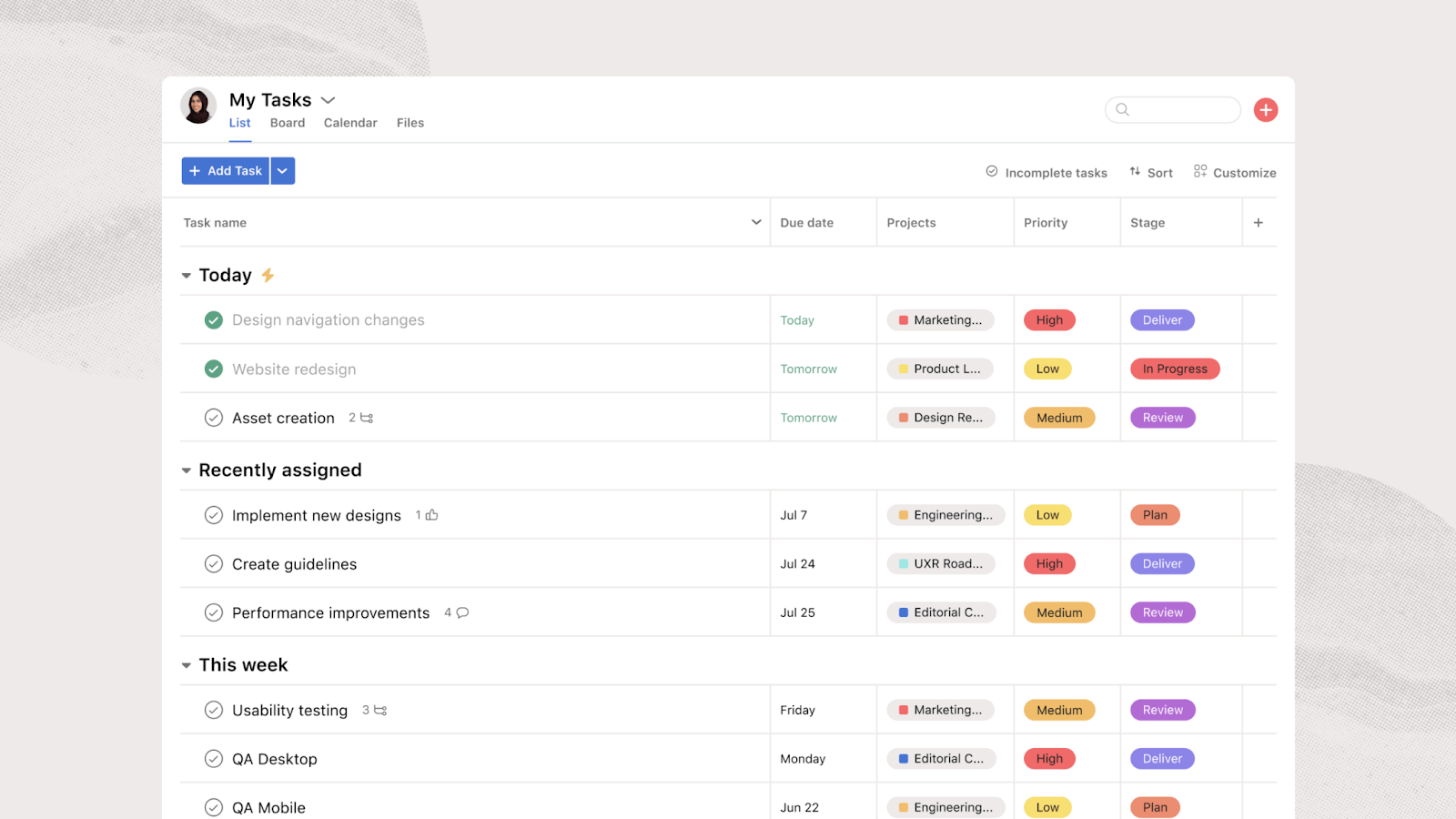
Asana is built for teams that need both structure and flexibility in how they visualize work. It allows users to switch between list views, Kanban boards, timelines, and calendars, depending on how they prefer to track tasks. As a result, teams can manage work across departments more easily while staying aligned on goals and deadlines.
When it comes to visual task management, Asana is especially effective for interconnected work. Features like dependencies, milestones, and timelines help teams understand how tasks relate to one another, not just what needs to be completed. For cross-functional projects, this level of visibility makes it easier to track progress, identify blockers early, and keep work moving forward.
- Key features:
- Boards, lists, timeline (Gantt) views
- Task dependencies and milestones
- Subtasks and custom fields
- Collaboration features like comments and attachments
- Pros:
- Multiple visual views for tasks and projects
- Strong collaboration and progress visualization
- Automation rules to reduce repetitive work
- Scales well for mid-size to large teams
- Cons:
- Can feel complex for beginners
- Advanced features are gated behind higher plans
- Pricing:
- Personal (free): Collaborate with 10 teammates, unlimited tasks, unlimited projects
- Starter ($10.99 per user per month): Up to 500 teammates, timeline view, Asana AI
- Advanced ($24.99 per user per month): Portfolios, goals, time tracking, workload planning
- Enterprise (Contact sales for pricing): 24/7 support, custom branding, resource management
Pro Tip
Comparing a few Asana-style tools for your workflow? Our Asana alternatives guide helps you narrow the list.
4. ClickUp
Best for: Teams that need highly customizable visual workflows and multiple task views
G2 rating: 4.7/5
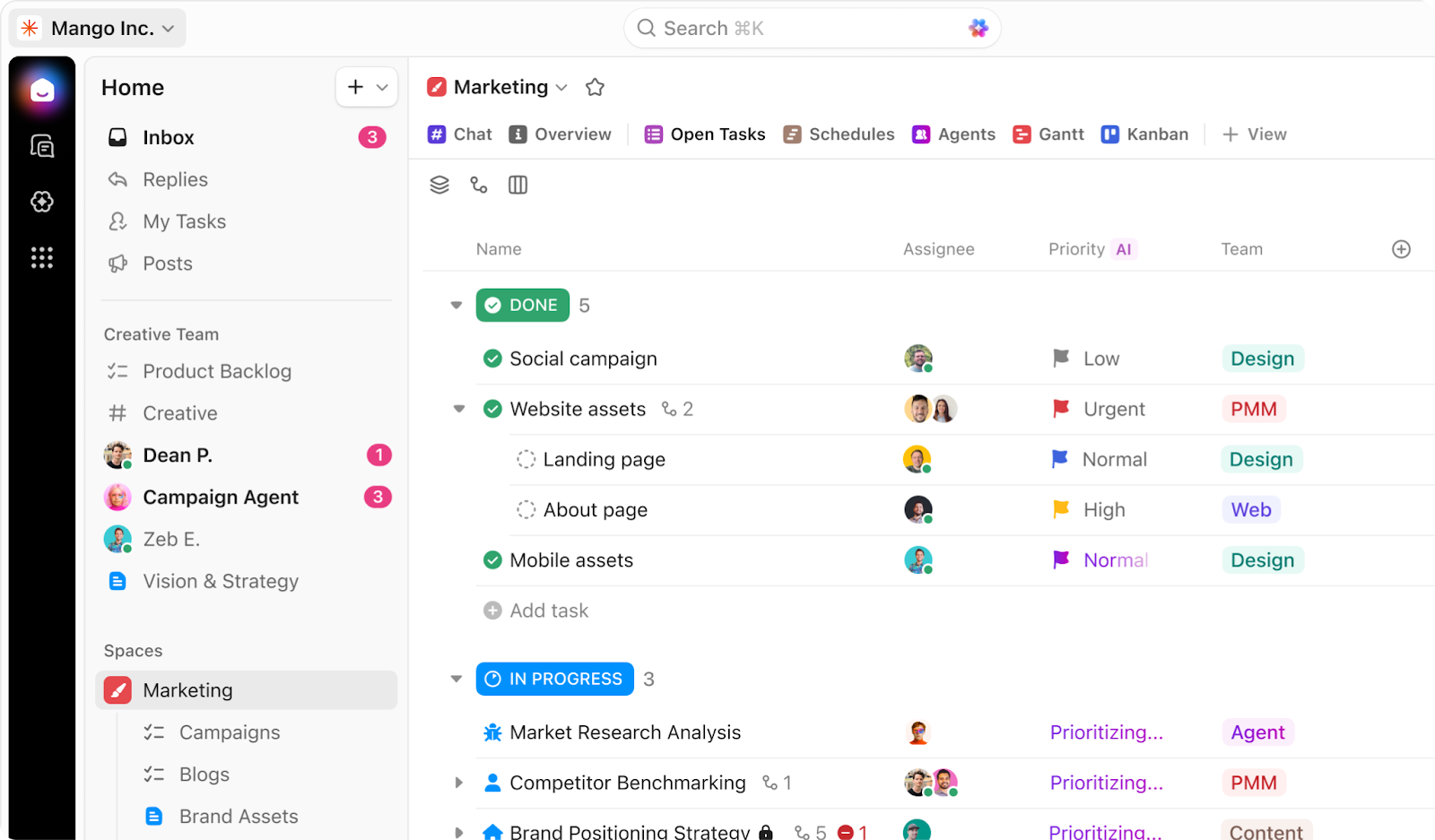
ClickUp positions itself as an all-in-one platform for visual task management, offering nearly every task view imaginable. Teams can organize tasks using boards, lists, calendars, Gantt charts, or timelines, all within the same workspace. Multiple viewing options make it easier for different teams to visualize the same work in ways that suit their roles.
Because ClickUp is highly customizable, it works well for teams with unique or evolving workflows. Custom fields, statuses, and automations let teams design task systems that match how they actually work. However, this flexibility also means teams need to invest time upfront to configure their setup, especially if they want to get the most out of its visual capabilities.
- Key features:
- Multiple views: List, Board, Gantt, Calendar, Timeline
- Custom statuses and fields
- Automation and dashboards
- Integrations with key productivity tools
- Pros:
- Extremely customizable to suit many workflows
- Supports many visual formats for tasks
- Includes time tracking and goals
- Broad integration ecosystem
- Cons:
- Interface can feel overwhelming for new users
- Some features have a learning curve
- Pricing:
- Free Forever: Unlimited tasks, one form, unlimited free plan members, core features
- Unlimited ($7 per user per month): Native time tracking, Gantt, unlimited integrations, guests with permissions
- Business ($12 per user per month): Timeline views, timesheets, advanced automation and dashboard features
- Enterprise (Get a custom demo for pricing): White labelling, subtasks in multiple lists, unlimited posts
Pro Tip
Looking for a ClickUp alternative? Check out our roundup of the best alternatives to ClickUp.
5. Monday.com
Best for: Teams that want visually driven project planning with built-in automation
G2 rating: 4.7/5
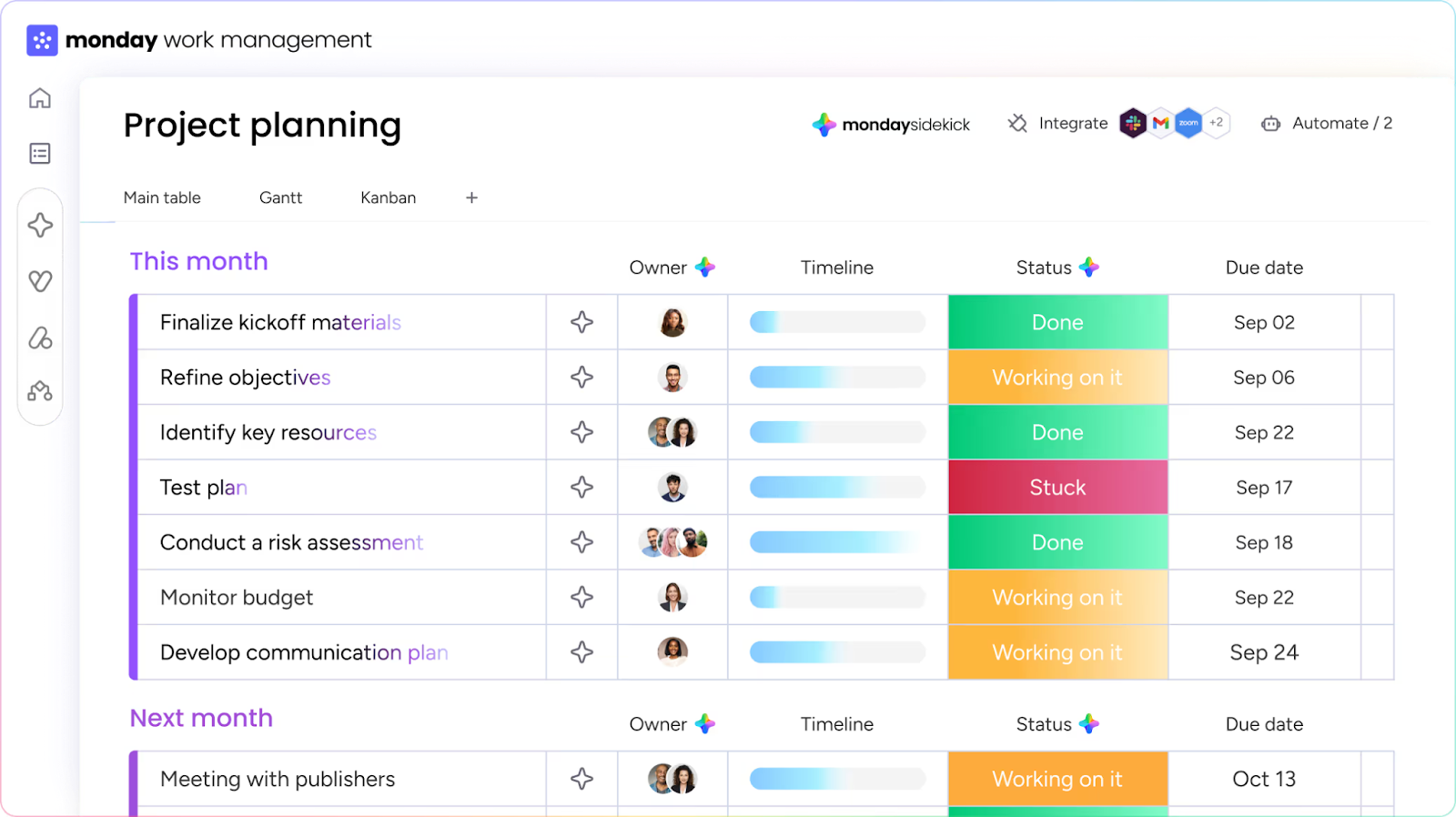
Monday.com is designed around visual clarity and structured workflows. Its colorful boards use status columns, timelines, and visual indicators to show progress at a glance. Each board can represent a project, department, or workflow, making it easy for teams to organize work visually without losing context.
For visual task management, Monday.com balances aesthetics with functionality. Automations reduce manual updates, while dashboards give managers a high-level view of progress across multiple boards. Together, these features make the platform especially appealing to teams that want visual planning tools combined with reporting and operational oversight.
- Key features:
- Custom boards and columns
- Timeline and calendar views
- Automations and workflow templates
- Dashboards and visual reports
- Pros:
- Visually rich, flexible dashboard
- Strong automation capabilities
- Good for cross-team planning and execution
- Many views to match different workflows
- Cons:
- Some advanced features reserved for higher pricing tiers
- Can be pricey for large teams
- Pricing:
- Free: Up to two users, three boards, unlimited docs, 200-plus templates
- Standard ($12 per user per month): Unlimited free viewers, items, and AI capabilities
- Pro ($19 per user per month): Private boards, chart view, time tracking, 25,000 automations
- Enterprise (Contact sales): Portfolio and resource management, enterprise-scale automations
6. Notion
Best for: Combining visual task management with documentation and team knowledge
G2 rating: 4.6/5
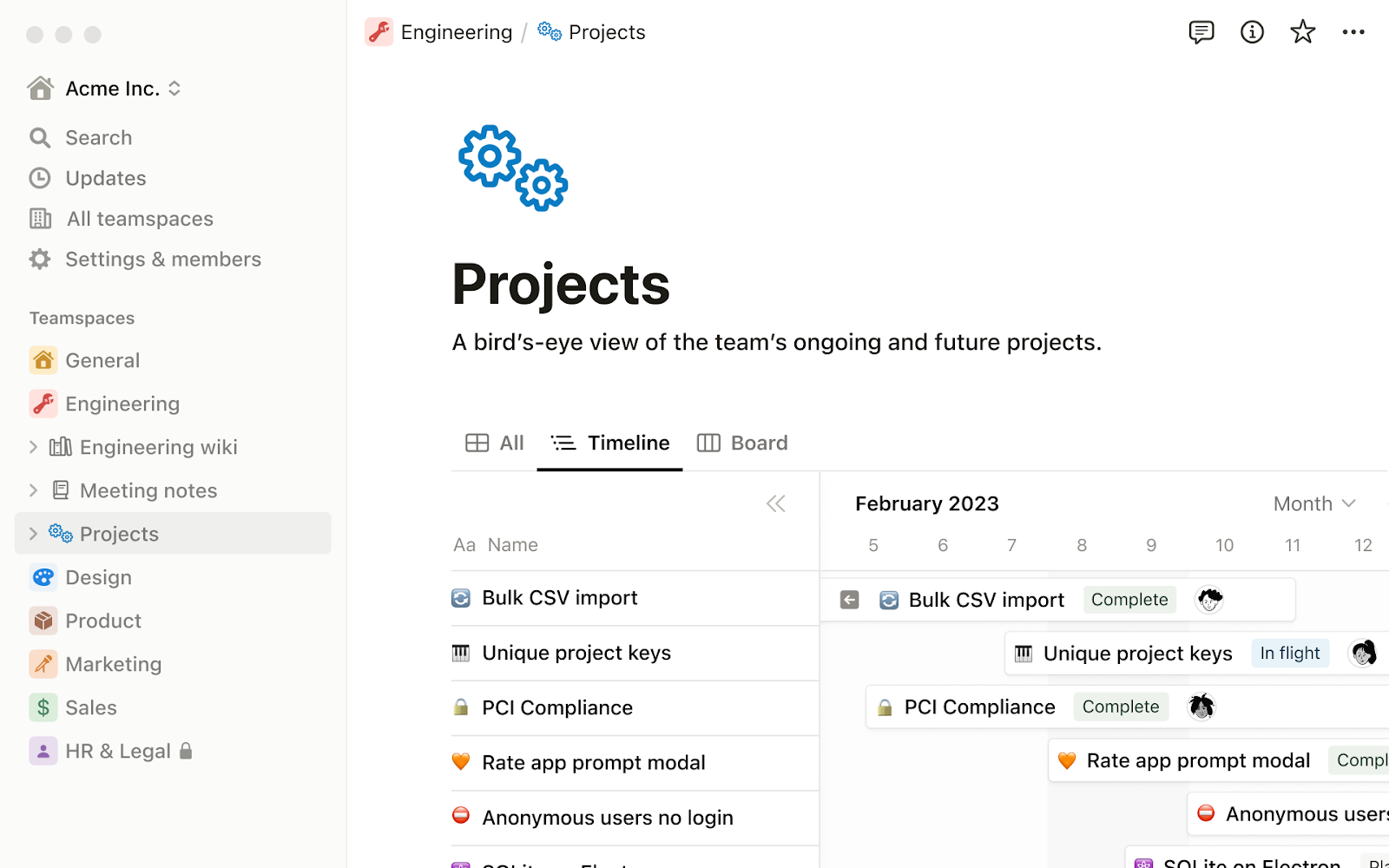
Notion takes a more flexible, build-your-own approach to visual task management. Instead of predefined workflows, it allows teams to create custom boards, tables, and databases that fit their specific needs. Tasks can live alongside documentation, notes, and wikis, making Notion popular with teams that want everything in one place.
From a visual task management perspective, Notion works best for teams willing to design their own systems. Boards and tables can be customized extensively, but they don’t come with built-in task automation or rigid workflows. As a result, Notion is ideal for knowledge-heavy teams that value flexibility and context over strict process enforcement.
- Key features:
- Boards and table views
- Custom templates and databases
- Linked pages and task tracking
- Shared workspace content
- Pros:
- Combines documentation and task tracking in one place
- Highly customizable with templates
- Great for creative and knowledge work teams
- Cons:
- No built-in automation for task workflows
- Requires setup and organization to get the most value
- Pricing:
- Free: Individual use with basic pages, boards, and limited collaboration features
- Plus ($10 per seat per month): Unlimited blocks, file uploads, and expanded sharing for small teams
- Business ($20 per seat per month): Advanced permissions, team spaces, SAML SSO, and admin tools for growing organizations
- Enterprise (Contact sales): Enterprise-grade security, compliance controls, advanced permissions, and dedicated support
Bringing clarity to team work
Visual task management plays a key role in helping teams stay aligned, organized, and productive. When tasks are easy to see and understand, teams can prioritize work more effectively, identify bottlenecks earlier, and maintain clear ownership across projects. This visibility supports stronger day-to-day execution and better long-term planning, especially for teams looking to improve their overall task management tips strategy.
Many teams also pair visual task management with task automation to reduce manual updates and repetitive work. Automated approvals, notifications, and status changes help work move forward without constant follow-ups, allowing teams to focus on meaningful outcomes instead of administrative tasks. Whether you’re managing a simple Kanban board, a table-based task list, or an approval-driven workflow, the right visual system can make a measurable difference. Exploring flexible solutions like Jotform can help you build an online task manager tool that fits your needs today and scales as your processes evolve.
FAQs about visual task management
The 1/3/5 rule suggests planning your day with 1 large task, 3 medium tasks, and 5 small tasks to stay focused and avoid overloading your schedule.
Jotform is well suited for visual task management because it combines forms, tables, boards, and workflows in one platform, allowing teams to turn submissions into tasks and manage them visually through tables, Kanban-style boards, and approval flows.
A common example of visual management is a Kanban board, where tasks move through columns like “To do,” “In progress,” and “Done” to show progress visually.
This article is for team leaders, project managers, operations teams, marketers, and growing organizations who want to use visual task management tools to better organize work, improve visibility, and keep projects on track as team complexity increases.


























Send Comment: