
Adding clickable links in PDFs gives documents an instant upgrade. Without links, a PDF is for viewing only. When you add links, it becomes an interactive document that encourages engagement. You no longer have to rely on viewers remembering where you want them to go on the web — you can simply lead them there in the moment. (Need a refresher on the basics of PDFs? Read our article, What is a PDF?)
There are plenty of simple design tools for PDFs that won’t necessitate you becoming a web designer to use, but here we’ll focus on Canva, one of the best thanks to its user-friendliness and low cost.
Let’s start with the obvious question: Can you add clickable links in Canva PDFs?
Can you add clickable links in Canva PDFs?
Yes, you can! This feature has been available for several years and is fully functional.
Canva allows you to add a clickable link to text, images, videos, and other elements within a PDF, as long as it is not downloaded as a flattened PDF (which condenses multiple layers into one and so removes the interactive element).
One note to be aware of: Links will not work for PDFs posted in social media channels. They only work when the PDF is downloaded or shared as a link.
Pro Tip
Guide visitors to the right next step by embedding Jotform AI Chatbot for Canva into your designs, helping them move from browsing to action effortlessly.
Step-by-step guide to adding clickable links in Canva PDFs
The process for adding clickable links is simple — just like it is for most Canva features! Start by logging into your account. Then follow these steps to create your document and add a clickable link:
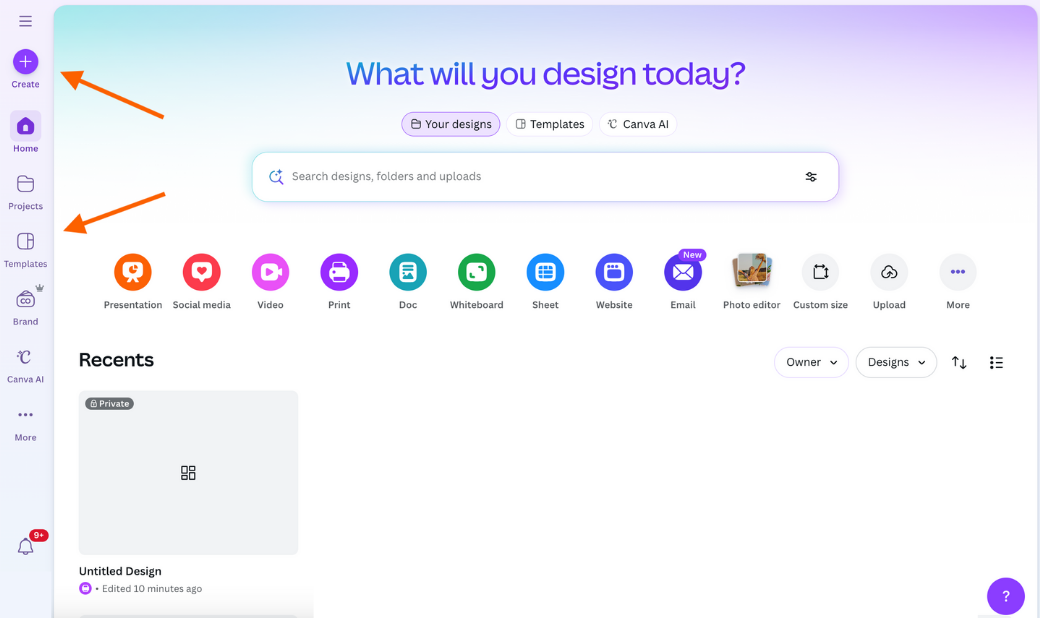
- Access the Canva editor. To do this, create a new document by either clicking the Template icon or Create (the plus sign) in the menu at the left.
If you decide to start with a template, browse your options using the search bar. Alternatively, if you decide to create one from scratch, choose a design type from the list and click one from the options presented.
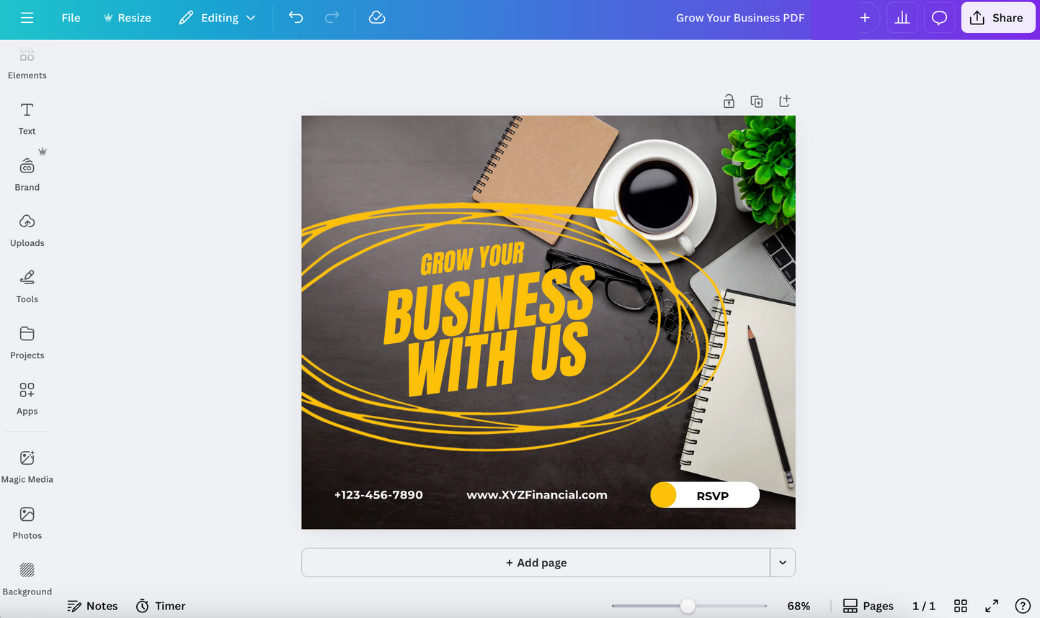
- Add text or elements to create your design, including the element(s) you want to hyperlink.
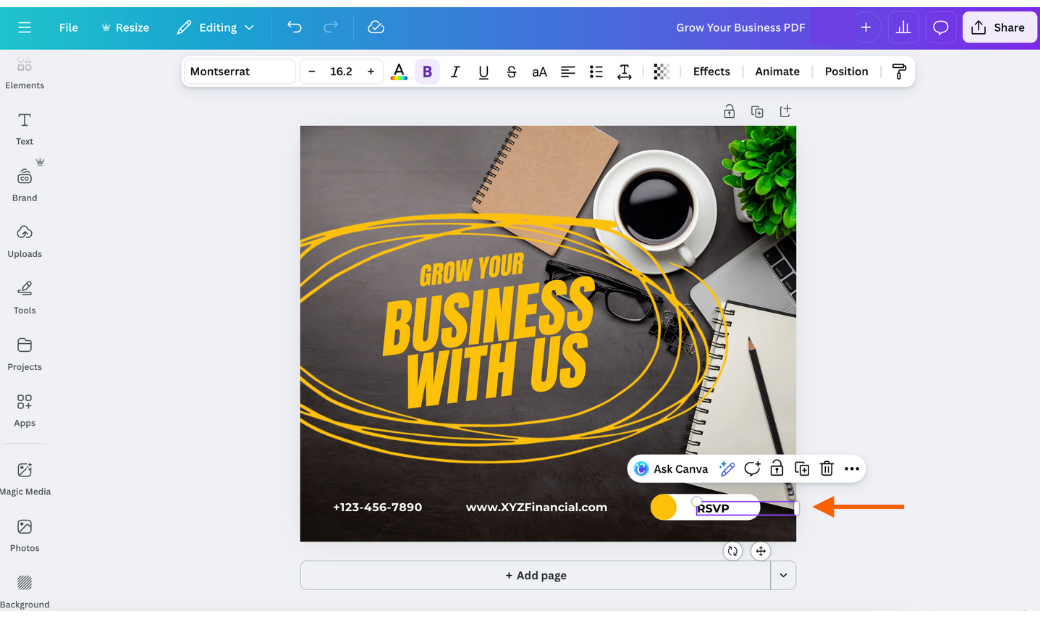
- Select the element you want to make clickable.
A helpful Canva tip
Use call-to-action phrases like “RSVP” or “Sign Up” on your PDF rather than writing out URLs. It looks cleaner and encourages action on the part of the reader.
- Click the ellipses (three dots), and then Link.
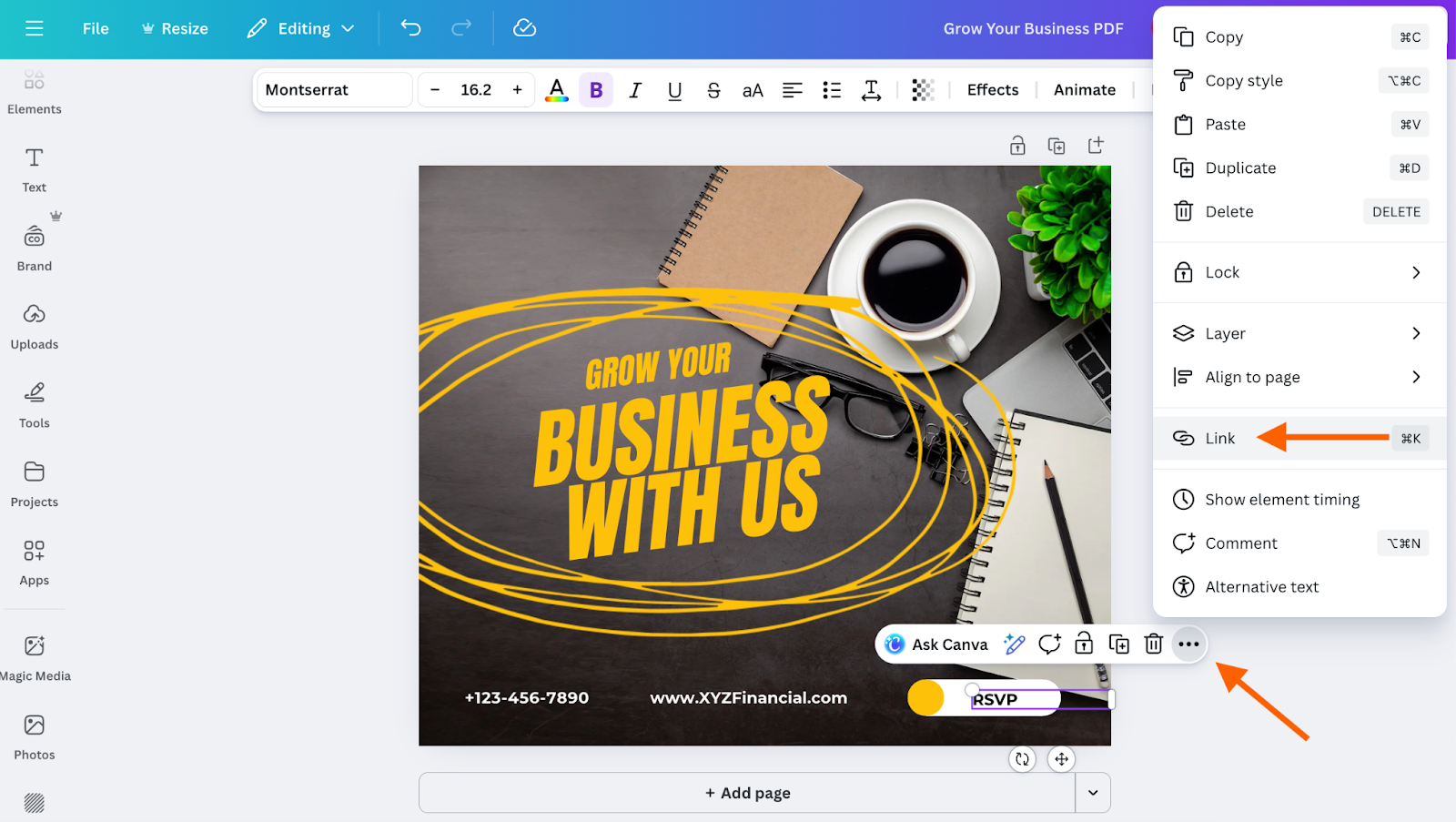
- In the Link dialog box, enter the URL the link should go to, including the “https://” portion. If you’d like to link to an email address, enter the email address with “mailto:” in front of it.
Set the Display mode to “Link” to keep the visual as is.
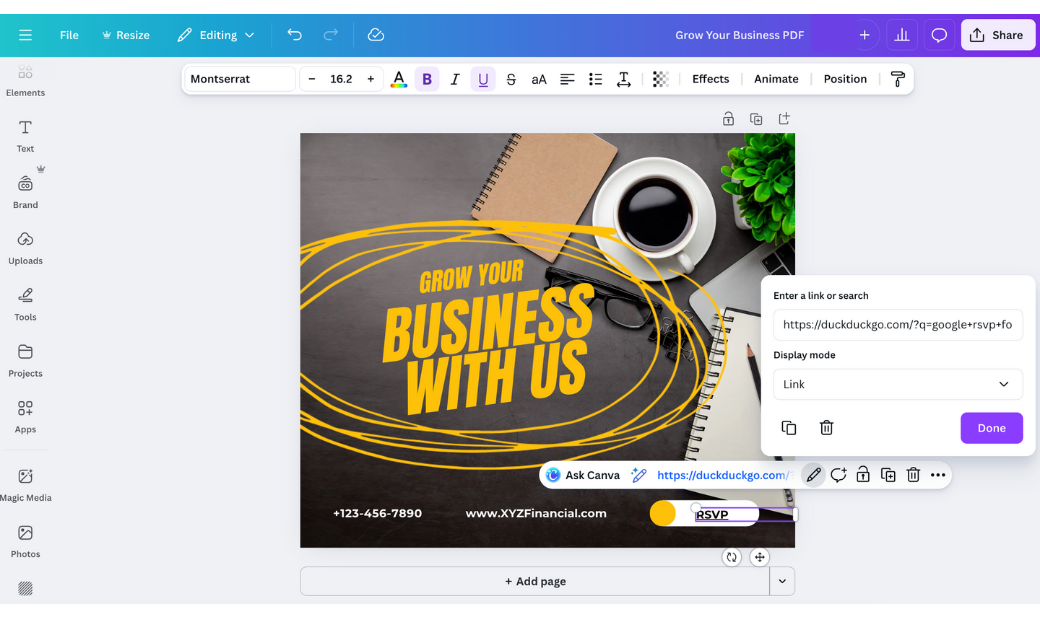
- Test the link by clicking on the linked element and the URL that pops up in blue.
- If the link works as intended, you’re ready to download your design. To ensure your PDF maintains the clickable link(s), click Share at the top right, then Download.
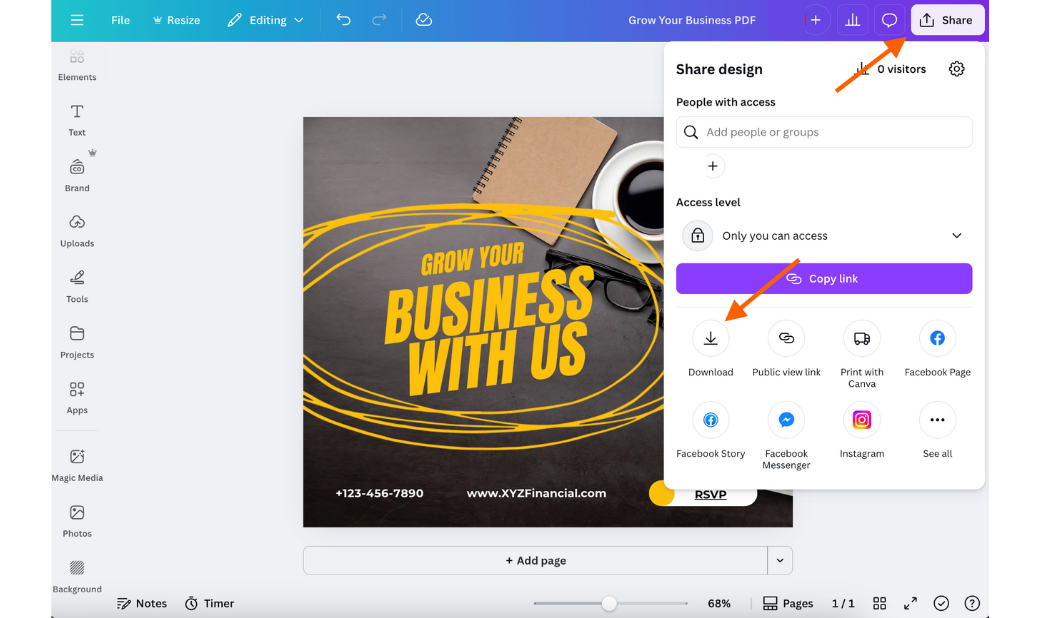
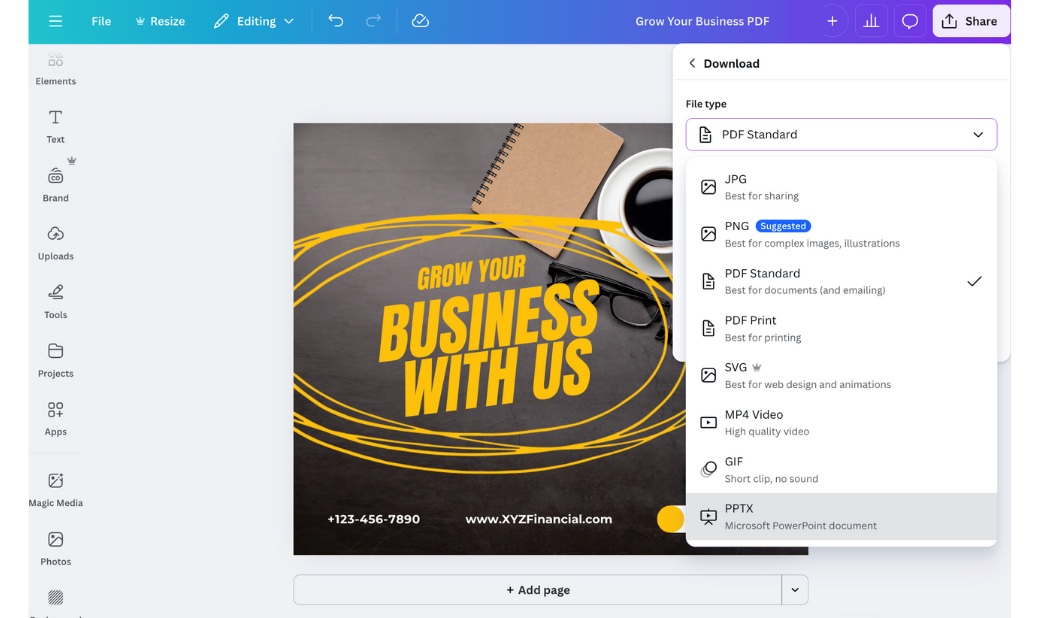
- In the dropdown box, click the file type “PDF Standard.” Then click Download.
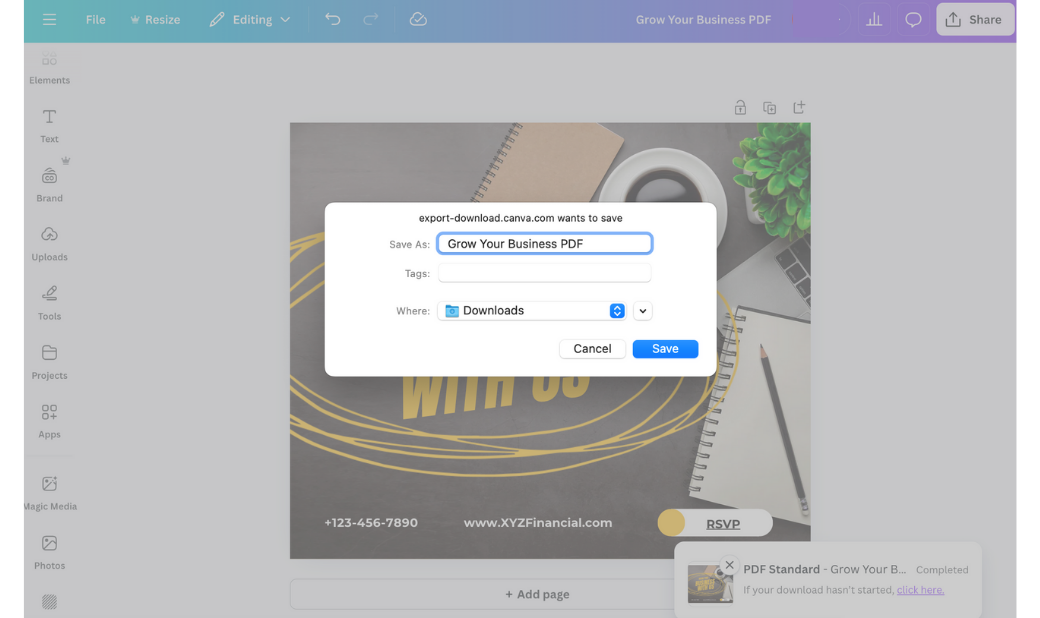
- When prompted, give your PDF a name, indicate where to save it on your computer, and click Save.
That’s it! You can now share your PDF — display it on your website, send it via email, or make it visible some other way.
Just remember: The link won’t work on social media sites. You can still post your PDF but it won’t be interactive.
Make your designed PDFs even more engaging with Jotform for Canva
If you love creating attractive designs in Canva and you also have an occasional need for forms — whether it be payment forms, contact forms, surveys, order forms, or anything else — check out Jotform for Canva. Combining the two makes form creation effortless and your PDFs even more useful!
Jotform integrates seamlessly with the online design tool, allowing you to add a form to Canva designs and websites. No need to switch between platforms. You can build your form right inside Canva to match the aesthetic of your PDF and embed it in seconds.
Using Jotform for Canva gives you access to all of Jotform’s advanced features such as e-signatures; payment processing through PayPal, Stripe, or Square; automated workflows; and conditional logic. Plus, you can get rolling quickly with one of Jotform’s 20,000+ pre-designed form templates.
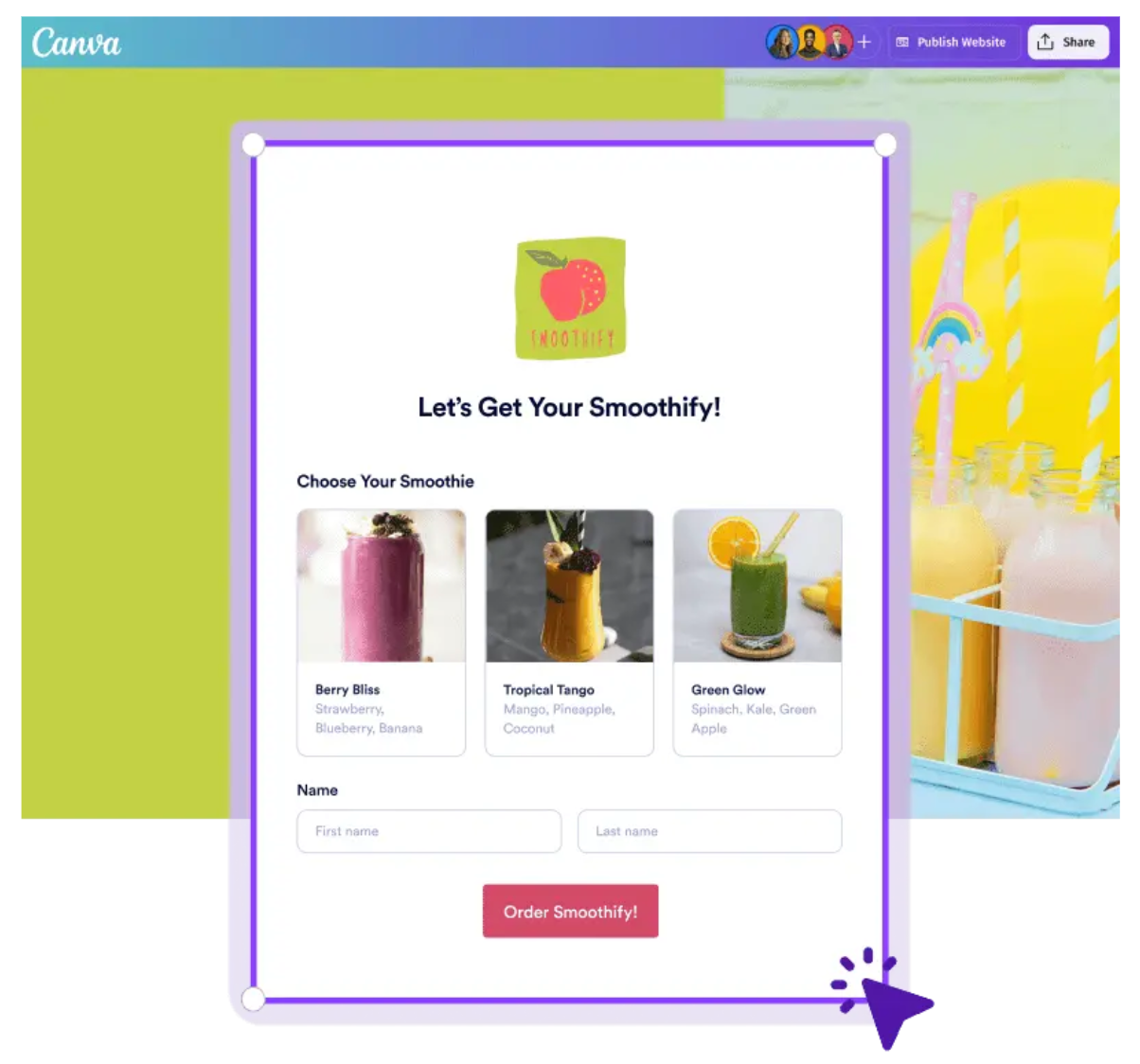
An added benefit is Jotform PDF Editor, which not only allows you to edit PDFs but also to create customized PDF documents from form responses. Imagine turning RSVP form submissions into event tickets or inspection forms into formal reports instantly, and then easily printing, sharing, and storing the PDFs.
Jotform PDF Editor also comes with a number of perks, like automation, custom designs, collaboration features, and thousands of ready-made PDF templates.
If you work with PDFs frequently, these other Jotform PDF Tools may also come in handy:
- Split PDF—Turn large PDFs into more manageable documents by splitting them into two or more files.
- Merge PDF—Merge multiple PDFs into a single, easily accessible file.
- AI PDF Summarizer—Save time by generating instant AI summaries of PDFs.
- Compress PDF—Reduce PDF file sizes without losing quality in just a few clicks.
- Chat with PDF—Improve your understanding of the content of your PDFs by interacting with an AI-powered chat tool.
- Flatten PDF—Merge multiple PDF layers to secure documents and maintain consistent formatting across devices.
Do more with your PDFs
PDFs can be more than just static documents. With the right tools, you can make them infinitely more useful, leading your audience to action. Whether you’re working in Canva alone or using Jotform for Canva, you have everything you need at your fingertips to start creating attractive PDFs that deliver results.
This article is for designers, marketers, small business owners, educators, and anyone who uses Canva to create PDFs and wants to add clickable links to make documents more interactive, engaging, and action-driven.































Send Comment: