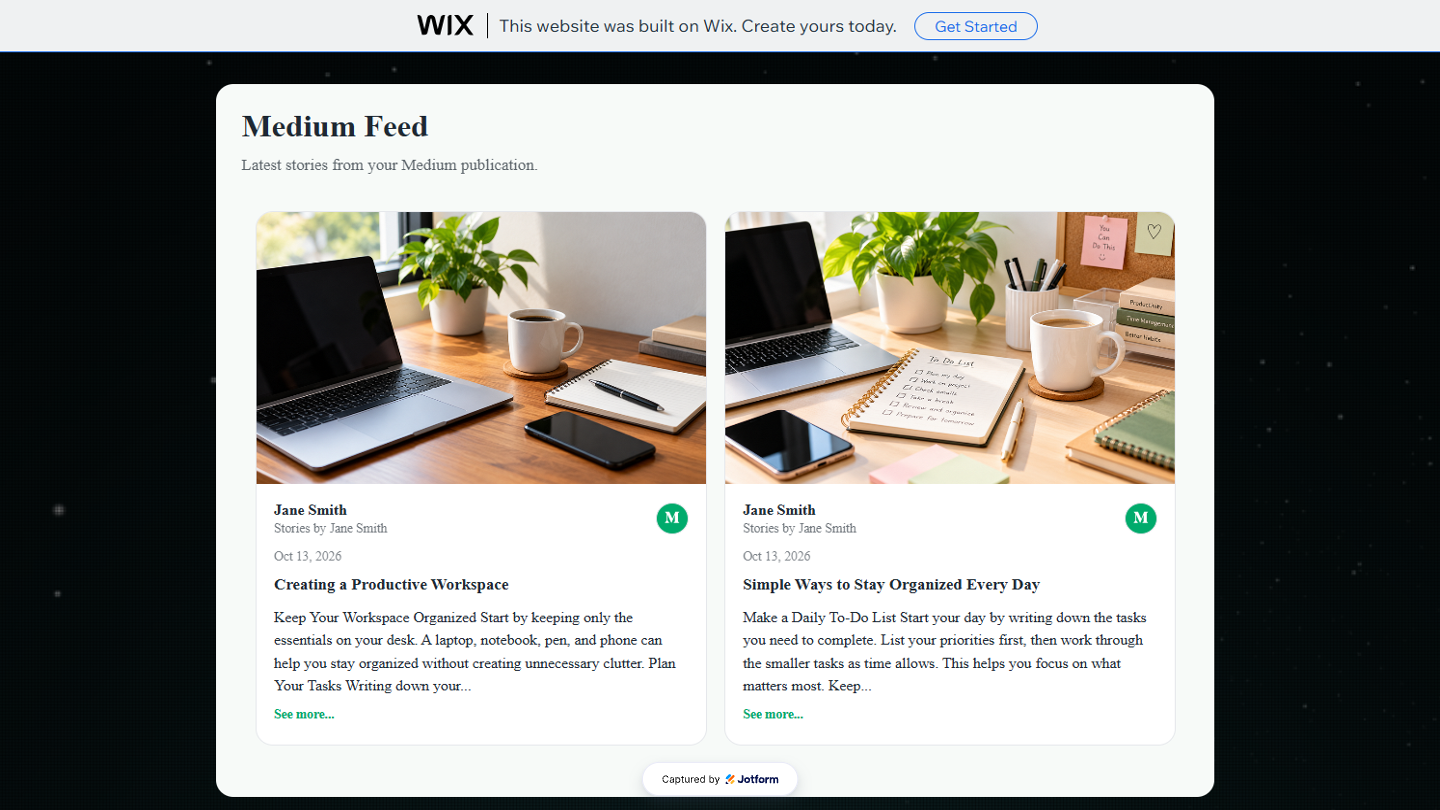
With Jotform’s Medium Feed Widget, you can display articles from your Medium profile or publication directly on your website. Connect your Medium URL, customize the layout to match your site’s design, and embed the widget in just a few steps.
It’s a simple way to showcase your writing, keep your site updated with fresh content, and help visitors discover your work without leaving the page.
Pro Tips
- Display featured images and article excerpts to make your feed more engaging and encourage visitors to explore your content.
- Set a reasonable Post Limit so your page loads quickly while still showcasing enough of your latest content
Before you can add the Medium Feed Widget to your website, you’ll first need to connect your Medium profile or publication, customize the widget, and copy the embed code for it. This is how it’s done:
- On the top-left side of your Workspace page, click on Create.
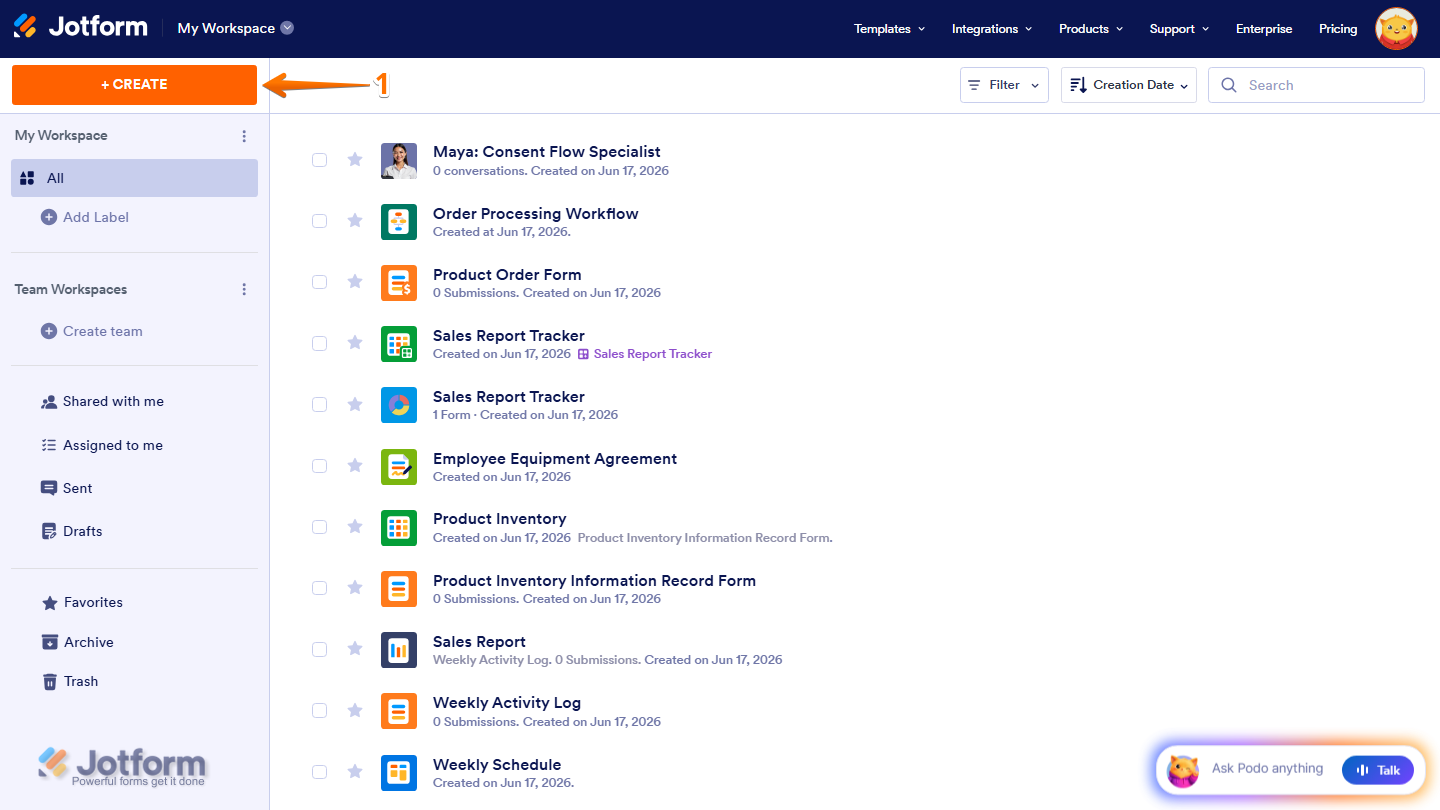
- Then, in the menu that opens up, select Website Widget.
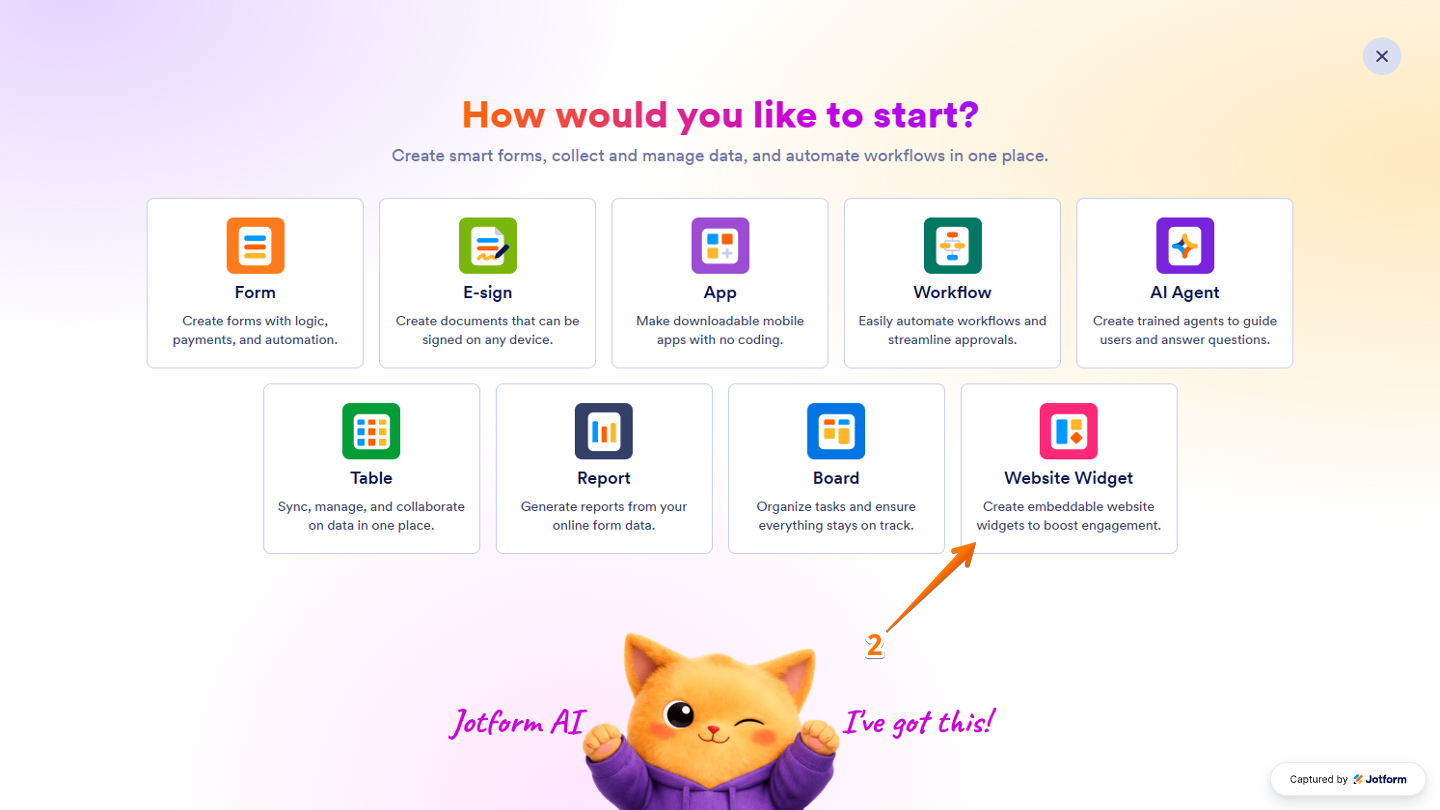
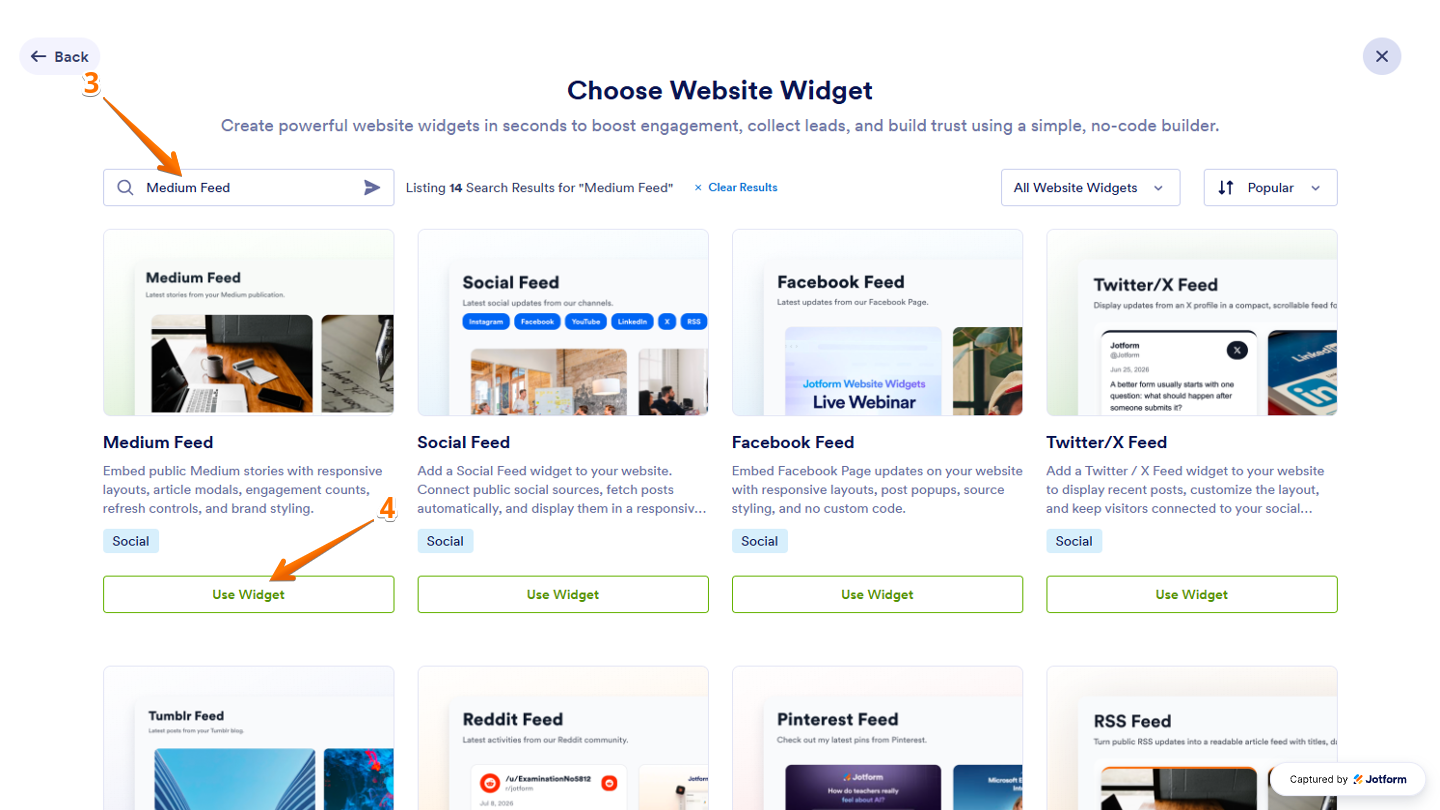
- Next, in the Search bar in the upper-left corner of the Choose Website Widget window, enter Medium Feed.
- Now, at the bottom of the search results, click on Use Widget.
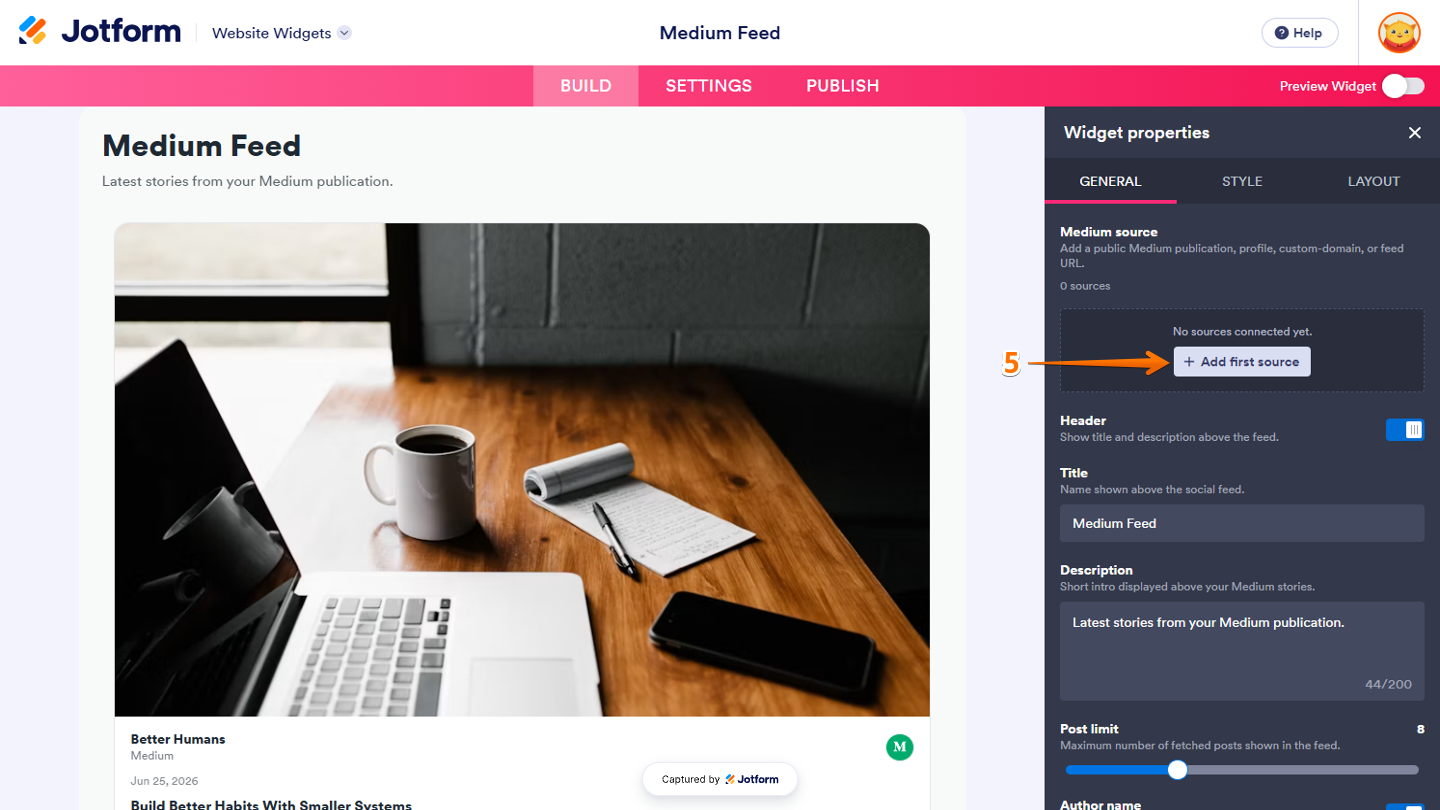
- Then, in the Widget Properties menu that opens on the right side of Website Widgets, click on Add First Source in the Medium Source section.
- Next, in the Add Source menu, enter the RSS (Really Simple Syndication) feed URL in the Source field.
- Now, click on Connect.
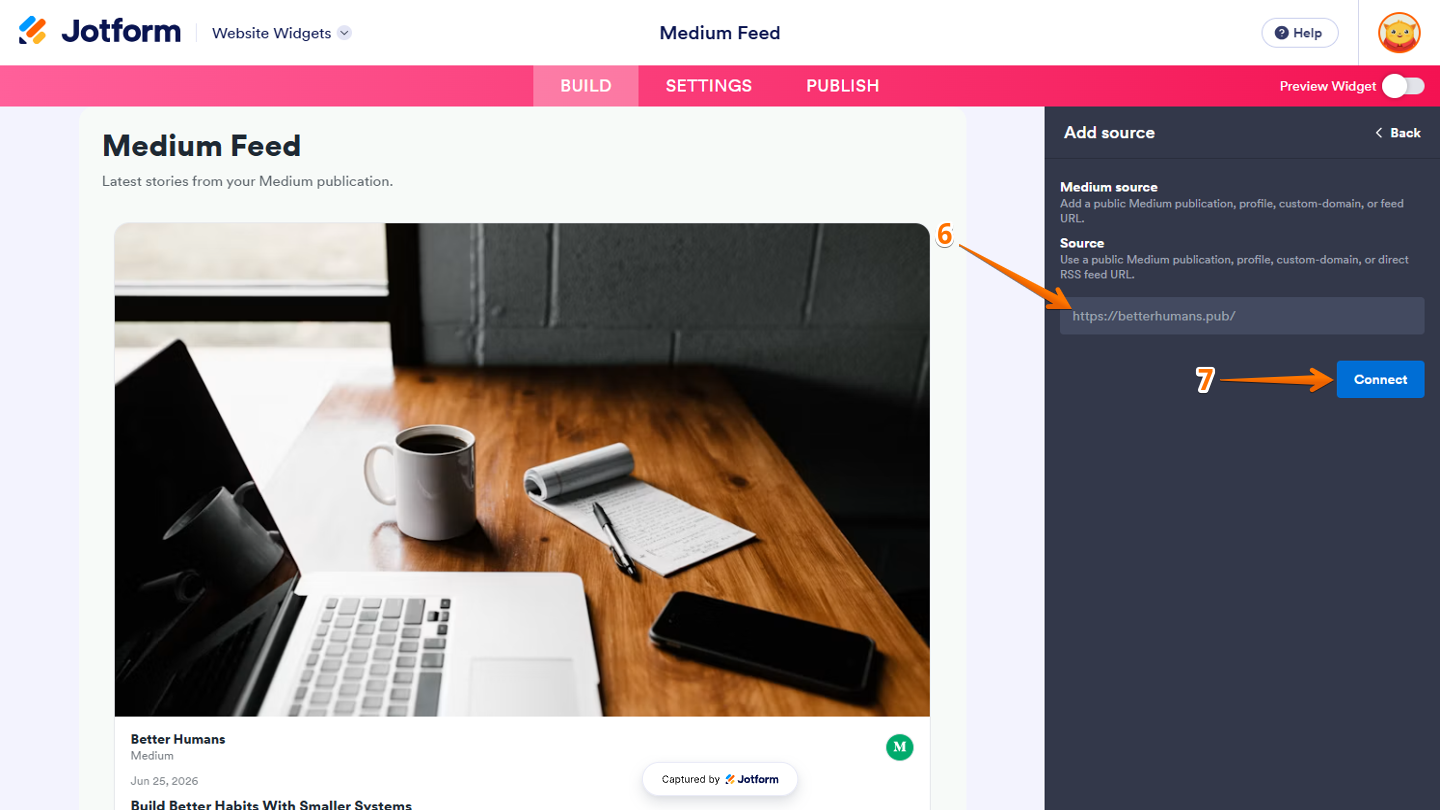
Note
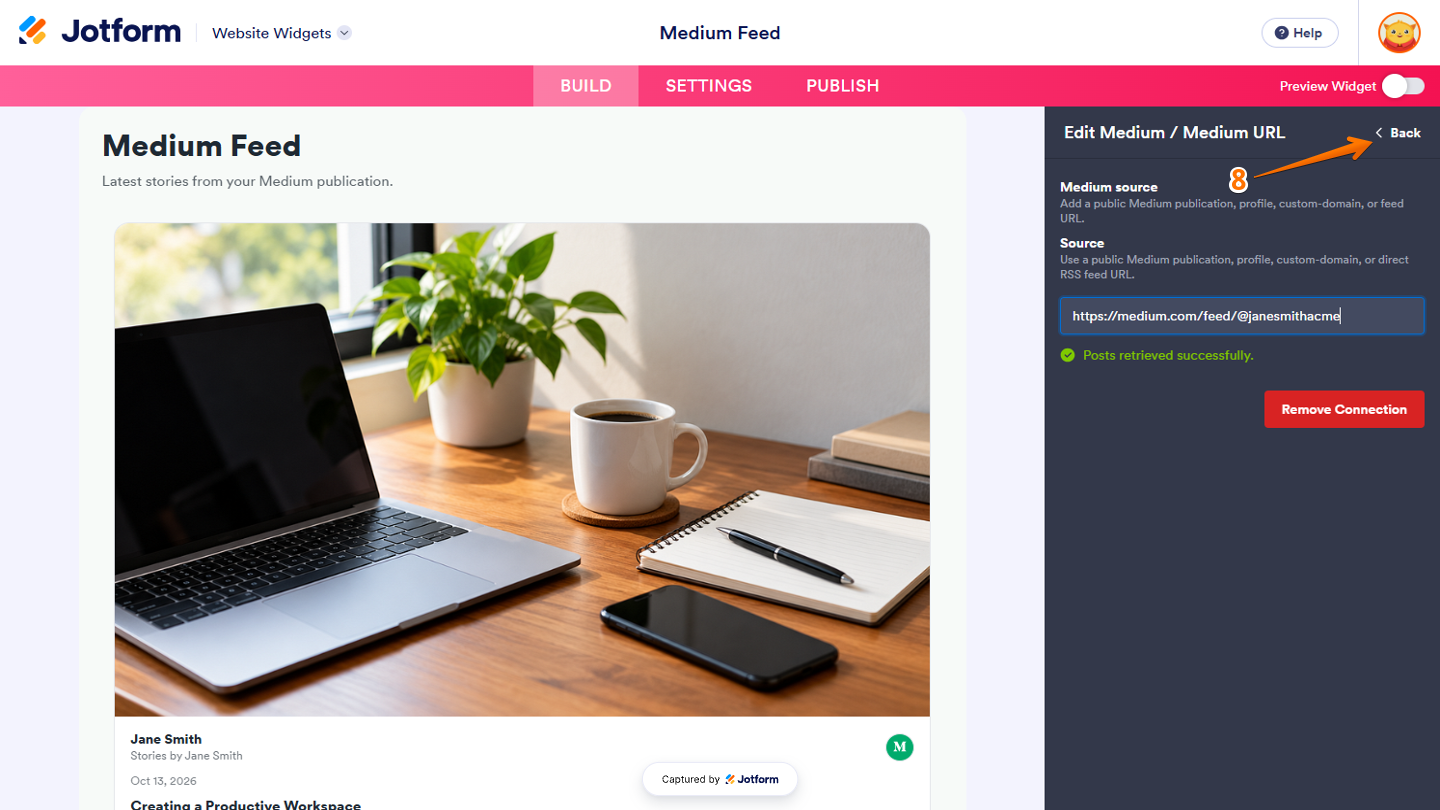
You can use a public Medium profile’s RSS (Really Simple Syndication) feed URL, such as https://medium.com/feed/@username, as the source. Make sure the profile has published stories so they appear in the feed.
- Then, click on the Back button at the top-right of the Edit Medium/Medium URL menu to return to the General tab.
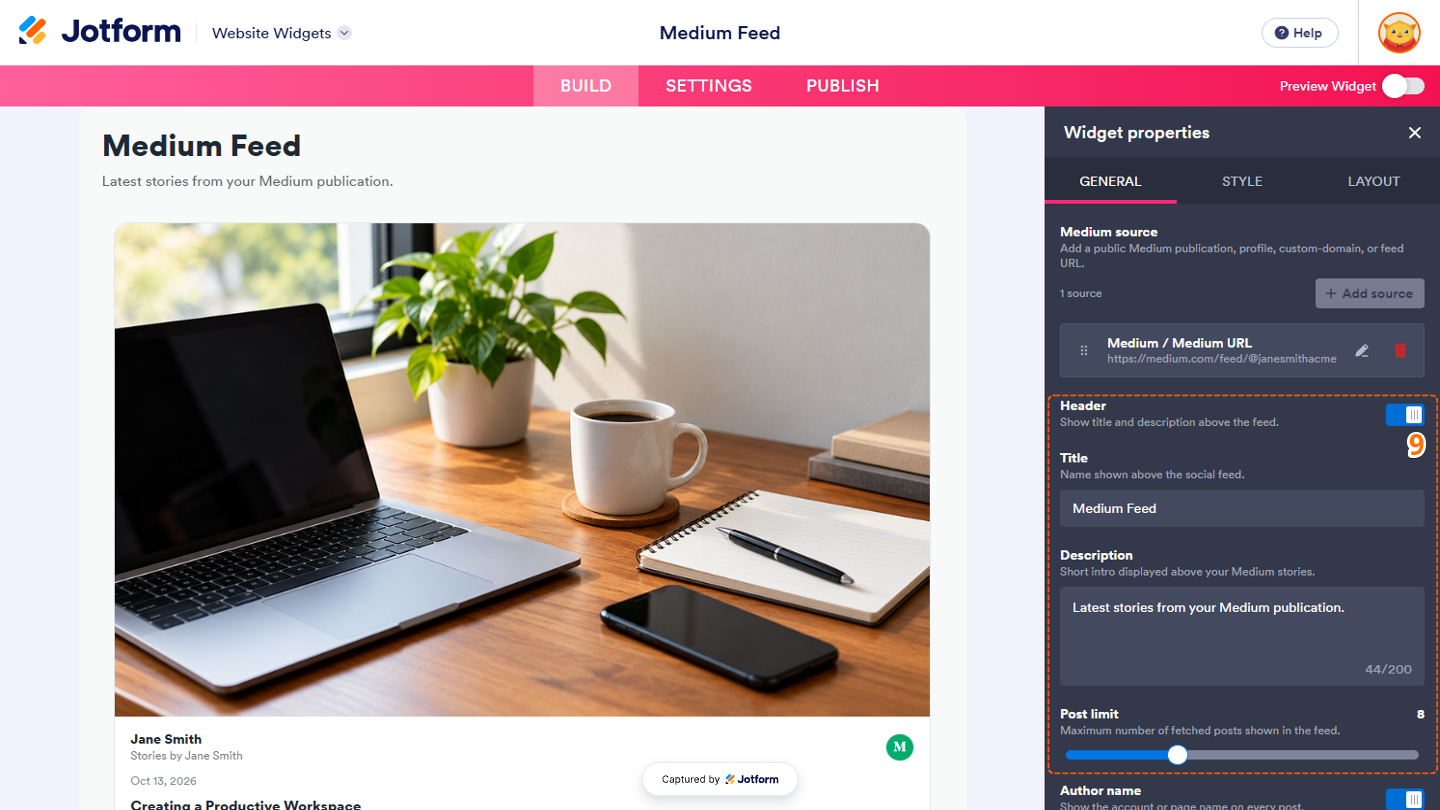
- Next, continue to set up these properties:
- Header — Keep this toggled on to show the title and description above the feed. Or, toggle it off to hide both.
- Title — Use the default title or enter a custom one to display at the top of the feed.
- Description — Enter a short introduction to display above your Medium stories.
- Post Limit — Click on and hold the slider handle, then drag it to set the maximum number of posts displayed in the feed.
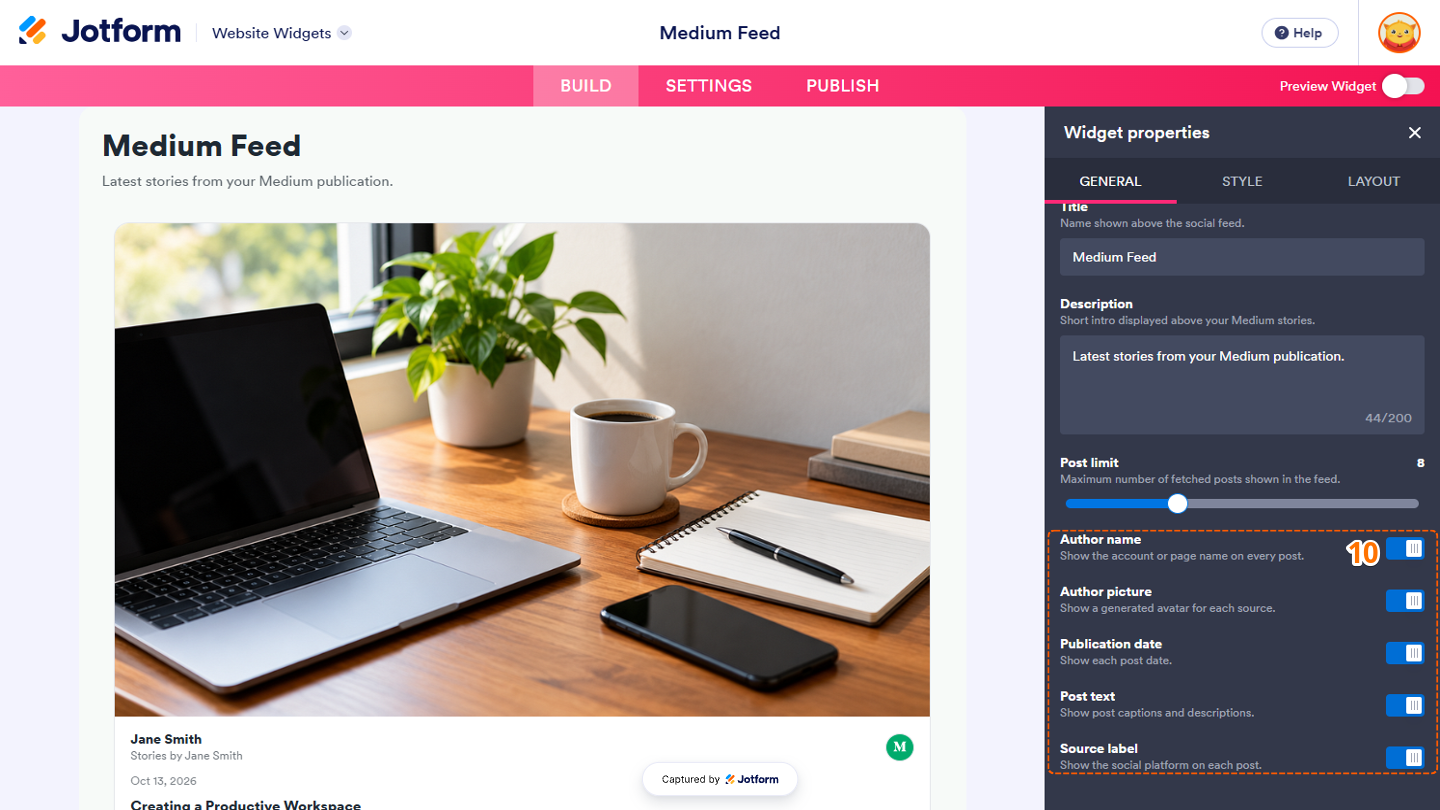
- Now, scroll down to the bottom and then continue setting up these options:
- Author Name — Keep the account or page name visible on each post, or turn this option off to hide it.
- Author Picture — A generated avatar appears for each source. Disable this option to remove it.
- Publication Date — Show the date each post was published by turning this option on. Turn it off to hide the date.
- Post Text — Post captions and descriptions appear in the feed. Disable this option to hide both.
- Source Label — Identify the social platform shown on each post by keeping this option on, or turn it off to hide the label.
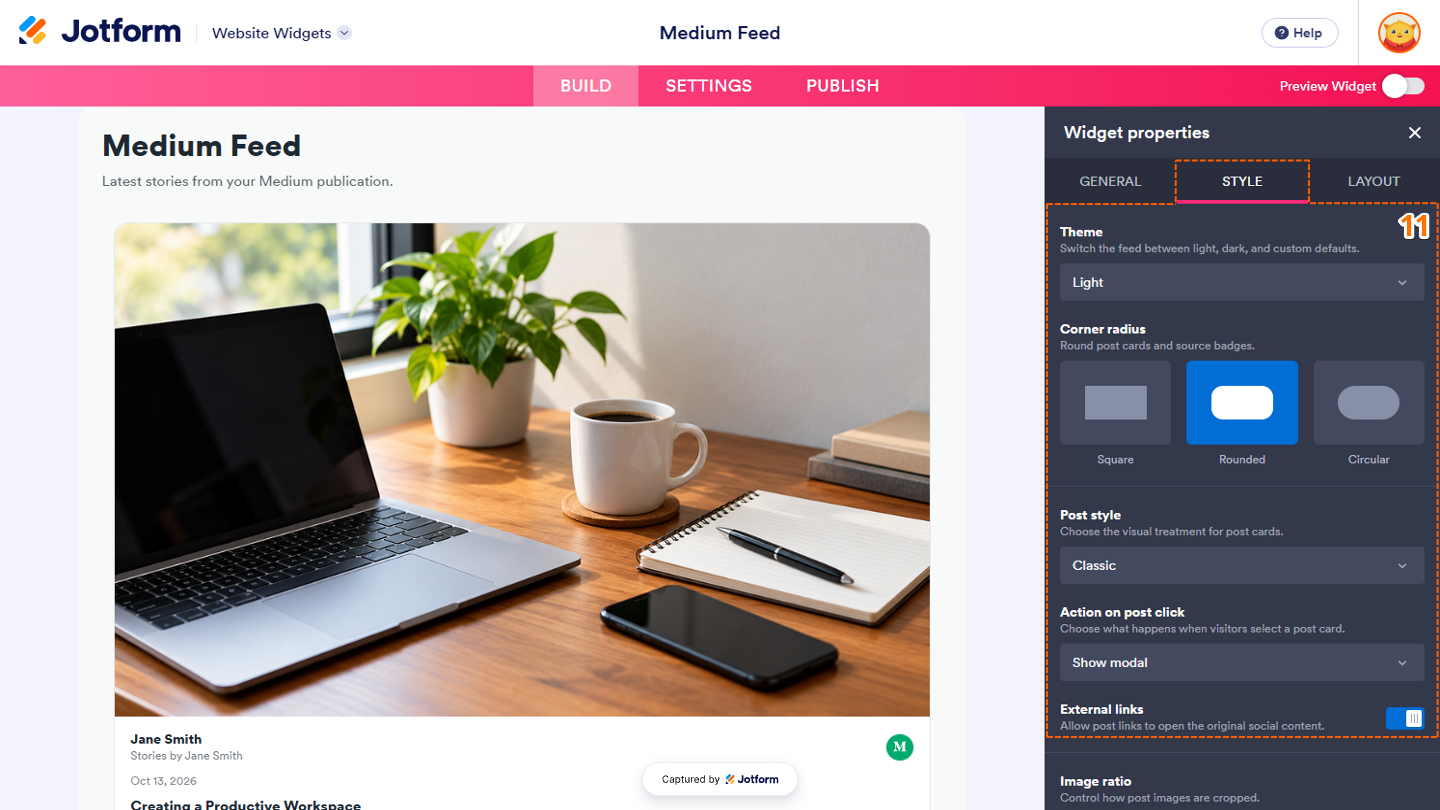
- Then, under the Style tab, customize these properties:
- Theme — Click on the Downward Arrow icon and select Light, Dark, or Custom as the widget’s theme.
- Corner Radius — Select the corner style of the widget elements, such as Square, Rounded, or Circular.
- Post Style — Click on the Downward Arrow icon and choose such as Classic, Compact, or Title.
- Action on Post Click — Keep the default Show Modal option selected, or click on the Downward Arrow icon and select Open in a New Tab to open links as a new tab in your browser, or None to have no action at all.
- External Links — Keep this toggled on to allow post links to open the original social content.
- Next, scroll down to the bottom and then continue setting up these options:
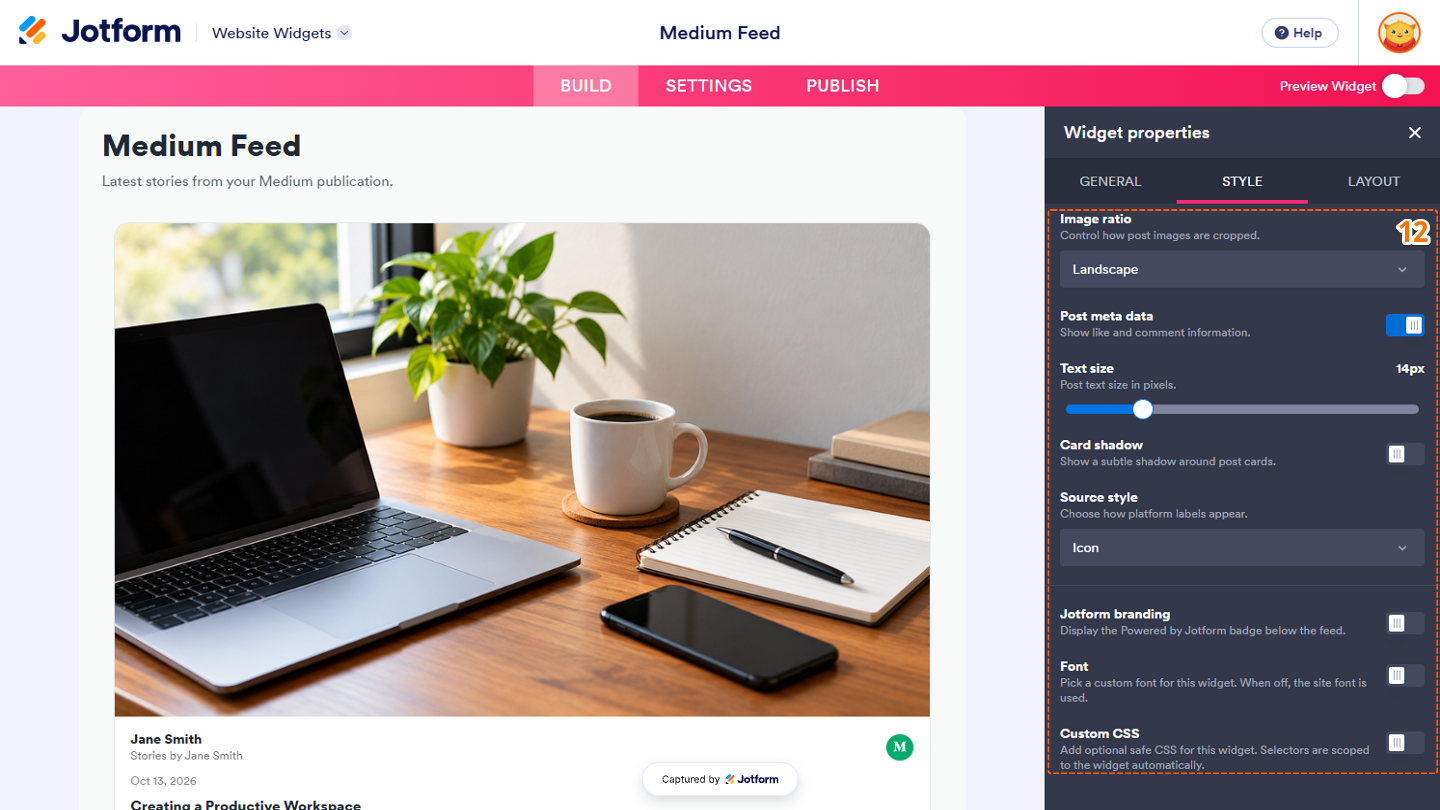
- Image Ratio — Click on the Downward Arrow icon and select the image cropping style, such as Original, Square, Landscape, or Portrait.
- Post Meta Data — Keep this toggled on to show like and comment information, or toggle it off to hide the metadata.
- Text Size — Click on and hold the slider handle, then drag it to change the font size in pixels.
- Card Shadow — Toggle this on to show a subtle shadow around postcards.
- Source Style — Click on the Downward Arrow icon, and then select how the source is displayed, using either an Icon or a Label.
- Jotform Branding — Turn this on to display the Jotform badge below the feed. Or, turn this option off to hide it.
- Font — Toggle this on to select and match your website’s font.
- Custom CSS — Turn this on to add custom CSS code and apply advanced styling to the widget.
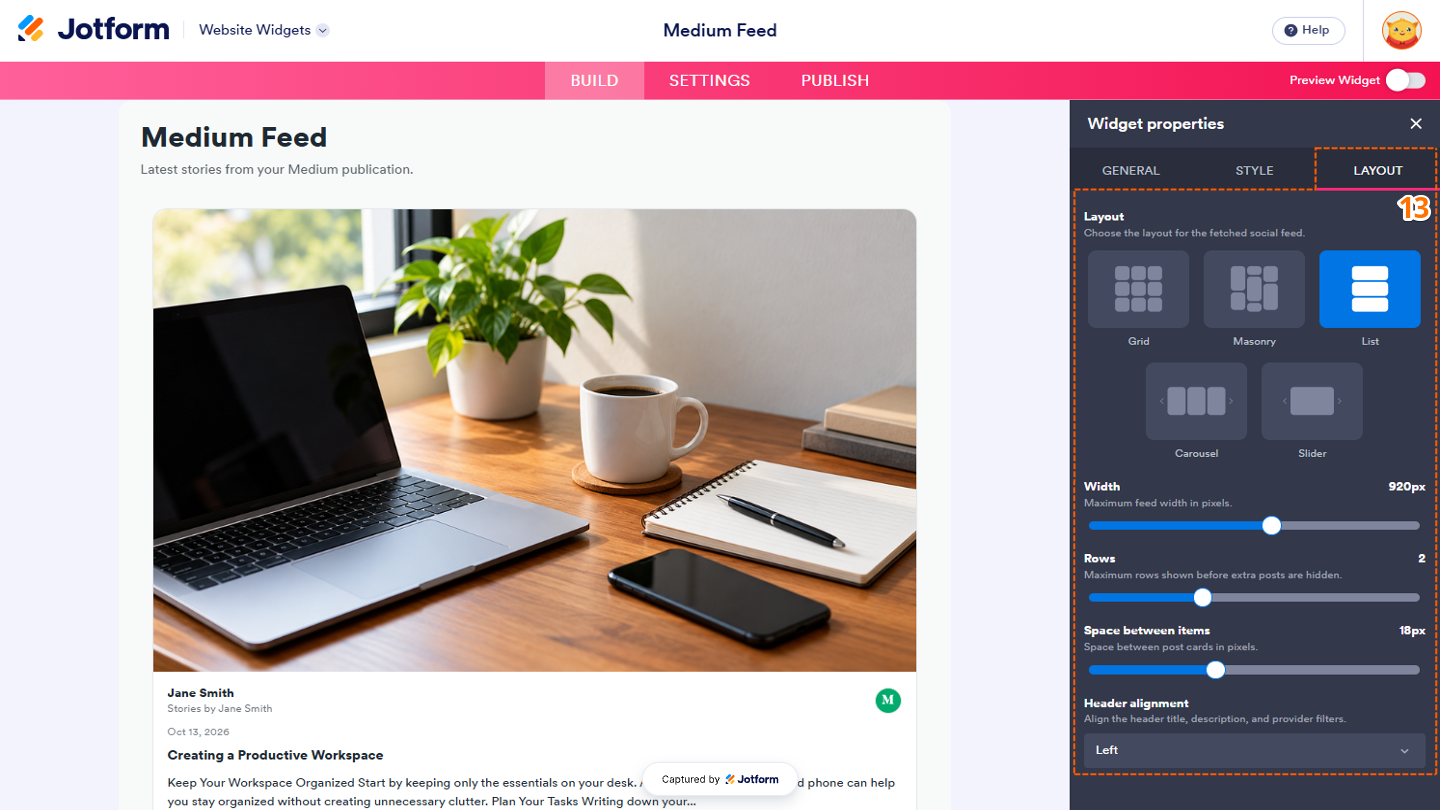
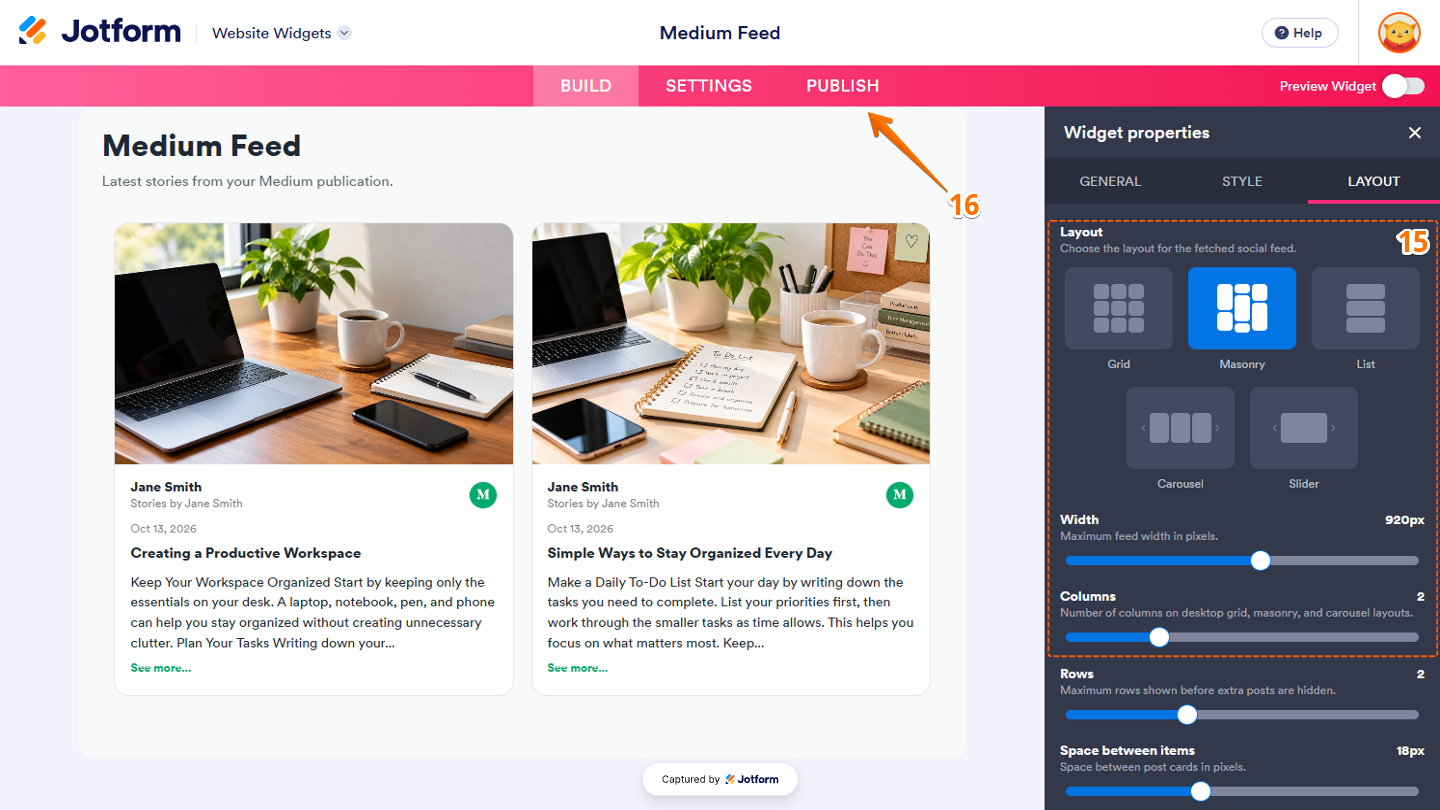
- Now, under the Layout tab, configure these properties:
- Layout— Keep the default List option to display feed items in a vertical list, or select one of the following layouts:
- Grid — Arrange feed items in rows and columns.
- Masonry — Display feed items in a staggered layout with different heights.
- Carousel — Show feed items in a horizontal row that users can scroll through.
- Slider — Display one feed item at a time in a slideshow with navigation controls.
- Width — Click on and hold the slider handle, then drag it to adjust the feed width.
- Rows — Keep the default value of 2. Or, click on and hold the slider handle, then drag it to adjust the number of feeds displayed.
- Space Between Items — Click on and hold the slider handle, then drag it to adjust the spacing between post cards.
- Header Alignment — Click on the Downward Arrow icon and select Left, Center, or Right to align the widget header.
- Layout— Keep the default List option to display feed items in a vertical list, or select one of the following layouts:
- If you choose Carousel or Slider in the Layout section, scroll down to the bottom and then continue setting up these options:
- Auto Slide — Turn this on to automatically move through items in the Carousel and Slider layouts.
- Navigation Arrows — Keep this turned on to show navigation arrows, or turn it off to hide the arrows.
- Pagination — Leave this on to display the current page indicator, or toggle it off to hide the number.
- Swipe Navigation — Keep this toggled on to let users swipe horizontally through feed items on touch devices.
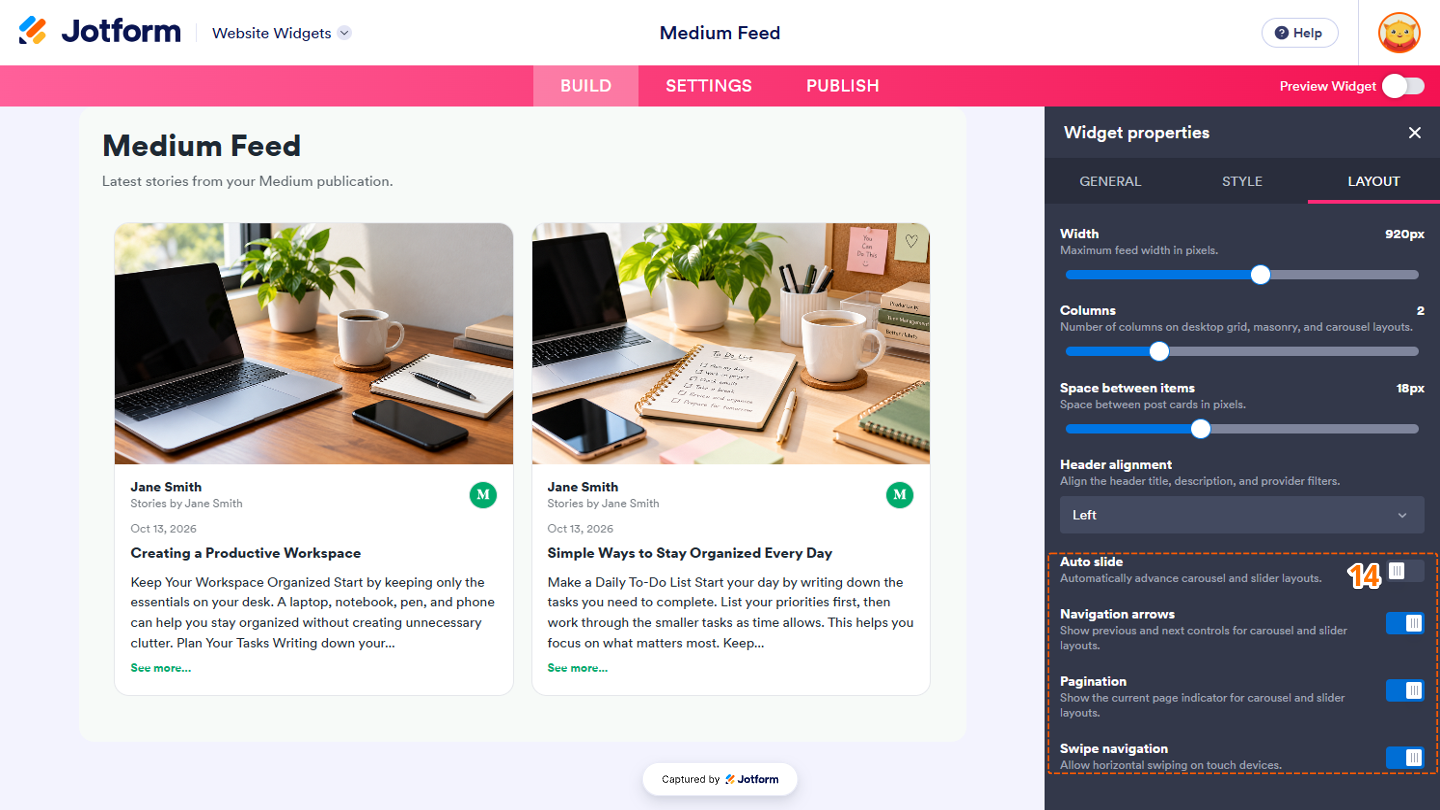
- Then, if you select Grid or Masonry in the Layout section, click on and hold the Columns slider handle, then drag it to set the number of columns displayed in each row.
- Once everything is set, in the pink navigation bar at the top of the page, click on Publish.
Note
You’ll be asked to log in to your Jotform account, if you’re not already, or sign up for one. Once you’ve done that, you’ll be able to get the embed code for your widget.
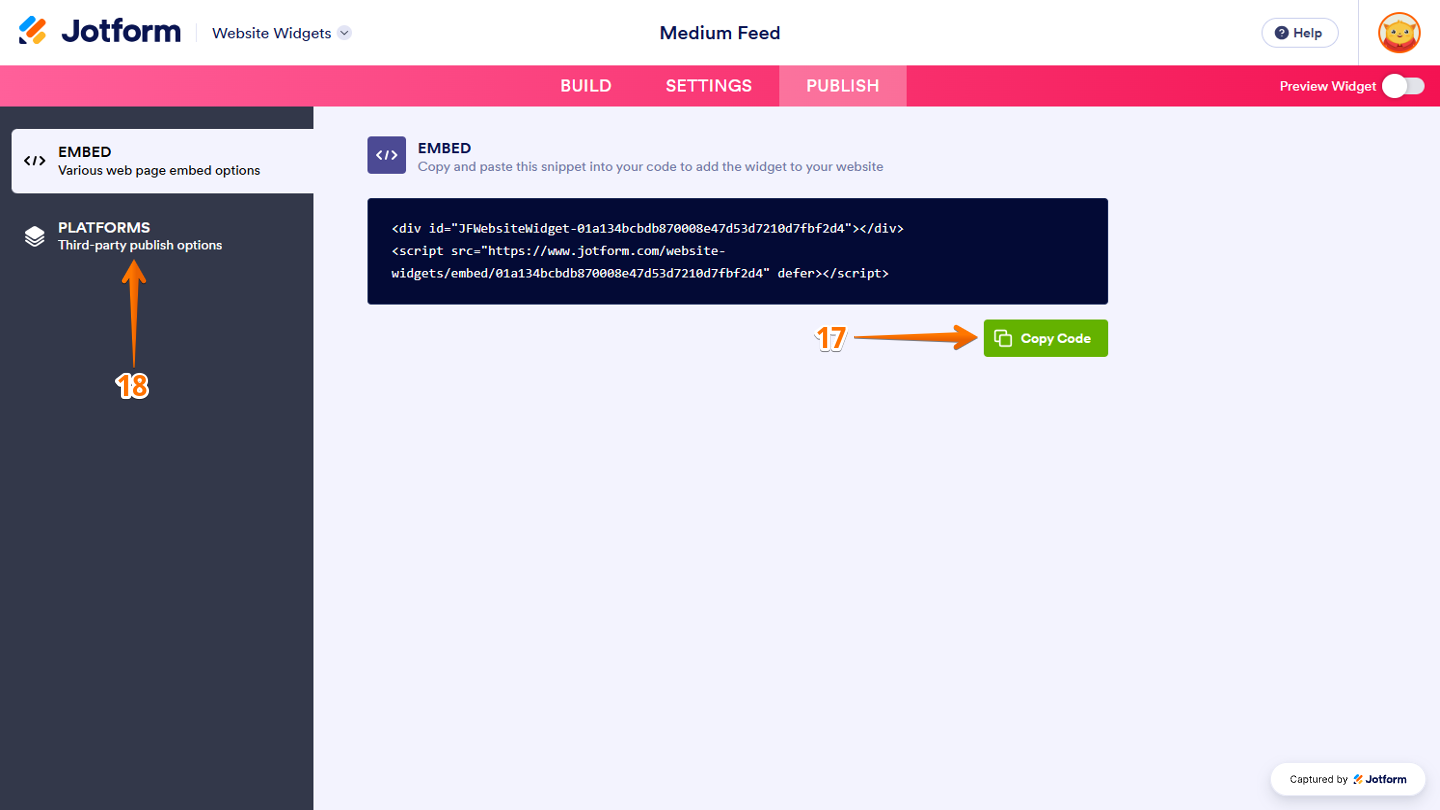
- Next, in the Embed section, click on Copy Code, and, if you already know how, paste that into the Embed section on your platform, and you’re good to go.
- To view embedding instructions for your widget, click on Platforms in the menu on the left side of the page.
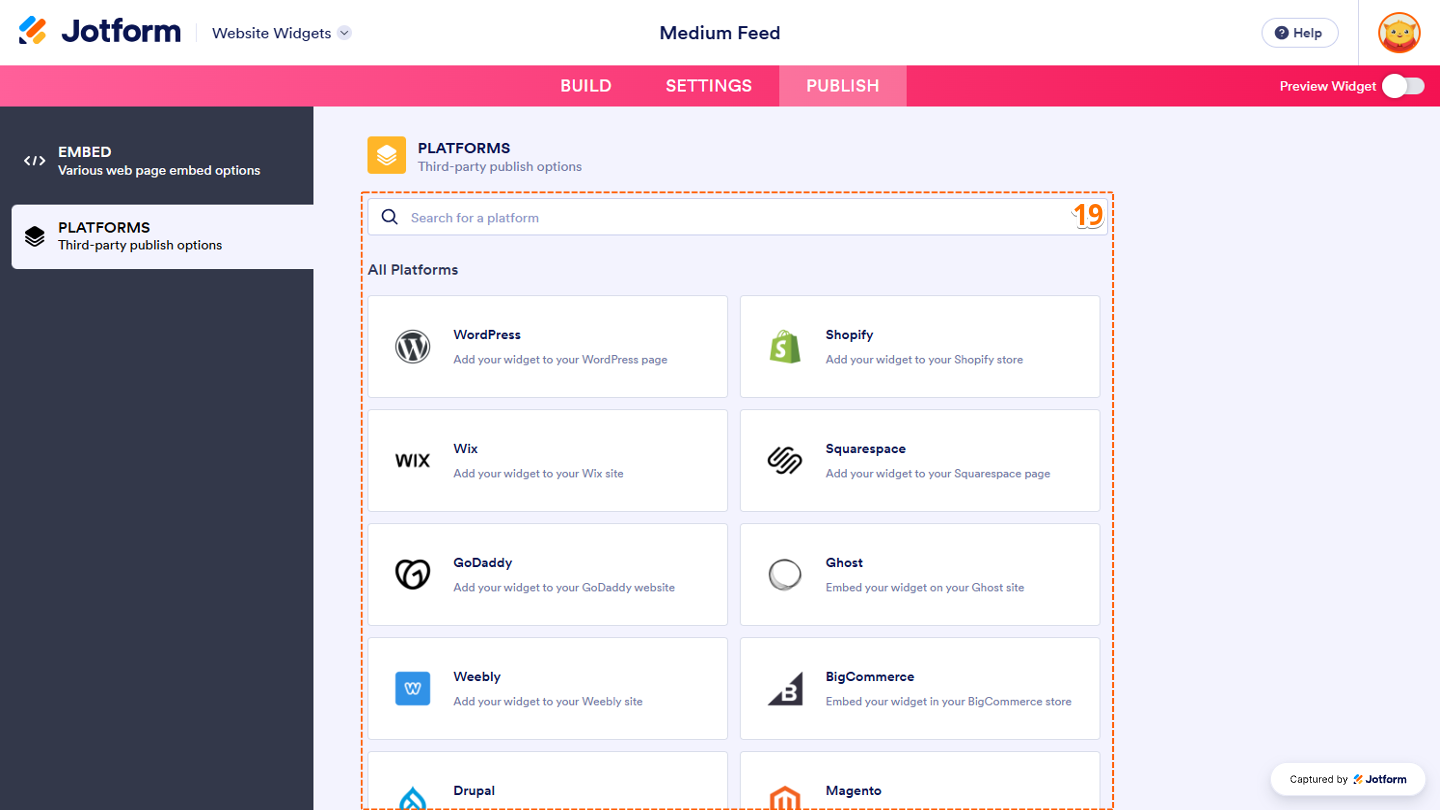
- Now, in the Platforms section on the right, select the platform you want to view embedding instructions for. Or, use the Search bar at the top of the section to find it easily.
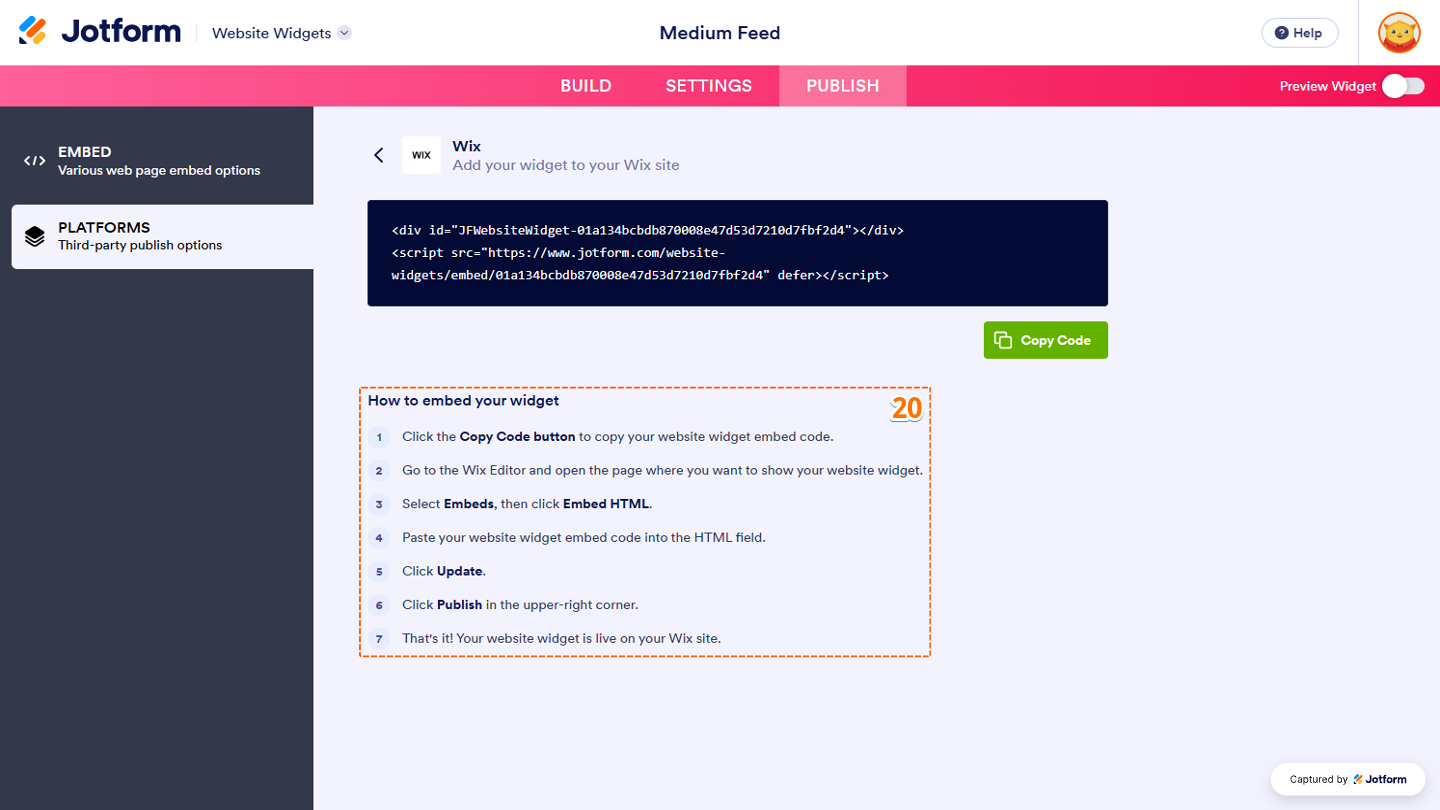
- Then, follow the steps in the How to Embed Your Widget section to add it to your website.
That’s it! Your Medium Feed widget will appear on your website based on how you set it up. Take a look at the screenshot below to see how it’ll look:
Note
You can manage the website widgets you’ve created at any time from your account. For a full breakdown of how to do it, head over to our guide on How to Manage Website Widgets.

Send Comment: